Page 257 of 456

Features of your vehicle
180
4
(Continued)
Bluetooth related operations are pos-
sible only within devices that support
Handsfree or audio features, such as a
Bluetooth
®Wireless Technology
mobile phone or a Bluetooth audio
device.
• If a connected Bluetooth
®Wireless
Technology device becomes discon-
nected due to being out of communi-
cation range, turning the device OFF,
or a Bluetooth
®Wireless Technology
communication error, corresponding
Bluetooth
®Wireless Technology
devices are automatically searched
and reconnected.
• If the system becomes unstable due to communication errors between the
car Handsfree and the Bluetooth
®
Wireless Technology device, reset the
device by turning off and back on
again. Upon resetting Bluetooth
®
Wireless Technology device, the sys-
tem will be restored. (Continued)(Continued)
• After pairing is complete, a contacts
download request is sent once to the
mobile phone. Some mobile phones
may require confirmation upon
receiving a download request, ensure
your mobile phone accepts the con-
nection. Refer to your phones user’s
manual for additional information
regarding phone pairing and connec-
tions.
Connecting a Device
Press the keySelect [Phone]
Select [Paired Phone List]
1) Connected Phone : Device that is cur- rently connected
2) Paired Phone : Device that is paired but not connected From the paired phone list, select the
device you want to connect and select
[Connect].SETUPCLOCK
Page 258 of 456
4181
Features of your vehicle
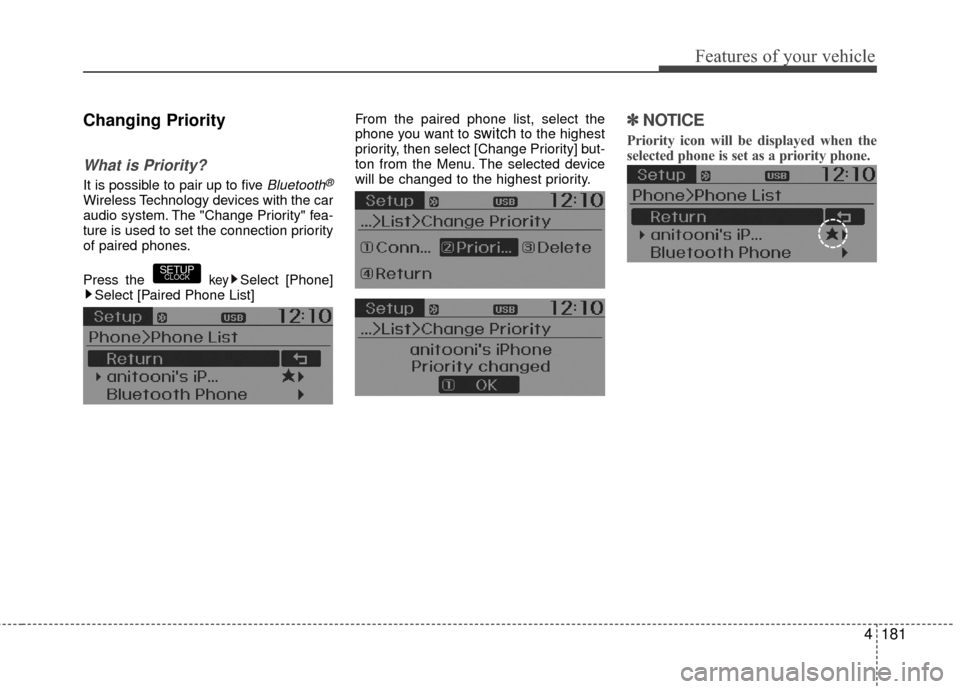
Changing Priority
What is Priority?
It is possible to pair up to five Bluetooth®
Wireless Technology devices with the car
audio system. The "Change Priority" fea-
ture is used to set the connection priority
of paired phones.
Press the
keySelect [Phone]
Select [Paired Phone List] From the paired phone list, select the
phone you want to
switchto the highest
priority, then select [Change Priority] but-
ton from the Menu. The selected device
will be changed to the highest priority.✽ ✽ NOTICE
Priority icon will be displayed when the
selected phone is set as a priority phone.
SETUPCLOCK
Page 259 of 456
Features of your vehicle
182
4
Disconnecting a Device
Press the keySelect [Phone]
Select [Paired Phone List]
From the paired phone list, select the
currently connected device and select
[Disconnect] button.
Deleting a Device
Press the key Select [Phone]
Select [Paired Phone List]
From the paired phone list, select the
device you want to delete and select
[Delete] button.
✽ ✽ NOTICE
• When deleting the currently connect-
ed device, the device will automatical-
ly be disconnected to proceed with the
deleting process.
• If a paired Bluetooth
®Wireless
Technology device is deleted, the
device’s call history and contacts data
will also be deleted.
• To re-use a deleted device, you must pair the device again.
SETUPCLOCKSETUPCLOCK
Page 263 of 456
Features of your vehicle
186
4
Bluetooth®Wireless
Technology Setting
Pairing a New Device
Press the keySelect [Phone]
Select [Pair Phone]
Bluetooth®Wireless Technology devices
can be paired with the audio system.
For more information, refer to the “Pairing
through Phone Setup” section within
Bluetooth®Wireless Technology.
Viewing Paired Phone List
Press the keySelect [Phone]
Select [Paired Phone List]
This feature is used to view mobile
phones that have been paired with the
audio system. Upon selecting a paired
phone, the setup menu is displayed.
For more information, refer to the “Setting
Bluetooth®Wireless Technology
Connection” section within Bluetooth®
Wireless Technology. 1) Connect/Disconnect Phone : Connect/
disconnects currently selected phone
2) Change Priority : Sets currently select- ed phone to highest connection priori-
ty
3) Delete : Deletes the currently selected phone
4) Return : Moves to the previous screen
SETUPCLOCK
SETUPCLOCK
Page 264 of 456

4187
Features of your vehicle
✽
✽NOTICE BEFORE DOWN-
LOADING CONTACTS
• Only contacts within connected
phones can be downloaded. Also
check to see that your mobile phone
supports the download feature.
• To learn more about whether your mobile phone supports contacts
downloads, refer to your mobile
phone user’s manual.
• The contacts for only the connected phone can be downloaded.
Downloading Contacts
Press the keySelect [Phone]
Select [Contacts Download]
As the contacts are downloaded from
the mobile phone, a download progress
bar is displayed.
✽ ✽ NOTICE
• Upon downloading phone contacts,
the previous corresponding data is
deleted.
• This feature may not be supported in some mobile phones.
• Voice Recognition may not operate while contacts are being downloaded.
Outgoing Volume
Press thekeySelect [Phone]
Select [Outgoing Volume]
Use TUNE knob to adjust the outgo-
ing volume level.
✽ ✽ NOTICE
While on a call, the volume can be
changed by using the key.SEEK
TRACK
SETUPCLOCKSETUPCLOCK
Page 265 of 456
Features of your vehicle
188
4
Turning Bluetooth System Off
Press the keySelect [Phone]
Select [Bluetooth System Off]
Once
Bluetooth®Wireless Technology is
turned off, Bluetooth®Wireless
Technology related features will not be
supported within the audio system.
✽ ✽ NOTICE
To turn Bluetooth®Wireless Technology
back on, go to [Phone] and
select “Yes”.SETUPCLOCK
SETUPCLOCK
Page 266 of 456

4189
Features of your vehicle
VOICE RECOGNITION
(if equipped model)
Using Voice Recognition
Starting Voice Recognition
Shortly press the key on the steer-
ing wheel. Say a command.If prompt feedback is in [ON], then the
system will say “Please say a command
after the beep (BEEP)”
If prompt feedback is in [OFF] mode,
then the system will only say “(BEEP)”
To change Prompt Feedback [On]/[Off], go to [System]
[Prompt Feedback]
✽ ✽ NOTICE
For proper recognition, say the com-
mand after the voice instruction and
beep tone.
Contact List Best Practices
1) Do not store single-name entries (e.g.,
“Bob”, “Mom”, “Kim”, etc.).
Instead, always use full names (includ-
ing first and last names) for all contacts
(e.g., use “Jacob Stevenson” instead of
“Dad”).
2) Do not use abbreviations (i.e., use “Lieutenant” instead of “Lt.” or
“Sergeant” instead of “Sgt.”).
3) Do not use acronyms (i.e., use “County Finance Department” instead of
“CFD”).
4) Do not use special characters (e.g., “@”, “hyphen -”, “asterisk *”, “amper-
sand &”). 5) If a name is not recognized from the
contact list, change it to a more
descriptive name (e.g., use “Grandpa
Joseph” instead of “Pa Joe”).
Skipping Prompt Messages
While prompt message is being stated
Shortly press the key on the steer-
ing remote controller.
The prompt message is immediately
ended and the beep tone will sound.
After the “beep”, say the voice command.
Re-starting Voice Recognition
While system waits for a command
Shortly press the key on the steer-
ing remote controller.
The command wait state is immediately
ended and the beep ton will sound. After
the “beep”, say the voice command.
SETUPCLOCK
Page 341 of 456
What to do in an emergency
18
6
Removing and storing the spare
tire
Turn the tire hold-down wing bolt
counterclockwise.
Store the tire in the reverse order of
removal.
To prevent the spare tire and tools
from “rattling” while the vehicle is in
motion, store them properly. Changing tires
1. Park on a level surface and apply
the parking brake firmly.
2. Shift the shift lever into R (Reverse) with manual transaxle
or P (Park) with automatic
transaxle.
3. Activate the hazard warning flash- er. 4. Remove the wheel lug nut wrench,
jack, jack handle, and spare tire
from the vehicle.
5. Block both the front and rear of the wheel that is diagonally opposite
the jack position.
ORBC060002OBH068002L1JBA6504
![Hyundai Accent 2016 Owners Manual Features of your vehicle
182
4
Disconnecting a Device
Press the keySelect [Phone]
Select [Paired Phone List]
From the paired phone list, select the
currently connected device and select
[Disconnect] b](/manual-img/35/14353/w960_14353-258.png "Hyundai Accent 2016 Owners Manual Features of your vehicle
182
4
Disconnecting a Device
Press the keySelect [Phone]
Select [Paired Phone List]
From the paired phone list, select the
currently connected device and select
[Disconnect] b")
![Hyundai Accent 2016 Owners Manual Features of your vehicle
186
4
Bluetooth®Wireless
Technology Setting
Pairing a New Device
Press the keySelect [Phone]
Select [Pair Phone]
Bluetooth®Wireless Technology devices
can be paired with the](/manual-img/35/14353/w960_14353-262.png "Hyundai Accent 2016 Owners Manual Features of your vehicle
186
4
Bluetooth®Wireless
Technology Setting
Pairing a New Device
Press the keySelect [Phone]
Select [Pair Phone]
Bluetooth®Wireless Technology devices
can be paired with the")
![Hyundai Accent 2016 Owners Manual Features of your vehicle
188
4
Turning Bluetooth System Off
Press the keySelect [Phone]
Select [Bluetooth System Off]
Once
Bluetooth®Wireless Technology is
turned off, Bluetooth®Wireless
Technology](/manual-img/35/14353/w960_14353-264.png "Hyundai Accent 2016 Owners Manual Features of your vehicle
188
4
Turning Bluetooth System Off
Press the keySelect [Phone]
Select [Bluetooth System Off]
Once
Bluetooth®Wireless Technology is
turned off, Bluetooth®Wireless
Technology")
