Page 249 of 661
uuAudio System Basic Operation uAudio/Information Screen
248
Features
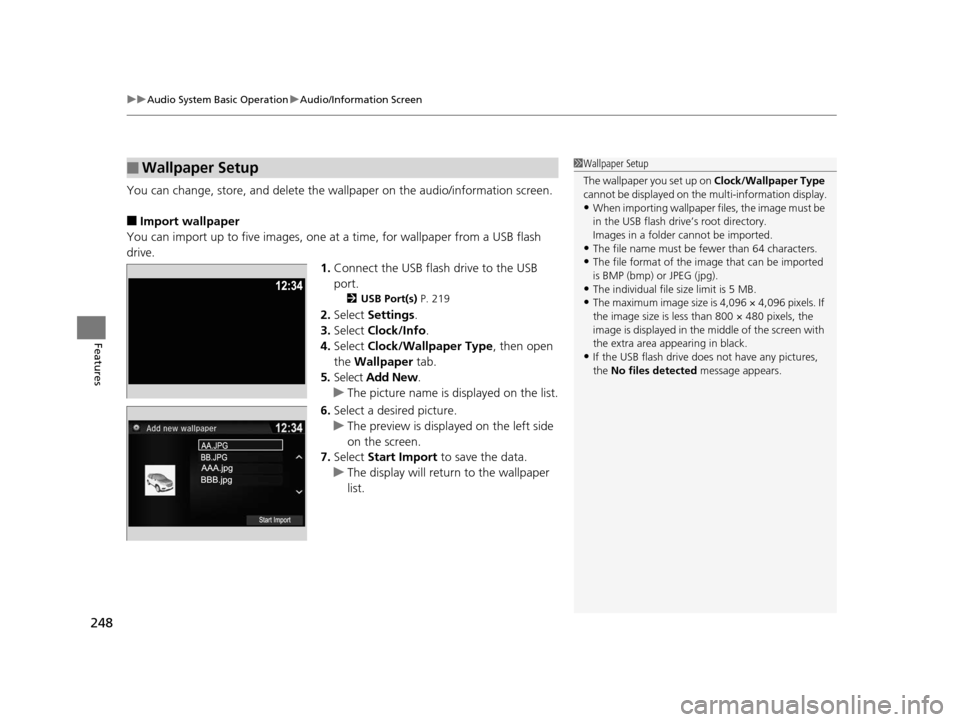
You can change, store, and delete the wa llpaper on the audio/information screen.
■Import wallpaper
You can import up to five images, one at a time, for wallpaper from a USB flash
drive.
1.Connect the USB flash drive to the USB
port.
2 USB Port(s) P. 219
2.Select Settings .
3. Select Clock/Info .
4. Select Clock/Wallpaper Type , then open
the Wallpaper tab.
5. Select Add New .
u The picture name is displayed on the list.
6. Select a desired picture.
u The preview is displayed on the left side
on the screen.
7. Select Start Import to save the data.
u The display will return to the wallpaper
list.
■Wallpaper Setup1Wallpaper Setup
The wallpaper you set up on Clock/Wallpaper Type
cannot be displayed on the multi-information display.
•When importing wallpaper files, the image must be
in the USB flash drive’s root directory.
Images in a folder cannot be imported.
•The file name must be fewer than 64 characters.
•The file format of the image that can be imported
is BMP (bmp) or JPEG (jpg).
•The individual file size limit is 5 MB.
•The maximum image size is 4,096 × 4,096 pixels. If
the image size is less than 800 × 480 pixels, the
image is displayed in the middle of the screen with
the extra area appearing in black.
•If the USB flash drive doe s not have any pictures,
the No files detected message appears.
16 PILOT-31TG76000.book 248 ページ 2015年6月15日 月曜日 午前11時30分
Page 252 of 661
Continued251
uuAudio System Basic Operation uAudio/Information Screen
Features
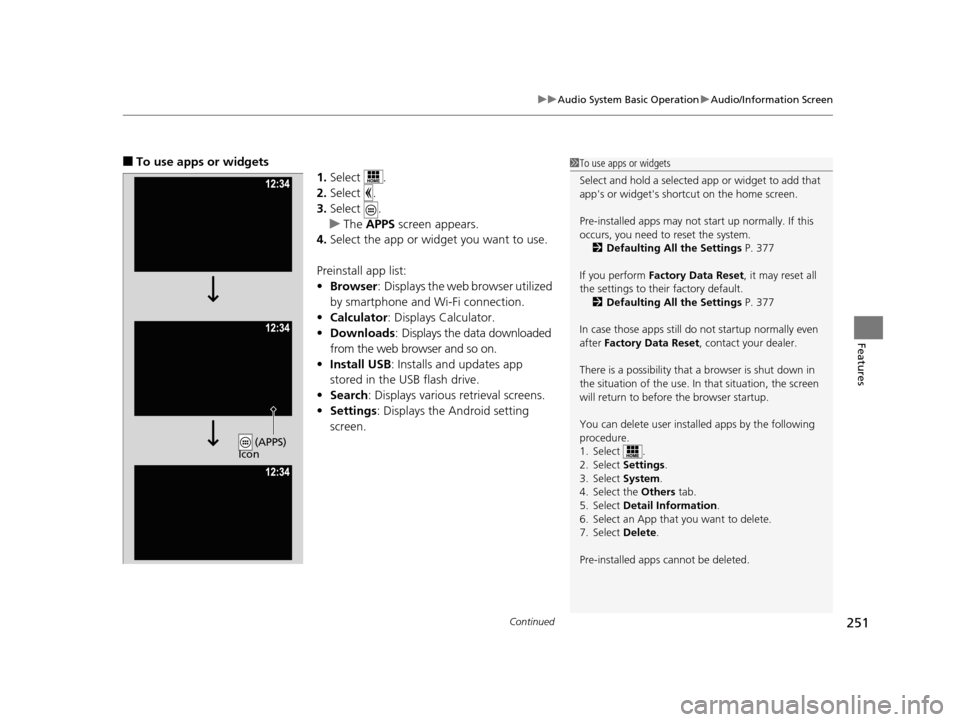
■To use apps or widgets
1.Select .
2. Select .
3. Select .
u The APPS screen appears.
4. Select the app or widget you want to use.
Preinstall app list:
• Browser : Displays the web browser utilized
by smartphone and Wi-Fi connection.
• Calculator : Displays Calculator.
• Downloads : Displays the data downloaded
from the web browser and so on.
• Install USB : Installs and updates app
stored in the USB flash drive.
• Search : Displays various retrieval screens.
• Settings : Displays the Android setting
screen.1 To use apps or widgets
Select and hold a selected app or widget to add that
app's or widget's shortcut on the home screen.
Pre-installed apps may not start up normally. If this
occurs, you need to reset the system.
2 Defaulting All the Settings P. 377
If you perform Factory Data Reset , it may reset all
the settings to their factory default. 2 Defaulting All the Settings P. 377
In case those apps still do not startup normally even
after Factory Data Reset , contact your dealer.
There is a possibility that a browser is shut down in
the situation of the use. In that situation, the screen
will return to before the browser startup.
You can delete user installed apps by the following
procedure.
1. Select .
2. Select Settings .
3. Select System .
4. Select the Others tab.
5. Select Detail Information .
6. Select an App that you want to delete.
7. Select Delete .
Pre-installed apps cannot be deleted.
(APPS)
Icon
16 PILOT-31TG76000.book 251 ページ 2015年6月15日 月曜日 午前11時30分
Page 263 of 661

262
uuAudio System Basic Operation uVoice Control Operation
FeaturesWhen the (Talk) button is pressed,
available voice commands appear on the
screen.
For a complete list of commands, say “ Voice
Help ” after the beep or select Voice Help.
You can see the list of commands in Voice
Info on the Info menu screen. Select Info,
then select .
*1: Models with navigation system
■Voice Portal Screen■Phone Call
This can be only used when the phone is
connected. When the sy stem recognizes the
Phone call command, the screen will
change the dedicated screen for the voice
recognition of the phone.
• Dial by number
• Call history
• Redial
• Call
• Call
■Music Search*1
This can be only used when the iPod or USB
device is connected.
■Audio
When the system recognizes the Audio
command, the screen will change the
dedicated screen for the voice recognition
of the audio.
• Audio On
• Audio Off
• Radio FM
• Radio AM
• Radio SXM
• DISC
• Pandora
*
•iPod
• USB
• Other Sources
■Navigation*1
The screen changes the navigation screen.
2 Refer to the Navigation System Manual
■Voice Settings
The screen changes the Voice Recog tab
on the System settings screen.
■Trip Computer
The screen changes the trip computer
screen .
* Not available on all models
16 PILOT-31TG76000.book 262 ページ 2015年6月15日 月曜日 午前11時30分
Page 264 of 661
263
uuAudio System Basic Operation uVoice Control Operation
Continued
Features
■Voice Help
You can see a list of the available
commands on the screen.
• Useful Commands
• Phone Commands
• Audio Commands
• On Screen Commands
• Music Search Commands
• General Commands
• Climate Control Commands
• All Commands
• Voice Settings
• Getting Started
The system accepts these commands on the
voice portal top screen.
• Call
• Call
• What time is it?
• What is today's date?
■Useful Commands
The system accepts these commands on the
dedicated screen for the voice recognition
of the phone.
• Call by Number
• Call by Name
• Call
• Call
The system accepts these commands on the
dedicated screen for the voice recognition
of the audio.
■Radio FM Commands
• Radio tune to <87.7-107.9> FM
• Radio tune to <87.7 -107.9> HD <1-8>
FM
• Radio FM preset <1-12>
■Radio AM Commands
• Radio tune to <530-1710> AM
• Radio AM preset <1-6>
■Radio SXM Commands
• SXM channel <1-999>
• SXM channel
■Phone Commands
■Audio Commands
•Radio SXM preset <1-12>
■DISC Commands
• DISC play
• DISC play track <1-30>
■Pandora Commands*
•Pandora play
■iPod Commands
• iPod play
• iPod play track <1-30>
• Music Search
• What album is this?
• What am I listening to?
■USB Commands
• USB play
• USB play track <1-30>
• Music Search
• What album is this?
• What am I listening to?
■Bluetooth ® audio Commands
• Bluetooth ® audio play
NOTE:
Bluetooth ® Audio commands may not work
on some phones or Bluetooth® Audio
devices.
* Not available on all models
16 PILOT-31TG76000.book 263 ページ 2015年6月15日 月曜日 午前11時30分
Page 265 of 661

264
uuAudio System Basic Operation uVoice Control Operation
Features
■AUX-Audio commands
• AUX audio play
When On Screen Commands is selected,
the explanation screen is displayed.
The system accepts these commands on the
Music Search screen.
■Using Song By Voice
Song By VoiceTM is a feature that allows you
to select music from your iPod or USB device
using Voice Commands. To activate this
mode, you must push the talk switch and
say: “ Music search ”.
■Song By Voice Commands
• What am I listening to?
• Who am I listening to?
• Who is this?
• What's playing?
• Who's playing?
• What album is this?
*1: Models with navigation system
■On Screen Commands
■Music Search Commands*1
■Play Commands
• Play artist
• Play track/song
• Play album
• Play genre/category
• Play playlist
• Play composer
■List Commands
• List artist
• List album
• List genre/category
• List playlist
• List composer
• What time is it?
• What is today's date?
■General Commands
•Climate Control on
• Climate Control off
• Fan Speed <1-7>
• Temperature max heat
• Temperature max cool
• Temperature <57-87> degrees
• Defrost on
• Defrost off
• Air conditioner on
• Air conditioner off
• More
• Climate control automatic
• Vent
• Dash and floor
• Fan speed up
• Fan speed down
• Floor vents
• Floor and defrost
• Temperature up
• Temperature down
■Climate Control Commands
16 PILOT-31TG76000.book 264 ページ 2015年6月15日 月曜日 午前11時30分
Page 268 of 661
267
uuAudio System Basic Operation uPlaying AM/FM Radio
Continued
Features
Samples each of the strongest stations on the selected band for 10 seconds. To turn
off scan, select Cancel or .
If your iPod/iPhone is connected to the USB port, you can store the TAG information.
If the iPod/iPhone is not connected to the audio system, the information is stored in
the audio system temporarily, then once the device is connected to the system, data
is transferred to the iPod/iPhone.
To store the TAG information to the iP od/iPhone or the audio system, select TAG.
Displays the TAG information saved to the audio system.
1. Select .
2. Select Song Tag List .
■Scan
■Tag Song to Device
■Tagged Song List
Models with HD RadioTM
Models with HD RadioTM
16 PILOT-31TG76000.book 267 ページ 2015年6月15日 月曜日 午前11時30分
Page 282 of 661
281
uuAudio System Basic Operation uPlaying an iPod
Continued
Features
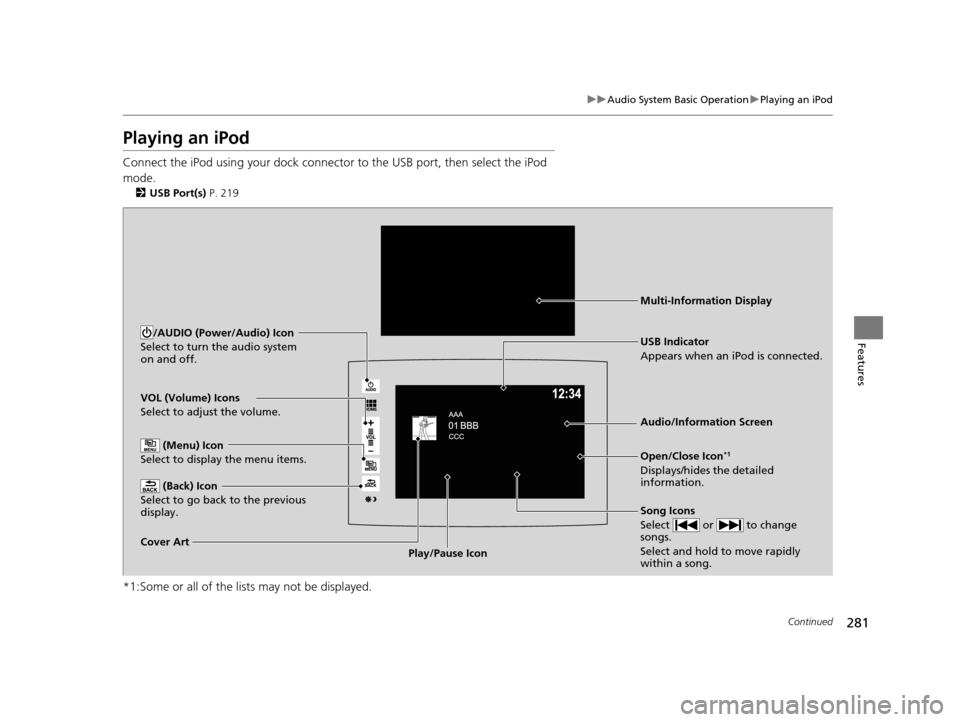
Playing an iPod
Connect the iPod using your dock connector to the USB port, then select the iPod
mode.
2 USB Port(s) P. 219
*1:Some or all of the lists may not be displayed.
VOL (Volume) Icons
Select to adjust the volume.
(Back) Icon
Select to go back to the previous
display.
Song Icons
Select or to change
songs.
Select and hold to move rapidly
within a song.
/AUDIO (Power/Audio) Icon
Select to turn the audio system
on and off.
Open/Close Icon*1
Displays/hides the detailed
information.
(Menu) Icon
Select to display the menu items.
Cover Art Audio/Information Screen
USB Indicator
Appears when an iPod is connected.
Play/Pause Icon
Multi-Information Display
16 PILOT-31TG76000.book 281 ページ 2015年6月15日 月曜日 午前11時30分
Page 283 of 661
uuAudio System Basic Operation uPlaying an iPod
282
Features
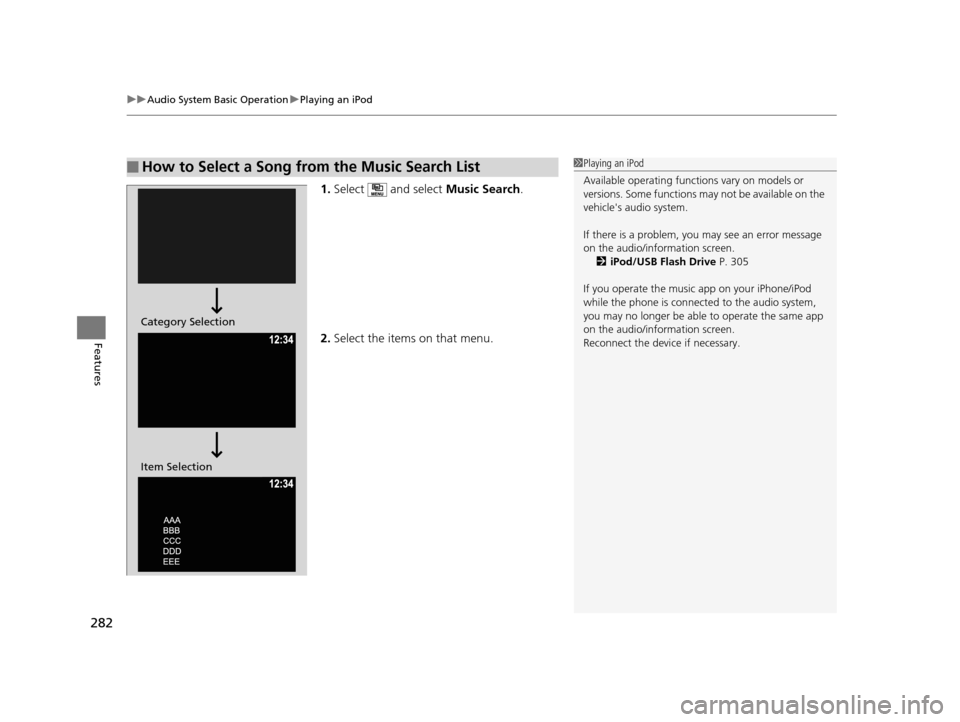
1. Select and select Music Search.
2. Select the items on that menu.
■How to Select a Song from the Music Search List1Playing an iPod
Available operating functi ons vary on models or
versions. Some functions ma y not be available on the
vehicle's audio system.
If there is a problem, you may see an error message
on the audio/information screen. 2 iPod/USB Flash Drive P. 305
If you operate the musi c app on your iPhone/iPod
while the phone is connected to the audio system,
you may no longer be able to operate the same app
on the audio/information screen.
Reconnect the devi ce if necessary.
Category Selection
Item Selection
16 PILOT-31TG76000.book 282 ページ 2015年6月15日 月曜日 午前11時30分