Page 407 of 661
406
Features
Bluetooth® HandsFreeLink ®
Bluetooth® HandsFreeLink ® (HFL) allows you to place and receive phone calls using
your vehicle’s audio system, without handling your cell phone.
Using HFL
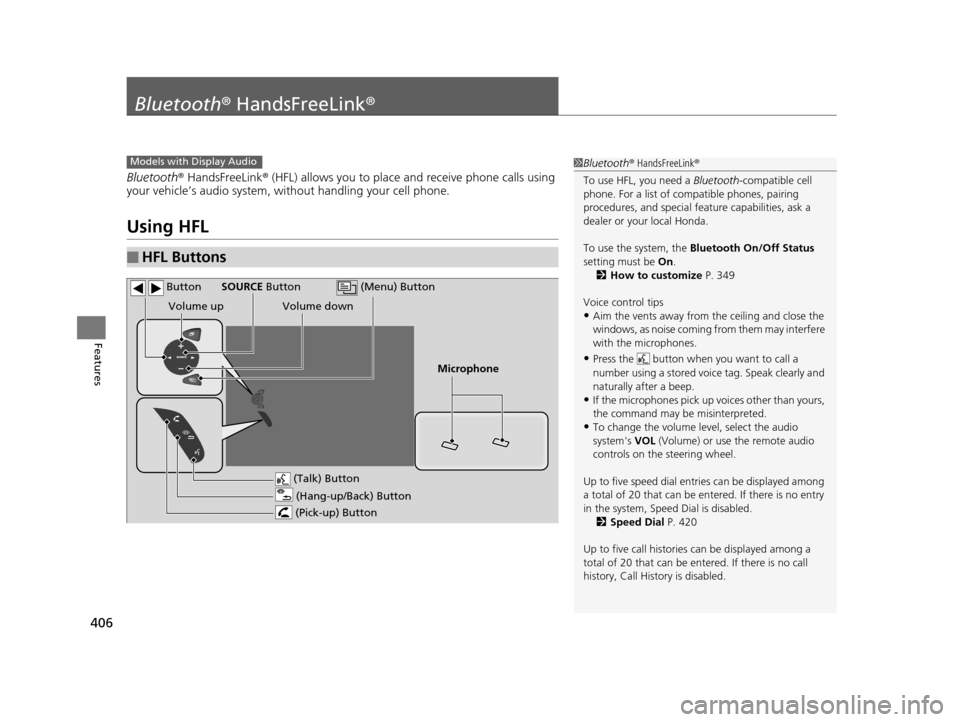
■HFL Buttons
1 Bluetooth ® HandsFreeLink ®
To use HFL, you need a Bluetooth-compatible cell
phone. For a list of compatible phones, pairing
procedures, and special fe ature capabilities, ask a
dealer or your local Honda.
To use the system, the Bluetooth On/Off Status
setting must be On.
2 How to customize P. 349
Voice control tips
•Aim the vents away from the ceiling and close the
windows, as noise coming fr om them may interfere
with the microphones.
•Press the button when you want to call a
number using a stored voic e tag. Speak clearly and
naturally after a beep.
•If the microphones pick up vo ices other than yours,
the command may be misinterpreted.
•To change the volume level, select the audio
system's VOL (Volume) or use the remote audio
controls on the steering wheel.
Up to five speed dial entries can be displayed among
a total of 20 that can be en tered. If there is no entry
in the system, Speed Dial is disabled. 2 Speed Dial P. 420
Up to five call historie s can be displayed among a
total of 20 that can be entered. If there is no call
history, Call History is disabled.
Models with Display Audio
(Talk) Button
Volume up
Microphone
(Hang-up/Back) Button
(Pick-up) Button
Volume down
SOURCE Button
(Menu) Button
Button
16 PILOT-31TG76000.book 406 ページ 2015年6月15日 月曜日 午前11時30分
Page 415 of 661
uuBluetooth ® HandsFreeLink ®u HFL Menus
414
Features
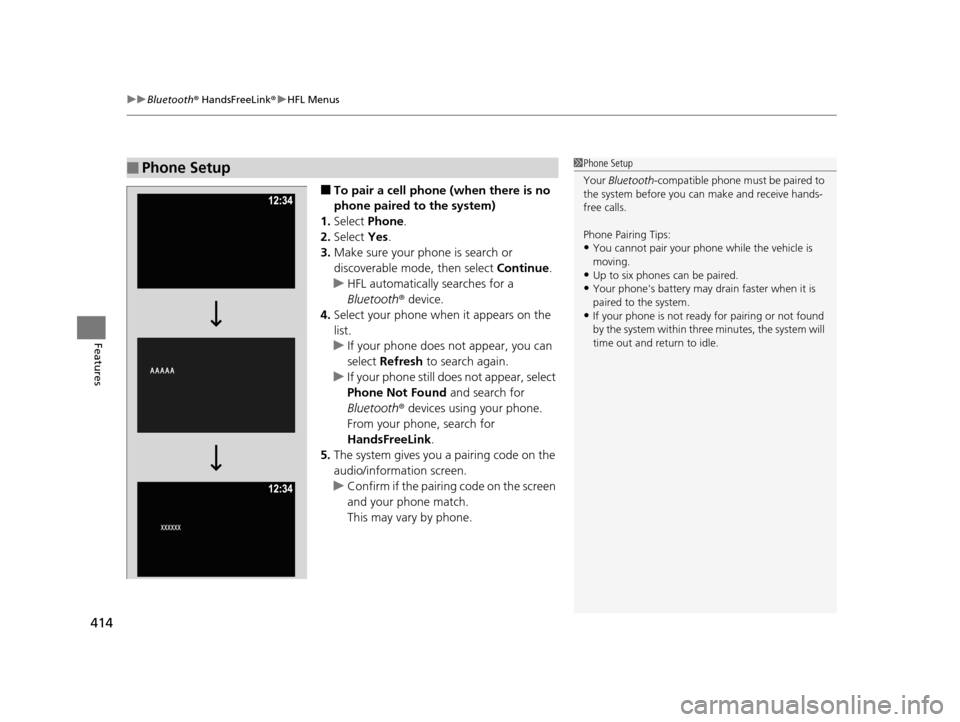
■To pair a cell phone (when there is no
phone paired to the system)
1. Select Phone .
2. Select Yes.
3. Make sure your phone is search or
discoverable mode, then select Continue.
u HFL automatically searches for a
Bluetooth ® device.
4. Select your phone when it appears on the
list.
u If your phone does not appear, you can
select Refresh to search again.
u If your phone still does not appear, select
Phone Not Found and search for
Bluetooth ® devices using your phone.
From your phone, search for
HandsFreeLink .
5. The system gives you a pairing code on the
audio/information screen.
u Confirm if the pairing code on the screen
and your phone match.
This may vary by phone.
■Phone Setup1Phone Setup
Your Bluetooth -compatible phone must be paired to
the system before you ca n make and receive hands-
free calls.
Phone Pairing Tips:
•You cannot pair your phone while the vehicle is
moving.
•Up to six phones can be paired.
•Your phone's battery may dr ain faster when it is
paired to the system.
•If your phone is not ready for pairing or not found
by the system within three minutes, the system will
time out and return to idle.
16 PILOT-31TG76000.book 414 ページ 2015年6月15日 月曜日 午前11時30分
Page 416 of 661
Continued415
uuBluetooth ® HandsFreeLink ®u HFL Menus
Features
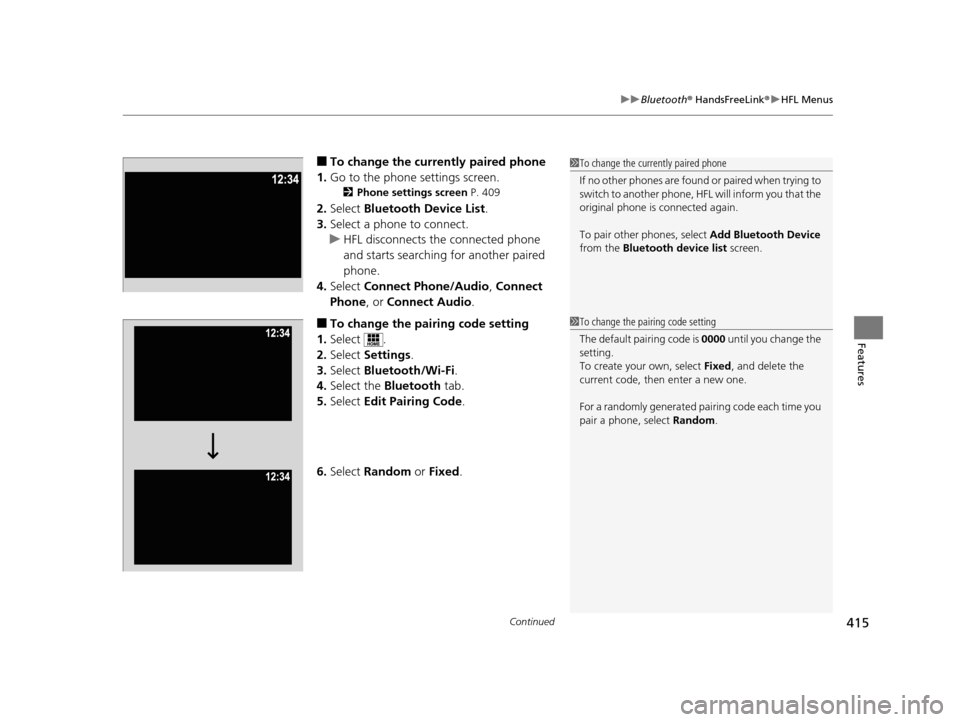
■To change the currently paired phone
1. Go to the phone settings screen.
2 Phone settings screen P. 409
2.Select Bluetooth Device List .
3. Select a phone to connect.
u HFL disconnects the connected phone
and starts searching for another paired
phone.
4. Select Connect Phone/Audio , Connect
Phone , or Connect Audio .
■To change the pairing code setting
1. Select .
2. Select Settings .
3. Select Bluetooth/Wi-Fi .
4. Select the Bluetooth tab.
5. Select Edit Pairing Code .
6. Select Random or Fixed .
1To change the currently paired phone
If no other phones are found or paired when trying to
switch to another phone, HFL will inform you that the
original phone is connected again.
To pair other phones, select Add Bluetooth Device
from the Bluetooth device list screen.
1To change the pairing code setting
The default pair ing code is 0000 until you change the
setting.
To create your own, select Fixed, and delete the
current code, then enter a new one.
For a randomly generated pa iring code each time you
pair a phone, select Random.
16 PILOT-31TG76000.book 415 ページ 2015年6月15日 月曜日 午前11時30分