2016 HONDA ODYSSEY remote control
[x] Cancel search: remote controlPage 35 of 80

62 || 63
AUDIO AND CONNECTIVITY
AUDIO AND CONNECTIVITY
INDEX
VOICE COMMAND
INDEX
CUSTOMER
INFORMATION
SPECIFICATIONS
MAINTENANCE
HANDLING THE UNEXPECTED
DRIVING
NAVIGATION
TABLE OF CONTENTS
VISUAL INDEX
SAFETY
INFORMATION
INSTRUMENT PANEL
VEHICLE
CONTROLS
AUDIO AND
CONNECTIVITY
BLUETOOTH®
HANDSFREELINK®
HONDALINK®
Bluetooth® Audio
Play streaming or stored audio from your compatible phone through the ve\
hicle’s
audio system. Visit handsfreelink.honda.com (U.S.) or www.handsfreelink.ca
(Canada) to check phone compatibility. Standard data rates apply.
Notes:
• Make sure the volume on your phone is properly adjusted.
• You may need to enable additional settings on your phone for playback.
• The resume/pause function and remote audio controls are not supported on\
all phones.
Models with one display
Connect your phone to Bluetooth
® HandsFreeLink® (see page 80).
Seek/Skip buttons:
Change audio tracks. AUX button: Play
Bluetooth
® Audio.
Preset button 1:
Resume playing
audio.
Preset button 2:
Pause audio.
Bluetooth® Audio display
State or local laws may prohibit the operation of
handheld electronic devices while operating a vehicle.
Only launch streaming audio on your phone when it is safe to do so.
Pandora®
Play and operate Pandora from your phone through the vehicle’s audio system. Visit
handsfreelink.honda.com to check phone compatibility. Standard data rates apply.
Available in the U.S. only.
Skip buttons: Go to the
next song.
Selector knob: Rotate to
change stations. AUX button: Play
Pandora.
Preset button 1: Pause
or resume songs.
Preset button 3: Dislike
the current song. Preset button 2: Like the
current song.
Pandora display
State or local laws may prohibit the operation of
handheld electronic devices while operating a vehicle.
Only launch streaming audio on your phone when it is safe to do so.
Models with one display
Connect your phone when the vehicle is stopped.
For iPhone:
• Connect via Bluetooth
® HandsFreeLink® (see page 80) or USB port (see page 56).
• A pop-up may appear on your phone requesting you to allow access for Pan\
dora to
be launched.
• If you cannot operate Pandora through the audio system, it may be stream\
ing
through Bluetooth
® Audio. Make sure Pandora is selected on the audio system.
• If Pandora still does not operate, try rebooting the phone and reconnect\
ing the cable
if necessary.
For Android or BlackBerry:
• Connect via Bluetooth
® HandsFreeLink® (see page 80).
Page 39 of 80
70 || 71
AUDIO AND CONNECTIVITY
AUDIO AND CONNECTIVITY
INDEX
VOICE COMMAND
INDEX
CUSTOMER
INFORMATION
SPECIFICATIONS
MAINTENANCE
HANDLING THE UNEXPECTED
DRIVING
NAVIGATION
TABLE OF CONTENTS
VISUAL INDEX
SAFETY
INFORMATION
INSTRUMENT PANEL
VEHICLE
CONTROLS
AUDIO AND
CONNECTIVITY
BLUETOOTH®
HANDSFREELINK®
HONDALINK®
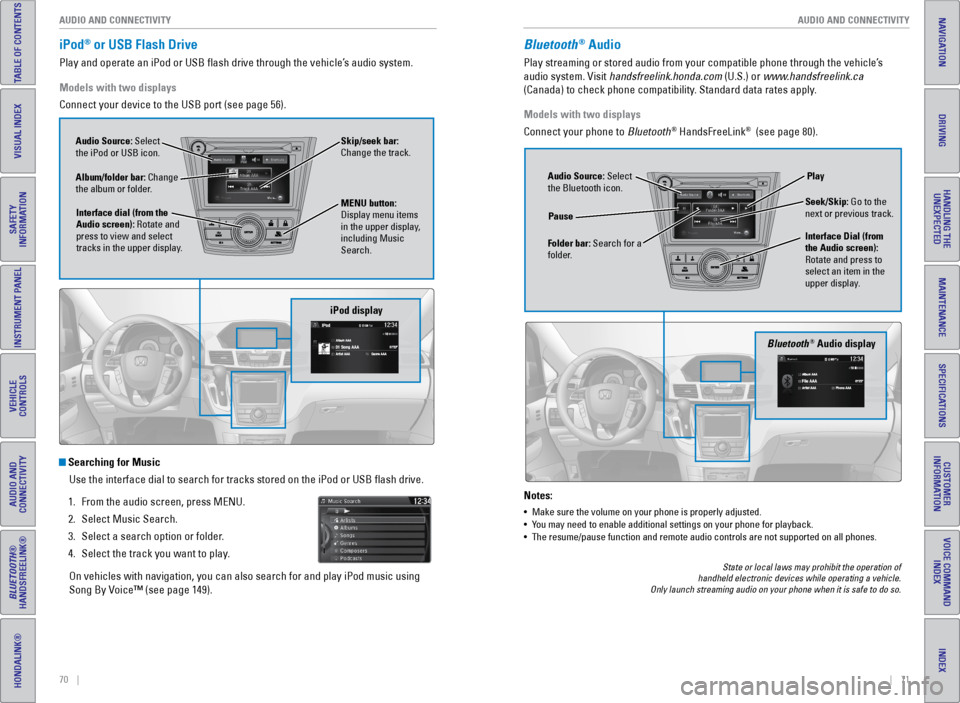
iPod® or USB Flash Drive
Play and operate an iPod or USB flash drive through the vehicle’s audio system.
Models with two displays
Connect your device to the USB port (see page 56).
Searching for Music
Use the interface dial to search for tracks stored on the iPod or USB fl\
ash drive.
1. From the audio screen, press MENU.
2. Select Music Search.
3. Select a search option or folder.
4. Select the track you want to play.
On vehicles with navigation, you can also search for and play iPod music using
Song By Voice™ (see page 149).
iPod display
Audio Source: Select
the iPod or USB icon.
Album/folder bar: Change
the album or folder. MENU button:
Display menu items
in the upper display,
including Music
Search.
Interface dial (from the
Audio screen): Rotate and
press to view and select
tracks in the upper display. Skip/seek bar:
Change the track.
Bluetooth® Audio
Play streaming or stored audio from your compatible phone through the ve\
hicle’s
audio system. Visit handsfreelink.honda.com (U.S.) or www.handsfreelink.ca
(Canada) to check phone compatibility. Standard data rates apply.
Notes:
•
Make sure the volume on your phone is properly adjusted.
• You may need to enable additional settings on your phone for playback.
• The resume/pause function and remote audio controls are not supported on\
all phones.
Models with two displays
Connect your phone to Bluetooth
® HandsFreeLink® (see page 80).
Bluetooth® Audio display
Audio Source: Select
the Bluetooth icon.
Folder bar: Search for a
folder. Pause
Interface Dial (from
the Audio screen):
Rotate and press to
select an item in the
upper display.Play
Seek/Skip: Go to the
next or previous track.
State or local laws may prohibit the operation of
handheld electronic devices while operating a vehicle.
Only launch streaming audio on your phone when it is safe to do so.
Page 42 of 80

76 || 77
AUDIO AND CONNECTIVITY
AUDIO AND CONNECTIVITY
INDEX
VOICE COMMAND
INDEX
CUSTOMER
INFORMATION
SPECIFICATIONS
MAINTENANCE
HANDLING THE UNEXPECTED
DRIVING
NAVIGATION
TABLE OF CONTENTS
VISUAL INDEX
SAFETY
INFORMATION
INSTRUMENT PANEL
VEHICLE
CONTROLS
AUDIO AND
CONNECTIVITY
BLUETOOTH®
HANDSFREELINK®
HONDALINK®
Remote Control and Rear Operation
You can operate the system using the rear control panel.
1. Make sure REAR POWER is turned on in the front audio controls.
2. From the rear control panel, press the desired audio source button (or \
the
SOURCE button for Ultrawide RES*).
3. Press the arrow/ENTER buttons to highlight options on the screen and sel\
ect
them. Use the other rear control panel buttons to operate the system.
This vehicle’s overhead mounted display includes mercury-containing
components. Upon removal or replacement, please reuse, recycle, or dispose of
as hazardous waste.
NOTICE
*if equipped
1. Connect a second source through the rear auxiliary or HDMI input (see
page 75).
2. From the rear control panel, press DUAL.
3. Select which side the second source plays on.
4. Press SOURCE to select AUX-VIDEO or AUX-HDMI.
Ultrawide Dual Screen Operation*
Play two different sources side by side on the ultrawide screen. One sid\
e of the
screen can play a source from the front audio system (FM, DVD, etc.). \
The other
side of the screen can play a connected device, such as a video game sys\
tem.
SOURCE button:
Display media
sources. DUAL button:
Display two
sources side
by side on the
screen.
SINGLE button:
Display one
source on the
entire screen.
SWAP button:
Switch the
sources to
opposite sides of
the screen.
*if equipped
DVD/AUX button:
Play a DVD, USB,
iPod, or auxiliary
source.
CD/HDD
button:
Play a CD or
HDD*.XM button:
Play SiriusXM
Radio.*
FM/AM button:
Play FM or AM
radio.MENU button:
Display menu
options.
SETUP button:
Display setup
options.
Arrow/ENTER
buttons:
Highlight and
select items.
CH/FOLDER
button:
Change
channels,
stations, or
folders.
Power button:
Turn the
system on or
off.
Light button:
Illuminate the
remote buttons. TUNE/SKIP
button: Change
DVD chapters,
audio stations,
or tracks.Play/Pause
button
(CD or DVD)
TITLE/
SCROLL
button:
Display the
DVD status
or CD titles. CANCEL
button: Go
back to the
previous
display.
CATEGORY
button:
Select a
category
(SiriusXM).
Page 57 of 80

106 || 107
HANDLING THE UNEXPECTED
DRIVING
INDEX
VOICE COMMAND
INDEX
CUSTOMER
INFORMATION
SPECIFICATIONS
MAINTENANCE
HANDLING THE UNEXPECTED
DRIVING
NAVIGATION
TABLE OF CONTENTS
VISUAL INDEX
SAFETY
INFORMATION
INSTRUMENT PANEL
VEHICLE
CONTROLS
AUDIO AND
CONNECTIVITY
BLUETOOTH®
HANDSFREELINK®
HONDALINK®
Refueling
Use the proper fuel and refueling procedure to ensure the best performan\
ce and
safety of your vehicle.
Fuel Information
Use of unleaded gasoline of 87 octane or higher is recommended.
• Honda recommends TOP TIER Detergent Gasoline where available.
• Do NOT use gasoline containing more than 15% ethanol.
• Do NOT use gasoline containing methanol.
• Do NOT use gasoline containing MMT.
We recommend quality gasoline containing detergent additives that help
prevent fuel system and engine deposits. In addition, in order to mainta\
in good
performance, fuel economy, and emissions control, we strongly recommend the
use of gasoline that does NOT contain harmful manganese-based fuel addit\
ives
such as MMT, if such gasoline is available.
NOTICE
How to Refuel 1. The fuel fill door is located at the left rear of the
vehicle. Park next to the service pump that is
most accessible.
2. Turn off the engine.
3. Pull the fuel fill door release handle near the
parking brake. The fuel fill door opens.
4. Turn the fuel fill cap slowly to open. Place the fuel
fill cap in the holder.
5. Insert the filler nozzle fully. When the tank is full,
the fuel nozzle clicks off automatically.
6. Replace the fuel fill cap. Tighten it until you hear
at least one click. Close the fuel fill door.
Pull
Cap
Holder
Gasoline is highly flammable and explosive. You can be burned or seriously
injured when handling fuel.
•
Stop the engine, and keep heat, sparks, and flame away.
• Handle fuel only outdoors.
• Wipe up spills immediately.
WARNING
Learn about what to do in critical or emergency situations.
Smart Entry Remote Battery Strength
If the battery life in your remote transmitter is weak, a message appear\
s in the
display with information on how to start the engine.
1. Touch the back of the remote transmitter to the
ENGINE START/STOP button while the indicator is
flashing.
2. With the brake pedal pressed, press the ENGINE
START/STOP button within 10 seconds.
HANDLING THE UNEXPECTED
Shift Lever Does Not Move
Follow the procedure below if you cannot move the shift lever out of Par\
k (P).
1. Set the parking brake.
2. Remove the key from the ignition, or remove the
built-in key from the remote transmitter.
3. Wrap a cloth around the tip of a small flat-tip
screwdriver to remove the cover of the shift lock
release slot. Put the tip of the flat-tip screwdriver
into the slot and remove it as shown in the image.
4. Insert the key into the shift lock release slot.
5. While pushing the key down, press the shift lever
release button and place the shift lever into Neutral
(N). The lock is now released. Have the shift lever
checked by a dealer as soon as possible.
Slot
Cover
Release
button
Shift lock
release slot
Page 74 of 80

140 || 141
CUSTOMER INFORMATION
CUSTOMER INFORMATION
INDEX
VOICE COMMAND
INDEX
CUSTOMER
INFORMATION
SPECIFICATIONS
MAINTENANCE
HANDLING THE UNEXPECTED
DRIVING
NAVIGATION
TABLE OF CONTENTS
VISUAL INDEX
SAFETY
INFORMATION
INSTRUMENT PANEL
VEHICLE
CONTROLS
AUDIO AND
CONNECTIVITY
BLUETOOTH®
HANDSFREELINK®
HONDALINK®
Learn about information specific to you as a Honda customer and how to\
get help.
Frequently Asked Questions/Troubleshooting
Below are some frequently asked questions and troubleshooting items that\
you may
have about the vehicle.
Q: How do I set the vehicle clock?
A: For vehicles without navigation, see page 55. For vehicles with navigati\
on, the
time is automatically set using GPS signals.
Q: Why doesn’t the vehicle start when I press the ENGINE START/STOP button?
A: The brake pedal must be pressed to start the engine.
Q: What is the AUTO setting on my headlight lever?
A: When in the AUTO position, the vehicle’s exterior lights will automatically turn
on or off depending on the ambient lighting.
Q: Why won’t the driver’s door unlock when I grab the door handle, even though
the keyless access remote is within range?
A: If you pull the handle too quickly, the system may not have time to confirm the
door is unlocked. Wait to hear a beep to confirm the door is unlocked. If you are
wearing gloves, the system may be slow to respond.
Q: After my battery was disconnected or went dead, the audio system is aski\
ng for
a code. Where do I find this?
A: In most cases, you do not need to enter a code. Turn on the vehicle and the
audio system, and press and hold the power button until the system react\
ivates.
Q: Why can’t I operate Pandora
® through the audio system?
A: Audio may be streaming through Bluetooth® Audio. Make sure Pandora mode
is selected and the phone cable is properly connected to the USB adapter\
.
Some phones may prompt you to “Allow” a connection.
Q: Is my phone compatible with Bluetooth features?
A: Visit handsfreelink.honda.com (U.S.) or www.handsfreelink.ca (Canada) to
check phone compatibility for Bluetooth
® Audio, Bluetooth® HandsFreeLink®,
and SMS text messaging.
Q: Every time I press the Talk button, the system gives me voice prompts. Can I turn
these off?*
A: Press the SETTINGS button. Use the interface dial to select System Setti\
ngs
then Voice Rec. For the Voice Prompt option, select Off.
CUSTOMER INFORMATION
*if equipped
Contact Us
Honda dealer personnel are trained professionals. They should be able to\
answer
all your questions. If you encounter a problem that your dealership does\
not solve
to your satisfaction, please discuss it with the dealership’s service manager or
general manager. If you are dissatisfied with the decision made by the dealership’\
s
management, contact Honda Automobile Customer Service.
U.S. owners
American Honda Motor Co., Inc.
Honda Automobile Customer Service
1919 Torrance Blvd.
Mail Stop 500-2N-7A
Torrance, CA 90501-2746
Tel: (800) 999-1009
In Puerto Rico and
the U.S. Virgin Islands
Bella International
P.O. Box 190816
San Juan, PR 00919-0816
Tel: (787) 620-7546
When you call or write, please give us the following information:
• Vehicle identification number
• Date of purchase
• Odometer reading of your vehicle
• Your name, address, and telephone number
• A detailed description of the problem
• Name of the dealer who sold the vehicle to you Canadian owners
Honda Canada, Inc.
Customer Relations
180 Honda Blvd.
Markham, ON
L6C 0H9
Tel: (888) 946-6329
Fax: (877) 939-0909
e-mail: [email protected]
Q:
Why can’t I select an item using the interface dial?*
A: To prevent driver distraction, certain items are limited or inoperable wh\
ile the
vehicle is moving. Use voice commands or pull over to select the items.
Q: Where can I find the vehicle identification number (VIN)?
A: Check the label on the driver’s doorjamb.
*if equipped
Page 80 of 80
152 || 153
INDEX
INDEX
INDEX
VOICE COMMAND
INDEX
CUSTOMER
INFORMATION
SPECIFICATIONS
MAINTENANCE
HANDLING THE UNEXPECTED
DRIVING
NAVIGATION
TABLE OF CONTENTS
VISUAL INDEX
SAFETY
INFORMATION
INSTRUMENT PANEL
VEHICLE
CONTROLS
AUDIO AND
CONNECTIVITY
BLUETOOTH®
HANDSFREELINK®
HONDALINK®
Detour ............................................................ 89
Display and Controls ....................................85
Entering a Destination .................................87
Find Nearest Place ...................................... 88
Home Address .............................................. 87
Map Legend .................................................. 89
Place Category ............................................. 88
Routing ........................................................... 89
Steering Wheel Controls ............................. 84
Street Address .............................................. 87
Talk Button Tips ............................................ 84
Traffic ............................................................. 89
Navigation Commands ..................................143
One-Motion Third-Row Magic Seat ............. 46
One-Touch Turn Signal ....................................39
On-Screen Commands ..................................149
Overheating ..................................................... 109
Pairing a Phone ................................................ 80
Pandora
® ..................................................... 63, 72
Pandora® Commands .................................... 148
Parking Brake ............................................. 26, 96
Parking Sensor System .................................103
Passenger Airbag Off Indicator ..................... 12
Phone ............................................................. 80
Phonebook ........................................................ 81
Phone Button .............................................. 78, 79
Phone Commands .......................................... 149
Pick-Up Button ................................................. 78
Place Category ................................................. 88
Playing a DVD ................................................... 74
Power Door Mirrors ......................................... 48
Power Mode ..................................................... 95
Power Moonroof .............................................. 37
Power Sliding Doors ..................................25, 34
Power Tailgate ............................................ 25, 32
Power Windows ............................................... 36
Readiness Codes ............................................ 138
Rear Audio Commands ..................................149
Rear Entertainment System (RES) ................. 74
Dual Screen .................................................. 77
DVD ............................................................. 74
HDMI ............................................................. 75
Remote Control ............................................. 76
Wireless Headphones .................................75
Rear Seats ......................................................... 44
Rearview Camera ........................................... 104
Rearview Mirror ............................................... 48
Rear Wiper ........................................................ 40
Refueling .......................................................... 106
Remote Battery Strength .............................. 107
Remote Control ................................................. 76
Remote Transmitter ......................................... 30
Reporting Safety Defects ................................23
Reverse Tilt Door Mirrors ...............................48
Roadside Assistance .....................................142Route Commands ...........................................
145
Routing ............................................................. 89
Safety Information ............................................. 3
Carbon Monoxide Gas ...................................4
Childproof Door Locks .................................33
Child Safety ................................................... 15
Reporting Safety Defects ............................ 23
Safety Label Locations ................................22
Safety Messages ........................................... 3
Seat Belts ............................................................ 5
Fastening a Seat Belt ....................................7
Lap/Shoulder Seat Belts ............................... 5
Seat Belt Inspection ...................................... 6
Seat Belt Reminder ...................................... 26
Seat Belt With Detachable Anchor .............8
Shoulder Anchor ............................................ 7
Seat Heaters ..................................................... 54
Seats ............................................................. 41
Front Seats .................................................... 41
Second-Row Seats ..........................44, 45, 46
Third-Row Seats ..................................... 44, 46
Select/Reset Knob ........................................... 28
SEL/RESET Button ............................................ 29
Service Codes ................................................. 123
Settings ............................................................. 55
SETTINGS Button .....................58, 64, 78, 79, 85
Setting the Clock .............................................. 55
Shifting ............................................................. 96
Shift Lever Does Not Move .......................... 107
Shoulder Anchor ................................................ 7
Side Airbags ...................................................... 10
Side Curtain Airbags ........................................ 10
SiriusXM
® Radio ............................................... 67
SiriusXM® Radio Commands ........................ 147
Sliding Doors ..................................................... 34
Smart Entry System ................................... 24, 31
SMS Text Messaging ......................................83
Song By Voice™ Commands ........................ 149
Sound ............................................................. 56
Specifications ................................................. 139
Speed Dial ......................................................... 82
SRS (Supplemental Restraint System) Indicator ....................................... 11, 24
Starter System .................................................. 25
Steering Wheel ................................................. 47
Steering Wheel and Nearby Controls ............ 1
Steering Wheel Controls ...........................57, 84
Street Address .................................................. 87
System Guidance Volume ............................... 86
System Message .............................................. 26
Tailgate ............................................................. 31
Talk Button ........................................................ 78
Talk Button Tips .......................................... 79, 84
Text Messaging ................................................ 83
Third-Row Magic Seat ....................................46 Tire Chains .......................................................
133
Tire Information .............................................. 131
DOT Tire Quality Grading .......................... 135
Inflation Guidelines .................................... 131
Tire and Loading Information Label ........ 132
Tire and Wheel Replacement ................... 132
Tire Identification Number (TIN) .............. 134
Tire Labeling ................................................ 134
Tire Service Life .......................................... 133
Tire Terminology ......................................... 134
Wear Indicators ......................................... 131
Tire Pressure Monitoring System (TPMS) ............................... 25, 111, 136
Tires ........................................................... 139
Tongue Load ...................................................... 93
Touchscreen ..................................................... 65
Towing (Emergency) ...................................... 110
Towing a Trailer ................................................ 93
TPMS ............................................. 25, 111, 136
Traffic ............................................................. 89
Troubleshooting .............................................. 140
Turn Signal ..................................................
27, 39
Under the Hood .............................................. 124
Unlocking the Doors ........................................ 31
Unlocking the Tailgate .....................................31
USB Commands .............................................. 148
USB Flash Drive ................................................ 61
USB Port ............................................................ 56
Vacuum ............................................................. 50
Vehicle Controls ............................................... 30
Vehicle Stability Assist (VSA
®) .......... 25, 26, 97
Visual Index ......................................................... 1
Voice Command Index ..................................143
Voice Prompt .................................................... 86
Voice Prompt Volume ......................................86
VSA
® ........................................... 25, 26, 27, 97
Warranty Coverages .....................................142
Wear Indicators ............................................. 131
Window Washer Fluid ...................................128
Windows ............................................................ 36
Winter Tires ..................................................... 133
Wiper Blades .................................................. 129
Wiper Operation ............................................... 40
Wireless Headphones .....................................75