Page 279 of 565
278
uuRear Entertainment System*uOperating the System
Features
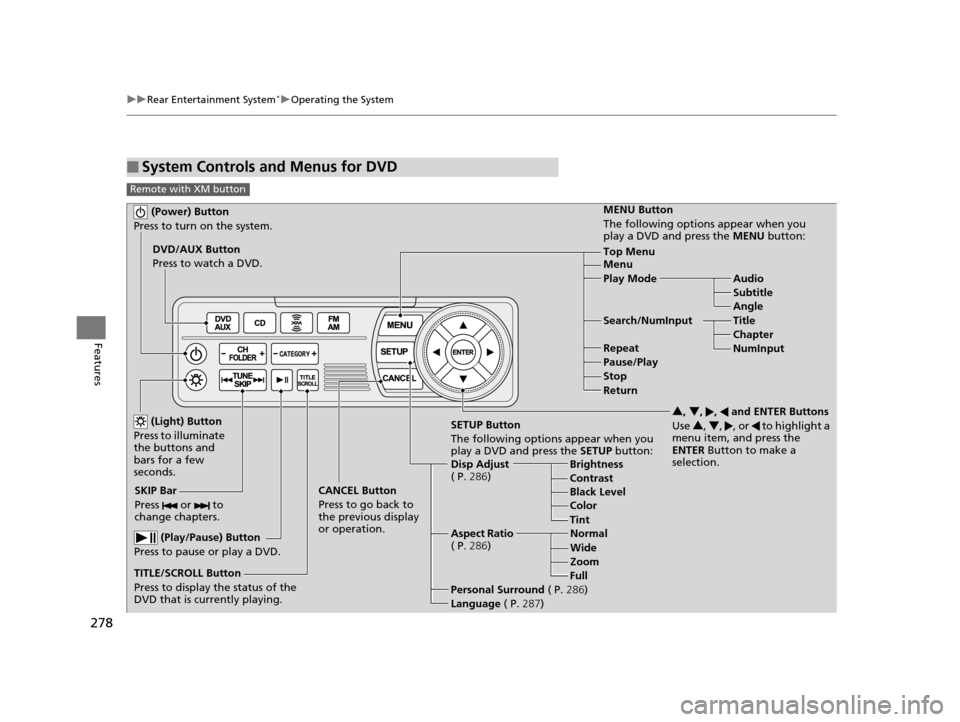
■System Controls and Menus for DVD
Remote with XM button
(Power) Button
Press to turn on the system.
DVD/AUX Button
Press to watch a DVD.
(Light) Button
Press to illuminate
the buttons and
bars for a few
seconds.
SKIP Bar
Press or to
change chapters.
(Play/Pause) Button
Press to pause or play a DVD.
TITLE/SCROLL Button
Press to display the status of the
DVD that is currently playing. MENU Button
The following options appear when you
play a DVD and press the
MENU button:
Top Menu
Menu
Play Mode Audio Subtitle
Angle
Search/NumInput Title Chapter
NumInput
Repeat
Pause/Play
Stop
Return
SETUP Button
The following options appear when you
play a DVD and press the SETUP button:
Disp Adjust
( P. 286) Brightness
Contrast
Black Level
Color
CANCEL Button
Press to go back to
the previous display
or operation. 3
, 4 , , and ENTER Buttons
Use 3, 4 , , or to highlight a
menu item, and press the
ENTER Button to make a
selection.
Tint
Normal
Wide Zoom
Full
Aspect Ratio
( P. 286)
Personal Surround ( P.286)
Language ( P.287)
16 US ODYSSEY-31TK86500.book 278 ページ 2015年6月24日 水曜日 午後3時0分
Page 280 of 565
279
uuRear Entertainment System*uOperating the System
Continued
Features
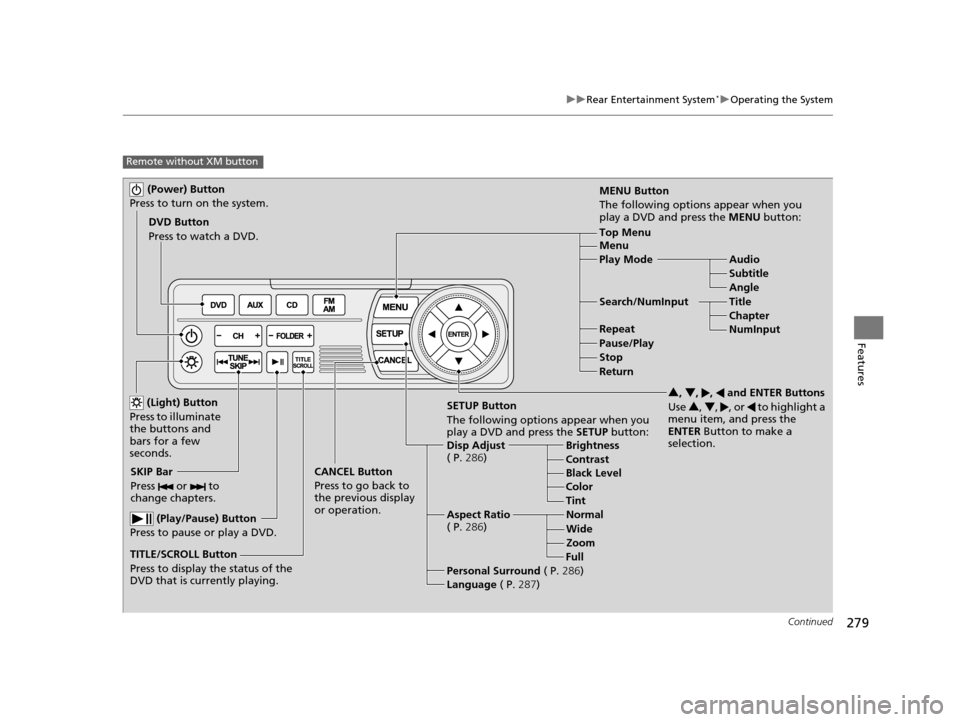
Remote without XM button
(Power) Button
Press to turn on the system.
DVD Button
Press to watch a DVD.
(Light) Button
Press to illuminate
the buttons and
bars for a few
seconds.
SKIP Bar
Press or to
change chapters.
(Play/Pause) Button
Press to pause or play a DVD.
TITLE/SCROLL Button
Press to display the status of the
DVD that is currently playing. MENU Button
The following options appear when you
play a DVD and press the MENU button:
Top Menu
Menu
Play Mode
Audio
Subtitle
Angle
Search/NumInput Title Chapter
NumInput
Repeat
Pause/Play
Stop
Return
SETUP Button
The following options appear when you
play a DVD and press the SETUP button:
Disp Adjust
( P. 286) Brightness
Contrast
Black Level
Color
CANCEL Button
Press to go back to
the previous display
or operation. 3
, 4 , , and ENTER Buttons
Use 3, 4 , , or to highlight a
menu item, and press the
ENTER Button to make a
selection.
Tint
Normal
Wide Zoom
Full
Aspect Ratio
( P. 286)
Personal Surround ( P.286)
Language ( P.287)
16 US ODYSSEY-31TK86500.book 279 ページ 2015年6月24日 水曜日 午後3時0分
Page 281 of 565
uuRear Entertainment System*uOperating the System
280
Features
■Playing a DVD
• Insert a DVD into the lower slot of the front audio unit.
u The system automatically starts the DVD.
• To fast forward, press and hold the (SEEK /SKIP) bar, and to reverse, press and
hold the bar on the front panel or the remote.
• To go to the next chapter, press the bar, and to go to the beginning of the
current chapter, press the bar on the front panel or the remote. Quickly press
the bar twice to go to the previous chapter.
■DVD setup from the front panel
Press the REAR AUDIO button on the front panel while a DVD is playing.
Audio/Subtitle:
Selects a language for audi o and subtitles that is available on the DVD.
1. Press the MENU button to display Menu in front.
2. Rotate to select Other Function, then press .
u Repeat the procedure to select Audio/Subtitle.
3. Move and to select the upper and lower part of the screen.
4. In the upper part, rotate to select a language for audio, then press .
In the lower part, rotate to select a subtitle language, then press .
u To turn off subtitles, rotate to select OFF, then press .
1Playing a DVD
DVD is available for the rear seat passenger only.
16 US ODYSSEY-31TK86500.book 280 ページ 2015年6月24日 水曜日 午後3時0分
Page 283 of 565
uuRear Entertainment System*uOperating the System
282
Features
Rear Control:
Disables controls from the remote.
1. Press the SETTINGS button to display Settings menu in front.
2. Rotate to select Rear Ent Settings, then press .
3. Rotate to select Rear Control, then press .
4. Rotate to select On or Off , then press .
Rear Speaker:
Mutes the sounds from the rear speakers.
1. Press the SETTINGS button to display Settings menu in front.
2. Rotate to select Rear Ent Settings, then press .
3. Rotate to select Rear Speaker, then press .
4. Rotate to select On or Off , then press .
■TITLE/SCROLL button on the remote
Press the TITLE/SCROLL button while the DVD is playing to see the current status of
title, chapter, elapsed time, angle, su btitle, audio, and sound characteristics.
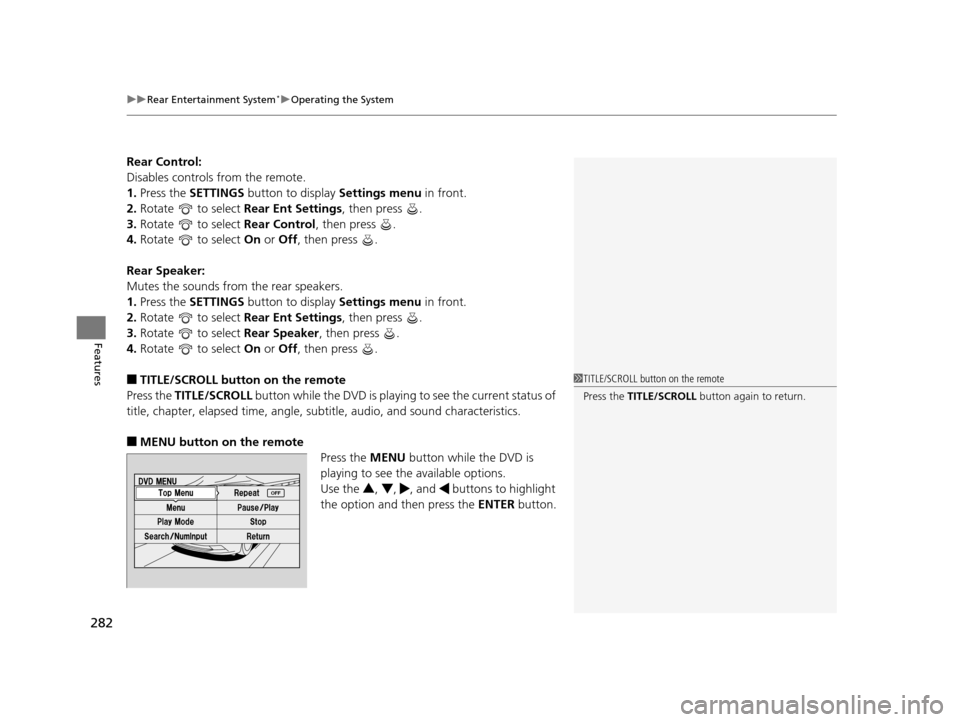
■MENU button on the remote
Press the MENU button while the DVD is
playing to see the available options.
Use the 3, 4 , , and buttons to highlight
the option and then press the ENTER button.
1TITLE/SCROLL button on the remote
Press the TITLE/SCROLL button again to return.
16 US ODYSSEY-31TK86500.book 282 ページ 2015年6月24日 水曜日 午後3時0分
Page 284 of 565
283
uuRear Entertainment System*uOperating the System
Continued
Features
Top Menu:
The top page of the DVD’s title menu appears. The title menu also appears when
you press the MENU button while the DVD is in the slot not playing. Press the
CANCEL or MENU button to return.
Menu:
The DVD’s title menu appears.
Play Mode:
You can change the following three settings:
If you press the MENU button while the DVD is not playing, the option Play Mode
changes to Initial Settings .
Audio - Select a language for audio that is available on the DVD. The sound
characteristics (Dolby Digital, LPCM, MPEG Audio, dts, etc) of that
audio is also displayed.
Subtitle - Select a subtitle th at is available on the DVD.
Angle - Select a view angle that is avai lable on the DVD. If the DVD currently
playing does not carry multiple angles, only one option Angle 1 comes
on. Press the CANCEL or MENU button to return.
When the DVD is not playing
16 US ODYSSEY-31TK86500.book 283 ページ 2015年6月24日 水曜日 午後3時0分
Page 285 of 565
uuRear Entertainment System*uOperating the System
284
Features
Initial Settings:
You can configure the initial Language, Dynamic Range, and Angle Mark settings
before playing DVD.
1. Select the language setting.
2. Select the language from English, French, Spanish, Arabic, German , Italian,
Dutch , Chinese , Korean , Thai , Japanese , and other.
3. If you select other, you need to enter the four digit language code number to
configure the language that is not listed. Select Yes to go to the number input
screen.
u To return to the language Setting screen, select No.
4. Press the ENTER button each time you input digit.
u If you want to delete a number, select DEL.
5. The cursor automatically goes to ENT after you input four digits. Press the ENTER
button to command.
Language
Settings -
Select the language for the DVD’s
displayed menus (Menu Language),
the DVD’s audio (Audio Language), and the DVD’s subtitle (Subtitle
Language).
Dynamic
Range - The feature reduces the difference between the loud and quiet sound
levels. Select
ON or OFF .
Angle
Mark - You can select whether to display
the angle mark appearing in the
upper right corner of the screen when you change the view angle while
the DVD is playing. Select ON or OFF .1MENU button on the remote
Initial Settings:
The prior language varies by disc. You may not be
able to configure your selected language setting.
16 US ODYSSEY-31TK86500.book 284 ページ 2015年6月24日 水曜日 午後3時0分
Page 287 of 565
286
uuRear Entertainment System*uOperating the System
Features
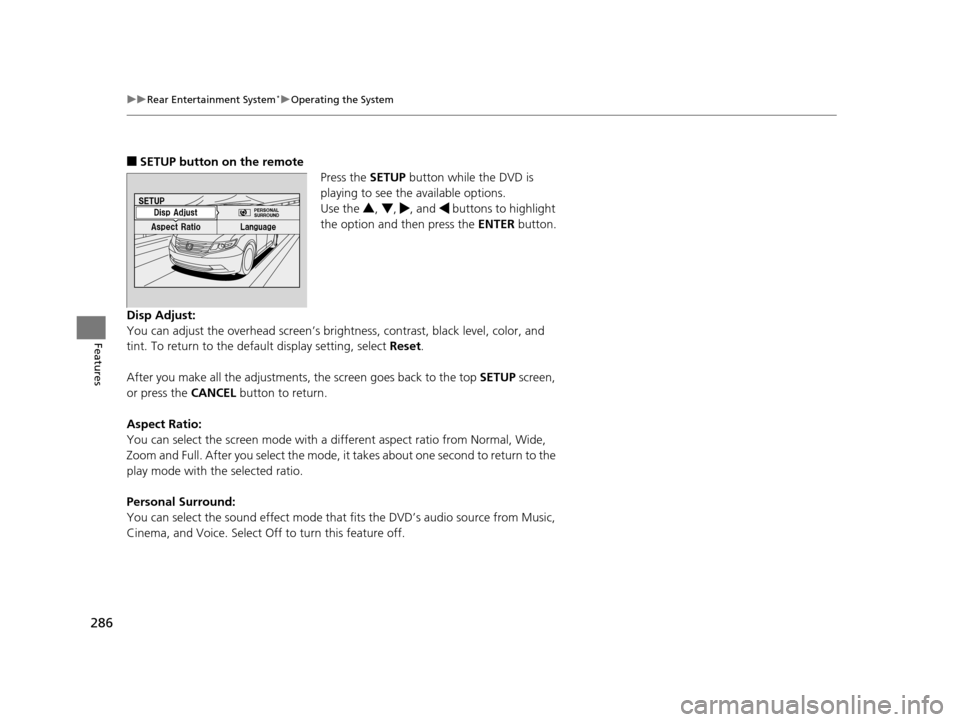
■SETUP button on the remote
Press the SETUP button while the DVD is
playing to see the available options.
Use the 3, 4 , , and buttons to highlight
the option and then press the ENTER button.
Disp Adjust:
You can adjust the overhead screen’s brightness, contrast, black level, color, and
tint. To return to the default display setting, select Reset.
After you make all the adjustments, the screen goes back to the top SETUP screen,
or press the CANCEL button to return.
Aspect Ratio:
You can select the screen mode with a di fferent aspect ratio from Normal, Wide,
Zoom and Full. After you select the mode, it takes about one second to return to the
play mode with the selected ratio.
Personal Surround:
You can select the sound effect mode that fits the DVD’s audio source from Music,
Cinema, and Voice. Select Off to turn this feature off.
16 US ODYSSEY-31TK86500.book 286 ページ 2015年6月24日 水曜日 午後3時0分
Page 288 of 565
287
uuRear Entertainment System*uOperating the System
Continued
Features
Language:
You can select the display language from English, French , and Spanish .
You can select the audio language from English, French, and Spanish.
Appearance:
You can select the screen color from white, black , blue , brown , and red.
When the DVD is not playing
16 US ODYSSEY-31TK86500.book 287 ページ 2015年6月24日 水曜日 午後3時0分