Page 39 of 325
38
Personal InformationAddress Book
System Setup
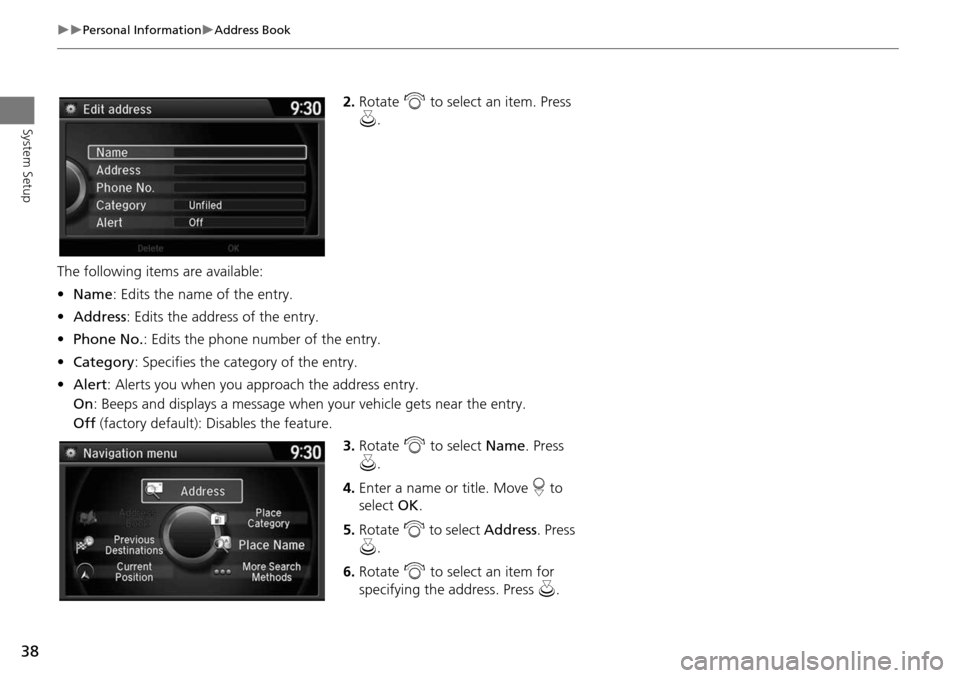
2.Rotate i to select an item. Press
u .
The following item s are available:
• Name : Edits the name of the entry.
• Address : Edits the address of the entry.
• Phone No. : Edits the phone number of the entry.
• Category : Specifies the category of the entry.
• Alert : Alerts you when you ap proach the address entry.
On : Beeps and displays a message when your vehicle gets near the entry.
Off (factory default): Disables the feature.
3.Rotate i to select Name . Press
u .
4. Enter a name or title. Move r to
select OK.
5. Rotate i to select Address . Press
u .
6. Rotate i to select an item for
specifying the address. Press u.
Page 40 of 325
39
Personal InformationAddress Book
System Setup
The following items are available:
•Current Position: Select your current location.
• Address: Enter an address on the character input screen when prompted.
2
Address P. 86
• Previous Destinations: Select a previous destination.
2
Previous Destination P. 93
• Place Name: Enter the name of a place/landmark.
2
Place Name P. 96
• Place Category: Select a category to search for a place/landmark (e.g., Banking,
Lodging).
2
Place Category P. 94
• More Search Methods : Displays additional search method entries.
2
Entering a Destination P. 84
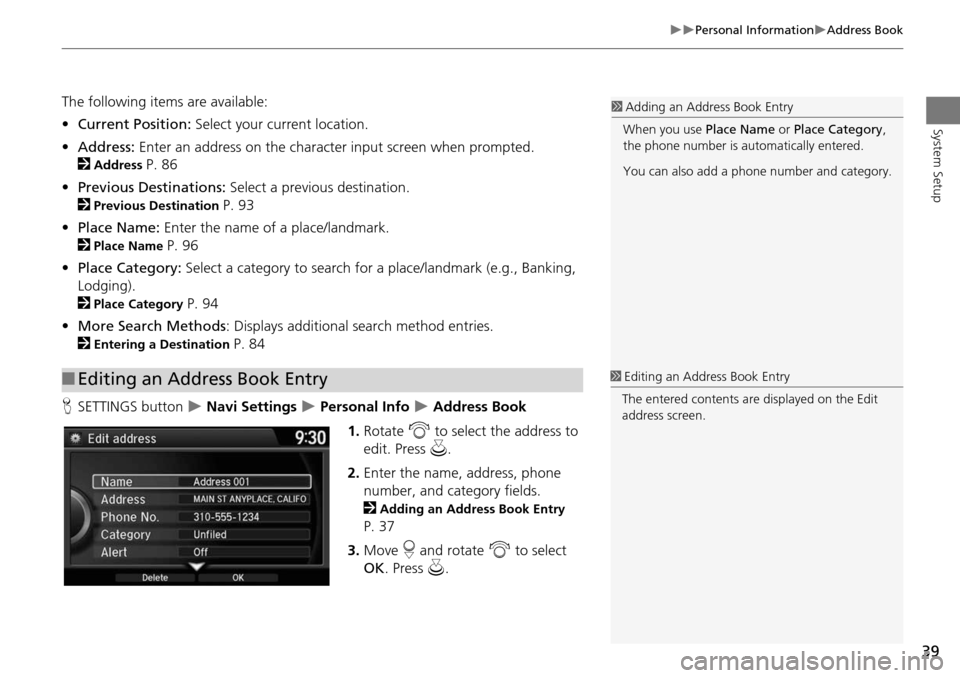
H SETTINGS button
Navi Settings Personal Info Address Book
1. Rotate i to select the address to
edit. Press u.
2. Enter the name, address, phone
number, and category fields.
2
Adding an Address Book Entry
P. 37
3. Move r and rotate i to select
OK . Press u.
■Editing an Address Book Entry
1 Adding an Address Book Entry
When you use Place Name or Place Category ,
the phone number is au tomatically entered.
You can also add a phone number and category.
1 Editing an Address Book Entry
The entered contents are displayed on the Edit
address screen.
Page 43 of 325

42
Personal InformationHome Address
System Setup
Home Address
HSETTINGS button Navi Settings Personal Info Edit Go Home
Set a home address that you frequently use. 1.Edit the name, address, and phone
number the same way as an
address in the address book.
2
Adding an Address Book Entry
P. 37
2. Move r and rotate i to select
OK . Press u.
1Home Addresses
If you have PIN-protecte d your home addresses,
enter your PIN when prompted. Press u to
select OK. PINs are optional.
2 PIN Numbers P. 43
If your home street is not in the system database,
park on the nearest verified street to your home.
When entering the “Address” field, rotate i to
select Current Position to use your current
location as the home address and press u.
You can delete a home address if necessary.
Move r and rotate i to select Clear Home
Entry . Press u. Rotate i to select Yes. Press
u .
When you transfer the vehicle to a third party,
delete all home addresses.
The home icon is shown on the map screen on
the 1/20 and 1/8 mile scales.
Page 62 of 325
61
GuidanceNon-map screens
System Setup
Non-map screens
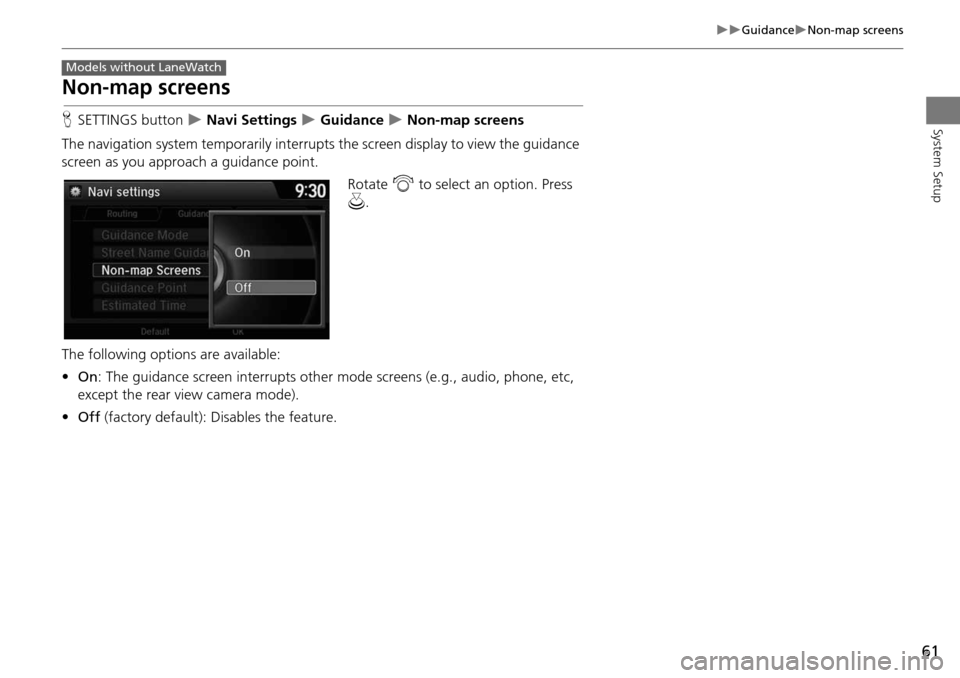
HSETTINGS button Navi Settings Guidance Non-map screens
The navigation system temporarily interrupts the screen display to view the guidance
screen as you approach a guidance point.
Rotate i to select an option. Press
u .
The following options are available:
• On : The guidance screen interrupts other mode screens (e.g., audio, phone, etc,
except the rear view camera mode).
• Off (factory default): Disables the feature.
Models without LaneWatch
Page 63 of 325
62
GuidanceNext Maneuver Pop up
System Setup
Next Maneuver Pop up
HSETTINGS button Navi Settings Guidance Next Maneuver Pop up
The navigation system temporarily interrupts the screen display to view the guidance
screen as you approach a guidance point.
Rotate i to select an item. Press u .
The following item s are available:
• LaneWatch : Sets whether to view the guidanc e screen while displaying the
LaneWatch screen.
On (factory default): The guidance scre en interrupts the LaneWatch screen.
Off : Disables the feature.
• Non-map Screens : Sets whether to view the guidance screen while displaying
other mode (e.g., audio, phone, etc.) screen.
On : The guidance screen interrupts other mode screens (except the rear view
mode).
Off (factory default): Disables the feature.
Models with LaneWatch
Page 75 of 325

74
MapCurrent Location
System Setup
Current Location
HSETTINGS button Navi Settings Map Current Location
Display and save your current location for fu ture use as a destination. The address,
latitude, longitude, and elevation of your current location are displayed.
■ To save your current loca tion in the address book:
1.Press u to select Address Book.
Move w to scroll the map as
necessary.
2. Edit the name, phone number, and
category.
2
Address Book P. 37
3. Move r and rotate i to select
OK . Press u.
1Current Location
d “Display Current Location” (on Voice Portal
screen)
You can also save the current location by saying
d “Register the Current Location” .
If you have PIN-protec ted your address book,
enter your PIN when prompted. Press u to
select OK. PINs are optional.
2 PIN Numbers P. 43
The elevation is not displayed if the system is
receiving insufficient GPS information. When
elevation is displayed, it may differ with roadside
elevation signs by ±100 feet or more.
Saving your current loca tion does not change or
cancel your current route.
Page 84 of 325

83
Navigation
This section describes how to enter a destination, select a route to take,
and follow the route to your destination. It also describes how to change your route or destination along the way.
Entering a Destination........................... 84
Address ................................................. 86
Address Book ......................................... 92
Previous Destination ............................... 93
Place Category ....................................... 94
Place Name ............................................ 96
Place Phone Number .............................. 99
Download POI ...................................... 100
Scenic Route ........................................ 101
Intersection .......................................... 102
Map Input............................................ 103
Coordinate .......................................... 105
Calculating the Route ........................... 106
Viewing the Routes .............................. 107 Driving to Your Destination
.................108
Viewing the Route ................................108
Listening to Voice Guidance ..................112
Reaching a Waypoint ............................113
Map Menu ..............................................114
Displaying the Map Menu .....................114
Directions .............................................116
Traffic Rerouting™................................118
Changing Your Route ............................120
Pausing the Route .................................121
Canceling the Route .............................121
Adding Waypoints ................................122
Editing the Destination List ....................126
Taking a Detour ....................................128 Avoiding Streets ................................... 128
Changing Your Destination ................. 129
Find Nearest Place ................................ 129
Selecting a Destination on the Map ...... 130
Entering a New Destination .................. 131
Resuming Your Trip .............................. 132
Page 86 of 325
85
Entering a Destination
Navigation
•Go Home : Sets your home address as a destination.
2Going Home P. 11
• Place Category : Sets a destination by selecting a place/landmark.
2Place Category P. 94
• Place Name : Sets a destination by entering a place name.
2Place Name P. 96
• Place Phone No. : Sets a destination by entering the phone number of a place/
landmark.
2 Place Phone Number P. 99
• Download POI: Sets a destination by using a lis t of the imported POI (category
and places) data you created.
2 Download POI P. 100
• Scenic Route : Sets a destination by using a list of scenic roads for each state (U.S.
and Canada only).
2 Scenic Route P. 101
• Intersection : Sets a destination (intersection) by entering two streets.
2Intersection P. 102
• Map Input : Sets a destination by scrolling through the map.
2Map Input P. 103
• Coordinate: Sets a destination by entering latitude and longitude.
2 Coordinate P. 105