Page 189 of 590
uuHeating System*uUsing Automatic Heating
188
Controls
■Switching between the recirculation and fresh air modes
Press the (recirculation) or (fre sh air) button to switch the mode
depending on environmental conditions.
Recirculation mode (indicator on): Recirculates air from the vehicle’s interior
through the system. Fresh air mode (indicator on): Maintains outside ventilation. Keep the system
in fresh air mode in normal situations.
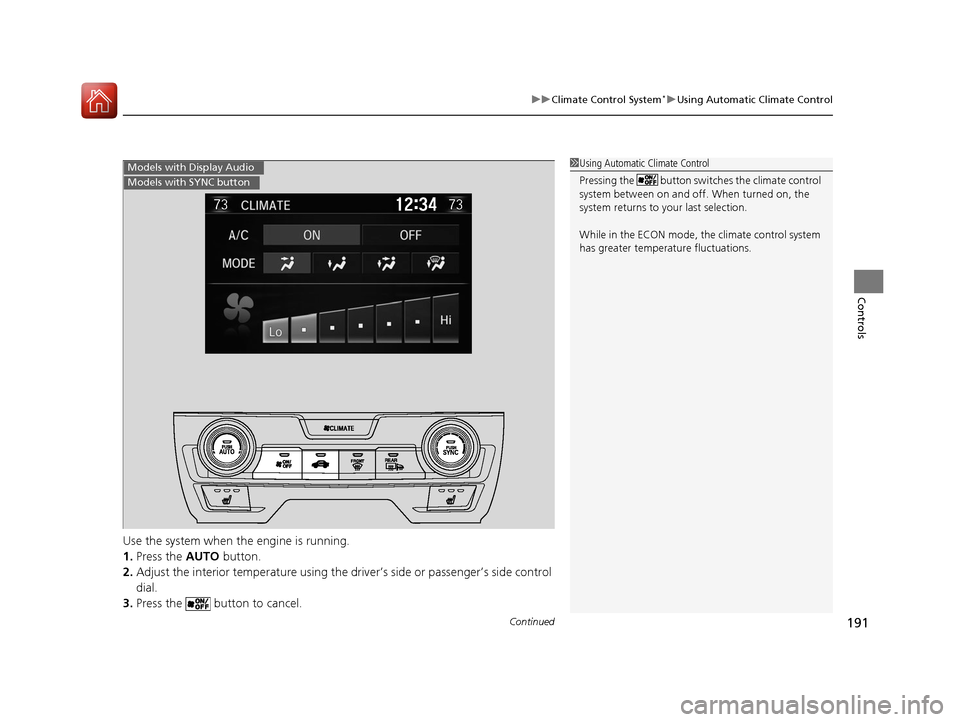
Pressing the (windshield defroster) button
automatically switches the system to fresh air
mode.
Press the button again to turn off, the
system returns to the previous settings.
■To rapidly defrost the windows 1.Press the button.
2. Press the button.
■Defrosting the Windshield and Windows
1Using Automatic Heating
Pressing the button switch es the heating system
between on and off. When turned on, the system
returns to your last selection.
While in the ECON mode, the heating system has
greater temperature fluctuations.
1 Defrosting the Windshield and Windows
For your safety, make sure you have a clear view
through all the windows before driving.
Do not set the temperatur e near the upper or lower
limit.
When cold air hits the winds hield, the outside of the
windshield may fog up.
If the side windows fog up, adjust the vents so that
the air hits th e side windows.
1To rapidly defrost the windows
After defrosting the windows, switch over to fresh air
mode. If you keep the syst em in recirculation mode,
the windows may fog up from humidity. This
impedes visibility.
16 CIVIC 4D-31TBA6000.book 188 ページ 2015年8月31日 月曜日 午後5時56分
Page 192 of 590
Continued191
uuClimate Control System*uUsing Automatic Climate Control
Controls
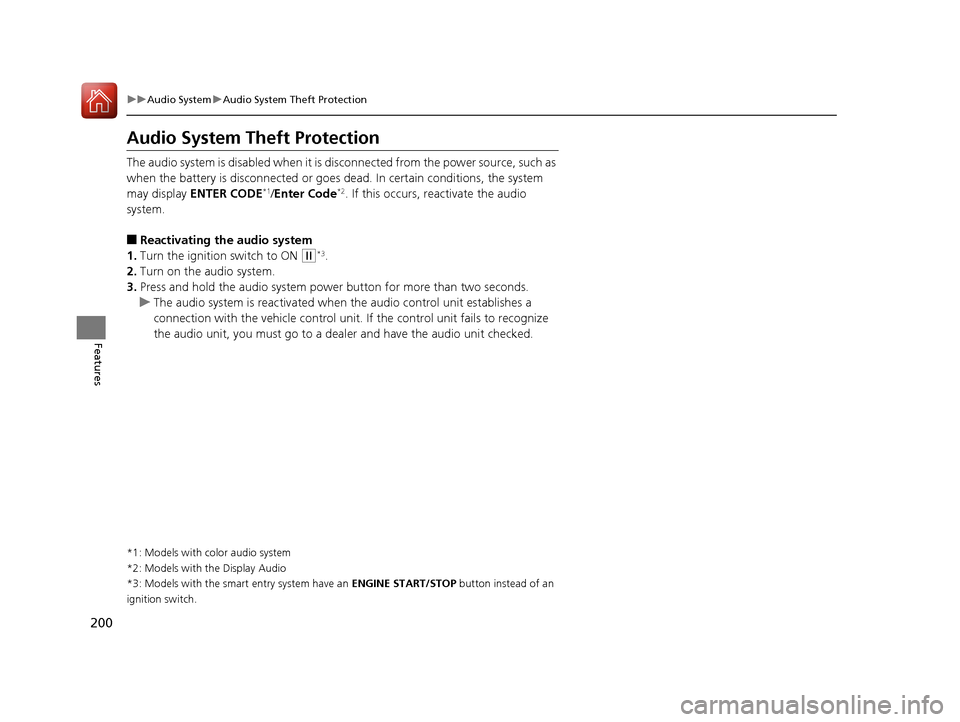
Use the system when the engine is running.
1. Press the AUTO button.
2. Adjust the interior temperature using the dr iver’s side or passenger’s side control
dial.
3. Press the button to cancel.
1Using Automatic Climate Control
Pressing the button switches the climate control
system between on and off. When turned on, the
system returns to your last selection.
While in the ECON mode, the climate control system
has greater temperat ure fluctuations.Models with Display Audio
Models with SYNC button
16 CIVIC 4D-31TBA6000.book 191 ページ 2015年8月31日 月曜日 午後5時56分
Page 200 of 590
199
uuAudio System uUSB Port(s)
Features
USB Port(s)
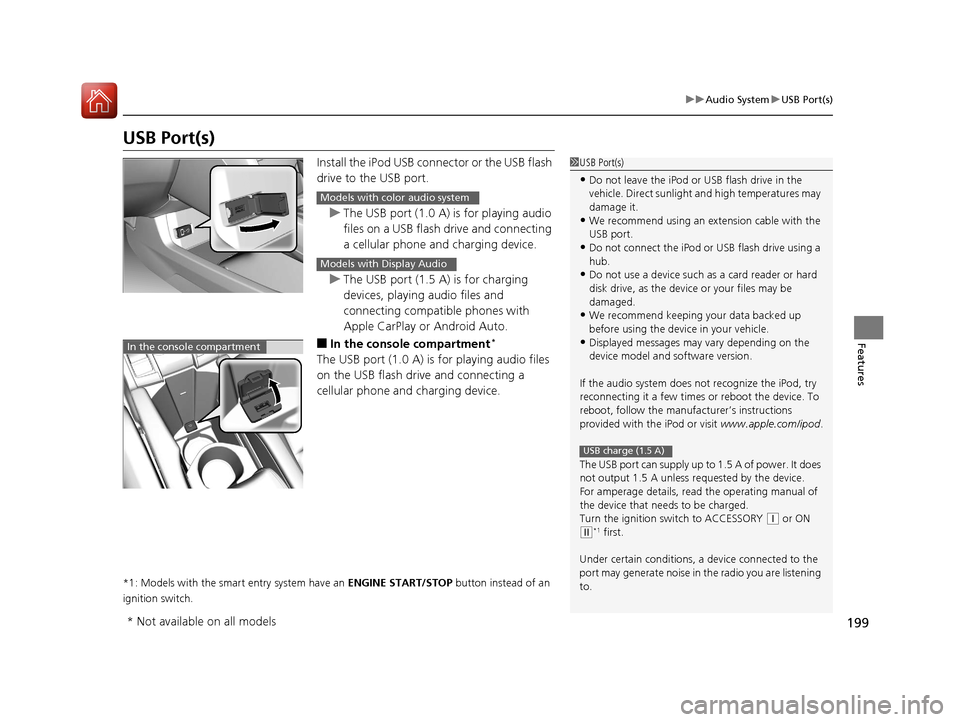
Install the iPod USB connector or the USB flash
drive to the USB port.
u The USB port (1.0 A) is for playing audio
files on a USB flash drive and connecting
a cellular phone and charging device.
u The USB port (1.5 A) is for charging
devices, playing audio files and
connecting compatib le phones with
Apple CarPlay or Android Auto.
■In the consol e compartment*
The USB port (1.0 A) is for playing audio files
on the USB flash drive and connecting a
cellular phone and charging device.
*1: Models with the smart entry system have an ENGINE START/STOP button instead of an
ignition switch.
1 USB Port(s)
•Do not leave the iPod or USB flash drive in the
vehicle. Direct sunlight and high temperatures may
damage it.
•We recommend using an ex tension cable with the
USB port.
•Do not connect the iPod or USB flash drive using a
hub.
•Do not use a device such as a card reader or hard
disk drive, as the device or your files may be
damaged.
•We recommend k eeping your data backed up
before using the device in your vehicle.
•Displayed messages may vary depending on the
device model and software version.
If the audio system does not recognize the iPod, try
reconnecting it a few times or reboot the device. To
reboot, follow the manufac turer’s instructions
provided with the iPod or visit www.apple.com/ipod.
The USB port can supply up to 1.5 A of power. It does
not output 1.5 A unless re quested by the device.
For amperage details, read the operating manual of
the device that ne eds to be charged.
Turn the ignition switch to ACCESSORY
( q or ON
(w*1 first.
Under certain condi tions, a device connected to the
port may generate noi se in the radio you are listening
to.
USB charge (1.5 A)
Models with color audio system
Models with Display Audio
In the console compartment
* Not available on all models
16 CIVIC 4D-31TBA6000.book 199 ページ 2015年8月31日 月曜日 午後5時56分
Page 201 of 590
200
uuAudio System uAudio System Theft Protection
Features
Audio System Theft Protection
The audio system is disabled when it is di sconnected from the power source, such as
when the battery is disconnected or goes dead. In certain conditions, the system
may display ENTER CODE
*1/Enter Code*2. If this occurs, reactivate the audio
system.
■Reactivating th e audio system
1. Turn the ignition switch to ON
(w*3.
2. Turn on the audio system.
3. Press and hold the audio system power button for more than two seconds.
u The audio system is reac tivated when the audio co ntrol unit establishes a
connection with the vehicle control unit. If the control unit fails to recognize
the audio unit, you must go to a dealer and have the audio unit checked.
*1: Models with color audio system
*2: Models with the Display Audio
*3: Models with the smart entry system have an ENGINE START/STOP button instead of an
ignition switch.
16 CIVIC 4D-31TBA6000.book 200 ページ 2015年8月31日 月曜日 午後5時56分
Page 214 of 590

213
uuAudio System Basic Operation uPlaying the AM/FM Radio
Features
Provides text data information related to your selected RDS capable FM station.
■To find an RDS station from Station List
1. Press while listening to an FM station.
2. Rotate to select the station, then press .
■Update List
Updates your available st ation list at any time.
1. Press while listening to an FM station.
2. Rotate to select Update List, then press .
■Radio text
Displays the radio text information of the selected RDS station.
1. Press the MENU/CLOCK button.
2. Rotate to select Settings, then press .
3. Rotate to select RDS Settings, then press .
4. Rotate to select Radio Text, then press .
■Scan
Samples each of the strongest stations on the selected band for 10 seconds.
1. Press the MENU/CLOCK button.
2. Rotate to select Scan, then press .
To turn off scan, press .
■Radio Data System (RDS)1 Playing the AM/FM Radio
The ST indicator appears on the display indicating
stereo FM broadcasts.
Stereo reproduction in AM is not available.
You can store 6 AM stations and 12 FM stations into
the preset memory.
Switching the Audio Mode
Press the SOURCE button on the steering wheel.
2 Audio Remote Controls P. 201
1Radio Data System (RDS)
When you select an RDS-capable FM station, the RDS
automatically turns on, and the frequency display
changes to the station name. However, when the
signals of that station become weak, the display
changes from the statio n name to the frequency.
16 CIVIC 4D-31TBA6000.book 213 ページ 2015年8月31日 月曜日 午後5時56分
Page 218 of 590
217
uuAudio System Basic Operation uPlaying a USB Flash Drive
Continued
Features
Playing a USB Flash Drive
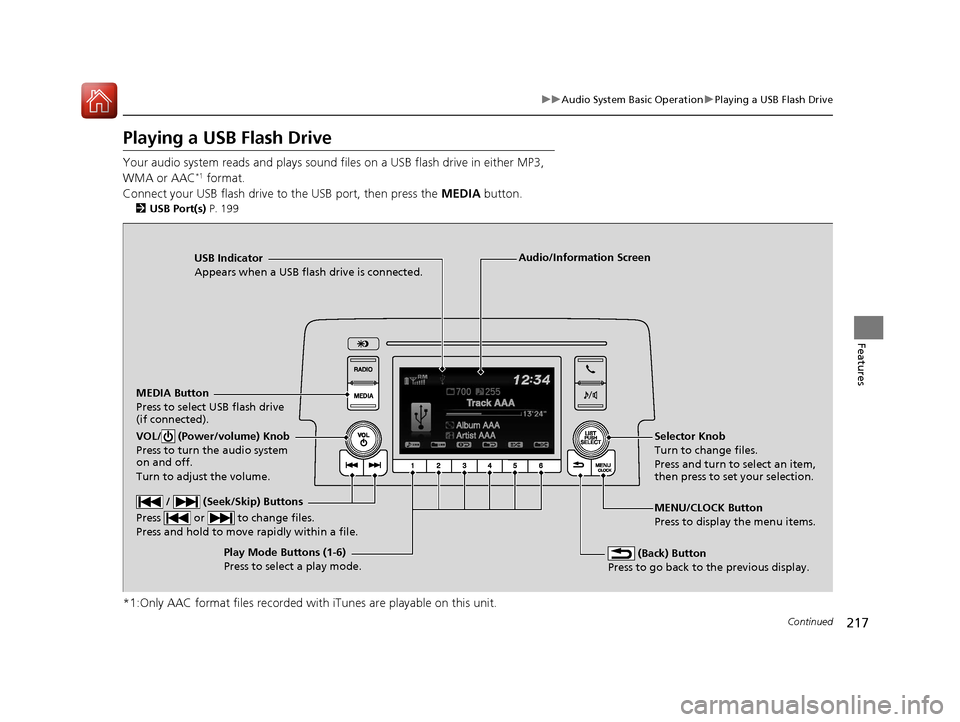
Your audio system reads and plays sound files on a USB flash drive in either MP3,
WMA or AAC*1 format.
Connect your USB flash drive to the USB port, then press the MEDIA button.
2USB Port(s) P. 199
*1:Only AAC format files recorded with iTunes are playable on this unit.
USB Indicator
Appears when a USB flash drive is connected.
MEDIA Button
Press to select USB flash drive
(if connected).
(Back) Button
Press to go back to the previous display.
/ (Seek/Skip) Buttons
Press or to change files.
Press and hold to move rapidly within a file.
VOL/ (Power/volume) Knob
Press to turn the audio system
on and off.
Turn to adjust the volume.Selector Knob
Turn to change files.
Press and turn to select an item,
then press to set your selection.
MENU/CLOCK Button
Press to display the menu items.
Audio/Information Screen
Play Mode Buttons (1-6)
Press to select a play mode.
16 CIVIC 4D-31TBA6000.book 217 ページ 2015年8月31日 月曜日 午後5時56分
Page 220 of 590
219
uuAudio System Basic Operation uPlaying a USB Flash Drive
Features
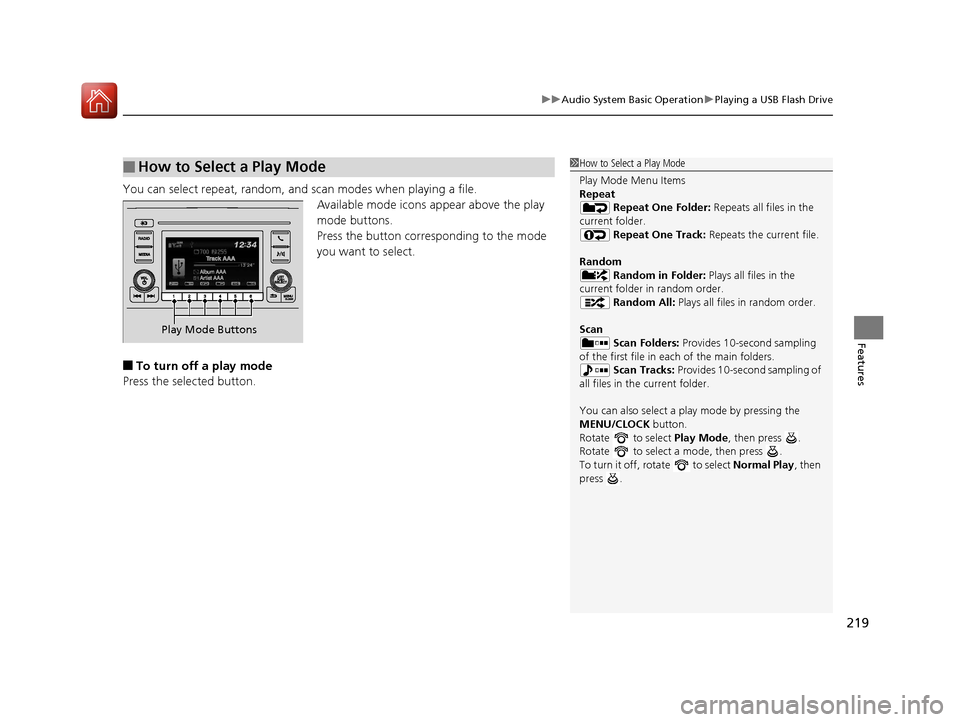
You can select repeat, random, and scan modes when playing a file.
Available mode icons appear above the play
mode buttons.
Press the button corresponding to the mode
you want to select.
■To turn off a play mode
Press the selected button.
■How to Select a Play Mode1 How to Select a Play Mode
Play Mode Menu Items
Repeat
Repeat One Folder: Repeats all files in the
current folder. Repeat One Track: Repeats the current file.
Random Random in Folder: Plays all files in the
current folder in random order. Random All: Plays all files in random order.
Scan Scan Folders: Provides 10-second sampling
of the first file in each of the main folders.
Scan Tracks: Provides 10-second sampling of
all files in the current folder.
You can also select a pl ay mode by pressing the
MENU/CLOCK button.
Rotate to select Play Mode, then press .
Rotate to select a mode, then press .
To turn it off, rotate to select Normal Play, then
press .
Play Mode Buttons
16 CIVIC 4D-31TBA6000.book 219 ページ 2015年8月31日 月曜日 午後5時56分
Page 222 of 590
Continued221
uuAudio System Basic Operation uPlaying Bluetooth ® Audio
Features
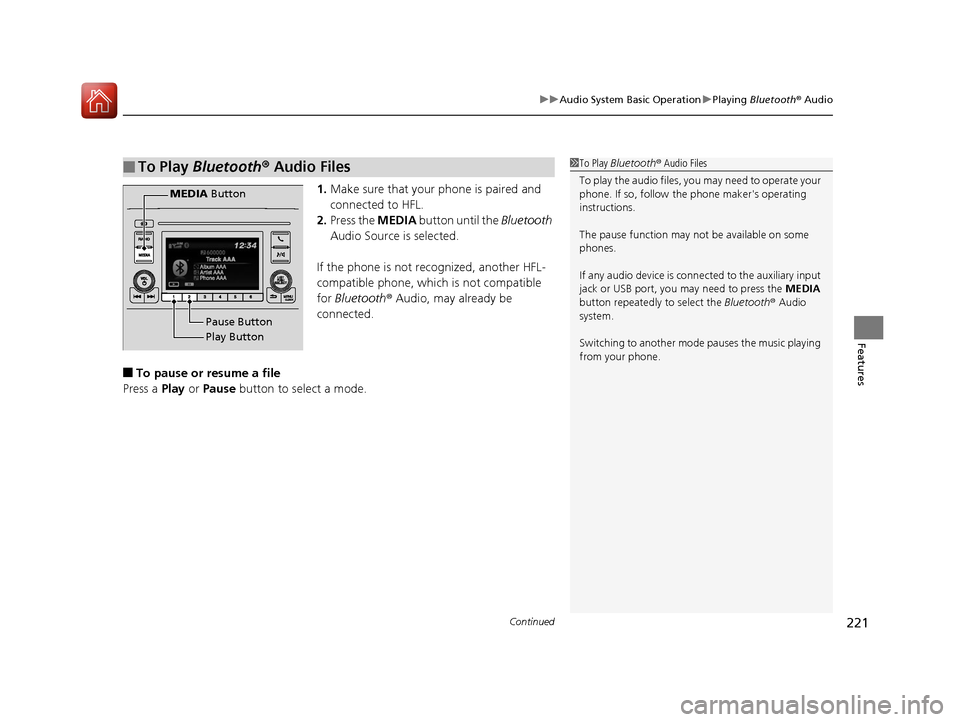
1. Make sure that your phone is paired and
connected to HFL.
2. Press the MEDIA button until the Bluetooth
Audio Source is selected.
If the phone is not recognized, another HFL-
compatible phone, which is not compatible
for Bluetooth ® Audio, may already be
connected.
■To pause or resume a file
Press a Play or Pause button to select a mode.
■To Play Bluetooth ® Audio Files1 To Play Bluetooth ® Audio Files
To play the audio files, y ou may need to operate your
phone. If so, follow the phone maker's operating
instructions.
The pause function may no t be available on some
phones.
If any audio device is conne cted to the auxiliary input
jack or USB port, you may need to press the MEDIA
button repeatedly to select the Bluetooth ® Audio
system.
Switching to another mode pauses the music playing
from your phone.
Play Button Pause Button
MEDIA
Button
16 CIVIC 4D-31TBA6000.book 221 ページ 2015年8月31日 月曜日 午後5時56分