2016 GMC ACADIA Radio favo
[x] Cancel search: Radio favoPage 21 of 371

GMC Acadia/Acadia Denali Owner Manual (GMNA-Localizing-U.S./Canada/
Mexico-9159268) - 2016 - crc - 7/31/15
20 In Brief
Vehicle Features
Radio(s)
PUSH/O:Press to turn the system
on and off. Turn to adjust the
volume.
Z: Press to eject a disc from the
CD player. See CD Player0166. AUX Port :
3.5 mm (1/8 in)
connection for external audio
devices.
PUSH/SEL : Turn to manually find a
station or highlight a menu
selection. Press to select a
highlighted selection.
D: Press to go to the Home Page.
See “Home Page” inOperation
0 159.
SRCE : Press to switch between
AM, FM, CD, and if equipped,
SiriusXM
®, front auxiliary, rear
auxiliary, and iPod/USB.
FAV : Press to display the favorite
list or add a favorite. See Operation
0 159.
©SEEK or SEEK¨:Seek or scan
stations and tracks. See Operation
0 159.
/BACK : Press to return to the
previous screen in a menu.
Storing Radio Station Presets
Up to 30 preset stations can be
stored. AM, FM, and SiriusXM (if
equipped) can be mixed.
1. From the AM, FM, or SiriusXM main page, press and hold any
1−5 buttons or one of the
preset screen buttons at the
bottom of the screen. After a
few seconds, a beep is heard
and the new preset information
displays on that screen button.
Page 23 of 371

GMC Acadia/Acadia Denali Owner Manual (GMNA-Localizing-U.S./Canada/
Mexico-9159268) - 2016 - crc - 7/31/15
22 In Brief
worc/x:Press to change
favorite radio stations, select tracks
on a CD, or navigate tracks or
folders on an iPod or USB device.
b/g: Press to interact with
Bluetooth and OnStar®, if equipped.
c/x: Press to reject an incoming
call, or end a current call.
SRCE : Press to switch between
AM, FM, CD, and if equipped,
SiriusXM
®, front auxiliary, rear
auxiliary, and iPod/USB.
Press and hold to mute/pause the
system.
¨: Press to seek the next radio
station, track, or chapter while
sourced to the CD slot, or to select
tracks and folders on an iPod or
USB device.
+
eor −e:Press to increase or to
decrease the volume.
See Steering Wheel Controls 0105.
Cruise Control
I:Press to turn cruise control on
or off. The indicator light on the
button comes on when the cruise
control is on.
+RES : If there is a set speed in
memory, press briefly to resume to
that speed or press and hold to
accelerate. If cruise control is
already active, use to increase
vehicle speed.
SET– :Press briefly to set the
speed and activate cruise control.
If cruise control is already active,
use to decrease vehicle speed.
[: Press to disengage cruise
control without erasing the set
speed from memory.
See Cruise Control 0219.
Forward Collision Alert
(FCA) System
If equipped, FCA may help avoid or
reduce the harm caused by
front-end crashes. FCA provides a
green indicator,
V, when a vehicle
is detected ahead. This indicator
displays amber if you follow a
vehicle much too closely. When
approaching a vehicle ahead too
quickly, FCA provides a red flashing
alert on the windshield and rapidly
beeps.
See Forward Collision Alert (FCA)
System 0224.
Lane Departure
Warning (LDW)
If equipped, LDW may help avoid
unintentional lane departures at
speeds of 56 km/h (35 mph) or
greater. LDW uses a camera sensor
Page 106 of 371
GMC Acadia/Acadia Denali Owner Manual (GMNA-Localizing-U.S./Canada/
Mexico-9159268) - 2016 - crc - 7/31/15
Instruments and Controls 105
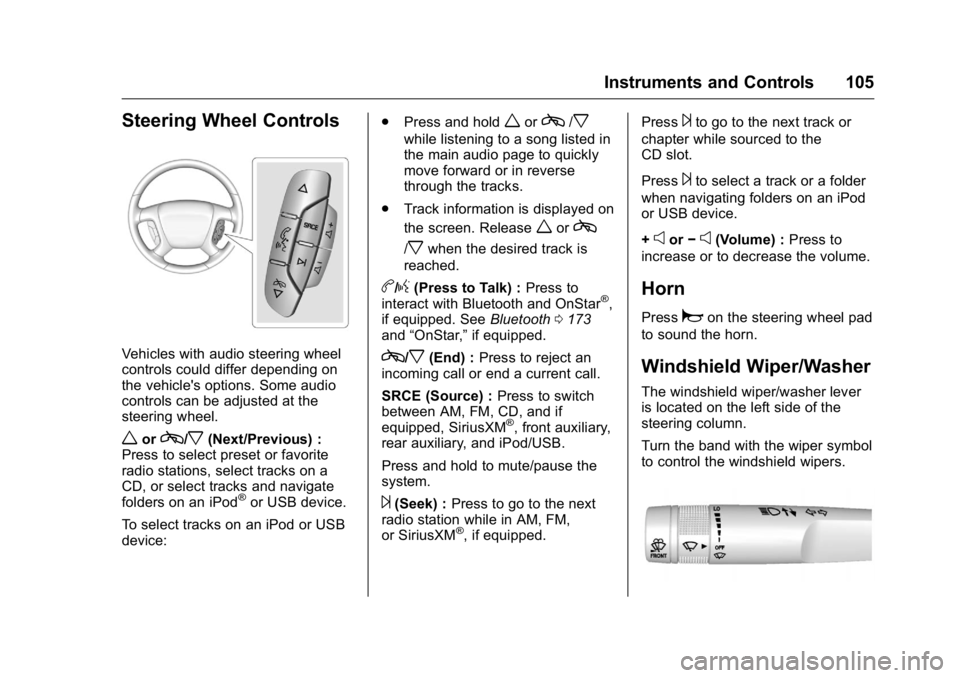
Steering Wheel Controls
Vehicles with audio steering wheel
controls could differ depending on
the vehicle's options. Some audio
controls can be adjusted at the
steering wheel.
worc/x(Next/Previous) :
Press to select preset or favorite
radio stations, select tracks on a
CD, or select tracks and navigate
folders on an iPod
®or USB device.
To select tracks on an iPod or USB
device: .
Press and hold
worc/x
while listening to a song listed in
the main audio page to quickly
move forward or in reverse
through the tracks.
. Track information is displayed on
the screen. Release
worc
/xwhen the desired track is
reached.
b/g(Press to Talk) : Press to
interact with Bluetooth and OnStar®,
if equipped. See Bluetooth0173
and “OnStar,” if equipped.
c/x(End) :Press to reject an
incoming call or end a current call.
SRCE (Source) : Press to switch
between AM, FM, CD, and if
equipped, SiriusXM
®, front auxiliary,
rear auxiliary, and iPod/USB.
Press and hold to mute/pause the
system.
¨(Seek) : Press to go to the next
radio station while in AM, FM,
or SiriusXM
®, if equipped. Press
¨to go to the next track or
chapter while sourced to the
CD slot.
Press
¨to select a track or a folder
when navigating folders on an iPod
or USB device.
+
eor −e(Volume) : Press to
increase or to decrease the volume.
Horn
Pressaon the steering wheel pad
to sound the horn.
Windshield Wiper/Washer
The windshield wiper/washer lever
is located on the left side of the
steering column.
Turn the band with the wiper symbol
to control the windshield wipers.
Page 159 of 371

GMC Acadia/Acadia Denali Owner Manual (GMNA-Localizing-U.S./Canada/
Mexico-9159268) - 2016 - crc - 7/31/15
158 Infotainment System
functions may gray out when they
are unavailable. Many infotainment
features are also available through
the instrument cluster and steering
wheel controls.
Before driving:
.Become familiar with the
operation, faceplate buttons, and
screen buttons.
. Set up the audio by presetting
favorite stations, setting the
tone, and adjusting the
speakers.
. Set up phone numbers in
advance so they can be called
easily by pressing a single
button or by using a single voice
command if equipped with
Bluetooth phone capability.
See Defensive Driving 0194.
To play the infotainment system with
the ignition off, see Retained
Accessory Power (RAP) 0208.Theft-Deterrent Feature
TheftLock®is designed to
discourage theft of the vehicle's
radio by learning a portion of the
Vehicle Identification Number (VIN).
The radio does not operate if it is
stolen or moved to a different
vehicle.
Page 162 of 371

GMC Acadia/Acadia Denali Owner Manual (GMNA-Localizing-U.S./Canada/
Mexico-9159268) - 2016 - crc - 7/31/15
Infotainment System 161
Each of these three pages can be
customized to contain your choice
of up to eight per screen. They may
also be re-ordered on each screen
to taste.
FAV (Favorites) :Press to scroll
through the favorites banner on the
bottom of the screen. The favorites
banner stores your favorite radio
and SiriusXM stations (if equipped).
To store a favorite station, press and
hold the desired position on the
banner until a beep is heard.
!(Voice Recognition) : Press to
begin voice recognition. See
Bluetooth 0173.
Menu : Press to enter the Home
Page menu.
qPrevious : Press to go to the
previous Home Page.
Next
r: Press to go to the next
Home Page.
Home Page Features
Some features are disabled when
the vehicle is moving and some
icons may not be active. Now Playing :
Press to display the
active source page. The sources
available are AM, FM, XM (if
equipped), CD, USB, Bluetooth,
or AUX Input.
Settings : Press to display the
Settings menu. See Settings0179.
Tone : Press to display the Tone
Settings menu. The following may
display:
Tone Settings : Press to adjust the
tone settings. The following may
display:
. EQ: Press
oorpto adjust the
equalizer.
. Bass: Press + or −to adjust
the bass.
. Middle: Press + or −to adjust
the middle.
. Treble: Press + or −to adjust the
treble.
. Balance: Press L to hear more
sound from the left speakers or
R for more sound from the right
speakers. The middle position
balances the sound between the
left and right speakers. .
Fade: Press F for more sound
from the front speakers or R for
more sound from the rear
speakers. The middle position
balances the sound between the
front and rear speakers.
DSP Mode : Press
oorpto adjust
the DSP mode, if equipped.
Language
To change the language of the
screens, see Vehicle
Personalization 0140.
English or Metric Units
To change the screens from English
or metric, see Driver Information
Center (DIC) 0123.
Page 163 of 371

GMC Acadia/Acadia Denali Owner Manual (GMNA-Localizing-U.S./Canada/
Mexico-9159268) - 2016 - crc - 7/31/15
162 Infotainment System
Radio
AM-FM Radio
Playing the Radio
PUSH/O(Power/Volume):
. Press to turn the radio on or off.
. Turn to increase or decrease the
volume of the active source.
The steering wheel controls can
also be used to adjust the volume.
See Steering Wheel Controls 0105.
Audio Source
To access AM, FM, or SiriusXM
®if
equipped, do one of the following:
. Press the AM, FM, or XM (if
equipped) screen button on the
Home Page.
. Press the SRCE radio button to
scroll through the options.
A source ribbon will appear at
the bottom of the screen
allowing you to select the one
you want.
Infotainment System Settings
Tone Settings
To access the tone settings, press
the Tone Settings button on the
Home Page.
To adjust the settings:
.Bass: Press + or −to change
the level.
. Middle: Press + or −to change
the level.
. Treble: Press + or −to change
the level.
. EQ: Press
oorpto scroll
through the preset EQ options.
. DSP Mode: Press
oorpto
scroll through the preset DSP
modes.
. Fade: Press the F or R button
for more sound from the front or
rear speakers. The middle
position balances the sound
between the front and rear
speakers. .
Balance: Press the L or R button
for more sound from the left or
right speakers. The middle
position balances the sound
between the left and right
speakers.
Finding a Station
Press SRCE to select AM, FM,
or SiriusXM (if equipped).
Turn the PUSH/SEL knob to find a
radio station. To select a preset
station, press FAV to scroll through
the favorite pages and then press a
preset button on the radio or the
screen button.
Seeking a Station
Press
©SEEK or SEEK¨to search
for a station. You may also use the
¨on the steering wheel controls.
Page 165 of 371

GMC Acadia/Acadia Denali Owner Manual (GMNA-Localizing-U.S./Canada/
Mexico-9159268) - 2016 - crc - 7/31/15
164 Infotainment System
To access the XM Menu press the
Menu screen button and the
following may display:
Favorites List :Press to display the
favorites list.
XM Channel List : Press to display
a list of SiriusXM channels.
XM Category List : Press to display
a list of SiriusXM categories.
Tune Select Manager : If equipped
with SiriusXM, press and the
following may display:
. Artist: Press to set an audio alert
when the current artist is playing
on a SiriusXM channel.
. Song: Press to set an audio alert
when the current song is playing
on a SiriusXM channel. .
Tune Select Manager: Press
Disable/Enable All Alerts to
enable or disable all alerts.
A checkmark next to the alert
means it is turned on. Press an
alert to turn it off. Press Delete
to delete an alert.
. Audible Alert: This feature will
give an audio alert when certain
artists or songs are available on
a specific station. Press to turn
on or off.Storing Radio Station Presets
Up to 30 preset stations can be
stored. AM, FM, and SiriusXM (if
equipped) can be mixed.
1. From the AM, FM, or SiriusXM main page, press and hold any
1−5 buttons or one of the
preset screen buttons on the
banner until a beep is heard.
The new preset information
displays on that screen button.
2. Repeat for each preset.
Mixed-Band Presets
Each favorite page can store
five preset stations. The presets
within a page can be from different
radio bands.
To scroll through the pages, press
FAV or the FAV screen button on the
top bar. The current page number
displays above the preset buttons.
The stored stations for each favorite
page display on the preset buttons.
To change the number of favorite
pages displayed: 1. Press Settings on the Home Page.
2. Press Favorite Pages.
3. Select the number of pages to display.
Recalling a Preset Station
To recall a preset station from a
favorites page, do one the following:
. Press the FAV screen button at
the top bar to display the preset
pop-up. Press one of the preset
screen buttons to go to the
selected preset station.
Page 174 of 371

GMC Acadia/Acadia Denali Owner Manual (GMNA-Localizing-U.S./Canada/
Mexico-9159268) - 2016 - crc - 7/31/15
Infotainment System 173
x w(Next/Previous) :Press the
down or up arrows to go to the next
or to the previous radio station
stored as a favorite.
When a CD/DVD is playing, press
the down or up arrows to go to the
next or previous track or chapter.
©SEEK¨: Press the SEEK arrows
to go to the previous or to the next
radio station while in AM, FM,
or SiriusXM
®(if equipped). Press
the SEEK arrows to go to the
previous or to the next track or
chapter while sourced to a CD or
DVD slot.
SRCE (Source) : Press this button
to switch between the radio (AM,
FM), SiriusXM (if equipped), CD,
and if the vehicle has these
features, DVD, front auxiliary, and
rear auxiliary.
>(Mute) : Press this button to
silence the system. Press this
button again, or any other radio
button, to turn the sound on.
+ / −
x(Volume) : Press the plus or
minus buttons to increase or to
decrease the volume.
Phone
Bluetooth
For vehicles equipped with
Bluetooth capability, the system can
interact with many cell phones,
allowing:
. Placement and receipt of calls in
a hands-free mode.
. Sharing of the cell phone’s
address book or contact list with
the vehicle.
To minimize driver distraction,
before driving, and with the vehicle
parked:
. Become familiar with the
features of the cell phone.
Organize the phone book and
contact lists clearly and delete
duplicate or rarely used entries.
If possible, program speed dial
or other shortcuts.
. Review the controls and
operation of the infotainment
system. .
Pair cell phone(s) to the vehicle.
The system may not work with
all cell phones. See “Pairing”in
this section.
. If the cell phone has voice
dialing capability, learn to use
that feature to access the
address book or contact list. See
“Voice Pass-Thru” in this
section.
. See “Storing and Deleting Phone
Numbers” in this section.
{Warning
When using a cell phone, it can
be distracting to look too long or
too often at the screen of the
phone or the infotainment system.
Taking your eyes off the road too
long or too often could cause a
crash resulting in injury or death.
Focus your attention on driving.
A Bluetooth system can use a
Bluetooth-capable cell phone with a
Hands-Free Profile to make and
receive phone calls. The system
can be used while the key is in the