2016 FORD SUPER DUTY light
[x] Cancel search: lightPage 401 of 510
Action and Description
Item
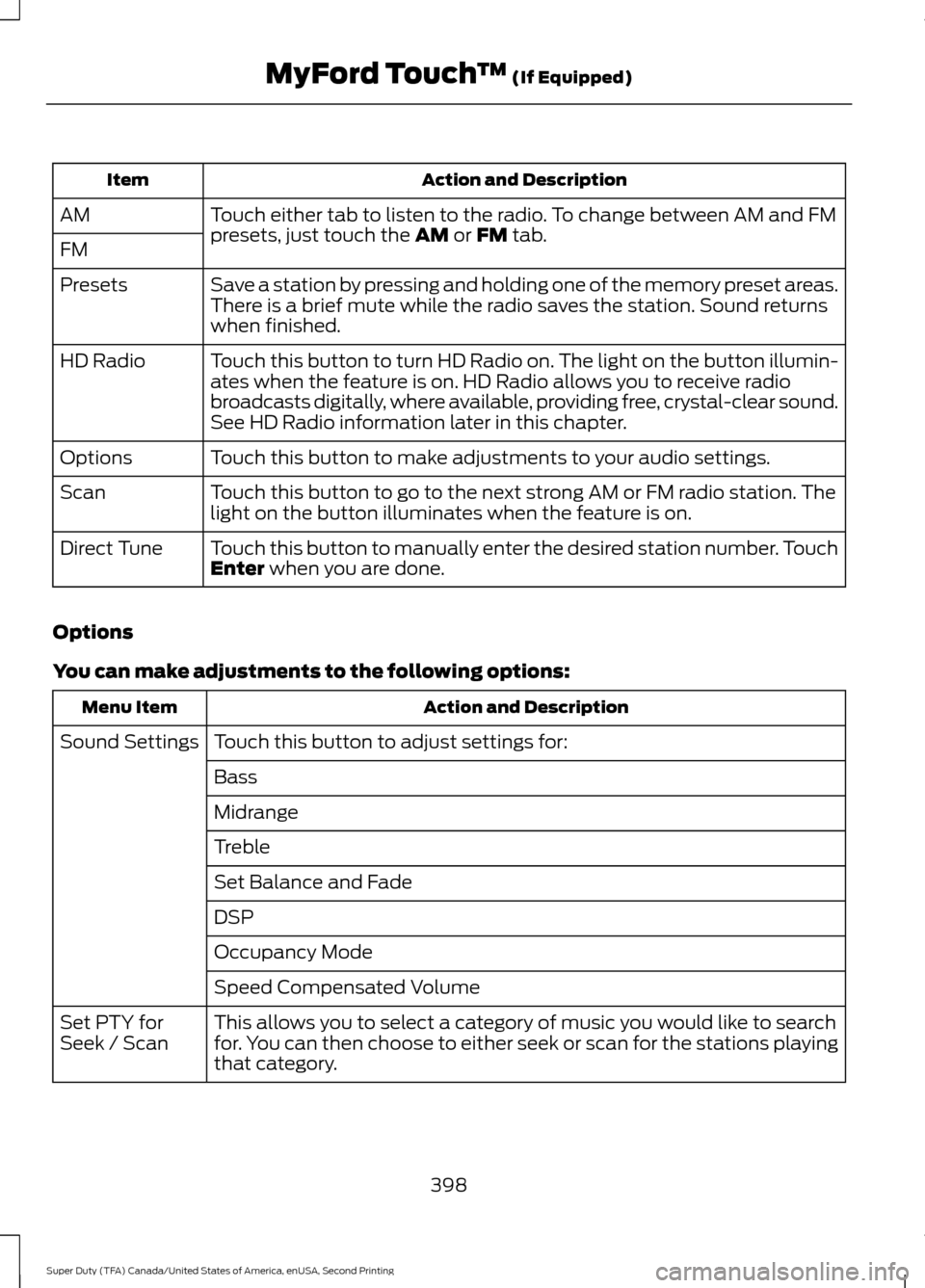
Touch either tab to listen to the radio. To change between AM and FM
presets, just touch the AM or FM tab.
AM
FM
Save a station by pressing and holding one of the memory preset areas.
There is a brief mute while the radio saves the station. Sound returns
when finished.
Presets
Touch this button to turn HD Radio on. The light on the button illumin-
ates when the feature is on. HD Radio allows you to receive radio
broadcasts digitally, where available, providing free, crystal-clear sound.
See HD Radio information later in this chapter.
HD Radio
Touch this button to make adjustments to your audio settings.
Options
Touch this button to go to the next strong AM or FM radio station. The
light on the button illuminates when the feature is on.
Scan
Touch this button to manually enter the desired station number. Touch
Enter
when you are done.
Direct Tune
Options
You can make adjustments to the following options: Action and Description
Menu Item
Touch this button to adjust settings for:
Sound Settings
Bass
Midrange
Treble
Set Balance and Fade
DSP
Occupancy Mode
Speed Compensated Volume
This allows you to select a category of music you would like to search
for. You can then choose to either seek or scan for the stations playing
that category.
Set PTY for
Seek / Scan
398
Super Duty (TFA) Canada/United States of America, enUSA, Second Printing MyFord Touch
™
(If Equipped)
Page 402 of 510
Action and Description
Menu Item
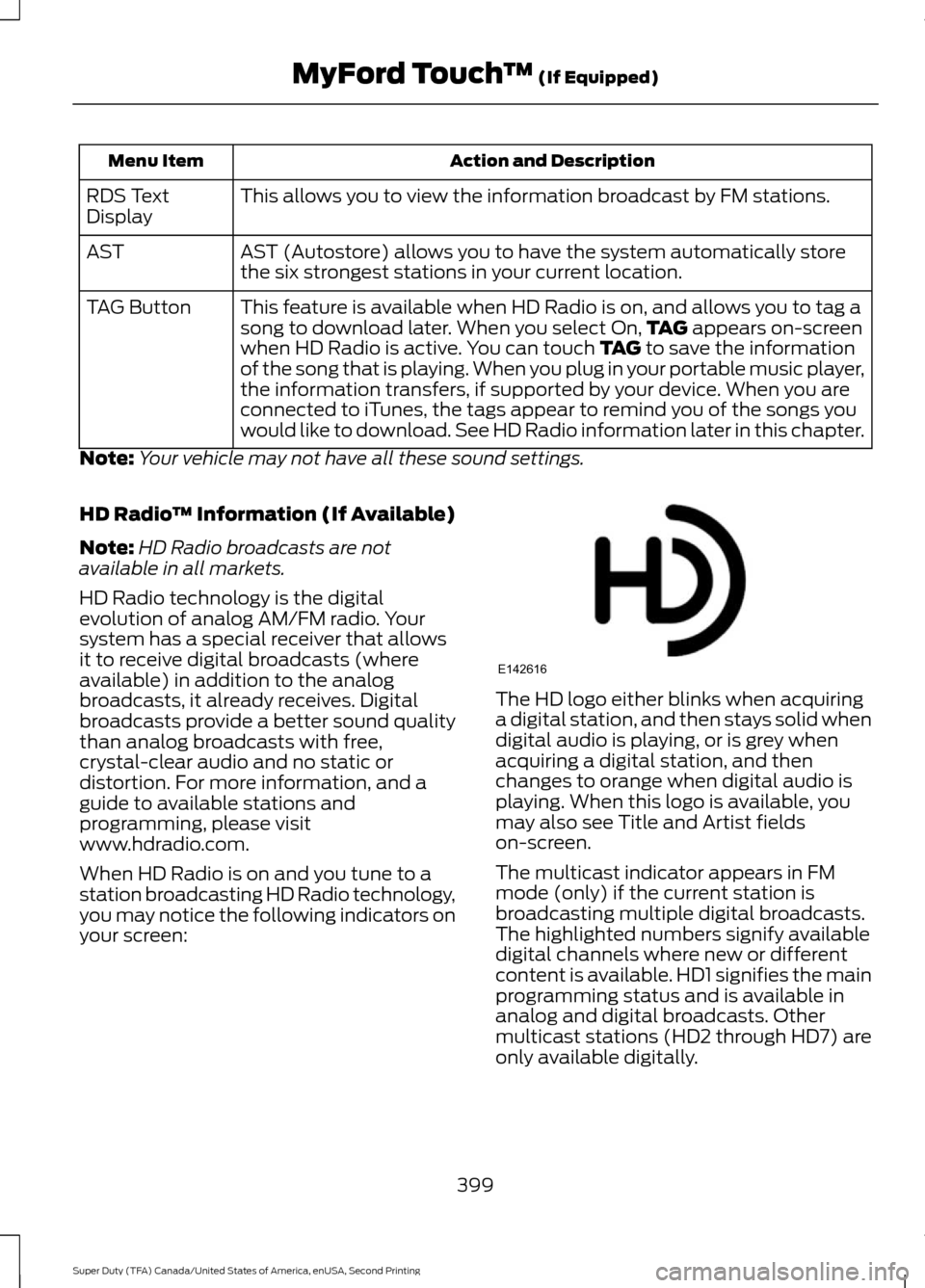
This allows you to view the information broadcast by FM stations.
RDS Text
Display
AST (Autostore) allows you to have the system automatically store
the six strongest stations in your current location.
AST
This feature is available when HD Radio is on, and allows you to tag a
song to download later. When you select On, TAG appears on-screen
when HD Radio is active. You can touch TAG to save the information
of the song that is playing. When you plug in your portable music player,
the information transfers, if supported by your device. When you are
connected to iTunes, the tags appear to remind you of the songs you
would like to download. See HD Radio information later in this chapter.
TAG Button
Note: Your vehicle may not have all these sound settings.
HD Radio ™ Information (If Available)
Note: HD Radio broadcasts are not
available in all markets.
HD Radio technology is the digital
evolution of analog AM/FM radio. Your
system has a special receiver that allows
it to receive digital broadcasts (where
available) in addition to the analog
broadcasts, it already receives. Digital
broadcasts provide a better sound quality
than analog broadcasts with free,
crystal-clear audio and no static or
distortion. For more information, and a
guide to available stations and
programming, please visit
www.hdradio.com.
When HD Radio is on and you tune to a
station broadcasting HD Radio technology,
you may notice the following indicators on
your screen: The HD logo either blinks when acquiring
a digital station, and then stays solid when
digital audio is playing, or is grey when
acquiring a digital station, and then
changes to orange when digital audio is
playing. When this logo is available, you
may also see Title and Artist fields
on-screen.
The multicast indicator appears in FM
mode (only) if the current station is
broadcasting multiple digital broadcasts.
The highlighted numbers signify available
digital channels where new or different
content is available. HD1 signifies the main
programming status and is available in
analog and digital broadcasts. Other
multicast stations (HD2 through HD7) are
only available digitally.
399
Super Duty (TFA) Canada/United States of America, enUSA, Second Printing MyFord Touch
™
(If Equipped)E142616
Page 404 of 510
HD Radio Reception and Station Troubleshooting
Potential reception issues
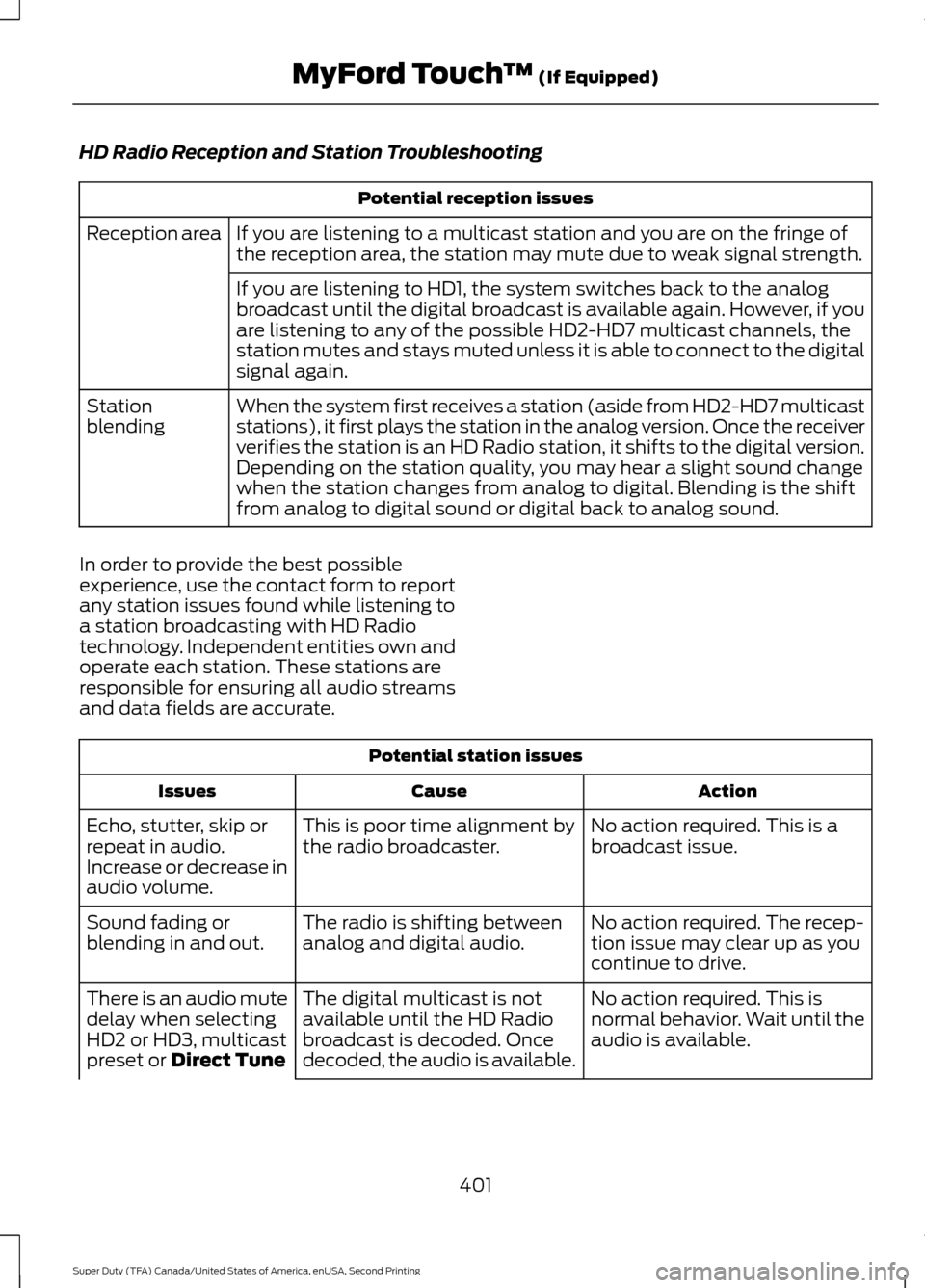
If you are listening to a multicast station and you are on the fringe of
the reception area, the station may mute due to weak signal strength.
Reception area
If you are listening to HD1, the system switches back to the analog
broadcast until the digital broadcast is available again. However, if you
are listening to any of the possible HD2-HD7 multicast channels, the
station mutes and stays muted unless it is able to connect to the digital
signal again.
When the system first receives a station (aside from HD2-HD7 multicast
stations), it first plays the station in the analog version. Once the receiver
verifies the station is an HD Radio station, it shifts to the digital version.
Depending on the station quality, you may hear a slight sound change
when the station changes from analog to digital. Blending is the shift
from analog to digital sound or digital back to analog sound.
Station
blending
In order to provide the best possible
experience, use the contact form to report
any station issues found while listening to
a station broadcasting with HD Radio
technology. Independent entities own and
operate each station. These stations are
responsible for ensuring all audio streams
and data fields are accurate. Potential station issues
Action
Cause
Issues
No action required. This is a
broadcast issue.
This is poor time alignment by
the radio broadcaster.
Echo, stutter, skip or
repeat in audio.
Increase or decrease in
audio volume.
No action required. The recep-
tion issue may clear up as you
continue to drive.
The radio is shifting between
analog and digital audio.
Sound fading or
blending in and out.
No action required. This is
normal behavior. Wait until the
audio is available.
The digital multicast is not
available until the HD Radio
broadcast is decoded. Once
decoded, the audio is available.
There is an audio mute
delay when selecting
HD2 or HD3, multicast
preset or Direct Tune
401
Super Duty (TFA) Canada/United States of America, enUSA, Second Printing MyFord Touch
™
(If Equipped)
Page 438 of 510
Menu Item
Map
Edit Route
Cancel Route
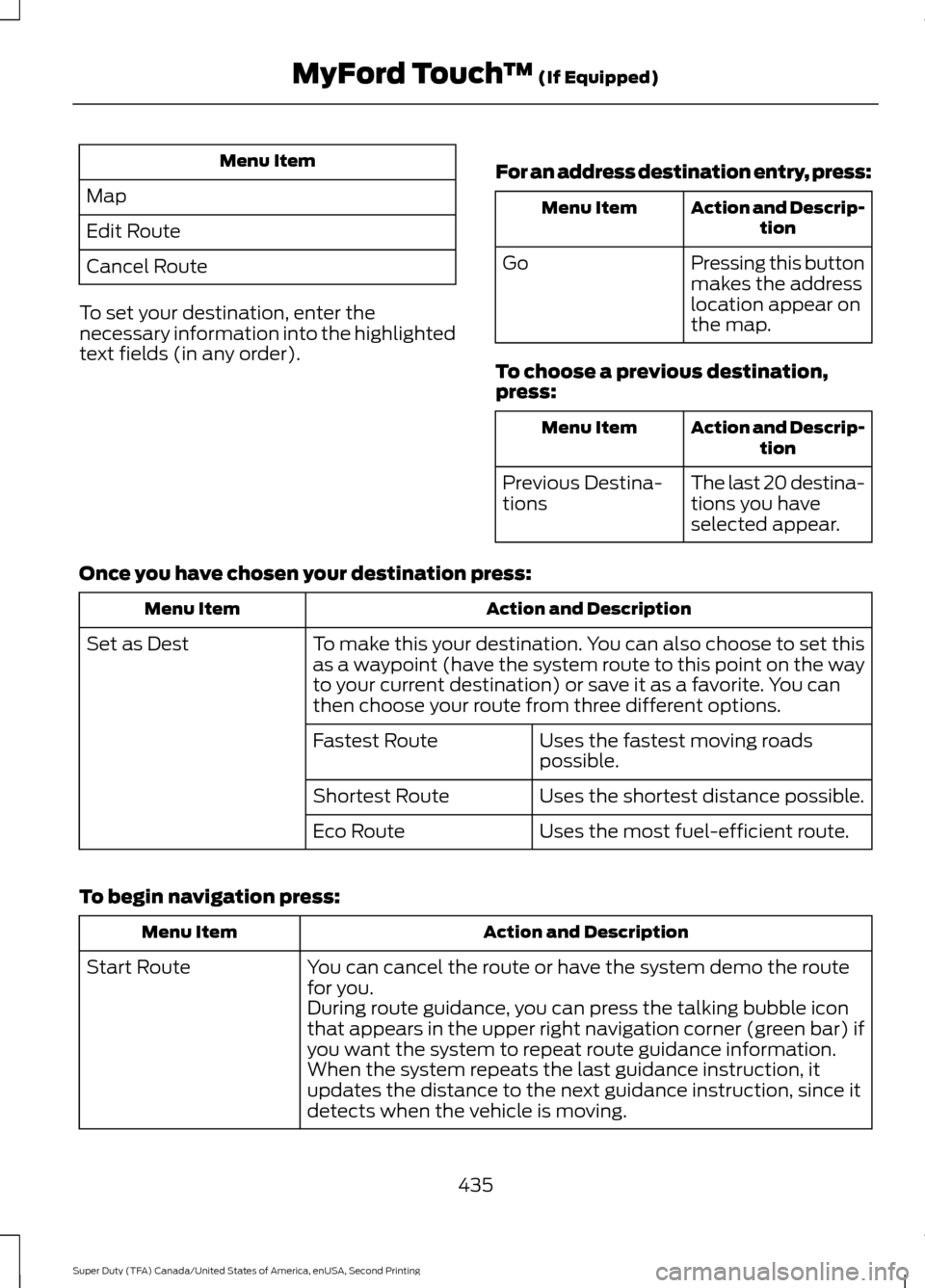
To set your destination, enter the
necessary information into the highlighted
text fields (in any order). For an address destination entry, press: Action and Descrip-
tion
Menu Item
Pressing this button
makes the address
location appear on
the map.
Go
To choose a previous destination,
press: Action and Descrip-
tion
Menu Item
The last 20 destina-
tions you have
selected appear.
Previous Destina-
tions
Once you have chosen your destination press: Action and Description
Menu Item
To make this your destination. You can also choose to set this
as a waypoint (have the system route to this point on the way
to your current destination) or save it as a favorite. You can
then choose your route from three different options.
Set as Dest
Uses the fastest moving roads
possible.
Fastest Route
Uses the shortest distance possible.
Shortest Route
Uses the most fuel-efficient route.
Eco Route
To begin navigation press: Action and Description
Menu Item
You can cancel the route or have the system demo the route
for you.
Start Route
During route guidance, you can press the talking bubble icon
that appears in the upper right navigation corner (green bar) if
you want the system to repeat route guidance information.
When the system repeats the last guidance instruction, it
updates the distance to the next guidance instruction, since it
detects when the vehicle is moving.
435
Super Duty (TFA) Canada/United States of America, enUSA, Second Printing MyFord Touch
™ (If Equipped)
Page 444 of 510
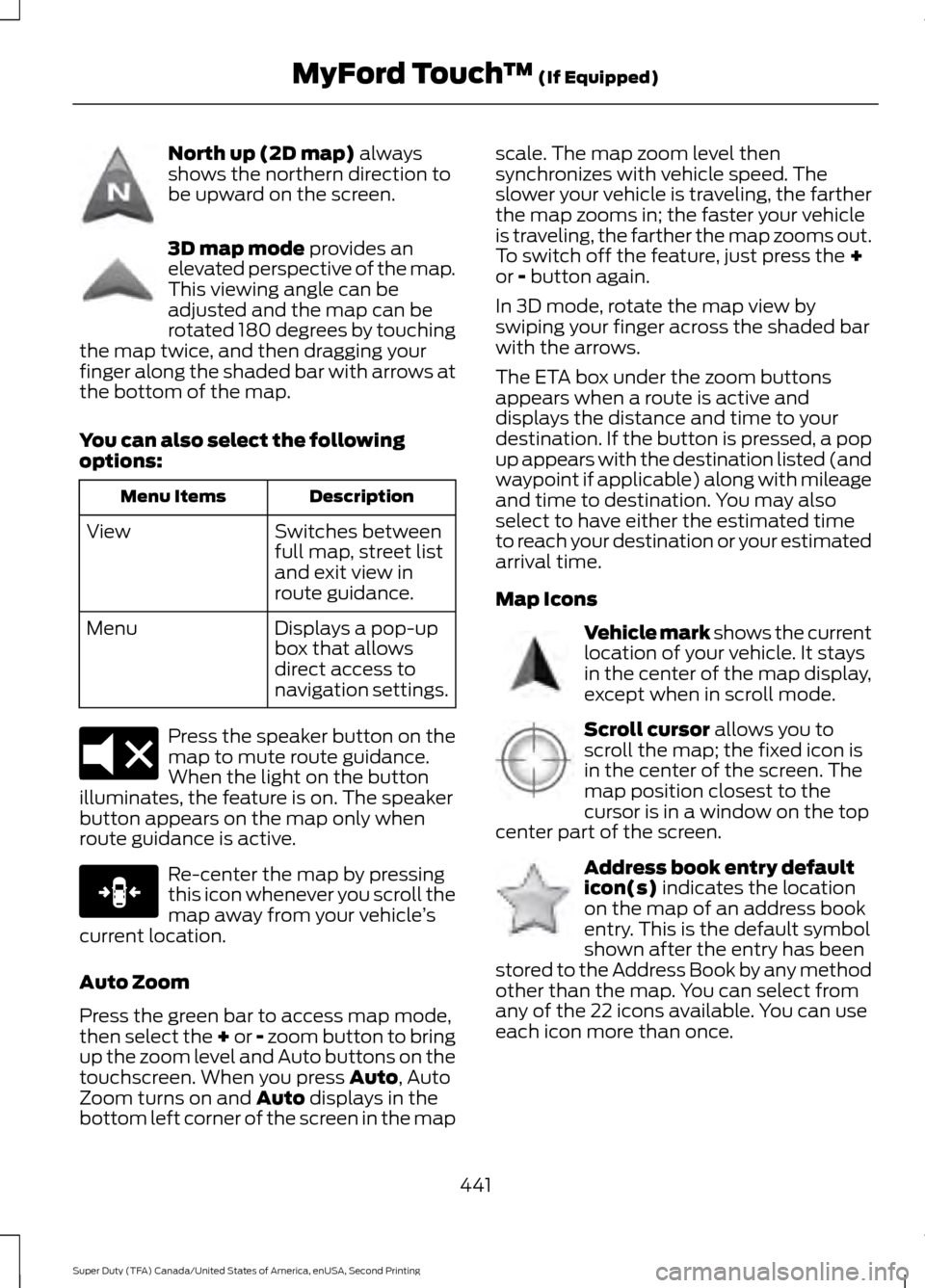
North up (2D map) always
shows the northern direction to
be upward on the screen. 3D map mode
provides an
elevated perspective of the map.
This viewing angle can be
adjusted and the map can be
rotated 180 degrees by touching
the map twice, and then dragging your
finger along the shaded bar with arrows at
the bottom of the map.
You can also select the following
options: Description
Menu Items
Switches between
full map, street list
and exit view in
route guidance.
View
Displays a pop-up
box that allows
direct access to
navigation settings.
Menu Press the speaker button on the
map to mute route guidance.
When the light on the button
illuminates, the feature is on. The speaker
button appears on the map only when
route guidance is active. Re-center the map by pressing
this icon whenever you scroll the
map away from your vehicle
’s
current location.
Auto Zoom
Press the green bar to access map mode,
then select the + or - zoom button to bring
up the zoom level and Auto buttons on the
touchscreen. When you press
Auto, Auto
Zoom turns on and Auto displays in the
bottom left corner of the screen in the map scale. The map zoom level then
synchronizes with vehicle speed. The
slower your vehicle is traveling, the farther
the map zooms in; the faster your vehicle
is traveling, the farther the map zooms out.
To switch off the feature, just press the
+
or - button again.
In 3D mode, rotate the map view by
swiping your finger across the shaded bar
with the arrows.
The ETA box under the zoom buttons
appears when a route is active and
displays the distance and time to your
destination. If the button is pressed, a pop
up appears with the destination listed (and
waypoint if applicable) along with mileage
and time to destination. You may also
select to have either the estimated time
to reach your destination or your estimated
arrival time.
Map Icons Vehicle mark shows the current
location of your vehicle. It stays
in the center of the map display,
except when in scroll mode.
Scroll cursor
allows you to
scroll the map; the fixed icon is
in the center of the screen. The
map position closest to the
cursor is in a window on the top
center part of the screen. Address book entry default
icon(s)
indicates the location
on the map of an address book
entry. This is the default symbol
shown after the entry has been
stored to the Address Book by any method
other than the map. You can select from
any of the 22 icons available. You can use
each icon more than once.
441
Super Duty (TFA) Canada/United States of America, enUSA, Second Printing MyFord Touch
™
(If Equipped)E142643 E142644 E174017 E146188 E142646 E142647 E142648
Page 453 of 510
For a complete listing of the accessories
that are available for your vehicle, please
contact your authorized dealer or visit the
online store web site:
Web Address (United States)
www.Accessories.Ford.com Web Address (Canada)
www.Accessories.Ford.ca
Ford Accessories are available for your
vehicle through an authorized Ford dealer.
Ford Motor Company will repair or replace
any properly authorized dealer-installed
Ford Original Accessory found to be
defective in factory-supplied materials or
workmanship during the warranty period,
as well as any component damaged by the
defective accessories.
Ford Motor Company will warrant your
vehicle through the warranty that provides
the greatest benefit:
• 24 months, unlimited mileage.
• The remainder of your new vehicle
limited warranty.
Contact an authorized dealer for details
and a copy of the warranty.
Exterior style
• Bug shields.
• Commercial graphics.*
• Commercial LED warning strobe lights.
• Deflectors.
• Exhaust tip.
• Fog lamps.
• Running boards.
• Splash guards.
• Stainless-steel wheel covers.* •
Step bars.
• Wheel well liners.
Interior style
• Cargo organizers.
• Custom seat covers.*
• Floor mats.
Lifestyle
• Ash cup / smoker's package.
• Bed extender.
• Bedliners and bedmats.
• Racks and carriers.*
• Rear-seat entertainment.*
• Sportliner cargo liner.*
• Tonneau covers*.
• Trailer hitches, wiring harnesses and
accessories.
• Truck bed camping tent.*
Peace of mind
• Back-up alarm.*
• Bed hooks.*
• Bumper and hitch-mounted parking
sensors.*
• Cable lock.*
• Ford Telematics.
• Keyless entry keypad.
• Protective seat covers.*
• Remote start and alarms.
• Speed/Cruise control.
• Tool or Cargo boxes.*
• Wheel locks.
450
Super Duty (TFA) Canada/United States of America, enUSA, Second Printing Accessories
Page 466 of 510
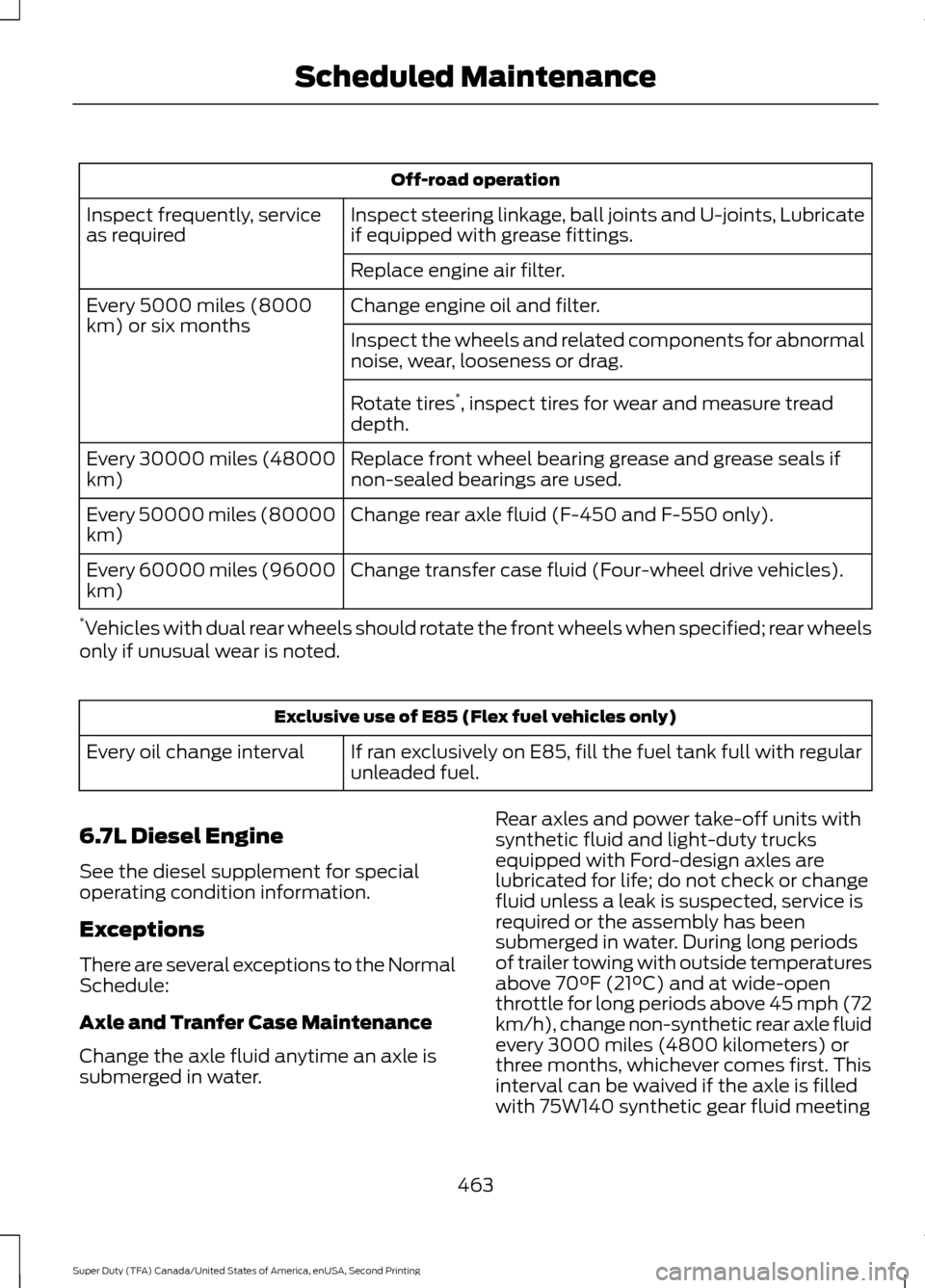
Off-road operation
Inspect steering linkage, ball joints and U-joints, Lubricate
if equipped with grease fittings.
Inspect frequently, service
as required
Replace engine air filter.
Change engine oil and filter.
Every 5000 miles (8000
km) or six months
Inspect the wheels and related components for abnormal
noise, wear, looseness or drag.
Rotate tires*
, inspect tires for wear and measure tread
depth.
Replace front wheel bearing grease and grease seals if
non-sealed bearings are used.
Every 30000 miles (48000
km)
Change rear axle fluid (F-450 and F-550 only).
Every 50000 miles (80000
km)
Change transfer case fluid (Four-wheel drive vehicles).
Every 60000 miles (96000
km)
* Vehicles with dual rear wheels should rotate the front wheels when specified; rear wheels
only if unusual wear is noted. Exclusive use of E85 (Flex fuel vehicles only)
If ran exclusively on E85, fill the fuel tank full with regular
unleaded fuel.
Every oil change interval
6.7L Diesel Engine
See the diesel supplement for special
operating condition information.
Exceptions
There are several exceptions to the Normal
Schedule:
Axle and Tranfer Case Maintenance
Change the axle fluid anytime an axle is
submerged in water. Rear axles and power take-off units with
synthetic fluid and light-duty trucks
equipped with Ford-design axles are
lubricated for life; do not check or change
fluid unless a leak is suspected, service is
required or the assembly has been
submerged in water. During long periods
of trailer towing with outside temperatures
above 70°F (21°C) and at wide-open
throttle for long periods above 45 mph (72
km/h), change non-synthetic rear axle fluid
every 3000 miles (4800 kilometers) or
three months, whichever comes first. This
interval can be waived if the axle is filled
with 75W140 synthetic gear fluid meeting
463
Super Duty (TFA) Canada/United States of America, enUSA, Second Printing Scheduled Maintenance
Page 467 of 510
Ford specification WSL-M2C192-A, part
number XY-75W140-QL, or equivalent. Add
friction modifier XL-3 (EST-M2C118-A) or
equivalent for complete refill of
Traction-Lok rear axles. See Capacities
and Specifications (page 303).
Additional Axle Maintenance for Dual
Rear Wheels
Change rear axle fluid every 250,000 miles
(400,000 kilometers) under normal driving
conditions on all commercial applications.
When operating your vehicle at or near
maximum gross vehicle weights, change
the rear axle fluid every 60,000 miles
(96,000 kilometers). In addition, follow
this 60,000 mile (96,000 kilometer)
schedule when operating your vehicle
under the special operating conditions
where noted.
California Fuel Filter Replacement
If you register your vehicle in California, the
California Air Resources Board has
determined that the failure to perform this
maintenance item does not nullify the
emission warranty or limit recall liability
before the completion of your vehicle's
useful life. Ford Motor Company, however,
urges you to have all recommended
maintenance services performed at the
specified intervals and to record all vehicle
service.
Hot Climate Oil Change Intervals
Vehicles operating in the Middle East,
North Africa, Sub-Saharan Africa or
locations with similar climates using an
American Petroleum Institute (API)
Certified for Gasoline Engines (Certification
mark) oil of SM or SN quality, the normal
oil change interval is 3000 miles (5000
kilometers). If the available API SM or SN oils are not
available, then the oil change interval is
1800 miles (3000 kilometers).
Engine Air Filter and Cabin Air Filter
Replacement
The life of the engine air filter and cabin air
filter is dependent on exposure to dusty
and dirty conditions. Vehicles operated in
these conditions require frequent
inspection and replacement of the engine
air filter and cabin air filter.
Diesel Particulate Filter
The filter may need to be removed for ash
cleaning at approximately 120000 miles
(192000 kilometers) or greater (actual
mileage can vary greatly depending upon
engine and vehicle operating conditions)
and replaced with a new or
re-manufactured (ash cleaned) part. The
filter may need to be replaced at
approximately 250000 miles (400000
kilometers) depending upon engine and
vehicle operating conditions. In both cases,
the engine control system sets a service
light (wrench icon) to inform you to bring
your vehicle to the dealer for service. If
there are any issues with the oxidation
catalyst or particulate filter system, a
service light (wrench or engine icon) sets
by the engine control system to inform you
to bring your vehicle into a dealer for
service.
464
Super Duty (TFA) Canada/United States of America, enUSA, Second Printing Scheduled Maintenance