2016 FORD FOCUS USB
[x] Cancel search: USBPage 330 of 385
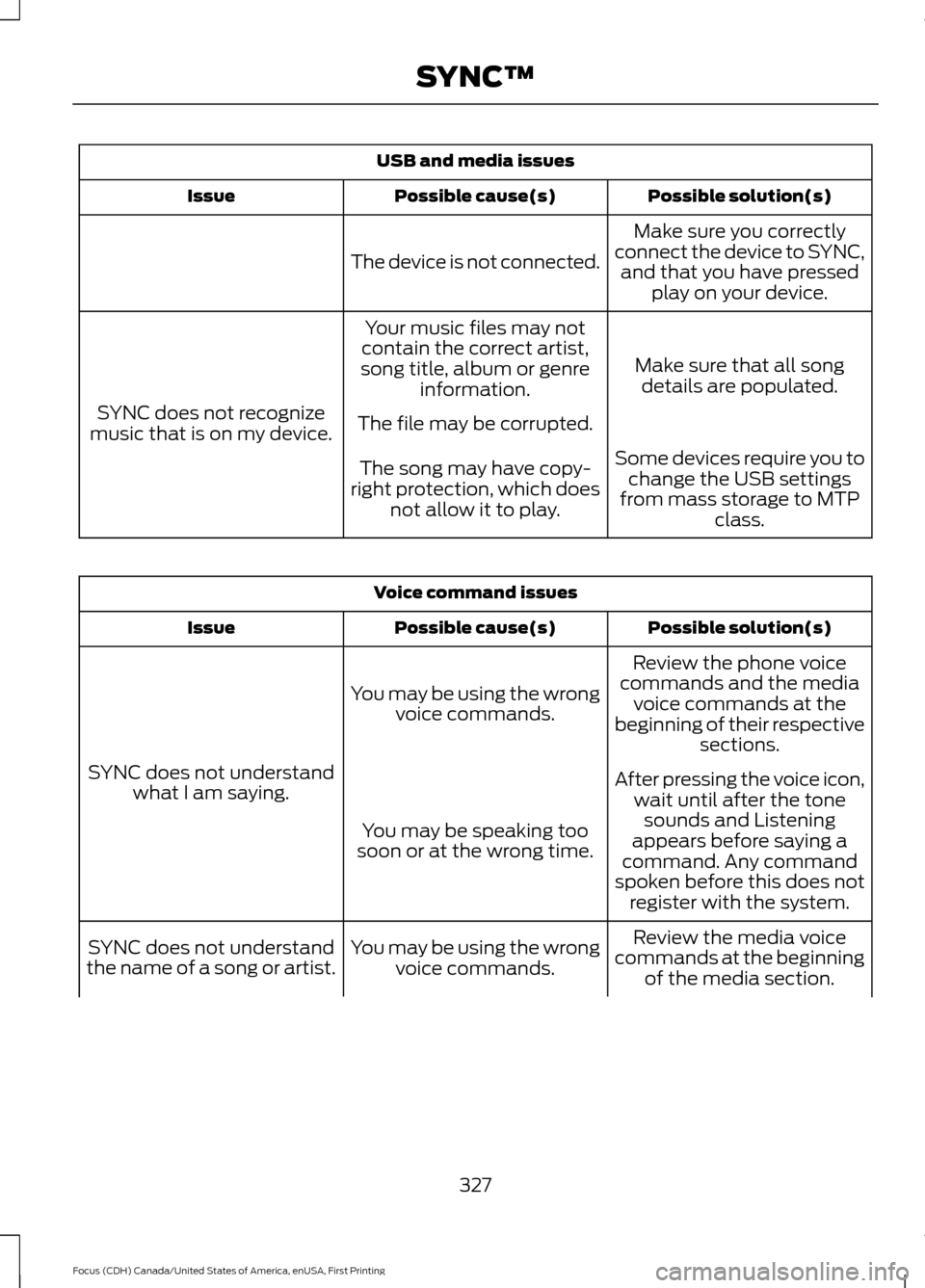
USB and media issues
Possible solution(s)
Possible cause(s)
Issue
Make sure you correctly
connect the device to SYNC, and that you have pressed play on your device.
The device is not connected.
Make sure that all songdetails are populated.
Your music files may not
contain the correct artist,
song title, album or genre information.
SYNC does not recognize
music that is on my device. The file may be corrupted.
Some devices require you tochange the USB settings
from mass storage to MTP class.
The song may have copy-
right protection, which does not allow it to play. Voice command issues
Possible solution(s)
Possible cause(s)
Issue
Review the phone voice
commands and the media voice commands at the
beginning of their respective sections.
You may be using the wrong
voice commands.
SYNC does not understand what I am saying. After pressing the voice icon,
wait until after the tonesounds and Listening
appears before saying a
command. Any command
spoken before this does not register with the system.
You may be speaking too
soon or at the wrong time.
Review the media voice
commands at the beginning of the media section.
You may be using the wrong
voice commands.
SYNC does not understand
the name of a song or artist.
327
Focus (CDH) Canada/United States of America, enUSA, First Printing SYNC™
Page 332 of 385
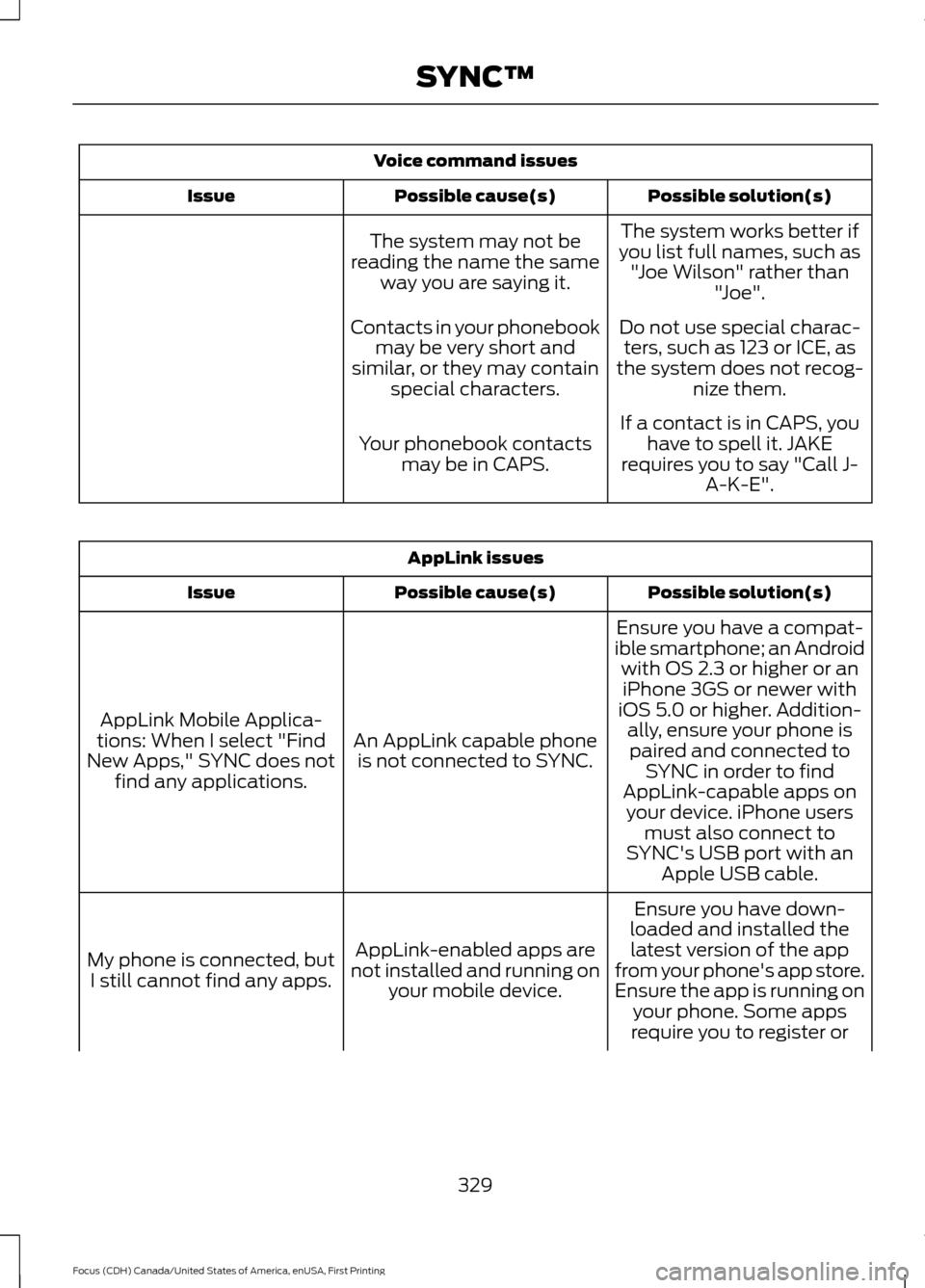
Voice command issues
Possible solution(s)
Possible cause(s)
Issue
The system works better if
you list full names, such as "Joe Wilson" rather than "Joe".
The system may not be
reading the name the same way you are saying it.
Do not use special charac-ters, such as 123 or ICE, as
the system does not recog- nize them.
Contacts in your phonebook
may be very short and
similar, or they may contain special characters.
If a contact is in CAPS, youhave to spell it. JAKE
requires you to say "Call J- A-K-E".
Your phonebook contacts
may be in CAPS. AppLink issues
Possible solution(s)
Possible cause(s)
Issue
Ensure you have a compat-
ible smartphone; an Android with OS 2.3 or higher or aniPhone 3GS or newer with
iOS 5.0 or higher. Addition- ally, ensure your phone is
An AppLink capable phone
is not connected to SYNC.
AppLink Mobile Applica-
tions: When I select "Find
New Apps," SYNC does not find any applications. paired and connected to
SYNC in order to find
AppLink-capable apps on your device. iPhone users must also connect to
SYNC's USB port with an Apple USB cable.
Ensure you have down-
loaded and installed the latest version of the app
from your phone's app store.
Ensure the app is running on your phone. Some apps
AppLink-enabled apps are
not installed and running on your mobile device.
My phone is connected, but
I still cannot find any apps.
require you to register or
329
Focus (CDH) Canada/United States of America, enUSA, First Printing SYNC™
Page 334 of 385
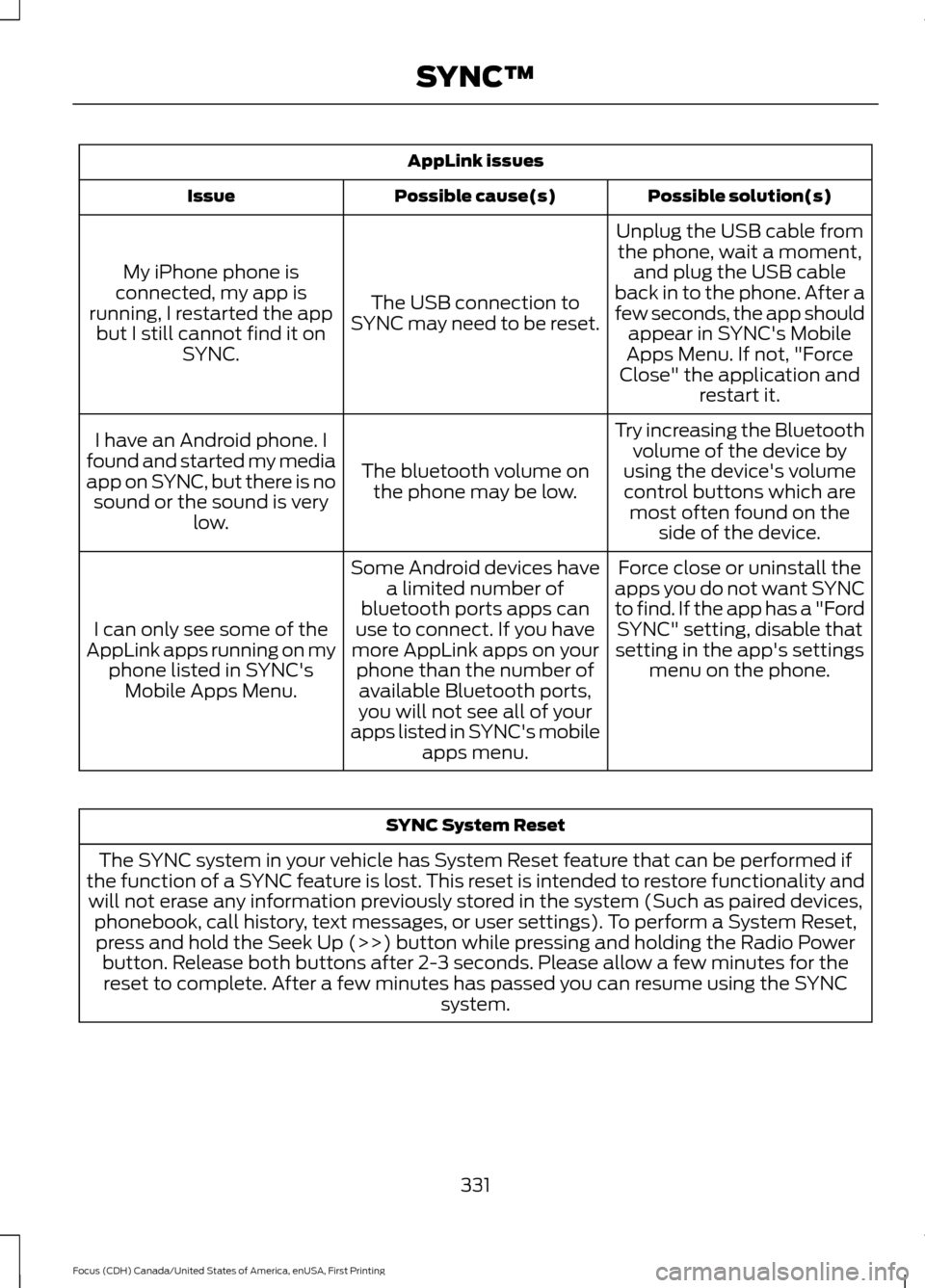
AppLink issues
Possible solution(s)
Possible cause(s)
Issue
Unplug the USB cable fromthe phone, wait a moment, and plug the USB cable
back in to the phone. After a
few seconds, the app should appear in SYNC's Mobile
Apps Menu. If not, "Force
Close" the application and restart it.
The USB connection to
SYNC may need to be reset.
My iPhone phone is
connected, my app is
running, I restarted the app but I still cannot find it on SYNC.
Try increasing the Bluetoothvolume of the device by
using the device's volume control buttons which are most often found on the side of the device.
The bluetooth volume on
the phone may be low.
I have an Android phone. I
found and started my media
app on SYNC, but there is no sound or the sound is very low.
Force close or uninstall the
apps you do not want SYNC
to find. If the app has a "Ford SYNC" setting, disable that
setting in the app's settings menu on the phone.
Some Android devices have
a limited number of
bluetooth ports apps can
use to connect. If you have
more AppLink apps on your phone than the number ofavailable Bluetooth ports,
you will not see all of your
apps listed in SYNC's mobile apps menu.
I can only see some of the
AppLink apps running on my phone listed in SYNC'sMobile Apps Menu. SYNC System Reset
The SYNC system in your vehicle has System Reset feature that can be performed if
the function of a SYNC feature is lost. This reset is intended to restore functionality and will not erase any information previously stored in the system (Such as paired devices, phonebook, call history, text messages, or user settings). To perform a System Reset,press and hold the Seek Up (>>) button while pressing and holding the Radio Power button. Release both buttons after 2-3 seconds. Please allow a few minutes for thereset to complete. After a few minutes has passed you can resume using the SYNC system.
331
Focus (CDH) Canada/United States of America, enUSA, First Printing SYNC™
Page 384 of 385
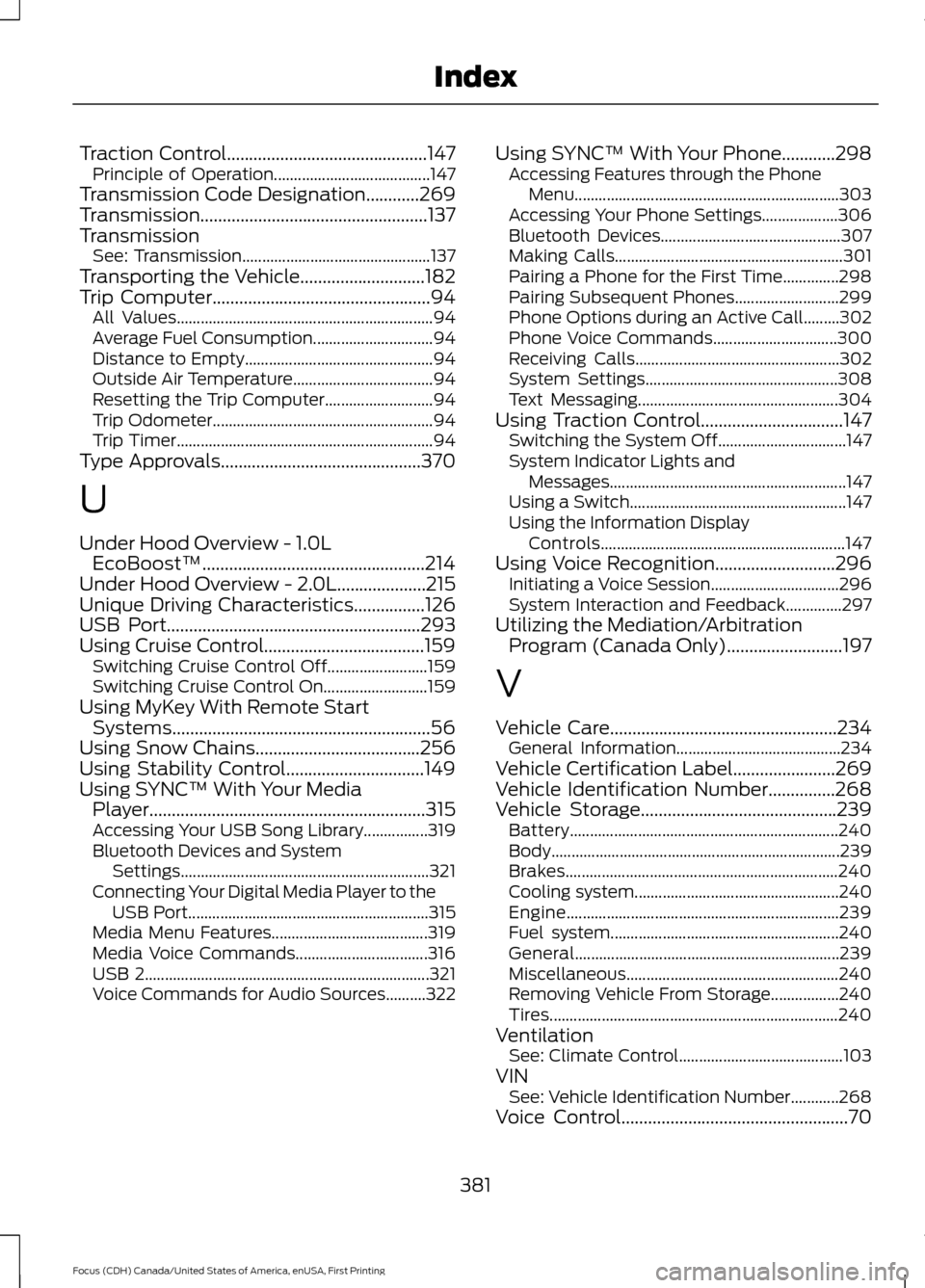
Traction Control.............................................147
Principle of Operation....................................... 147
Transmission Code Designation............269
Transmission...................................................137
Transmission See: Transmission............................................... 137
Transporting the Vehicle............................182
Trip Computer
.................................................94
All Values................................................................ 94
Average Fuel Consumption.............................. 94
Distance to Empty............................................... 94
Outside Air Temperature................................... 94
Resetting the Trip Computer........................... 94
Trip Odometer....................................................... 94
Trip Timer................................................................ 94
Type Approvals
.............................................370
U
Under Hood Overview - 1.0L EcoBoost™..................................................214
Under Hood Overview - 2.0L....................215
Unique Driving Characteristics................126
USB Port
.........................................................293
Using Cruise Control....................................159 Switching Cruise Control Off......................... 159
Switching Cruise Control On.......................... 159
Using MyKey With Remote Start Systems
..........................................................56
Using Snow Chains.....................................256
Using Stability Control...............................149
Using SYNC™ With Your Media Player
..............................................................315
Accessing Your USB Song Library................319
Bluetooth Devices and System
Settings.............................................................. 321
Connecting Your Digital Media Player to the USB Port............................................................ 315
Media Menu Features....................................... 319
Media Voice Commands................................. 316
USB 2....................................................................... 321
Voice Commands for Audio Sources..........322 Using SYNC™ With Your Phone
............298
Accessing Features through the Phone
Menu.................................................................. 303
Accessing Your Phone Settings................... 306
Bluetooth Devices............................................. 307
Making Calls......................................................... 301
Pairing a Phone for the First Time..............298
Pairing Subsequent Phones.......................... 299
Phone Options during an Active Call.........302
Phone Voice Commands............................... 300
Receiving Calls................................................... 302
System Settings................................................ 308
Text Messaging.................................................. 304
Using Traction Control
................................147
Switching the System Off................................ 147
System Indicator Lights and Messages........................................................... 147
Using a Switch...................................................... 147
Using the Information Display Controls............................................................. 147
Using Voice Recognition
...........................296
Initiating a Voice Session................................ 296
System Interaction and Feedback..............297
Utilizing the Mediation/Arbitration Program (Canada Only)
..........................197
V
Vehicle Care
...................................................234
General Information......................................... 234
Vehicle Certification Label.......................269
Vehicle Identification Number
...............268
Vehicle Storage............................................239 Battery................................................................... 240
Body........................................................................\
239
Brakes.................................................................... 240
Cooling system................................................... 240
Engine.................................................................... 239
Fuel system......................................................... 240
General.................................................................. 239
Miscellaneous..................................................... 240
Removing Vehicle From Storage.................240
Tires........................................................................\
240
Ventilation See: Climate Control......................................... 103
VIN See: Vehicle Identification Number............268
Voice Control...................................................70
381
Focus (CDH) Canada/United States of America, enUSA, First Printing Index