2016 FORD FIESTA radio
[x] Cancel search: radioPage 267 of 363
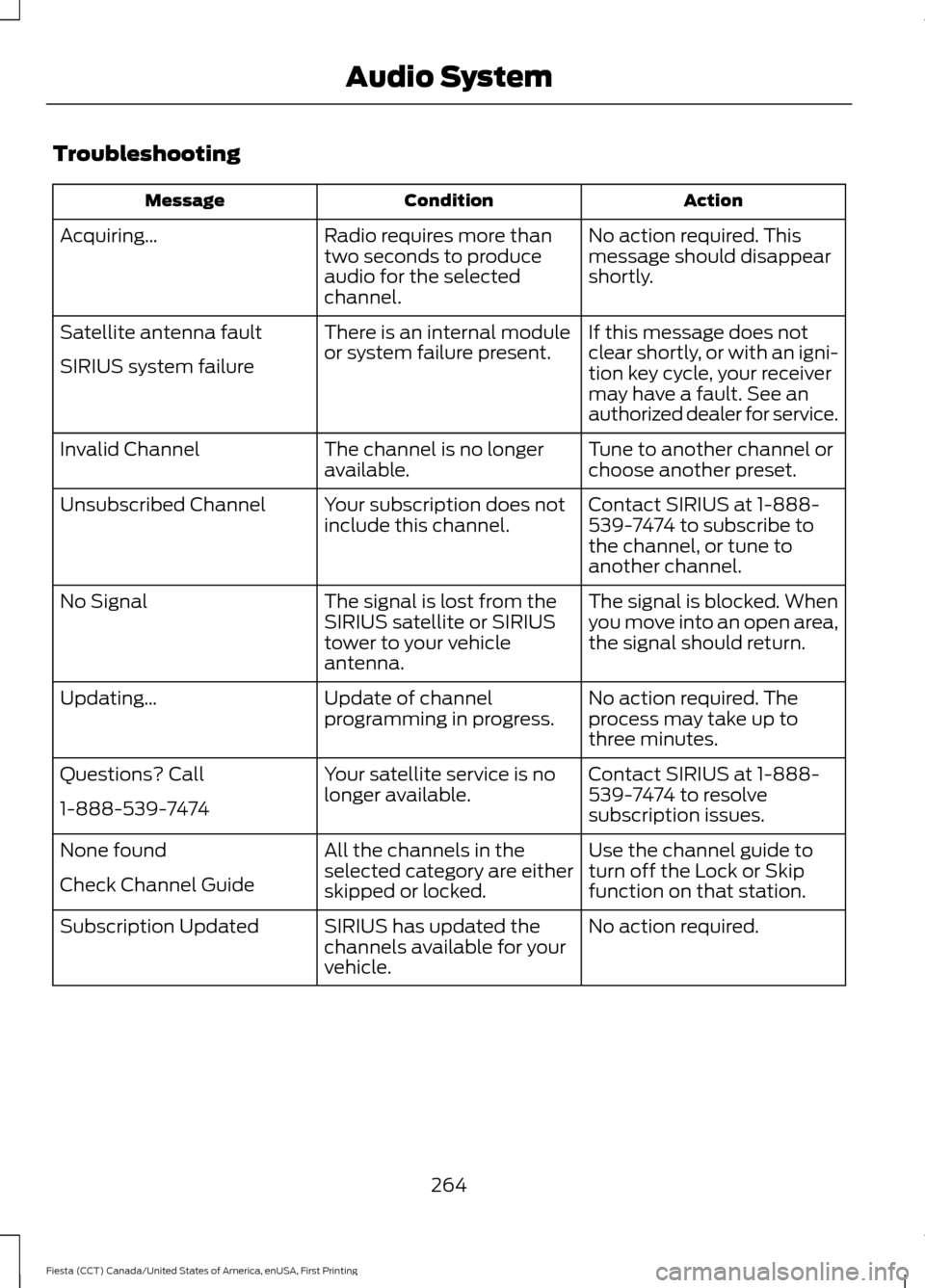
Troubleshooting
Action
Condition
Message
No action required. This
message should disappear
shortly.
Radio requires more than
two seconds to produce
audio for the selected
channel.
Acquiring…
If this message does not
clear shortly, or with an igni-
tion key cycle, your receiver
may have a fault. See an
authorized dealer for service.
There is an internal module
or system failure present.
Satellite antenna fault
SIRIUS system failure
Tune to another channel or
choose another preset.
The channel is no longer
available.
Invalid Channel
Contact SIRIUS at 1-888-
539-7474 to subscribe to
the channel, or tune to
another channel.
Your subscription does not
include this channel.
Unsubscribed Channel
The signal is blocked. When
you move into an open area,
the signal should return.
The signal is lost from the
SIRIUS satellite or SIRIUS
tower to your vehicle
antenna.
No Signal
No action required. The
process may take up to
three minutes.
Update of channel
programming in progress.
Updating…
Contact SIRIUS at 1-888-
539-7474 to resolve
subscription issues.
Your satellite service is no
longer available.
Questions? Call
1-888-539-7474
Use the channel guide to
turn off the Lock or Skip
function on that station.
All the channels in the
selected category are either
skipped or locked.
None found
Check Channel Guide
No action required.
SIRIUS has updated the
channels available for your
vehicle.
Subscription Updated
264
Fiesta (CCT) Canada/United States of America, enUSA, First Printing Audio System
Page 268 of 363

AUDIO INPUT JACK
WARNINGS
Driving while distracted can result in
loss of vehicle control, crash and
injury. We strongly recommend that
you use extreme caution when using any
device that may take your focus off the
road. Your primary responsibility is the safe
operation of your vehicle. We recommend
against the use of any hand-held device
while driving and encourage the use of
voice-operated systems when possible.
Make sure you are aware of all applicable
local laws that may affect the use of
electronic devices while driving. For safety reasons, do not connect
or adjust the settings on your
portable music player while your
vehicle is moving. Store the portable music player in a
secure location, such as the center
console or the glove box, when your
vehicle is moving. Hard objects may
become projectiles in a collision or sudden
stop, which may increase the risk of serious
injury. The audio extension cable must be
long enough to allow the portable music
player to be safely stored while your
vehicle is moving. The auxiliary input jack allows you to
connect and play music from your portable
music player through your vehicle speakers.
You can use any portable music player
designed for use with headphones. Your
audio extension cable must have male
1/8th-inch (3.5 millimeter) connectors at
each end.
1. Switch off the engine, radio and
portable music player. Set the parking
brake and put the transmission in
position P (vehicle with an automatic
transmission) or neutral (vehicle with
a manual transmission).
2. Plug the extension cable from the portable music player into the auxiliary
input jack.
3. Switch the radio on. Select either a tuned FM station or a CD.
4. Adjust the volume as desired.
5. Switch your portable music player on and adjust its volume to half its
maximum level.
6. Press
AUX until LINE or LINE IN
appears in the display. You should hear
music from your device even if it is low.
7. Adjust the volume on your portable music player until it reaches the volume
level of the FM station or CD. Do this
by switching back and forth between
the AUX and FM or CD controls.
265
Fiesta (CCT) Canada/United States of America, enUSA, First Printing Audio SystemE149149
Page 275 of 363

USING SYNC™ WITH YOUR
PHONE
Hands-free calling is one of the main
features of SYNC. While the system
supports a variety of features, many are
dependent on your cell phone's
functionality. At a minimum, most cell
phones with Bluetooth wireless technology
support the following functions:
•
Answering an incoming call.
• Ending a call.
• Using privacy mode.
• Dialing a number.
• Redialing.
• Call waiting notification.
• Caller ID. Other features, such as text messaging
using Bluetooth and automatic phonebook
download, are cell phone-dependent
features. To check your cell phone's
compatibility, see your cell phone's manual
and visit www.SYNCMyRide.com,
www.SYNCMyRide.ca or
www.syncmaroute.ca.
Pairing a Cell Phone for the First
Time
Note:
SYNC can support downloading up
to approximately 1000 entries per
Bluetooth-enabled cell phone.
Note: Make sure to switch on the ignition
and the radio. Put the transmission in
position park (P) (automatic transmission)
or neutral with the parking brake applied
(manual transmission).
Note: To scroll through the menus, press
the up and down arrows on your audio
system.
Wirelessly pairing your cell phone with
SYNC allows you to make and receive
hands-free calls.
Press the phone button. When the display indicates there is no cell phone paired,
do the following: Action and Description
Message
Press the
OK button.
No Phone Paired
Find SYNC 1. Press the
OK button.
2. Put your cell phone into Bluetooth discovery mode. See your device's manual if necessary.
3. When prompted on your cell phone's display, enter the six-digit PIN provided by SYNC in the radio display. The
display indicates when the pairing is successful.
272
Fiesta (CCT) Canada/United States of America, enUSA, First Printing SYNC™
Page 276 of 363

Depending on your cell phone's capability
and your market, the system may prompt
you with questions, such as setting the
current cell phone as the primary cell
phone (the cell phone SYNC automatically
tries to connect with first upon vehicle
start-up) and downloading your
phonebook.
Pairing Subsequent Cell Phones
Note:
To scroll through the menus, press
the up and down arrows on your audio
system.
Note: Make sure to switch on the ignition
and the radio. Put the transmission in
position park (P) (automatic transmission)
or neutral with the parking brake applied
(manual transmission).
Press the phone button, then scroll to: Action
Message
Press the
OK button.
Phone settings
Press the
OK button.
Bluetooth device
Press the
OK button. When the following message appears
in the display.
Add
Find SYNC
1. Press the
OK button.
2. Put your cell phone into Bluetooth discovery mode. See your device's manual if necessary.
3. When prompted on your cell phone's display, enter the six-digit PIN provided by SYNC in the radio display. The
display indicates when the pairing is successful.
The system then prompts with questions, such as if you would like to set the current cell
phone as the primary cell phone (the cell phone SYNC automatically tries to connect
with first upon vehicle start-up) or download your phonebook.
Phone Voice Commands
Press the voice icon and say: Voice Commands
Phone
You can then say any of the following
commands.
Call History Incoming
Call History Missed
Call History Outgoing Voice Commands
Phonebook ___
Phonebook ___ at Home
Phonebook ___ at Work
Phonebook ___ in Office
Phonebook ___ on Cell
___ is a dynamic listing that should be the
name of a contact in your phonebook. For
example you could say "Call Mom".
273
Fiesta (CCT) Canada/United States of America, enUSA, First Printing SYNC™
Page 286 of 363

Advanced
The Advanced menu allows you to access
and set prompts, languages, defaults,
perform a master reset, install an
application and view system information.
To access the advanced menu, press the phone button to enter the Phone Menu,
the scroll to: Action and Description
Message
Press OK.
Sys Settings
Press
OK.
Advanced
Select one of the following:
Get help from SYNC by using questions, helpful hints or asking
you for a specific action. To turn these prompts on or off:
Confirmation Prompts
1.Press the
OK button to select and scroll to select between
On and Off.
2. Press the
OK button when the desired selection appears
in the display. SYNC returns you to the Advanced menu.
1. Press
OK to select and then scroll through the languages.
Choose between English, Français and Español. Once
selected, all of the radio displays and prompts are in the
selected language.
2. Press
OK when the desired selection appears in the
display. If you change the language setting, the display
indicates that the system is updating. When complete,
SYNC returns you to the Advanced menu.
Language
Return to the factory default settings. This selection does
not erase your indexed information, for example phonebook,
call history, text messages or paired devices.
Factory Defaults
Press the OK button to select and then press OK again when
the following message appears in the display.
Confirm Restore
Completely erase all information stored on SYNC, for example
phonebook, call history, text messages and paired devices,
and return the system to the factory default settings.
Master reset
Press
OK to select. The display indicates when complete.
SYNC returns you to the Advanced menu.
Install applications you have downloaded.
Install Applications
283
Fiesta (CCT) Canada/United States of America, enUSA, First Printing SYNC™
Page 288 of 363
![FORD FIESTA 2016 6.G Owners Manual If a crash deploys an airbag (excluding
knee airbags and rear inflatable safety
belts [if equipped]) or activates the fuel
pump shut-off, your SYNC-equipped
vehicle may be able to contact emergency
se](/manual-img/11/5094/w960_5094-287.png "FORD FIESTA 2016 6.G Owners Manual If a crash deploys an airbag (excluding
knee airbags and rear inflatable safety
belts [if equipped]) or activates the fuel
pump shut-off, your SYNC-equipped
vehicle may be able to contact emergency
se")
If a crash deploys an airbag (excluding
knee airbags and rear inflatable safety
belts [if equipped]) or activates the fuel
pump shut-off, your SYNC-equipped
vehicle may be able to contact emergency
services by dialing 911 through a paired and
connected Bluetooth-enabled phone. You
can learn more about the 911 Assist
feature, visit www.SYNCMyRide.com,
www.SYNCMyRide.ca or
www.syncmaroute.ca.
See Supplementary Restraints System
(page 36). Important information about
airbag deployment is in this chapter.
See
Roadside Emergencies (page 157).
Important information about the fuel pump
shut-off is in this chapter.
Switching 911 Assist On or Off
Press the phone button to enter the phone menu and scroll to: Action and Description
Message
Press the OK button to confirm and enter the 911 Assist menu.
911 Assist
Press the OK button when the desired option appears in the
radio display.
On
Off
Off selections include: Action and Description
Message
Provides a display and voice reminder at phone connection
at vehicle start.
Off with reminder:
Provides a display reminder only without a voice reminder at
phone connection.
Off without reminder:
To make sure that 911 Assist works
correctly:
• SYNC must be powered and working
properly at the time of the incident and
throughout feature activation and use.
• The 911 Assist feature must be set on
before the incident.
• You must pair and connect a
Bluetooth-enabled and compatible
cell phone to SYNC.
• A connected Bluetooth-enabled phone
must have the ability to make and
maintain an outgoing call at the time
of the incident. •
A connected Bluetooth-enabled phone
must have adequate network coverage,
battery power and signal strength.
• The vehicle must have battery power
and be located in the U.S., Canada or
in a territory in which 911 is the
emergency number.
285
Fiesta (CCT) Canada/United States of America, enUSA, First Printing SYNC™
Page 297 of 363
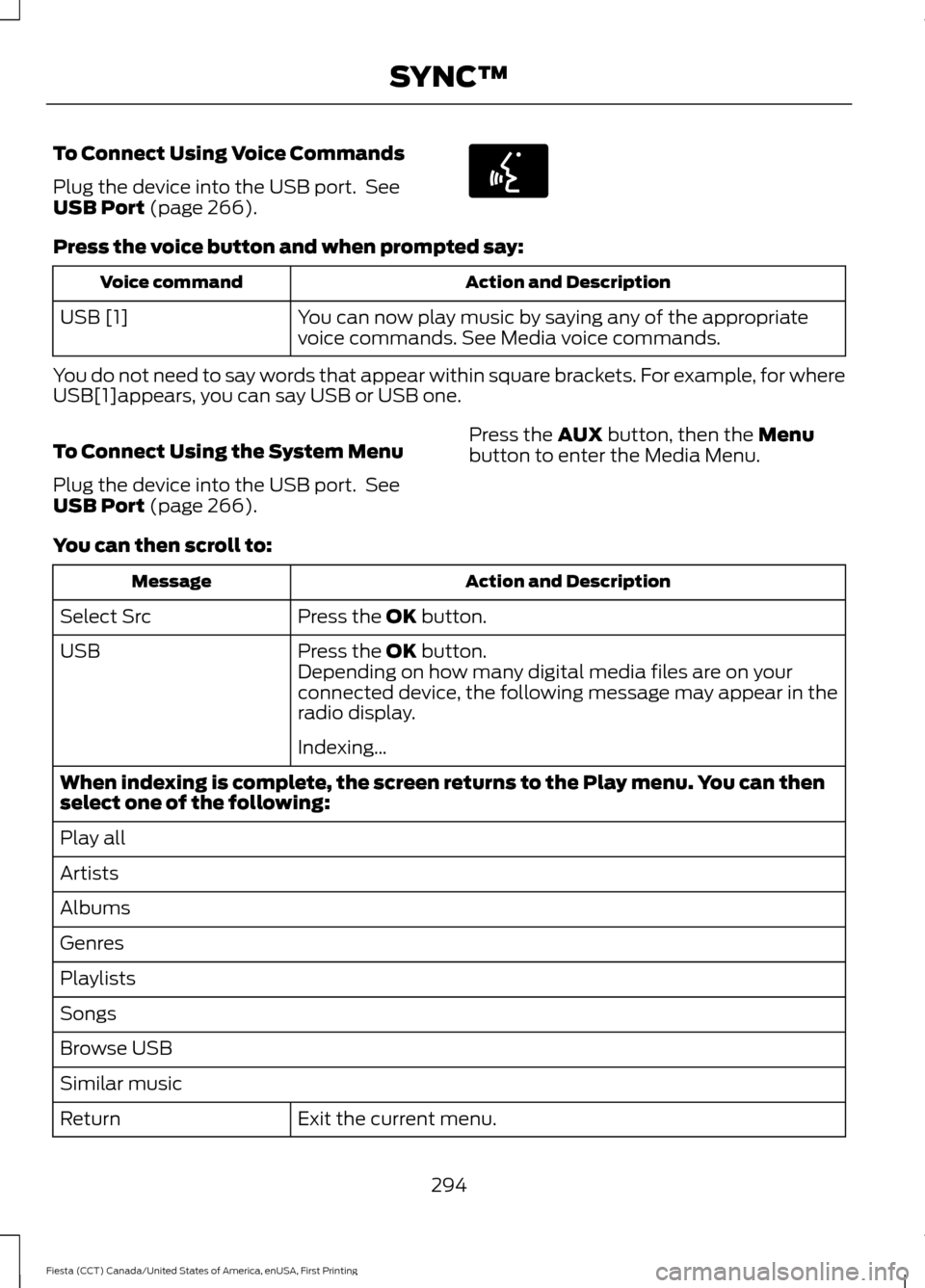
To Connect Using Voice Commands
Plug the device into the USB port. See
USB Port (page 266).
Press the voice button and when prompted say:
Action and Description
Voice command
You can now play music by saying any of the appropriate
voice commands. See Media voice commands.
USB [1]
You do not need to say words that appear within square brackets. For example, for where
USB[1]appears, you can say USB or USB one.
To Connect Using the System Menu
Plug the device into the USB port. See
USB Port
(page 266). Press the
AUX button, then the Menu
button to enter the Media Menu.
You can then scroll to: Action and Description
Message
Press the
OK button.
Select Src
Press the
OK button.
USB
Depending on how many digital media files are on your
connected device, the following message may appear in the
radio display.
Indexing…
When indexing is complete, the screen returns to the Play menu. You can then
select one of the following:
Play all
Artists
Albums
Genres
Playlists
Songs
Browse USB
Similar music Exit the current menu.
Return
294
Fiesta (CCT) Canada/United States of America, enUSA, First Printing SYNC™E142599
Page 316 of 363
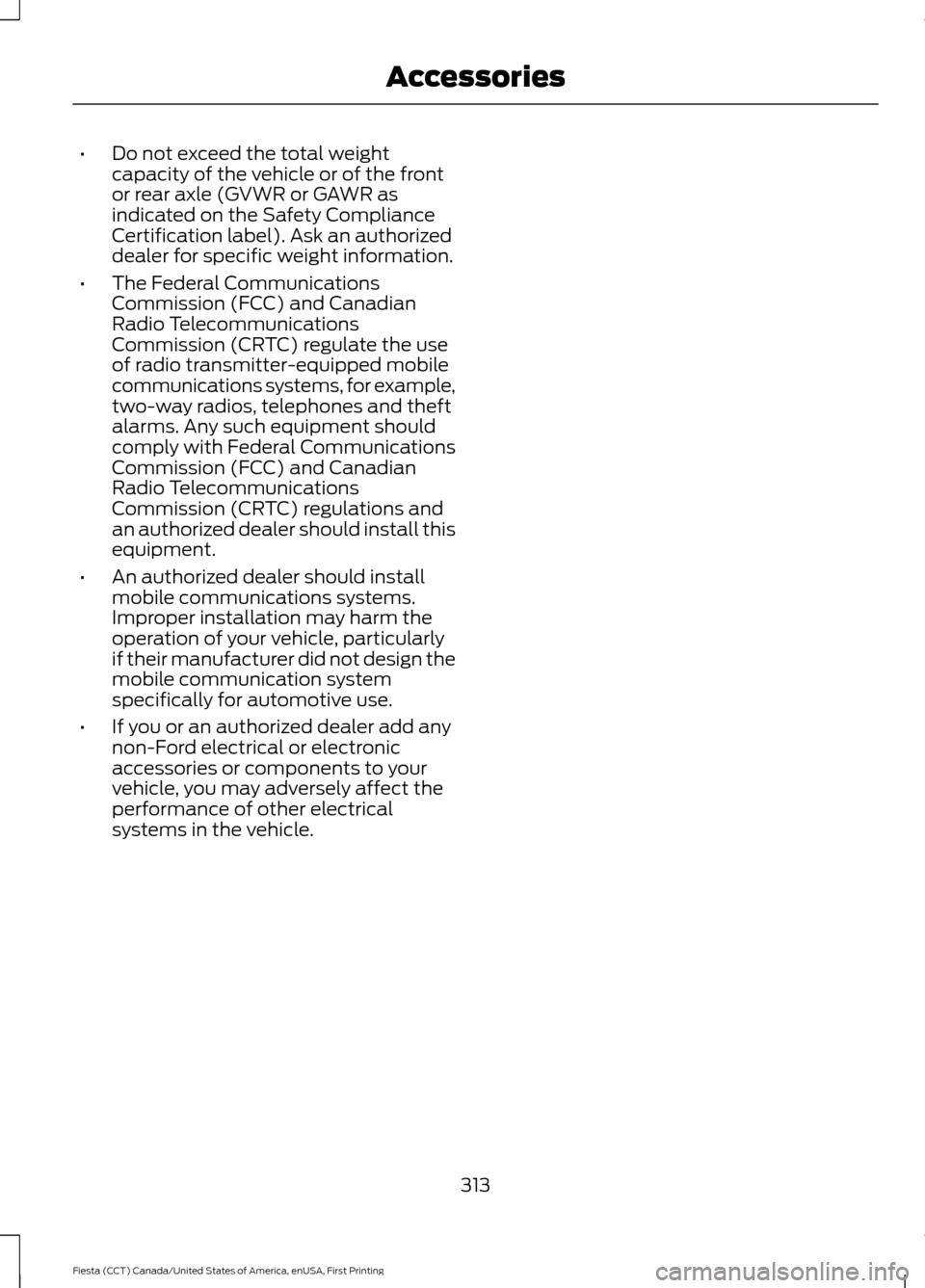
•
Do not exceed the total weight
capacity of the vehicle or of the front
or rear axle (GVWR or GAWR as
indicated on the Safety Compliance
Certification label). Ask an authorized
dealer for specific weight information.
• The Federal Communications
Commission (FCC) and Canadian
Radio Telecommunications
Commission (CRTC) regulate the use
of radio transmitter-equipped mobile
communications systems, for example,
two-way radios, telephones and theft
alarms. Any such equipment should
comply with Federal Communications
Commission (FCC) and Canadian
Radio Telecommunications
Commission (CRTC) regulations and
an authorized dealer should install this
equipment.
• An authorized dealer should install
mobile communications systems.
Improper installation may harm the
operation of your vehicle, particularly
if their manufacturer did not design the
mobile communication system
specifically for automotive use.
• If you or an authorized dealer add any
non-Ford electrical or electronic
accessories or components to your
vehicle, you may adversely affect the
performance of other electrical
systems in the vehicle.
313
Fiesta (CCT) Canada/United States of America, enUSA, First Printing Accessories