2016 FORD FIESTA CD player
[x] Cancel search: CD playerPage 273 of 363
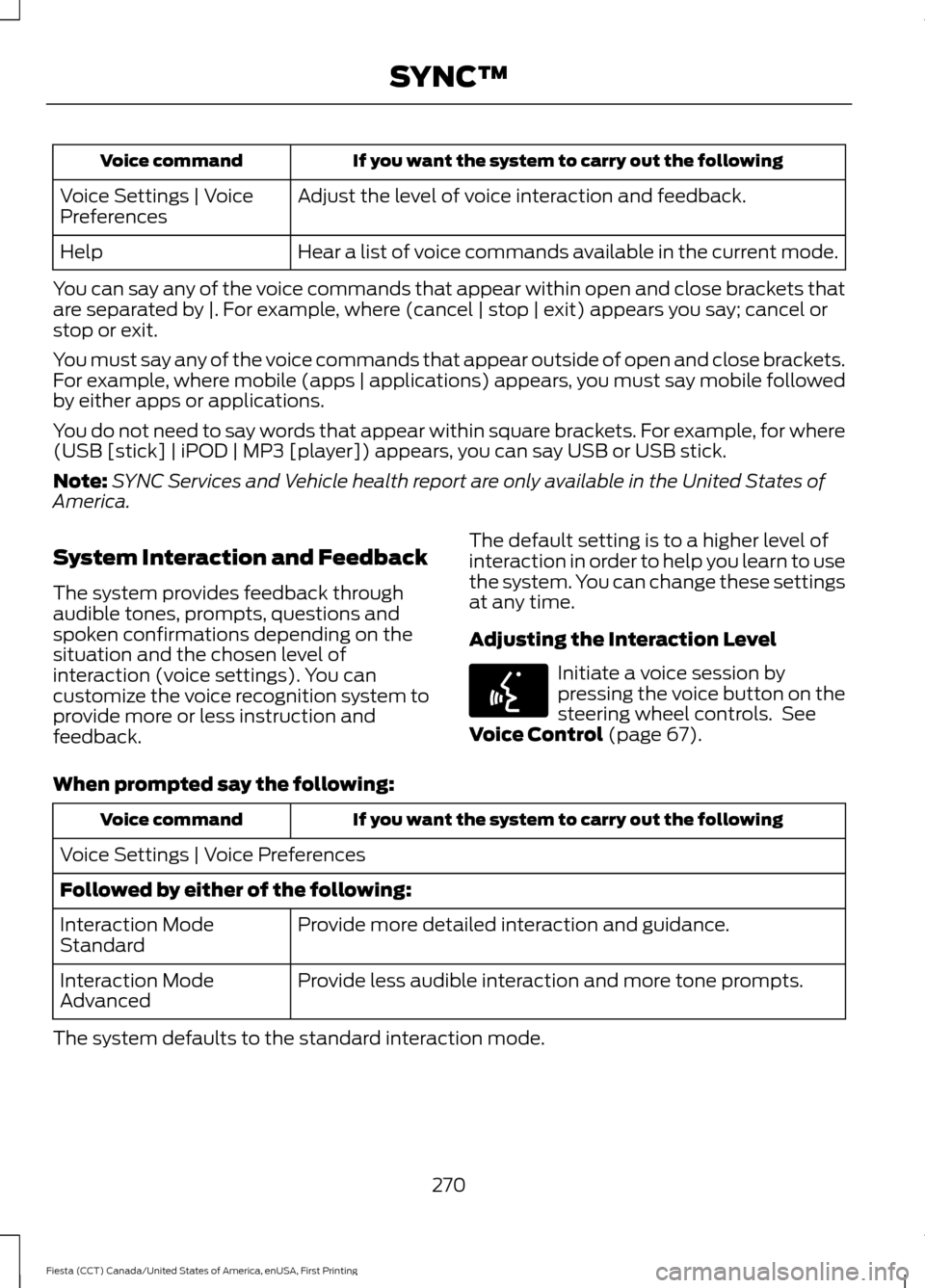
If you want the system to carry out the following
Voice command
Adjust the level of voice interaction and feedback.
Voice Settings | Voice
Preferences
Hear a list of voice commands available in the current mode.
Help
You can say any of the voice commands that appear within open and close brackets that
are separated by |. For example, where (cancel | stop | exit) appears you say; cancel or
stop or exit.
You must say any of the voice commands that appear outside of open and close brackets.
For example, where mobile (apps | applications) appears, you must say mobile followed
by either apps or applications.
You do not need to say words that appear within square brackets. For example, for where
(USB [stick] | iPOD | MP3 [player]) appears, you can say USB or USB stick.
Note: SYNC Services and Vehicle health report are only available in the United States of
America.
System Interaction and Feedback
The system provides feedback through
audible tones, prompts, questions and
spoken confirmations depending on the
situation and the chosen level of
interaction (voice settings). You can
customize the voice recognition system to
provide more or less instruction and
feedback. The default setting is to a higher level of
interaction in order to help you learn to use
the system. You can change these settings
at any time.
Adjusting the Interaction Level Initiate a voice session by
pressing the voice button on the
steering wheel controls. See
Voice Control (page 67).
When prompted say the following: If you want the system to carry out the following
Voice command
Voice Settings | Voice Preferences
Followed by either of the following: Provide more detailed interaction and guidance.
Interaction Mode
Standard
Provide less audible interaction and more tone prompts.
Interaction Mode
Advanced
The system defaults to the standard interaction mode.
270
Fiesta (CCT) Canada/United States of America, enUSA, First Printing SYNC™E142599
Page 296 of 363
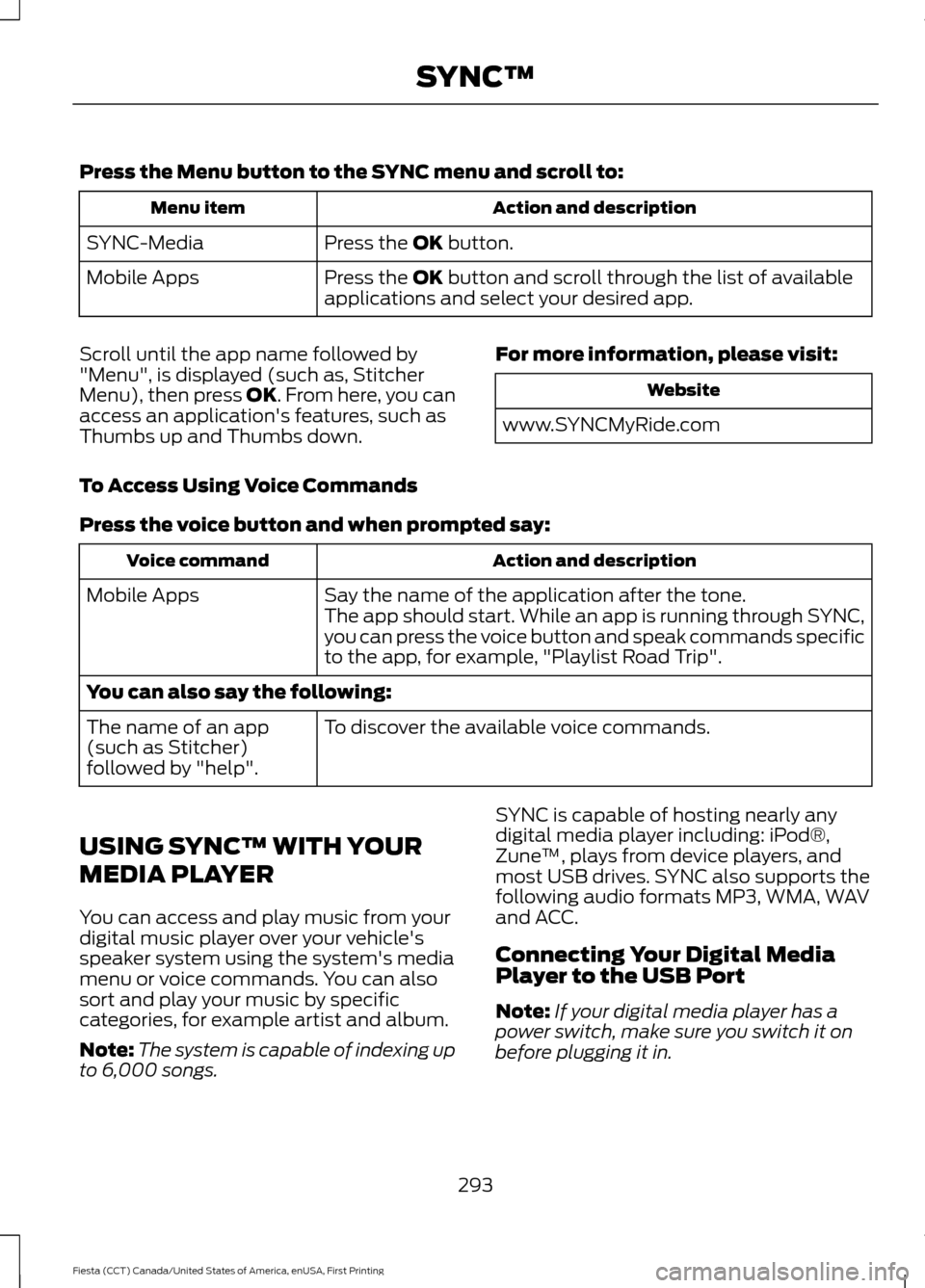
Press the Menu button to the SYNC menu and scroll to:
Action and description
Menu item
Press the OK button.
SYNC-Media
Press the
OK button and scroll through the list of available
applications and select your desired app.
Mobile Apps
Scroll until the app name followed by
"Menu", is displayed (such as, Stitcher
Menu), then press
OK. From here, you can
access an application's features, such as
Thumbs up and Thumbs down. For more information, please visit: Website
www.SYNCMyRide.com
To Access Using Voice Commands
Press the voice button and when prompted say: Action and description
Voice command
Say the name of the application after the tone.
The app should start. While an app is running through SYNC,
you can press the voice button and speak commands specific
to the app, for example, "Playlist Road Trip".
Mobile Apps
You can also say the following:
To discover the available voice commands.
The name of an app
(such as Stitcher)
followed by "help".
USING SYNC™ WITH YOUR
MEDIA PLAYER
You can access and play music from your
digital music player over your vehicle's
speaker system using the system's media
menu or voice commands. You can also
sort and play your music by specific
categories, for example artist and album.
Note: The system is capable of indexing up
to 6,000 songs. SYNC is capable of hosting nearly any
digital media player including: iPod®,
Zune
™, plays from device players, and
most USB drives. SYNC also supports the
following audio formats MP3, WMA, WAV
and ACC.
Connecting Your Digital Media
Player to the USB Port
Note: If your digital media player has a
power switch, make sure you switch it on
before plugging it in.
293
Fiesta (CCT) Canada/United States of America, enUSA, First Printing SYNC™
Page 299 of 363
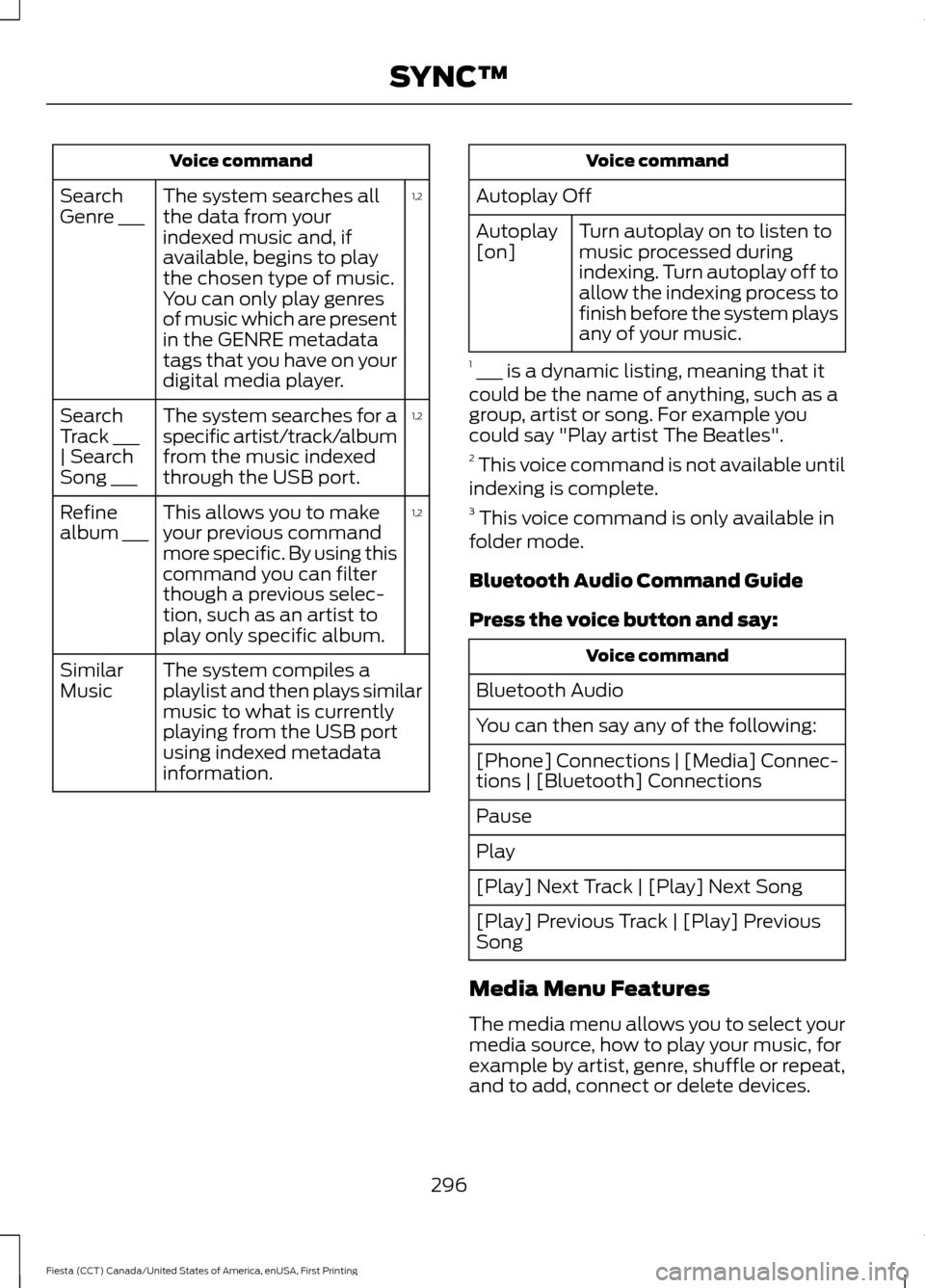
Voice command
1,2
The system searches all
the data from your
indexed music and, if
available, begins to play
the chosen type of music.
You can only play genres
of music which are present
in the GENRE metadata
tags that you have on your
digital media player.
Search
Genre ___
1,2
The system searches for a
specific artist/track/album
from the music indexed
through the USB port.
Search
Track ___
| Search
Song ___
1,2
This allows you to make
your previous command
more specific. By using this
command you can filter
though a previous selec-
tion, such as an artist to
play only specific album.
Refine
album ___
The system compiles a
playlist and then plays similar
music to what is currently
playing from the USB port
using indexed metadata
information.
Similar
Music Voice command
Autoplay Off Turn autoplay on to listen to
music processed during
indexing. Turn autoplay off to
allow the indexing process to
finish before the system plays
any of your music.
Autoplay
[on]
1 ___ is a dynamic listing, meaning that it
could be the name of anything, such as a
group, artist or song. For example you
could say "Play artist The Beatles".
2 This voice command is not available until
indexing is complete.
3 This voice command is only available in
folder mode.
Bluetooth Audio Command Guide
Press the voice button and say: Voice command
Bluetooth Audio
You can then say any of the following:
[Phone] Connections | [Media] Connec-
tions | [Bluetooth] Connections
Pause
Play
[Play] Next Track | [Play] Next Song
[Play] Previous Track | [Play] Previous
Song
Media Menu Features
The media menu allows you to select your
media source, how to play your music, for
example by artist, genre, shuffle or repeat,
and to add, connect or delete devices.
296
Fiesta (CCT) Canada/United States of America, enUSA, First Printing SYNC™
Page 300 of 363
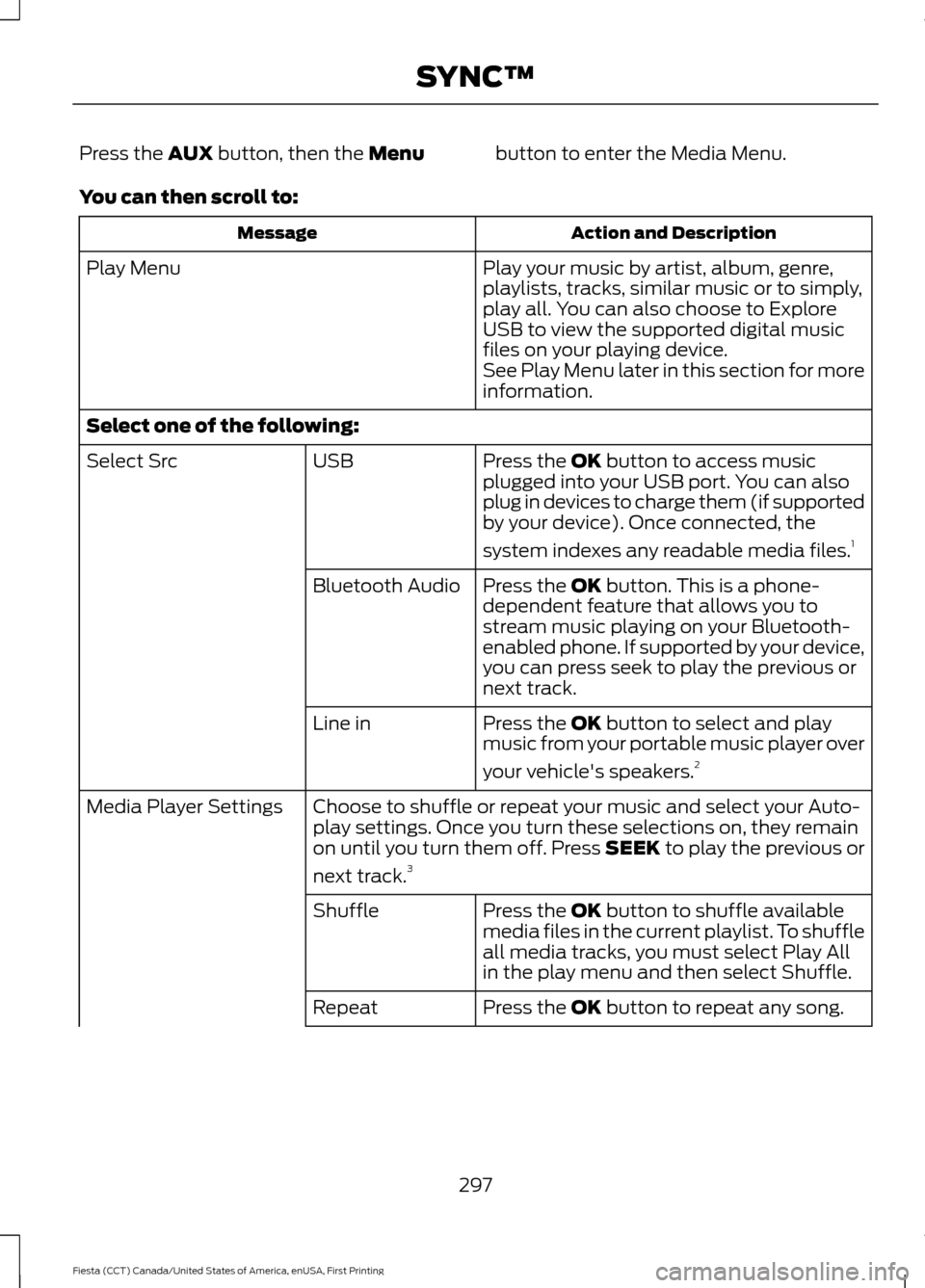
Press the AUX button, then the Menu
button to enter the Media Menu.
You can then scroll to: Action and Description
Message
Play your music by artist, album, genre,
playlists, tracks, similar music or to simply,
play all. You can also choose to Explore
USB to view the supported digital music
files on your playing device.
Play Menu
See Play Menu later in this section for more
information.
Select one of the following: Press the
OK button to access music
plugged into your USB port. You can also
plug in devices to charge them (if supported
by your device). Once connected, the
system indexes any readable media files. 1
USB
Select Src
Press the
OK button. This is a phone-
dependent feature that allows you to
stream music playing on your Bluetooth-
enabled phone. If supported by your device,
you can press seek to play the previous or
next track.
Bluetooth Audio
Press the
OK button to select and play
music from your portable music player over
your vehicle's speakers. 2
Line in
Choose to shuffle or repeat your music and select your Auto-
play settings. Once you turn these selections on, they remain
on until you turn them off. Press SEEK to play the previous or
next track.
3
Media Player Settings
Press the
OK button to shuffle available
media files in the current playlist. To shuffle
all media tracks, you must select Play All
in the play menu and then select Shuffle.
Shuffle
Press the
OK button to repeat any song.
Repeat
297
Fiesta (CCT) Canada/United States of America, enUSA, First Printing SYNC™
Page 301 of 363
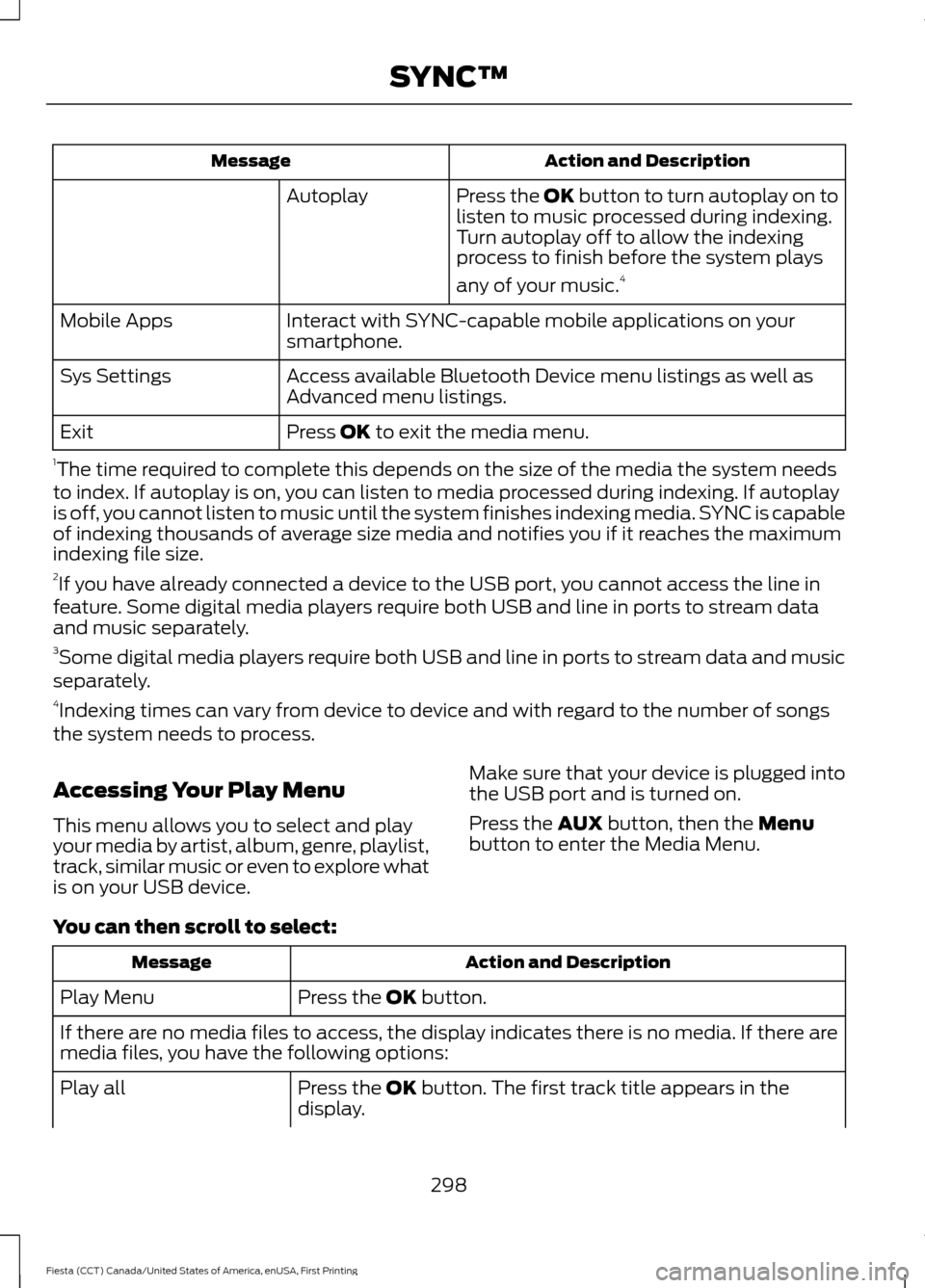
Action and Description
Message
Press the OK button to turn autoplay on to
listen to music processed during indexing.
Turn autoplay off to allow the indexing
process to finish before the system plays
any of your music.4
Autoplay
Interact with SYNC-capable mobile applications on your
smartphone.
Mobile Apps
Access available Bluetooth Device menu listings as well as
Advanced menu listings.
Sys Settings
Press OK to exit the media menu.
Exit
1 The time required to complete this depends on the size of the media the system needs
to index. If autoplay is on, you can listen to media processed during indexing. If autoplay
is off, you cannot listen to music until the system finishes indexing media. SYNC is capable
of indexing thousands of average size media and notifies you if it reaches the maximum
indexing file size.
2 If you have already connected a device to the USB port, you cannot access the line in
feature. Some digital media players require both USB and line in ports to stream data
and music separately.
3 Some digital media players require both USB and line in ports to stream data and music
separately.
4 Indexing times can vary from device to device and with regard to the number of songs
the system needs to process.
Accessing Your Play Menu
This menu allows you to select and play
your media by artist, album, genre, playlist,
track, similar music or even to explore what
is on your USB device. Make sure that your device is plugged into
the USB port and is turned on.
Press the
AUX button, then the Menu
button to enter the Media Menu.
You can then scroll to select: Action and Description
Message
Press the
OK button.
Play Menu
If there are no media files to access, the display indicates there is no media. If there are
media files, you have the following options:
Press the
OK button. The first track title appears in the
display.
Play all
298
Fiesta (CCT) Canada/United States of America, enUSA, First Printing SYNC™
Page 361 of 363

Switching Off the Engine............................114
Vehicles With a Turbocharger......................... 114
Symbols Glossary.............................................7
SYNC™ Applications and Services........................................................284
911 Assist............................................................... 284
SYNC Services: Traffic, Directions & Information (TDI) (If Equipped, United
States Only)................................................... 288
Vehicle Health Report (If Equipped, United States Only)................................................... 286
SYNC™ AppLink ™
......................................292
SYNC Mobile Apps............................................ 292
SYNC™............................................................267 General Information.......................................... 267
SYNC™ Troubleshooting
.........................303
T
Tailgate See: Manual Liftgate........................................... 58
Technical Specifications See: Capacities and Specifications............234
The Better Business Bureau (BBB) Auto Line Program (U.S. Only)
.......................164
Tire Care...........................................................210 Glossary of Tire Terminology.......................... 212
Important information for 205/40R17 low-profile tires and wheels...................... 210
Information About Uniform Tire Quality Grading.............................................................. 210
Information Contained on the Tire Sidewall............................................................. 213
Temperature A B C.............................................. 211
Traction AA A B C................................................. 211
Treadwear............................................................... 211
Tire Pressure Monitoring System...........225 Changing Tires With a Tire Pressure
Monitoring System....................................... 226
Understanding Your Tire Pressure Monitoring System ....................................... 227
Tires See: Wheels and Tires...................................... 210
Towing a Trailer
..............................................151
Towing the Vehicle on Four Wheels.......151 Emergency Towing.............................................. 151
Recreational Towing.......................................... 152
Towing................................................................151 Traction Control
............................................133
Principle of Operation....................................... 133
Transmission Code Designation.............237
Transmission..................................................123
Transmission See: Transmission............................................... 123
Transporting the Vehicle.............................151
Trip Computer
..................................................87
U
Under Hood Overview - 1.0L EcoBoost™..................................................179
Under Hood Overview - 1.6L Duratec-16V Ti-VCT (Sigma).........................................180
Under Hood Overview - 1.6L EcoBoost™...................................................181
USB Port.........................................................266
Using Cruise Control
...................................140
Switching Cruise Control Off........................... 141
Switching Cruise Control On.......................... 140
Using MyKey With Remote Start Systems..........................................................53
Using Snow Chains.....................................225
Using Stability Control - 1.0L EcoBoost™/1.6L Duratec-16V Ti-VCT
(Sigma)
.........................................................135
Using Stability Control - 1.6L EcoBoost™..................................................135
Switching Sport Mode On............................... 135
Switching the System Off............................... 135
Using Summer Tires...................................225
Using SYNC™ With Your Media Player............................................................293
Accessing Your Play Menu............................. 298
Connecting Your Digital Media Player to the USB Port........................................................... 293
Media Menu Features...................................... 296
Media Voice Commands................................ 295
System Settings................................................ 300
What's Playing?................................................. 295
358
Fiesta (CCT) Canada/United States of America, enUSA, First Printing Index