2016 FORD F450 SUPER DUTY navigation system
[x] Cancel search: navigation systemPage 427 of 507
Action and DescriptionMenu Item
Select to choose from a listing ofweather locations.Area
Touch this button to view scores and schedules from a varietyof sports. You can also save up to 10 favorite teams for easieraccess. The score automatically refreshes when a game is inprogress.
Sports Info
Touch this button to view ski conditions for a specific area.Ski Conditions
Sirius Travel Link Voice Commands
Press the voice button on the steeringwheel controls. When prompted, sayany of the following or a similarcommand:
Voice command
Show Traffic
Show Weather
Help
Alerts
If your vehicle is equipped withNavigation, touch the I(Information) button to accessthese features. If your vehicle is notequipped with Navigation, touch the cornerof the touchscreen with the green tab.
Press Alerts, then choose from any ofthe following services:
Action and DescriptionMessage
The complete messageView
The messageDelete
MessagesDelete All
This screen displays any system messages(such as an SD card fault).
Note:The system alerts you to anymessages by turning the information iconyellow. After you read or delete themessages, the icon returns to white.
Calendar
If your vehicle is equipped withNavigation, touch the I(Information) button to accessthese features. If your vehicle is notequipped with Navigation, touch the cornerof the touchscreen with the green tab.
Press Calendar. You can view the currentcalendar by day, week or month.
424
Super Duty (TFA) Canada/United States of America, enUSA, First Printing
MyFord Touch™ (If Equipped)E142599 E142608 E142608
Page 428 of 507
911 Assist
WARNINGS
Unless the 911 Assist setting is set onbefore a crash, the system will notdial for help, which could delayresponse time, potentially increasing therisk of serious injury or death after a crash.
Do not wait for 911 Assist to make anemergency call if you can do ityourself. Dial emergency servicesimmediately to avoid delayed responsetime, which could increase the risk ofserious injury or death after a crash. If youdo not hear 911 Assist within five secondsof the crash, the system or phone may bedamaged or non-functional.
Always place your phone in a securelocation in your vehicle so it does notbecome a projectile or damaged ina crash. Failure to do so may cause seriousinjury to someone or damage the phone,which could prevent 911 Assist fromworking properly.
Note:The SYNC 911 Assist feature must beset on prior to the incident.
Note:Before setting this feature on, makesure that you read the 911 Assist PrivacyNotice later in this section for importantinformation.
Note:If any user turns 911 Assist on or off,that setting applies for all paired phones. If911 Assist is turned off, either a voicemessage plays or a display message (oricon) comes on (or both) when your vehicleis started after a previously paired phoneconnects.
Note:Every phone operates differently.While SYNC 911 Assist works with mostcellular phones, some may have troubleusing this feature.
If a crash deploys an airbag, excluding kneeairbags and rear inflatable safety beltswhere fitted or activates the fuel pumpshut-off, your SYNC-equipped vehicle maybe able to contact emergency services bydialing 911 through a paired and connectedBluetooth-enabled phone. For moreinformation about the 911 Assist featurevisit:
Website
visit www.SYNCMyRide.comwww.SYNCMyRide.cawww.syncmaroute.ca
See Supplementary Restraints System(page 37). Important informationregarding airbag deployment is in thischapter.
See Roadside Emergencies (page 212).Important information regarding the fuelpump shut-off is in this chapter.
Setting 911 Assist On
If your vehicle is equipped withNavigation, touch the I (Information)button to access these features. If yourvehicle is not equipped withNavigation, touch the corner of thetouchscreen with the green tab. Thenselect:
Message
Apps
911 Assist
On
425
Super Duty (TFA) Canada/United States of America, enUSA, First Printing
MyFord Touch™ (If Equipped)
Page 434 of 507
Touch the + or – to increase or decrease the air temperature on the passengerside of the vehicle.
Touch the heated seat icon to turn the heated seat off and on (if equipped).
Touch the climate-controlled seat icon to turn the climate-controlled seat offand on (if equipped).
Note:If your vehicle is equipped with awood-trimmed steering wheel, it does notheat between the 10 o'clock and 2 o'clockpositions.
Climate Control Voice Commands
Press the voice button on thesteering wheel controls. Whenprompted, say any of thefollowing or a similar command:
Voice commands
Climate On
Climate Off
Adjust the temperature between 59.0°F(15°C)-86.0°F (30°C).Set temperature
NAVIGATION
Note:The navigation SD card must be inthe SD card slot to operate the navigationsystem. If you need a replacement SD card,see an authorized dealer.
Note:The SD card slot is spring-loaded. Toremove the SD card, just push the card inand release it. Do not attempt to pull thecard out to remove it; this could causedamage.
Your navigation system is comprised oftwo main features, destination mode andmap mode.
Destination Mode
To set a destination, press the greencorner of your touchscreen, then press:
Menu Item
Dest.
Choose any of the following:
My Home
Favorites
Previous Destinations
Point of Interest
Emergency
Street Address
Intersection
City Center
431
Super Duty (TFA) Canada/United States of America, enUSA, First Printing
MyFord Touch™ (If Equipped)E142599
Page 435 of 507
Menu Item
Map
Edit Route
Cancel Route
To set your destination, enter thenecessary information into the highlightedtext fields (in any order).
For an address destination entry, press:
Action and Descrip-tionMenu Item
Pressing this buttonmakes the addresslocation appear onthe map.
Go
To choose a previous destination,press:
Action and Descrip-tionMenu Item
The last 20 destina-tions you haveselected appear.
Previous Destina-tions
Once you have chosen your destination press:
Action and DescriptionMenu Item
To make this your destination. You can also choose to set thisas a waypoint (have the system route to this point on the wayto your current destination) or save it as a favorite. You canthen choose your route from three different options.
Set as Dest
Uses the fastest moving roadspossible.Fastest Route
Uses the shortest distance possible.Shortest Route
Uses the most fuel-efficient route.Eco Route
To begin navigation press:
Action and DescriptionMenu Item
You can cancel the route or have the system demo the routefor you.Start Route
During route guidance, you can press the talking bubble iconthat appears in the upper right navigation corner (green bar) ifyou want the system to repeat route guidance information.When the system repeats the last guidance instruction, itupdates the distance to the next guidance instruction, since itdetects when the vehicle is moving.
432
Super Duty (TFA) Canada/United States of America, enUSA, First Printing
MyFord Touch™ (If Equipped)
Page 437 of 507
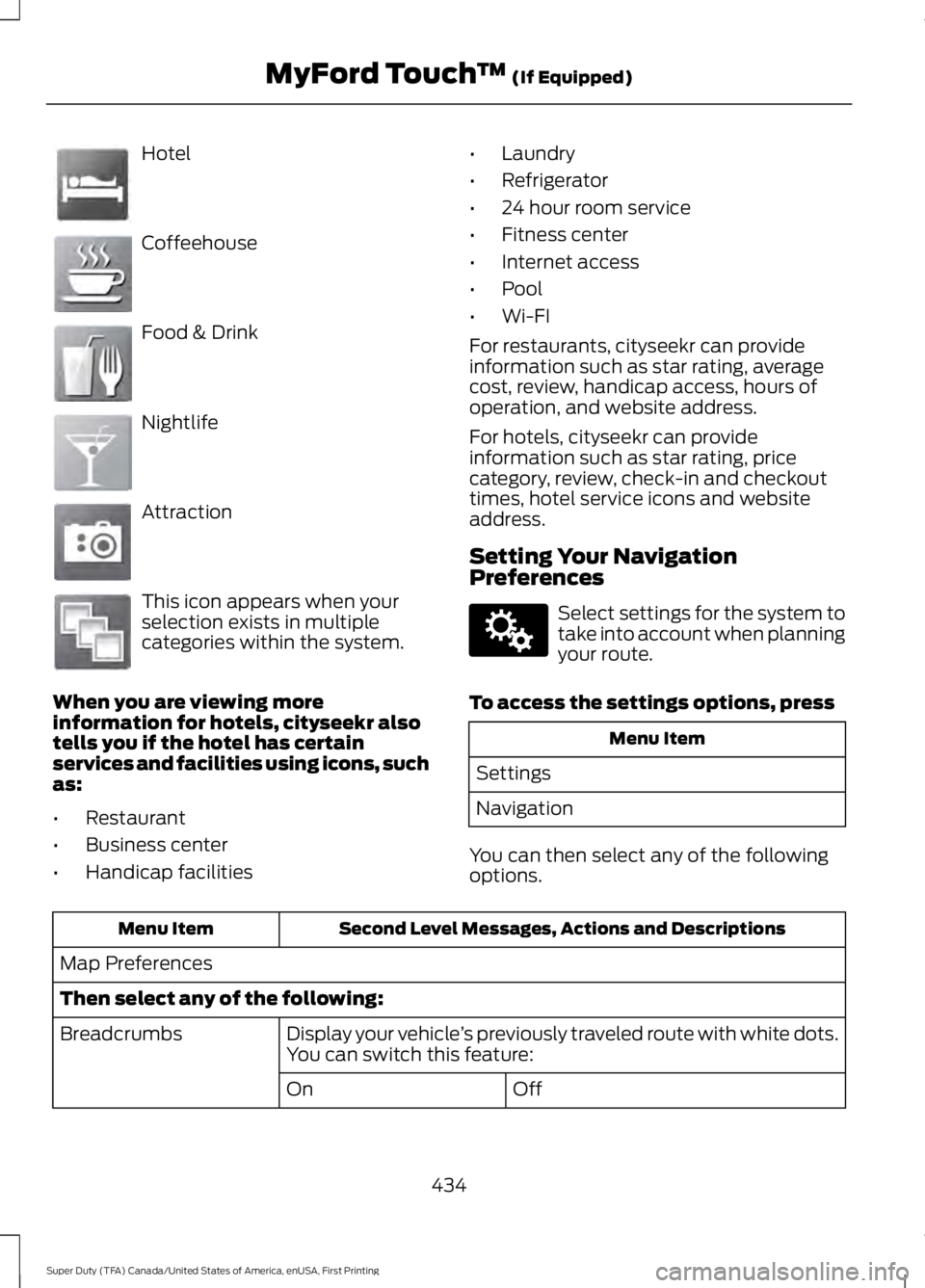
Hotel
Coffeehouse
Food & Drink
Nightlife
Attraction
This icon appears when yourselection exists in multiplecategories within the system.
When you are viewing moreinformation for hotels, cityseekr alsotells you if the hotel has certainservices and facilities using icons, suchas:
•Restaurant
•Business center
•Handicap facilities
•Laundry
•Refrigerator
•24 hour room service
•Fitness center
•Internet access
•Pool
•Wi-FI
For restaurants, cityseekr can provideinformation such as star rating, averagecost, review, handicap access, hours ofoperation, and website address.
For hotels, cityseekr can provideinformation such as star rating, pricecategory, review, check-in and checkouttimes, hotel service icons and websiteaddress.
Setting Your NavigationPreferences
Select settings for the system totake into account when planningyour route.
To access the settings options, press
Menu Item
Settings
Navigation
You can then select any of the followingoptions.
Second Level Messages, Actions and DescriptionsMenu Item
Map Preferences
Then select any of the following:
Display your vehicle’s previously traveled route with white dots.You can switch this feature:Breadcrumbs
OffOn
434
Super Duty (TFA) Canada/United States of America, enUSA, First Printing
MyFord Touch™ (If Equipped)E143884 E142636 E142637 E142638 E142639 E142640 E142607
Page 438 of 507
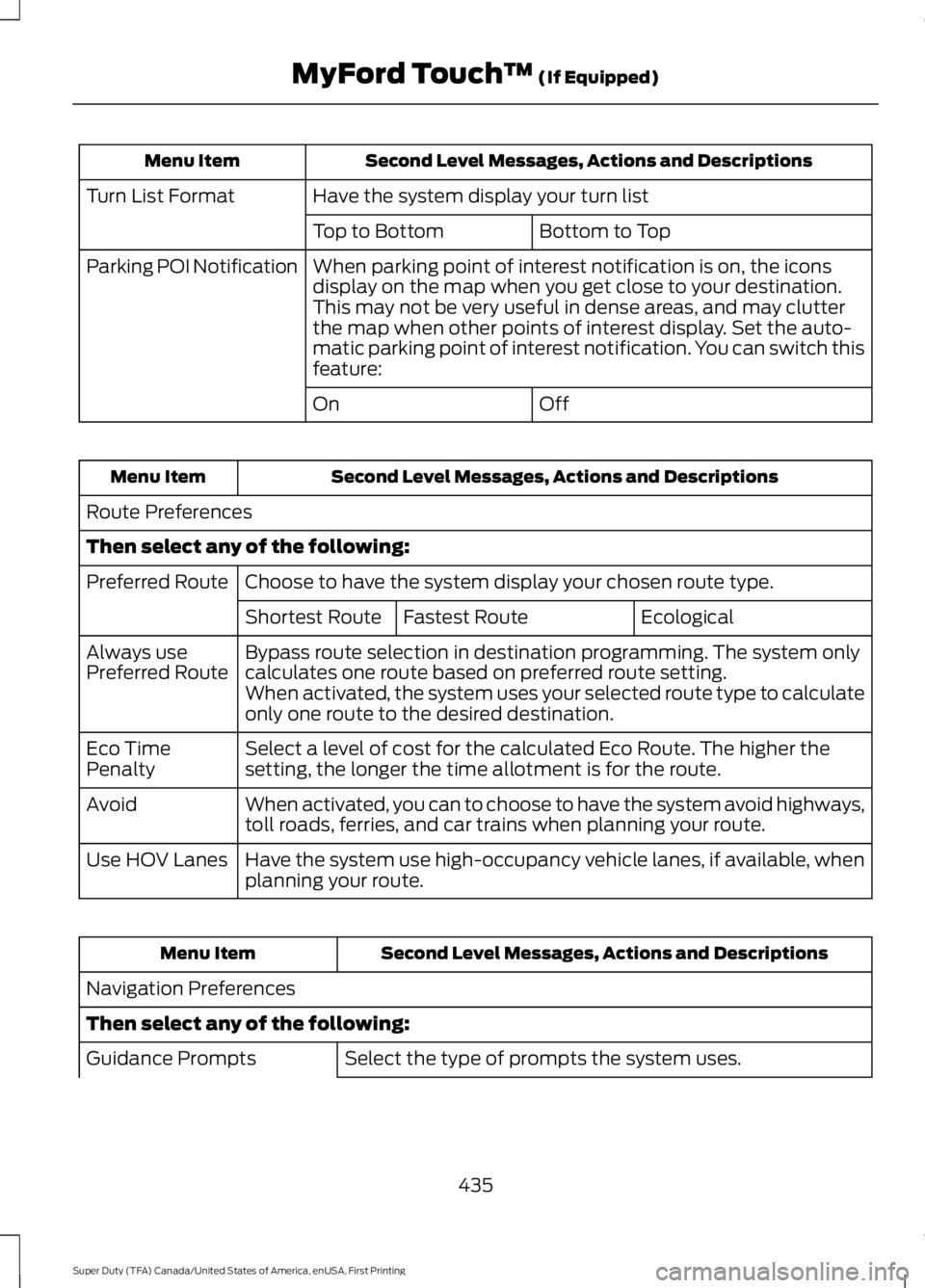
Second Level Messages, Actions and DescriptionsMenu Item
Have the system display your turn listTurn List Format
Bottom to TopTop to Bottom
When parking point of interest notification is on, the iconsdisplay on the map when you get close to your destination.This may not be very useful in dense areas, and may clutterthe map when other points of interest display. Set the auto-matic parking point of interest notification. You can switch thisfeature:
Parking POI Notification
OffOn
Second Level Messages, Actions and DescriptionsMenu Item
Route Preferences
Then select any of the following:
Choose to have the system display your chosen route type.Preferred Route
EcologicalFastest RouteShortest Route
Bypass route selection in destination programming. The system onlycalculates one route based on preferred route setting.Always usePreferred RouteWhen activated, the system uses your selected route type to calculateonly one route to the desired destination.
Select a level of cost for the calculated Eco Route. The higher thesetting, the longer the time allotment is for the route.Eco TimePenalty
When activated, you can to choose to have the system avoid highways,toll roads, ferries, and car trains when planning your route.Avoid
Have the system use high-occupancy vehicle lanes, if available, whenplanning your route.Use HOV Lanes
Second Level Messages, Actions and DescriptionsMenu Item
Navigation Preferences
Then select any of the following:
Select the type of prompts the system uses.Guidance Prompts
435
Super Duty (TFA) Canada/United States of America, enUSA, First Printing
MyFord Touch™ (If Equipped)
Page 443 of 507
HERE is the digital map provider for thenavigation application. If you find map dataerrors, you may report them directly toHERE by going towww.here.com/mapcreator. HEREevaluates all reported map errors andresponds with the result of theirinvestigation by e-mail.
Navigation Map Updates
Annual navigation map updates areavailable for purchase through yourdealership, by calling 1-866-462-8837 (inMexico, call 01-800-557-5539) or goingto www.navigation.com/sync. You needto specify the make and model of yourvehicle to determine if there is an updateavailable.
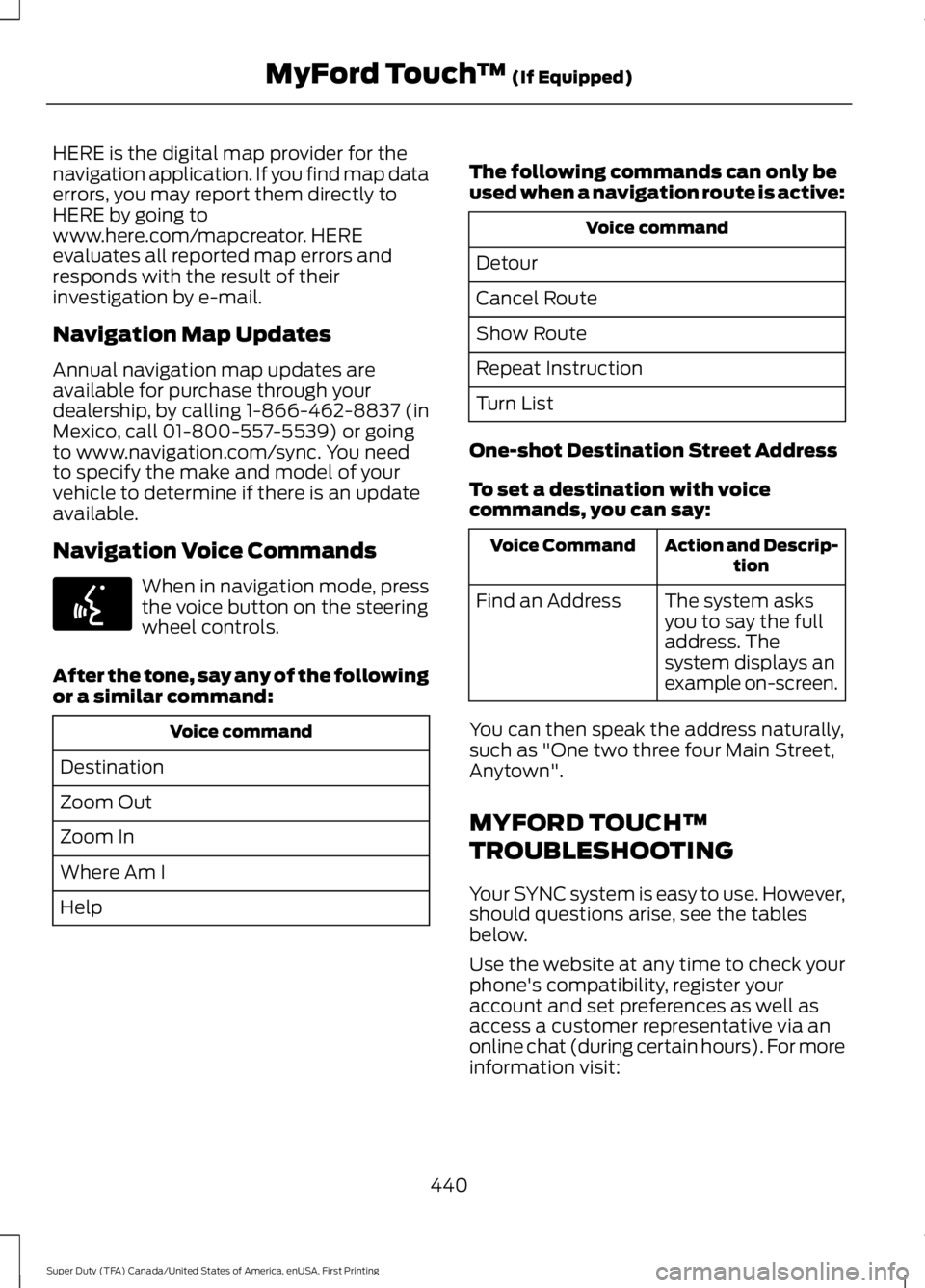
Navigation Voice Commands
When in navigation mode, pressthe voice button on the steeringwheel controls.
After the tone, say any of the followingor a similar command:
Voice command
Destination
Zoom Out
Zoom In
Where Am I
Help
The following commands can only beused when a navigation route is active:
Voice command
Detour
Cancel Route
Show Route
Repeat Instruction
Turn List
One-shot Destination Street Address
To set a destination with voicecommands, you can say:
Action and Descrip-tionVoice Command
The system asksyou to say the fulladdress. Thesystem displays anexample on-screen.
Find an Address
You can then speak the address naturally,such as "One two three four Main Street,Anytown".
MYFORD TOUCH™
TROUBLESHOOTING
Your SYNC system is easy to use. However,should questions arise, see the tablesbelow.
Use the website at any time to check yourphone's compatibility, register youraccount and set preferences as well asaccess a customer representative via anonline chat (during certain hours). For moreinformation visit:
440
Super Duty (TFA) Canada/United States of America, enUSA, First Printing
MyFord Touch™ (If Equipped)E142599
Page 480 of 507
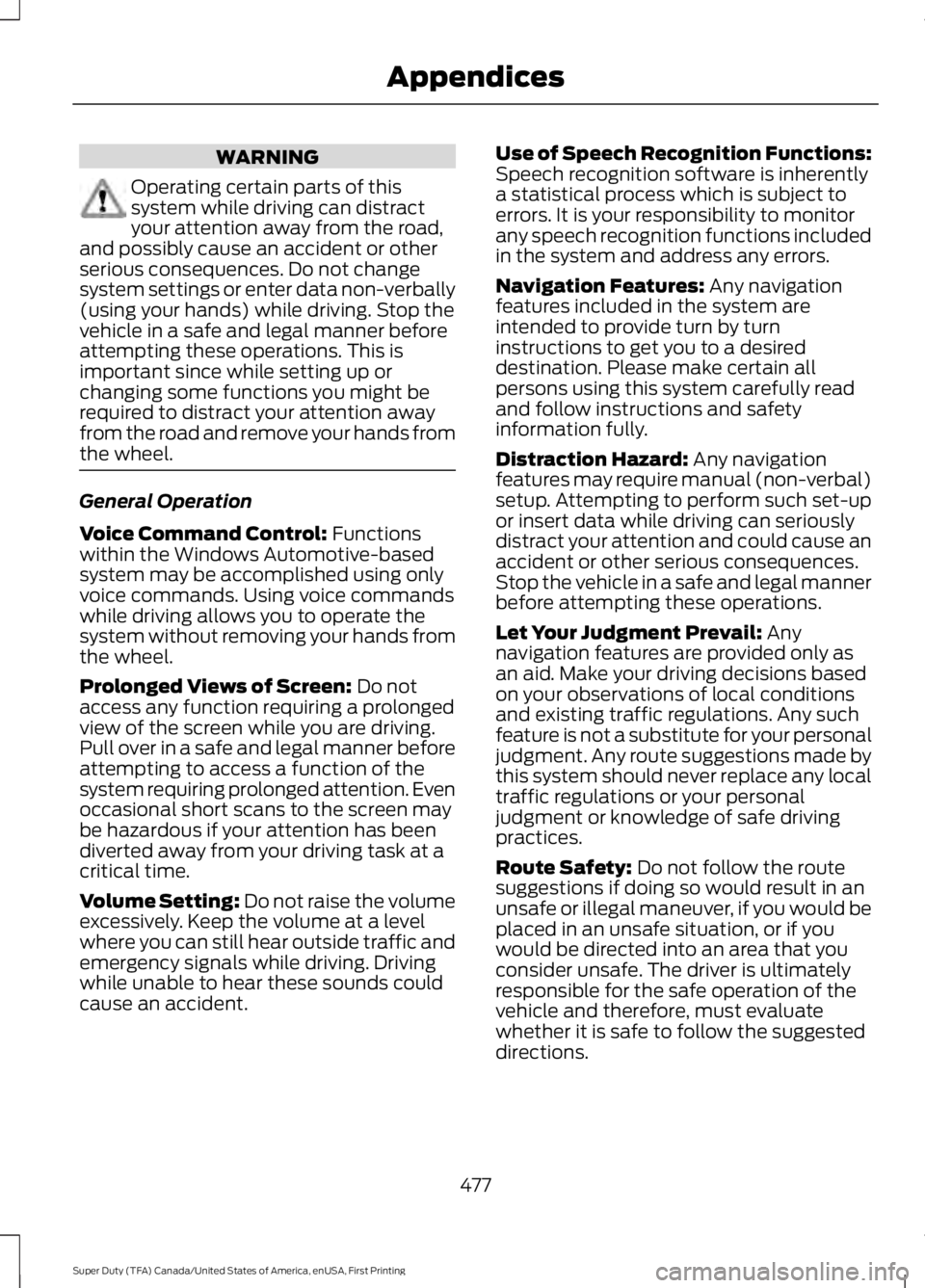
WARNING
Operating certain parts of thissystem while driving can distractyour attention away from the road,and possibly cause an accident or otherserious consequences. Do not changesystem settings or enter data non-verbally(using your hands) while driving. Stop thevehicle in a safe and legal manner beforeattempting these operations. This isimportant since while setting up orchanging some functions you might berequired to distract your attention awayfrom the road and remove your hands fromthe wheel.
General Operation
Voice Command Control: Functionswithin the Windows Automotive-basedsystem may be accomplished using onlyvoice commands. Using voice commandswhile driving allows you to operate thesystem without removing your hands fromthe wheel.
Prolonged Views of Screen: Do notaccess any function requiring a prolongedview of the screen while you are driving.Pull over in a safe and legal manner beforeattempting to access a function of thesystem requiring prolonged attention. Evenoccasional short scans to the screen maybe hazardous if your attention has beendiverted away from your driving task at acritical time.
Volume Setting: Do not raise the volumeexcessively. Keep the volume at a levelwhere you can still hear outside traffic andemergency signals while driving. Drivingwhile unable to hear these sounds couldcause an accident.
Use of Speech Recognition Functions:Speech recognition software is inherentlya statistical process which is subject toerrors. It is your responsibility to monitorany speech recognition functions includedin the system and address any errors.
Navigation Features: Any navigationfeatures included in the system areintended to provide turn by turninstructions to get you to a desireddestination. Please make certain allpersons using this system carefully readand follow instructions and safetyinformation fully.
Distraction Hazard: Any navigationfeatures may require manual (non-verbal)setup. Attempting to perform such set-upor insert data while driving can seriouslydistract your attention and could cause anaccident or other serious consequences.Stop the vehicle in a safe and legal mannerbefore attempting these operations.
Let Your Judgment Prevail: Anynavigation features are provided only asan aid. Make your driving decisions basedon your observations of local conditionsand existing traffic regulations. Any suchfeature is not a substitute for your personaljudgment. Any route suggestions made bythis system should never replace any localtraffic regulations or your personaljudgment or knowledge of safe drivingpractices.
Route Safety: Do not follow the routesuggestions if doing so would result in anunsafe or illegal maneuver, if you would beplaced in an unsafe situation, or if youwould be directed into an area that youconsider unsafe. The driver is ultimatelyresponsible for the safe operation of thevehicle and therefore, must evaluatewhether it is safe to follow the suggesteddirections.
477
Super Duty (TFA) Canada/United States of America, enUSA, First Printing
Appendices