2016 FORD F150 warning
[x] Cancel search: warningPage 217 of 505

The system does not position the vehicle where I want in the space
You pulled your vehicle too far past the parking space. The system performs best when
you drive the same distance past the parking space.
The tires may not be installed or maintained correctly (not inflated correctly, improper
size, or of different sizes).
A repair or alteration has changed detection capabilities.
A parked vehicle has a high attachment (salt sprayer, snowplow or moving truck bed).
The parking space length or position of parked objects changed after your vehicle passed.
The temperature around your vehicle changes quickly (driving from a heated garage
into the cold, or after leaving a car wash).
You didn't wait for the steering wheel to complete its rotation after a gear change. The
system performs best when the steering wheel is allowed to finish rotating before
accelerating.
REAR VIEW CAMERA (If Equipped) WARNINGS
The rear view camera system is a
reverse aid supplement device that
still requires the driver to use it in
conjunction with the interior and exterior
mirrors for maximum coverage. Objects that are close to either
corner of the bumper or under the
bumper, might not be seen on the
screen due to the limited coverage of the
camera system. Back up as slow as possible since
higher speeds might limit your
reaction time to stop your vehicle.
Use caution when using the rear
video camera when the tailgate is
ajar. If the tailgate is ajar, the camera
will be out of position and the video image
may be incorrect. All guidelines have been
removed when the tailgate is ajar. WARNINGS
Use caution when turning camera
features on or off while in reverse
(R). Make sure your vehicle is not
moving. The rear view camera system provides a
video image of the area behind your
vehicle.
During operation, lines appear in the
display which represent your vehicle
’s path
and proximity to objects behind your
vehicle. 214
F-150 (TFC) Canada/United States of America, enUSA, Edition date: 08/2015, First Printing Parking AidsE184050
Page 219 of 505

Active guidelines
A
Centerline
B
Fixed guideline: Green zone
C
Fixed guideline: Yellow zone
D
Fixed guideline: Red zone
E
Rear bumper
F
Active guidelines only show with fixed
guidelines. To use active guidelines, turn
the steering wheel to point the guidelines
toward an intended path. If the steering
wheel position changes while reversing,
your vehicle might deviate from the original
intended path. The fixed and active guidelines fade in and
out depending on the steering wheel
position. The active guidelines do not show
when the steering wheel position is
straight.
Always use caution while reversing.
Objects in the red zone are closest to your
vehicle and objects in the green zone are
farther away. Objects are getting closer to
your vehicle as they move from the green
zone to the yellow or red zones. Use the
side view mirrors and rear view mirror to
get better coverage on both sides and rear
of your vehicle.
Manual Zoom
WARNING
When manual zoom is on, the full
area behind your vehicle is not
shown. Be aware of your
surroundings when using the manual zoom
feature. Note:
Manual zoom is only available when
the transmission is in reverse (R).
Note: Only the centerline shows when you
enable manual zoom.
Selectable settings for this feature are
Zoom in (+) and Zoom out (-). Press the
symbol on the camera screen to change
the view. The default setting is Zoom OFF.
This allows you to get a closer view of an
object behind your vehicle. The zoomed
image keeps the bumper in the image to
provide a reference. The zoom is only
active while the transmission is in reverse
(R).
Camera System Settings
To access any of the rear view camera
system settings, make the following
selections in the multifunctional display
when the transmission is not in reverse (R):
• Menu > Vehicle > Camera Settings
216
F-150 (TFC) Canada/United States of America, enUSA, Edition date: 08/2015, First Printing Parking AidsABCD
F
E
E142436
Page 220 of 505

Enhanced Park Aids
Selectable settings for this feature are ON
and OFF.
The system uses red, yellow and green
highlights that appear on top of the video
image when any of the sensing systems
detect an object.
Vehicles equipped with MyFord Touch
™
The system will provide an image of your
vehicle and the sensor zones. The zones
will highlight green, yellow and red when
the parking aid sensors detect an object in
the coverage area. For additional information of the zone
coverage and the rear sensing system. See
Parking Aid (page 209).
Rear Camera Delay
Selectable settings for this feature are ON
and OFF.
The default setting for the rear camera
delay is OFF. When shifting the transmission out of
reverse (R) and into any gear other than
park (P), the camera image remains in the
display until your vehicle speed reaches
6 mph (10 km/h)
. This occurs when the
rear camera delay feature is on, or until a
radio button is pressed.
360 DEGREE CAMERA (If Equipped) WARNINGS
The 360 degree camera system is a
supplement system that still requires
the driver to use it in conjunction with
looking out the windows, and checking the
interior and exterior mirrors for maximum
coverage. You may not see objects that are
close to either corner of the bumper
or under the bumper due to the
limited coverage of the camera system. Use caution when turning camera
features ON or OFF while out of park
(P). Make sure your vehicle is not
moving. The 360 degree camera system consists
of front, side and rear cameras. The
system:
•
Allows you to see what is directly in
front or behind your vehicle.
• Provides cross traffic view in front and
behind your vehicle.
• Allows you to see a top-down view of
the area outside your vehicle, including
the blind spots.
• Provides visibility around your vehicle
to you in parking maneuvers such as:
•Centering in a parking space.
• Obstacles near vehicle.
• Parallel parking.
217
F-150 (TFC) Canada/United States of America, enUSA, Edition date: 08/2015, First Printing Parking AidsE190459
Page 221 of 505

The 360 degree camera system
button is located on the
instrument panel and allows you
to toggle through different camera views.
The front and rear cameras have multiple
screens which consist of: Normal view with
360, Normal view, and split view. When in
park (P), neutral (N) or drive (D), only the
front images will be displayed when the
button is pressed. When in reverse (R), only
the rear images will be displayed when the
button is pressed.
Note: The 360 degree camera system will
turn OFF when your vehicle is in motion at
low speed, except when in reverse (R).
Camera Views
The small vehicle icon displayed on the
top left corner of the image illustrates the
camera view being displayed. Camera
views are laid out in the order the screens
will appear once the button is pressed.
Note: The front video image will be
disabled when your vehicle is in motion at
low speed, except when in reverse (R).
• Front 360 + Normal: Contains the
normal front camera view next to a
360 degree camera view. This view will
appear on the screen when the button
is pressed in any gear other than
reverse (R).
• Front Normal View:
Provides an
image of what is directly in front of your
vehicle. Access this view by pressing
the camera button from the Front 360
+ Normal View screen.
• Front Split View:
Provides an
extended view of what is in front of
your vehicle. Access this view by
pressing the camera button from the
Front Normal View screen. •
Rear 360 + Normal:
Contains the
normal rear camera view next to a 360
degree camera view. This view can be
accessed by putting your vehicle in
reverse (R), or by pressing the camera
button from the Rear Split View screen.
• Rear Normal View: Provides an image
of what is directly behind your vehicle.
Access this view by pressing the
camera button from the Rear 360 +
Normal screen.
• Rear Split View:
Provides an
extended view of what is behind your
vehicle. Access this view by pressing
the camera button from the Rear
Normal View screen.
Keep Out Zone The Keep Out Zone is represented by the
yellow dotted lines running parallel to your
vehicle. It is designed to give you the
indication on the ground of the fully
extended outside mirror position.
Front Camera
WARNING
The front camera system is an aid
supplement device that still requires
the driver to use it in conjunction with
looking out your vehicle. 218
F-150 (TFC) Canada/United States of America, enUSA, Edition date: 08/2015, First Printing Parking AidsE183663 E184448
Page 223 of 505
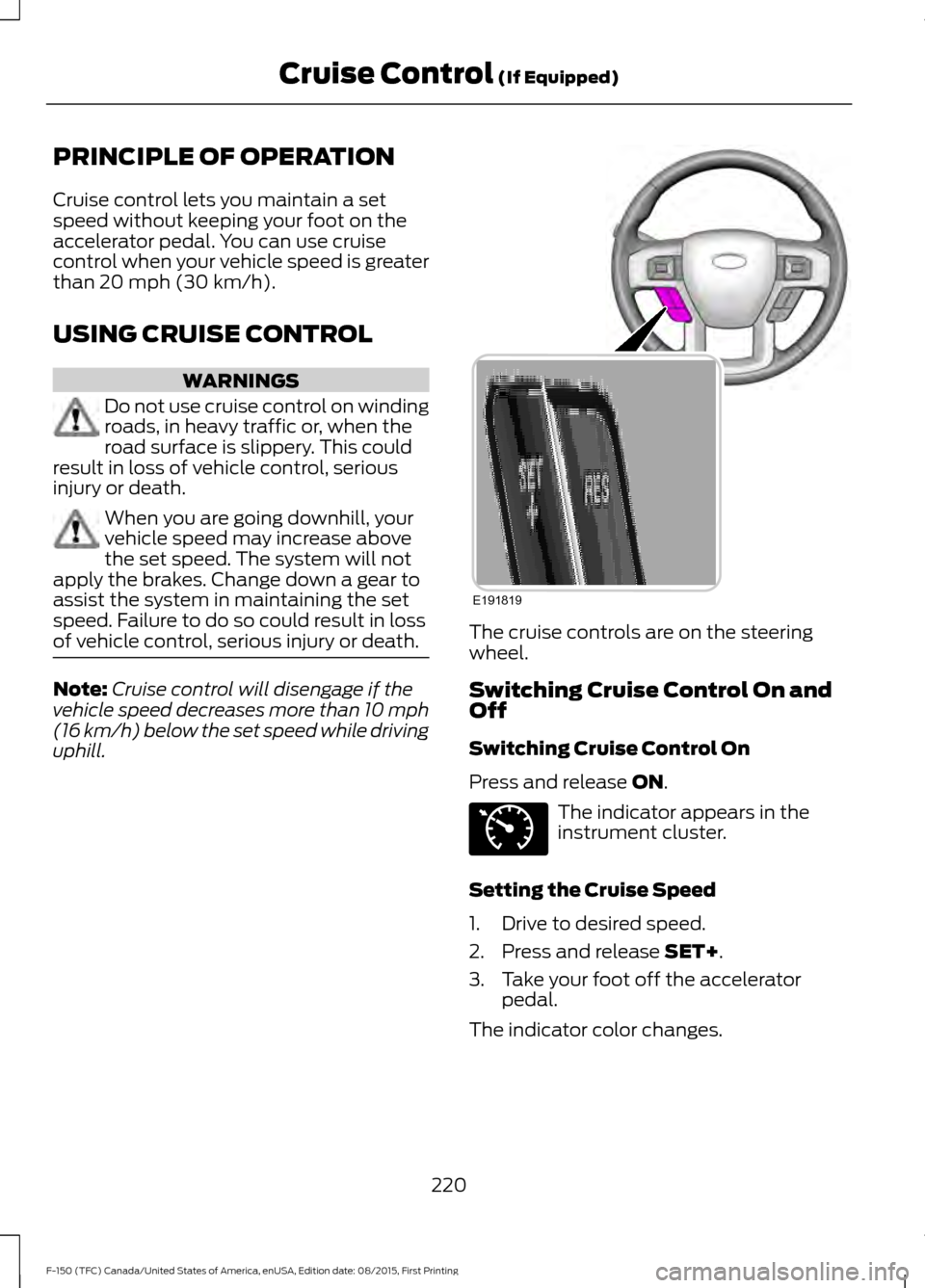
PRINCIPLE OF OPERATION
Cruise control lets you maintain a set
speed without keeping your foot on the
accelerator pedal. You can use cruise
control when your vehicle speed is greater
than 20 mph (30 km/h).
USING CRUISE CONTROL WARNINGS
Do not use cruise control on winding
roads, in heavy traffic or, when the
road surface is slippery. This could
result in loss of vehicle control, serious
injury or death. When you are going downhill, your
vehicle speed may increase above
the set speed. The system will not
apply the brakes. Change down a gear to
assist the system in maintaining the set
speed. Failure to do so could result in loss
of vehicle control, serious injury or death. Note:
Cruise control will disengage if the
vehicle speed decreases more than 10 mph
(16 km/h) below the set speed while driving
uphill. The cruise controls are on the steering
wheel.
Switching Cruise Control On and
Off
Switching Cruise Control On
Press and release
ON.
The indicator appears in the
instrument cluster.
Setting the Cruise Speed
1. Drive to desired speed.
2. Press and release
SET+.
3. Take your foot off the accelerator pedal.
The indicator color changes.
220
F-150 (TFC) Canada/United States of America, enUSA, Edition date: 08/2015, First Printing Cruise Control
(If Equipped)E191819 E71340
Page 224 of 505
Changing the Set Speed
Note:
If you accelerate by pressing the
accelerator pedal, the set speed will not
change. When you release the accelerator
pedal, your vehicle returns to the speed that
you previously set.
• Press the accelerator or brake pedal
until you reach the desired speed. Press
and release SET+.
• Press and hold SET+ or SET-. Release
the control when you reach the desired
speed.
• Press and release
SET+ or SET-. The
set speed will change in approximately
1 mph (2 km/h) increments.
Canceling the Set Speed
Press
CNCL or tap the brake pedal, this
action does not erase the set speed.
Resuming the Set Speed
Press and release
RES.
Switching Cruise Control Off
Press and release
OFF or switch the
ignition off.
Note: You will erase the set speed if you
switch the system off.
USING ADAPTIVE CRUISE
CONTROL
(If Equipped) WARNINGS
Always pay close attention to
changing road conditions, especially
when using adaptive cruise control.
Adaptive cruise control cannot replace
attentive driving. Failing to follow any of
the warnings below or failing to pay
attention to the road may result in a crash,
serious injury or death. WARNINGS
Adaptive cruise control is not a crash
warning or avoidance system.
Adaptive cruise control does not
detect stationary or slow moving
vehicles below 6 mph (10 km/h).
Adaptive cruise control does not
detect pedestrians or objects in the
roadway.
Adaptive cruise control does not
detect oncoming vehicles in the
same lane.
Do not use the adaptive cruise
control when entering or leaving a
highway, in heavy traffic or on roads
that are winding, slippery or unpaved. Do not use in poor visibility,
specifically fog, rain, spray or snow.
Note:
It is your responsibility to stay alert,
drive safely and control the vehicle at all
times.
The system adjusts your speed to maintain
a proper distance between you and the
vehicle in front of you in the same lane. You
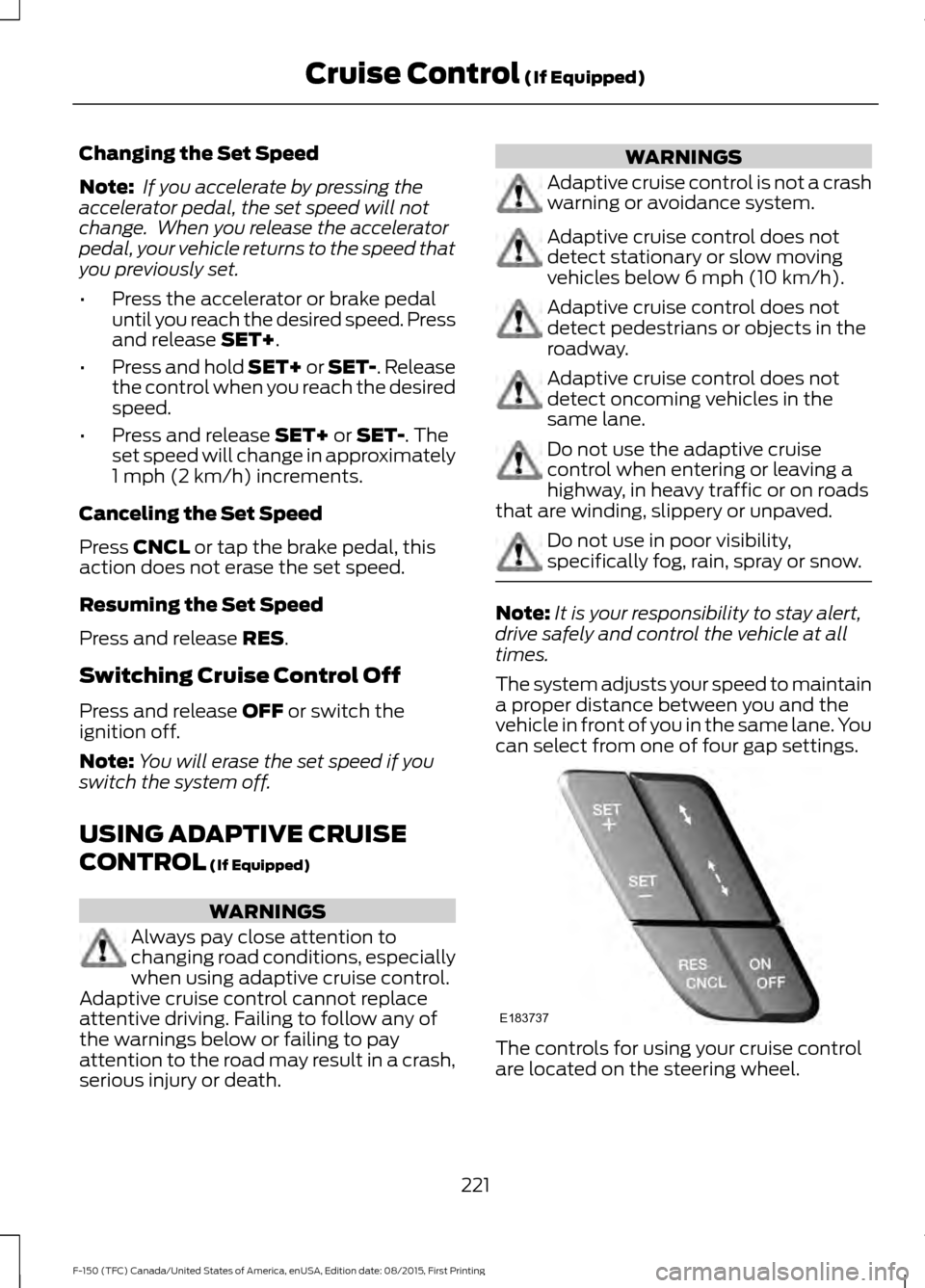
can select from one of four gap settings. The controls for using your cruise control
are located on the steering wheel.
221
F-150 (TFC) Canada/United States of America, enUSA, Edition date: 08/2015, First Printing Cruise Control
(If Equipped)E183737
Page 225 of 505

Switching the System On
Press and release ON.
The information display shows
the grey indicator light.
The current gap setting and
SET also
shows.
Setting a Speed
1. Accelerate to the desired speed.
2. Press and release
SET+. The memory
stores the vehicle speed.
3. The information display shows a green
indicator light, current gap setting and
the desired set speed.
4. Take your foot off the accelerator pedal. 5.
A lead vehicle graphic illuminates if the
system detects a vehicle in front of you.
Note: When adaptive cruise control is
active, the speedometer may vary slightly
from the set speed displayed in the
information display.
Following a Vehicle WARNINGS
When following a vehicle in front of
you, your vehicle does not decelerate
automatically to a stop, nor does
your vehicle always decelerate quickly
enough to avoid a crash without driver
intervention. Always apply the brakes when
necessary. Failing to do so may result in a
crash, serious injury or death. Adaptive cruise control only warns
of vehicles detected by the radar
sensor. In some cases there may be
no warning or a delayed warning. You
should always apply the brakes when
necessary. Failing to do so may result in a
crash, serious injury or death. Note:
The brakes may emit a sound when
the adaptive cruise control system is active.
When a vehicle ahead of you enters the
same lane or a slower vehicle is ahead in
the same lane, the vehicle speed adjusts
to maintain a preset gap distance. The
distance setting is adjustable.
The lead vehicle graphic illuminates.
The vehicle maintains a constant distance
from the vehicle ahead until:
• The vehicle in front of you accelerates
to a speed above the set speed.
• The vehicle in front of you moves out
of your lane or out of view.
• The vehicle speed falls below 12.4 mph
(20 km/h)
.
• You set a new gap distance.
222
F-150 (TFC) Canada/United States of America, enUSA, Edition date: 08/2015, First Printing Cruise Control
(If Equipped)E144529 E183738 E183738
Page 226 of 505
The system applies the brakes to slow the
vehicle to maintain a safe distance from
the vehicle in front. The system applies
only limited maximum braking. Press the
brake pedal to override the system.
If the system predicts that its maximum
braking level is insufficient, an audible
warning sounds while the system
continues to brake. A red warning bar
appears on the windshield heads-up
display. Take immediate action to slow or
stop the vehicle.
The system may provide slight temporary
acceleration when you use your driver side
directional indicator while following a lead
vehicle, to aid in passing the vehicle.
Setting the Gap Distance
Note:
It is your responsibility to select a gap
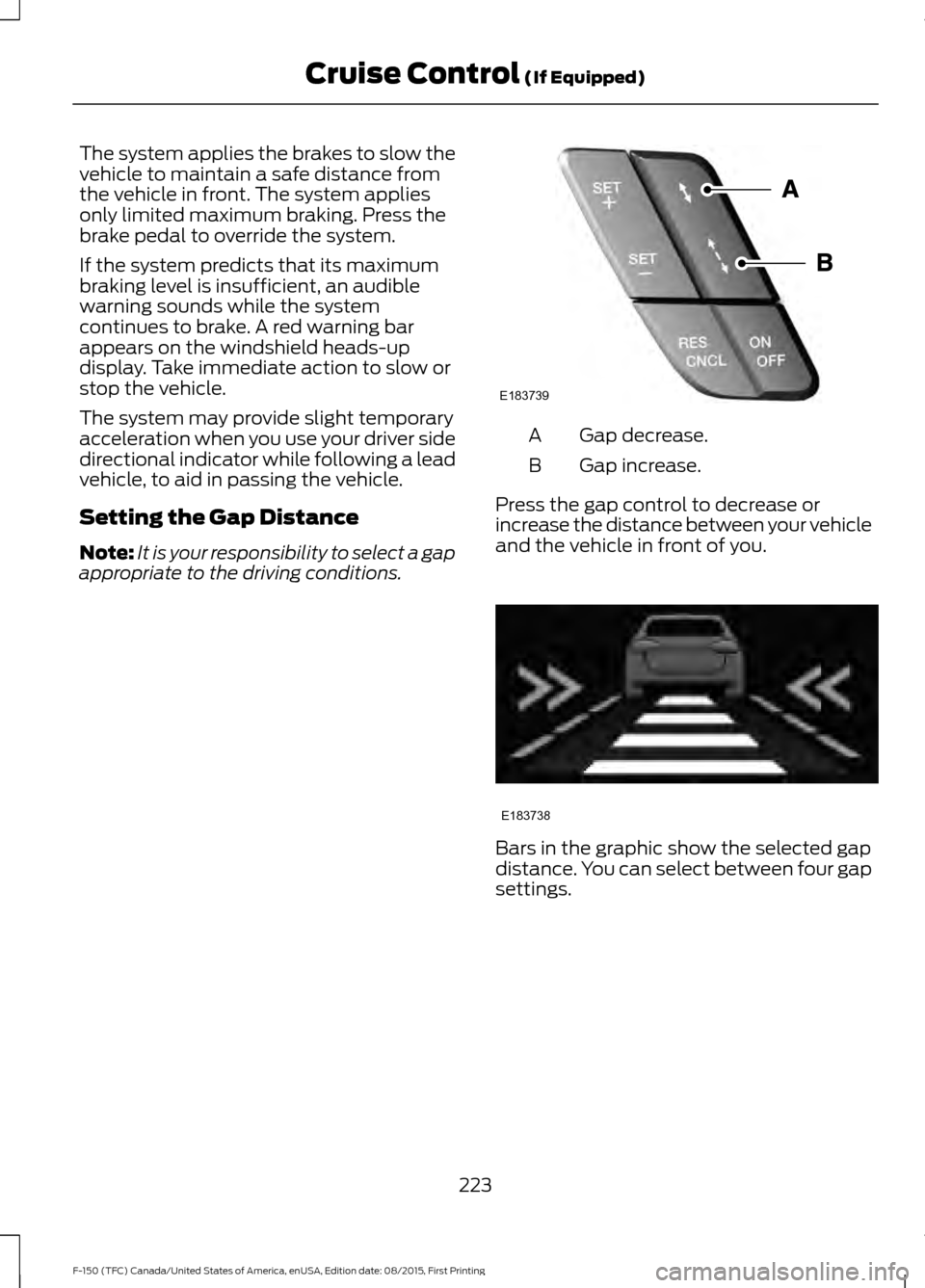
appropriate to the driving conditions. Gap decrease.
A
Gap increase.
B
Press the gap control to decrease or
increase the distance between your vehicle
and the vehicle in front of you. Bars in the graphic show the selected gap
distance. You can select between four gap
settings.
223
F-150 (TFC) Canada/United States of America, enUSA, Edition date: 08/2015, First Printing Cruise Control (If Equipped)E183739 E183738