2016 FORD EXPLORER key
[x] Cancel search: keyPage 258 of 541
ROADSIDE ASSISTANCE
Vehicles Sold in the United States:
Getting Roadside Assistance
To fully assist you should you have a
vehicle concern, Ford Motor Company
offers a complimentary roadside
assistance program. This program is
separate from the New Vehicle Limited
Warranty. The service is available:
•
24 hours a day, seven days a week.
• For the coverage period listed on the
Roadside Assistance Card included in
your Owner's Manual portfolio.
Roadside Assistance covers:
• A flat tire change with a good spare, if
provided with the vehicle (except
vehicles supplied with a tire inflation
kit).
• Battery jump start.
• Lock-out assistance (key replacement
cost is the customer's responsibility).
• Fuel delivery — independent service
contractors, if not prohibited by state,
local or municipal law, shall deliver up
to 2 gal (7.6 L) of gasoline or 5 gal
(18.9 L) of diesel fuel to a disabled
vehicle. Roadside Assistance limits fuel
delivery service to two no-charge
occurrences within a 12-month period.
• Winch out — available within
100 ft
(30.5 m) of a paved or county
maintained road, no recoveries.
• Towing — independent service
contractors, if not prohibited by state,
local or municipal law, shall tow Ford
eligible vehicles to an authorized dealer
within
35 mi (56 km) of the
disablement location or to the nearest authorized dealer. If a member
requests a tow to an authorized dealer
that is more than
35 mi (56 km) from
the disablement location, the member
shall be responsible for any mileage
costs in excess of
35 mi (56 km).
Roadside Assistance includes up to $200
for a towed trailer if the disabled eligible
vehicle requires service at the nearest
authorized dealer. If the towing vehicle is
operational but the trailer is not, then the
trailer does not qualify for any roadside
services.
Vehicles Sold in the United States:
Using Roadside Assistance
Complete the roadside assistance
identification card and place it in your
wallet for quick reference. This card is in
the owner's information portfolio in the
glove compartment.
United States Ford vehicle customers who
require Roadside Assistance, call
1-800-241-3673.
If you need to arrange roadside assistance
for yourself, Ford Motor Company
reimburses a reasonable amount for
towing to the nearest dealership within
35 mi (56 km)
. To obtain reimbursement
information, United States Ford vehicle
customers call 1-800-241-3673.
Customers need to submit their original
receipts.
Vehicles Sold in Canada: Getting
Roadside Assistance
Canadian customers who require roadside
assistance, call 1-800-665-2006.
Vehicles Sold in Canada: Using
Roadside Assistance
For your convenience, you may complete
the roadside assistance identification card
found in the centerfold of your warranty
guide and retain for future reference.
255
Explorer (TUB), enUSA, First Printing Roadside Emergencies
Page 259 of 541
Canadian roadside coverage and benefits
may differ from the U.S. coverage. If you
require more information, please refer to
the coverage section of your warranty
guide, call us in Canada at
1-800-665-2006, or visit our website at
www.ford.ca.
Sykes Assistance Services Corporation
administers the Roadside Assistance
program. You must receive covered
services in Canada or the continental
United States. Coverage extends to
vehicles that use public, non-seasonal,
annually traveled roadways. Roadside
Assistance coverage does not extend to
vehicles involved in cross-country driving,
logging, autocross and any other form of
off-road use. Well maintained roads and
surfaces help ensure safe travel for the
supplier, and allow their representatives
to perform service as per the standard
operating procedures.
In Remote Locations
If our supplier cannot take your vehicle by
road to the nearest authorized dealership,
transportation by rail or water may be
necessary. The program covers a tow to
the dock or rail terminal and also to the
dealership at the end of the trip.
For rail or water transportation, however,
contact your authorized dealer to confirm
if you are eligible for additional coverage
before you authorize or pay for the service.
Call Ford Roadside Assistance at
1-800-665-2006 for additional
information.
HAZARD WARNING FLASHERS
Note:
If used when the vehicle is not
running, the battery will lose charge. There
may be insufficient power to restart your
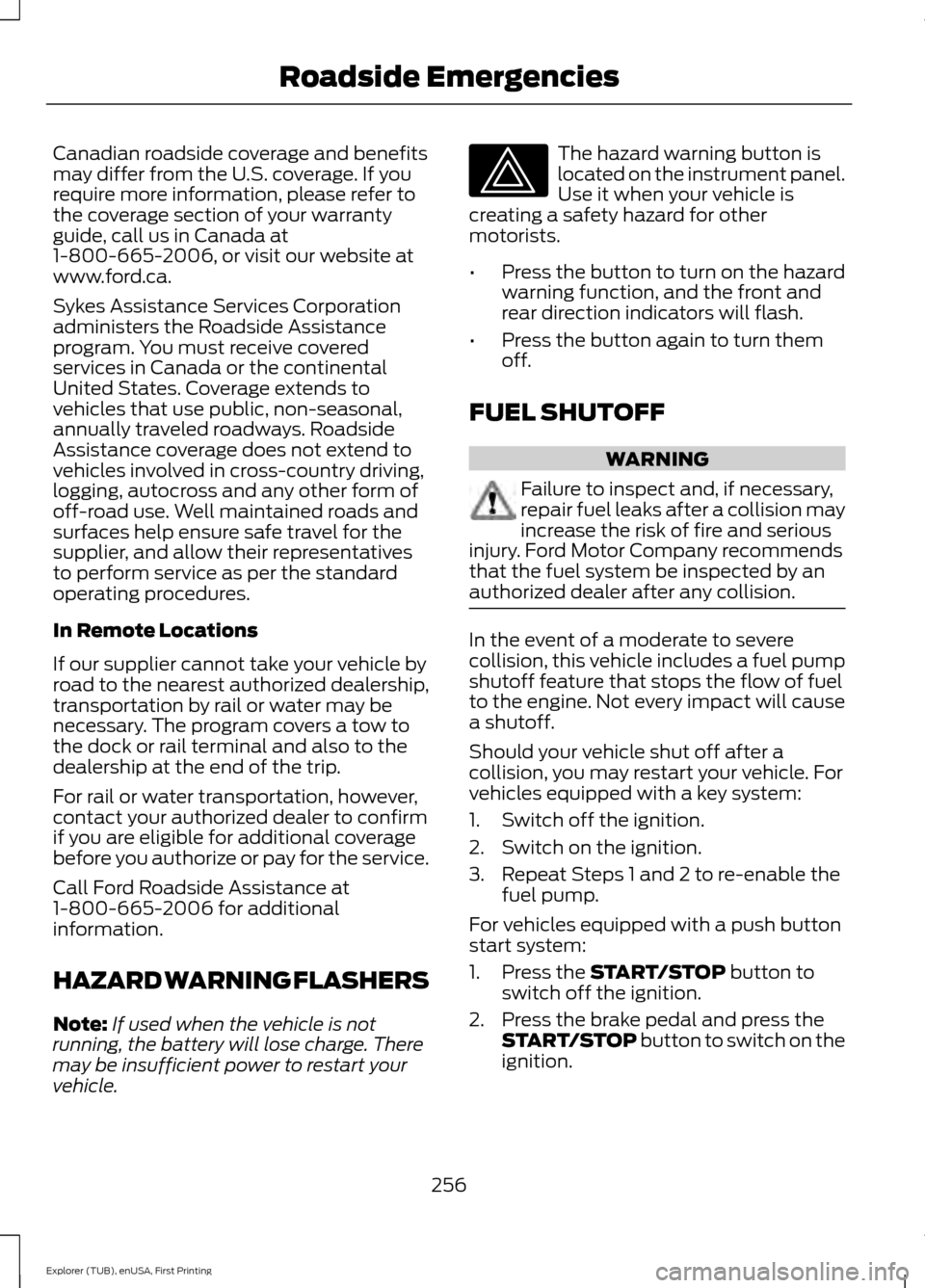
vehicle. The hazard warning button is
located on the instrument panel.
Use it when your vehicle is
creating a safety hazard for other
motorists.
• Press the button to turn on the hazard
warning function, and the front and
rear direction indicators will flash.
• Press the button again to turn them
off.
FUEL SHUTOFF WARNING
Failure to inspect and, if necessary,
repair fuel leaks after a collision may
increase the risk of fire and serious
injury. Ford Motor Company recommends
that the fuel system be inspected by an
authorized dealer after any collision. In the event of a moderate to severe
collision, this vehicle includes a fuel pump
shutoff feature that stops the flow of fuel
to the engine. Not every impact will cause
a shutoff.
Should your vehicle shut off after a
collision, you may restart your vehicle. For
vehicles equipped with a key system:
1. Switch off the ignition.
2. Switch on the ignition.
3. Repeat Steps 1 and 2 to re-enable the
fuel pump.
For vehicles equipped with a push button
start system:
1. Press the START/STOP button to
switch off the ignition.
2. Press the brake pedal and press the START/STOP
button to switch on the
ignition.
256
Explorer (TUB), enUSA, First Printing Roadside Emergencies
Page 275 of 541
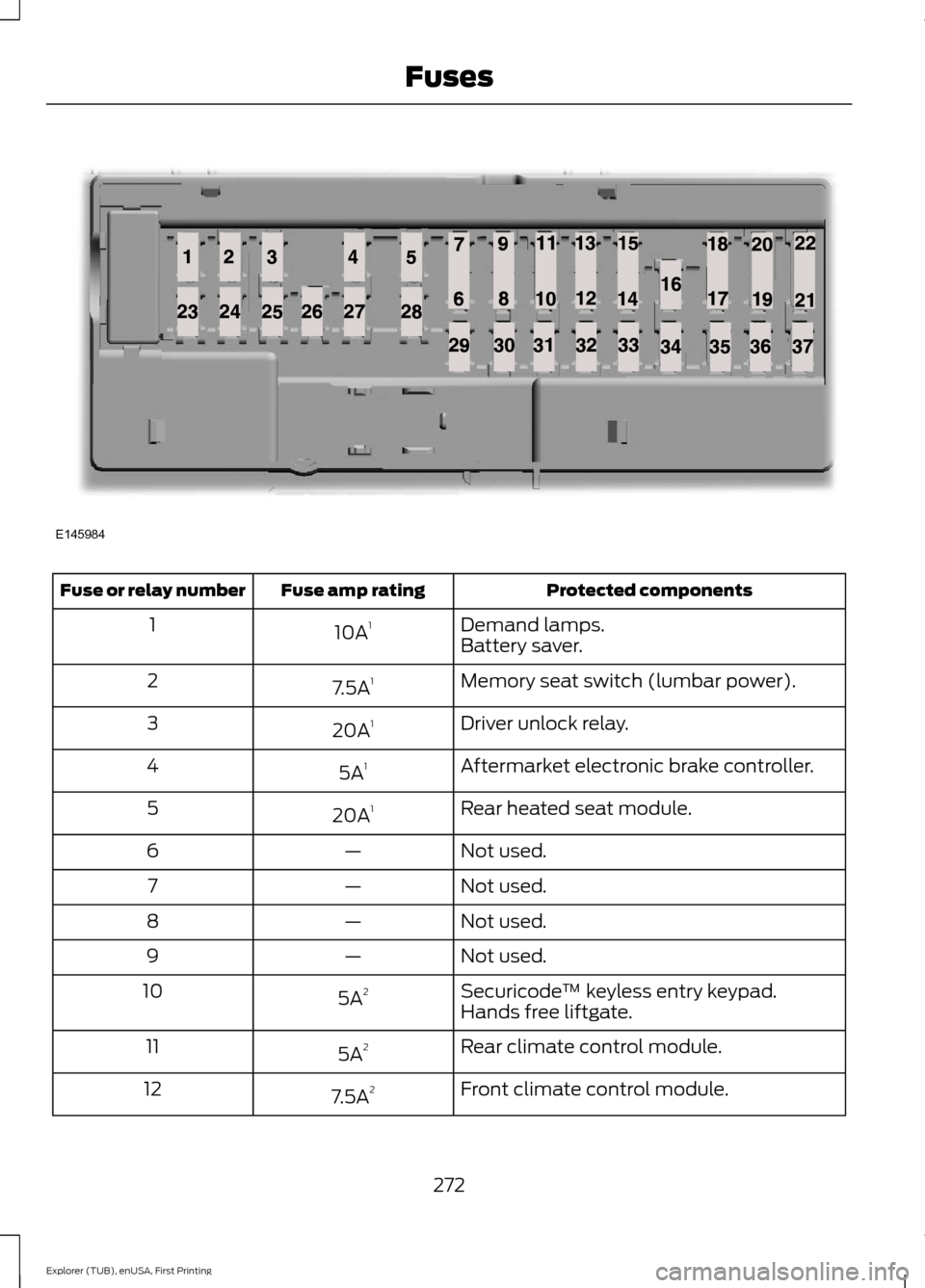
Protected components
Fuse amp rating
Fuse or relay number
Demand lamps.
10A 1
1
Battery saver.
Memory seat switch (lumbar power).
7.5A 1
2
Driver unlock relay.
20A 1
3
Aftermarket electronic brake controller.
5A 1
4
Rear heated seat module.
20A 1
5
Not used.
—
6
Not used.
—
7
Not used.
—
8
Not used.
—
9
Securicode™ keyless entry keypad.
5A 2
10
Hands free liftgate.
Rear climate control module.
5A 2
11
Front climate control module.
7.5A 2
12
272
Explorer (TUB), enUSA, First Printing FusesE145984
Page 276 of 541

Protected components
Fuse amp rating
Fuse or relay number
Instrument cluster.
7.5A 2
13
Smart data link.
Steering column control module.
Not used.
—
14
Smart datalink connector power.
10A 2
15
Heads up display.
Not used.
—
16
Electronic finish panel.
5A 2
17
Push button start switch.
5A 2
18
Ignition switch.
Key inhibit.
Transmission control switch (tow haul).
7.5A 2
19
Not used.
—
20
Terrain management switch.
5A 2
21
Heads up display.
Humidity sensor.
Occupant classification sensor.
5A 2
22
Delayed accessory power.
10A 1
23
Power windows.
Moonroof.
Folding mirror relay.
DC inverter.
Window/moonroof switch illumination.
Central lock relay.
20A 1
24
Left-hand front smart window motor.
30A 1
25
Door zone module.
Right-hand front smart window motor.
30A 1
26
Door zone module.
Moonroof.
30A 1
27
Sony amplifier - 10 channel.
20A 1
28
Sony amplifier - 14 channel.
30A 1
29
273
Explorer (TUB), enUSA, First Printing Fuses
Page 369 of 541
Troubleshooting
Action
Condition
Message
No action required. This
message should disappear
shortly.
Radio requires more than
two seconds to produce
audio for the selected
channel.
Acquiring…
If this message does not
clear shortly, or with an igni-
tion key cycle, your receiver
may have a fault. See an
authorized dealer for service.
There is an internal module
or system failure present.
Satellite antenna fault
SIRIUS system failure
Tune to another channel or
choose another preset.
The channel is no longer
available.
Invalid Channel
Contact SIRIUS at 1-888-
539-7474 to subscribe to
the channel, or tune to
another channel.
Your subscription does not
include this channel.
Unsubscribed Channel
The signal is blocked. When
you move into an open area,
the signal should return.
The signal is lost from the
SIRIUS satellite or SIRIUS
tower to your vehicle
antenna.
No Signal
No action required. The
process may take up to
three minutes.
Update of channel
programming in progress.
Updating…
Contact SIRIUS at 1-888-
539-7474 to resolve
subscription issues.
Your satellite service is no
longer available.
Questions? Call
1-888-539-7474
Use the channel guide to
turn off the Lock or Skip
function on that station.
All the channels in the
selected category are either
skipped or locked.
None found
Check Channel Guide
No action required.
SIRIUS has updated the
channels available for your
vehicle.
Subscription Updated
366
Explorer (TUB), enUSA, First Printing Audio System
Page 379 of 541
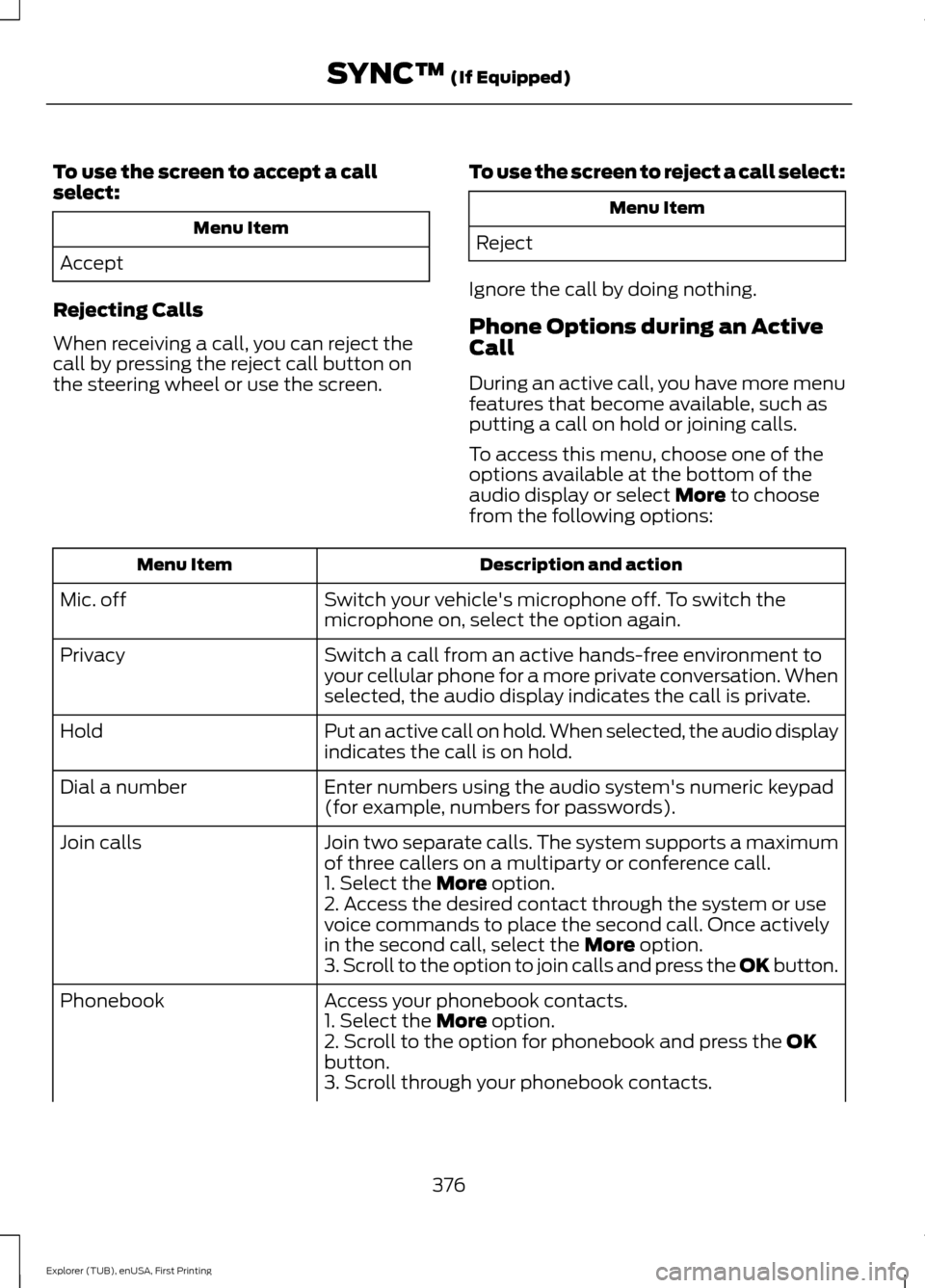
To use the screen to accept a call
select:
Menu Item
Accept
Rejecting Calls
When receiving a call, you can reject the
call by pressing the reject call button on
the steering wheel or use the screen. To use the screen to reject a call select: Menu Item
Reject
Ignore the call by doing nothing.
Phone Options during an Active
Call
During an active call, you have more menu
features that become available, such as
putting a call on hold or joining calls.
To access this menu, choose one of the
options available at the bottom of the
audio display or select More to choose
from the following options: Description and action
Menu Item
Switch your vehicle's microphone off. To switch the
microphone on, select the option again.
Mic. off
Switch a call from an active hands-free environment to
your cellular phone for a more private conversation. When
selected, the audio display indicates the call is private.
Privacy
Put an active call on hold. When selected, the audio display
indicates the call is on hold.
Hold
Enter numbers using the audio system's numeric keypad
(for example, numbers for passwords).
Dial a number
Join two separate calls. The system supports a maximum
of three callers on a multiparty or conference call.
Join calls
1. Select the
More option.
2. Access the desired contact through the system or use
voice commands to place the second call. Once actively
in the second call, select the
More option.
3. Scroll to the option to join calls and press the OK button.
Access your phonebook contacts.
Phonebook
1. Select the
More option.
2. Scroll to the option for phonebook and press the OK
button.
3. Scroll through your phonebook contacts.
376
Explorer (TUB), enUSA, First Printing SYNC™
(If Equipped)
Page 380 of 541
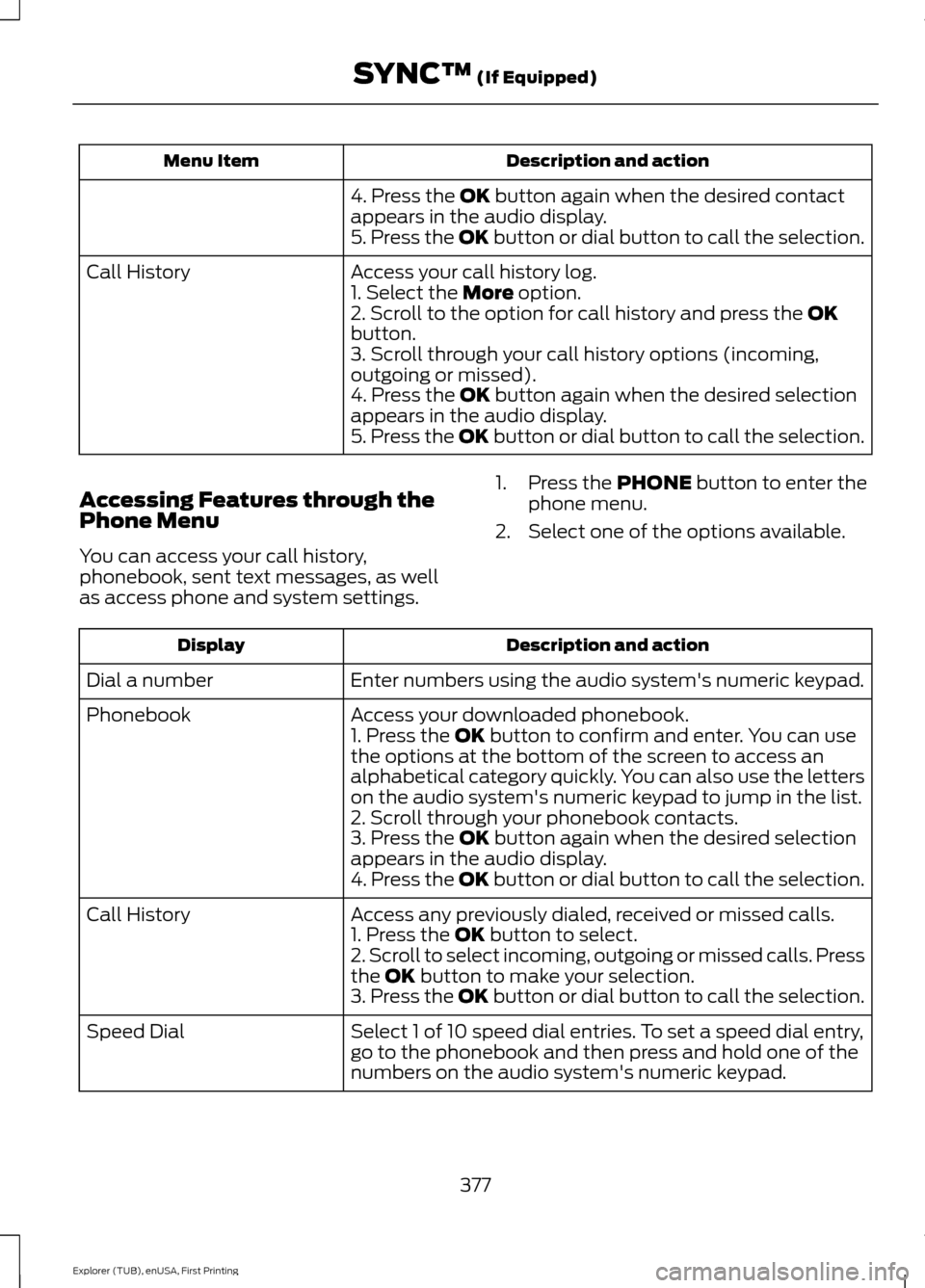
Description and action
Menu Item
4. Press the OK button again when the desired contact
appears in the audio display.
5. Press the OK button or dial button to call the selection.
Access your call history log.
Call History
1. Select the
More option.
2. Scroll to the option for call history and press the OK
button.
3. Scroll through your call history options (incoming,
outgoing or missed).
4. Press the
OK button again when the desired selection
appears in the audio display.
5. Press the OK button or dial button to call the selection.
Accessing Features through the
Phone Menu
You can access your call history,
phonebook, sent text messages, as well
as access phone and system settings. 1. Press the
PHONE button to enter the
phone menu.
2. Select one of the options available. Description and action
Display
Enter numbers using the audio system's numeric keypad.
Dial a number
Access your downloaded phonebook.
Phonebook
1. Press the
OK button to confirm and enter. You can use
the options at the bottom of the screen to access an
alphabetical category quickly. You can also use the letters
on the audio system's numeric keypad to jump in the list.
2. Scroll through your phonebook contacts.
3. Press the
OK button again when the desired selection
appears in the audio display.
4. Press the OK button or dial button to call the selection.
Access any previously dialed, received or missed calls.
Call History
1. Press the
OK button to select.
2. Scroll to select incoming, outgoing or missed calls. Press
the
OK button to make your selection.
3. Press the OK button or dial button to call the selection.
Select 1 of 10 speed dial entries. To set a speed dial entry,
go to the phonebook and then press and hold one of the
numbers on the audio system's numeric keypad.
Speed Dial
377
Explorer (TUB), enUSA, First Printing SYNC™
(If Equipped)
Page 390 of 541

To Access Using Voice Commands
Press the voice button then when prompted say:
Action and Description
Menu Item
Say the name of the application after the tone.
The app should start. When an app is running through SYNC, you can press the voice button and speak commands specific to the app, for example "Play Playlist Road Trip".
mobile (apps |
applications)
Use this command to discover the available voice commands.
Help
SYNC Mobile App Voice Commands
The following voice commands are always available: Action and Description
Menu Item
SYNC prompts you to say the name of an
app to start it on SYNC.
mobile (apps | applications)
SYNC lists all of the currently available
mobile apps.
list [mobile] (apps | applications)
Searches your connected mobile device for
SYNC-compatible mobile apps.
find [new] [mobile] (apps | applications)
help
You can say the name of a mobile app at any time to start the mobile app on SYNC.
App Permissions
App permissions are organized by groups.
You can grant these group permissions
individually. You can change a permission
group status any time when not driving, by
using the settings menu. When you launch an app using SYNC, the
system may ask you to grant certain
permissions, for example:
•
To allow your vehicle to provide vehicle
information to the app such as, but not
limited to: Fuel level, fuel economy, fuel
consumption, engine speed, rain
sensor, odometer, VIN, external
temperature, gear position, tire
pressure, and head lamp status.
• To allow your vehicle to provide driving
characteristic information such as, but
not limited to: MyKey, seat belt status,
engine revolutions per minute, gear
position, braking events, steering wheel
angle, and accelerator pedal position.
387
Explorer (TUB), enUSA, First Printing SYNC™ (If Equipped)