2016 FORD EXPLORER turn signal
[x] Cancel search: turn signalPage 429 of 541

Wireless and Internet
Your system has a Wi-Fi feature that
creates a wireless network within your
vehicle, thereby allowing other devices
(such as personal computers or phones)
in your vehicle to speak to each other,
share files or play games. Using this Wi-Fi
feature, everyone in your vehicle can also
access the internet if you have a USB
mobile broadband connection inside your
vehicle, your phone supports personal area
networking or if you park outside a wireless
hotspot.
To make adjustments using the touchscreen, select: Action and Description
Menu Item
Press the settings icon.
Settings
Wireless & Internet
Then select from the following:
Wi-Fi Network (Client) Mode
Wi-Fi Settings
Turns the Wi-Fi feature on and off in your vehicle. Make sure
you switch it on for connectivity purposes.
Choose a Wireless Network
Allows you to use a previously stored wireless network. You
can categorize by alphabetical listing, priority and signal
strength. You can also choose to search for a network,
connect to a network, disconnect from a network, receive
more information, prioritize a network or delete a network.
Gateway (Access Point) Mode
Makes SYNC an access point for a phone or a computer when
turned on. This forms the local area network within your
vehicle for things, such as game playing, file transfer and
internet browsing. Press ? for more information.
Gateway (Access Point) Settings
Allows you to view and change settings for using SYNC as
the internet gateway.
Gateway (Access Point) Devices List
Allows you to view recent connections to your Wi-Fi system.
426
Explorer (TUB), enUSA, First Printing MyFord Touch
™
(If Equipped)
Page 436 of 541
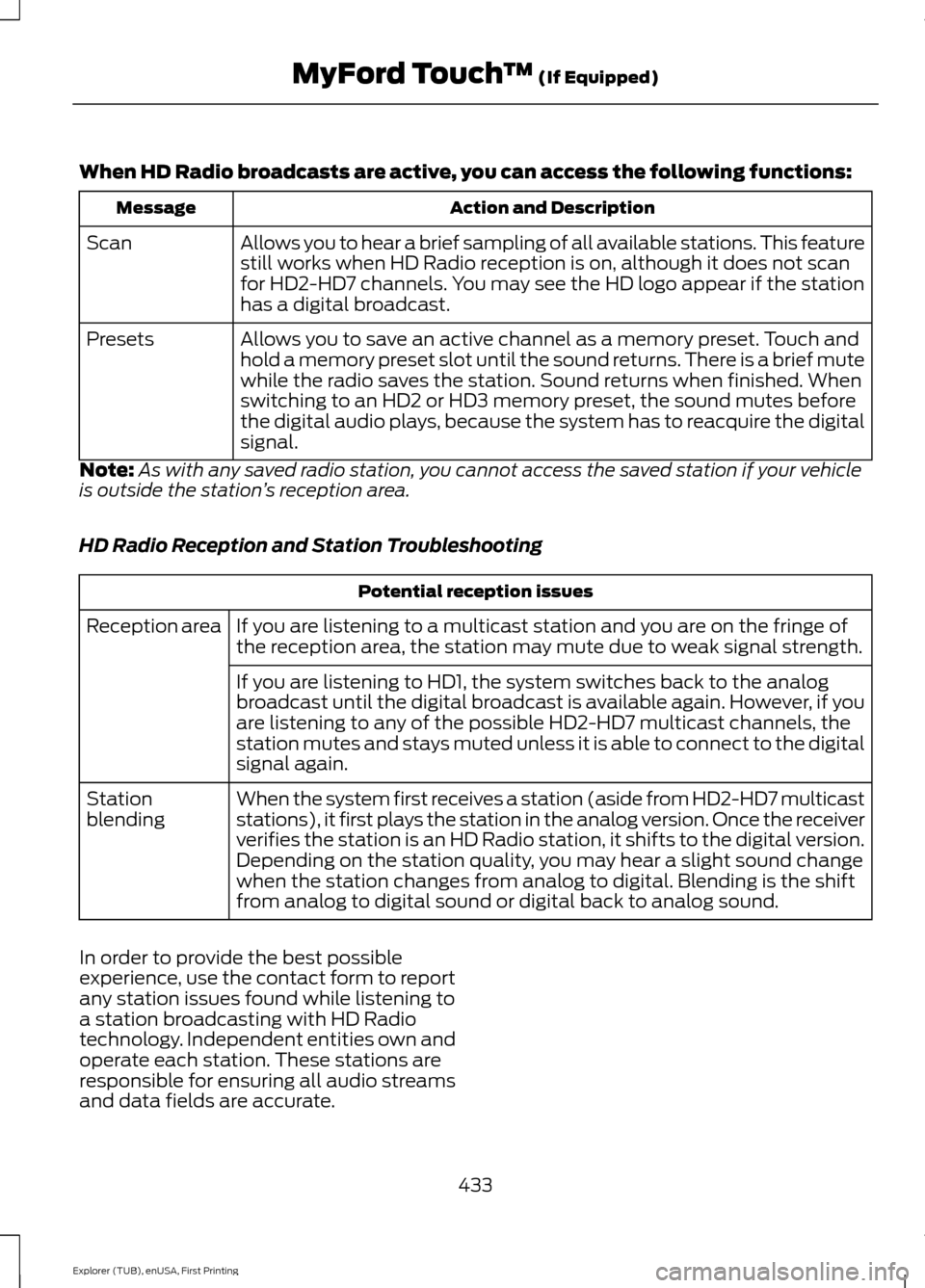
When HD Radio broadcasts are active, you can access the following functions:
Action and Description
Message
Allows you to hear a brief sampling of all available stations. This feature
still works when HD Radio reception is on, although it does not scan
for HD2-HD7 channels. You may see the HD logo appear if the station
has a digital broadcast.
Scan
Allows you to save an active channel as a memory preset. Touch and
hold a memory preset slot until the sound returns. There is a brief mute
while the radio saves the station. Sound returns when finished. When
switching to an HD2 or HD3 memory preset, the sound mutes before
the digital audio plays, because the system has to reacquire the digital
signal.
Presets
Note: As with any saved radio station, you cannot access the saved station if your vehicle
is outside the station ’s reception area.
HD Radio Reception and Station Troubleshooting Potential reception issues
If you are listening to a multicast station and you are on the fringe of
the reception area, the station may mute due to weak signal strength.
Reception area
If you are listening to HD1, the system switches back to the analog
broadcast until the digital broadcast is available again. However, if you
are listening to any of the possible HD2-HD7 multicast channels, the
station mutes and stays muted unless it is able to connect to the digital
signal again.
When the system first receives a station (aside from HD2-HD7 multicast
stations), it first plays the station in the analog version. Once the receiver
verifies the station is an HD Radio station, it shifts to the digital version.
Depending on the station quality, you may hear a slight sound change
when the station changes from analog to digital. Blending is the shift
from analog to digital sound or digital back to analog sound.
Station
blending
In order to provide the best possible
experience, use the contact form to report
any station issues found while listening to
a station broadcasting with HD Radio
technology. Independent entities own and
operate each station. These stations are
responsible for ensuring all audio streams
and data fields are accurate. 433
Explorer (TUB), enUSA, First Printing MyFord Touch
™ (If Equipped)
Page 442 of 541
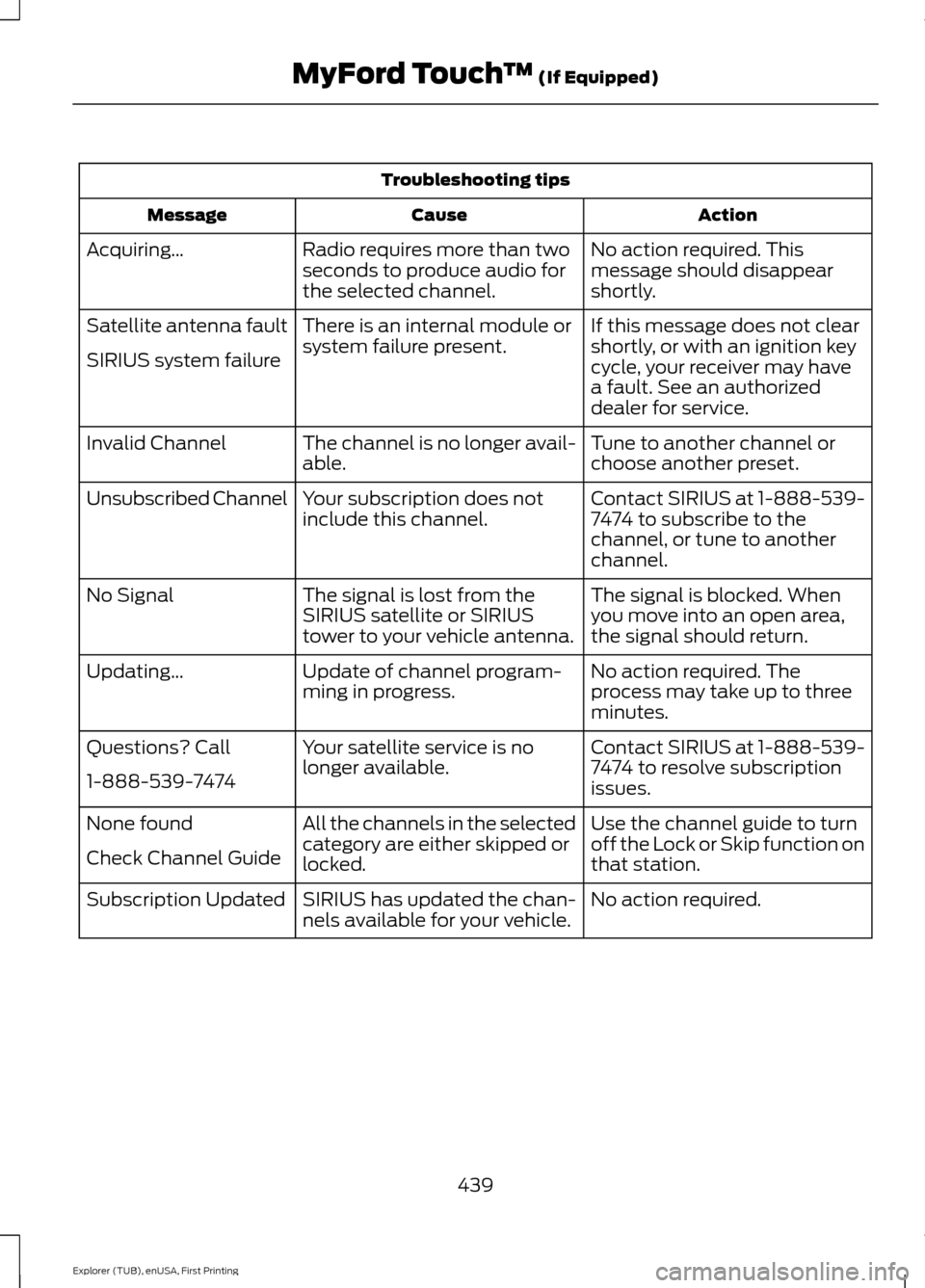
Troubleshooting tips
Action
Cause
Message
No action required. This
message should disappear
shortly.
Radio requires more than two
seconds to produce audio for
the selected channel.
Acquiring…
If this message does not clear
shortly, or with an ignition key
cycle, your receiver may have
a fault. See an authorized
dealer for service.
There is an internal module or
system failure present.
Satellite antenna fault
SIRIUS system failure
Tune to another channel or
choose another preset.
The channel is no longer avail-
able.
Invalid Channel
Contact SIRIUS at 1-888-539-
7474 to subscribe to the
channel, or tune to another
channel.
Your subscription does not
include this channel.
Unsubscribed Channel
The signal is blocked. When
you move into an open area,
the signal should return.
The signal is lost from the
SIRIUS satellite or SIRIUS
tower to your vehicle antenna.
No Signal
No action required. The
process may take up to three
minutes.
Update of channel program-
ming in progress.
Updating…
Contact SIRIUS at 1-888-539-
7474 to resolve subscription
issues.
Your satellite service is no
longer available.
Questions? Call
1-888-539-7474
Use the channel guide to turn
off the Lock or Skip function on
that station.
All the channels in the selected
category are either skipped or
locked.
None found
Check Channel Guide
No action required.
SIRIUS has updated the chan-
nels available for your vehicle.
Subscription Updated
439
Explorer (TUB), enUSA, First Printing MyFord Touch
™ (If Equipped)
Page 476 of 541
The ETA box under the zoom buttons
appears when a route is active and
displays the distance and time to your
destination. If the button is pressed, a pop
up appears with the destination listed (and
waypoint if applicable) along with mileage
and time to destination. You may also
select to have either the estimated time
to reach your destination or your estimated
arrival time.
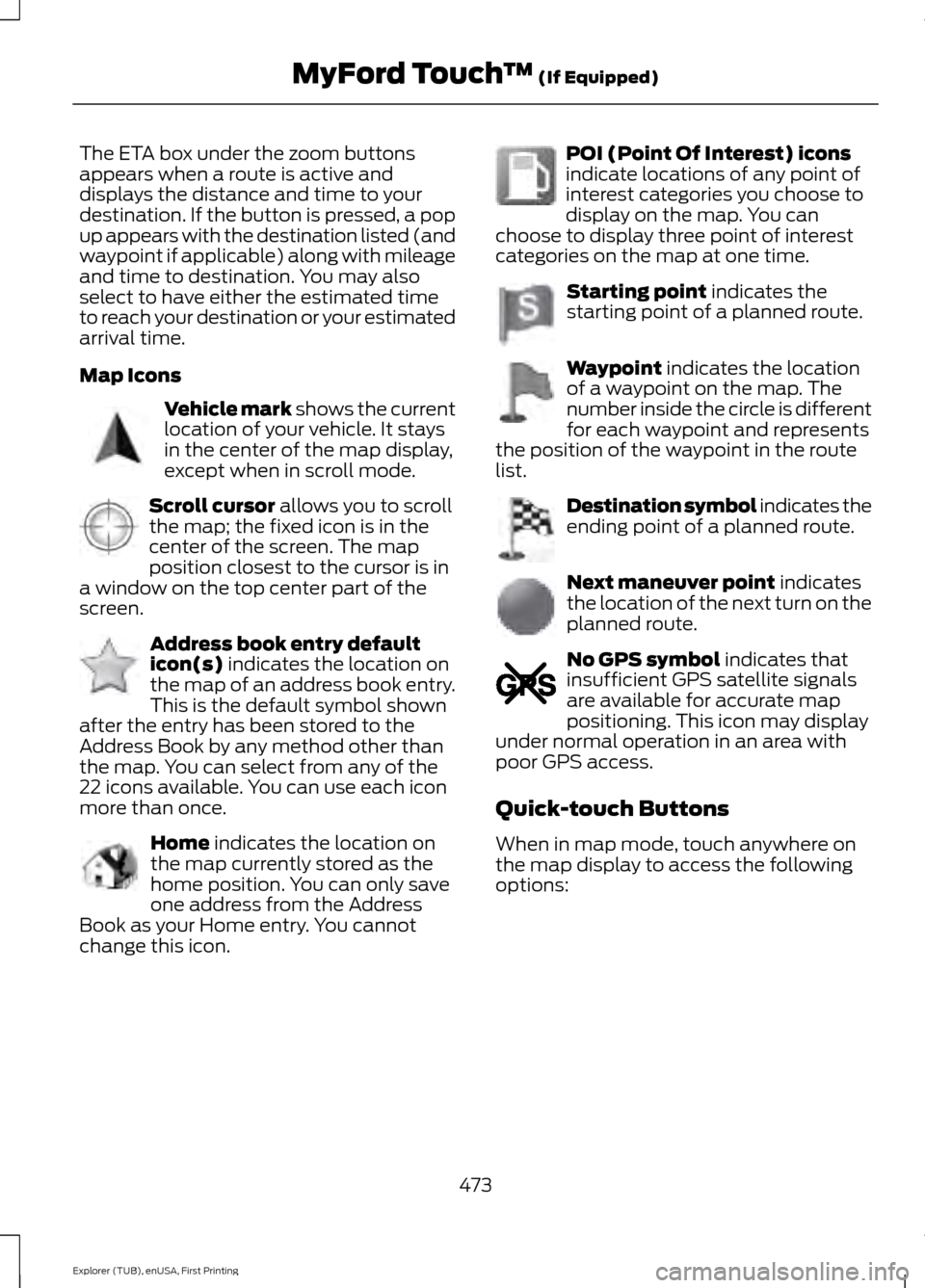
Map Icons
Vehicle mark shows the current
location of your vehicle. It stays
in the center of the map display,
except when in scroll mode. Scroll cursor
allows you to scroll
the map; the fixed icon is in the
center of the screen. The map
position closest to the cursor is in
a window on the top center part of the
screen. Address book entry default
icon(s)
indicates the location on
the map of an address book entry.
This is the default symbol shown
after the entry has been stored to the
Address Book by any method other than
the map. You can select from any of the
22 icons available. You can use each icon
more than once. Home
indicates the location on
the map currently stored as the
home position. You can only save
one address from the Address
Book as your Home entry. You cannot
change this icon. POI (Point Of Interest) icons
indicate locations of any point of
interest categories you choose to
display on the map. You can
choose to display three point of interest
categories on the map at one time. Starting point
indicates the
starting point of a planned route. Waypoint
indicates the location
of a waypoint on the map. The
number inside the circle is different
for each waypoint and represents
the position of the waypoint in the route
list. Destination symbol indicates the
ending point of a planned route.
Next maneuver point
indicates
the location of the next turn on the
planned route. No GPS symbol
indicates that
insufficient GPS satellite signals
are available for accurate map
positioning. This icon may display
under normal operation in an area with
poor GPS access.
Quick-touch Buttons
When in map mode, touch anywhere on
the map display to access the following
options:
473
Explorer (TUB), enUSA, First Printing MyFord Touch
™
(If Equipped)E142646 E142647 E142648 E142649 E142650 E142651 E142652 E142653 E142654 E142655
Page 482 of 541
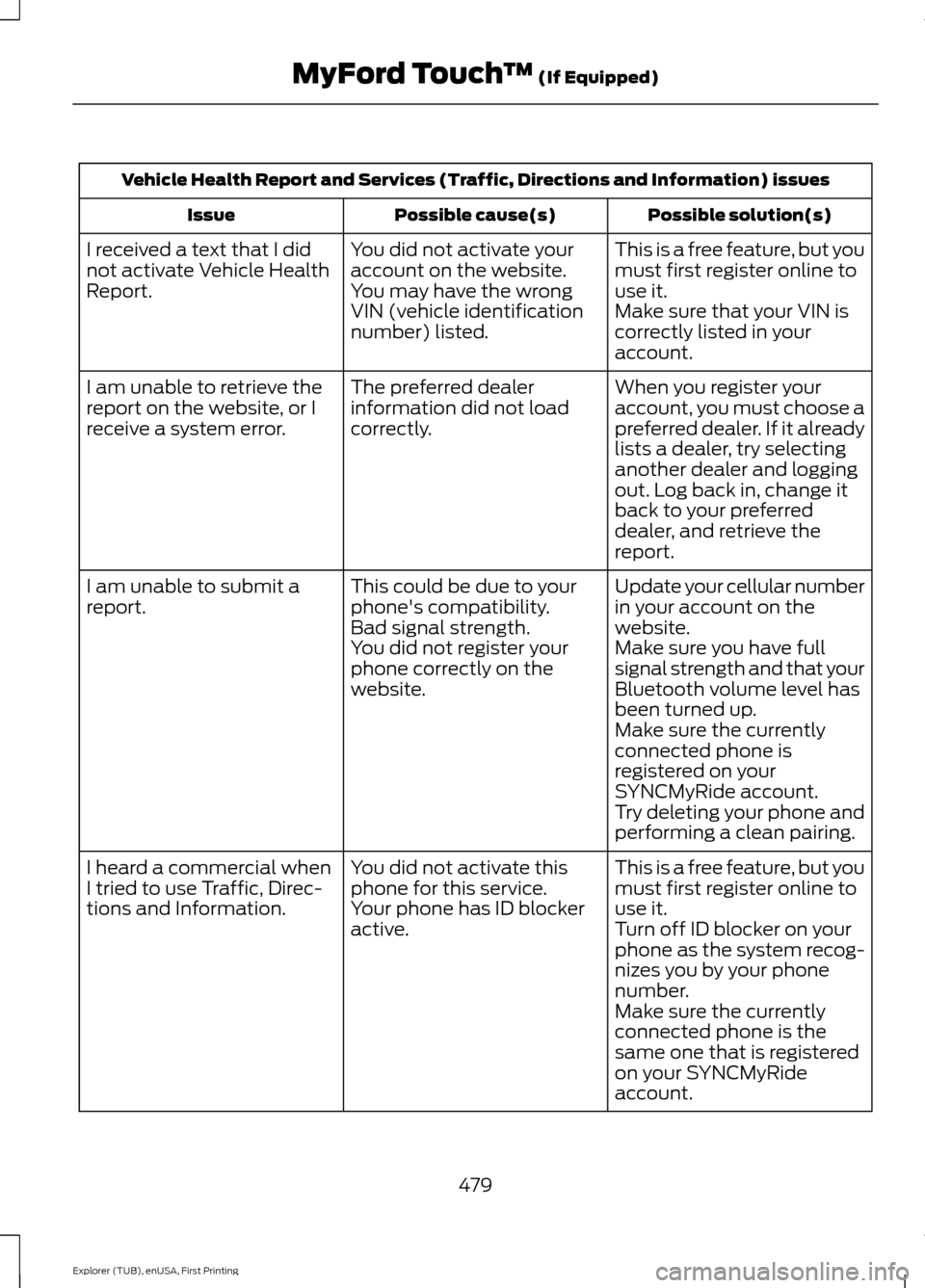
Vehicle Health Report and Services (Traffic, Directions and Information) issues
Possible solution(s)
Possible cause(s)
Issue
This is a free feature, but you
must first register online to
use it.
You did not activate your
account on the website.
You may have the wrong
VIN (vehicle identification
number) listed.
I received a text that I did
not activate Vehicle Health
Report.
Make sure that your VIN is
correctly listed in your
account.
When you register your
account, you must choose a
preferred dealer. If it already
lists a dealer, try selecting
another dealer and logging
out. Log back in, change it
back to your preferred
dealer, and retrieve the
report.
The preferred dealer
information did not load
correctly.
I am unable to retrieve the
report on the website, or I
receive a system error.
Update your cellular number
in your account on the
website.
This could be due to your
phone's compatibility.
Bad signal strength.
I am unable to submit a
report.
Make sure you have full
signal strength and that your
Bluetooth volume level has
been turned up.
You did not register your
phone correctly on the
website.
Make sure the currently
connected phone is
registered on your
SYNCMyRide account.
Try deleting your phone and
performing a clean pairing.
This is a free feature, but you
must first register online to
use it.
You did not activate this
phone for this service.
Your phone has ID blocker
active.
I heard a commercial when
I tried to use Traffic, Direc-
tions and Information.
Turn off ID blocker on your
phone as the system recog-
nizes you by your phone
number.
Make sure the currently
connected phone is the
same one that is registered
on your SYNCMyRide
account.
479
Explorer (TUB), enUSA, First Printing MyFord Touch
™ (If Equipped)
Page 513 of 541
Keep User's Guide in vehicle: When kept
in the vehicle, the User's Guide will be a
ready reference for you and other users
unfamiliar with the Windows
Automotive-based system. Please make
certain that before using the system for
the first time, all persons have access to
the User's Guide and read its instructions
and safety information carefully.
WARNING
Operating certain parts of this
system while driving can distract
your attention away from the road,
and possibly cause an accident or other
serious consequences. Do not change
system settings or enter data non-verbally
(using your hands) while driving. Stop the
vehicle in a safe and legal manner before
attempting these operations. This is
important since while setting up or
changing some functions you might be
required to distract your attention away
from the road and remove your hands from
the wheel. General Operation
Voice Command Control: Functions
within the Windows Automotive-based
system may be accomplished using only
voice commands. Using voice commands
while driving allows you to operate the
system without removing your hands from
the wheel.
Prolonged Views of Screen:
Do not
access any function requiring a prolonged
view of the screen while you are driving.
Pull over in a safe and legal manner before
attempting to access a function of the
system requiring prolonged attention. Even
occasional short scans to the screen may
be hazardous if your attention has been
diverted away from your driving task at a
critical time. Volume Setting: Do not raise the volume
excessively. Keep the volume at a level
where you can still hear outside traffic and
emergency signals while driving. Driving
while unable to hear these sounds could
cause an accident.
Use of Speech Recognition Functions:
Speech recognition software is inherently
a statistical process which is subject to
errors. It is your responsibility to monitor
any speech recognition functions included
in the system and address any errors.
Navigation Features:
Any navigation
features included in the system are
intended to provide turn by turn
instructions to get you to a desired
destination. Please make certain all
persons using this system carefully read
and follow instructions and safety
information fully.
Distraction Hazard:
Any navigation
features may require manual (non-verbal)
setup. Attempting to perform such set-up
or insert data while driving can seriously
distract your attention and could cause an
accident or other serious consequences.
Stop the vehicle in a safe and legal manner
before attempting these operations.
Let Your Judgment Prevail:
Any
navigation features are provided only as
an aid. Make your driving decisions based
on your observations of local conditions
and existing traffic regulations. Any such
feature is not a substitute for your personal
judgment. Any route suggestions made by
this system should never replace any local
traffic regulations or your personal
judgment or knowledge of safe driving
practices.
510
Explorer (TUB), enUSA, First Printing Appendices