Page 75 of 541
ADJUSTING THE STEERING
WHEEL - VEHICLES WITH:
MANUAL ADJUSTABLE
STEERING COLUMN
WARNING
Do not adjust the steering wheel
when your vehicle is moving.
Note:
Make sure that you are sitting in the
correct position. See Sitting in the Correct
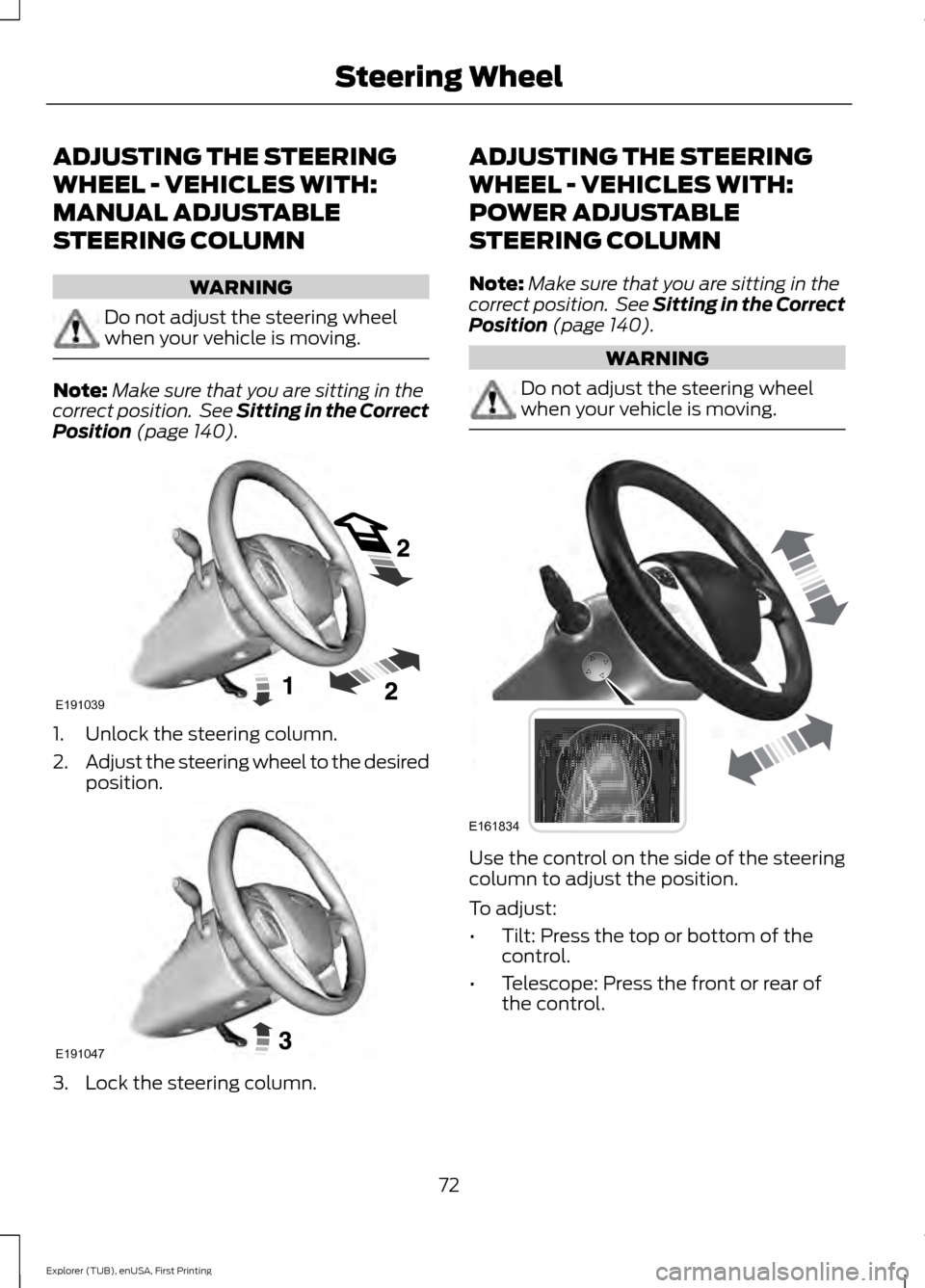
Position (page 140). 1. Unlock the steering column.
2.
Adjust the steering wheel to the desired
position. 3. Lock the steering column. ADJUSTING THE STEERING
WHEEL - VEHICLES WITH:
POWER ADJUSTABLE
STEERING COLUMN
Note:
Make sure that you are sitting in the
correct position. See Sitting in the Correct
Position
(page 140). WARNING
Do not adjust the steering wheel
when your vehicle is moving.
Use the control on the side of the steering
column to adjust the position.
To adjust:
•
Tilt: Press the top or bottom of the
control.
• Telescope: Press the front or rear of
the control.
72
Explorer (TUB), enUSA, First Printing Steering WheelE191039 E191047 E161834
Page 76 of 541

End of Travel Position
The steering column sets a stopping
position just short of the end of the column
position to prevent damage to the steering
column. A new stopping position sets if the
steering column encounters an object
when tilting or telescoping.
To reset the steering column to its normal
stopping position:
1. Confirm there is nothing obstructing
the motion of the steering column.
2. Press and hold the steering column control until the steering column stops
moving.
3. Press the steering column control again. The steering column may begin
to move again.
4. When the steering column stops, continue holding the control for an
additional few seconds.
5. Repeat for each direction as necessary.
A new stopping position is set. The next
time you tilt or telescope the steering
column, it will stop just short of the end of
the column position.
Memory Feature
You can save and recall the steering
column position with the memory function.
See Memory Function (page 146).
Note: Pressing the adjustment control
during memory recall cancels the operation.
Easy Entry and Exit Feature
When you switch the ignition off, the
steering column will move to allow extra
room to exit your vehicle. The column will
return to the previous setting when you
switch the ignition on. You can enable or
disable this feature in the information
display. See Information Displays (page
101
). AUDIO CONTROL
You can operate the following functions
with the control:
Type 1
Seek down or previous and
answer call.
A
Volume up or down.
B
Mute.
C
Seek up or next and end call.
D
Type 2 Seek up or next.
A
Media.
B
Volume up or down.
C
73
Explorer (TUB), enUSA, First Printing Steering WheelE201374 E210273
Page 77 of 541
Mute.
D
Seek down or previous.
E
Seek and Media
Press the seek button to:
• Tune the radio to the next or previous
stored preset.
• Play the next or the previous track.
Press and hold the seek button to:
• Tune the radio to the next station up
or down the frequency band.
• Seek through a track.
Press the media button repeatedly to:
• Scroll through available audio modes.
VOICE CONTROL (If Equipped) Press the button to select or deselect voice
control. See MyFord Touch
™
(page 406).CRUISE CONTROL
Type 1
Type 2
See
Cruise Control (page 213).
74
Explorer (TUB), enUSA, First Printing Steering WheelE201375 E200995 E200996
Page 78 of 541
INFORMATION DISPLAY
CONTROL
See Information Displays (page 101).
Information Display Control
Features This control functions the same as the
center control on the faceplate. See Audio
System
(page 353).
Use this control to adjust the right side of
the information display. Navigate through
the screen and press
OK to select.
HEATED STEERING WHEEL
(If
Equipped)
See
MyFord Touch ™ (page 406).
75
Explorer (TUB), enUSA, First Printing Steering WheelE201376 E201376
Page 79 of 541
ADJUSTING THE PEDALS (If
Equipped) WARNING
Never use the controls while your
feet are on the accelerator and brake
pedals and the vehicle is moving.
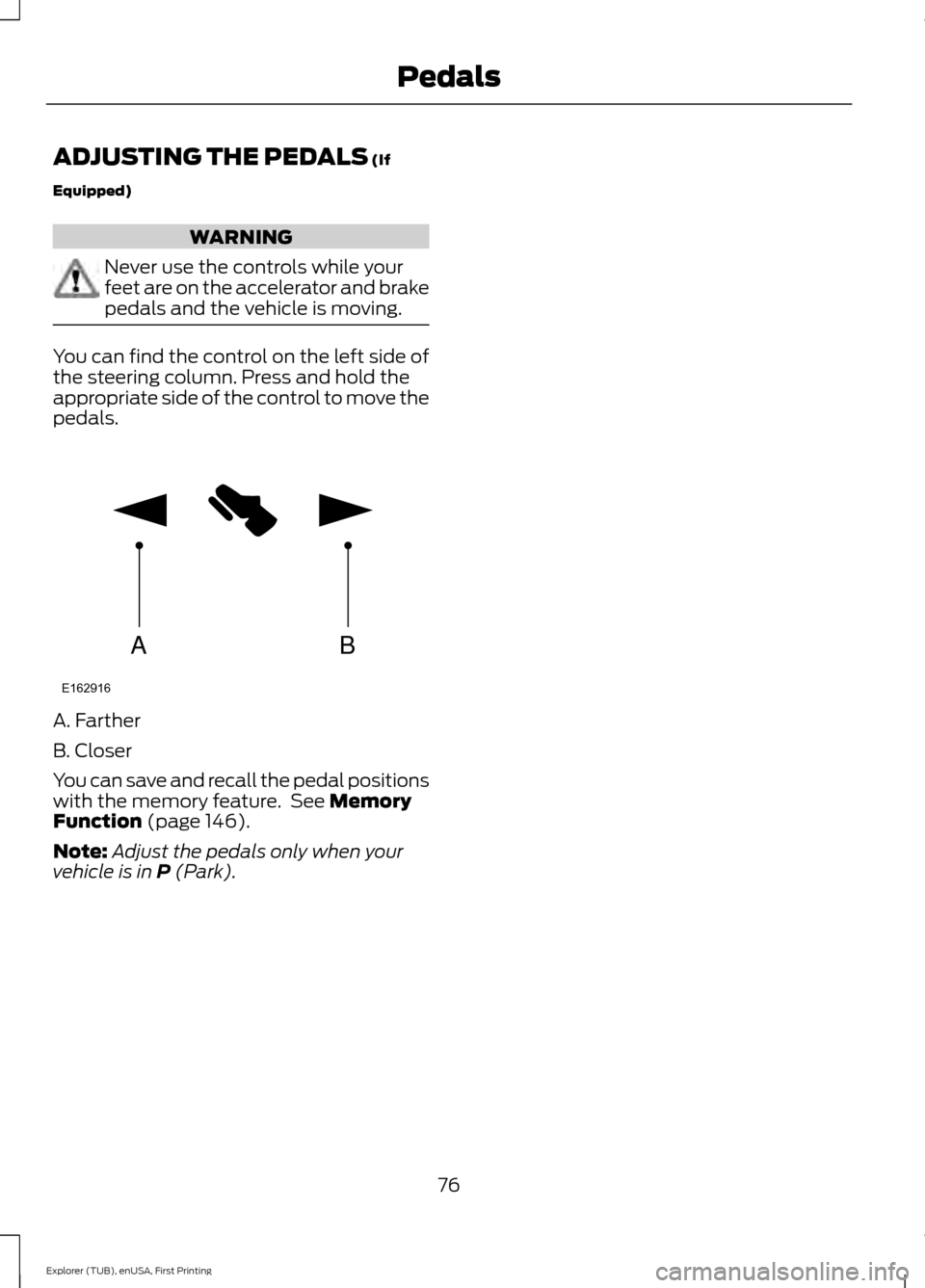
You can find the control on the left side of
the steering column. Press and hold the
appropriate side of the control to move the
pedals.
A. Farther
B. Closer
You can save and recall the pedal positions
with the memory feature. See
Memory
Function (page 146).
Note: Adjust the pedals only when your
vehicle is in
P (Park).
76
Explorer (TUB), enUSA, First Printing PedalsAB
E162916
Page 104 of 541
GENERAL INFORMATION
WARNING
Driving while distracted can result in
loss of vehicle control, crash and
injury. We strongly recommend that
you use extreme caution when using any
device that may take your focus off the
road. Your primary responsibility is the safe
operation of your vehicle. We recommend
against the use of any hand-held device
while driving and encourage the use of
voice-operated systems when possible.
Make sure you are aware of all applicable
local laws that may affect the use of
electronic devices while driving. You can control various systems on your
vehicle using the information display
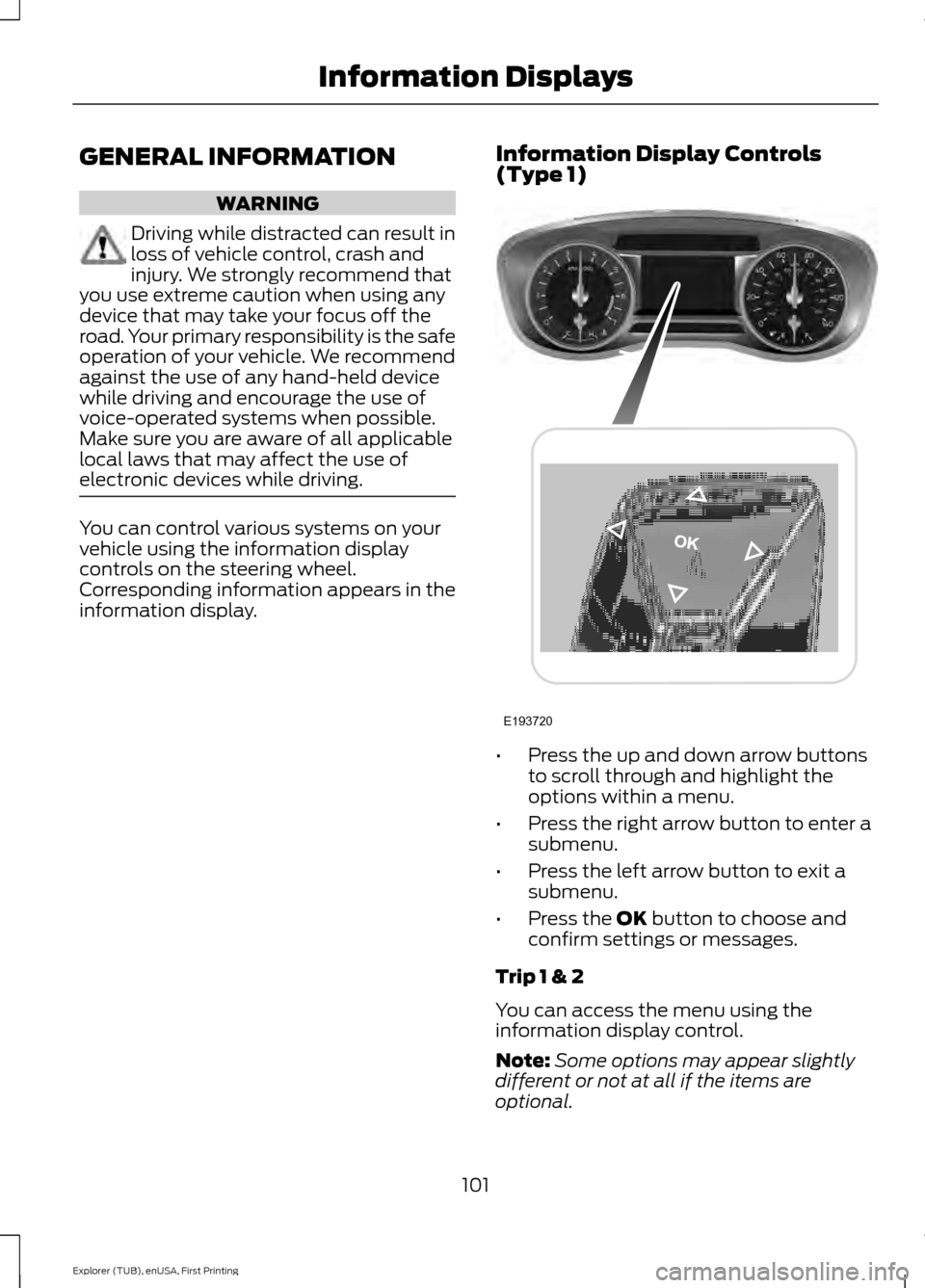
controls on the steering wheel.
Corresponding information appears in the
information display.
Information Display Controls
(Type 1) •
Press the up and down arrow buttons
to scroll through and highlight the
options within a menu.
• Press the right arrow button to enter a
submenu.
• Press the left arrow button to exit a
submenu.
• Press the OK button to choose and
confirm settings or messages.
Trip 1 & 2
You can access the menu using the
information display control.
Note: Some options may appear slightly
different or not at all if the items are
optional.
101
Explorer (TUB), enUSA, First Printing Information DisplaysE193720
Page 106 of 541

•
Distance to Empty - Shows the
approximate distance your vehicle can
travel before running out of fuel.
• Instantaneous Fuel Economy - Shows
a visual graph of your instantaneous
fuel economy along with your Avg MPG
since the function was last reset.
• Average MPG — Shows the average
fuel economy since last reset.
• Fuel History - Shows a bar chart of your
fuel history.
• All Values — Shows all fuel economy
values (DTE, Inst Fuel Econ, Avg Fuel). Note:
You can reset your average fuel
economy by pressing and holding the OK
button on the left hand steering wheel
controls.
Driver Assist
In this mode, you can configure different
driver setting choices.
Note: Some options may appear slightly
different or not at all if the items are
optional. Driver Assist
Traction Ctrl - check enabled or uncheck disabled
Blind Spot - check enabled or uncheck disabled
Cross Traffic - check enabled or uncheck disabled Adaptive or Normal
Cruise Control
Driver Alert - check enabled or uncheck disabled
Hill Start Assist - check enabled or uncheck disabled
Intelligent 4WD with Terrain Management System
Alert, Aid or Alert +Aid
Mode
Lane Keeping
System
High, Normal or Low
Intensity
High, Normal or Low
Alert Sensitivity
Pre-Collision
Rear Park Aid - check enabled uncheck disabled
4 Wheel Tire Pressure
Tire Pressure
Trailer Sway - check enabled or uncheck disabled
Settings
In this mode, you can configure different
driver setting choices. Note:
Some items are optional and may
not appear.
103
Explorer (TUB), enUSA, First Printing Information Displays
Page 111 of 541

Trip 1 & 2
All Values
• All Values — shows all trip values (Trip
Timer, Trip Odometer and Average
Fuel).
• Trip Odometer — Shows your
accumulated trip distance.
• Average Fuel — Shows your average
fuel economy for a given trip.
• Trip Timer — The timer stops when you
turn your vehicle off and restarts when
you restart your vehicle. Note:
You can reset your trip information
by pressing and holding the OK button on
the left hand steering wheel controls.
Fuel Economy
Use the left or right arrow buttons to
choose the desired fuel economy display. Fuel Economy
Inst Fuel Economy - Hold OK to Reset
Fuel History
• Inst Fuel Economy - shows a visual
graph of your instantaneous fuel
economy, average fuel economy and
distance to empty.
• Fuel History - shows a bar chart of your
fuel history from the past 30 min,
average fuel economy and distance to
empty. Note:
You can reset your average fuel
economy by pressing and holding the OK
button on the left hand steering wheel
controls.
Driver Assist
In this mode, you can configure different
driver setting choices.
Note: Some items are optional and may
not appear. Driver Assist
Traction Control - check enabled or uncheck disabled
Blindspot - check enabled or uncheck disabled
Cross Traffic Alert- check enabled or uncheck disabled —
Adaptive or Normal
Cruise Control
Driver Alert - check enabled or uncheck disabled
Hill Start Assist - check enabled or uncheck disabled
108
Explorer (TUB), enUSA, First Printing Information Displays