2016 FORD EXPEDITION EL phone
[x] Cancel search: phonePage 335 of 421
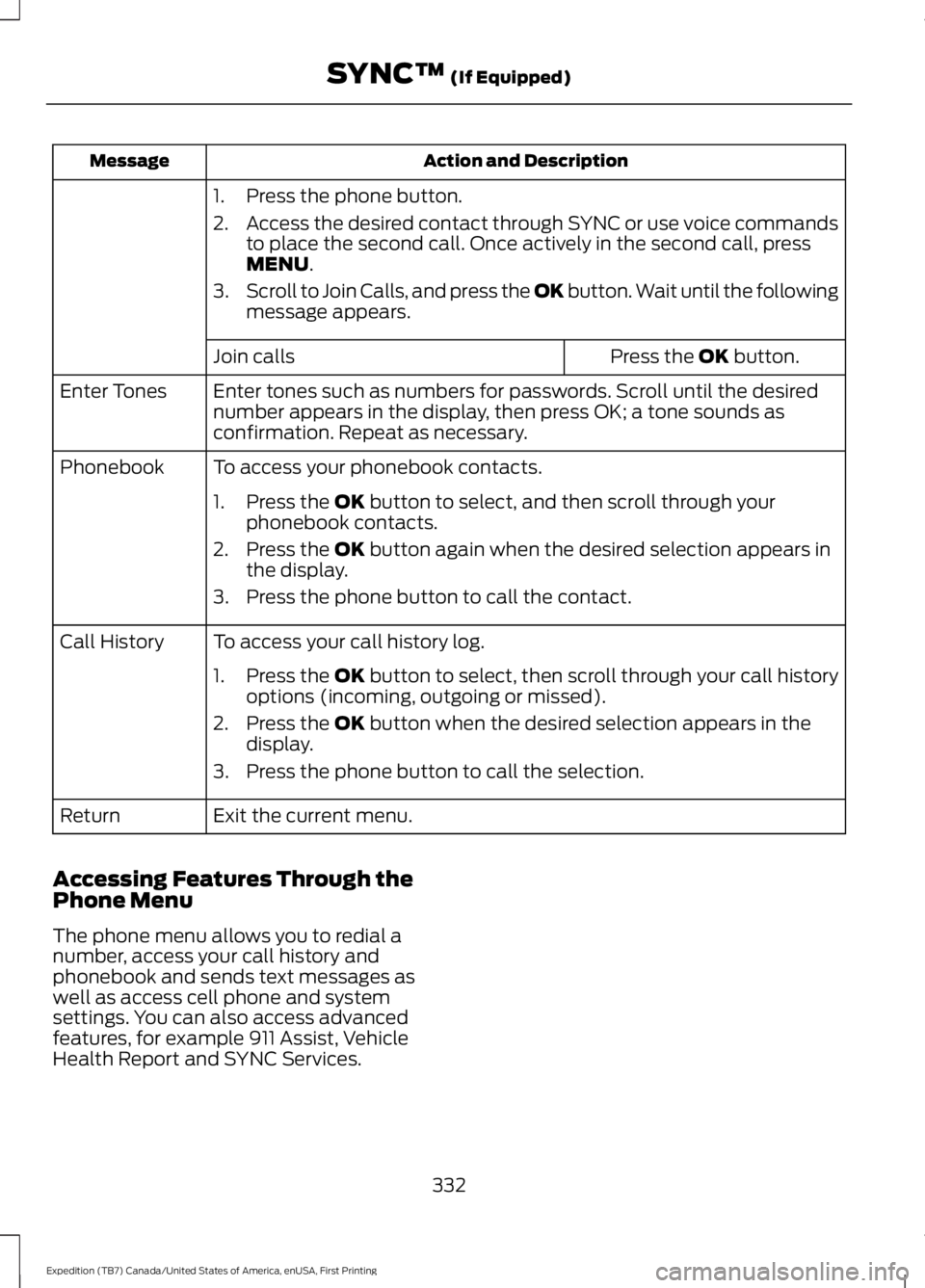
Action and DescriptionMessage
1. Press the phone button.
2.Access the desired contact through SYNC or use voice commandsto place the second call. Once actively in the second call, pressMENU.
3.Scroll to Join Calls, and press the OK button. Wait until the followingmessage appears.
Press the OK button.Join calls
Enter tones such as numbers for passwords. Scroll until the desirednumber appears in the display, then press OK; a tone sounds asconfirmation. Repeat as necessary.
Enter Tones
To access your phonebook contacts.Phonebook
1. Press the OK button to select, and then scroll through yourphonebook contacts.
2. Press the OK button again when the desired selection appears inthe display.
3. Press the phone button to call the contact.
To access your call history log.Call History
1.Press the OK button to select, then scroll through your call historyoptions (incoming, outgoing or missed).
2. Press the OK button when the desired selection appears in thedisplay.
3. Press the phone button to call the selection.
Exit the current menu.Return
Accessing Features Through thePhone Menu
The phone menu allows you to redial anumber, access your call history andphonebook and sends text messages aswell as access cell phone and systemsettings. You can also access advancedfeatures, for example 911 Assist, VehicleHealth Report and SYNC Services.
332
Expedition (TB7) Canada/United States of America, enUSA, First Printing
SYNC™ (If Equipped)
Page 336 of 421

Press the phone button to enter the Phone Menu, then scroll to:
Action and DescriptionMessage
Press the OK button to redial the last number called.Phone RedialPress the OK button again to confirm.
Access any previously dialed, received or missed calls after you
connect your Bluetooth-enabled cell phone to SYNC.1Call History
Press the OK button then select one of the following and pressthe OK button again to confirm.
Incoming calls
Outgoing calls
Missed calls
The system attempts to automatically re-download yourphonebook and call history each time your cell phone connectsto SYNC (if the auto download feature is on and your Bluetooth-enabled cell phone supports this feature).
Access and call any contacts in your previously downloaded
phonebook.1,2Phonebook
If your phonebook has less than 255 entries, they appearalphabetically in flat file mode. If there are more than 255entries, the system will organize them into alphabeticalcategories.
1. Press the OK button.
2. Scroll to the desired contact.
3. Press OK or the phone button to call the contact.
Press the OK button to send, download, read and delete text
messages.1Text messaging
View your cell phone's status, set ring tones, select yourmessage notification, change phonebook entries and automat-
ically download your cell phone content among other features.1
Phone settings
Access the SYNC Services portal where you can request various
types of information, for example traffic reports and directions.3SYNC Services
Automatically place an emergency call to a 911 operator
following a crash.4911 Assist
333
Expedition (TB7) Canada/United States of America, enUSA, First Printing
SYNC™ (If Equipped)
Page 337 of 421
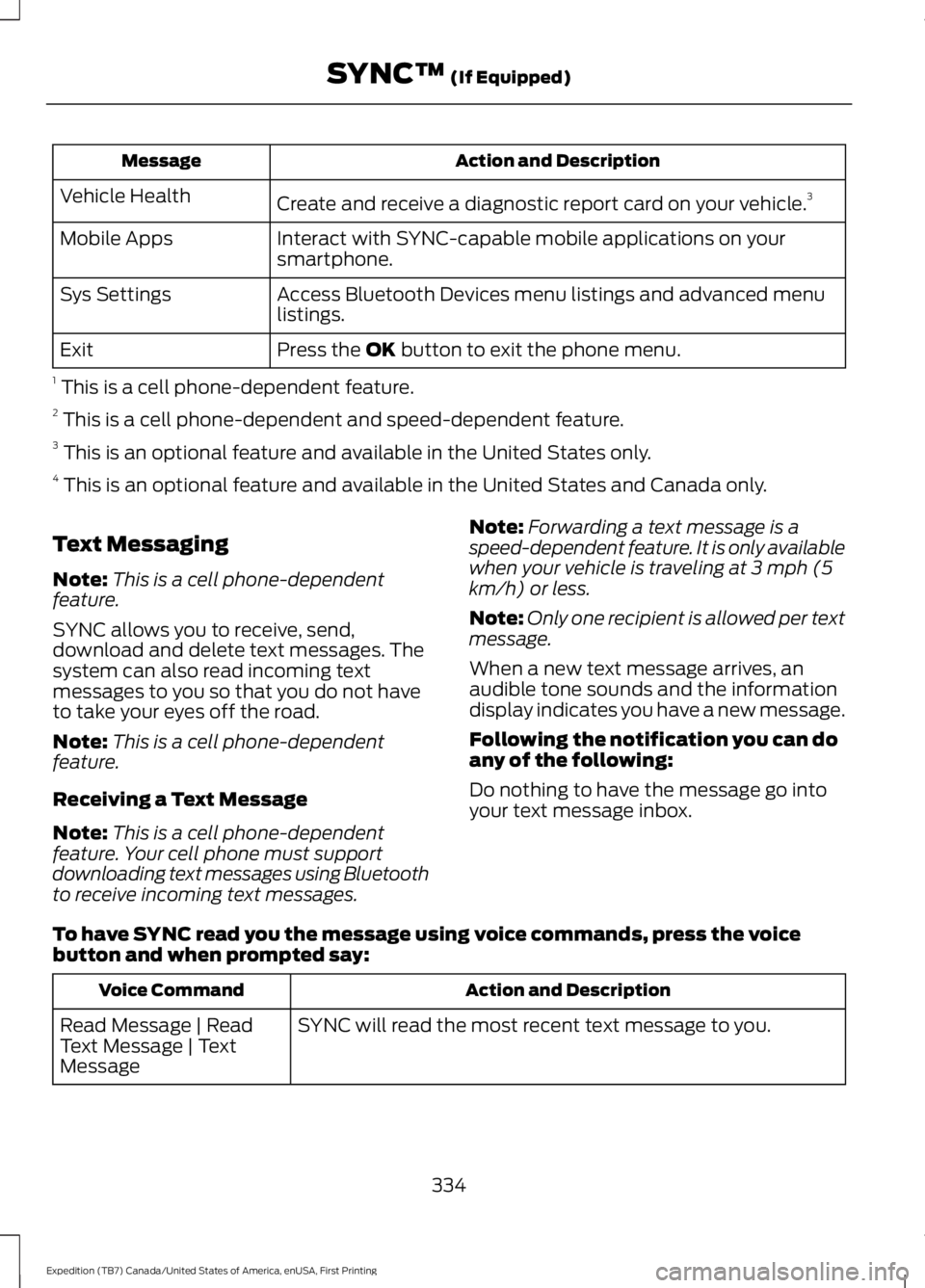
Action and DescriptionMessage
Create and receive a diagnostic report card on your vehicle.3Vehicle Health
Interact with SYNC-capable mobile applications on yoursmartphone.Mobile Apps
Access Bluetooth Devices menu listings and advanced menulistings.Sys Settings
Press the OK button to exit the phone menu.Exit
1 This is a cell phone-dependent feature.2 This is a cell phone-dependent and speed-dependent feature.3 This is an optional feature and available in the United States only.4 This is an optional feature and available in the United States and Canada only.
Text Messaging
Note:This is a cell phone-dependentfeature.
SYNC allows you to receive, send,download and delete text messages. Thesystem can also read incoming textmessages to you so that you do not haveto take your eyes off the road.
Note:This is a cell phone-dependentfeature.
Receiving a Text Message
Note:This is a cell phone-dependentfeature. Your cell phone must supportdownloading text messages using Bluetoothto receive incoming text messages.
Note:Forwarding a text message is aspeed-dependent feature. It is only availablewhen your vehicle is traveling at 3 mph (5km/h) or less.
Note:Only one recipient is allowed per textmessage.
When a new text message arrives, anaudible tone sounds and the informationdisplay indicates you have a new message.
Following the notification you can doany of the following:
Do nothing to have the message go intoyour text message inbox.
To have SYNC read you the message using voice commands, press the voicebutton and when prompted say:
Action and DescriptionVoice Command
SYNC will read the most recent text message to you.Read Message | ReadText Message | TextMessage
334
Expedition (TB7) Canada/United States of America, enUSA, First Printing
SYNC™ (If Equipped)
Page 338 of 421
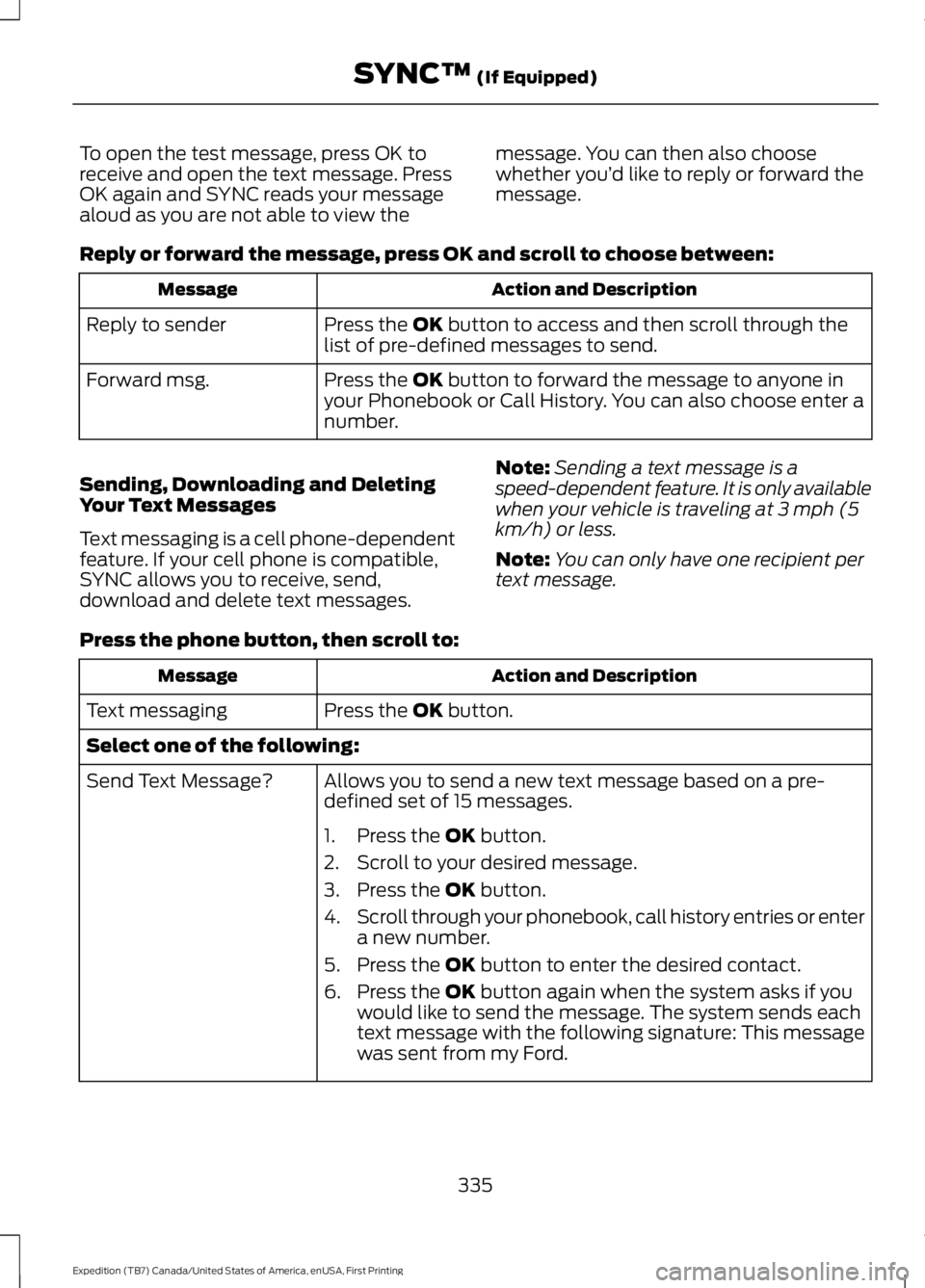
To open the test message, press OK toreceive and open the text message. PressOK again and SYNC reads your messagealoud as you are not able to view the
message. You can then also choosewhether you’d like to reply or forward themessage.
Reply or forward the message, press OK and scroll to choose between:
Action and DescriptionMessage
Press the OK button to access and then scroll through thelist of pre-defined messages to send.Reply to sender
Press the OK button to forward the message to anyone inyour Phonebook or Call History. You can also choose enter anumber.
Forward msg.
Sending, Downloading and DeletingYour Text Messages
Text messaging is a cell phone-dependentfeature. If your cell phone is compatible,SYNC allows you to receive, send,download and delete text messages.
Note:Sending a text message is aspeed-dependent feature. It is only availablewhen your vehicle is traveling at 3 mph (5km/h) or less.
Note:You can only have one recipient pertext message.
Press the phone button, then scroll to:
Action and DescriptionMessage
Press the OK button.Text messaging
Select one of the following:
Allows you to send a new text message based on a pre-defined set of 15 messages.Send Text Message?
1. Press the OK button.
2. Scroll to your desired message.
3. Press the OK button.
4.Scroll through your phonebook, call history entries or entera new number.
5. Press the OK button to enter the desired contact.
6. Press the OK button again when the system asks if youwould like to send the message. The system sends eachtext message with the following signature: This messagewas sent from my Ford.
335
Expedition (TB7) Canada/United States of America, enUSA, First Printing
SYNC™ (If Equipped)
Page 339 of 421
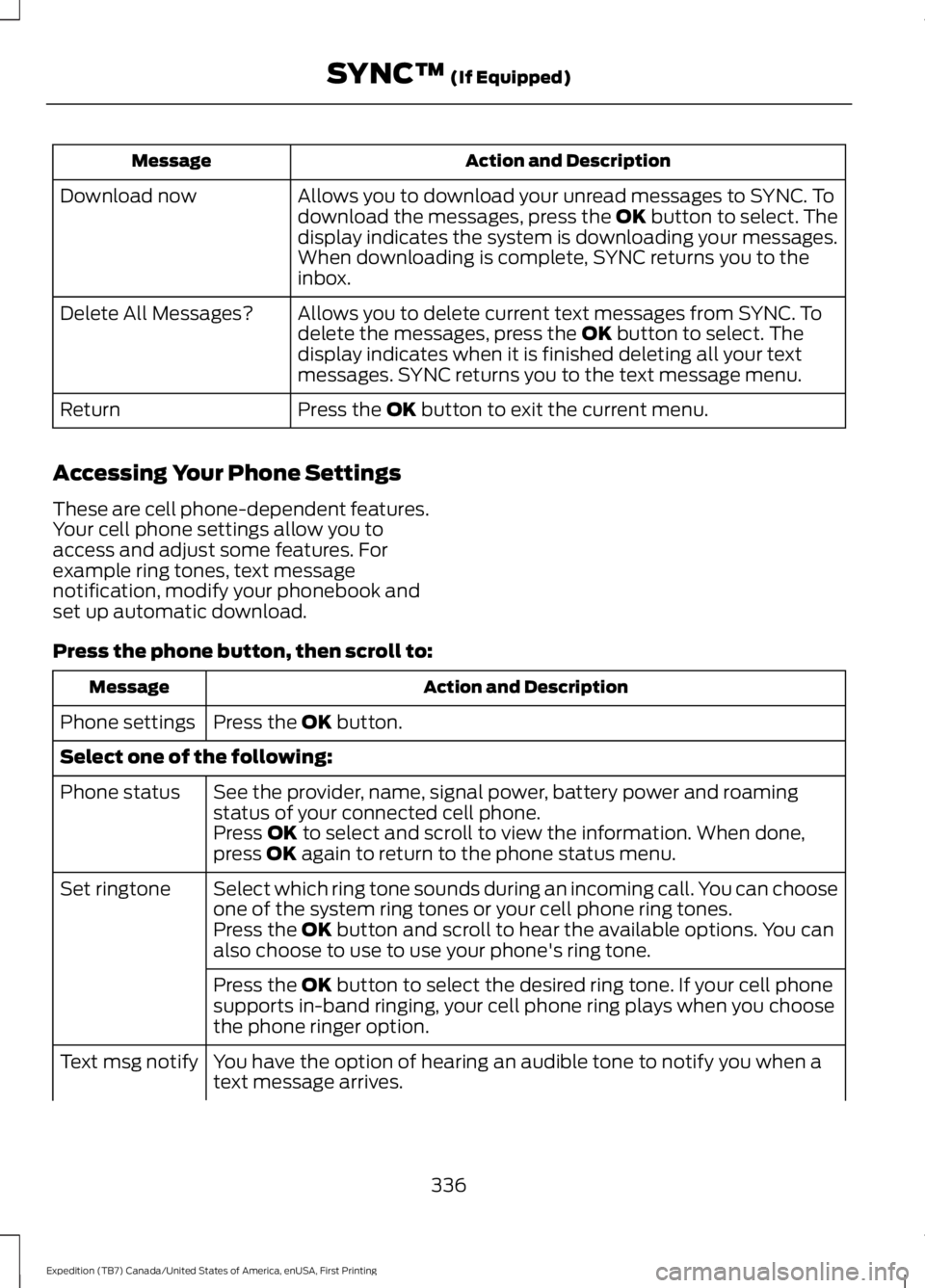
Action and DescriptionMessage
Allows you to download your unread messages to SYNC. Todownload the messages, press the OK button to select. Thedisplay indicates the system is downloading your messages.When downloading is complete, SYNC returns you to theinbox.
Download now
Allows you to delete current text messages from SYNC. Todelete the messages, press the OK button to select. Thedisplay indicates when it is finished deleting all your textmessages. SYNC returns you to the text message menu.
Delete All Messages?
Press the OK button to exit the current menu.Return
Accessing Your Phone Settings
These are cell phone-dependent features.Your cell phone settings allow you toaccess and adjust some features. Forexample ring tones, text messagenotification, modify your phonebook andset up automatic download.
Press the phone button, then scroll to:
Action and DescriptionMessage
Press the OK button.Phone settings
Select one of the following:
See the provider, name, signal power, battery power and roamingstatus of your connected cell phone.Phone status
Press OK to select and scroll to view the information. When done,press OK again to return to the phone status menu.
Select which ring tone sounds during an incoming call. You can chooseone of the system ring tones or your cell phone ring tones.Set ringtone
Press the OK button and scroll to hear the available options. You canalso choose to use to use your phone's ring tone.
Press the OK button to select the desired ring tone. If your cell phonesupports in-band ringing, your cell phone ring plays when you choosethe phone ringer option.
You have the option of hearing an audible tone to notify you when atext message arrives.Text msg notify
336
Expedition (TB7) Canada/United States of America, enUSA, First Printing
SYNC™ (If Equipped)
Page 340 of 421
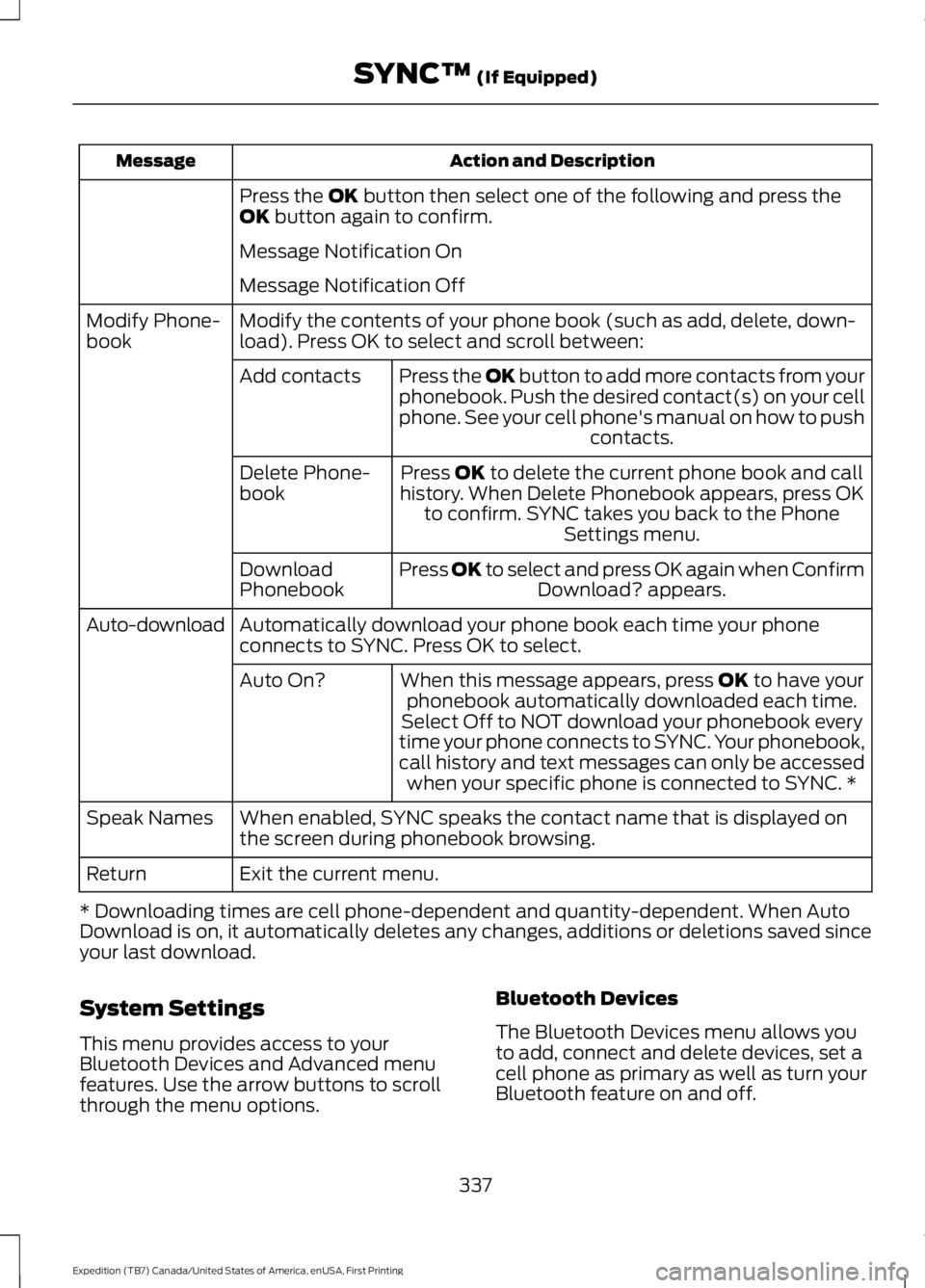
Action and DescriptionMessage
Press the OK button then select one of the following and press theOK button again to confirm.
Message Notification On
Message Notification Off
Modify the contents of your phone book (such as add, delete, down-load). Press OK to select and scroll between:Modify Phone-book
Press the OK button to add more contacts from yourphonebook. Push the desired contact(s) on your cellphone. See your cell phone's manual on how to pushcontacts.
Add contacts
Press OK to delete the current phone book and callhistory. When Delete Phonebook appears, press OKto confirm. SYNC takes you back to the PhoneSettings menu.
Delete Phone-book
Press OK to select and press OK again when ConfirmDownload? appears.DownloadPhonebook
Automatically download your phone book each time your phoneconnects to SYNC. Press OK to select.Auto-download
When this message appears, press OK to have yourphonebook automatically downloaded each time.Auto On?
Select Off to NOT download your phonebook everytime your phone connects to SYNC. Your phonebook,call history and text messages can only be accessedwhen your specific phone is connected to SYNC. *
When enabled, SYNC speaks the contact name that is displayed onthe screen during phonebook browsing.Speak Names
Exit the current menu.Return
* Downloading times are cell phone-dependent and quantity-dependent. When AutoDownload is on, it automatically deletes any changes, additions or deletions saved sinceyour last download.
System Settings
This menu provides access to yourBluetooth Devices and Advanced menufeatures. Use the arrow buttons to scrollthrough the menu options.
Bluetooth Devices
The Bluetooth Devices menu allows youto add, connect and delete devices, set acell phone as primary as well as turn yourBluetooth feature on and off.
337
Expedition (TB7) Canada/United States of America, enUSA, First Printing
SYNC™ (If Equipped)
Page 341 of 421
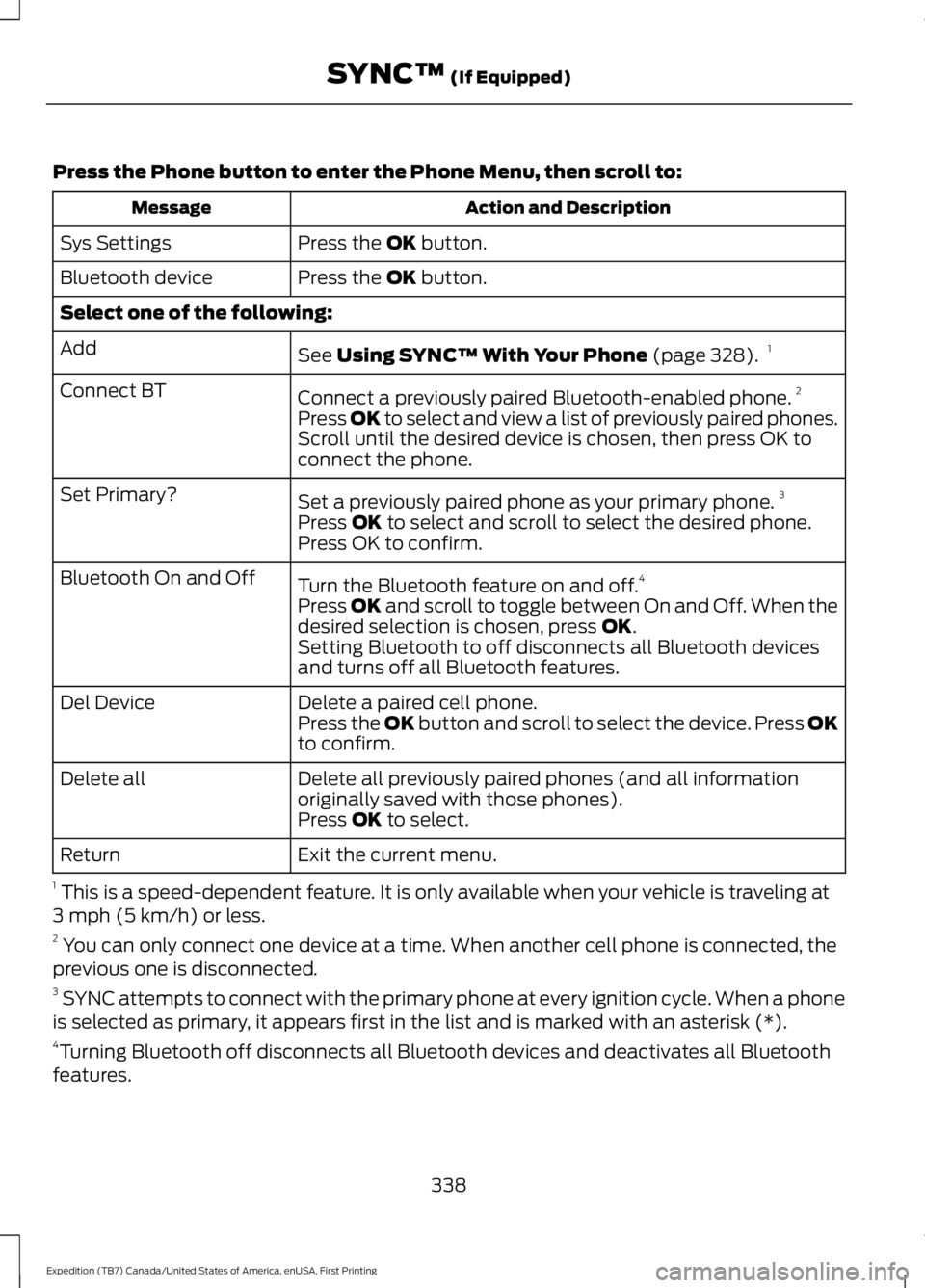
Press the Phone button to enter the Phone Menu, then scroll to:
Action and DescriptionMessage
Press the OK button.Sys Settings
Press the OK button.Bluetooth device
Select one of the following:
See Using SYNC™ With Your Phone (page 328).1Add
Connect a previously paired Bluetooth-enabled phone.2Connect BT
Press OK to select and view a list of previously paired phones.Scroll until the desired device is chosen, then press OK toconnect the phone.
Set a previously paired phone as your primary phone.3Set Primary?
Press OK to select and scroll to select the desired phone.Press OK to confirm.
Turn the Bluetooth feature on and off.4Bluetooth On and Off
Press OK and scroll to toggle between On and Off. When thedesired selection is chosen, press OK.Setting Bluetooth to off disconnects all Bluetooth devicesand turns off all Bluetooth features.
Delete a paired cell phone.Del DevicePress the OK button and scroll to select the device. Press OKto confirm.
Delete all previously paired phones (and all informationoriginally saved with those phones).Delete all
Press OK to select.
Exit the current menu.Return
1 This is a speed-dependent feature. It is only available when your vehicle is traveling at3 mph (5 km/h) or less.2 You can only connect one device at a time. When another cell phone is connected, theprevious one is disconnected.3 SYNC attempts to connect with the primary phone at every ignition cycle. When a phoneis selected as primary, it appears first in the list and is marked with an asterisk (*).4Turning Bluetooth off disconnects all Bluetooth devices and deactivates all Bluetoothfeatures.
338
Expedition (TB7) Canada/United States of America, enUSA, First Printing
SYNC™ (If Equipped)
Page 342 of 421
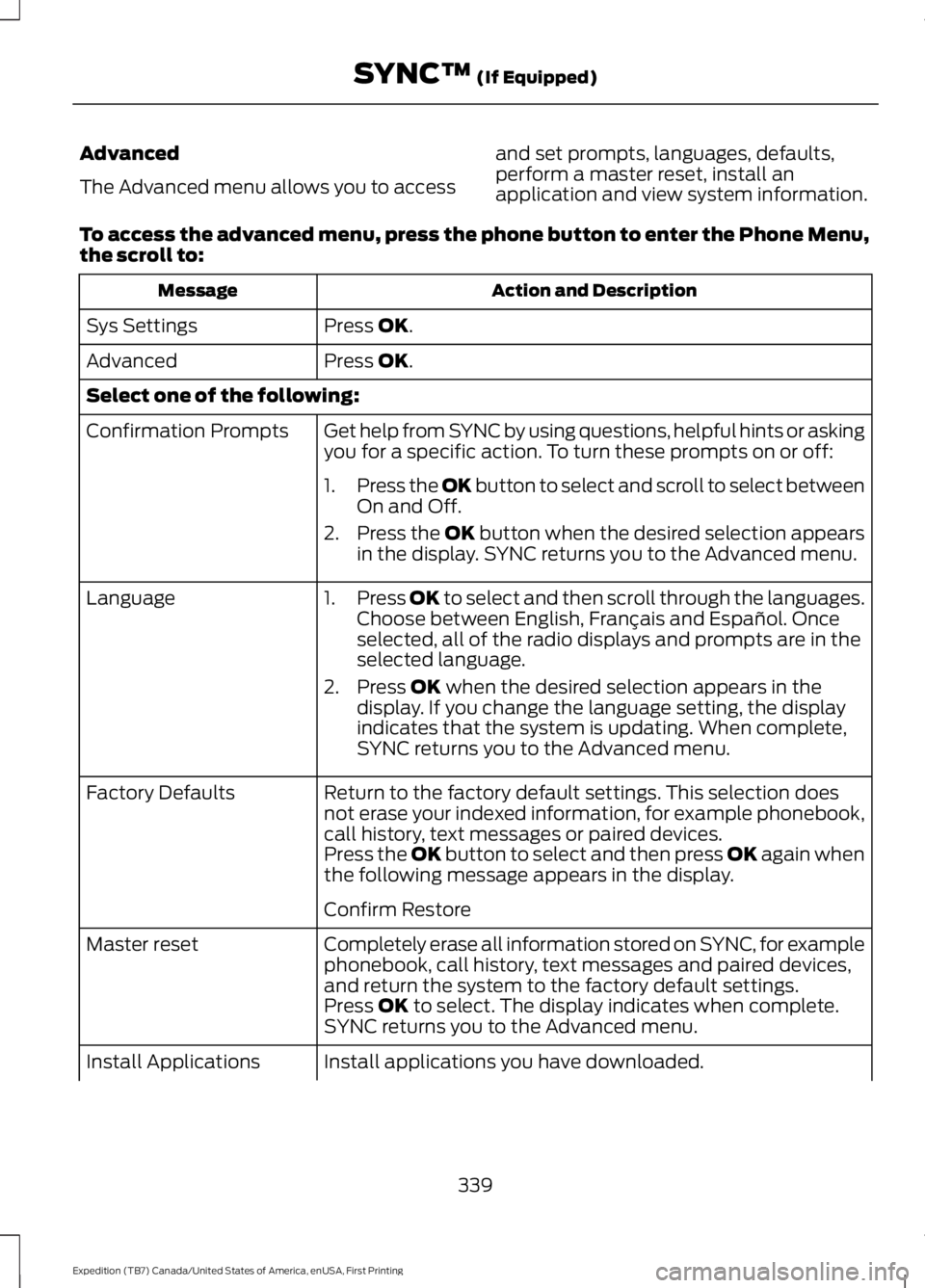
Advanced
The Advanced menu allows you to access
and set prompts, languages, defaults,perform a master reset, install anapplication and view system information.
To access the advanced menu, press the phone button to enter the Phone Menu,the scroll to:
Action and DescriptionMessage
Press OK.Sys Settings
Press OK.Advanced
Select one of the following:
Get help from SYNC by using questions, helpful hints or askingyou for a specific action. To turn these prompts on or off:Confirmation Prompts
1.Press the OK button to select and scroll to select betweenOn and Off.
2.Press the OK button when the desired selection appearsin the display. SYNC returns you to the Advanced menu.
1.Press OK to select and then scroll through the languages.Choose between English, Français and Español. Onceselected, all of the radio displays and prompts are in theselected language.
2. Press OK when the desired selection appears in thedisplay. If you change the language setting, the displayindicates that the system is updating. When complete,SYNC returns you to the Advanced menu.
Language
Return to the factory default settings. This selection doesnot erase your indexed information, for example phonebook,call history, text messages or paired devices.
Factory Defaults
Press the OK button to select and then press OK again whenthe following message appears in the display.
Confirm Restore
Completely erase all information stored on SYNC, for examplephonebook, call history, text messages and paired devices,and return the system to the factory default settings.
Master reset
Press OK to select. The display indicates when complete.SYNC returns you to the Advanced menu.
Install applications you have downloaded.Install Applications
339
Expedition (TB7) Canada/United States of America, enUSA, First Printing
SYNC™ (If Equipped)