Page 172 of 423
DRIVER INFORMATION DISPLAY (DID)
The Driver Information Display (DID) features a driver-
interactive display that is located in the instrument
cluster.This system allows the driver to select a variety of useful
information by pushing the switches mounted on the
steering wheel. The DID consists of the following:
•
Tachometer
• MPH/KMH
• Vehicle Information
• Fuel Economy
• Trip A
• Trip B
• Audio
• Stored Messages
• Screen Setup
• Performance
• Diagnostics
Driver Information Display (DID)
170 UNDERSTANDING YOUR INSTRUMENT PANEL
Page 175 of 423

The DID display is located in the center portion of the
instrument cluster and consists of the following sections:
1. Main Screen — The inner ring of the display willilluminate in grey under normal conditions, yellow for
non critical warnings, red for critical warnings, and
white for on demand information.
2. Audio / Phone Information and Sub-menu Informa- tion — Whenever there are sub-menus available, the
position within the sub-menus is shown here.
3. Reconfigurable Telltales/Information
4. Telltales/Indicators 5. Selectable Information (Tach, Mph/Kmh, Vehicle Info,
Fuel Economy, Trip A, Trip B, Audio, Stored Messages,
Screen Setup, Performance, Diagnostics, Hibernation)
6. Suspension Status — The suspension status icon will illuminate in this area. Refer to “Starting And Operat-
ing” for further information.
7. ESC Status — The ESC status icon will illuminate in this area. Refer to “Electronic Brake Control System”
in “Starting And Operating” for further information.
8. Launch Control status when launch control mode is entered. Refer to “Launch Mode” in “Starting And
Operating” for further information.
4
UNDERSTANDING YOUR INSTRUMENT PANEL 173
Page 184 of 423
•Oil Temperature
• Battery
• Coolant Temperature
• RIGHT Arrow Button
Restore To Defaults (Restores All Settings To Default
Settings) Push and release the RIGHTarrow button to
confirm.
Digital Speed
• On
• Off
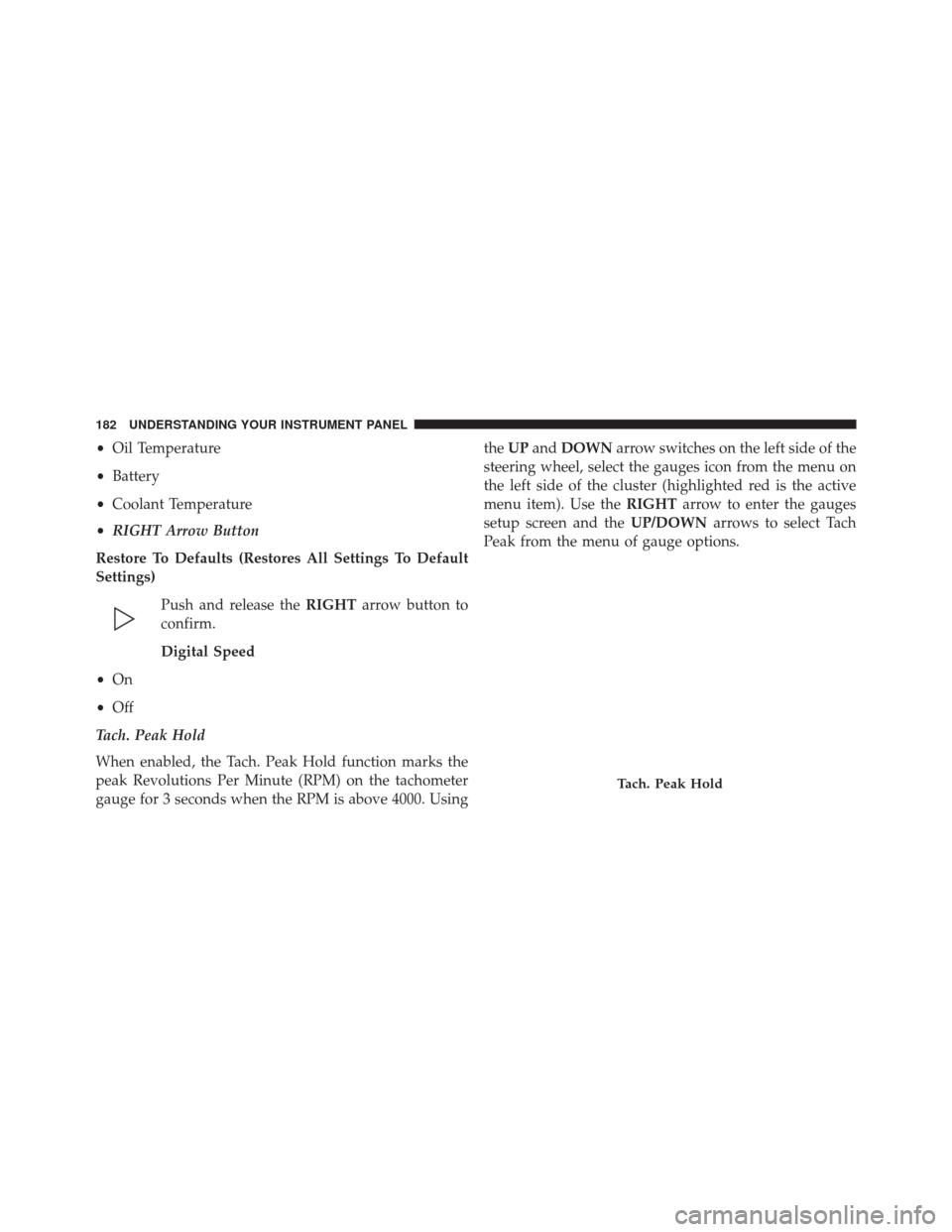
Tach. Peak Hold
When enabled, the Tach. Peak Hold function marks the
peak Revolutions Per Minute (RPM) on the tachometer
gauge for 3 seconds when the RPM is above 4000. Using the
UP and DOWN arrow switches on the left side of the
steering wheel, select the gauges icon from the menu on
the left side of the cluster (highlighted red is the active
menu item). Use the RIGHTarrow to enter the gauges
setup screen and the UP/DOWNarrows to select Tach
Peak from the menu of gauge options.
Tach. Peak Hold
182 UNDERSTANDING YOUR INSTRUMENT PANEL
Page 190 of 423

and the navigation system (if equipped). Press the Set
Language button on the touchscreen and then press the
desired language button on the touchscreen until a
check-mark appears next to the language, showing that
setting has been selected. Press the back arrow button on
the touchscreen to return to the previous menu, or push
the back button on the faceplate.
•Units
This feature will allow you to have the DID, odometer,
and navigation system (if equipped) changed between
US and Metric units of measure. Press US or Metric until
a check-mark appears next to the setting, showing that
setting has been selected. Press the back arrow button on
the touchscreen to return to the previous menu, or push
the back button on the faceplate.
• Touchscreen Beep
This feature will allow you to turn on or shut off the
sound heard when a touchscreen button is pressed. Press the Touchscreen Beep button on the touchscreen until a
check-mark appears next to the setting, showing that
setting has been selected. Press the back arrow button on
the touchscreen to return to the previous menu, or push
the back button on the faceplate.
•
Control Screen Time-Out — If Equipped
When this feature is selected, the Controls Screen will
stay open for five seconds before the screen times out.
With the feature deselected, the screen will stay open
until it is manually closed. Press the Control Screen
Time-Out button on the touchscreen until a check-mark
appears next to the setting, showing that setting has been
selected. Press the back arrow button on the touchscreen
to return to the previous menu, or push the back button
on the faceplate.
• Navigation Turn-By-Turn In Cluster — If Equipped
When this feature is selected, the turn-by-turn directions
will appear in the DID as the vehicle approaches a
188 UNDERSTANDING YOUR INSTRUMENT PANEL
Page 191 of 423

designated turn within a programmed route. To turn on
or enable, press the Navigation Turn-By-Turn In Cluster
button on the touchscreen, until a check-mark appears
next to the setting, showing that setting has been se-
lected. Press the back arrow button on the touchscreen to
return to the previous menu or push the back button on
the faceplate.
Voice
After pressing the “Voice” button on the touchscreen the
following settings will be available:
•Voice Response Length
When in this display, you may change the Voice Re-
sponse Length settings. To change the Voice Response
Length, press the “Brief” or “Detailed” button on the
touchscreen until a check-mark appears next to the
setting, showing that setting has been selected. Press the
back arrow button on the touchscreen to return to the
previous menu. •
Show Command List
When in this display, you may choose to Always, With
Help, or Never display the Teleprompter with possible
options while in a voice session. To change the Show
Command List settings, press the “Always,” “With
Help,” or “Never” button on the touchscreen until a
check-mark appears next to the setting, showing that
setting has been selected. Press the back arrow button on
the touchscreen to return to the previous menu.
Clock
After pressing the “Clock” button on the touchscreen the
following settings will be available:
• Sync Time With GPS
This feature will allow you to automatically have the
radio set the time. To change the Sync Time setting, press
the “Sync with GPS Time” button on the touchscreen
until a check-mark appears next to the setting, showing
4
UNDERSTANDING YOUR INSTRUMENT PANEL 189
Page 248 of 423
the system will automatically shift the suspension damp-
ers to the firmer Race damping setting during some hard
acceleration and braking situations. There are two modes
of operation:
•Street Mode — This mode will give a sporty, but
comfortable ride. This mode is driver selectable when
the vehicle is placed in STREET mode (push the
“STREET” button on the Instrument Panel). This mode
is intended for a smoother ride on the various types of
pavement and road conditions while still providing
damping levels appropriate extreme capabilities.
• Race Mode — This mode is driver selectable when the
vehicle is placed in RACE mode (push the “RACE”
button on the Instrument Panel). This mode is for track
use only and will supply maximum grip to the tires. NOTE:
•
With the ignition in the ON/RUN position, the sus-
pension damping system will be in the last mode the
system was in when the vehicle was turned off. The
driver can select either Street or Race damping mode
at any time.
• The suspension mode will lock and stay in whatever
the driver selects even when the ignition is turned off
and the car restarted.
• The RACE setting will provide a much firmer ride.
• When RACE mode is enabled, a Shock symbol with
“RACE” next to it will light up in the instrument
cluster.
246 STARTING AND OPERATING
Page 258 of 423

WARNING!
Before leaving the vehicle, make sure you fully apply
the parking brake and shift the transmission into
REVERSE. Failure to do so may cause the vehicle to
roll and cause damage or injury.
As an added precaution when parking the vehicle, turn
the front wheels toward the curb on a downhill grade
and away from the curb on an uphill grade.
To apply the parking brake, grasp the handle and pull it
rearward until you feel resistance. To release the parking
brake, grasp the handle and pull it slightly while pushing
the button on the end of the handle. When the button
drops into the handle (releasing the lock), guide the
handle downward to its stop and then release the button
and the handle. The “Brake System Warning Light” in the instrument
cluster will turn on when the ignition is in the ON/RUN
position and the parking brake is applied.
NOTE:
•
This light only shows that the parking brake is applied
or a brake/ABS system fault. It does not show the
degree of brake application. If the “Brake System
Warning Light” is illuminated when the parking brake
is not applied, please see your authorized dealer.
• Each time the parking brake is applied, the instrument
cluster will automatically go to the highest illumina-
tion setting regardless of the dimmer control setting.
256 STARTING AND OPERATING
Page 266 of 423

ESC On
This is the normal operating mode for the ESC system.
Whenever the vehicle is started, the ESC system will be in
this mode. The ESC On mode should be used for most
driving situations. The ESC should only be turned OFF
for specific reasons as noted in the following paragraphs.
ESC Full Off
The ESC Off mode is intended for off-highway or off-
road use only and should not be used on any public
roadways. In this mode, all TCS and ESC stability fea-
tures are turned OFF. To enter the “Full Off” mode, push
and hold the “ESC” switch for five seconds while the
vehicle is stopped with the engine running. After five
seconds, a chime will sound, the “ESC OFF” telltale will
illuminate, and the “ESC OFF” message will display in
the vehicle cluster (left of the odometer). The “ESC OFF”
message may appear in the Driver Information Display
(DID). Refer to “Driver Information Display (DID)” in“Understanding Your Instrument Panel” for further in-
formation. To turn ESC ON again, momentarily push the
“ESC” switch.
WARNING!
With the ESC switched OFF, the enhanced vehicle
stability offered by ESC is unavailable. In an emer-
gency evasive maneuver, the ESC system will not
engage to assist in maintaining stability. The “Full
Off” ESC mode is intended for off-highway or off-
road only.
Sport Mode — If Equipped
Sport mode has reduced traction control and reduced
stability control. To enter the “Sport Mode” mode, push
the “ESC” switch once (located on the steering wheel).
The “ESC OFF” telltale will illuminate, and the “ESC
SPORT” message will display in the vehicle cluster (left
264 STARTING AND OPERATING