Page 113 of 423

Interior Light Defeat (OFF)
Rotate the dimmer control to the extreme bottom OFF
position. The interior lights will remain off when the
doors are open.
Parade Mode (Daytime Brightness Feature)
Rotate the instrument panel dimmer control upward to
the first detent. This feature brightens all text displays
such as the odometer, Driver Information Display (DID),
and radio when the position lights or headlights are on.
WINDSHIELD WIPERS AND WASHERS
The multifunction lever operates the windshield wipers
and washer when the ignition is placed in the ON/RUN
or ACC position. The multifunction lever is located on
the left side of the steering column.Intermittent Wiper System
Use the intermittent wiper when weather conditions
make a single wiping cycle with a variable pause be-
tween cycles desirable. Rotate the end of the multifunc-
tion lever to the first detent position, and then turn the
end of the lever to select the desired delay interval. There
Windshield Wiper/Washer Control
3
UNDERSTANDING THE FEATURES OF YOUR VEHICLE 111
Page 116 of 423
Headlights On With Wipers (Available With
Automatic Headlights Only)
When this feature is active, the headlights will turn on
after the wipers are turned on if the headlight switch is
placed in the AUTO position and programmable feature
is set to ON. In addition, the headlights will turn off
when the wipers are turned off if they were turned on by
this feature.
NOTE:The Headlights On with Wipers feature can be
turned on or off using the Uconnect System. Refer to
“Uconnect Settings/Customer Programmable Features”
in “Understanding Your Instrument Panel” for further
information.
TILT STEERING COLUMN
The tilt release lever is located below the multifunction
lever on the left side of the steering column. To tilt the
column, simply pull the release lever rearward toward you and then move the steering wheel upward or down-
ward as desired. When the column is in the desired
position, push the release lever forward to lock the
column firmly in place.Tilt Steering Column Lever
114 UNDERSTANDING THE FEATURES OF YOUR VEHICLE
Page 168 of 423
Yellow TelltaleLight What It Means
immediately. Refer to “Anti-Lock Brake System” in “Starting And Operating” for further in-
formation.
Green Telltale Indicator Lights
Park/Headlight ON Indicator Light
Green Telltale Light What It Means
Park/Headlight ON Indicator Light
This indicator will illuminate when the park lights or headlights are turned on.
166 UNDERSTANDING YOUR INSTRUMENT PANEL
Page 171 of 423
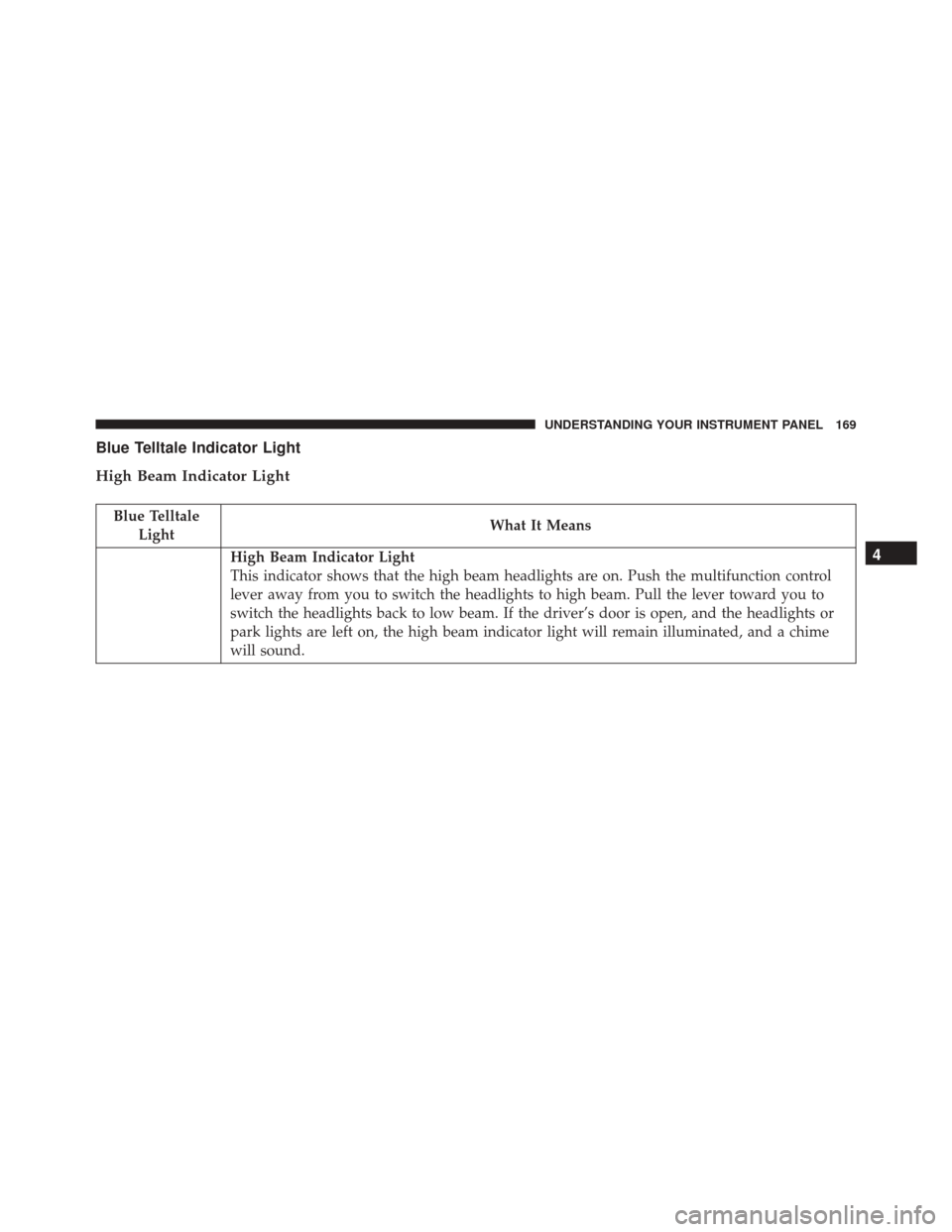
Blue Telltale Indicator Light
High Beam Indicator Light
Blue TelltaleLight What It Means
High Beam Indicator Light
This indicator shows that the high beam headlights are on. Push the multifunction control
lever away from you to switch the headlights to high beam. Pull the lever toward you to
switch the headlights back to low beam. If the driver’s door is open, and the headlights or
park lights are left on, the high beam indicator light will remain illuminated, and a chime
will sound.4
UNDERSTANDING YOUR INSTRUMENT PANEL 169
Page 189 of 423

Display
After pressing the Display button on the touchscreen the
following settings will be available.
•Display Mode
This feature will allow you to select one of the auto
display settings. To change Mode status, press and re-
lease the Auto or Manual button on the touchscreen.
Then press the arrow back button on the touchscreen, or
push the back button on the faceplate.
• Display Brightness With Headlights ON
This feature will allow you to select the display bright-
ness when the headlights are on. Adjust the brightness
with the “+” and “–” setting buttons on the touchscreen,
then press the arrow back button on the touchscreen, or
push the back button on the faceplate. NOTE:
The usage of the Parade Mode feature will cause
the radio to activate the “Display Brightness With Head-
lights OFF” control even though the headlights are on.
• Display Brightness With Headlights OFF
This feature will allow you to select the display bright-
ness when the headlights are off. Adjust the brightness
with the “+” and “–” setting buttons on the touchscreen,
then press the arrow back button on the touchscreen, or
push the back button on the faceplate.
• Set Theme — If Equipped
This feature will allow you to choose a theme for the
display screen. The theme will change the background
color, highlight color, and button color of the display
screen.
• Set Language
This feature will allow you to select one of the languages
for all display nomenclature, including the trip functions
4
UNDERSTANDING YOUR INSTRUMENT PANEL 187
Page 193 of 423

shifted out of REVERSE (with camera delay turned ON),
the rear view image with dynamic grid lines will be
displayed for up to 10 seconds after shifting out of
“REVERSE” unless the forward vehicle speed exceeds
8 mph (12 km/h), the transmission is shifted into
“PARK” or the ignition is switched to the OFF position.
To set the ParkView Backup Camera Delay press the
“settings” button, then the “Safety & Driving Assistance”
button on the touchscreen. Press the “Parkview Backup
camera Delay” button on the touchscreen to turn the
ParkView Delay ON or OFF.
•Hill Start Assist — If Equipped
When this feature is selected, the Hill Start Assist (HSA)
system is active. To make your selection, press the “Hill
Start Assist” button on the touchscreen until a check-
mark appears next to setting, indicating that the setting
has been selected. Press the back arrow/Done button on
the touchscreen to return to the previous menu.Lights
After pressing the Lights button on the touchscreen the
following settings will be available.
• Headlight Off Delay
When this feature is selected, the driver can choose to
have the headlights remain on for 0, 30, 60, or 90 seconds
when exiting the vehicle. To change the Headlight Off
Delay status, press the “+” or “-” button on the touch-
screen to select your desired time interval. Press the back
arrow button on the touchscreen to return to the previous
menu, or push the back button on the faceplate.
• Headlight Illumination On Approach
When this feature is selected, the headlights will activate
and remain on for 0, 30, 60, or 90 seconds when the doors
are unlocked with the Remote Keyless Entry (RKE)
transmitter. To change the Illuminated Approach status,
press the “+” or “-” button on the touchscreen to select
4
UNDERSTANDING YOUR INSTRUMENT PANEL 191
Page 194 of 423
your desired time interval. Press the back arrow button
on the touchscreen to return to the previous menu, or
push the back button on the faceplate.
•Headlights With Wipers
When this feature is selected, and the headlight switch is
in the AUTO position, the headlights will turn on ap-
proximately 10 seconds after the wipers are turned on.
The headlights will also turn off when the wipers are
turned off if they were turned on by this feature. To make
your selection, press the Headlights With Wipers button
on the touchscreen, until a check-mark appears next to
setting, showing that setting has been selected. Press the
back arrow button on the touchscreen to return to the
previous menu, or push the back button on the faceplate.
• Daytime Running Lights
When this feature is selected, the headlights will turn on
whenever the vehicle is set in motion. To make your
selection, press the Daytime Running Lights button on the touchscreen, until a check-mark appears next to
setting, showing that setting has been selected. Press the
back arrow button on the touchscreen to return to the
previous menu, or push the back button on the faceplate.
•
Flash Lights With Lock
When this feature is selected, the exterior lights will flash
when the doors are locked or unlocked with the Remote
Keyless Entry (RKE) transmitter. This feature may be
selected with or without the sound horn on lock feature
selected. To make your selection, press the Flash Lights
with Lock button on the touchscreen, until a check-mark
appears next to setting, showing that setting has been
selected. Press the back arrow button on the touchscreen
to return to the previous menu, or push the back button
on the faceplate.
Doors & Locks
After pressing the Doors & Locks button on the touch-
screen the following settings will be available.
192 UNDERSTANDING YOUR INSTRUMENT PANEL
Page 197 of 423

showing that setting has been selected. Press the back
arrow button on the touchscreen to return to the previous
menu, or push the back button on the faceplate. Refer to
“Keyless Enter-N-Go” in “Things To Know Before Start-
ing Your Vehicle”.
Engine Off Options
After pressing the Engine Off Options button on the
touchscreen the following settings will be available.
•Engine Off Power Delay
When this feature is selected, the power window
switches, radio, Uconnect phone system (if equipped),
DVD video system (if equipped), power sunroof (if
equipped), and power outlets will remain active for up to
10 minutes after the ignition is cycled to OFF. Opening
either front door will cancel this feature. To change the
“Engine Off Power Delay” status, press the 0 seconds, 45 seconds, 5 minutes or 10 minutes button on the touch-
screen. Then press the back arrow/Done button on the
touchscreen.
•
Headlight Off Delay
When this feature is selected, the driver can choose to
have the headlights remain on for 0, 30, 60, or 90 seconds
when exiting the vehicle. To change the “Headlight Off
Delay” status, press the �Up�or�Down� arrow button on
the touchscreen to select your desired time interval. Press
the back arrow/Done button on the touchscreen to return
to the previous menu.
Audio
After pressing the Audio button on the touchscreen the
following settings will be available.
4
UNDERSTANDING YOUR INSTRUMENT PANEL 195