Page 460 of 739
Signing up is easy!Simply follow the steps above. Or,
press the “Apps
” button on the touchscreen to
“Register By Web” to complete the process using your
smartphone or computer.
For further information please visit DriveUconnect.com.
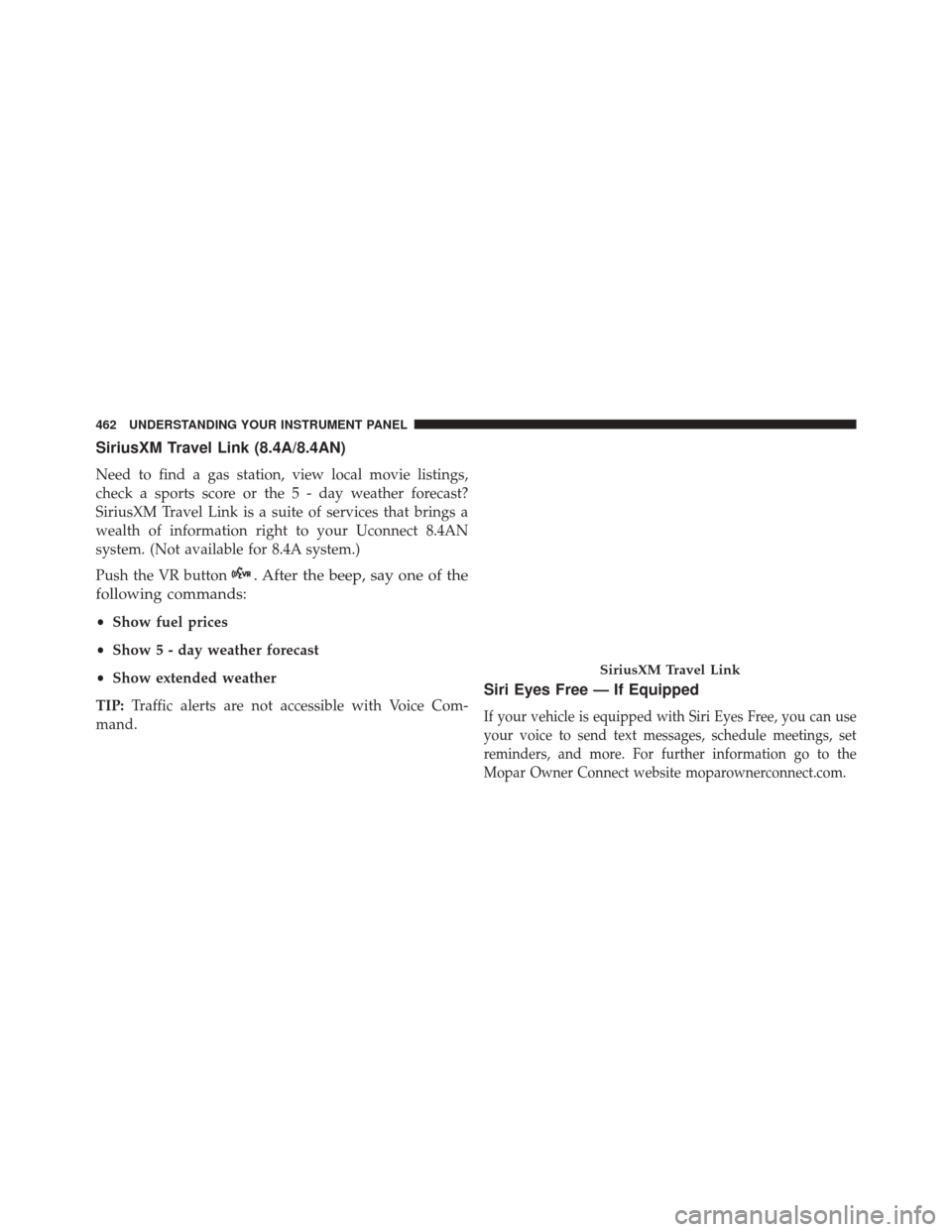
Mobile App (8.4A/8.4AN)
You’re only a few steps away from using remote com-
mands and playing your favorite music in your vehicle.
To link your internet radio accounts:
1. Download the Uconnect Access App to your mobiledevice.
2. Press the Via Mobile icon on the navigation bar at the bottom of the app.
Mobile App
458 UNDERSTANDING YOUR INSTRUMENT PANEL
Page 461 of 739
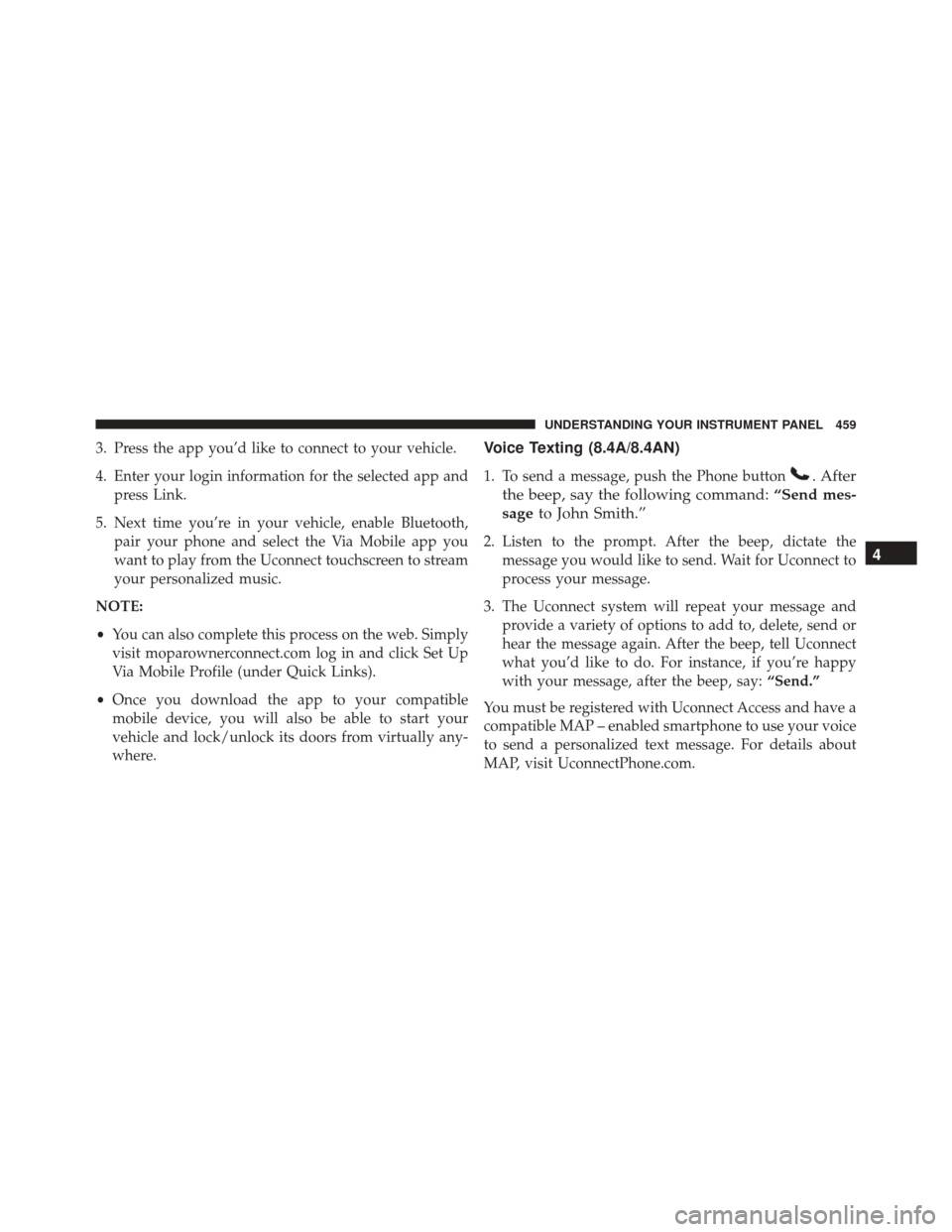
3. Press the app you’d like to connect to your vehicle.
4. Enter your login information for the selected app andpress Link.
5. Next time you’re in your vehicle, enable Bluetooth, pair your phone and select the Via Mobile app you
want to play from the Uconnect touchscreen to stream
your personalized music.
NOTE:
• You can also complete this process on the web. Simply
visit moparownerconnect.com log in and click Set Up
Via Mobile Profile (under Quick Links).
• Once you download the app to your compatible
mobile device, you will also be able to start your
vehicle and lock/unlock its doors from virtually any-
where.Voice Texting (8.4A/8.4AN)
1. To send a message, push the Phone button. After
the beep, say the following command: “Send mes-
sage to John Smith.”
2. Listen to the prompt. After the beep, dictate the
message you would like to send. Wait for Uconnect to
process your message.
3. The Uconnect system will repeat your message and provide a variety of options to add to, delete, send or
hear the message again. After the beep, tell Uconnect
what you’d like to do. For instance, if you’re happy
with your message, after the beep, say: “Send.”
You must be registered with Uconnect Access and have a
compatible MAP – enabled smartphone to use your voice
to send a personalized text message. For details about
MAP, visit UconnectPhone.com.4
UNDERSTANDING YOUR INSTRUMENT PANEL 459
Page 462 of 739
Apple iPhone iOS6 or later supports readingincoming
text messages only. To enable this feature on your Apple
iPhone, follow these 4 simple steps: TIP:
•
Voice Texting is not compatible with iPhone, but if
your vehicle is equipped with Siri Eyes Free, you can
use your voice to send a text message.
• Messages are limited to 140 characters.
• The Messaging button on the touchscreen must be
illuminated to use the feature.
iPhone Notification Settings1 — Select “Settings”
2 — Select “Bluetooth”
3 — Select the (i) for the paired vehicle
4 — Turn on “Show Notifications” 460 UNDERSTANDING YOUR INSTRUMENT PANEL
Page 463 of 739
Yelp (8.4A/8.4AN)
Once registered with Uconnect Access, you can use your
voice to search for the most popular places or things
around you.
1. Press the “Apps
” button on the touchscreen.
2. Press the “Yelp” button on the touchscreen.
3. Once the YELP home screen appears on the touch-screen, push the VR button
, then say: “YELP
search.”
4. Listen to the system prompts and after the beep, tell Uconnect the place or business that you’d like
Uconnect to find. TIP:
Once you perform a search, you can reorganize the
results by selecting either the Best Match, Rating or
Distance tab on the top of the touchscreen display.
Yelp
4
UNDERSTANDING YOUR INSTRUMENT PANEL 461
Page 464 of 739
SiriusXM Travel Link (8.4A/8.4AN)
Need to find a gas station, view local movie listings,
check a sports score or the 5 - day weather forecast?
SiriusXM Travel Link is a suite of services that brings a
wealth of information right to your Uconnect 8.4AN
system. (Not available for 8.4A system.)
Push the VR button
. After the beep, say one of the
following commands:
• Show fuel prices
• Show 5 - day weather forecast
• Show extended weather
TIP: Traffic alerts are not accessible with Voice Com-
mand.
Siri Eyes Free — If Equipped
If your vehicle is equipped with Siri Eyes Free, you can use
your voice to send text messages, schedule meetings, set
reminders, and more. For further information go to the
Mopar Owner Connect website moparownerconnect.com.
SiriusXM Travel Link
462 UNDERSTANDING YOUR INSTRUMENT PANEL
Page 465 of 739

Do Not Disturb
With Do Not Disturb, you can disable notifications from
incoming calls and texts, allowing you to keep your eyes
on the road and hands on the wheel. For your conve-
nience there is a counter display to keep track of your
missed calls and text messages while you were using Do
Not Disturb.
Do Not Disturb can automatically reply with a text
message, a call or both, when declining an incoming call
and send it to voicemail.
Automatic reply messages can be:
•“I am driving right now, I will get back to you shortly.”
• Create a custom auto reply message up to 160 charac-
ters.
NOTE: Only the first 25 characters can been seen on the
touchscreen while typing a custom message. While in Do Not Disturb, Conference Call can be selected
so you can still place a second call without being inter-
rupted by incoming calls.
NOTE:
•
Reply with text message is not compatible with iP-
hones.
• Auto reply with text message is only available on
phones that supporting Bluetooth MAP.
General Information
This device complies with FCC rules Part 15 and Industry
Canada RSS-210. Operation is subject to the following
two conditions:
1. This device may not cause harmful interference.
2. This device must accept any interference that may be received including interference that may cause unde-
sired operation.
4
UNDERSTANDING YOUR INSTRUMENT PANEL 463
Page 466 of 739

NOTE:
•The transmitter has been tested and it complies with
FCC and IC rules. Changes or modifications not ex-
pressly approved by the party responsible for compli-
ance could void the user ’s authority to operate the
device.
• The term IC before the certification/registration num-
ber only signifies that Industry Canada technical speci-
fications were met.
Additional Information
© 2015 FCA US LLC. All rights reserved. Mopar and
Uconnect are registered trademarks and Mopar Owner
Connect is a trademark of FCA US LLC. Android is a
trademark of Google Inc. SiriusXM and all related marks
and logos are trademarks of SiriusXM Radio Inc. Yelp,
Yelp logo, Yelp burst and related marks are registered
trademarks of Yelp. Uconnect System Support:
(24 hours a day 7 days a week) for U.S. residents
call: 1-877-855-8400 or visit DriveUconnect.com.
Canadian residents (English) call: 1-800-465-2001 Cana-
dian residents (French) call: 1-800-387-9983 or visit
DriveUconnect.ca.
Mon. – Fri., 8:00 am – 8:00 pm, ET
Sat., 9:00 am – 5:00 pm, ET
Sun., Closed
Uconnect Access Services Support: 1-855-792-4241 Please
have your Uconnect Security PIN ready when you call.
464 UNDERSTANDING YOUR INSTRUMENT PANEL
Page 477 of 739

3. Push and release the ENGINE START/STOP buttononce.
The starter motor will engage automatically, run for 10
seconds, and then disengage. Once this occurs, release
the accelerator pedal and the brake pedal, wait 10 to 15
seconds, then repeat the “Normal Starting” procedure.
After Starting
The idle speed is controlled automatically and it will
decrease as the engine warms up.
STOP/START SYSTEM — IF EQUIPPED
The Stop/Start function is developed to reduce fuel
consumption. The system will stop the engine automati-
cally during a vehicle stop if the required conditions are
met. Releasing the brake pedal or pressing the accelerator
pedal will automatically re-start the engine.
Automatic Mode
The Stop/Start feature is enabled after every normal
customer engine start. At that time, the system will go
into STOP/START READY and if all other conditions are
met, can go into a STOP/START AUTOSTOP ACTIVE
“Autostop” mode.
To Activate The Autostop Mode, The Following Must
Occur:
• The system must be in STOP/START READY state. A
STOP/START READY message will be displayed in
the Driver Information Display (DID) within the Stop/
Start section. Refer to “Driver Information Display
(DID)” in “Understanding Your Instrument Panel” for
further information.
• The vehicle must be completely stopped.
• The shifter must be in a forward gear and the brake
pedal depressed.
5
STARTING AND OPERATING 475