Page 355 of 604
353
1
1
1
19
21
20
23
22
24
25
Spacetourer-VP_en_Chap10b_NAC-1_ed01-2016
Level 1Level 2 Level 3 Comments
Navigation
Secondary page Guidance criteria Fast
Select the guidance criteria (motor ways, tolls and
how traffic is taken into account).
Short
Compromise
Ecological
See on map
Display the route selected using the criteria.
Confirm Save your selections.
Navigation
Secondary page
Routes / waypoints Waypoints
Display the waypoints saved.
Route Display details of the route.
Add waypoint Add a waypointAdd a waypoint from a list offered.
Preview Display the map.
Finish Press to calculate the route.
Delete one or more waypoints.
Move a waypoint in the list.
Navigation
Secondary page Settings Aspects
Enter choices and select the volume for the voice
and stating the names of streets.
Options
Alerts
Vocal
Mapping
Confirm
Save the selections adopted.
.
Audio and Telematics
Page 356 of 604

354
1
1
8
Spacetourer-VP_en_Chap10b_NAC-1_ed01-2016
Choosing a new destination
Select "Enter address ".
Select " See on map " to select the
" Guidance criteria ".
Select the "
Country".
Press " Confirm " to select the
" Guidance criteria ".
Press " Confirm " to start navigation. Press "
Confirm " to start navigation.
And / Or Press Navigation
to display the
primary page.
Press the " MENU" button to go to the
secondary page.
Towards a new destination Towards a recent destination
Select "My destinations ".
Press Navigation
to display the
primary page.
Press the " MENU" button to go to the
secondary page.
Enter the " City", the " Street " and the
" Number " and confirm by pressing
on the suggestions displayed. Select the "
Recent" tab.
Select the address chosen in the list to display
the " Guidance criteria ".
To use the navigation system, it is
necessary to enter the "
City", the
" Street " and the " Number" using the
virtual keypad, or to take them from the
list of " Contacts " or from the " History"
of addresses.
Without confirmation of the street
number, you will be guided to one end
of the street.
Select "Position " to see the point of
arrival geographically.
Audio and Telematics
Page 357 of 604

355
1
10
1
1
9
Spacetourer-VP_en_Chap10b_NAC-1_ed01-2016
Or
Towards a contact
Select "My destinations ".
Select the " Contact" tab.
Press Navigation
to display the
primary page.
Press the " MENU" button to go to the
secondary page.
Select a contact in the list offered to start
navigation. Press "Confirm " to start calculation
of the route.
Towards points of interest (POI)
Points of Interest (POI) are listed in different
categories.
Press Navigation to display the
primary page.
Press the " MENU" button to go to the
secondary page.
Select " Points of interest ".
Select " Search" to enter the name
and address of a POI. Select the " Tr a v e l", or "Leisure "
or " Commercial" or " Public" or
" Geographic " tab.
Or
Or
Towards "My home" or
"My
work"
Select " My destinations ".
Press Navigation
to display the
primary page.
Press the " MENU" button to go to the
secondary page.
Select the " Preferred" tab.
Select " My home ".
Select " My work ".
Select a previously saved favourite destination.
.
Audio and Telematics
Page 358 of 604

356
Spacetourer-VP_en_Chap10b_NAC-1_ed01-2016
Towards GPS coordinates
Towards a point on the map
Press Navigation to display the
primary page. Press Navigation
to display the
primary page.
Explore the map by sliding a finger on the
screen. Explore the map by sliding a finger on the
screen.
Tap the screen to place a marker and
display the sub-menu.
Or Or
O
R
A
nd
Select the destination by pressing on the map.
Press this button to start navigation. Press this button to start navigation.
Press this button to display the world
map.
Using the grid, select by zoom the
desired country or region.
Press this button to save the address
displayed Press this button to save the address
displayed.
Press this button to enter the GPS
coordinates. Press this button to enter the value
for "Latitude " using the virtual
keypad.
Press this button to enter the value
for " Longitude " using the virtual
keypad. A marker is displayed in the middle of
the screen, with the " Latitude" and
" Longitude " coordinates.
A long press on a point opens a list of
POIs nearby.
Audio and Telematics
Page 368 of 604

366
22
23
1
Spacetourer-VP_en_Chap10b_NAC-1_ed01-2016
Settings specific to
connected navigation
For access to connected navigation,
you have to select the option:
"Authorise sending information ".
Select " Options ".
Select " Alerts".
-
" Allow declaration of danger
areas "
-
" Guidance to final destination
on foot "
-
" Authorise sending
information "
Activate or deactivate:
Activate or deactivate "
Warn of
danger zones ". The display of danger zones is
conditioned by the legislation in force
and subscription to the service.
The temperature displayed at 6 o'clock
in the morning will be the maximum
temperature for the day.
The temperature displayed at 6 o'clock
in the evening will be the minimum
temperature for the night. Select "
Settings ".
Press Navigation
to display the
primary page.
Press the " MENU" button to go to the
secondary page.
Display the weather
Select " Weather ".
Press this button to display the first
level of information.
Press this button to display the
detailed weather information. Select " View map ".
Press Navigation
to display the
primary page.
Press this button to display the list of
services.
Audio and Telematics
Page 369 of 604
367
Spacetourer-VP_en_Chap10b_NAC-1_ed01-2016
To distribute information on the
declaration of danger zones, you
should check the option: "Allow
declaration of danger areas ".You can download updates to the
system, danger zones and mapping,
from the brand's website.
The download procedure can be found
in the same place.
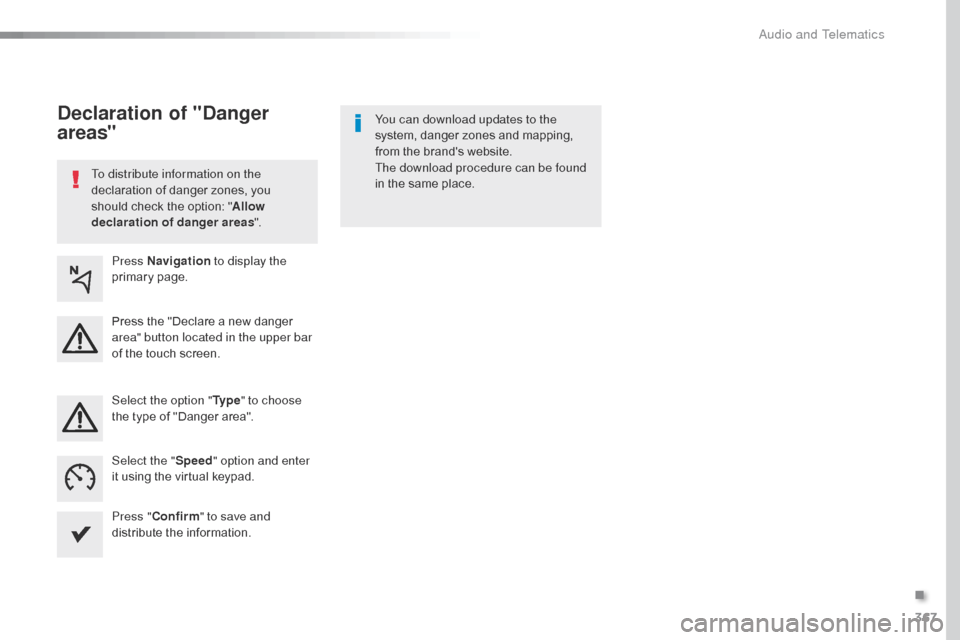
Declaration of "Danger
areas"
Press Navigation
to display the
primary page.
Press the "Declare a new danger
area" button located in the upper bar
of the touch screen.
Select the option " Ty p e" to choose
the type of "Danger area".
Select the " Speed" option and enter
it using the virtual keypad.
Press " Confirm " to save and
distribute the information.
.
Audio and Telematics
Page 371 of 604
369
1
1
1
1
6
7
8
2
3
4
5
Spacetourer-VP_en_Chap10b_NAC-1_ed01-2016
Level 2Level 3 Comments
Connectivity
Secondary page Bluetooth
connection All
Display all telephones, connected or
disconnected.
Connected Display all connected telephones.
Search Start a search for a device to connect.
Connectivity
Secondary page Wi- Fi network connection Secured
Display secured Wi-Fi networks.
Not secured Display non-secured Wi-Fi networks.
Stored Display remembered Wi-Fi networks.
Connectivity
Secondary page
Manage connection Display the state of the subscription to connected
services, the state of the network connection and
the connection mode.
Connectivity
Secondary page Share Wi- Fi connection Activation
Activate or deactivating the sharing of the Wi-Fi
connection.
Settings Select a Wi-Fi network found by the system and
connect to it.
Save settings.
Functionalities available according to equipment.
.
Audio and Telematics
Page 372 of 604

370
1
Spacetourer-VP_en_Chap10b_NAC-1_ed01-2016
Bluetooth connection®
Procedure from the systemConnection sharing
Press on "Telephone " to display the
secondary page.
Press on " Bluetooth connection ".
Select " Search".
The list of detected telephones is
displayed.
If the pairing procedure fails, it is recommended
that you deactivate and then reactivate the
"Bluetooth" function in your telephone.
The " Mobile internet data " profile
must be activated for connected
navigation (where the vehicle does not
have "Emergency and assistance call"
services), having first activated sharing
of this connection on your smartphone.
The system offers to connect the
telephone
with 3 profiles:
-
"
Telephone " (hands-free kit, telephone
only),
-
"
Streaming " (wireless play of audio files
on the telephone),
-
"
Mobile internet data ".
Select the name of the chosen
telephone in the list. Press on "Confirm".
Select one or more profiles.
Press on the "
OPTIONS" button to
go to the secondary page.
As a safety measure and because it
requires sustained attention by the
driver, the pairing of a Bluetooth mobile
telephone with the Bluetooth hands-
free system of your audio system must
be done with the vehicle stationary
and the ignition on.
Procedure from the telephone
Select the name of the system in the
list of devices detected.
In the system, accept the connection request
from the telephone. Activate the Bluetooth function on the
telephone and ensure that it is "visible
to all" (telephone configuration).
To complete the pairing, whichever
procedure used (from the telephone or
from the system), ensure that the code
is the same in the system and in the
telephone.
Depending on the type of telephone,
you may be asked to accept or not the
transfer of your contacts and messages.
Audio and Telematics