Page 205 of 264
203
Berlingo-2-VU_en_Chap10a_SMEGplus_ed01-2016
Level 1Level 2 Level 3 Comments
Settings
Audio settings Ambience
Choose the sound ambience.
Balance Sound distribution using the Arkamys
® system.
Sound effects Set the volume or activate the link to vehicle
speed.
Ringtones Set the telephone ringtone and volume.
Voice Set the volume and voice for speaking street
names
Confirm Save your settings.
Settings
Turn off screen Function that turns off the display.
Pressing the screen reactivates it.
Settings
Color schemes Confirm
Choose the color scheme, then confirm to save
the setting.
audio and Telematics
TECHnoLoGY on BoaRd
10
Page 213 of 264
2 11
Berlingo-2-VU_en_Chap10a_SMEGplus_ed01-2016
Internet browser
authentication for Internet browsing via
a smartphone is done using the Dial-Up
Networking (DUN) standard.Press on "
Internet browser " to
display the browser home page;
first connect your smartphone by
Bluetooth, "Internet" option, see the
" Telephone " section.
Some smartphones of the latest
generation do not support this
standard. Press on Connected services
to
display the primary page.
audio and Telematics
TECHnoLoGY on BoaRd
10
Page 215 of 264
213
Berlingo-2-VU_en_Chap10a_SMEGplus_ed01-2016
Level 1Level 2 Comments
Connected services Secondary page Bluetooth
connections Search
Start the search for a device to connect.
Connect /Disconnect Start or end the Bluetooth connection to the
selected device.
Update Import contacts from the selected telephone to
save them in the audio system.
Delete Delete the selected telephone.
Confirm Save the settings.
Connected services
Secondary pageTransfer rate Reset
Reset the usage monitor, them confirm.
Confirm
Connected services Secondary page
Wi-Fi connection All
Display all Wi-Fi networks.
Secure Display secure Wi-Fi networks.
Remember Memorise the selected Wi-Fi network(s).
Add Add a new Wi-Fi network.
On/ Off Activate or deactivate a Wi-Fi network.
Connect Select a Wi-Fi network found by the system and
connect to it.
audio and Telematics
TECHnoLoGY on BoaRd
10
Page 216 of 264
214
Berlingo-2-VU_en_Chap10a_SMEGplus_ed01-2016
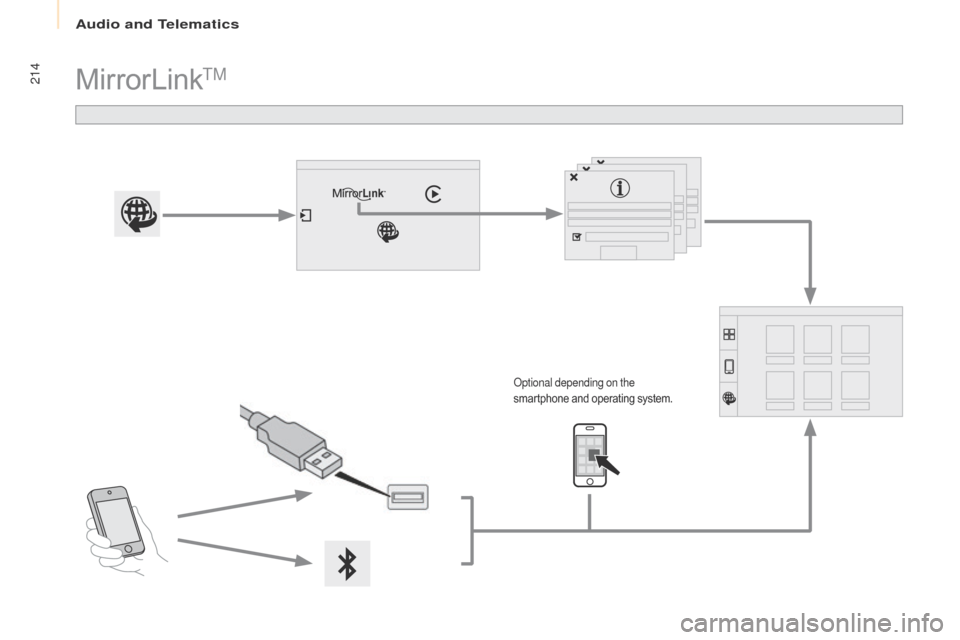
MirrorLinkTM
optional depending on the
smartphone and operating system.
audio and Telematics
Page 217 of 264

215
Berlingo-2-VU_en_Chap10a_SMEGplus_ed01-2016
As a safety measure and because it
requires sustained attention by the
driver, using a smartphone when
driving is prohibited.
All operations must be done with the
vehicle stationary.
The synchronisation of a
smartphone allows applications on a
smartphone that are adapted to the
MirrorLink
TM technology to be displayed
i
n the vehicle's screen.
The principles and standards
are constantly evolving. For the
communication process between the
smartphone and the system to work
correctly, the smartphone must be
unlocked; update the operating system
of your smartphone as well as the date
and time in the smartphone and the
system.
For the list of eligible smartphones,
connect to the brand's internet website
in your country. As a safety measure, applications
can only be viewed with the vehicle
stationary; display is interrupted once
the vehicle is moving.When connecting a smartphone to
the system, it is recommended that
Bluetooth
® be started on the smartphone
Start the application on the
smartphone (optional, depending
on the smartphone and operating
syste m).
Access to the different audio sources remains
accessible in the margin of the MirrorLink
TM
display, using touch buttons in the upper bar.
Access to the menus for the system is possible
at any time using the dedicated buttons
du
ring the procedure, several screen
pages relating to certain functions
are displayed.
ac
cept to start and end the
connection.
Connect a USB cable. The
smartphone charges when
connected by a USB cable. Press on " MirrorLink
TM" to
start the application in the
system.
on
ce connection is established, an page
is displayed with the applications already
downloaded to your smartphone and adapted
to MirrorLink
TM technology.
If only one application has been downloaded to
the smartphone, it starts automatically.
MirrorLinkTM smartphone
connection
Press the end of the lighting control stalk to
start voice recognition of your smartphone via
the system.
Voice recognition requires a compatible
smartphone connected to the vehicle by
Bluetooth.
Voice recognition
Please note:
-
i f your smartphone is supported, to
make it "MirrorLink
TM" compatible,
some phone manufacturers
nevertheless invite you to first
download a dedicated application.
From the system, press on
" Connected services " to display the
primary page.
audio and Telematics
TECHnoLoGY on BoaRd
10
Page 219 of 264
217
Berlingo-2-VU_en_Chap10a_SMEGplus_ed01-2016
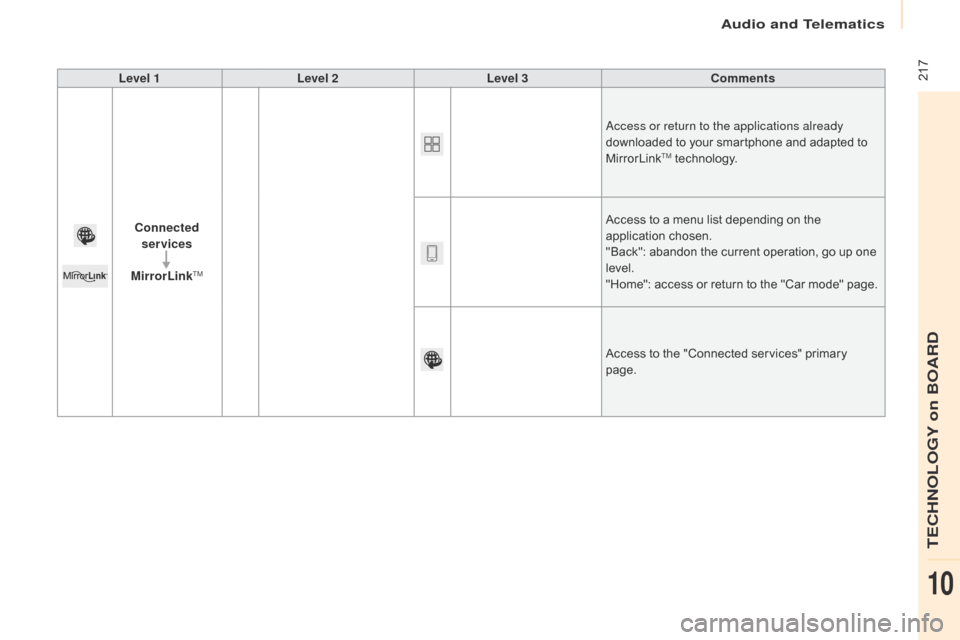
Level 1Level 2 Level 3 Comments
Connected services
MirrorLink
TM
access or return to the applications already
downloaded to your smartphone and adapted to
MirrorLink
TM technology.
Access to a menu list depending on the
application chosen.
"Back": abandon the current operation, go up one
level.
"Home": access or return to the "Car mode" page.
Access to the "Connected services" primary
page.
audio and Telematics
TECHnoLoGY on BoaRd
10
Page 221 of 264

219
Berlingo-2-VU_en_Chap10a_SMEGplus_ed01-2016
As a safety measure and because it
requires sustained attention by the
driver, using a smartphone when
driving is prohibited.
All operations must be done with the
vehicle stationary.
As a safety measure, applications
can only be viewed with the vehicle
stationary; display is interrupted once
the vehicle is moving. The synchronisation of a
smartphone allows applications on a
smartphone that are adapted to the
CarPlay
® technology to be displayed in
t
he vehicle's screen.
as
the principles and standards are
constantly evolving, it is recommended
that you update the operating system of
your smartphone.
For the list of eligible smartphones,
connect to the brand's internet website
in your country.
on c
onnecting the USB cable, the
" Telephone " function changes to
" CarPlay " in the menu carrousel.
Press on " CarPlay" to display the
CarPlay
® inter face.
Press on " CarPlay" to display the
CarPlay
® inter face.
Connect a USB cable. The
smartphone charges when
connected by a USB cable.
Press the end of the lighting control stalk to
start voice recognition of your smartphone via
the system.
CarPlay® smartphone
connection
During the procedure, one or more
screen pages relating to certain
functions are displayed on connection. From the system, press on
"
Connected services " to display the
primary page. Connect the USB cable. The
smartphone is charged while
connected by the USB cable.
o
r
Voice recognition
audio and Telematics
TECHnoLoGY on BoaRd
10
Page 223 of 264
221
Berlingo-2-VU_en_Chap10a_SMEGplus_ed01-2016
Level 1Level 2 Level 3 Comments
Connected services Apple
® CarPlay®
Telephone Favourites
The "Telephone" function is placed automatically
in "Siri" voice mode.
Press on "di splay contacts" for access to the
telephone menus.
Calls
Contacts
Keypad
Messages
Music Lists
Press on "Music" to browse and select the tracks
on your smartphone.
Press on "Playing" for access to the track
currently playing.
Artists
Tr a c k s
Albums
Other...
Plan DestinationsPress on "
de
stinations" to search for an address
by "Siri" voice command or by using the keypad.
The GPS function is through the telephone's 3G,
4G or Wi-Fi internet connection.
Messages Display messagesThe "Messages" function is place automatically
in "Siri" voice mode to speak the message and
the addressee.
Press on "Display messages" for access to the
messages.
Playing Access to the track currently playing.
audio and Telematics
TECHnoLoGY on BoaRd
10