2016 CHEVROLET VOLT instrument cluster
[x] Cancel search: instrument clusterPage 102 of 366
Chevrolet VOLT Owner Manual (GMNA-Localizing-U.S/Canada/Mexico-
9159388) - 2016 - crc - 5/20/15
Instruments and Controls 101
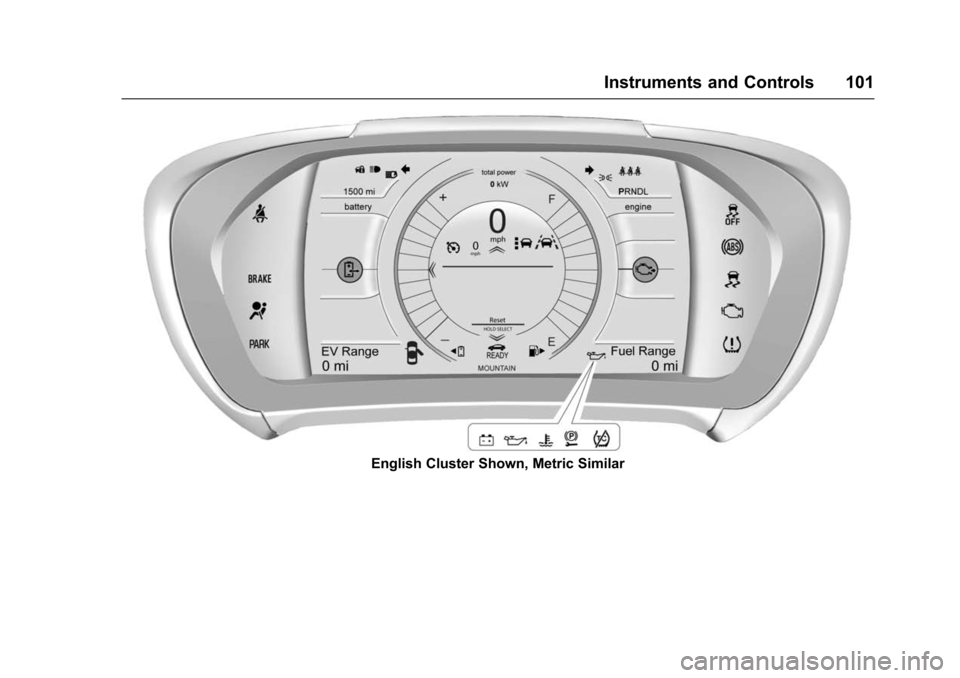
English Cluster Shown, Metric Similar
Page 103 of 366

Chevrolet VOLT Owner Manual (GMNA-Localizing-U.S/Canada/Mexico-
9159388) - 2016 - crc - 5/20/15
102 Instruments and Controls
Reconfigurable Instrument
Cluster
There are four instrument cluster
display configurations to choose
from: Classic, Modern, Classic
Enhanced, or Modern Enhanced.
Classic
Modern
Classic Enhanced
Modern Enhanced
Use the five-way control on the right
side of the steering wheel to move
between the different display zones
and scroll through the different
displays. To change the cluster configuration:
1. Press
oto access the cluster
applications.
2. Use
worxto scroll through
the list until Display Layout is
highlighted. Then press
Vto
select it.
3. Each layout in the menu is represented by a small preview
image of the display layout.
Scroll up or down and highlight
the selection. Press
Vto select
the desired cluster
configuration.
4. Exit the Display Layout menu by pressing
o.
Cluster Menu
There is an interactive display area
in the center of the instrument
cluster.
Page 104 of 366

Chevrolet VOLT Owner Manual (GMNA-Localizing-U.S/Canada/Mexico-
9159388) - 2016 - crc - 5/20/15
Instruments and Controls 103
Use the right steering wheel control
to open and scroll through the
different items and displays.
Press
oto access the cluster
applications. Use
worxto scroll
through the list of applications.
. Info. This is where you can view
the Driver Information Center
(DIC) displays. See Driver
Information Center (DIC) 0128.
. Audio
. Phone
. Navigation .
Display Layout. See
“Reconfigurable Instrument
Cluster” earlier in this section.
. Settings
Audio
While the Audio application page is
displayed, press
pto enter the
Audio menu. In the Audio menu,
search for music or change the
audio source.
Phone
While the Phone application page is
displayed, press
pto enter the
Phone menu. In the Phone menu,
if there is no active phone call, view
recent calls or scroll through
contacts. If there is an active call,
mute the phone or switch to handset
operation.
Navigation
If there is no active route, a
compass will be displayed. If there
is an active route, press
pto end
route guidance or turn the voice
prompts on or off. Settings
Press
pto enter the Settings menu.
Use
worxto scroll through the
items in the Settings menu
Units : Press
Vwhile Units is
highlighted to enter the Unit menu.
Choose US, Metric, or Imperial units
by pressing
Vwhile the desired
item is highlighted. A checkmark will
be displayed next to the
selected item.
Speed Warning : The Speed
Warning display allows the driver to
set a speed that they do not want to
exceed. To set the Speed Warning,
press
Vwhen Speed Warning is
displayed. Press
worxto adjust
the value. Press
Vto set the speed.
Once the speed is set, this feature
can be turned off by pressing
V
while viewing this page. If the
selected speed limit is exceeded, a
pop-up warning is displayed with a
chime.
Page 105 of 366

Chevrolet VOLT Owner Manual (GMNA-Localizing-U.S/Canada/Mexico-
9159388) - 2016 - crc - 5/20/15
104 Instruments and Controls
Tutorial :PressVwhile Tutorial is
highlighted to view the tutorials that
explain some of the features of the
instrument cluster. The tutorials are
only available when the vehicle is in
P (Park).
Open Source Software : Press
V
while Open Source Software is
highlighted to display open source
software information.
Speedometer
The speedometer shows the
vehicle's speed in either kilometers
per hour (km/h) or miles per
hour (mph).
Odometer
The odometer shows how far the
vehicle has been driven, in either
kilometers or miles.
Trip Odometer
The trip odometer shows how far
the vehicle has been driven since
the trip odometer was last reset. The trip odometer is accessed and
reset through the Driver Information
Center (DIC). See
Driver
Information Center (DIC) 0128.
Battery Gauge (High
Voltage)
This gauge shows the high voltage
battery charge level.
The arrow next to the battery
symbol points to the side of the
vehicle the charge port is on.
See Electric Mode 0176.
Fuel Gauge
When the ignition is on, the fuel
gauge indicates about how much
fuel is left in the tank.
There is an arrow near the fuel
gauge pointing to the side of the
vehicle the fuel door is on.
When the indicator nears empty, the
low fuel light comes on. There still is
a little fuel left, but the vehicle
should be refueled soon.
Here are some things that owners
ask about. None of these show a
problem with the fuel gauge:
Page 107 of 366

Chevrolet VOLT Owner Manual (GMNA-Localizing-U.S/Canada/Mexico-
9159388) - 2016 - crc - 5/20/15
106 Instruments and Controls
Power Indicator Gauge
Battery Power Shown
The power gauge is on the right
side of the display in the Classic
Enhanced configuration and on both
sides in the Modern Enhanced
configuration.
The power gauge shows the power
coming from the engine and/or
battery. When the power indicator is
green, battery power is being
regenerated. When the indicator is
yellow, the vehicle is using power.
Safety Belt Reminders
Driver Safety Belt Reminder
Light
There is a driver safety belt
reminder light on the instrument
cluster.
When the vehicle is started, this
light flashes and a chime may come
on to remind the driver to fasten
their safety belt. Then the light stays
on solid until the belt is buckled.
This cycle may continue several
times if the driver remains or
becomes unbuckled while the
vehicle is moving.
If the driver safety belt is already
buckled, neither the light nor chime
comes on.
Passenger Safety Belt
Reminder Light
There is a passenger safety belt
reminder light near the passenger
airbag status indicator. See
Passenger Sensing System 068.
When the vehicle is started, this
light flashes and a chime may come
on to remind the front passenger to
fasten their safety belt. Then the
light stays on solid until the belt is
buckled. This cycle may continue
several times if the front passenger
remains or becomes unbuckled
while the vehicle is moving.
If the front passenger safety belt is
buckled, neither the chime nor the
light comes on.
The front passenger safety belt
reminder light and chime may turn
on if an object is put on the seat
such as a briefcase, handbag,
Page 108 of 366

Chevrolet VOLT Owner Manual (GMNA-Localizing-U.S/Canada/Mexico-
9159388) - 2016 - crc - 5/20/15
Instruments and Controls 107
grocery bag, laptop, or other
electronic device. To turn off the
reminder light and/or chime, remove
the object from the seat or buckle
the safety belt.
Second Row Passenger Belt
Reminder Light
Second row seating positions
monitored for safety belt use are
represented by a colored symbol on
the instrument cluster indicating
safety belt status. When the vehicle
is started, three safety belt symbols
come on and stay on for several
seconds in the instrument cluster to
alert the driver that passengers may
need to fasten their safety belts.
After the passenger safety belt is
buckled, the corresponding safety
belt symbol in the instrument cluster
turns green. If a safety belt is not
initially buckled, the instrumentcluster displays a gray safety belt
symbol. While the vehicle is moving,
if a second row passenger who was
previously buckled becomes
unbuckled, the corresponding safety
belt symbol will change to flashing
red for several seconds and a chime
may sound.
Airbag Readiness Light
This light shows if there is an
electrical problem with the airbag
system. The system check includes
the airbag sensor(s), passenger
sensing system, the pretensioners,
the airbag modules, the wiring, and
the crash sensing and diagnostic
module. For more information on the
airbag system, see
Airbag System
0 62.
The airbag readiness light comes on
for several seconds when the
vehicle is started. If the light does
not come on then, have it fixed
immediately.
{Warning
If the airbag readiness light stays
on after the vehicle is started or
comes on while driving, it means
the airbag system might not be
working properly. The airbags in
the vehicle might not inflate in a
crash, or they could even inflate
without a crash. To help avoid
injury, have the vehicle serviced
right away.
If there is a problem with the airbag
system, a Driver Information Center
(DIC) message may also come on.
See Airbag System Messages
0 136.
Page 129 of 366

Chevrolet VOLT Owner Manual (GMNA-Localizing-U.S/Canada/Mexico-
9159388) - 2016 - crc - 5/20/15
128 Instruments and Controls
Driver Information
Center (DIC)
The DIC is displayed in the
instrument cluster. It shows the
status of many vehicle systems.
worx:Press to go to the
previous or next selection.
oorp: Press to move between
the interactive display zones in the
cluster. Press
oto go back to the
previous menu.
V: Press to open a menu or select
a menu item. Press and hold to
reset values on certain screens.
DIC Information Display
Options
The info displays on the DIC can be
turned on or off through the
Settings menu.
1. Press
Vwhile viewing the
Settings page in one of the
interactive display zones on the
cluster.
2. Scroll to Info Pages and press
V.
3. Press
worxto move
through the list of possible info
displays.
4. Press
Vwhile an item is
highlighted to select or
deselect that item. When an
item is selected, a checkmark
will appear next to it.
DIC Information Displays
The following is the list of all
possible DIC information displays.
Some of the information displays
may not be available for your
particular vehicle. Trip A or Trip B and Average Fuel
Economy :
The Trip display shows
the current distance traveled, in
either kilometers (km) or miles (mi),
since the trip odometer was last
reset. The trip odometer can be
reset by pressing and holding
V
while this display is active.
The Average Fuel Economy display
shows the approximate average
liters per 100 kilometers (L/100 km)
or miles per gallon (mpg). This
number is calculated based on the
number of L/100 km (mpg) recorded
since the last time this menu item
was reset. This number reflects only
the approximate average fuel
economy that the vehicle has right
now, and will change as driving
conditions change. The Average
Fuel Economy can be reset along
with the trip odometer by pressing
and holding
Vwhile this display is
active.
Compass and Speed : Shows the
direction the vehicle is driving and
the vehicle speed in either
kilometers per hour (km/h) or miles
per hour (mph).
Page 130 of 366

Chevrolet VOLT Owner Manual (GMNA-Localizing-U.S/Canada/Mexico-
9159388) - 2016 - crc - 5/20/15
Instruments and Controls 129
Total Range :Shows the remaining
distance the vehicle can be driven
combining the electric range and
fuel range.
Oil Life : The Oil Life display shows
an estimate of the oil's remaining
useful life. If REMAINING OIL LIFE
99% is displayed, that means 99%
of the current oil life remains.
When the remaining oil life is low,
the CHANGE ENGINE OIL SOON
message will appear on the display.
See Engine Oil Messages 0132.
The oil should be changed as soon
as possible. See Engine Oil0232.
In addition to the engine oil life
system monitoring the oil life,
additional maintenance is
recommended. See Maintenance
Schedule 0315.
Remember, the Oil Life display must
be reset after each oil change. It will
not reset itself. Also, be careful not
to reset the Oil Life display
accidentally at any time other than
when the oil has just been changed.
It cannot be reset accurately until
the next oil change. To reset the
engine oil life system, press and holdVfor several seconds while
the Oil Life display is active. See
Engine Oil Life System 0234.
Tire Pressure : Shows the
approximate pressures of all four
tires. Tire pressure is displayed in
either kilopascal (kPa) or in pounds
per square inch (psi). If the pressure
is low, the value for that tire is
shown in amber. See Tire Pressure
Monitor System 0269 andTire
Pressure Monitor Operation 0270.
Average Speed : Shows the
average speed of the vehicle in
kilometers per hour (km/h) or miles
per hour (mph). This average is
calculated based on the various
vehicle speeds recorded since the
last reset of this value. The average
speed can be reset by pressing and
holding
Vwhile this display is
active.
Timer : This display can be used as
a timer. To start the timer, press
V
while this display is active. The
display will show the amount of time
that has passed since the timer was
last reset. To stop the timer, press
V
briefly while this display is active
and the timer is running. To reset
the timer to zero, press and hold
V
while this display is active.
Speed Limit : Shows the current
speed limit. The information for this
page comes from a roadway
database.
Follow Distance Indicator : The
current follow time to the vehicle
ahead is displayed as a time value
on this page.
Coolant Temperature : Shows the
engine coolant temperature in either
degrees Celsius (°C) or degrees
Fahrenheit (°F).
Blank Page : The Blank Page
display allows for no information to
be displayed in the cluster info
display areas.