2016 CHEVROLET TRAX audio
[x] Cancel search: audioPage 153 of 358

Chevrolet TRAX Owner Manual (GMNA-Localizing-U.S./Canada/Mexico-
9159371) - 2016 - crc - 5/21/15
152 Infotainment System
Using the AUX Movie Menu
1. Press MENU from the AUXmovie screen. The AUX menu
is displayed.
2. Press the desired menu. .tone settings: Adjust the
sound setup. See “Tone
Settings” under“Radio
Controls with Touchscreen”
in Operation 0136.
. clock/temp display: To
display the clock and
temperature on the full
screen, select On or Off.
. display settings: Adjust the
brightness and contrast of
the screen.
3. Press
4.
Bluetooth Audio
Streaming Audio
If equipped, music may be played
from a paired Bluetooth. See
Bluetooth (Voice Recognition) 0162
or Bluetooth (Overview) 0153 or
Bluetooth (Infotainment Controls)
0 154 for help pairing a device.
The music can be controlled by
controls on the device.
To play music via Bluetooth: 1. Power on the device, pair, and connect the device. The device
will display “GM Audio Source.”
2. Once paired, press CD/AUX to select Bluetooth Audio.
3. Press the play button on the device to begin playback.
When selecting Bluetooth audio, the
radio may not be able to launch the
audio player on the connected
device to start playing. When the
vehicle is not moving, choose the
phone to begin playback. All devices launch audio differently.
When selecting Bluetooth audio as
a source, the radio may show as
paused on the screen. Press play
on the device to begin playback.
Some phones support sending
Bluetooth music information to
display on the radio. When the radio
receives this information, it will
check to see if any album art is
available and display it. For more
information about your phone and
supported Bluetooth features, see
www.gm.com/bluetooth.
Page 155 of 358

Chevrolet TRAX Owner Manual (GMNA-Localizing-U.S./Canada/Mexico-
9159371) - 2016 - crc - 5/21/15
154 Infotainment System
Infotainment System Controls
If equipped, the infotainment system
allows certain controls to be
selected on the infotainment display.
For information about how to
navigate the menu system using the
infotainment controls, seeOperation
0 136.
5/>(Phone) : Press to enter the
Phone main menu.
Voice Recognition
The voice recognition system uses
commands to control the system
and dial phone numbers.
Noise : The system may not
recognize voice commands if there
is too much background noise. Do
not point the center air vents directly
upward.
When to Speak : A tone sounds to
indicate that the system is ready for
a voice command. Wait for the tone
and then speak.
How to Speak : Speak clearly in a
calm and natural voice.
Audio System
When using the Bluetooth system,
sound comes through the vehicle's
front audio system speakers and
overrides the audio system. Use the
O/VOL knob during a call to
change the volume level. The
adjusted volume level remains in
memory for later calls. The system
maintains a minimum volume level.
Other Information
The Bluetooth®word mark and
logos are owned by the Bluetooth®
SIG, Inc. and any use of such marks
by General Motors is under license.
Other trademarks and trade names
are those of their respective owners.
See Radio Frequency Statement
0 333.
Bluetooth (Infotainment
Controls)
For information about how to
navigate the menu system using the
infotainment controls, see Operation
0 136.
Pairing without Touchscreen
A Bluetooth-enabled cell phone
must be paired to the Bluetooth
system and then connected to the
vehicle before it can be used. See
your cell phone manufacturer's user
guide for Bluetooth functions before
pairing the cell phone. If a Bluetooth
phone is not connected, calls will be
made using OnStar Hands-Free
Calling, if available. See OnStar
Overview 0337.
Pairing Information
. A Bluetooth phone with MP3
capability can be paired
separately to the vehicle as a
phone and an MP3 player at the
same time. This requires the
device to be paired two times;
once as a “hands-free” device
and once as an MP3 device.
. Up to five cell phones can be
paired to the Bluetooth system.
. The pairing process is disabled
when the vehicle is moving.
Page 161 of 358

Chevrolet TRAX Owner Manual (GMNA-Localizing-U.S./Canada/Mexico-
9159371) - 2016 - crc - 5/21/15
160 Infotainment System
2. Press settings.
3. Press connection settings.
4. Press bluetooth settings.
5. Press pair device.
6. Press Search BluetoothDevice.
7. Press the desired device to pair on the searched list
screen.
8. Input the PIN code (default: 1234) to the Bluetooth device.
When the Bluetooth device and
infotainment system are
successfully paired,
5 7is
displayed on the pair device
screen.
. The connected phone is
highlighted by
5.
. The
5 7indicates the
hands-free and phone music
function are enabled.
. The
7indicates only
hands-free function is enabled.
. The
5indicates only Bluetooth
music is enabled. Connecting a Bluetooth Device
1. Press
D.
2. Select settings.
3. Press connection settings.
4. Press bluetooth settings.
5. Press pair device.
6. Press the device to be paired.
7. Press OK.
Checking the Bluetooth
Connection
1. Press
D.
2. Select settings.
3. Press connection settings.
4. Press bluetooth settings.
5. Press pair device.
6. The paired device will show with
5 7when connected.
Disconnecting the Bluetooth
Device
1. Press
D.
2. Select settings. 3. Press connection settings.
4. Press bluetooth settings.
5. Press pair device.
6. Press the name of the device
to be disconnected.
7. Press OK.
Deleting a Paired Phone
1. Press
D.
2. Select settings.
3. Press connection settings.
4. Press bluetooth settings.
5. Press pair device.
6. Press Delete.
7. Press Yes.
Bluetooth Music
Before playing Bluetooth music,
read the following information:
. A cell phone or Bluetooth device
that supports Advanced Audio
Distribution Profile (A2DP)
versions over 1.2 must be
registered and connected to the
product.
Page 162 of 358
Chevrolet TRAX Owner Manual (GMNA-Localizing-U.S./Canada/Mexico-
9159371) - 2016 - crc - 5/21/15
Infotainment System 161
.From the cell phone or Bluetooth
device, find the Bluetooth device
type to set/connect the item as a
stereo headset.
.
5will appear on the screen if
the stereo headset is
successfully connected.
. The sound played by the
Bluetooth device is delivered
through the infotainment system.
. Bluetooth music can be played
only when a Bluetooth device
has been connected. To play
Bluetooth music, connect the
Bluetooth phone to the
infotainment system.
. If the Bluetooth device is
disconnected while playing
phone music, the music is
discontinued. The audio
streaming function may not be
supported in some Bluetooth
phones. Only one function can
be used at a time between the
Bluetooth hands-free or Phone
music function. For example,
if you convert to the Bluetooth
hands-free while playing Phone
music, the music is discontinued. Playing music from
the car is not possible when
there are no music files stored in
the cell phone.
. For Bluetooth music to play, the
music must be played at least
once from the music player
mode of the cell phone or
Bluetooth device after
connecting as a stereo headset.
After being played at least once,
the music player will
automatically play upon entering
play mode, and it will
automatically stop when the
music player mode ends. If the
cell phone or Bluetooth device is
not in the waiting screen mode,
some devices may not
automatically play in Bluetooth
music play mode.
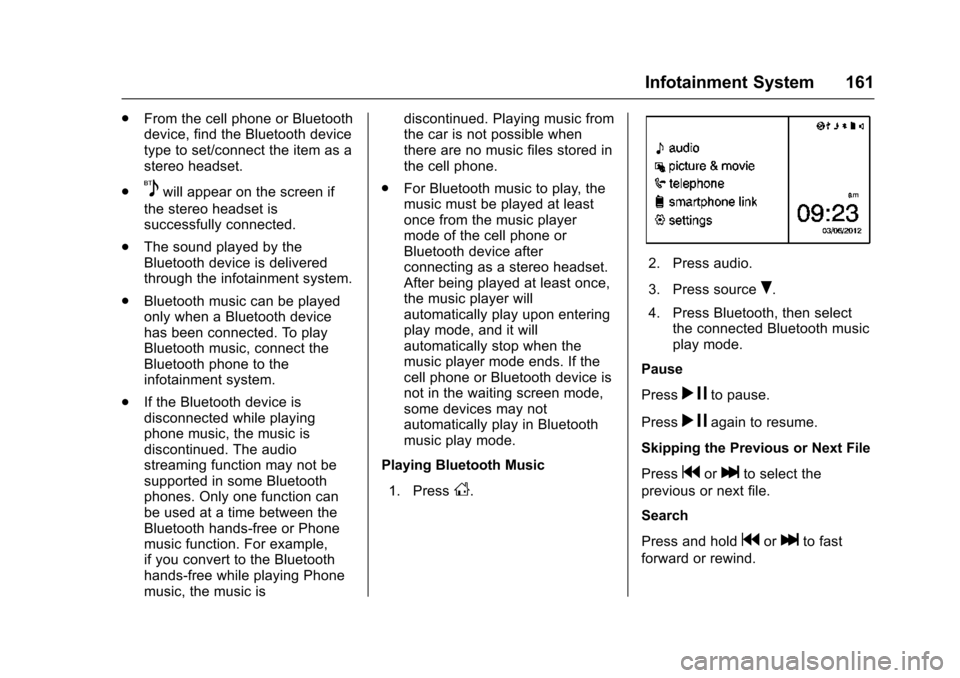
Playing Bluetooth Music
1. Press
D.
2. Press audio.
3. Press source
R.
4. Press Bluetooth, then select the connected Bluetooth music
play mode.
Pause
Press
r jto pause.
Press
r jagain to resume.
Skipping the Previous or Next File
Press
gorlto select the
previous or next file.
Search
Press and hold
gorlto fast
forward or rewind.
Page 163 of 358

Chevrolet TRAX Owner Manual (GMNA-Localizing-U.S./Canada/Mexico-
9159371) - 2016 - crc - 5/21/15
162 Infotainment System
Playing a File Repeatedly
Press
vduring playback.
. 1: Plays the current file
repeatedly.
. ALL: Plays all files repeatedly.
. OFF: Returns to normal
playback.
This function may not be supported
depending on the cell phone.
Playing a File Randomly
Press
uduring playback.
. NO: Plays all files repeatedly.
. OFF: Returns to normal
playback.
This function may not be supported
depending on the cell phone.
Do not change the track too quickly
when playing Bluetooth music.
Conditions that may occur when
playing Bluetooth music:
. It takes some time to transmit
data from the cell phone to the
infotainment system. .
If the cell phone or Bluetooth
device is not in the waiting
screen mode, it may not
automatically play despite being
carried out from the Bluetooth
music play mode.
. The infotainment system
transmits the order to play from
the cell phone in the Bluetooth
music play mode. If this is done
in a different mode, then the
device transmits the order to
stop. Depending on the cell
phone’s options, this order to
play/stop may take time to
activate.
. If the Bluetooth music playback
is not functioning, then check to
see if the cell phone is in the
waiting screen mode.
. Sounds may be cut off during
the Bluetooth music playback.
. The infotainment system outputs
the audio from the cell phone or
Bluetooth device as it is
transmitted.
Bluetooth (Voice
Recognition)
Using Voice Recognition
To use voice recognition, pressb/
gon the steering wheel. Use the
commands below for the various
voice features. For additional
information, say "Help" while you
are in a voice recognition menu.
Pairing
A Bluetooth-enabled cell phone
must be paired to the Bluetooth
system and then connected to the
vehicle before it can be used. See
your cell phone manufacturer's user
guide for Bluetooth functions before
pairing the cell phone. If a Bluetooth
phone is not connected, calls will be
made using OnStar Hands-Free
Calling, if available. See OnStar (if
equipped).
Pairing Information
. A Bluetooth phone with MP3
capability can be paired to the
vehicle as a phone and an MP3
player at the same time.
Page 166 of 358

Chevrolet TRAX Owner Manual (GMNA-Localizing-U.S./Canada/Mexico-
9159371) - 2016 - crc - 5/21/15
Infotainment System 165
directions given by the system
to save a name tag for this
number.
Using the “Delete”Command (If
Equipped)
1. Press
b/g. The system
responds “Ready,”followed by
a tone.
2. Say “Delete.”
3. Say the name tag you want to delete.
Using the “Delete All Name Tags”
Command
This command deletes all stored
name tags in the Hands-Free
Calling Directory and the
Destinations Directory.
To delete all name tags:
1. Press
b/g. The system
responds “Ready,”followed by
a tone.
2. Say “Delete all name tags.”
Listing Stored Numbers
The list command will list all stored
numbers and name tags. Using the
“List”Command
1. Press
b/g. The system
responds “Ready,”followed by
a tone.
2. Say “Directory.”
3. Say “Hands-Free Calling.”
4. Say “List.”
Making a Call
Calls can be made using the
following commands.
Dial or Call : The dial or call
command can be used
interchangeably to dial a phone
number or a stored name tag.
Digit Dial : This command allows a
phone number to be dialed by
entering the digits one at a time.
Re-dial : This command is used to
dial the last number used on the cell
phone.
Using the “Dial”or“Call”
Command
1. Press
b/g. The system
responds “Ready,”followed by
a tone. 2. Say
“Dial”or“Call.”
3. Say the entire number without pausing or say the name tag.
Once connected, the person called
will be heard through the audio
speakers.
Calling 911 Emergency Number
for U.S. and Canada (If Equipped)
1. Press
b/g. The system
responds “Ready,”followed by
a tone.
2. Say “Dial”or“Call.”
3. Say “911.”
4. Say “Dial”or“Call.”
Calling 066 Emergency Number
for Mexico Only (If Equipped)
1. Press
b/g. The system
responds “Ready,”followed by
a tone.
2. Say “Dial”or“Call.”
3. Say “066.”
4. Say “Dial”or“Call.”
Page 167 of 358

Chevrolet TRAX Owner Manual (GMNA-Localizing-U.S./Canada/Mexico-
9159371) - 2016 - crc - 5/21/15
166 Infotainment System
Using the“Digit Dial” Command
The digit dial command allows a
phone number to be dialed by
entering the digits one at a time.
After each digit is entered, the
system repeats back the digit it
heard followed by a tone.
If an unwanted number is
recognized by the system, say
“Clear” at any time to clear the last
number.
To hear all of the numbers
recognized by the system, say
“Verify” at any time.
1. Press
b/g. The system
responds “Ready,”followed by
a tone.
2. Say “Digit Dial.”
3. Say each digit, one at a time, that you want to dial. After
each digit is entered, the
system repeats back the digit it
heard followed by a tone. After
the last digit has been entered,
say “Dial.” Once connected, the person called
will be heard through the audio
speakers.
Using the
“Re-dial”Command
1. Press
b/g. The system
responds “Ready,”followed by
a tone.
2. After the tone, say “Re-dial.”
The system dials the last
number called from the
connected cell phone.
Once connected, the person called
will be heard through the audio
speakers.
Receiving a Call
When an incoming call is received,
the audio system mutes and a ring
tone is heard in the vehicle.
. Press
b/gto answer the call.
. Press
$/ito ignore a call.
Call Waiting
Call waiting must be supported on
the cell phone and enabled by the
wireless service carrier.
.Press
b/gto answer an
incoming call when another call
is active. The original call is
placed on hold.
. Press
b/gagain to return to
the original call.
. To ignore the incoming call, no
action is required.
. Press
$/ito disconnect the
current call and switch to the call
on hold.
Three-Way Calling (If
Equipped)
Three-way calling must be
supported on the cell phone and
enabled by the wireless service
carrier.
1. While on a call, press
b/g.
2. Say “Three-way call.”
Page 168 of 358

Chevrolet TRAX Owner Manual (GMNA-Localizing-U.S./Canada/Mexico-
9159371) - 2016 - crc - 5/21/15
Infotainment System 167
3. Use the dial or call commandto dial the number of the third
party to be called.
4. Once the call is connected, press
b/gto link all callers
together.
Ending a Call
Press$/ito end a call.
Muting a Call
During a call, all sounds from inside
the vehicle can be muted so that the
person on the other end of the call
cannot hear them.
To mute a call, press
b/g, and
then say “Mute Call.”
To cancel mute, press
b/g, and
then say “Un-mute Call.”
Transferring a Call
Audio can be transferred between
the Bluetooth system and the cell
phone.
The cell phone must be paired and
connected with the Bluetooth
system before a call can be transferred. The connection process
can take up to two minutes after the
ignition is turned to ON/RUN.
To Transfer Audio from the
Bluetooth System to a Cell Phone
During a call with the audio in the
vehicle:
1. Press
b/g.
2. Say “Transfer Call.”
To Transfer Audio to the Bluetooth
System from a Cell Phone
During a call with the audio on the
cell phone, press
b/g. The audio
transfers to the vehicle. If the audio
does not transfer to the vehicle, use
the audio transfer feature on the cell
phone. See the cell phone
manufacturer's user guide.
Voice Pass-Thru
Voice pass-thru allows access to the
voice recognition commands on the
cell phone. See the cell phone
manufacturer's user guide to see if
the cell phone supports this feature. To access contacts stored in the cell
phone:
1. Press
b/g. The system
responds “Ready,”followed by
a tone.
2. Say “Bluetooth.” This command
can be skipped.
3. Say “Voice.”The system
responds “OK, accessing
The cell phone's normal prompt
messages will go through their cycle
according to the phone's operating
instructions.
Dual Tone Multi-Frequency
(DTMF) Tones (If Equipped)
The Bluetooth system can send
numbers and the numbers stored as
name tags during a call. You can
use this feature when calling a
menu-driven phone system.
Account numbers can also be
stored for use.