2016 CHEVROLET SUBURBAN USB
[x] Cancel search: USBPage 23 of 453

Chevrolet Tahoe/Suburban Owner Manual (GMNA-Localizing-U.S./Canada/
Mexico-9159366) - 2016 - crc - 5/19/15
22 In Brief
Vehicle Features
Infotainment System
The base radio information is
included in this manual. See the
infotainment manual for information
on the uplevel radios, audio players,
phone, navigation system, Rear
Seat Entertainment (RSE), and
voice or speech recognition,
if equipped.
Radio(s)
O
:Press to turn the system on.
Press and hold to turn it off. When
on, press to mute; press again to
unmute. Turn to increase or
decrease the volume.
RADIO : Press to choose between
FM, AM, and SiriusXM
®,
if equipped.
MEDIA : Press to change the audio
source between CD, USB,
and AUX.
{: Press to go to the Home Page.
MENU : Press to select a menu.
g:Press to seek the previous
station or track.
l: Press to seek the next station
or track.
See Overview 0193 about these
and other radio features.
Storing Radio Station Presets
Up to 25 preset stations from all
bands can be stored in the favorite
lists in any order. Up to five stations
can be stored in each favorite page
and the number of favorite pages
can be set.
To store the station to a position in
the list, while on the active source
main page, such as AM, FM,
or SiriusXM (if equipped), press and
hold a favorites/soft key button on
the faceplate.
See “Storing Radio Station Presets”
under AM-FM Radio 0198.
Setting the Clock
See Clock 0132.
Satellite Radio
Vehicles with a SiriusXM®satellite
radio tuner and a valid SiriusXM
satellite radio subscription can
receive SiriusXM programming.
SiriusXM Satellite Radio
Service
SiriusXM is a satellite radio service
based in the 48 contiguous United
States and 10 Canadian provinces.
SiriusXM satellite radio has a wide
variety of programming and
commercial-free music, coast to
coast, and in digital-quality sound.
A fee is required to receive the
SiriusXM service.
For more information refer to:
. www.siriusxm.com or call
1-866-635-2349 (U.S.).
. www.xmradio.ca or call
1-877-209-0079 (Canada).
See Satellite Radio 0200.
Page 24 of 453

Chevrolet Tahoe/Suburban Owner Manual (GMNA-Localizing-U.S./Canada/
Mexico-9159366) - 2016 - crc - 5/19/15
In Brief 23
Portable Audio Devices
This vehicle may have a 3.5 mm
(1/8 in) auxiliary input jack and two
USB ports in the center stack or
inside the front seat armrest.
External devices such as iPods
®,
laptop computers, MP3 players, CD
changers, and USB storage devices
may be connected, depending on
the audio system.
See USB Port 0204 andAuxiliary
Jack 0207.
Bluetooth®
The Bluetooth®system allows users
with a Bluetooth-enabled cell phone
to make and receive hands-free
calls using the vehicle audio system
and controls.
The Bluetooth-enabled cell phone
must be paired with the in-vehicle
Bluetooth system before it can be
used in the vehicle. Not all phones
will support all functions. See
Bluetooth (Overview) 0208 or
Bluetooth (Infotainment Controls -
Base Radio) 0209 orBluetooth
(Voice Recognition - Base Radio)
0 213.
Steering Wheel Controls
If equipped, some audio controls
can be adjusted at the steering
wheel.
g:If equipped with OnStar®or a
Bluetooth®system, press to interact
with those systems. See OnStar
Overview 0431, Bluetooth
(Overview) 0208 orBluetooth
(Infotainment Controls - Base Radio)
0213 orBluetooth (Voice
Recognition - Base Radio) 0213,
or “Bluetooth (Overview)” in the
infotainment manual.
i: Press to reject an incoming
call, or end a current call. Press to
mute or unmute the infotainment
system when not on a call.
oorp: Press to go to the
previous or next menu option.
worx: Press to go to the next or
previous selection.
@: Press to select a highlighted
menu option.
Page 123 of 453
Chevrolet Tahoe/Suburban Owner Manual (GMNA-Localizing-U.S./Canada/
Mexico-9159366) - 2016 - crc - 5/19/15
122 Storage
Storage
Storage Compartments
Storage Compartments . . . . . . . 122
Instrument Panel Storage . . . . 122
Glove Box . . . . . . . . . . . . . . . . . . . . 122
Sunglasses Storage . . . . . . . . . . 123
Armrest Storage . . . . . . . . . . . . . . 123
Rear Storage . . . . . . . . . . . . . . . . . 123
Center Console Storage . . . . . . 123
Additional Storage Features
Cargo Cover . . . . . . . . . . . . . . . . . . 124
Roof Rack System
Roof Rack System . . . . . . . . . . . 125
Storage
Compartments
{Warning
Do not store heavy or sharp
objects in storage compartments.
In a crash, these objects may
cause the cover to open and
could result in injury.
Instrument Panel Storage
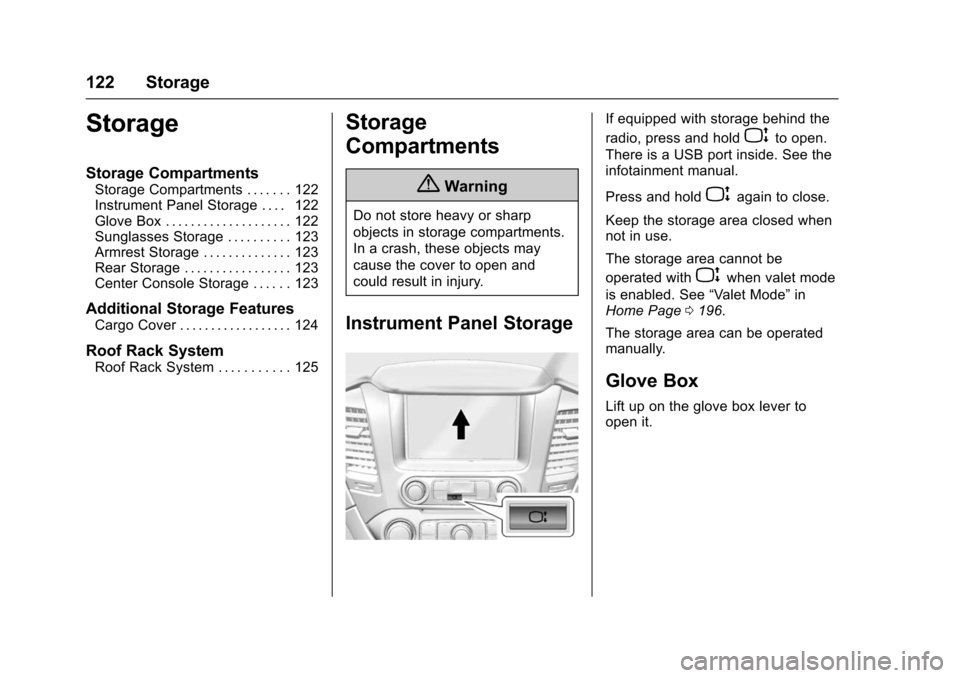
If equipped with storage behind the
radio, press and hold
Pto open.
There is a USB port inside. See the
infotainment manual.
Press and hold
Pagain to close.
Keep the storage area closed when
not in use.
The storage area cannot be
operated with
Pwhen valet mode
is enabled. See “Valet Mode”in
Home Page 0196.
The storage area can be operated
manually.
Glove Box
Lift up on the glove box lever to
open it.
Page 124 of 453
Chevrolet Tahoe/Suburban Owner Manual (GMNA-Localizing-U.S./Canada/
Mexico-9159366) - 2016 - crc - 5/19/15
Storage 123
Sunglasses Storage
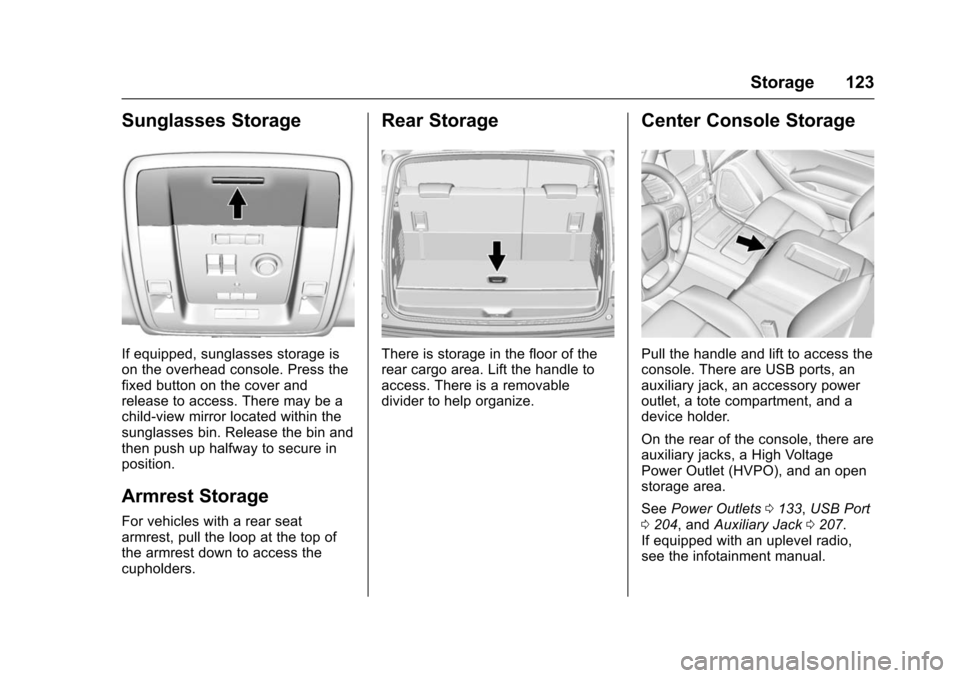
If equipped, sunglasses storage is
on the overhead console. Press the
fixed button on the cover and
release to access. There may be a
child-view mirror located within the
sunglasses bin. Release the bin and
then push up halfway to secure in
position.
Armrest Storage
For vehicles with a rear seat
armrest, pull the loop at the top of
the armrest down to access the
cupholders.
Rear Storage
There is storage in the floor of the
rear cargo area. Lift the handle to
access. There is a removable
divider to help organize.
Center Console Storage
Pull the handle and lift to access the
console. There are USB ports, an
auxiliary jack, an accessory power
outlet, a tote compartment, and a
device holder.
On the rear of the console, there are
auxiliary jacks, a High Voltage
Power Outlet (HVPO), and an open
storage area.
SeePower Outlets 0133, USB Port
0 204, and Auxiliary Jack 0207.
If equipped with an uplevel radio,
see the infotainment manual.
Page 193 of 453

Chevrolet Tahoe/Suburban Owner Manual (GMNA-Localizing-U.S./Canada/
Mexico-9159366) - 2016 - crc - 5/19/15
192 Infotainment System
Infotainment
System
Introduction
Infotainment . . . . . . . . . . . . . . . . . . 192
Theft-Deterrent Feature . . . . . . 193
Overview . . . . . . . . . . . . . . . . . . . . . 193
Home Page . . . . . . . . . . . . . . . . . . 196
Software Updates . . . . . . . . . . . . 198
Radio
AM-FM Radio . . . . . . . . . . . . . . . . 198
Satellite Radio . . . . . . . . . . . . . . . . 200
Radio Reception . . . . . . . . . . . . . . 200
Rear Side WindowAntenna . . . . . . . . . . . . . . . . . . . . . 201
Multi-Band Antenna . . . . . . . . . . 201
Audio Players
CD Player . . . . . . . . . . . . . . . . . . . . 202
USB Port . . . . . . . . . . . . . . . . . . . . . 204
Auxiliary Jack . . . . . . . . . . . . . . . . 207
Phone
Bluetooth (Overview) . . . . . . . . . 208
Bluetooth (Infotainment Controls - Base Radio) . . . . . . 209
Bluetooth (Voice Recognition - Base Radio) . . . . . . . . . . . . . . . . 213
Trademarks and License
Agreements
Trademarks and License
Agreements . . . . . . . . . . . . . . . . . 218
Introduction
Infotainment
Base radio information is included in
this manual. See the infotainment
manual for information on other
available infotainment systems.
Read the following pages to
become familiar with these features.
{Warning
Taking your eyes off the road for
too long or too often while using
any infotainment feature can
cause a crash. You or others
could be injured or killed. Do not
give extended attention to
infotainment tasks while driving.
Limit your glances at the vehicle
displays and focus your attention
on driving. Use voice commands
whenever possible.
The infotainment system has built-in
features intended to help avoid
distraction by disabling some
functions when driving. These
Page 197 of 453

Chevrolet Tahoe/Suburban Owner Manual (GMNA-Localizing-U.S./Canada/
Mexico-9159366) - 2016 - crc - 5/19/15
196 Infotainment System
current track will start from
the beginning. Press
lto
seek the next track.
. AM, FM, or SiriusXM (If
Equipped): Press
gorl
to seek to the previous or
next strong station.
. CD (If Equipped): Press
and hold
gto quickly
reverse through a track.
Release the button to return
to playing speed. Press and
hold
lto fast forward
through a track. Release
the button to return to
playing speed.
10. RADIO .Press to change the audio
source between AM, FM,
or SiriusXM, if equipped.
11. MEDIA .Press to change the audio
source between CD, USB,
and AUX.
12.
O(Power/Volume)
. Press to turn the audio on. .
Press and hold to turn it off.
. When on, press to mute the
system. Press again to
unmute.
. Turn to increase or
decrease the volume.
Home Page
Home Page Features
The infotainment system displays a
Home Page that makes it easy to
access all of the applications. Turn
the MENU knob to highlight feature
icons. Press the MENU knob to
access the feature’s options.
Various functions are disabled when
the vehicle is moving.
AUDIO : Select the AUDIO screen
icon to display the active source
page. The sources available are
AM, FM, SiriusXM
®(if equipped),
CD, USB/iPod, and AUX. See
AM-FM Radio 0198, Satellite Radio
0 200, CD Player 0202, and
Auxiliary Jack 0207. PHONE :
Select the PHONE screen
icon to display the Phone main
page. See “Bluetooth Overview” in
Bluetooth (Overview) 0208 or
Bluetooth (Infotainment Controls -
Base Radio) 0209 orBluetooth
(Voice Recognition - Base Radio)
0 213.
NAV (Navigation, If Equipped) :
Select the NAV screen icon to
display the OnStar Turn-by-Turn
Navigation. See “OnStar Overview”
in OnStar, if equipped.
SETTINGS : Select the SETTINGS
screen icon to display the Settings
main page. See “Setting Radio
Preferences” following.
Setting Radio Preferences
Select the SETTINGS screen icon
to display the Settings menu and
the following may display:
Time :SeeClock 0132.
Language (Current Language) :
This will set the display language in
the radio and instrument cluster.
Select to display a list of languages.
Select BACK to go back to the
previous menu.
Page 198 of 453
Chevrolet Tahoe/Suburban Owner Manual (GMNA-Localizing-U.S./Canada/
Mexico-9159366) - 2016 - crc - 5/19/15
Infotainment System 197
Valet Mode:
Using the circular numeric keypad,
enter a four-digit code:1. Turn the MENU knob to highlight a number.
2. Press the MENU knob to select it. Do this for each one of the
four digits. Select Enter to go to
the confirmation screen.
3. Re-enter the four-digit code. Select LOCK to lock the
system. This will also lock
access to the storage behind
the radio, if equipped. See
Instrument Panel Storage
0122.
4. Enter the four-digit code to unlock the system.
Radio : See“Radio Setup” later in
this section.
Vehicle : SeeVehicle
Personalization 0173.
Display : Press the MENU knob to
turn the display on or off.
Return to Factory Settings : See
“Return to Factory Settings” later in
this section. Software Information :
Press the
MENU knob to select Save Vehicle
Info to USB. Press the MENU knob
again to start downloading the
vehicle information to the USB.
Radio Setup
From the RADIO/BAND screen icon,
the following may be displayed:
Manage Favorites:
. Turn the MENU knob and press
to select a favorite.
.
To delete a favorite, press
the button just below the
DELETE screen button.
. To move a favorite, press the
MOVE screen button. Turn
the MENU knob to select a
new location, then press the
DROP screen button to
select the new location.
. Select
oBACK to go back to
the previous menu.
Number of Favorites Shown : To
set the number of favorites for
display, select Auto to automatically
adjust the number of Favorites
pages shown as Favorites are added and removed. Another way to
adjust is to select a number from 5–
25 to show that selection of
favorites.
Audible Touch Feedback :
Select
to turn feedback off or on.
Auto Volume (If Equipped) : This
feature adjusts the volume based on
vehicle speed. The options are Off,
Low, Medium-Low, Medium,
Medium-High, or High. Select the
desired volume.
Maximum Startup Volume : This
feature sets the maximum startup
volume. If the vehicle is started and
the volume is greater than this level,
the volume is adjusted to this level.
To set the maximum startup volume,
Turn the MENU knob to increase or
decrease startup volume.
Rear Camera
From the Rear Camera screen
button, the following may display:
Guidance Lines (If Equipped) :
This feature will display guidance
lines on the screen when in
R (Reverse). Select Off or On.
Page 199 of 453
Chevrolet Tahoe/Suburban Owner Manual (GMNA-Localizing-U.S./Canada/
Mexico-9159366) - 2016 - crc - 5/19/15
198 Infotainment System
SeeAssistance Systems for Parking
or Backing 0281.
Rear Cross Traffic Alert (If
Equipped) : This feature will display
an alert icon when cross traffic is
detected.
Select Off or On.
See Assistance Systems for Parking
or Backing 0281.
Return to Factory Settings
Select and the following may
display:
Restore Vehicle Settings : This
option will restore factory vehicle
personalization settings. Select
Cancel or Confirm.
Clear All Private Data : This option
clears all private information from
the vehicle. Select Cancel or
Confirm.
Restore Radio Settings : This
option will restore factory radio
settings. Select Cancel or Continue.English and Metric Unit
Conversion
To change the display units between
English and metric units, see Driver
Information Center (DIC) (Base
Level) 0153 orDriver Information
Center (DIC) (Uplevel) 0155.
Software Updates
See the website for more
information.
Website Information
In the U.S., see www.chevrolet.com
In Canada, see
www.chevrolet.gm.ca
In Mexico, see
www.chevrolet.com.mx
Radio
AM-FM Radio
Playing the Radio
While on the audio main page,
press the RADIO or MEDIA button
repeatedly through the available
sources (AM, FM, and SiriusXM
®(if
equipped), CD, USB, and AUX).
The steering wheel controls can
also be used to adjust the volume.
See Steering Wheel Controls 0128.
AM, FM, SiriusXM (If Equipped)
To select AM, FM, or SiriusXM (if
equipped), press the RADIO button
to toggle to the desired broadcast
source.
Press the RADIO faceplate button
to display the active radio source.
Press the MENU knob and the
following radio settings may display: