2016 CHEVROLET SUBURBAN key
[x] Cancel search: keyPage 191 of 453
Chevrolet Tahoe/Suburban Owner Manual (GMNA-Localizing-U.S./Canada/
Mexico-9159366) - 2016 - crc - 5/19/15
190 Lighting
Lighting Features
Entry Lighting
Some exterior lamps and the interior
lamps turn on briefly at night, or in
areas with limited lighting, when
K
is pressed on the Remote Keyless
Entry (RKE) transmitter. When a
door is opened, the interior lamps
come on if the dome lamp control is
in the DOOR position. After about
30 seconds the exterior lamps turn
off. Entry lighting can be disabled
manually by changing the ignition
out of the OFF position, or by
pressing the RKE transmitter
Q
button.
This feature can be changed. See
“Vehicle Locator Lights”under
Vehicle Personalization 0173.
Exit Lighting
Some exterior lamps and interior
lamps come on when the key is
removed from the ignition. The
exterior and interior lamps remain
on for a set amount of time, then
automatically turn off. If equipped with Keyless Access,
the exterior lamps automatically turn
on when the driver
’s door is opened
after the ignition is turned to OFF.
The interior lights turn on when the
ignition is turned to OFF.
The exterior lamps turn off
immediately by turning the exterior
lamp control off.
This feature can be changed. See
Vehicle Personalization 0173.
Battery Load
Management
The vehicle has Electric Power
Management (EPM), which
estimates the battery's temperature
and state of charge. It then adjusts
the voltage for best performance
and extended life of the battery.
When the battery's state of charge
is low, the voltage is raised slightly
to quickly bring the charge back up.
When the state of charge is high,
the voltage is lowered slightly to
prevent overcharging. The voltmeter
gauge or the voltage display on the
Driver Information Center (DIC), if equipped, may show the voltage
moving up or down. This is normal.
If there is a problem, an alert will be
displayed.
The battery can be discharged at
idle if the electrical loads are very
high. This is true for all vehicles.
This is because the generator
(alternator) may not be spinning fast
enough at idle to produce all the
power that is needed for very high
electrical loads.
A high electrical load occurs when
several of the following are on, such
as: headlamps, high beams, fog
lamps, rear window defogger,
climate control fan at high speed,
heated seats, engine cooling fans,
trailer loads, and loads plugged into
accessory power outlets.
EPM works to prevent excessive
discharge of the battery. It does this
by balancing the generator's output
and the vehicle's electrical needs.
It can increase engine idle speed to
generate more power, whenever
needed. It can temporarily reduce
the power demands of some
accessories.
Page 196 of 453
Chevrolet Tahoe/Suburban Owner Manual (GMNA-Localizing-U.S./Canada/
Mexico-9159366) - 2016 - crc - 5/19/15
Infotainment System 195
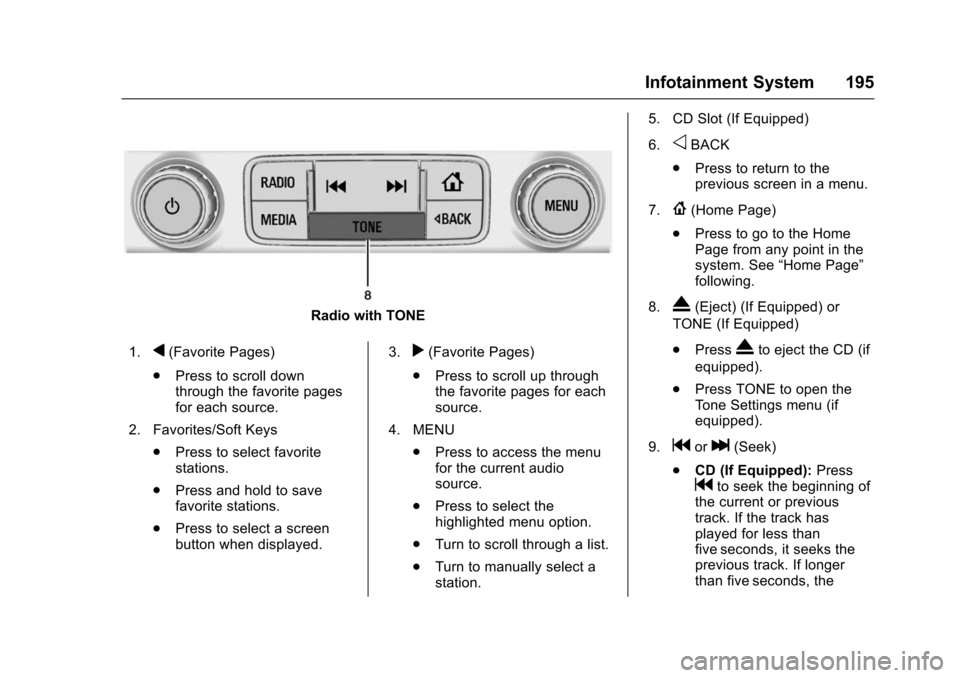
Radio with TONE
1.
q(Favorite Pages)
. Press to scroll down
through the favorite pages
for each source.
2. Favorites/Soft Keys .Press to select favorite
stations.
. Press and hold to save
favorite stations.
. Press to select a screen
button when displayed. 3.r(Favorite Pages)
. Press to scroll up through
the favorite pages for each
source.
4. MENU .Press to access the menu
for the current audio
source.
. Press to select the
highlighted menu option.
. Turn to scroll through a list.
. Turn to manually select a
station. 5. CD Slot (If Equipped)
6.
oBACK
. Press to return to the
previous screen in a menu.
7.
{(Home Page)
. Press to go to the Home
Page from any point in the
system. See “Home Page”
following.
8.
X(Eject) (If Equipped) or
TONE (If Equipped)
. Press
Xto eject the CD (if
equipped).
. Press TONE to open the
Tone Settings menu (if
equipped).
9.
gorl(Seek)
. CD (If Equipped): Press
gto seek the beginning of
the current or previous
track. If the track has
played for less than
five seconds, it seeks the
previous track. If longer
than five seconds, the
Page 198 of 453
Chevrolet Tahoe/Suburban Owner Manual (GMNA-Localizing-U.S./Canada/
Mexico-9159366) - 2016 - crc - 5/19/15
Infotainment System 197
Valet Mode:
Using the circular numeric keypad,
enter a four-digit code:1. Turn the MENU knob to highlight a number.
2. Press the MENU knob to select it. Do this for each one of the
four digits. Select Enter to go to
the confirmation screen.
3. Re-enter the four-digit code. Select LOCK to lock the
system. This will also lock
access to the storage behind
the radio, if equipped. See
Instrument Panel Storage
0122.
4. Enter the four-digit code to unlock the system.
Radio : See“Radio Setup” later in
this section.
Vehicle : SeeVehicle
Personalization 0173.
Display : Press the MENU knob to
turn the display on or off.
Return to Factory Settings : See
“Return to Factory Settings” later in
this section. Software Information :
Press the
MENU knob to select Save Vehicle
Info to USB. Press the MENU knob
again to start downloading the
vehicle information to the USB.
Radio Setup
From the RADIO/BAND screen icon,
the following may be displayed:
Manage Favorites:
. Turn the MENU knob and press
to select a favorite.
.
To delete a favorite, press
the button just below the
DELETE screen button.
. To move a favorite, press the
MOVE screen button. Turn
the MENU knob to select a
new location, then press the
DROP screen button to
select the new location.
. Select
oBACK to go back to
the previous menu.
Number of Favorites Shown : To
set the number of favorites for
display, select Auto to automatically
adjust the number of Favorites
pages shown as Favorites are added and removed. Another way to
adjust is to select a number from 5–
25 to show that selection of
favorites.
Audible Touch Feedback :
Select
to turn feedback off or on.
Auto Volume (If Equipped) : This
feature adjusts the volume based on
vehicle speed. The options are Off,
Low, Medium-Low, Medium,
Medium-High, or High. Select the
desired volume.
Maximum Startup Volume : This
feature sets the maximum startup
volume. If the vehicle is started and
the volume is greater than this level,
the volume is adjusted to this level.
To set the maximum startup volume,
Turn the MENU knob to increase or
decrease startup volume.
Rear Camera
From the Rear Camera screen
button, the following may display:
Guidance Lines (If Equipped) :
This feature will display guidance
lines on the screen when in
R (Reverse). Select Off or On.
Page 201 of 453
Chevrolet Tahoe/Suburban Owner Manual (GMNA-Localizing-U.S./Canada/
Mexico-9159366) - 2016 - crc - 5/19/15
200 Infotainment System
or SiriusXM (if equipped), press and
hold a favorites/soft-key button on
the faceplate.
Mixed-Audio Favorites
Media and Broadcast favorites can
be stored.
To display the favorites page, press
qorrbutton on the radio
faceplate.
From the Settings menu press the
MENU knob to select Manage
Favorites. The Manage Favorites
feature has the option of moving or
deleting a favorite. See “Manage
Favorites” underOverview 0193.
Satellite Radio
SiriusXM®Satellite Radio
Service
Vehicles with a SiriusXM satellite
radio tuner and a valid SiriusXM
satellite radio subscription can
receive SiriusXM programming.
SiriusXM is a satellite radio service
based in the 48 contiguous United
States and 10 Canadian provinces.
SiriusXM satellite radio has a wide variety of programming and
commercial-free music, coast to
coast, and in digital-quality sound.
A service fee is required to receive
the SiriusXM service. See
www.siriusxmradio.com or call
1-866-635-2349 (U.S.); or see
www.xmradio.ca or call
1-877-209-0079 (Canada).
When SiriusXM is active, the
channel name and number,
category name, song title, and artist
display on the screen.
Browsing SiriusXM Channels
To browse the SiriusXM channels:
1. Press the MENU knob.
2. Turn the MENU knob to highlight XM Channel List.
3. Turn the MENU knob to highlight the desired XM
Channels.
Radio Reception
Frequency interference and static
can occur during normal radio
reception if items such as phone
chargers, vehicle convenience accessories, and external electronic
devices are plugged into the
accessory power outlet. If there is
interference or static, unplug the
item from the accessory power
outlet.
FM
FM signals only reach about 16 to
65 km (10 to 40 mi). Although the
radio has a built-in electronic circuit
that automatically works to reduce
interference, some static can occur,
especially around tall buildings or
hills, causing the sound to fade in
and out.
AM
The range for most AM stations is
greater than for FM, especially at
night. The longer range can cause
station frequencies to interfere with
each other. Static can also occur
when things like storms and power
lines interfere with radio reception.
When this happens, try reducing the
treble on the radio.
Page 212 of 453
Chevrolet Tahoe/Suburban Owner Manual (GMNA-Localizing-U.S./Canada/
Mexico-9159366) - 2016 - crc - 5/19/15
Infotainment System 211
Deleting a Paired Phone1. From the Home Page, turn the MENU knob, then press to
select the PHONE screen
button.
2. Turn the MENU knob and press to select Manage
Phones.
3. Turn the MENU knob to highlight the phone to be
deleted.
4. Press the button below the DELETE screen button to
delete the highlighted device.
5. A confirmation screen is displayed. Press the button just
below the DELETE screen
button to confirm deletion.
Connecting to a Different Phone 1. From the Home Page, turn the MENU knob, then press to
select the PHONE screen
button.
2. Turn the MENU knob and press to select Manage
Phones. 3. Turn the MENU knob to
highlight the phone to be
connected.
4. Press the button just below the CONNECT screen button to
connect to the highlighted
device.
Phone Menu
Once a phone is connected and
selected, the following may display:
Recent Calls : Turn the MENU
knob to highlight Recent Calls and
press to select.
Contacts : Turn the MENU knob to
highlight Contacts and press to
select.
Keypad : Turn the MENU knob to
highlight Keypad and press to
select.
Active Call : Turn the MENU knob
to highlight Active Call and press to
select and display the active call
screen.
Manage Phones : Turn the MENU
knob to highlight Manage Phones
and press to select.
Making a Call Using Contacts
and Recent Calls
For cell phones that support the
Contacts and Recent Calls feature,
the Bluetooth system can use the
contacts stored on your cell phone
to make calls. See your cell phone
manufacturer ’s user guide or
contact your wireless provider to
find out if this feature is supported
by your phone.
If the phone prompts to allow phone
book download during the pairing
process, select Always Accept and
Allow. The phone book may not be
available if not accepted.
When a cell phone supports the
phone book feature, the Contacts
and Recent Calls menus are
automatically available.
The Contacts menu allows you to
access the phone book stored in the
cell phone to make a call.
The Recent Calls menu allows you
to access the phone numbers from
the Incoming Calls, Outgoing Calls,
and Missed Calls menus on the cell
phone to make a call.
Page 213 of 453
Chevrolet Tahoe/Suburban Owner Manual (GMNA-Localizing-U.S./Canada/
Mexico-9159366) - 2016 - crc - 5/19/15
212 Infotainment System
To make a call using the
Contacts menu:1. From the Home Page, turn the MENU knob, then press to
select the PHONE screen
button.
2. Turn the MENU knob to highlight Contacts and press to
select.
3. Turn the MENU knob to highlight the letter group and
press to select.
4. Turn the MENU knob to highlight the contact and press
to select.
5. Turn the MENU knob to highlight the desired number,
then press the MENU knob to
call the contact.
To make a call using the Recent
Calls menu:
1. From the Home Page, turn the MENU knob, then press to
select the PHONE screen
button. 2. Turn the MENU knob to
highlight Recent Calls and
press to select.
If necessary, select between
Missed, Recent, and Sent calls
by pressing the button below
the appropriate screen button.
3. Turn the MENU knob to highlight the contact or the
phone number.
4. Press the MENU knob to call the contact.
Making a Call Using the
Keypad
To make a call:
1. From the Home Page, turn the MENU knob, then press to
select the PHONE screen
button.
2. Turn the MENU knob and press to select Keypad.
3. Turn the MENU knob to highlight the first digit and
press to select. Continue this
process through the number.
To call, press the button just
below the CALL screen button.
Accepting or Declining a Call
When an incoming call is received,
the infotainment system mutes and
a ring tone is heard in the vehicle.
Accepting a Call
To accept a call, do one of the
following:
.Press the button just below the
ANSWER screen button.
. Press
gon the steering wheel
controls.
Declining a Call
To decline a call, do one of the
following:
. Press the button just below the
IGNORE screen button.
. Press
ion the steering wheel
controls.
. Do nothing.
Call Waiting
Call waiting must be supported on
the Bluetooth phone and enabled by
the wireless service carrier to work.
Page 214 of 453
Chevrolet Tahoe/Suburban Owner Manual (GMNA-Localizing-U.S./Canada/
Mexico-9159366) - 2016 - crc - 5/19/15
Infotainment System 213
Accepting a Call Waiting Call
To accept a call waiting call, do one
of the following:
.Press the button just below the
SWITCH screen button.
. Press
gon the steering wheel
controls.
Declining a Call Waiting Call
To decline a call waiting call, do one
of the following:
. Press the button just below the
IGNORE screen button.
. Press
ion the steering wheel
controls.
. Do nothing.
Ending a Call
To end a call, do one of the
following:
.Press the button just below the
END screen button.
. Press
ion the steering wheel
controls.
Dual Tone Multi-Frequency
(DTMF) Tones
The in-vehicle Bluetooth system can
send numbers during a call. This is
used when calling a menu-driven
phone system.
1. When a call is active, press the button just below the KEYPAD
screen button.
2. Turn the MENU knob to highlight the first digit and
press to select.
If not initially in the phone
application, from the Home Page,
turn the MENU knob, then press to
select the PHONE screen button.
From the PHONE main menu, turn
the MENU knob to highlight Active
Call and press to select.
Bluetooth (Voice
Recognition - Base
Radio)
Using Voice Recognition
To use voice recognition, pressg
on the steering wheel. Use the
commands below for the various
voice features. For additional
information, say “Help”while you
are in a voice recognition menu.
Pairing
Pairing a Phone
1. Press
g. The system responds
“Ready,” followed by a tone.
2. Say “Bluetooth.”
3. Say “Pair.”The system
responds with instructions and
a four-digit Personal
Identification Number (PIN).
The PIN is used in Step 5.
4. Start the pairing process on the cell phone that you want to
pair. For help with this process,
see your cell phone
manufacturer's user guide.
Page 228 of 453
Chevrolet Tahoe/Suburban Owner Manual (GMNA-Localizing-U.S./Canada/
Mexico-9159366) - 2016 - crc - 5/20/15
Driving and Operating 227
Driving and
Operating
Driving Information
Distracted Driving . . . . . . . . . . . . 228
Defensive Driving . . . . . . . . . . . . . 229
Drunk Driving . . . . . . . . . . . . . . . . . 229
Control of a Vehicle . . . . . . . . . . . 229
Braking . . . . . . . . . . . . . . . . . . . . . . . 229
Steering . . . . . . . . . . . . . . . . . . . . . . 230
Off-Road Recovery . . . . . . . . . . . 230
Loss of Control . . . . . . . . . . . . . . . 231
Off-Road Driving . . . . . . . . . . . . . 231
Driving on Wet Roads . . . . . . . . 236
Hill and Mountain Roads . . . . . 237
Winter Driving . . . . . . . . . . . . . . . . 237
If the Vehicle Is Stuck . . . . . . . . 238
Vehicle Load Limits . . . . . . . . . . . 240
Starting and Operating
New Vehicle Break-In . . . . . . . . . 244
Adjustable Throttle and BrakePedal . . . . . . . . . . . . . . . . . . . . . . . 244
Ignition Positions (Keyless Access) . . . . . . . . . . . . . . . . . . . . . 245
Ignition Positions (Key Access) . . . . . . . . . . . . . . . . . . . . . 247
Starting the Engine . . . . . . . . . . . 248
Engine Heater . . . . . . . . . . . . . . . . 250 Retained Accessory
Power (RAP) . . . . . . . . . . . . . . . . 251
Shifting Into Park . . . . . . . . . . . . . 252
Shifting out of Park . . . . . . . . . . . 253
Parking over Things That Burn . . . . . . . . . . . . . . . . . . . 253
Active Fuel Management
®. . . . 254
Engine Exhaust
Engine Exhaust . . . . . . . . . . . . . . 254
Running the Vehicle While Parked . . . . . . . . . . . . . . . . . . . . . . 255
Automatic Transmission
Automatic Transmission . . . . . . 255
Manual Mode . . . . . . . . . . . . . . . . . 257
Tow/Haul Mode . . . . . . . . . . . . . . . 259
Drive Systems
Four-Wheel Drive . . . . . . . . . . . . . 260
Brakes
Antilock BrakeSystem (ABS) . . . . . . . . . . . . . . . 265
Parking Brake . . . . . . . . . . . . . . . . 265
Brake Assist . . . . . . . . . . . . . . . . . . 266
Hill Start Assist (HSA) . . . . . . . . 266
Ride Control Systems
Traction Control/Electronic Stability Control . . . . . . . . . . . . . 267
Hill Descent Control (HDC) . . . 269 Magnetic Ride Control . . . . . . . . 270
Locking Rear Axle . . . . . . . . . . . . 270
Automatic Level Control . . . . . . 270
Cruise Control
Cruise Control . . . . . . . . . . . . . . . . 271
Adaptive Cruise Control . . . . . . 273
Driver Assistance Systems
Driver Assistance Systems . . . 280
Assistance Systems for
Parking or Backing . . . . . . . . . . 281
Assistance Systems for Driving . . . . . . . . . . . . . . . . . . . . . . 283
Forward Collision Alert (FCA) System . . . . . . . . . . . . . . . . . . . . . . 283
Front Automatic Braking (FAB) System . . . . . . . . . . . . . . . . . . . . . . 286
Side Blind Zone Alert (SBZA) . . . . . . . . . . . . . . . . 287
Lane Change Alert (LCA) . . . . . 287
Lane Departure Warning (LDW) . . . . . . . . . . . . . 289
Lane Keep Assist (LKA) . . . . . 289
Fuel
Fuel . . . . . . . . . . . . . . . . . . . . . . . . . . 291
California Fuel Requirements . . . . . . . . . . . . . . . 292
Fuels in Foreign Countries . . . 292
Fuel Additives . . . . . . . . . . . . . . . . 292
E85 or FlexFuel . . . . . . . . . . . . . . 293