2016 CHEVROLET SONIC radio controls
[x] Cancel search: radio controlsPage 145 of 353

Chevrolet Sonic Owner Manual (GMNA-Localizing-U.S/Canada-9085902) -
2016 - CRC - 5/27/15
144 Infotainment System
If a non-readable device that
supports MTP is connected, then an
error message will appear and the
infotainment system will be
automatically switched to the
previous audio function.
All files may not play. File loading
may take a few minutes. An MTP
device that has external memory
may be recognized as USB1/USB2.
Auxiliary Devices
The optional AUX input allows
portable devices to connect to the
vehicle using the 3.5 mm (1/8 in)
input jack. If equipped with a
touchscreen radio, the AUX input
jack is in the storage area to the
right of the infotainment system.
If equipped with a non-touchscreen
radio, the AUX input is on the front
of the infotainment system. See
Overview (Radio with Touchscreen)
0131 orOverview (AM-FM Radio)
0 129.
Portable devices are controlled by
using the menu system described in
Operation 0132.1. 3.5 mm (1/8 in) Auxiliary
Input Jack
2. USB Port. See USB Port
0 142.
Radio without Touchscreen
Connect a 3.5 mm (1/8 in) cable to
the auxiliary input jack to use a
portable audio player.
Playback of an audio device that is
connected to the 3.5 mm (1/8 in)
jack can only be controlled using
the controls on the device. Adjusting the Volume
Turn the
O/VOL knob to adjust the
volume of the infotainment system
after the volume level has been set
on the portable audio device.
Radio with Touchscreen
The infotainment system can play
music or movies connected by the
auxiliary device.
Play will begin when the system has
finished reading the information on
the device.
Playing Music
Page 146 of 353

Chevrolet Sonic Owner Manual (GMNA-Localizing-U.S/Canada-9085902) -
2016 - CRC - 5/27/15
Infotainment System 145
To play the music from the device,
if the device is already connected:1. Press
D.
2. Press audio.
3. Press Source
R.
4. Press AUX/USB.
To adjust the tone settings, see
“Tone Settings” under“Radio
Controls with Touchscreen” in
Operation 0132.
Playing Movies
Movies are not available while
driving.
If the USB storage device is already
connected:
1. Press
D.
2. Press picture and movie.
3. Press Source
R.
4. Press USB (Movie).
For iPod/iPhone, connect the iPod/
iPhone to the AUX input terminal by
using the AUX cable for iPod/
iPhone to play movie files. iPhone 5 cell phones have a
connector that no longer supports
AUX connections to the radio. This
feature is limited to older versions of
iPhone.
Using the AUX Movie Menu
1. Press MENU from the AUX
movie screen. The AUX menu
is displayed.
2. Press the desired menu. .tone settings: Adjust the
sound setup. See “Tone
Settings” under“Radio
Controls with Touchscreen”
in Operation 0132.
. clock/temp display: To
display the clock and
temperature on the full
screen, select On or Off. .
display settings: Adjust the
brightness and contrast of
the screen.
3. Press
4.
Bluetooth Audio
Streaming Audio
If equipped, music may be played
from a paired Bluetooth. See
Bluetooth (Voice Recognition) 0153
or Bluetooth (Overview) 0146 or
Bluetooth (Infotainment Controls)
0 147 for help pairing a device.
The music can be controlled by
controls on the device.
To play music via Bluetooth:
1. Power on the device, pair, and connect the device. The device
will display “GM Audio Source.”
2. Once paired, press MEDIA to select Bluetooth Audio.
3. Press the play button on the device to begin playback.
Page 147 of 353
Chevrolet Sonic Owner Manual (GMNA-Localizing-U.S/Canada-9085902) -
2016 - CRC - 5/27/15
146 Infotainment System
When selecting Bluetooth audio, the
radio may not be able to launch the
audio player on the connected
device to start playing. When the
vehicle is not moving, choose the
phone to begin playback.
All devices launch audio differently.
When selecting Bluetooth audio as
a source, the radio may show as
paused on the screen. Press play
on the device to begin playback.
Some phones support sending
Bluetooth music information to
display on the radio. When the radio
receives this information, it will
check to see if any album art is
available and display it. For more
information about your phone and
supported Bluetooth features, see
www.gm.com/bluetooth.Phone
Bluetooth (Overview)
For vehicles equipped with
Bluetooth capability, the system can
interact with many cell phones,
allowing:
.Placement and receipt of calls in
a hands-free mode.
. Sharing of the cell phone’s
address book or contact list with
the vehicle.
To minimize driver distraction,
before driving, and with the vehicle
parked:
. Become familiar with the
features of the cell phone.
Organize the phone book and
contact lists clearly and delete
duplicate or rarely used entries.
If possible, program speed dial
or other shortcuts.
. Review the controls and
operation of the infotainment
system. .
Pair cell phone(s) to the vehicle.
The system may not work with
all cell phones. See “Pairing”in
this section.
. If the cell phone has voice
dialing capability, learn to use
that feature to access the
address book or contact list. See
“Voice Pass-Thru” in this
section.
. See “Storing and Deleting Phone
Numbers” in this section.
{Warning
When using a cell phone, it can
be distracting to look too long or
too often at the screen of the
phone or the infotainment system.
Taking your eyes off the road too
long or too often could cause a
crash resulting in injury or death.
Focus your attention on driving.
Vehicles with a Bluetooth system
can use a Bluetooth-capable cell
phone with a Hands-Free Profile to
make and receive phone calls. The
infotainment system and voice
Page 148 of 353

Chevrolet Sonic Owner Manual (GMNA-Localizing-U.S/Canada-9085902) -
2016 - CRC - 5/27/15
Infotainment System 147
recognition are used to control the
system. The system can be used
while in ON/RUN or ACC/
ACCESSORY. The range of the
Bluetooth system can be up to 9.1 m
(30 ft). Not all phones support all
functions and not all phones work
with the Bluetooth system. See
www.gm.com/bluetooth for more
information about compatible
phones.
Bluetooth Controls
Use the buttons located on the
infotainment system and the
steering wheel to operate the
Bluetooth system.
Steering Wheel Controls
b/g(Press to Talk) :Press to
answer incoming calls, confirm
system information, and start voice
recognition.
$/i(Mute/End Call) : Press to
end a call, reject a call, or cancel an
operation. Infotainment System Controls
If equipped, the infotainment system
allows certain controls to be
selected on the infotainment display.
For information about how to
navigate the menu system using the
infotainment controls, see
Operation
0 132.
5/>(Phone) : Press to enter the
Phone main menu.
Voice Recognition
The voice recognition system uses
commands to control the system
and dial phone numbers.
Noise : The system may not
recognize voice commands if there
is too much background noise. Do
not point the center air vents directly
upward.
When to Speak : A tone sounds to
indicate that the system is ready for
a voice command. Wait for the tone
and then speak.
How to Speak : Speak clearly in a
calm and natural voice.
Audio System
When using the Bluetooth system,
sound comes through the vehicle's
front audio system speakers and
overrides the audio system. Use the
O/VOL knob during a call to
change the volume level. The
adjusted volume level remains in
memory for later calls. The system
maintains a minimum volume level.
Other Information
The Bluetooth®word mark and
logos are owned by the Bluetooth®
SIG, Inc. and any use of such marks
by General Motors is under license.
Other trademarks and trade names
are those of their respective owners.
See Radio Frequency Statement
0 328.
Bluetooth (Infotainment
Controls)
For information about how to
navigate the menu system using the
infotainment controls, see Operation
0 132.
Page 165 of 353
Chevrolet Sonic Owner Manual (GMNA-Localizing-U.S/Canada-9085902) -
2016 - CRC - 5/27/15
164 Infotainment System
Tone Settings1. Press MENU. The Pandora menu is displayed.
2. Press tone settings. The tone settings menu is displayed.
See “Tone Settings” under
“Radio Controls with
Touchscreen” inOperation
0 132.
Smartphone Link
(Stitcher)
Some images and explanations may
vary by phone operating systems,
versions, and/or application (App)
versions.
Using Stitcher
1. Install the Stitcher application on the smartphone.
2. Connect the smartphone to the infotainment system through
the USB port or Bluetooth
wireless technology.
.iPhone: USB connection. .
Android phone/BlackBerry
phone: Bluetooth wireless
technology.
3. Activate the Stitcher application.
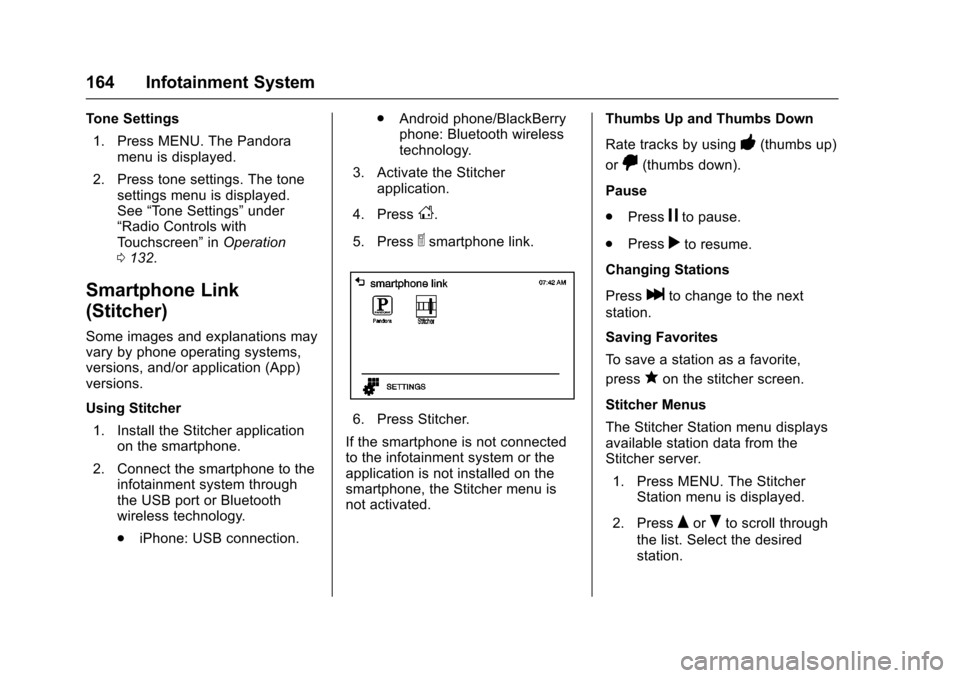
4. Press
D.
5. Press
^smartphone link.
6. Press Stitcher.
If the smartphone is not connected
to the infotainment system or the
application is not installed on the
smartphone, the Stitcher menu is
not activated. Thumbs Up and Thumbs Down
Rate tracks by using
-(thumbs up)
or
,(thumbs down).
Pause
. Press
jto pause.
. Press
rto resume.
Changing Stations
Press
lto change to the next
station.
Saving Favorites
To save a station as a favorite,
press
qon the stitcher screen.
Stitcher Menus
The Stitcher Station menu displays
available station data from the
Stitcher server. 1. Press MENU. The Stitcher Station menu is displayed.
2. Press
QorRto scroll through
the list. Select the desired
station.
Page 166 of 353
Chevrolet Sonic Owner Manual (GMNA-Localizing-U.S/Canada-9085902) -
2016 - CRC - 5/27/15
Infotainment System 165
Tone Settings1. Press MENU. The Stitcher menu is displayed.
2. Press tone settings. The tone settings menu is displayed.
See “Tone Settings” under
“Radio Controls with
Touchscreen” inOperation
0 132.Bluetooth Phone/
Devices
Pictures and Movies
(Audio System)
The infotainment system can play
the music files contained in the USB
storage device or iPod/iPhone
products.
Audio System Information
Using MP3/WMA/OGG/WAV Files
.
Music files with .mp3, .wma,
.ogg, and .wav file name
extensions can be played.
. MP3 files that can be played are:
Bit rate: 8 kbps to 320 kbps -
Sampling frequency: 48 kHz,
44.1 kHz, 32 kHz, 24 kHz, 22.05
kHz, and 16 kHz.
. Files with a bit rate above
128 kbps will result in higher
quality sound.
. ID3 Tag information for MP3
files, such as the album name
and the artist, can be played. .
To display album title, track title,
and artist information, the file
should be compatible with the
ID3 Tag V1 and V2 formats.
Using USB Storage Devices and
iPod/iPhone
. Use a USB or flash memory type
storage device. Do not connect
using a USB adaptor.
. Do not connect and reconnect
the USB device repeatedly in a
short time, as this may cause
static electricity and problems
using the device.
. Use a USB device with a metal
connecting terminal.
. Connection with i-Stick Type
USB storage devices may be
faulty due to vehicle vibration.
. Do not touch the USB
connecting terminal.
. Only USB storage devices
formatted in FAT16/32, exFAT
file system are recognized.
NTFS and other file systems are
not recognized.
Page 169 of 353
Chevrolet Sonic Owner Manual (GMNA-Localizing-U.S/Canada-9085902) -
2016 - CRC - 5/27/15
168 Infotainment System
Press and holdgorlduring
playback to rewind or fast forward.
Release the button to resume
playback at normal speed.
Playing a File Repeatedly
Press
vduring playback.
. 1: Plays the current file
repeatedly.
. ALL: Plays all files repeatedly.
. OFF: Returns to normal
playback.
Playing a File Randomly
Press
uduring playback.
. ON: Plays all files randomly.
. OFF: Returns to normal
playback.
Viewing Information on the
Currently Playing File
Press the title during playback to
display information about the current
file playing.
. The information displayed
includes the title, file name,
folder name, and artist/album
saved with the song. .
Incorrect information cannot be
modified or corrected on the
infotainment system.
. The information for songs
expressed in special symbols or
in unavailable languages may be
displayed as “
u.”
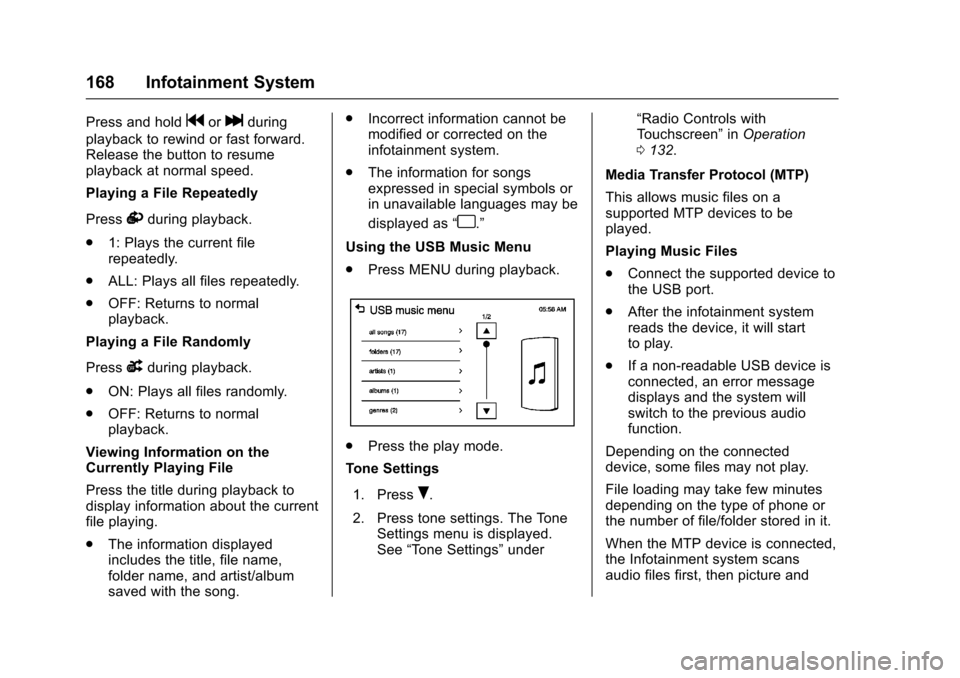
Using the USB Music Menu
. Press MENU during playback.
.Press the play mode.
Tone Settings
1. Press
R.
2. Press tone settings. The Tone Settings menu is displayed.
See “Tone Settings” under “Radio Controls with
Touchscreen”
inOperation
0 132.
Media Transfer Protocol (MTP)
This allows music files on a
supported MTP devices to be
played.
Playing Music Files
. Connect the supported device to
the USB port.
. After the infotainment system
reads the device, it will start
to play.
. If a non-readable USB device is
connected, an error message
displays and the system will
switch to the previous audio
function.
Depending on the connected
device, some files may not play.
File loading may take few minutes
depending on the type of phone or
the number of file/folder stored in it.
When the MTP device is connected,
the Infotainment system scans
audio files first, then picture and
Page 171 of 353

Chevrolet Sonic Owner Manual (GMNA-Localizing-U.S/Canada-9085902) -
2016 - CRC - 5/27/15
170 Infotainment System
.1: Plays the current file
repeatedly.
. ALL: Plays all files repeatedly.
. OFF: Returns to normal
playback.
Playing a File Randomly
Press
uduring playback.
. NO: Plays all files randomly.
. OFF: Returns to normal
playback.
Viewing Information on the
Currently Playing Song
Press the title during playback to
display information about the current
song playing.
. The information displayed
includes the title, file name,
folder name, and artist/album
saved with the song.
. Incorrect information cannot be
modified or corrected on the
infotainment system.
. The information for songs
expressed in special symbols or
in unavailable languages may be displayed as
“
u.”
Using the iPod Menu
. Press MENU during playback.
. Press the appropriate
play mode.
Tone Settings
1. Press
Ron the iPod menu.
2. Press tone settings. The tone settings menu is displayed.
See “Tone Settings” under
“Radio Controls with
Touchscreen” inOperation
0 132.
Pictures and Movies
(Picture System)
The infotainment system can view
picture files stored on a USB
storage device and devices that
support Media Transfer
Protocol (MTP). Picture System Information
Caution for Using Picture Files
.
File size:
‐JPG: Within 64 to 5,000 pixels
(Width) and 64 to 5,000 pixels
(Height).
‐ BMP, PNG, GIF: Within 64 to
1,024 pixels (Width) and 64 to
1,024 pixels (Height).
. File extensions: .jpg, .bmp, .png,
.gif. Animated .gif files are not
supported.
. Some files may not operate due
to a different recording format or
the condition of the file.
Viewing Pictures 1. Connect the USB device to the USB port.