2016 CHEVROLET SILVERADO USB
[x] Cancel search: USBPage 189 of 533
Chevrolet Silverado Owner Manual (GMNA-Localizing-U.S./Canada/Mexico-
9159338) - 2016 - crc - 10/21/15
188 Infotainment System
Infotainment
System
Introduction
Infotainment . . . . . . . . . . . . . . . . . . 189
Theft-Deterrent Feature . . . . . . 189
Overview (Base Radio) . . . . . . . 189
Overview (Base Radio withTouchscreen) . . . . . . . . . . . . . . . 193
Home Page (Base Radio) . . . . 194
Home Page (Base Radio with Touchscreen) . . . . . . . . . . . . . . . 196
Software Updates . . . . . . . . . . . . 197
Radio
AM-FM Radio (Base Radio) . . . . . . . . . . . . . . . . . . . . . . 197
AM-FM Radio (Base Radio with Touchscreen) . . . . . . . . . . . 199
Satellite Radio (Base Radio) . . . . . . . . . . . . . . . . . . . . . . 201
Satellite Radio (Base Radio with Touchscreen) . . . . . . . . . . . 201
Radio Reception . . . . . . . . . . . . . . 203
Fixed Mast Antenna . . . . . . . . . . 203
Multi-Band Antenna . . . . . . . . . . 203
Pandora Internet Radio . . . . . . . 204
Audio Players
CD Player . . . . . . . . . . . . . . . . . . . . 207
USB Port (Base Radio) . . . . . . . 209
USB Port (Base Radio with Touchscreen) . . . . . . . . . . . . . . . 212
Auxiliary Jack . . . . . . . . . . . . . . . . 213
Bluetooth Audio . . . . . . . . . . . . . . 215
Voice Recognition
Voice Recognition . . . . . . . . . . . . 216
Phone
Bluetooth (Overview) . . . . . . . . . 222
Bluetooth (Infotainment
Controls - Base Radio) . . . . . . 223
Bluetooth (Voice Recognition - Base Radio) . . . . . . . . . . . . . . . . 227
Bluetooth (Infotainment Controls - Base Radio with
Touchscreen) . . . . . . . . . . . . . . . 232
Apple CarPlay and Android Auto . . . . . . . . . . . . . . . . 236
Bluetooth Phone/Devices
Pictures and Movies (AudioSystem with
Touchscreen) . . . . . . . . . . . . . . . 237
Pictures and Movies (Picture System with
Touchscreen) . . . . . . . . . . . . . . . 241 Pictures and Movies (Movie
System with
Touchscreen) . . . . . . . . . . . . . . . 242
Trademarks and License
Agreements
Trademarks and LicenseAgreements . . . . . . . . . . . . . . . . . 244
Page 193 of 533
Chevrolet Silverado Owner Manual (GMNA-Localizing-U.S./Canada/Mexico-
9159338) - 2016 - crc - 10/21/15
192 Infotainment System
current track will start from
the beginning. Press
lto
seek the next track.
. AM, FM, or SiriusXM (If
Equipped): Press
gorl
to seek to the previous or
next strong station.
. CD (If Equipped): Press
and hold
gto quickly
reverse through a track.
Release the button to return
to playing speed. Press and
hold
lto fast forward
through a track. Release
the button to return to
playing speed.
10. RADIO .Press to change the audio
source between AM, FM,
or SiriusXM, if equipped.
11. MEDIA .Press to change the audio
source between CD, USB,
AUX, and Bluetooth Audio,
if equipped. 12.
O
.
Press to turn the audio on.
. Press and hold to turn it off.
. When on, press to mute the
system. Press again to
unmute.
. Turn to increase or
decrease the volume.
Page 194 of 533
Chevrolet Silverado Owner Manual (GMNA-Localizing-U.S./Canada/Mexico-
9159338) - 2016 - crc - 10/21/15
Infotainment System 193
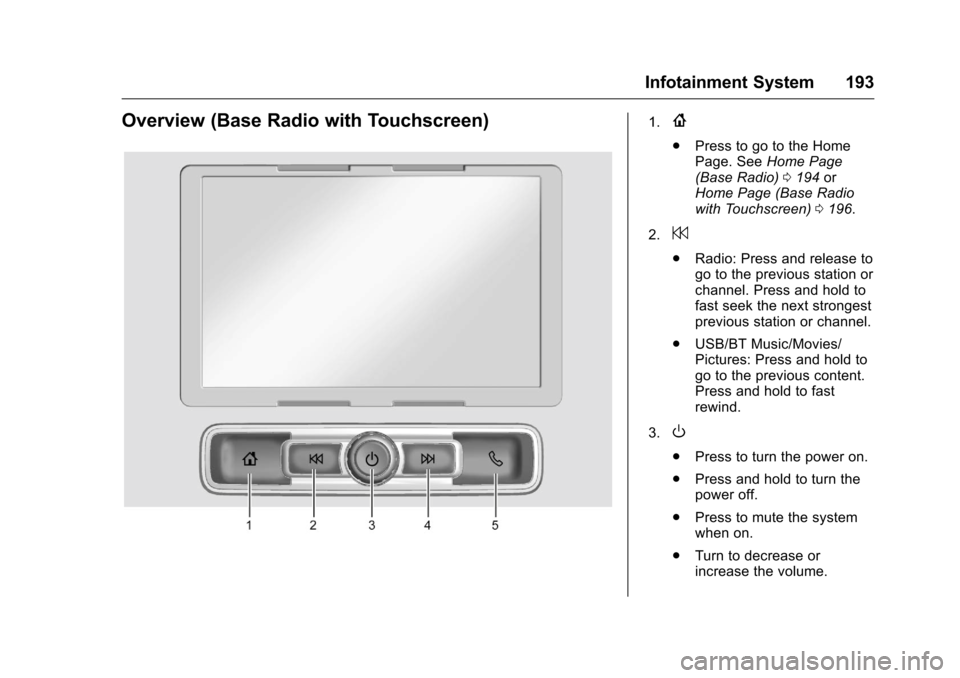
Overview (Base Radio with Touchscreen)1.{
.Press to go to the Home
Page. See Home Page
(Base Radio) 0194 or
Home Page (Base Radio
with Touchscreen) 0196.
2.
7
. Radio: Press and release to
go to the previous station or
channel. Press and hold to
fast seek the next strongest
previous station or channel.
. USB/BT Music/Movies/
Pictures: Press and hold to
go to the previous content.
Press and hold to fast
rewind.
3.
O
. Press to turn the power on.
. Press and hold to turn the
power off.
. Press to mute the system
when on.
. Turn to decrease or
increase the volume.
Page 195 of 533

Chevrolet Silverado Owner Manual (GMNA-Localizing-U.S./Canada/Mexico-
9159338) - 2016 - crc - 10/21/15
194 Infotainment System
4.6
.Radio: Press and release to
go to the next station or
channel. Press and hold to
fast seek the next strongest
station or channel.
. USB/BT Music/Movies/
Pictures: Press and hold to
go to the next content.
Press and hold to fast
forward.
5.
#
. Press and release to
access the phone screen,
answer an incoming call,
or access the device home
screen. Press and hold to
access Press to Talk.
Home Page (Base Radio)
Home Page Features
The infotainment system displays a
Home Page that makes it easy to
access all of the applications. Turn
the MENU knob to highlight feature
icons. Press the MENU knob to
access the feature’s options. Various functions are disabled when
the vehicle is moving.
AUDIO :
Select the AUDIO screen
icon to display the active source
page. The sources available are
AM, FM, SiriusXM
®(if equipped),
CD (if equipped), USB/iPod, AUX
Input, and Bluetooth Audio (if
equipped). See AM-FM Radio (Base
Radio with Touchscreen) 0199 or
AM-FM Radio (Base Radio) 0197,
Satellite Radio (Base Radio) 0201
or Satellite Radio (Base Radio with
Touchscreen) 0201, CD Player
0 207, Auxiliary Jack 0213, and
Bluetooth Audio 0215.
PHONE : Select the PHONE screen
icon to display the Phone main
page. See Bluetooth (Voice
Recognition - Base Radio) 0227 or
Bluetooth (Infotainment Controls -
Base Radio) 0223 orBluetooth
(Overview) 0222 orBluetooth
(Infotainment Controls - Base Radio
with Touchscreen) 0232.
NAV (Navigation, If Equipped) :
Select the NAV screen icon to
display the OnStar Turn-by-Turn Navigation. See
OnStar Overview
0 500 orOnStar Overview 0501,
if equipped.
SETTINGS : Select the SETTINGS
screen icon to display the Settings
main page. See “Setting Radio
Preferences” following.
Pandora (If Equipped)
Select the PANDORA icon to begin
Pandora. See Pandora Internet
Radio 0204.
Setting Radio Preferences
Select the SETTINGS screen icon
to display the Settings menu and
the following may display:
Time and Date : SeeClock 0127.
Language (Current Language) :
This will set the display language in
the radio and instrument cluster.
Select to display a list of languages.
Select
oBACK to go back to the
previous menu.
Page 196 of 533
Chevrolet Silverado Owner Manual (GMNA-Localizing-U.S./Canada/Mexico-
9159338) - 2016 - crc - 10/21/15
Infotainment System 195
Valet Mode:
Using the circular numeric keypad,
enter a four-digit code:1. Turn the MENU knob to highlight a number.
2. Press the MENU knob to select it. Do this for each one of the
four digits. Select Enter to go to
the confirmation screen.
3. Re-enter the four-digit code. Select LOCK to lock the
system.
4. Enter the four-digit code to unlock the system. Select
o
BACK to go back to the
previous menu.
Radio : See“Radio Setup” later in
this section.
Vehicle : SeeVehicle
Personalization 0165.
Display : Press the MENU knob to
turn the display on or off.
Return to Factory Settings : See
“Return to Factory Settings” later in
this section. Software Information (If
Equipped) :
Press the MENU knob
to select Save Vehicle Info to USB.
Press the MENU knob again to start
downloading the vehicle information
to the USB.
Radio Setup
Press the RADIO button and the
following may display:
Manage Favorites:
. Turn the MENU knob and press
to select a favorite.
.To delete a favorite, press
the button just below the
DELETE screen button.
. To move a favorite, press the
MOVE screen button. Turn
the MENU knob to select a
new location, then press the
DROP screen button to
select the new location.
. Select
oBACK to go back to
the previous menu.
Number of Favorites Shown :
Select Auto and the system will
automatically adjust the number of
favorite pages when favorites are added and removed, or select a
number from 5–25 to manually
adjust the number of favorites
shown.
Audible Touch Feedback (If
Equipped) :
Select Audible Touch
Feedback to turn feedback off or on.
Auto Volume (If Equipped) : This
feature adjusts the volume based on
vehicle speed. The options are Off,
Low, Medium-Low, Medium,
Medium-High, or High. Select the
desired volume.
Maximum Startup Volume : This
feature sets the maximum startup
volume. If the vehicle is started and
the volume is greater than this level,
the volume is adjusted to this level.
To set the maximum startup volume,
Turn the MENU knob to increase or
decrease startup volume.
Rear Camera (If Equipped)
From the Rear Camera screen
button, the following may display:
Park Assist Symbols (If
Equipped) : This feature will display
symbols where objects are detected
Page 197 of 533
Chevrolet Silverado Owner Manual (GMNA-Localizing-U.S./Canada/Mexico-
9159338) - 2016 - crc - 10/21/15
196 Infotainment System
by the Rear Parking Assist system.
Select Park Assist Symbols, then
select Off or On.
SeeAssistance Systems for Parking
or Backing 0314.
Return to Factory Settings
Select Return to Factory Settings
and the following may display:
Restore Vehicle Settings : This
option will restore factory vehicle
personalization settings. Select
Restore Vehicle Settings. A screen
displays stating all vehicle
customization settings will be
restored to the factory settings.
Select Cancel or Confirm.
Clear All Private Data (If
Equipped) : This option clears all
private information from the vehicle.
Select Clear All Private Data. Select
Cancel or Confirm.
Restore Radio Settings : This
option will restore factory radio
settings. Select Restore Radio
Settings. A screen displays stating
all personalized radio settings will
be restored back to the factory
settings. Select Cancel or Confirm.English and Metric Unit
Conversion
To change the display units between
English and metric units, see Driver
Information Center (DIC) (Base
Level) 0150 orDriver Information
Center (DIC) (Uplevel) 0152 or
Instrument Cluster 0132.
Home Page (Base Radio
with Touchscreen)
Touchscreen Buttons
Touchscreen buttons show on the
screen when available. When a
function is unavailable, the button
may gray out. When a function is
selected, the button may highlight.
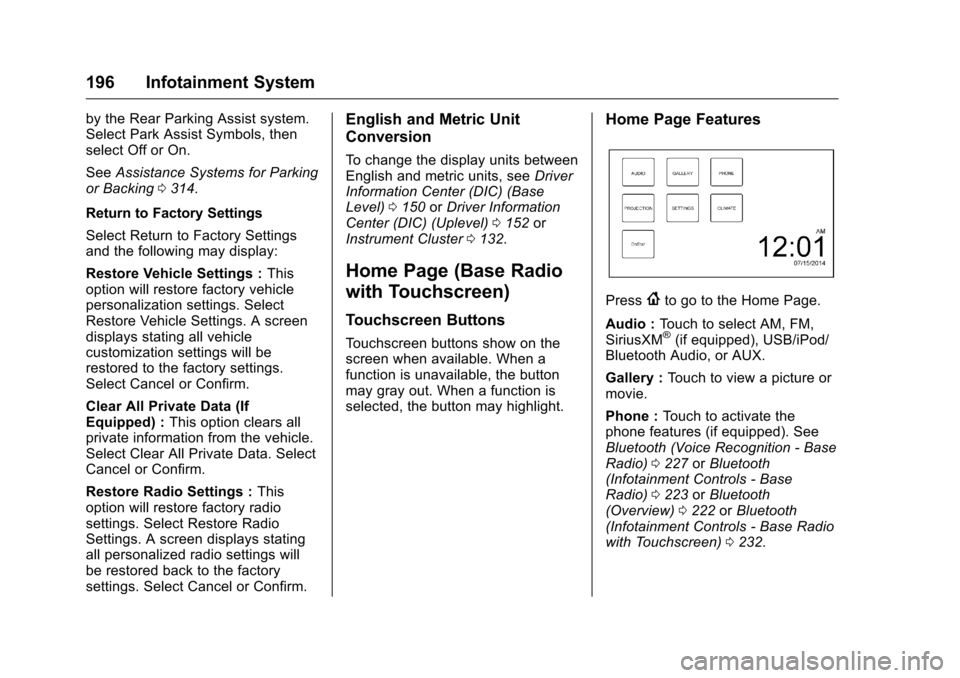
Home Page Features
Press{to go to the Home Page.
Audio : Touch to select AM, FM,
SiriusXM
®(if equipped), USB/iPod/
Bluetooth Audio, or AUX.
Gallery : Touch to view a picture or
movie.
Phone : Touch to activate the
phone features (if equipped). See
Bluetooth (Voice Recognition - Base
Radio) 0227 orBluetooth
(Infotainment Controls - Base
Radio) 0223 orBluetooth
(Overview) 0222 orBluetooth
(Infotainment Controls - Base Radio
with Touchscreen) 0232.
Page 198 of 533
Chevrolet Silverado Owner Manual (GMNA-Localizing-U.S./Canada/Mexico-
9159338) - 2016 - crc - 10/21/15
Infotainment System 197
Projection :Touch to access
supported devices when connected.
See USB Port (Base Radio) 0209
or USB Port (Base Radio with
Touchscreen) 0212.
Settings : Touch to access the
Personalization menu. See Vehicle
Personalization 0165.
Climate : Touch to access the
Climate menu. See Climate Control
Systems (with Heater Only) 0250 or
Climate Control Systems (with Air
Conditioning) 0252 orDual
Automatic Climate Control
System 0253.
OnStar : If equipped, touch to
access the OnStar menu. See
OnStar Overview 0500 orOnStar
Overview 0501.Software Updates
See the website for more
information.
Website Information
In the U.S., see www.chevrolet.com
In Canada, see
www.chevrolet.gm.ca
In Mexico, see
www.chevrolet.com.mx
Radio
AM-FM Radio (Base
Radio)
Playing the Radio
While on the audio main page,
press the RADIO button repeatedly
to cycle through the available
sources AM, FM, and SiriusXM
®(if
equipped) or press the MEDIA
button repeatedly to cycle through
the available sources Bluetooth
®
Audio (if equipped), CD (if
equipped), USB, and AUX.
The steering wheel controls can
also be used to adjust the volume.
See Steering Wheel Controls 0125.
AM, FM, or SiriusXM (If Equipped)
To select AM, FM, or SiriusXM (if
equipped), press the RADIO button
to toggle to the desired broadcast
source.
Press the MENU knob and the
following radio settings may display:
Page 205 of 533
Chevrolet Silverado Owner Manual (GMNA-Localizing-U.S./Canada/Mexico-
9159338) - 2016 - crc - 10/21/15
204 Infotainment System
Pandora Internet Radio
If equipped, Pandora®is a free
Internet radio service that streams
personalized radio stations based
on artists, tracks, genres, and
comedians. Create stations using
the Pandora website or Smartphone
application, then use
-or,to
personalize stations. To set up an
account, or for more information, go
to www.pandora.com. Pandora may
not be available in Canada or
Mexico.
A phone or tablet with Internet
connection and the Pandora
application installed is required.
Personal cell phone data plans are
used. Make sure the latest version
is installed on the device.
Launching Pandora
Connect the iPhone to the USB
port, or connect Android®or
BlackBerry®through Bluetooth. See
Bluetooth (Voice Recognition - Base
Radio) 0227 orBluetooth
(Infotainment Controls - Base
Radio) 0223 orBluetooth
(Overview) 0222 orBluetooth
(Infotainment Controls - Base Radio
with Touchscreen) 0232. For first
time use, set up the stations before
connecting to the vehicle. The
Pandora icon will be available on
the Home Page.
When Pandora is chosen, the
Pandora logo will populate on the
screen and the system will display
“Acquiring Pandora Radio Station.”
Launch times can be significant.
Using the iPhone
1. Plug the device into the USB port. The phone screen must
be unlocked.
2. Launch Pandora from the Home Page by selecting the
Pandora icon. If nothing happens when the
available Pandora screen button is
pressed, download the latest
Pandora application and retry.
The login screen may display on the
device.
Using an Android or BlackBerry
Phone
The BlackBerry phone must be
unlocked to launch Pandora service.
1. Pair the phone using Bluetooth.
2. Launch Pandora by selecting Pandora on the Home Page.
If nothing happens when the
available Pandora screen button is
selected, download the latest
Pandora application and retry.
The login screen may display on the
device.