2016 CHEVROLET MALIBU change wheel
[x] Cancel search: change wheelPage 143 of 420
Chevrolet Malibu Owner Manual (GMNA-Localizing-U.S./Canada/Mexico-
9087641) - 2016 - crc - 9/3/15
142 Instruments and Controls
SERVICE AUTOMATIC
COLLISION PREP
If this message displays, take the
vehicle to your dealer to repair the
system.
SERVICE DRIVER ASSIST
SYSTEM
If this message displays, take the
vehicle to your dealer to repair the
system.
Adaptive Cruise Control (ACC),
Forward Collision Alert (FCA),
Active Emergency Braking System,
Assistance Systems for Parking or
Backing, and/or Lane Keep Assist
(LKA) system may not work. Do not
use these systems until the vehicle
has been repaired.
SERVICE FRONT CAMERA
If this message remains on after
continued driving, the vehicle needs
service. Take the vehicle to your
dealer. Do not use the Front
Pedestrian Braking (FPB), Forward
Collision Alert (FCA), FrontAutomatic Braking (FAB), Lane
Keep Assist (LKA), and Lane
Departure Warning (LDW) features.
SERVICE PARK ASSIST
This message displays if there is a
problem with the Parking Assist
system. Do not use this system to
help you park. See your dealer for
service.
SERVICE SIDE DETECTION
SYSTEM
If this message remains on after
continued driving, the vehicle needs
service. Side Blind Zone Alert
(SBZA), Lane Change Alert (LCA),
and Rear Cross Traffic Alert (RCTA)
features will not work. Take the
vehicle to your dealer.
SIDE DETECTION SYSTEM
UNAVAILABLE
This message indicates that Side
Blind Zone Alert (SBZA), Lane
Change Alert (LCA), and Rear
Cross Traffic Alert (RCTA) are
disabled either because the sensor
is blocked and cannot detect
vehicles in the blind zone, or thevehicle is passing through an open
area, such as the desert, where
there is insufficient data for
operation. This message may also
activate during heavy rain or due to
road spray. The vehicle does not
need service. For cleaning, see
"Washing the Vehicle" under
Exterior Care
0358
ii.
TAKE STEERING
If LKA does not detect active driver
steering, an alert and chime may be
provided. Move the steering wheel
to dismiss. See Lane Keep Assist
(LKA) 0265
ii.
Ride Control System
Messages
SERVICE TRACTION
CONTROL
This message displays when there
is a problem with the Traction
Control System (TCS). When this
message is displayed, the system
will not limit wheel spin. Adjust your
driving accordingly. See your dealer
for service.
Page 148 of 420
Chevrolet Malibu Owner Manual (GMNA-Localizing-U.S./Canada/Mexico-
9087641) - 2016 - crc - 9/3/15
Instruments and Controls 147
Auto Rear Defog
This allows the rear window
defogger to turn on automatically
when the interior temperature is cold
and the outside temperature is
about 7 °C (44 °F) and below. See
“Rear Window Defogger”inDual
Automatic Climate Control System
0 209
ii.
Select Off or On.
Comfort and Convenience
Select and the following may
display:
. Auto Memory Recall
. Easy Exit Options
. Chime Volume
. Reverse Tilt Mirror
. Extended Hill Start Assist
Auto Memory Recall
This feature automatically recalls
the current driver ’s previously stored
1 or 2 positions when the ignition is
changed from OFF to ON/RUN/
START or ACCESSORY. See
Memory Seats 058
ii. Select Off or On.
Easy Exit Options
This feature automatically recalls
the current driver
’s previously stored
Exit button position when exiting the
vehicle. See Memory Seats 058
ii.
Select Off or On.
Chime Volume
Select to set the chime volume
level.
Reverse Tilt Mirror
When on, both the driver and
passenger, driver, or passenger
mirrors will tilt downward when the
vehicle is shifted to R (Reverse) to
improve visibility of the ground near
the rear wheels. They will return to
their previous driving position when
the vehicle is shifted out of
R (Reverse) or the ignition is turned
to OFF.
Select Off, On - Driver and
Passenger, On - Driver, or On -
Passenger. Extended Hill Start Assist
This allows the duration of the Hill
Start Assist to be changed. See
“Extended Hill Start Assist (EHSA)”
in
Hill Start Assist (HSA) 0240
ii.
Select Extended Hold or
Standard Hold.
Languages
Select, then select from the
available language(s).
Lighting
Select the Lighting menu and the
following may be displayed:
. Exit Lighting
Exit Lighting
Select to set how long the exterior
lamps stay on when leaving the
vehicle and it is dark outside. See
Exit Lighting 0166
ii.
Select the desired time.
Power Door Locks
Select and the following may
display:
. Unlocked Door Anti Lock Out
Page 151 of 420
Chevrolet Malibu Owner Manual (GMNA-Localizing-U.S./Canada/Mexico-
9087641) - 2016 - crc - 9/3/15
150 Instruments and Controls
.Voice
. USB Auto Launch
. Turn Display Off
. Rear Camera
. Return to Factory Settings
. Software Information
Time and Date
Select Time and Date to adjust the
clock. See Clock0106ii.
Language
Select, then select from the
available language(s).
Valet Mode (If Equipped)
This will lock the infotainment
system and steering wheel controls.
It may also limit access to vehicle
storage locations (if equipped).
To enable valet mode:
1. Enter a four-digit code on the keypad.
2. Touch Enter to go to the confirmation screen.
3. Re-enter the four-digit code. Touch LOCK or UNLOCK to lock or
unlock the system. Touch Back to
go back to the previous menu.
Teen Driver (If Equipped)
Select and the following may
display:
.
View Report Card
. Manage Settings
. Change PIN
. Key Registration
. Clear All Teen Keys/PIN
View Report Card
This allows the driver ’s driving
habits to be viewed. See Teen
Driver 0195
ii.
Manage Settings
Select and the following may
display:
. Audio Volume Limit
. Teen Driver Speed Warning
Audio Volume Limit
This allows a maximum radio
volume to be set. Select Off or On.
Teen Driver Speed Warning
This allows a warning to be set
when a certain speed is exceeded.
Select Off or On. If On is selected,
select a speed between 64 km/h
(40 mph) and 120 km/h (75 mph).
Change PIN
This allows the Personal
Identification Number (PIN) to be
changed. See
Teen Driver0195
ii.
Key Registration
This allows the key to be registered.
See Teen Driver 0195
ii.
Clear All Teen Keys/PIN
This allows all Teen Driver keys and
PINs to be cleared.
Select Continue or Cancel.
Radio
Select and the following may
display:
. Manage Favorites
. Number of Favorites Shown
Page 154 of 420
Chevrolet Malibu Owner Manual (GMNA-Localizing-U.S./Canada/Mexico-
9087641) - 2016 - crc - 9/3/15
Instruments and Controls 153
Comfort and Convenience
Select and the following may
display:
.Auto Memory Recall
. Easy Exit Options
. Chime Volume
. Reverse Tilt Mirror
. Extended Hill Start Assist
Auto Memory Recall
This feature automatically recalls
the current driver ’s previously stored
1 or 2 button positions when
entering the vehicle. See Memory
Seats 058
ii.
Select Off or On.
Easy Exit Options
This feature automatically recalls
the current driver ’s previously stored
exit button position when exiting the
vehicle. See Memory Seats 058
ii.
Select Off or On.
Chime Volume
Select to set the chime volume
level. Select Normal or High.
Reverse Tilt Mirror
When on, both the driver and
passenger outside mirrors will tilt
downward when the vehicle is
shifted to R (Reverse) to improve
visibility of the ground near the rear
wheels. They will return to their
previous driving position when the
vehicle is shifted out of R (Reverse)
or the engine is turned off. See
Reverse Tilt Mirrors
047
ii.
Select Off, On - Driver and
Passenger, On - Driver, or On -
Passenger.
Extended Hill Start Assist
This allows the duration of the Hill
Start Assist to be changed. See
“Extended Hill Start Assist (EHSA)”
in Hill Start Assist (HSA) 0240
ii.
Select Extended Hold or
Standard Hold.
Lighting
Select and the following may
display:
. Vehicle Locator Lights .
Exit Lighting
Vehicle Locator Lights
This feature will flash the exterior
lamps and allows the headlamps,
parking lamps, taillamps, and most
of the interior lamps to turn on
briefly when
Kon the Remote
Keyless Entry (RKE) transmitter is
pressed to locate the vehicle.
Select Off or On.
Exit Lighting
This allows the selection of how
long the exterior lamps stay on
when leaving the vehicle when it is
dark outside.
Select Off, 30 Seconds, 60
Seconds, or 120 Seconds.
Power Door Locks
Select and the following may
display:
. Unlocked Door Anti Lock Out
. Auto Door Unlock
. Delayed Door Lock
Page 166 of 420
Chevrolet Malibu Owner Manual (GMNA-Localizing-U.S./Canada/Mexico-
9087641) - 2016 - crc - 9/3/15
Lighting 165
If after signaling a turn or lane
change, the arrow flashes rapidly or
does not come on, a signal bulb
may be burned out.
Replace any burned out bulbs. If a
bulb is not burned out, check the
fuse. SeeFuses0311
ii.
Interior Lighting
Instrument Panel
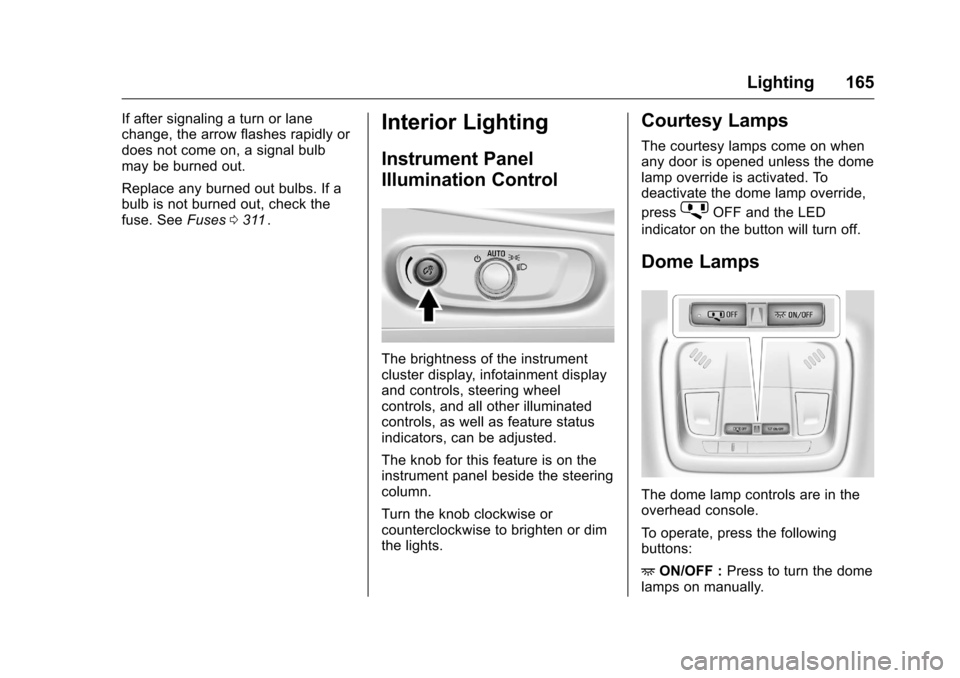
Illumination Control
The brightness of the instrument
cluster display, infotainment display
and controls, steering wheel
controls, and all other illuminated
controls, as well as feature status
indicators, can be adjusted.
The knob for this feature is on the
instrument panel beside the steering
column.
Turn the knob clockwise or
counterclockwise to brighten or dim
the lights.
Courtesy Lamps
The courtesy lamps come on when
any door is opened unless the dome
lamp override is activated. To
deactivate the dome lamp override,
press
jOFF and the LED
indicator on the button will turn off.
Dome Lamps
The dome lamp controls are in the
overhead console.
To operate, press the following
buttons:
+ ON/OFF : Press to turn the dome
lamps on manually.
Page 185 of 420
Chevrolet Malibu Owner Manual (GMNA-Localizing-U.S./Canada/Mexico-
9087641) - 2016 - crc - 9/3/15
184 Infotainment System
c:Press to silence the vehicle
speakers only. Press again to turn
the sound on. Press to reject an
incoming call or end a current call.
Bluetooth (Infotainment
Controls Radio without
Touchscreen)
To use infotainment controls to
access the menu system, see
Overview 0170
ii.
Pairing
A Bluetooth-enabled cell phone
must be paired to the Bluetooth
system and then connected to the
vehicle before it can be used. See
your cell phone manufacturer's user
guide for Bluetooth functions before
pairing the cell phone. If a Bluetooth
phone is not connected, calls will be
made using OnStar Hands-Free
Calling, if available. See OnStar
Overview 0398
ii. Pairing Information
.
A Bluetooth phone with MP3
capability cannot be paired to
the vehicle as a phone and an
MP3 player at the same time.
. Up to five cell phones can be
paired to the Bluetooth system.
. The pairing process is disabled
when the vehicle is moving.
. Pairing only needs to be
completed once, unless the
pairing information on the cell
phone changes or the cell phone
is deleted from the system.
. Only one paired cell phone can
be connected to the Bluetooth
system at a time.
. If multiple paired cell phones are
within range of the system, the
system connects to the first
available paired cell phone in the
order that they were first paired.
When the Bluetooth device and
infotainment system are
successfully paired, the phone book
is downloaded automatically. This is
dependent on the type of phone
paired. If the automatic download does not occur, proceed with the
phone book download on the
phone.
Pairing a Phone
–SSP and No
Paired Device
When there is no paired device on
the infotainment system and Simple
Secure Pairing (SSP) is supported:
1. Press PHONE or press
gon
the steering wheel without
OnStar.
2. Press Pair to search for Bluetooth Devices.
3. When the Bluetooth device and infotainment system are
successfully paired, the phone
screen is displayed on the
infotainment system.
Pairing a Phone –SSP and Paired
Device
When a paired device is on the
infotainment system and SSP is
supported:
1. Press PHONE or press
gon
the steering wheel without
OnStar.
Page 189 of 420
Chevrolet Malibu Owner Manual (GMNA-Localizing-U.S./Canada/Mexico-
9087641) - 2016 - crc - 9/3/15
188 Infotainment System
.Sounds may be cut off during
the Bluetooth music playback.
. The infotainment system outputs
the audio from the cell phone or
Bluetooth device as it is
transmitted.
Bluetooth (Infotainment
Controls Radio with
Touchscreen)
To use infotainment controls to
access the menu system, see
Overview 0170
ii.
Pairing
A Bluetooth-enabled cell phone
must be paired to the Bluetooth
system and then connected to the
vehicle before it can be used. See
your cell phone manufacturer's user
guide for Bluetooth functions before
pairing the cell phone. If a Bluetooth
phone is not connected, calls will be
made using OnStar Hands-Free
Calling, if available. See OnStar
Overview 0398
ii. Pairing Information
.
A Bluetooth phone with MP3
capability cannot be paired to
the vehicle as a phone and an
MP3 player at the same time.
. Up to 10 cell phones can be
paired to the Bluetooth system.
. The pairing process is disabled
when the vehicle is moving.
. Pairing only needs to be
completed once, unless the
pairing information on the cell
phone changes or the cell phone
is deleted from the system.
. Only one paired cell phone can
be connected to the Bluetooth
system at a time.
. If multiple paired cell phones are
within range of the system, the
system connects to the first
available paired cell phone in the
order that they were first paired.
When the Bluetooth device and
infotainment system are
successfully paired, the phone book
is downloaded automatically. This is
dependent on the type of phone
paired. If the automatic download does not occur, proceed with the
phone book download on the
phone.
Pairing a Phone
–SSP and No
Paired Device
When there is no paired device on
the infotainment system and Simple
Secure Pairing (SSP) is supported:
1. Press
{.
2. Touch PHONE, press
5on the
faceplate, or press
gon the
steering wheel without OnStar.
3. Touch Search Device.
4. Touch the desired device to pair on the searched list
screen.
5. Touch Yes on the pop-up screen of the Bluetooth device
and infotainment system.
6. When the Bluetooth device and infotainment system are
successfully paired, the phone
screen is displayed on the
infotainment system.
Page 220 of 420
Chevrolet Malibu Owner Manual (GMNA-Localizing-U.S./Canada/Mexico-
9087641) - 2016 - crc - 9/3/15
Driving and Operating 219
3. Turn the steering wheel to gostraight down the roadway.
Loss of Control
Skidding
There are three types of skids that
correspond to the vehicle's three
control systems:
.Braking Skid —wheels are not
rolling.
. Steering or Cornering Skid —
too much speed or steering in a
curve causes tires to slip and
lose cornering force.
. Acceleration Skid —too much
throttle causes the driving
wheels to spin.
Defensive drivers avoid most skids
by taking reasonable care suited to
existing conditions, and by not
overdriving those conditions. But
skids are always possible.
If the vehicle starts to slide, follow
these suggestions:
. Ease your foot off the
accelerator pedal and steer the
way you want the vehicle to go. The vehicle may straighten out.
Be ready for a second skid if it
occurs.
. Slow down and adjust your
driving according to weather
conditions. Stopping distance
can be longer and vehicle
control can be affected when
traction is reduced by water,
snow, ice, gravel, or other
material on the road. Learn to
recognize warning clues —such
as enough water, ice, or packed
snow on the road to make a
mirrored surface —and slow
down when you have any doubt.
. Try to avoid sudden steering,
acceleration, or braking,
including reducing vehicle speed
by shifting to a lower gear. Any
sudden changes could cause
the tires to slide.
Remember: Antilock brakes help
avoid only the braking skid.
Driving on Wet Roads
Rain and wet roads can reduce
vehicle traction and affect your
ability to stop and accelerate. Always drive slower in these types
of driving conditions and avoid
driving through large puddles and
deep-standing or flowing water.
{Warning
Wet brakes can cause crashes.
They might not work as well in a
quick stop and could cause
pulling to one side. You could
lose control of the vehicle.
After driving through a large
puddle of water or a car/vehicle
wash, lightly apply the brake
pedal until the brakes work
normally.
Flowing or rushing water creates
strong forces. Driving through
flowing water could cause the
vehicle to be carried away. If this
happens, you and other vehicle
occupants could drown. Do not
ignore police warnings and be
very cautious about trying to drive
through flowing water.