2016 CHEVROLET MALIBU bluetooth
[x] Cancel search: bluetoothPage 156 of 420
Chevrolet Malibu Owner Manual (GMNA-Localizing-U.S./Canada/Mexico-
9087641) - 2016 - crc - 9/3/15
Instruments and Controls 155
Passive Door Lock
This allows passive locking to be
turned on or off and selects
feedback. SeeRemote Keyless
Entry (RKE) System Operation
0 31
ii.
Select Off, On, or On With Horn
Chirp.
Remote Left in Vehicle Alert
This feature sounds an alert when
the RKE transmitter is left in the
vehicle.
Select Off or On.
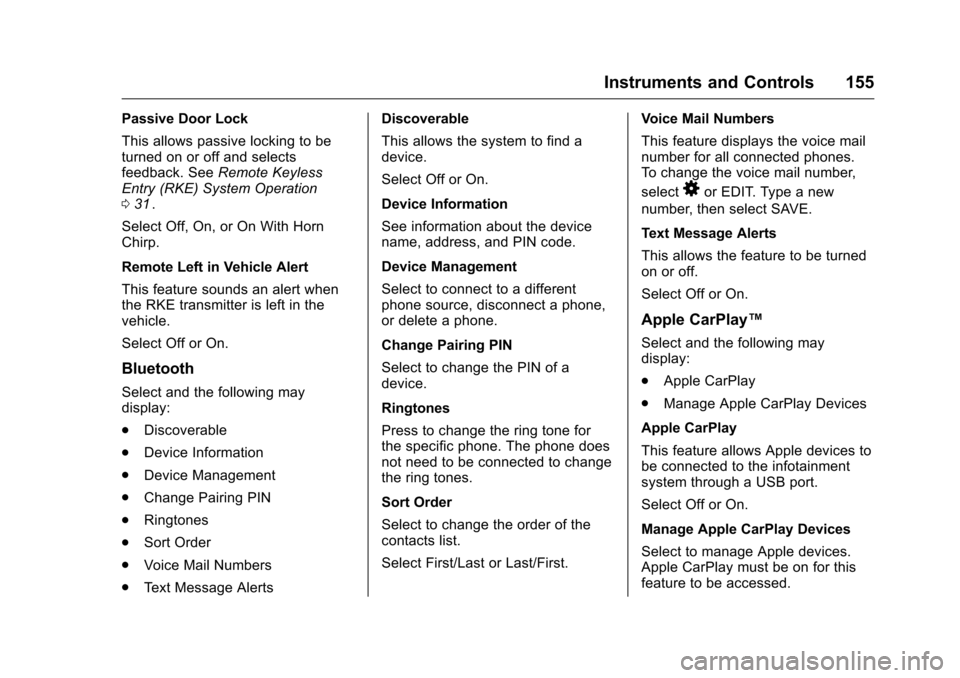
Bluetooth
Select and the following may
display:
. Discoverable
. Device Information
. Device Management
. Change Pairing PIN
. Ringtones
. Sort Order
. Voice Mail Numbers
. Text Message Alerts Discoverable
This allows the system to find a
device.
Select Off or On.
Device Information
See information about the device
name, address, and PIN code.
Device Management
Select to connect to a different
phone source, disconnect a phone,
or delete a phone.
Change Pairing PIN
Select to change the PIN of a
device.
Ringtones
Press to change the ring tone for
the specific phone. The phone does
not need to be connected to change
the ring tones.
Sort Order
Select to change the order of the
contacts list.
Select First/Last or Last/First.
Voice Mail Numbers
This feature displays the voice mail
number for all connected phones.
To change the voice mail number,
select
8or EDIT. Type a new
number, then select SAVE.
Text Message Alerts
This allows the feature to be turned
on or off.
Select Off or On.
Apple CarPlay™
Select and the following may
display:
. Apple CarPlay
. Manage Apple CarPlay Devices
Apple CarPlay
This feature allows Apple devices to
be connected to the infotainment
system through a USB port.
Select Off or On.
Manage Apple CarPlay Devices
Select to manage Apple devices.
Apple CarPlay must be on for this
feature to be accessed.
Page 169 of 420
Chevrolet Malibu Owner Manual (GMNA-Localizing-U.S./Canada/Mexico-
9087641) - 2016 - crc - 9/3/15
168 Infotainment System
Infotainment
System
Introduction
Infotainment . . . . . . . . . . . . . . . . . . 168
Theft-Deterrent Feature . . . . . . 169
Overview . . . . . . . . . . . . . . . . . . . . . 170
Home Page (Radio withTouchscreen) . . . . . . . . . . . . . . . 172
Operation . . . . . . . . . . . . . . . . . . . . . 173
Radio
AM-FM Radio . . . . . . . . . . . . . . . . 175
Satellite Radio . . . . . . . . . . . . . . . . 178
Radio Reception . . . . . . . . . . . . . . 179
Backglass Antenna . . . . . . . . . . . 180
Multi-Band Antenna . . . . . . . . . . 180
Audio Players
USB Port . . . . . . . . . . . . . . . . . . . . . 181
Phone
Bluetooth (Overview) . . . . . . . . . 182
Bluetooth (Infotainment Controls Radio without
Touchscreen) . . . . . . . . . . . . . . . 184
Bluetooth (Infotainment Controls Radio with
Touchscreen) . . . . . . . . . . . . . . . 188 Apple CarPlay and
Android Auto . . . . . . . . . . . . . . . . 192
Hands-Free Phone . . . . . . . . . . . 192
Settings
Teen Driver . . . . . . . . . . . . . . . . . . . 195
Bluetooth Phone/Devices
Pictures and Movies (Audio System with
Touchscreen) . . . . . . . . . . . . . . . 197
Pictures and Movies (Picture System with
Touchscreen) . . . . . . . . . . . . . . . 201
Pictures and Movies (Movie System with
Touchscreen) . . . . . . . . . . . . . . . 202
Trademarks and License
Agreements
Trademarks and LicenseAgreements . . . . . . . . . . . . . . . . . 204
Introduction
Infotainment
Base radio information is included in
this manual. See the infotainment
manual for information on other
available infotainment systems.
Read the following pages to
become familiar with these features.
{Warning
Taking your eyes off the road for
too long or too often while using
any infotainment feature can
cause a crash. You or others
could be injured or killed. Do not
give extended attention to
infotainment tasks while driving.
Limit your glances at the vehicle
displays and focus your attention
on driving. Use voice commands
whenever possible.
The infotainment system has built-in
features intended to help avoid
distraction by disabling some
functions when driving. These
Page 170 of 420
Chevrolet Malibu Owner Manual (GMNA-Localizing-U.S./Canada/Mexico-
9087641) - 2016 - crc - 9/3/15
Infotainment System 169
functions may gray out when they
are unavailable. Many infotainment
features are also available through
the instrument cluster and steering
wheel controls.
Before driving:
.Become familiar with the
operation, faceplate buttons, and
screen buttons.
. Set up the audio by presetting
favorite stations, setting the
tone, and adjusting the
speakers.
. Set up phone numbers in
advance so they can be called
easily by pressing a single
button or by using a single voice
command if equipped with
Bluetooth phone capability.
See Defensive Driving 0217
ii.
To play the infotainment system with
the ignition off, see Retained
Accessory Power (RAP) 0231
ii.
Theft-Deterrent Feature
The infotainment system has an
electronic security system installed
to prevent theft.
The infotainment system only works
in the vehicle in which it was first
installed, and cannot be used in
another vehicle.
Page 171 of 420
Chevrolet Malibu Owner Manual (GMNA-Localizing-U.S./Canada/Mexico-
9087641) - 2016 - crc - 9/3/15
170 Infotainment System
Overview
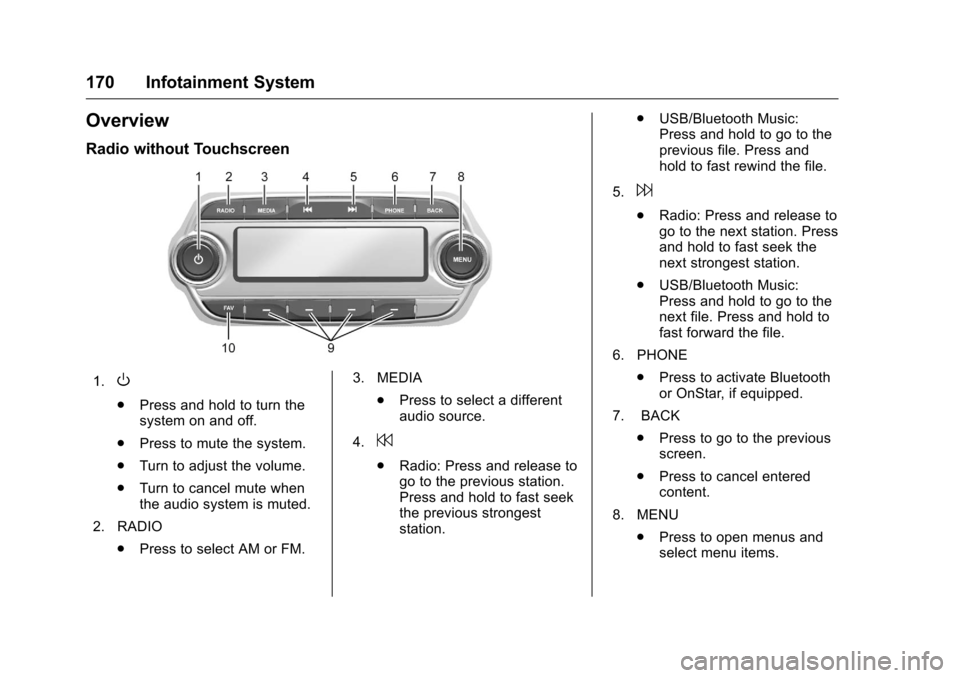
Radio without Touchscreen
1.O
.Press and hold to turn the
system on and off.
. Press to mute the system.
. Turn to adjust the volume.
. Turn to cancel mute when
the audio system is muted.
2. RADIO .Press to select AM or FM. 3. MEDIA
.Press to select a different
audio source.
4.
7
. Radio: Press and release to
go to the previous station.
Press and hold to fast seek
the previous strongest
station. .
USB/Bluetooth Music:
Press and hold to go to the
previous file. Press and
hold to fast rewind the file.
5.
6
. Radio: Press and release to
go to the next station. Press
and hold to fast seek the
next strongest station.
. USB/Bluetooth Music:
Press and hold to go to the
next file. Press and hold to
fast forward the file.
6. PHONE .Press to activate Bluetooth
or OnStar, if equipped.
7. BACK .Press to go to the previous
screen.
. Press to cancel entered
content.
8. MENU .Press to open menus and
select menu items.
Page 173 of 420
Chevrolet Malibu Owner Manual (GMNA-Localizing-U.S./Canada/Mexico-
9087641) - 2016 - crc - 9/3/15
172 Infotainment System
1.{
.Press to go to the Home
Page. See Home Page
(Radio with Touchscreen)
0 172
ii.
2.
g
. Radio: Press and release to
go to the previous station or
channel. Press and hold to
fast seek the previous
strongest station or
channel.
. USB/Bluetooth Music/
Movies/Pictures: Press and
release to go to the
previous track. Press and
hold to fast rewind.
3.
O
. Press to turn the power on.
. Press and hold to turn the
power off.
. Press to mute the system
when on.
. Turn to decrease or
increase the volume. 4.
d
.
Radio: Press and release to
go to the next station or
channel. Press and hold to
fast seek the next strongest
station or channel.
. USB/Bluetooth Music/
Movies/Pictures: Press and
release to go to the next
track. Press and hold to fast
forward.
5.
5
. Press and release to
access the phone screen,
answer an incoming call,
or access the device home
screen.
Home Page (Radio with
Touchscreen)
Touchscreen Buttons
Touchscreen buttons show on the
screen when available. When a
function is unavailable, the button
may gray out. When a function is
selected, the button may highlight.
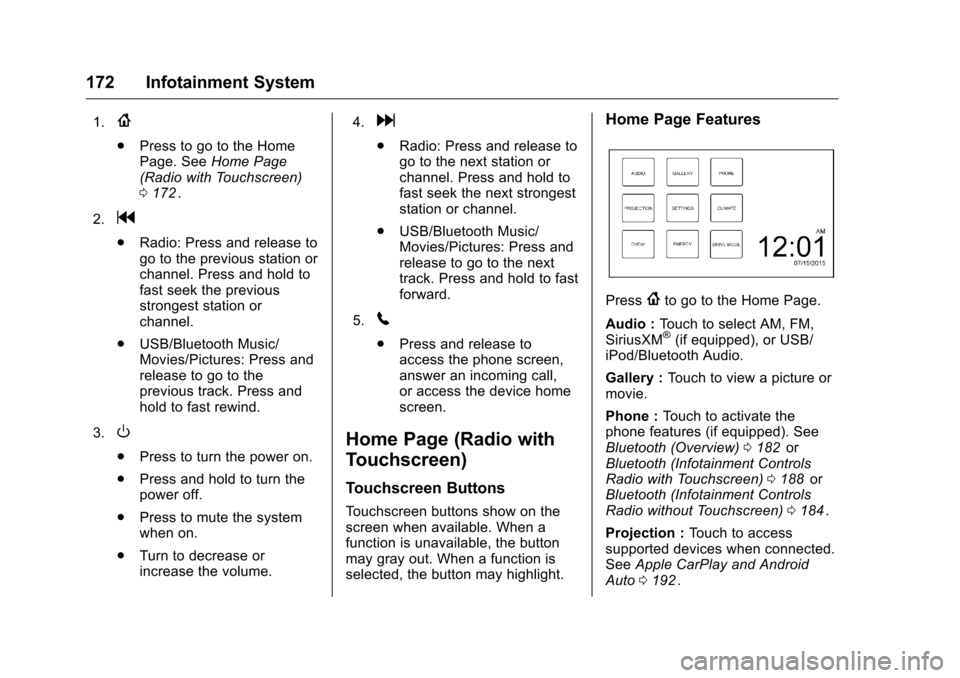
Home Page Features
Press{to go to the Home Page.
Audio : Touch to select AM, FM,
SiriusXM
®(if equipped), or USB/
iPod/Bluetooth Audio.
Gallery : Touch to view a picture or
movie.
Phone : Touch to activate the
phone features (if equipped). See
Bluetooth (Overview) 0182
iior
Bluetooth (Infotainment Controls
Radio with Touchscreen) 0188
iior
Bluetooth (Infotainment Controls
Radio without Touchscreen) 0184
ii.
Projection : Touch to access
supported devices when connected.
See Apple CarPlay and Android
Auto 0192
ii.
Page 183 of 420
Chevrolet Malibu Owner Manual (GMNA-Localizing-U.S./Canada/Mexico-
9087641) - 2016 - crc - 9/3/15
182 Infotainment System
4. Touch the desired Movie.
Viewing Pictures
Pictures are not available while
driving.
If the USB storage device is already
connected:
1. Press
{.
2. Touch GALLERY.
3. Touch
\.
Phone
Bluetooth (Overview)
If equipped with Bluetooth®
capability, the system can interact
with many Bluetooth phones, PDAs,
or other devices to:
. Place and receive hands-free
calls.
. Transmit hands-free data.
. Play audio streaming files.
. Placing outgoing calls by voice
recognition.
The device must be paired first. See
“Pairing” under“Bluetooth
(Infotainment Controls)” inBluetooth
(Overview) 0182
iior Bluetooth
(Infotainment Controls Radio with
Touchscreen) 0188
iior Bluetooth
(Infotainment Controls Radio without
Touchscreen) 0184
ii.
To minimize driver distraction,
before driving, and with the vehicle
parked: .
Become familiar with the
features of the cell phone.
Organize the phone book and
contact lists clearly and delete
duplicate or rarely used entries.
If possible, program speed dial
or other shortcuts.
. Review the controls and
operation of the infotainment
system.
. Pair cell phone(s) to the vehicle.
The system may not work with
all cell phones. See “Pairing”
under “Bluetooth (Infotainment
Controls)” inBluetooth
(Overview) 0182
iior Bluetooth
(Infotainment Controls Radio
with Touchscreen) 0188
iior
Bluetooth (Infotainment Controls
Radio without Touchscreen)
0 184
ii.
Page 184 of 420
Chevrolet Malibu Owner Manual (GMNA-Localizing-U.S./Canada/Mexico-
9087641) - 2016 - crc - 9/3/15
Infotainment System 183
.See “Deleting a Bluetooth
Device” under“Bluetooth
(Infotainment Controls)” in
Bluetooth (Overview) 0182
iior
Bluetooth (Infotainment Controls
Radio with Touchscreen) 0188
iior Bluetooth (Infotainment
Controls Radio without
Touchscreen) 0184
ii.
{Warning
When using a cell phone, it can
be distracting to look too long or
too often at the screen of the
phone or the infotainment system.
Taking your eyes off the road too
long or too often could cause a
crash resulting in injury or death.
Focus your attention on driving.
Vehicles with a Bluetooth system
can use a Bluetooth-capable cell
phone with a Hands-Free Profile to
make and receive phone calls. The
infotainment system is used to
control the system. The system can
be used while in ACC/ACCESSORY
or ON/RUN. See Retained
Accessory Power (RAP) 0231
ii. Not all phones support all functions and
not all phones work with the
Bluetooth system. See
www.gm.com/bluetooth for more
information about compatible
phones.
The Bluetooth system range can be
up to 9.1 m (30 ft).
There may be restrictions on using
Bluetooth wireless technology in
some locations.
Due to the variety of Bluetooth
devices and their firmware versions,
the device may respond differently
when performing over Bluetooth.
On a current phone call, an image
of the current contact from the
phone's contact list may be
displayed. Not all phones are
compatible with this feature.
Refer to the cell phone
manufacturer
’s user guide for
questions about the phone's
Bluetooth functionality.
Bluetooth Controls
If equipped with Bluetooth capability,
use the buttons on the infotainment
system and the steering wheel to
operate the system.
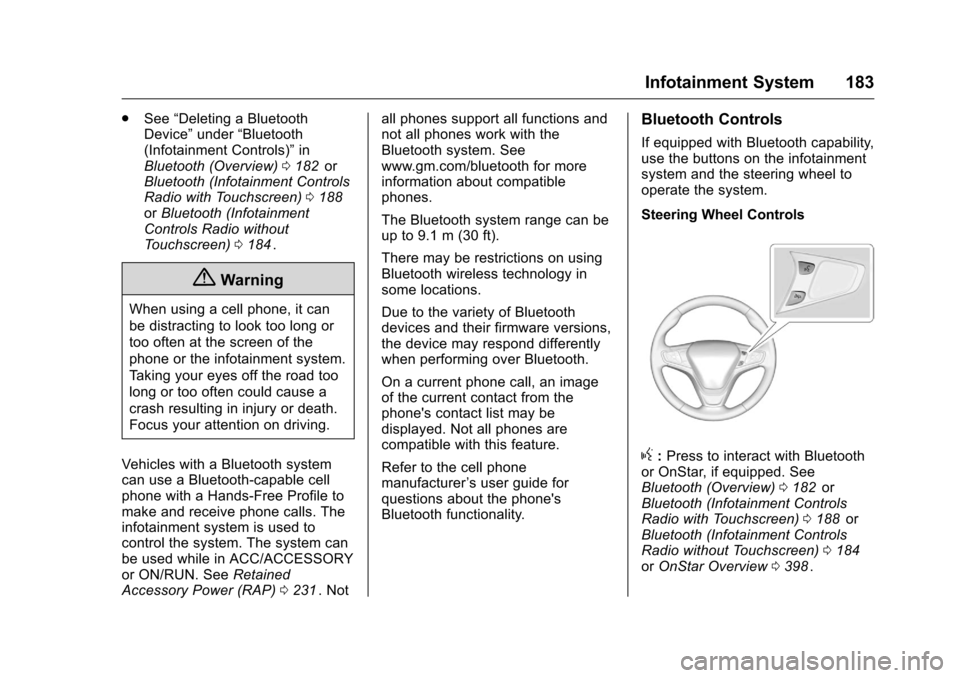
Steering Wheel Controls
g: Press to interact with Bluetooth
or OnStar, if equipped. See
Bluetooth (Overview) 0182
iior
Bluetooth (Infotainment Controls
Radio with Touchscreen) 0188
iior
Bluetooth (Infotainment Controls
Radio without Touchscreen) 0184
iior OnStar Overview 0398ii.
Page 185 of 420
Chevrolet Malibu Owner Manual (GMNA-Localizing-U.S./Canada/Mexico-
9087641) - 2016 - crc - 9/3/15
184 Infotainment System
c:Press to silence the vehicle
speakers only. Press again to turn
the sound on. Press to reject an
incoming call or end a current call.
Bluetooth (Infotainment
Controls Radio without
Touchscreen)
To use infotainment controls to
access the menu system, see
Overview 0170
ii.
Pairing
A Bluetooth-enabled cell phone
must be paired to the Bluetooth
system and then connected to the
vehicle before it can be used. See
your cell phone manufacturer's user
guide for Bluetooth functions before
pairing the cell phone. If a Bluetooth
phone is not connected, calls will be
made using OnStar Hands-Free
Calling, if available. See OnStar
Overview 0398
ii. Pairing Information
.
A Bluetooth phone with MP3
capability cannot be paired to
the vehicle as a phone and an
MP3 player at the same time.
. Up to five cell phones can be
paired to the Bluetooth system.
. The pairing process is disabled
when the vehicle is moving.
. Pairing only needs to be
completed once, unless the
pairing information on the cell
phone changes or the cell phone
is deleted from the system.
. Only one paired cell phone can
be connected to the Bluetooth
system at a time.
. If multiple paired cell phones are
within range of the system, the
system connects to the first
available paired cell phone in the
order that they were first paired.
When the Bluetooth device and
infotainment system are
successfully paired, the phone book
is downloaded automatically. This is
dependent on the type of phone
paired. If the automatic download does not occur, proceed with the
phone book download on the
phone.
Pairing a Phone
–SSP and No
Paired Device
When there is no paired device on
the infotainment system and Simple
Secure Pairing (SSP) is supported:
1. Press PHONE or press
gon
the steering wheel without
OnStar.
2. Press Pair to search for Bluetooth Devices.
3. When the Bluetooth device and infotainment system are
successfully paired, the phone
screen is displayed on the
infotainment system.
Pairing a Phone –SSP and Paired
Device
When a paired device is on the
infotainment system and SSP is
supported:
1. Press PHONE or press
gon
the steering wheel without
OnStar.