2016 CHEVROLET MALIBU ESP
[x] Cancel search: ESPPage 180 of 420
Chevrolet Malibu Owner Manual (GMNA-Localizing-U.S./Canada/Mexico-
9087641) - 2016 - crc - 9/3/15
Infotainment System 179
Listening to Preset Channels1. Touch
SorTrepeatedly to
select the desired
favorites page.
2. Touch the preset button to listen to the channel.
Using the SiriusXM Menu
Operation
1. Touch MENU on the SXM radio screen.
2. Touch the menu to select the desired item or to display the
detail menu item.
3. Touch
0to return to the
previous menu.
Channel List 1. Touch Channel List from the SXM menu. The channel list is
displayed.
2. Touch
QorRto find the
desired channel. Touch the
channel to select it. Tone Settings
1. Touch Tone Settings. See “Tone Settings” under
Operation 0173
ii.
2. Touch
0.
Auto Volume 1. Touch Auto Volume. See “Auto
Volume” underOperation
0 173
ii.
2. Touch
0.
Categories 1. Touch Categories.
2. Touch
QorRto find the
desired category. Touch the
category to select it.
Explicit Content Filter
When on, only a filtered list of
channels will be received. When off,
all regular SXM programming
subscribed to will be received. 1. Touch SXM Explicit Filter.
2. Select to enable or disable.
Radio Reception
Frequency interference and static
can occur during normal radio
reception if items such as cell phone
chargers, vehicle convenience
accessories, and external electronic
devices are plugged into the
accessory power outlet. If there is
interference or static, unplug the
item from the accessory power
outlet.
FM
FM signals only reach about 16 to
65 km (10 to 40 mi). Although the
radio has a built-in electronic circuit
that automatically works to reduce
interference, some static can occur,
especially around tall buildings or
hills, causing the sound to fade in
and out.
AM
The range for most AM stations is
greater than for FM, especially at
night. The longer range can cause
station frequencies to interfere with
each other. Static can occur when
things like storms and power lines
Page 184 of 420
Chevrolet Malibu Owner Manual (GMNA-Localizing-U.S./Canada/Mexico-
9087641) - 2016 - crc - 9/3/15
Infotainment System 183
.See “Deleting a Bluetooth
Device” under“Bluetooth
(Infotainment Controls)” in
Bluetooth (Overview) 0182
iior
Bluetooth (Infotainment Controls
Radio with Touchscreen) 0188
iior Bluetooth (Infotainment
Controls Radio without
Touchscreen) 0184
ii.
{Warning
When using a cell phone, it can
be distracting to look too long or
too often at the screen of the
phone or the infotainment system.
Taking your eyes off the road too
long or too often could cause a
crash resulting in injury or death.
Focus your attention on driving.
Vehicles with a Bluetooth system
can use a Bluetooth-capable cell
phone with a Hands-Free Profile to
make and receive phone calls. The
infotainment system is used to
control the system. The system can
be used while in ACC/ACCESSORY
or ON/RUN. See Retained
Accessory Power (RAP) 0231
ii. Not all phones support all functions and
not all phones work with the
Bluetooth system. See
www.gm.com/bluetooth for more
information about compatible
phones.
The Bluetooth system range can be
up to 9.1 m (30 ft).
There may be restrictions on using
Bluetooth wireless technology in
some locations.
Due to the variety of Bluetooth
devices and their firmware versions,
the device may respond differently
when performing over Bluetooth.
On a current phone call, an image
of the current contact from the
phone's contact list may be
displayed. Not all phones are
compatible with this feature.
Refer to the cell phone
manufacturer
’s user guide for
questions about the phone's
Bluetooth functionality.
Bluetooth Controls
If equipped with Bluetooth capability,
use the buttons on the infotainment
system and the steering wheel to
operate the system.
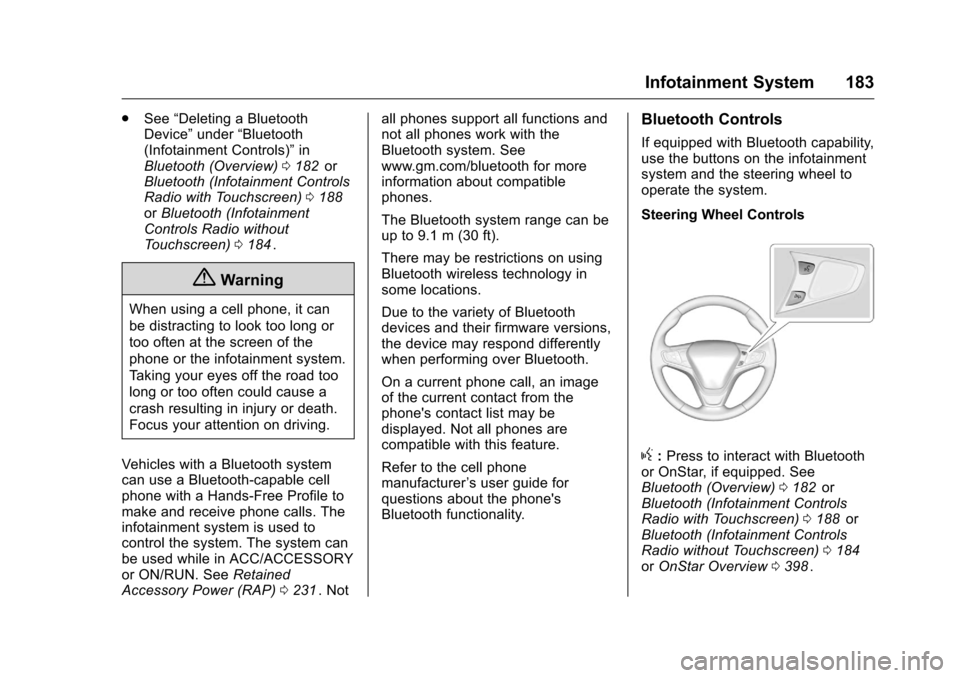
Steering Wheel Controls
g: Press to interact with Bluetooth
or OnStar, if equipped. See
Bluetooth (Overview) 0182
iior
Bluetooth (Infotainment Controls
Radio with Touchscreen) 0188
iior
Bluetooth (Infotainment Controls
Radio without Touchscreen) 0184
iior OnStar Overview 0398ii.
Page 205 of 420
Chevrolet Malibu Owner Manual (GMNA-Localizing-U.S./Canada/Mexico-
9087641) - 2016 - crc - 9/3/15
204 Infotainment System
Trademarks and
License Agreements
FCC Information
SeeRadio Frequency Statement
0 394
ii.
Bluetooth
®
The Bluetooth word mark and logos
are owned by the Bluetooth®SIG,
Inc. and any use of such marks by
General Motors is under license.
Other trademarks and trade names
are those of their respective owners.
DivX Certified®to play DivX®video,
including premium content.
Covered by one or more of the
following U.S. patents: 7,295,673;
7,460,668; 7,515,710; 7,519,274. DivX
®, DivX Certified®and
associated logos are trademarks of
Rovi Corporation or its subsidiaries
and are used under license.
“Made for iPod” and“Made for
iPhone” mean that an electronic
accessory has been designed to
connect specifically to iPod or
iPhone and has been certified by
the developer to meet Apple
performance standards.
iPod and iPhone are trademarks of
Apple Computer, Inc., registered in
the U.S. and other countries.
Fees and Taxes: Subscription fee,
taxes, one time activation fee, and
other fees may apply. Subscription
fee is consumer only. All fees and
programming subject to change.
Subscriptions subject to Customer
Agreement available at
www.siriusxm.com. SiriusXM
®
service only available in the
48 contiguous United States and
Canada.
In Canada: Some deterioration of
service may occur in extreme
northern latitudes. This is beyond
the control of SiriusXM
®Satellite
Radio.
It is prohibited to copy, decompile,
disassemble, reverse engineer,
hack, manipulate, or otherwise
make available any technology or
software incorporated in receivers
compatible with the SiriusXM
Satellite Radio System or that
support the SiriusXM website, the
Online Service or any of its content.
Furthermore, the AMBER voice
compression software included in
this product is protected by
intellectual property rights including
Page 220 of 420
Chevrolet Malibu Owner Manual (GMNA-Localizing-U.S./Canada/Mexico-
9087641) - 2016 - crc - 9/3/15
Driving and Operating 219
3. Turn the steering wheel to gostraight down the roadway.
Loss of Control
Skidding
There are three types of skids that
correspond to the vehicle's three
control systems:
.Braking Skid —wheels are not
rolling.
. Steering or Cornering Skid —
too much speed or steering in a
curve causes tires to slip and
lose cornering force.
. Acceleration Skid —too much
throttle causes the driving
wheels to spin.
Defensive drivers avoid most skids
by taking reasonable care suited to
existing conditions, and by not
overdriving those conditions. But
skids are always possible.
If the vehicle starts to slide, follow
these suggestions:
. Ease your foot off the
accelerator pedal and steer the
way you want the vehicle to go. The vehicle may straighten out.
Be ready for a second skid if it
occurs.
. Slow down and adjust your
driving according to weather
conditions. Stopping distance
can be longer and vehicle
control can be affected when
traction is reduced by water,
snow, ice, gravel, or other
material on the road. Learn to
recognize warning clues —such
as enough water, ice, or packed
snow on the road to make a
mirrored surface —and slow
down when you have any doubt.
. Try to avoid sudden steering,
acceleration, or braking,
including reducing vehicle speed
by shifting to a lower gear. Any
sudden changes could cause
the tires to slide.
Remember: Antilock brakes help
avoid only the braking skid.
Driving on Wet Roads
Rain and wet roads can reduce
vehicle traction and affect your
ability to stop and accelerate. Always drive slower in these types
of driving conditions and avoid
driving through large puddles and
deep-standing or flowing water.
{Warning
Wet brakes can cause crashes.
They might not work as well in a
quick stop and could cause
pulling to one side. You could
lose control of the vehicle.
After driving through a large
puddle of water or a car/vehicle
wash, lightly apply the brake
pedal until the brakes work
normally.
Flowing or rushing water creates
strong forces. Driving through
flowing water could cause the
vehicle to be carried away. If this
happens, you and other vehicle
occupants could drown. Do not
ignore police warnings and be
very cautious about trying to drive
through flowing water.
Page 222 of 420
Chevrolet Malibu Owner Manual (GMNA-Localizing-U.S./Canada/Mexico-
9087641) - 2016 - crc - 9/3/15
Driving and Operating 221
Winter Driving
Driving on Snow or Ice
Snow or ice between the tires and
the road creates less traction or
grip, so drive carefully. Wet ice can
occur at about 0 °C (32 °F) when
freezing rain begins to fall. Avoid
driving on wet ice or in freezing rain
until roads can be treated.
For Slippery Road Driving:
.Accelerate gently. Accelerating
too quickly causes the wheels to
spin and makes the surface
under the tires slick.
. Turn on Traction Control. See
Traction Control/Electronic
Stability Control 0241
ii.
. The Antilock Brake System
(ABS) improves vehicle stability
during hard stops, but the
brakes should be applied sooner
than when on dry pavement.
See Antilock Brake System
(ABS) 0237
ii.
. Allow greater following distance
and watch for slippery spots. Icy
patches can occur on otherwise clear roads in shaded areas.
The surface of a curve or an
overpass can remain icy when
the surrounding roads are clear.
Avoid sudden steering
maneuvers and braking while
on ice.
. Turn off cruise control.
Blizzard Conditions
Stop the vehicle in a safe place and
signal for help. Stay with the vehicle
unless there is help nearby.
If possible, use Roadside
Assistance. See Roadside
Assistance Program 0388
ii. To get
help and keep everyone in the
vehicle safe:
. Turn on the hazard warning
flashers.
. Tie a red cloth to an outside
mirror.
{Warning
Snow can trap engine exhaust
under the vehicle. This may
cause exhaust gases to get
inside. Engine exhaust contains
carbon monoxide (CO), which
cannot be seen or smelled. It can
cause unconsciousness and even
death.
If the vehicle is stuck in snow:
. Clear snow from the base of
the vehicle, especially any
blocking the exhaust pipe.
. Open a window about 5 cm
(2 in) on the vehicle side
that is away from the wind,
to bring in fresh air.
. Fully open the air outlets on
or under the instrument
panel.
. Adjust the climate control
system to circulate the air
inside the vehicle and set
(Continued)
Page 230 of 420
Chevrolet Malibu Owner Manual (GMNA-Localizing-U.S./Canada/Mexico-
9087641) - 2016 - crc - 9/3/15
Driving and Operating 229
Caution (Continued)
battery. Wait at least 15 seconds
between each try, to let the
cranking motor cool down.
2. If the engine does not start after five to 10 seconds,
especially in very cold weather
(below −18 °C or 0 °F), it could
be flooded with too much
gasoline. Try pushing the
accelerator pedal all the way to
the floor and holding it there as
you hold ENGINE START/
STOP, for up to a maximum of
15 seconds. Wait at least
15 seconds between each try,
to allow the cranking motor to
cool down. When the engine
starts, let go of the button and
the accelerator. If the vehicle
starts briefly but then stops
again, do the same thing. This
clears the extra gasoline from
the engine. Do not race the
engine immediately after
starting it. Operate the engine and transmission gently until
the oil warms up and lubricates
all moving parts.
Hybrid Operation
This vehicle combines gasoline and
electric propulsion. The gasoline
engine will automatically start to
provide power and then shut off to
save fuel.
The engine may remain
running when:
.
Accelerating aggressively or
climbing hills.
. Vehicle speed is greater than
88 km/h (55 mph).
. Charging the high voltage
battery.
. The heater is being used.
The engine and transmission work
together to provide propulsion
power at the highest efficiency. This
may result in higher engine speeds.
Stop/Start System
{Warning
Exiting the vehicle without first
shifting into P (Park) may cause
the vehicle to move. You or others
may be injured. Because the
vehicle has the auto engine stop/
start feature, the vehicle's engine
might seem to be shut off;
however, once the brake pedal is
released, the engine will start up
again.
Shift to P (Park) and turn the
ignition to LOCK/OFF, before
exiting the vehicle.
If equipped with the 1.5L L4 engine,
the vehicle has a fuel saving stop/
start system to shut off the engine to
help conserve fuel.
Auto Engine Stop/Start
When the brakes are applied and
the vehicle is at a complete stop,
the engine may turn off. When
stopped, the tachometer displays
Page 242 of 420
Chevrolet Malibu Owner Manual (GMNA-Localizing-U.S./Canada/Mexico-
9087641) - 2016 - crc - 9/3/15
Driving and Operating 241
If Hill Start Assist is selected in the
Settings menu, it will hold the
vehicle for two seconds unless the
driver door is opened or the driver
safety belt is unbuckled after
releasing the brake pedal.
If Extended Hill Start Assist is
selected, it will hold the vehicle for
five minutes unless the driver door
is opened and the driver safety belt
is unbuckled prior to releasing the
brake pedal. When EHSA is
deactivated after five minutes, or if it
is deactivated when the driver
safety belt is unlatched or the driver
door is opened, the Electric Parking
Brake will engage to prevent vehicle
movement.
Regenerative Braking
(Hybrid Only)
Regenerative braking takes some of
the energy from the moving vehicle
and turns it back into electrical
energy. This energy is then stored
back into the high voltage battery
system, contributing to increased
energy efficiency.The hydraulic disc brakes work with
the regenerative braking to ensure
effective braking, such as when a
high braking demand is requested.
The braking system is computer
controlled and blends the
regenerative braking with the
conventional hydraulic disc brakes
to meet any requirements for
deceleration. The controller
interprets the braking request and
uses regenerative braking,
conventional hydraulic braking, or a
combination of both as necessary.
Because the hydraulic braking
system uses an electronic booster
for boost assist on demand, under
certain conditions a motor noise
may be heard. This is normal
operation.
See
Warning Lights, Gauges, and
Indicators 0109iiand Driver
Information Center (DIC) (Base
Level) 0129
iior Driver Information
Center (DIC) (Uplevel) 0132ii. In the
event of a controller problem, the
brake pedal may be harder to push
and the stopping distance may be
longer.
Ride Control Systems
Traction Control/
Electronic Stability
Control
System Operation
The vehicle has a Traction Control
System (TCS) and StabiliTrak®, an
electronic stability control system.
These systems help limit wheel slip
and assist the driver in maintaining
control, especially on slippery road
conditions.
TCS activates if it senses that any
of the drive wheels are spinning or
beginning to lose traction. When this
happens, TCS applies the brakes to
the spinning wheels and reduces
engine power to limit wheel spin.
StabiliTrak activates when the
vehicle senses a difference between
the intended path and the direction
the vehicle is actually traveling.
StabiliTrak selectively applies
braking pressure to any one of the
Page 249 of 420
Chevrolet Malibu Owner Manual (GMNA-Localizing-U.S./Canada/Mexico-
9087641) - 2016 - crc - 9/3/15
248 Driving and Operating
Increasing Speed While ACC is at
a Set Speed
If ACC is already activated, do one
of the following:
.Use the accelerator to get to the
higher speed. Press -SET.
Release the control and the
accelerator pedal. The vehicle
will now cruise at the higher
speed.
When the accelerator pedal is
pressed, ACC will not brake
because it is overridden.
A warning message will appear
on the Driver Information Center
(DIC). See Cruise Control
Messages 0137
ii.
. Press and hold +RES until the
desired set speed appears on
the display, then release it.
. To increase vehicle speed in
small increments, briefly press
+RES. For each press, the
vehicle goes 1 km/h or (1 mph)
faster. When it is determined that there is
no vehicle ahead inside the selected
following gap, then the vehicle
speed will increase to the set speed.
Reducing Speed While ACC is at a
Set Speed
If ACC is already activated, do one
of the following:
.
Use the brake to get to the
desired lower speed. Press -SET
and release the accelerator
pedal. The vehicle will now
cruise at the lower speed.
. Press and hold -SET until the
desired lower speed is reached,
then release it.
. To decrease the vehicle speed in
smaller increments, press -SET
down briefly. For each press, the
vehicle goes about 1 km/h or
(1 mph) slower.
Selecting the Follow Distance
When a slower moving vehicle is
detected ahead within the selected
following gap, ACC will adjust the vehicle's speed and attempt to
maintain the follow distance gap
selected.
Press
[on the steering wheel to
adjust the following gap. When
pressed, the current gap setting
displays briefly on the instrument
cluster. Subsequent presses cycle
the gap button through three
settings: Far, Medium, or Near. The
gap setting will be maintained until it
is changed.
Since each gap setting corresponds
to a following time (Far, Medium,
or Near), the following distance will
vary based on vehicle speed. The
faster the vehicle speed, the further
back your vehicle will follow a
vehicle detected ahead. Consider
traffic and weather conditions when
selecting the following gap. The
range of selectable gaps may not be
appropriate for all drivers and
driving conditions.
Changing the gap setting
automatically changes the alert
timing sensitivity (Far, Medium,