2016 CHEVROLET IMPALA steering
[x] Cancel search: steeringPage 137 of 377

Chevrolet Impala Owner Manual (GMNA-Localizing-U.S/Canada-9086448) -
2016 - CRC - 5/20/15
136 Instruments and Controls
SIDE DETECTION SYSTEM
UNAVAILABLE
This message indicates that Side
Blind Zone Alert (SBZA), Lane
Change Alert (LCA), and Rear
Cross Traffic Alert (RCTA) are
disabled either because the sensor
is blocked and cannot detect
vehicles in the blind zone, or the
vehicle is passing through an open
area, such as the desert, where
there is insufficient data for
operation. This message may also
activate during heavy rain or due to
road spray. The vehicle does not
need service. For cleaning, see
"Washing the Vehicle" under
Exterior Care0315.
Ride Control System
Messages
SERVICE STABILITRAK
This message displays if there is a
problem with the StabiliTrak system.
If this message appears, try to reset
the system. Stop; turn off the engine
for at least 15 seconds; then start
the engine again. If this message still comes on, it means there is a
problem. See your dealer for
service. The vehicle is safe to drive;
however, you do not have the
benefit of StabiliTrak, so reduce
your speed and drive accordingly.
Airbag System Messages
SERVICE AIRBAG
This message displays if there is a
problem with the airbag system. See
your dealer for service.
Security Messages
THEFT ATTEMPTED
This message displays if the vehicle
detects a tamper condition.
Service Vehicle Messages
SERVICE POWER STEERING
This message displays and a chime
may sound when there may be a
problem with the power steering
system. If this message displays
and a reduction in steering
performance or loss of power
steering assistance is noticed, see
your dealer.
SERVICE VEHICLE SOON
This message is displayed if there is
a problem with the vehicle. Take the
vehicle to your dealer for service.
Starting the Vehicle
Messages
PRESS BRAKE TO START
VEHICLE
This message is displayed when
attempting to start the vehicle
without first pressing the brake
pedal.
SERVICE KEYLESS START
SYSTEM
This message is displayed if there is
a problem with the pushbutton start
system. Take the vehicle to your
dealer for service.
Page 140 of 377

Chevrolet Impala Owner Manual (GMNA-Localizing-U.S/Canada-9086448) -
2016 - CRC - 5/20/15
Instruments and Controls 139
4. Turn the MENU knob tohighlight the desired option
setting and press the
MENU knob.
5. Press
qBACK to return to the
previous menu.
Uplevel Radio Audio System
Controls
To access the personalization
menus: 1. Press SETTINGS on the Home page on the infotainment
system display.
2. Press the desired feature to display a list of available
options.
3. Press the desired option.
4. Press to select the desired option setting.
5. Press
qBACK to return to the
previous menu.
Personalization Menus
The following list of features may be
available:
. Time and Date .
Language (Language)
. Valet Mode
. Radio
. Vehicle
. Bluetooth
. Voice
. Display
. Rear Camera
. Return to Factory Settings
. Software Information
Each menu is detailed in the
following information.
Time and Date
Manually set the time and date. See
Clock (Base Radio) 0107 orClock
(Uplevel Radio) 0108.
Language (Language)
Select Language, then select from
the available language(s).
Valet Mode (If Equipped)
This will lock the infotainment
system and steering wheel controls.
It may also limit access to vehicle
storage locations (if equipped).
To enable valet mode:
1. Enter a four-digit code on the keypad.
2. Select Enter to go to the confirmation screen.
3. Re-enter the four-digit code.
Press LOCK or UNLOCK to lock or
unlock the system. Press Back to go
back to the previous menu.
Radio
To manage the radio features, see
“Radio Setup” under“Setting Radio
Preferences” inHome Page 0158.
Vehicle
Select and the following may
display:
.
Climate and Air Quality
. Collision/Detection Systems
. Comfort and Convenience
Page 152 of 377
Chevrolet Impala Owner Manual (GMNA-Localizing-U.S/Canada-9086448) -
2016 - CRC - 5/20/15
Lighting 151
Turn and Lane-Change
Signals
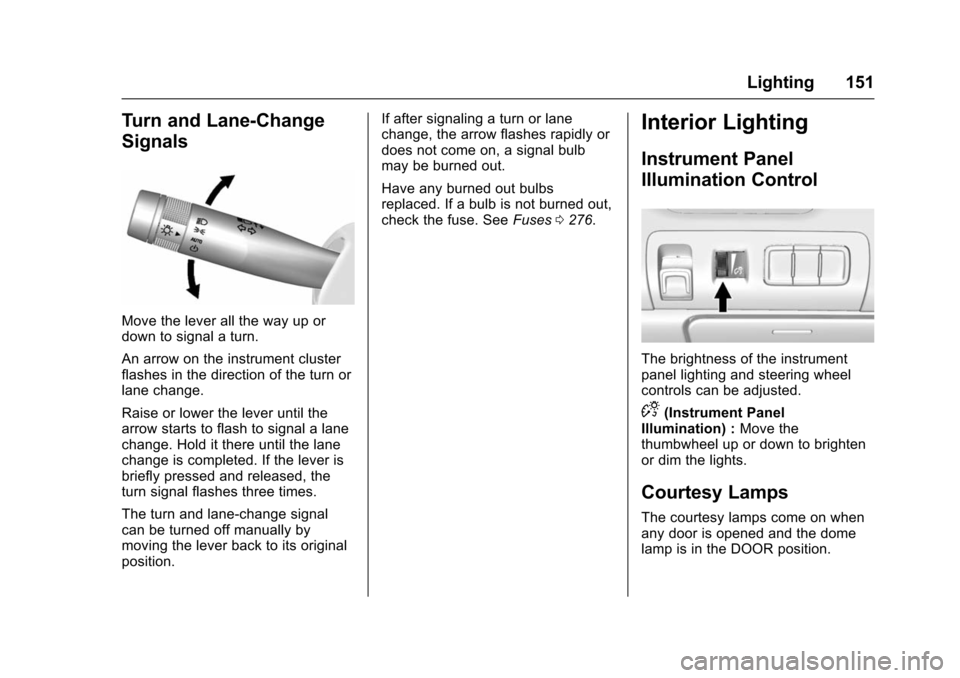
Move the lever all the way up or
down to signal a turn.
An arrow on the instrument cluster
flashes in the direction of the turn or
lane change.
Raise or lower the lever until the
arrow starts to flash to signal a lane
change. Hold it there until the lane
change is completed. If the lever is
briefly pressed and released, the
turn signal flashes three times.
The turn and lane-change signal
can be turned off manually by
moving the lever back to its original
position.If after signaling a turn or lane
change, the arrow flashes rapidly or
does not come on, a signal bulb
may be burned out.
Have any burned out bulbs
replaced. If a bulb is not burned out,
check the fuse. See
Fuses0276.
Interior Lighting
Instrument Panel
Illumination Control
The brightness of the instrument
panel lighting and steering wheel
controls can be adjusted.
D(Instrument Panel
Illumination) : Move the
thumbwheel up or down to brighten
or dim the lights.
Courtesy Lamps
The courtesy lamps come on when
any door is opened and the dome
lamp is in the DOOR position.
Page 157 of 377
Chevrolet Impala Owner Manual (GMNA-Localizing-U.S/Canada-9086448) -
2016 - CRC - 5/20/15
156 Infotainment System
functions may gray out when they
are unavailable. Many infotainment
features are also available through
the instrument cluster and steering
wheel controls.
Before driving:
.Become familiar with the
operation, faceplate buttons, and
screen buttons.
. Set up the audio by presetting
favorite stations, setting the
tone, and adjusting the
speakers.
. Set up phone numbers in
advance so they can be called
easily by pressing a single
button or by using a single voice
command if equipped with
Bluetooth phone capability.
See Defensive Driving 0192.
To play the infotainment system with
the ignition off, see Retained
Accessory Power (RAP) 0208.Theft-Deterrent Feature
TheftLock®is designed to
discourage theft of the vehicle's
radio by learning a portion of the
Vehicle Identification Number (VIN).
The radio does not operate if it is
stolen or moved to a different
vehicle.
Page 158 of 377
Chevrolet Impala Owner Manual (GMNA-Localizing-U.S/Canada-9086448) -
2016 - CRC - 5/20/15
Infotainment System 157
Overview
Infotainment System Overview
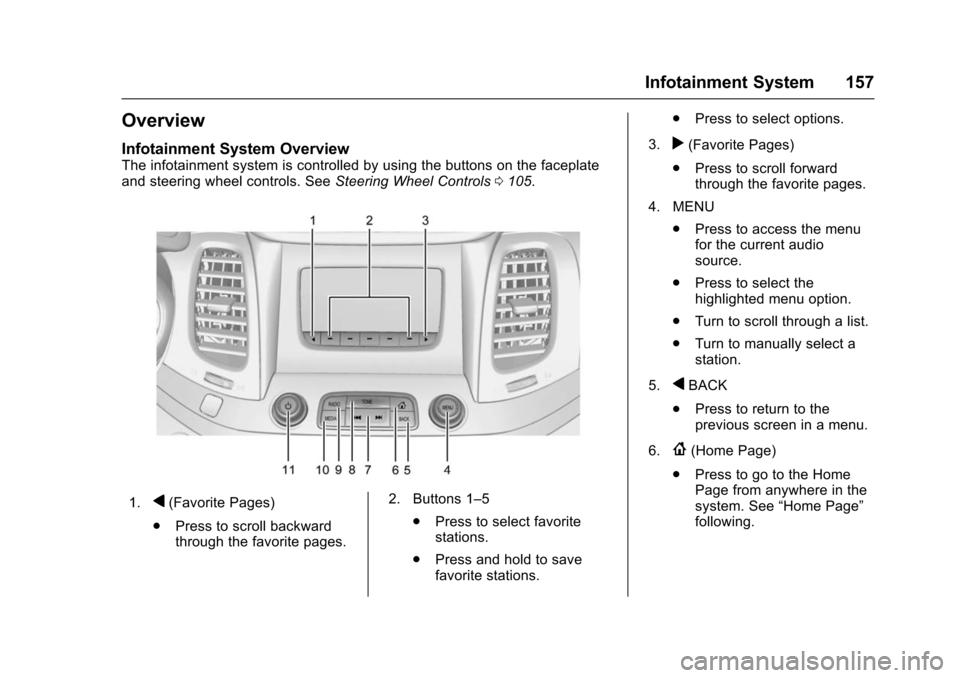
The infotainment system is controlled by using the buttons on the faceplate
and steering wheel controls. SeeSteering Wheel Controls0105.
1.q(Favorite Pages)
. Press to scroll backward
through the favorite pages. 2. Buttons 1–5
.Press to select favorite
stations.
. Press and hold to save
favorite stations. .
Press to select options.
3.
r(Favorite Pages)
. Press to scroll forward
through the favorite pages.
4. MENU .Press to access the menu
for the current audio
source.
. Press to select the
highlighted menu option.
. Turn to scroll through a list.
. Turn to manually select a
station.
5.
qBACK
. Press to return to the
previous screen in a menu.
6.
{(Home Page)
. Press to go to the Home
Page from anywhere in the
system. See “Home Page”
following.
Page 162 of 377
Chevrolet Impala Owner Manual (GMNA-Localizing-U.S/Canada-9086448) -
2016 - CRC - 5/20/15
Infotainment System 161
Radio
AM-FM Radio
Playing the Radio
While on the audio main page,
press the RADIO or MEDIA button
repeatedly to display and scroll
through the available sources: AM,
FM, and SiriusXM
®(if equipped),
USB, SD, and AUX.
The steering wheel controls can
also be used to adjust the volume.
See Steering Wheel Controls 0105.
AM, FM, SiriusXM (If Equipped)
To select AM, FM, or SiriusXM (if
equipped):
1. Press
{.
2. Turn the MENU knob to highlight the AUDIO
screen icon.
3. Press the MENU knob to select. 4. Turn the MENU knob to
highlight either AM, FM,
or SiriusXM (if equipped) and
press MENU to select.
Press the RADIO faceplate button
to display and change the radio
source. Press the MENU knob and
the following radio settings may
display:
Tone Settings:
. Bass, Midrange, and Treble:
Turn the MENU knob to
highlight. Press the MENU knob
to select. Turn the MENU knob
to adjust.
. Balance: Turn the MENU knob
to highlight. Press the MENU
knob to select. Turn the MENU
knob left for more sound from
the left speakers or right for
more sound from the right
speakers. The middle position
balances the sound between the
left and right speakers.
. Fade: Turn the MENU knob to
highlight. Press the MENU knob
to select. Turn the MENU knob
to the left for more sound from the front speakers and to the
right for more sound from the
rear speakers. The middle
position balances the sound
between the front and rear
speakers.
. EQ (Equalizer): Turn the MENU
knob to highlight. Turn the
MENU knob to scroll through the
options. Press the MENU knob
to select. Press
qBACK button
to go to the previous menu.
Station List : Select to display a list
of AM or FM stations. Press
q
BACK to go to the previous menu.
Auto Volume : If equipped, this
feature adjusts the volume based on
the vehicle speed. Select the level
between off, low, medium-low,
medium, medium-high, and high.
Press
qBACK to go to the
previous menu.
EQ (Equalizer) Settings :
If equipped with a Bose Sound
System, the available choices are
Manual and Talk.
Page 170 of 377
Chevrolet Impala Owner Manual (GMNA-Localizing-U.S/Canada-9086448) -
2016 - CRC - 5/20/15
Infotainment System 169
.Review the controls and
operation of the infotainment
system.
. Pair cell phone(s) to the vehicle.
The system may not work with
all cell phones. See “Pairing”in
this section.
. If the cell phone has voice
dialing capability, learn to use
that feature to access the
address book or contact list. See
“Voice Pass-Thru” in this
section.
. See “Storing and Deleting Phone
Numbers” in this section.
{Warning
When using a cell phone, it can
be distracting to look too long or
too often at the screen of the
phone or the infotainment system.
Taking your eyes off the road too
long or too often could cause a
crash resulting in injury or death.
Focus your attention on driving. Vehicles with a Bluetooth system
can use a Bluetooth-capable cell
phone with a Hands-Free Profile to
make and receive phone calls. The
infotainment system and voice
recognition are used to control the
system. The system can be used
while in ON/RUN or ACC/
ACCESSORY. The range of the
Bluetooth system can be up to 9.1 m
(30 ft). Not all phones support all
functions and not all phones work
with the Bluetooth system. See
www.gm.com/bluetooth for more
information about compatible
phones.
Bluetooth Controls
Use the buttons on the instrument
panel, faceplate, and the steering
wheel to operate the Bluetooth
system.
Steering Wheel Controls
g(Press to Talk) :
Press to answer
incoming calls or start voice
recognition.
c(End Call) : Press to end a call,
reject a call, or cancel an operation.
Press to mute or unmute the
infotainment system.
Infotainment System Controls
For information about how to
navigate the menu system using the
infotainment controls, see Overview
0 157.
MENU : Turn to scroll through a list.
Press to select the highlighted list
option.
{(Home Page) : Press to go to the
Home Page. See Home Page
0 158.
PHONE : From the Home Page,
select to enter the phone main
menu. See Bluetooth (Overview)
0 168 orBluetooth (Infotainment
Controls - Base Radio) 0170 or
Bluetooth (Voice Recognition - Base
Radio) 0174.
Voice Recognition
The voice recognition system uses
commands to control the system
and dial phone numbers.
Page 174 of 377
Chevrolet Impala Owner Manual (GMNA-Localizing-U.S/Canada-9086448) -
2016 - CRC - 5/20/15
Infotainment System 173
2. Turn the MENU knob tohighlight Recent Calls and
press to select.
If necessary, select between
Missed, Recent, and Sent calls
by pressing the button below
the appropriate screen button.
3. Turn the MENU knob to highlight the contact or the
phone number.
4. Press the MENU knob to call the contact.
Making a Call Using the
Keypad
To make a call:
1. From the Home Page, turn the MENU knob, then press to
select the PHONE screen
button.
2. Turn the MENU knob and press to select Keypad.
3. Turn the MENU knob to highlight the first digit and
press to select. Continue this
process through the number.
To call, press the button just
below the CALL screen button.
Accepting or Declining a Call
When an incoming call is received,
the infotainment system mutes and
a ring tone is heard in the vehicle.
Accepting a Call
To accept a call, do one of the
following:
.Press the button just below the
ANSWER screen button.
. Press
gon the steering wheel
controls.
Declining a Call
To decline a call, do one of the
following:
. Press the button just below the
IGNORE screen button.
. Press
ion the steering wheel
controls.
. Do nothing.
Call Waiting
Call waiting must be supported on
the Bluetooth phone and enabled by
the wireless service carrier to work. Accepting a Call Waiting Call
To accept a call waiting call, do one
of the following:
.
Press the button just below the
SWITCH screen button.
. Press
gon the steering wheel
controls.
Declining a Call Waiting Call
To decline a call waiting call, do one
of the following:
. Press the button just below the
IGNORE screen button.
. Press
ion the steering wheel
controls.
. Do nothing.
Ending a Call
To end a call, do one of the
following:
.Press the button just below the
END screen button.
. Press
ion the steering wheel
controls.