2016 CHEVROLET CRUZE change wheel
[x] Cancel search: change wheelPage 6 of 377
Chevrolet Cruze Owner Manual (GMNA-Localizing-U.S./Canada/Mexico-
9234744) - 2016 - CRC - 3/9/16
In Brief 5
In Brief
Instrument Panel
Instrument Panel Overview . . . . . . 6
Initial Drive Information
Initial Drive Information . . . . . . . . . . 8
Stop/Start System . . . . . . . . . . . . . . . 8
Remote Keyless Entry (RKE)System . . . . . . . . . . . . . . . . . . . . . . . . 8
Remote Vehicle Start . . . . . . . . . . . 9
Door Locks . . . . . . . . . . . . . . . . . . . . . 9
Windows . . . . . . . . . . . . . . . . . . . . . . . 10
Seat Adjustment . . . . . . . . . . . . . . . 10
Heated Seats . . . . . . . . . . . . . . . . . . 12
Head Restraint Adjustment . . . . 13
Safety Belts . . . . . . . . . . . . . . . . . . . . 13
Passenger Sensing System . . . 13
Mirror Adjustment . . . . . . . . . . . . . . 14
Steering Wheel Adjustment . . . . 14
Interior Lighting . . . . . . . . . . . . . . . . 15
Exterior Lighting . . . . . . . . . . . . . . . 16
Windshield Wiper/Washer . . . . . . 16
Climate Controls . . . . . . . . . . . . . . . 17
Transmission . . . . . . . . . . . . . . . . . . 19
Vehicle Features
Infotainment System . . . . . . . . . . . 20
Radio(s) . . . . . . . . . . . . . . . . . . . . . . . 20
Satellite Radio . . . . . . . . . . . . . . . . . 21 Portable Audio Devices . . . . . . . . 21
Bluetooth
®. . . . . . . . . . . . . . . . . . . . . 21
Steering Wheel Controls . . . . . . . 21
Cruise Control . . . . . . . . . . . . . . . . . 22
Driver Information Center (DIC) . . . . . . . . . . . . . . . . . 22
Forward Collision Alert (FCA) System . . . . . . . . . . . . . . . . . . . . . . . 23
Lane Keep Assist (LKA) . . . . . . . 23
Lane Change Alert (LCA) . . . . . . 23
Rear Vision Camera (RVC) . . . . 23
Rear Cross Traffic Alert (RCTA) System . . . . . . . . . . . . . . . . . . . . . . . 24
Parking Assist . . . . . . . . . . . . . . . . . 24
Power Outlets . . . . . . . . . . . . . . . . . 24
Sunroof . . . . . . . . . . . . . . . . . . . . . . . . 24
Performance and Maintenance
Traction Control/Electronic Stability Control . . . . . . . . . . . . . . 25
Tire Pressure Monitor . . . . . . . . . . 25
Engine Oil Life System . . . . . . . . 26
Driving for Better Fuel Economy . . . . . . . . . . . . . . . . . . . . . 26
Roadside Assistance Program . . . . . . . . . . . . . . . . . . . . . . 27
Page 8 of 377

Chevrolet Cruze Owner Manual (GMNA-Localizing-U.S./Canada/Mexico-
9234744) - 2016 - CRC - 3/9/16
In Brief 7
1.Air Vents 0191.
2. Headlamp High/Low-Beam
Changer 0153.
Turn Signal Lever. See Turn
and Lane-Change
Signals 0155.
Driver Information Center (DIC)
Buttons (If Equipped). See
Driver Information Center (DIC)
(Uplevel Cluster) 0133 or
Driver Information Center (DIC)
(Base Level Cluster) 0130.
3. Instrument Cluster (Base
Level) 0112 orInstrument
Cluster (Uplevel) 0114.
4. Windshield Wiper/
Washer 0105.
5. Infotainment 0159.
6. Light Sensor. See Automatic
Headlamp System 0153.
7. Hazard Warning
Flashers 0154.
8. Heated Front Seats 060 (If
Equipped).
9. Instrument Panel Fuse
Block 0272. 10.
Climate Control Systems (With
Air Conditioning) 0185 or
Climate Control Systems (With
Heater Only) 0187.
Automatic Climate Control
System 0188 (If Equipped).
11. Power Outlets 0108.
USB Port 0167.
12. Wireless Charging Pocket (If Equipped). See Wireless
Charging 0110.
13. Traction Control/Electronic
Stability Control 0221.
Assistance Systems for
Parking or Backing 0226.
14. Shift Lever. See Automatic
Transmission 0214 orManual
Transmission 0217.
15. Steering Wheel Controls 0104.
Driver Information Center (DIC)
Controls (If Equipped). See
Driver Information Center (DIC)
(Uplevel Cluster) 0133 or
Driver Information Center (DIC)
(Base Level Cluster) 0130.
16. Horn 0105. 17.
Steering Wheel
Adjustment 0104.
18. Cruise Control 0223.
Heated Steering Wheel 0105
(If Equipped).
Forward Collision Alert (FCA)
System 0229 (If Equipped).
Lane Keep Assist (LKA) 0233
(If Equipped).
19. Hood Release. See Hood 0244.
20. Data Link Connector (DLC) (Out of View). See Malfunction
Indicator Lamp (Check Engine
Light) 0122.
21. Exterior Lamp Controls 0151.
Fog Lamps 0155 (If
Equipped).
Instrument Panel Illumination
Control 0156.
Page 24 of 377
Chevrolet Cruze Owner Manual (GMNA-Localizing-U.S./Canada/Mexico-
9234744) - 2016 - CRC - 3/9/16
In Brief 23
oorp:Pressoto open
application menus on the left.
Press
pto open interaction menus
on the right. Or on the base cluster,
press to move between the DIC
menus.
V: Press to select a menu item.
Press and hold to reset values on
certain screens, or on the main view
reset info pages to the original
setting.
See Instrument Cluster (Base Level)
0 112 orInstrument Cluster
(Uplevel) 0114 and Driver
Information Center (DIC) (Uplevel
Cluster) 0133 orDriver Information
Center (DIC) (Base Level
Cluster) 0130.
Forward Collision Alert
(FCA) System
If equipped, FCA may help avoid or
reduce the harm caused by
front-end crashes. FCA provides a
green indicator,
V, when a vehicle
is detected ahead. This indicator
displays amber if you follow a
vehicle much too closely. When approaching a vehicle ahead too
quickly, FCA provides a red flashing
alert on the windshield and rapidly
beeps.
See
Forward Collision Alert (FCA)
System 0229.
Lane Keep Assist (LKA)
If equipped, LKA may help avoid
crashes due to unintentional lane
departures. It may assist by gently
turning the steering wheel if the
vehicle approaches a detected lane
marking without using a turn signal
in that direction. It may also provide
a Lane Departure Warning (LDW)
alert as the lane marking is crossed.
The system will not assist or alert if
it detects that you are actively
steering. Override LKA by turning
the steering wheel. LKA uses a
camera to detect lane markings
between 60 km/h (37 mph) and
180 km/h (112 mph).
See Lane Departure Warning (LDW)
0 233 andLane Keep Assist
(LKA) 0233.
Lane Change Alert (LCA)
If equipped, the LCA system is a
lane-changing aid that assists
drivers with avoiding lane change
crashes that occur with moving
vehicles in the side blind zone (or
spot) areas or with vehicles rapidly
approaching these areas from
behind. The LCA warning display
will light up in the corresponding
outside side mirror and will flash if
the turn signal is on. The Side Blind
Zone Alert (SBZA) system is
included as part of the LCA system.
See Side Blind Zone Alert (SBZA)
0 231 andLane Change Alert
(LCA) 0231.
Rear Vision
Camera (RVC)
If equipped, RVC displays a view of
the area behind the vehicle on the
infotainment display when the
vehicle is shifted into R (Reverse) to
aid with parking and low-speed
backing maneuvers.
See Assistance Systems for Parking
or Backing 0226.
Page 30 of 377
Chevrolet Cruze Owner Manual (GMNA-Localizing-U.S./Canada/Mexico-
9234744) - 2016 - CRC - 3/9/16
Keys, Doors, and Windows 29
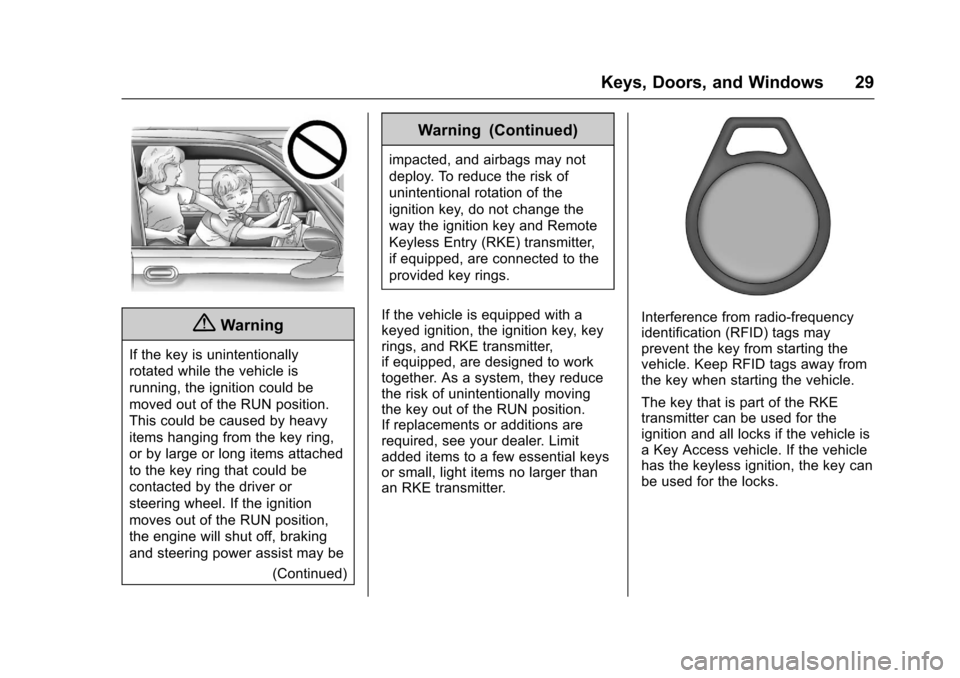
{Warning
If the key is unintentionally
rotated while the vehicle is
running, the ignition could be
moved out of the RUN position.
This could be caused by heavy
items hanging from the key ring,
or by large or long items attached
to the key ring that could be
contacted by the driver or
steering wheel. If the ignition
moves out of the RUN position,
the engine will shut off, braking
and steering power assist may be(Continued)
Warning (Continued)
impacted, and airbags may not
deploy. To reduce the risk of
unintentional rotation of the
ignition key, do not change the
way the ignition key and Remote
Keyless Entry (RKE) transmitter,
if equipped, are connected to the
provided key rings.
If the vehicle is equipped with a
keyed ignition, the ignition key, key
rings, and RKE transmitter,
if equipped, are designed to work
together. As a system, they reduce
the risk of unintentionally moving
the key out of the RUN position.
If replacements or additions are
required, see your dealer. Limit
added items to a few essential keys
or small, light items no larger than
an RKE transmitter.
Interference from radio-frequency
identification (RFID) tags may
prevent the key from starting the
vehicle. Keep RFID tags away from
the key when starting the vehicle.
The key that is part of the RKE
transmitter can be used for the
ignition and all locks if the vehicle is
a Key Access vehicle. If the vehicle
has the keyless ignition, the key can
be used for the locks.
Page 81 of 377
Chevrolet Cruze Owner Manual (GMNA-Localizing-U.S./Canada/Mexico-
9234744) - 2016 - CRC - 3/9/16
80 Seats and Restraints
A thick layer of additional material,
such as a blanket or cushion,
or aftermarket equipment such as
seat covers, seat heaters, and seat
massagers can affect how well the
passenger sensing system
operates. We recommend that you
not use seat covers or other
aftermarket equipment except when
approved by GM for your specific
vehicle. SeeAdding Equipment to
the Airbag-Equipped Vehicle 080
for more information about
modifications that can affect how
the system operates.
The on indicator may be lit if an
object, such as a briefcase,
handbag, grocery bag, laptop,
or other electronic device, is put on
an unoccupied seat. If this is not
desired, remove the object from
the seat.
{Warning
Stowing of articles under the
passenger seat or between the
passenger seat cushion and
(Continued)
Warning (Continued)
seatback may interfere with the
proper operation of the passenger
sensing system.
Servicing the
Airbag-Equipped Vehicle
Airbags affect how the vehicle
should be serviced. There are parts
of the airbag system in several
places around the vehicle. Your
dealer and the service manual have
information about servicing the
vehicle and the airbag system. To
purchase a service manual, see
Service Publications Ordering
Information0351.
{Warning
For up to 10 seconds after the
vehicle is turned off and the
battery is disconnected, an airbag
can still inflate during improper
service. You can be injured if you
(Continued)
Warning (Continued)
are close to an airbag when it
inflates. Avoid yellow connectors.
They are probably part of the
airbag system. Be sure to follow
proper service procedures, and
make sure the person performing
work for you is qualified to do so.
Adding Equipment to the
Airbag-Equipped Vehicle
Adding accessories that change the
vehicle's frame, bumper system,
height, front end, or side sheet
metal, may keep the airbag system
from working properly. The
operation of the airbag system can
also be affected by changing any
parts of the front seats, safety belts,
airbag sensing and diagnostic
module, steering wheel, instrument
panel, any of the airbag modules,
ceiling or pillar garnish trim, front
sensors, side impact sensors,
or airbag wiring.
Page 117 of 377
Chevrolet Cruze Owner Manual (GMNA-Localizing-U.S./Canada/Mexico-
9234744) - 2016 - CRC - 3/9/16
116 Instruments and Controls
Cluster Menu
There is an interactive display area
in the center of the instrument
cluster.
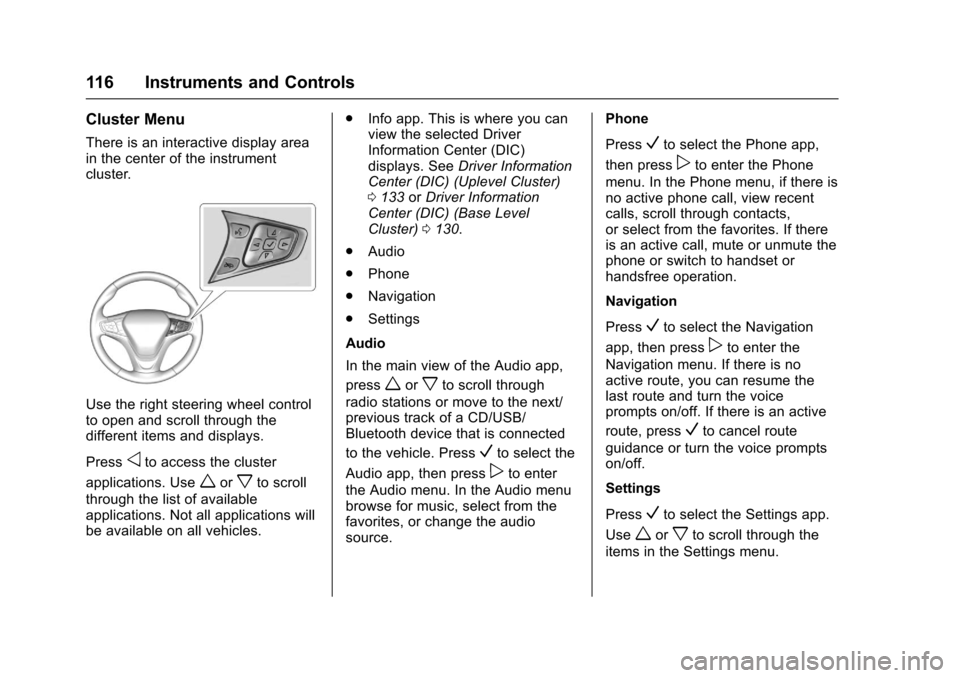
Use the right steering wheel control
to open and scroll through the
different items and displays.
Press
oto access the cluster
applications. Use
worxto scroll
through the list of available
applications. Not all applications will
be available on all vehicles. .
Info app. This is where you can
view the selected Driver
Information Center (DIC)
displays. See Driver Information
Center (DIC) (Uplevel Cluster)
0 133 orDriver Information
Center (DIC) (Base Level
Cluster) 0130.
. Audio
. Phone
. Navigation
. Settings
Audio
In the main view of the Audio app,
press
worxto scroll through
radio stations or move to the next/
previous track of a CD/USB/
Bluetooth device that is connected
to the vehicle. Press
Vto select the
Audio app, then press
pto enter
the Audio menu. In the Audio menu
browse for music, select from the
favorites, or change the audio
source. Phone
Press
Vto select the Phone app,
then press
pto enter the Phone
menu. In the Phone menu, if there is
no active phone call, view recent
calls, scroll through contacts,
or select from the favorites. If there
is an active call, mute or unmute the
phone or switch to handset or
handsfree operation.
Navigation
Press
Vto select the Navigation
app, then press
pto enter the
Navigation menu. If there is no
active route, you can resume the
last route and turn the voice
prompts on/off. If there is an active
route, press
Vto cancel route
guidance or turn the voice prompts
on/off.
Settings
Press
Vto select the Settings app.
Use
worxto scroll through the
items in the Settings menu.
Page 156 of 377
Chevrolet Cruze Owner Manual (GMNA-Localizing-U.S./Canada/Mexico-
9234744) - 2016 - CRC - 3/9/16
Lighting 155
Turn and Lane-Change
Signals
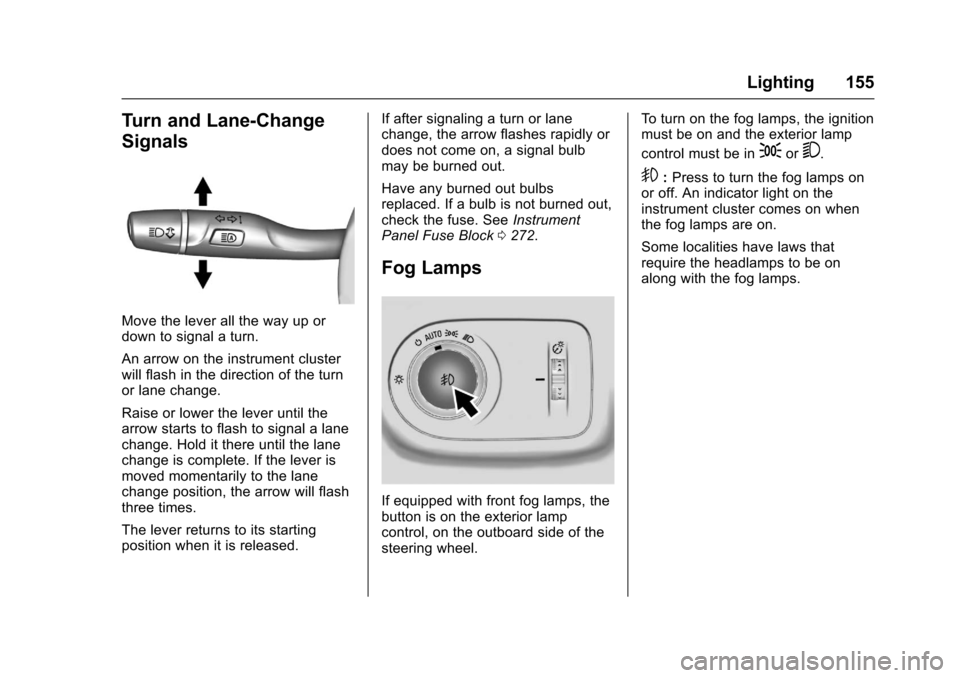
Move the lever all the way up or
down to signal a turn.
An arrow on the instrument cluster
will flash in the direction of the turn
or lane change.
Raise or lower the lever until the
arrow starts to flash to signal a lane
change. Hold it there until the lane
change is complete. If the lever is
moved momentarily to the lane
change position, the arrow will flash
three times.
The lever returns to its starting
position when it is released.If after signaling a turn or lane
change, the arrow flashes rapidly or
does not come on, a signal bulb
may be burned out.
Have any burned out bulbs
replaced. If a bulb is not burned out,
check the fuse. See
Instrument
Panel Fuse Block 0272.
Fog Lamps
If equipped with front fog lamps, the
button is on the exterior lamp
control, on the outboard side of the
steering wheel. To turn on the fog lamps, the ignition
must be on and the exterior lamp
control must be in
;or5.
9:
Press to turn the fog lamps on
or off. An indicator light on the
instrument cluster comes on when
the fog lamps are on.
Some localities have laws that
require the headlamps to be on
along with the fog lamps.
Page 171 of 377
Chevrolet Cruze Owner Manual (GMNA-Localizing-U.S./Canada/Mexico-
9234744) - 2016 - CRC - 3/9/16
170 Infotainment System
.Pairing only needs to be
completed once, unless the
pairing information on the cell
phone changes or the cell phone
is deleted from the system.
. Only one paired cell phone can
be connected to the Bluetooth
system at a time.
. If multiple paired cell phones are
within range of the system, the
system connects to the first
available paired cell phone in the
order that they were first paired.
When the Bluetooth device and
infotainment system are
successfully paired, the phone book
is downloaded automatically. This is
dependent on the type of phone
paired. If the automatic download
does not occur, proceed with the
phone book download on the
phone.
Pairing a Phone –SSP and No
Paired Device
When there is no paired device on
the infotainment system and Simple
Secure Pairing (SSP) is supported:
1. Press
{. 2. Touch PHONE, press
5on the
faceplate, or press
gon the
steering wheel without OnStar.
3. Touch Search Device.
4. Touch the desired device to pair on the searched list
screen.
5. Touch Yes on the pop-up screen of the Bluetooth device
and infotainment system.
6. When the Bluetooth device and infotainment system are
successfully paired, the phone
screen is displayed on the
infotainment system.
Pairing a Phone –SSP and Paired
Device
When a paired device is on the
infotainment system and SSP is
supported:
1. Press
{.
2. Touch SETTINGS.
3. Touch Bluetooth, then Device Management. 4. Touch the desired device to
pair. When the Bluetooth
device and infotainment system
are successfully paired,
Z/5
is displayed on the pair device
screen. If no desired device is
available go to Step 5.
5. Touch Search Device to search for the desired device.
6. Touch the desired device to pair on the searched list
screen.
7. Touch Yes on the pop-up screen of the Bluetooth device
and infotainment system.
. The connected phone is
highlighted by
5.
.
Z/5indicates the hands-free
and phone music functions are
enabled.
.
5indicates only the hands-free
function is enabled.
.
Zindicates only Bluetooth
music is enabled.