2016 CHEVROLET CRUZE steering
[x] Cancel search: steeringPage 170 of 377
Chevrolet Cruze Owner Manual (GMNA-Localizing-U.S./Canada/Mexico-
9234744) - 2016 - CRC - 3/9/16
Infotainment System 169
information about compatible
phones in the U.S. and
Canada only.
There may be restrictions on using
Bluetooth wireless technology in
some locations.
Due to the variety of Bluetooth
devices and their firmware versions,
the device may respond differently
when performing over Bluetooth.
Refer to the cell phone
manufacturer’s user guide for
questions about the phone's
Bluetooth functionality.
Bluetooth Controls
For vehicles equipped with
Bluetooth capability, use the buttons
on the infotainment system and the
steering wheel to operate the
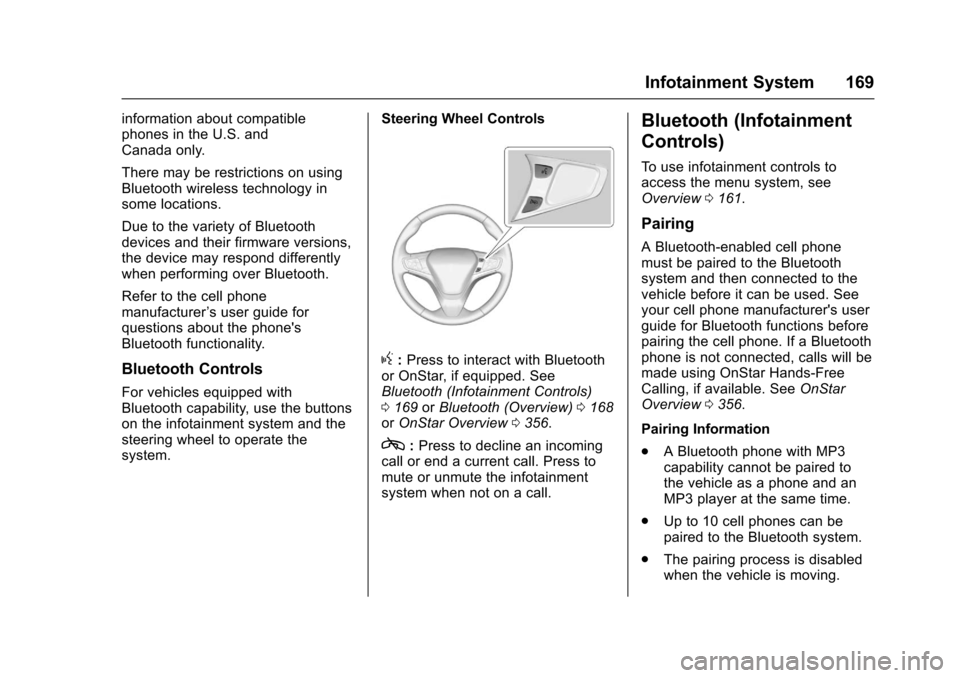
system. Steering Wheel Controls
g:
Press to interact with Bluetooth
or OnStar, if equipped. See
Bluetooth (Infotainment Controls)
0 169 orBluetooth (Overview) 0168
or OnStar Overview 0356.
c:Press to decline an incoming
call or end a current call. Press to
mute or unmute the infotainment
system when not on a call.
Bluetooth (Infotainment
Controls)
To use infotainment controls to
access the menu system, see
Overview 0161.
Pairing
A Bluetooth-enabled cell phone
must be paired to the Bluetooth
system and then connected to the
vehicle before it can be used. See
your cell phone manufacturer's user
guide for Bluetooth functions before
pairing the cell phone. If a Bluetooth
phone is not connected, calls will be
made using OnStar Hands-Free
Calling, if available. See OnStar
Overview 0356.
Pairing Information
. A Bluetooth phone with MP3
capability cannot be paired to
the vehicle as a phone and an
MP3 player at the same time.
. Up to 10 cell phones can be
paired to the Bluetooth system.
. The pairing process is disabled
when the vehicle is moving.
Page 171 of 377
Chevrolet Cruze Owner Manual (GMNA-Localizing-U.S./Canada/Mexico-
9234744) - 2016 - CRC - 3/9/16
170 Infotainment System
.Pairing only needs to be
completed once, unless the
pairing information on the cell
phone changes or the cell phone
is deleted from the system.
. Only one paired cell phone can
be connected to the Bluetooth
system at a time.
. If multiple paired cell phones are
within range of the system, the
system connects to the first
available paired cell phone in the
order that they were first paired.
When the Bluetooth device and
infotainment system are
successfully paired, the phone book
is downloaded automatically. This is
dependent on the type of phone
paired. If the automatic download
does not occur, proceed with the
phone book download on the
phone.
Pairing a Phone –SSP and No
Paired Device
When there is no paired device on
the infotainment system and Simple
Secure Pairing (SSP) is supported:
1. Press
{. 2. Touch PHONE, press
5on the
faceplate, or press
gon the
steering wheel without OnStar.
3. Touch Search Device.
4. Touch the desired device to pair on the searched list
screen.
5. Touch Yes on the pop-up screen of the Bluetooth device
and infotainment system.
6. When the Bluetooth device and infotainment system are
successfully paired, the phone
screen is displayed on the
infotainment system.
Pairing a Phone –SSP and Paired
Device
When a paired device is on the
infotainment system and SSP is
supported:
1. Press
{.
2. Touch SETTINGS.
3. Touch Bluetooth, then Device Management. 4. Touch the desired device to
pair. When the Bluetooth
device and infotainment system
are successfully paired,
Z/5
is displayed on the pair device
screen. If no desired device is
available go to Step 5.
5. Touch Search Device to search for the desired device.
6. Touch the desired device to pair on the searched list
screen.
7. Touch Yes on the pop-up screen of the Bluetooth device
and infotainment system.
. The connected phone is
highlighted by
5.
.
Z/5indicates the hands-free
and phone music functions are
enabled.
.
5indicates only the hands-free
function is enabled.
.
Zindicates only Bluetooth
music is enabled.
Page 172 of 377
Chevrolet Cruze Owner Manual (GMNA-Localizing-U.S./Canada/Mexico-
9234744) - 2016 - CRC - 3/9/16
Infotainment System 171
Pairing a Phone–No SSP and No
Paired Device
When there is no paired device on
the infotainment system and SSP is
not supported:
1. Press
{.
2. Touch PHONE, press
5on the
faceplate, or press
gon the
steering wheel without OnStar.
3. Touch Search Device.
4. Touch the desired device to pair on the searched list
screen.
5. Input the Personal Identification Number (PIN)
code (default: 1234) to the
Bluetooth device. When the
Bluetooth device and
infotainment system are
successfully paired, the
PHONE screen is displayed on
the infotainment system.
When the connection fails, a failure
message is displayed on the
infotainment system. If a Bluetooth device was previously
connected, the infotainment system
executes the auto connection.
However, if the Bluetooth setting on
the Bluetooth device is turned off, a
failure message is displayed on the
infotainment system.
Pairing a Phone
–No SSP and
Paired Device
When a paired device is on the
infotainment system and SSP is not
supported:
1. Press
{.
2. Touch SETTINGS.
3. Touch Bluetooth, then Device Management.
4. Touch the desired device to pair. When the Bluetooth
device and infotainment system
are successfully paired,
Z/5
is displayed on the pair device
screen. If no desired device is
available go to Step 5.
5. Touch Search Device to search for the desired device. 6. Touch the desired device to
pair on the searched list
screen.
7. Input the Personal Identification Number (PIN)
code (default: 1234) to the
Bluetooth device. When the
Bluetooth device and
infotainment system are
successfully paired,
Z/5is
displayed on the pair device
screen.
. The connected phone is
highlighted by
5.
.
Z/5indicates the hands-free
and phone music functions are
enabled.
.
5indicates only the hands-free
function is enabled.
.
Zindicates only Bluetooth
music is enabled.
Connecting a Paired Bluetooth
Device
1. Press
{.
2. Touch SETTINGS.
Page 175 of 377
Chevrolet Cruze Owner Manual (GMNA-Localizing-U.S./Canada/Mexico-
9234744) - 2016 - CRC - 3/9/16
174 Infotainment System
the device’s factory-provided
USB cable. Aftermarket or
third-party cables may
not work.
The PROJECTION icon on the
Home Page will change to Android
Auto or Apple CarPlay depending
on the phone. Android Auto and/or
Apple CarPlay may automatically
launch upon USB connection. If not,
press the ANDROID AUTO and/or
APPLE CARPLAY icon on the
Home Page to launch.
For further information on how
to set up Android Auto and Apple
CarPlay in the vehicle, see
www.my.chevrolet.com for U.S. and
Canada only or Customer
Assistance Offices 0344.
Android Auto is provided by Google
and is subject to Google’s terms
and privacy policy. CarPlay is
provided by Apple and is subject to
Apple’ s terms and privacy policy.
For Android Auto support
see https://support.google.com/
androidauto or Apple CarPlay
support at https://www.apple.com/
ios/carplay/. Apple or Google may change or suspend availability at
any time. Android Auto is a
trademark of Google Inc.; Apple
CarPlay is a trademark of Apple Inc.
Hands-Free Phone
General Information
Vehicles with a Hands-Free Phone
system can use a Bluetooth-capable
cell phone with a hands-free profile
to make and receive phone calls.
The infotainment system and voice
control are used to operate the
system. Not all phones support all
functions and not all phones work
with the Hands-Free Phone system.
Hands-Free Phone Controls
Use the buttons on the infotainment
system and the steering wheel to
operate the Hands-Free Phone
system.
Steering Wheel Controls
Steering wheel controls can be
used to:
.
Answer incoming calls.
. Confirm system information. .
End a call.
. Decline a call.
. Cancel an operation.
. Make outgoing calls using the
call list.
g:Press to answer incoming calls.
c:Press to end a call, decline a
call, or cancel an operation.
Making a Call by Entering a Phone
Number
. Press
5on the faceplate.
. Press
{, then touch PHONE on
the screen.
. Press
gon the steering wheel.
If a wrong number is entered, touch
}to delete the number one digit at
a time, or touch and hold
}to
delete all digits of the number.
Switching a Call to the Cell Phone
(Private Mode)
To switch the call from the cell
phone to hands-free:
1. Touch
0.
Page 176 of 377
Chevrolet Cruze Owner Manual (GMNA-Localizing-U.S./Canada/Mexico-
9234744) - 2016 - CRC - 3/9/16
Infotainment System 175
2. Touch0again to switch back
to hands-free.
Turning the Microphone On
and Off
Touch
3to turn the microphone on
or off.
Calling by Redial
To call by using redial:
. Press
gon the steering wheel
controls to display the redial
guidance screen.
. Touch
5on the phone screen.
Redialing is not possible when there
is no call history.
Taking Calls
When a phone call comes through
the connected Bluetooth cell phone,
the audio system will be muted or
paused and the phone will ring with
the relevant information displayed.
Press
gon the steering wheel
controls, touch
5on the screen,
or press
5on the faceplate. To decline the call, press
con the
steering wheel controls or touch
Reject on the screen.
Using the Contacts Menu
1. Touch contacts on the phone screen.
2. Touch
QorRto scroll through
the list.
3. Touch the phone book entry to call.
4. If there is more than one number associated with the
name, touch the number
to dial.
Searching for Contacts Entries 1. Touch contacts on the phone screen.
2. Touch
9on the contacts
screen.
3. Use the keypad to input the name to search. For details,
see “Searching for a Name”
following.
4. Touch the phone book entry to call. 5. If there is more than one
number associated with the
name, touch the number
to dial.
When the Bluetooth device and
infotainment system are
successfully paired, the phone book
will download. Some phones may
not download automatically. If this
happens, connect it again or
proceed with the phone book
download on the phone.
Searching for a Name
Select characters by using the
keypad on the phone book screen.
As characters are selected, the
names that include those characters
will display on the phone book
screen. As more characters of the
name are entered, the list of
possible names is shortened.
To search for the name Alex: 1. Touch (abc) to select the first character.
2. Touch (jkl) three times to select the second character.
Page 194 of 377
Chevrolet Cruze Owner Manual (GMNA-Localizing-U.S./Canada/Mexico-
9234744) - 2016 - CRC - 3/9/16
Driving and Operating 193
Driving and
Operating
Driving Information
Distracted Driving . . . . . . . . . . . . 194
Defensive Driving . . . . . . . . . . . . . 194
Drunk Driving . . . . . . . . . . . . . . . . . 194
Control of a Vehicle . . . . . . . . . . . 195
Braking . . . . . . . . . . . . . . . . . . . . . . . 195
Steering . . . . . . . . . . . . . . . . . . . . . . 195
Off-Road Recovery . . . . . . . . . . . 196
Loss of Control . . . . . . . . . . . . . . . 196
Driving on Wet Roads . . . . . . . . 197
Hill and Mountain Roads . . . . . 198
Winter Driving . . . . . . . . . . . . . . . . 198
If the Vehicle Is Stuck . . . . . . . . 199
Vehicle Load Limits . . . . . . . . . . . 200
Starting and Operating
New Vehicle Break-In . . . . . . . . . 204
Ignition Positions (KeyAccess) . . . . . . . . . . . . . . . . . . . . . 204
Ignition Positions (Keyless Access) . . . . . . . . . . . . . . . . . . . . . 206
Starting the Engine . . . . . . . . . . . 207
Engine Heater . . . . . . . . . . . . . . . . 210
Retained Accessory Power (RAP) . . . . . . . . . . . . . . . . 211
Shifting Into Park . . . . . . . . . . . . . 211 Shifting out of Park . . . . . . . . . . . 212
Parking . . . . . . . . . . . . . . . . . . . . . . . 213
Parking over Things
That Burn . . . . . . . . . . . . . . . . . . . 213
Engine Exhaust
Engine Exhaust . . . . . . . . . . . . . . 213
Running the Vehicle WhileParked . . . . . . . . . . . . . . . . . . . . . . 214
Automatic Transmission
Automatic Transmission . . . . . . 214
Manual Mode . . . . . . . . . . . . . . . . . 216
Manual Transmission
Manual Transmission . . . . . . . . . 217
Brakes
Antilock BrakeSystem (ABS) . . . . . . . . . . . . . . . 219
Parking Brake . . . . . . . . . . . . . . . . 220
Brake Assist . . . . . . . . . . . . . . . . . . 221
Ride Control Systems
Traction Control/Electronic Stability Control . . . . . . . . . . . . . 221
Cruise Control
Cruise Control . . . . . . . . . . . . . . . . 223
Driver Assistance Systems
Driver Assistance Systems . . . 225 Assistance Systems for
Parking or Backing . . . . . . . . . . 226
Assistance Systems for Driving . . . . . . . . . . . . . . . . . . . . . . 228
Forward Collision Alert (FCA)
System . . . . . . . . . . . . . . . . . . . . . . 229
Side Blind Zone Alert (SBZA) . . . . . . . . . . . . . . . . 231
Lane Change Alert (LCA) . . . . . 231
Lane Departure Warning (LDW) . . . . . . . . . . . . . 233
Lane Keep Assist (LKA) . . . . . . 233
Fuel
Fuel . . . . . . . . . . . . . . . . . . . . . . . . . . 235
California Fuel Requirements . . . . . . . . . . . . . . . 236
Fuels in Foreign Countries . . . 236
Fuel Additives . . . . . . . . . . . . . . . . 236
Filling the Tank . . . . . . . . . . . . . . . 236
Filling a Portable Fuel Container . . . . . . . . . . . . . . . . . . . 238
Trailer Towing
General TowingInformation . . . . . . . . . . . . . . . . . . 238
Conversions and Add-Ons
Add-On ElectricalEquipment . . . . . . . . . . . . . . . . . . 239
Page 196 of 377
Chevrolet Cruze Owner Manual (GMNA-Localizing-U.S./Canada/Mexico-
9234744) - 2016 - CRC - 3/9/16
Driving and Operating 195
{Warning
Drinking and then driving is very
dangerous. Your reflexes,
perceptions, attentiveness, and
judgment can be affected by even
a small amount of alcohol. You
can have a serious—or even
fatal —collision if you drive after
drinking.
Do not drink and drive or ride with
a driver who has been drinking.
Ride home in a cab; or if you are
with a group, designate a driver
who will not drink.
Control of a Vehicle
Braking, steering, and accelerating
are important factors in helping to
control a vehicle while driving.
Braking
Braking action involves perception
time and reaction time. Deciding to
push the brake pedal is perception
time. Actually doing it is
reaction time. Average driver reaction time is
about three-quarters of a second. In
that time, a vehicle moving at
100 km/h (60 mph) travels 20 m
(66 ft), which could be a lot of
distance in an emergency.
Helpful braking tips to keep in mind
include:
.
Keep enough distance between
you and the vehicle in front
of you.
. Avoid needless heavy braking.
. Keep pace with traffic.
If the engine ever stops while the
vehicle is being driven, brake
normally but do not pump the
brakes. Doing so could make the
pedal harder to push down. If the
engine stops, there will be some
power brake assist but it will be
used when the brake is applied.
Once the power assist is used up, it
can take longer to stop and the
brake pedal will be harder to push.
Steering
Electric Power Steering
The vehicle has electric power
steering, it does not have power
steering fluid. Regular maintenance
is not required.
If power steering assist is lost due
to a system malfunction, the vehicle
can be steered, but may require
increased effort. See your dealer if
there is a problem.
If the steering wheel is turned until it
reaches the end of its travel, and is
held in that position for an extended
period of time, power steering assist
may be reduced.
If the steering assist is used for an
extended period of time, power
assist may be reduced.
Normal use of the power steering
assist should return when the
system cools down.
See specific vehicle steering
messages under Vehicle
Messages 0136.
Page 197 of 377
Chevrolet Cruze Owner Manual (GMNA-Localizing-U.S./Canada/Mexico-
9234744) - 2016 - CRC - 3/9/16
196 Driving and Operating
Curve Tips
.Take curves at a reasonable
speed.
. Reduce speed before entering a
curve.
. Maintain a reasonable steady
speed through the curve.
. Wait until the vehicle is out of
the curve before accelerating
gently into the straightaway.
Steering in Emergencies
.There are some situations when
steering around a problem may
be more effective than braking.
. Holding both sides of the
steering wheel allows you to turn
180 degrees without removing
a hand.
. Antilock Brake System (ABS)
allows steering while braking.
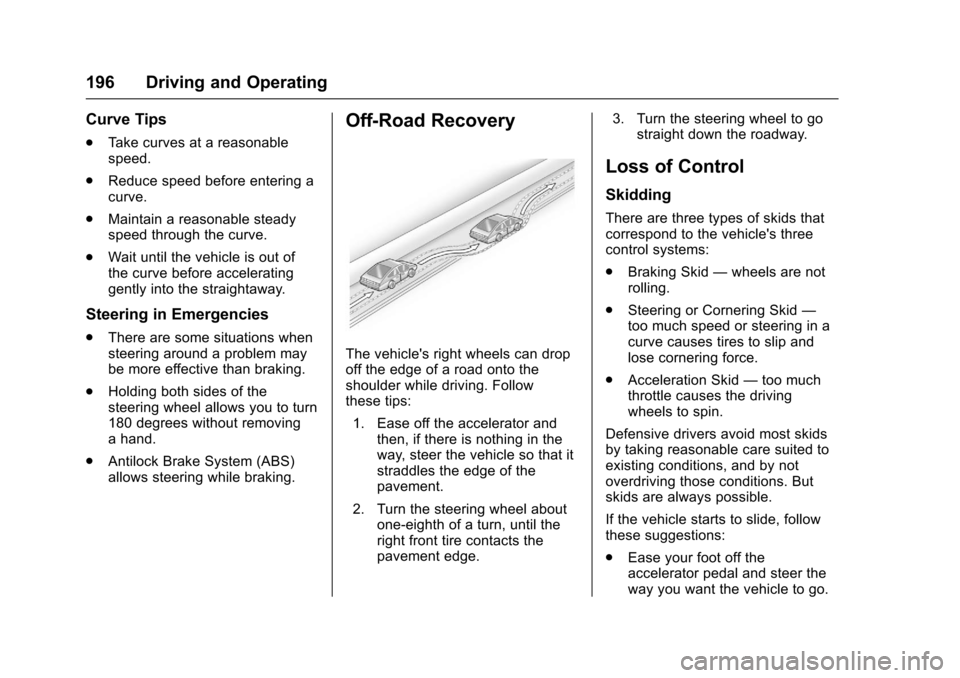
Off-Road Recovery
The vehicle's right wheels can drop
off the edge of a road onto the
shoulder while driving. Follow
these tips:
1. Ease off the accelerator and then, if there is nothing in the
way, steer the vehicle so that it
straddles the edge of the
pavement.
2. Turn the steering wheel about one-eighth of a turn, until the
right front tire contacts the
pavement edge. 3. Turn the steering wheel to go
straight down the roadway.
Loss of Control
Skidding
There are three types of skids that
correspond to the vehicle's three
control systems:
.Braking Skid —wheels are not
rolling.
. Steering or Cornering Skid —
too much speed or steering in a
curve causes tires to slip and
lose cornering force.
. Acceleration Skid —too much
throttle causes the driving
wheels to spin.
Defensive drivers avoid most skids
by taking reasonable care suited to
existing conditions, and by not
overdriving those conditions. But
skids are always possible.
If the vehicle starts to slide, follow
these suggestions:
. Ease your foot off the
accelerator pedal and steer the
way you want the vehicle to go.