2016 CHEVROLET CRUZE ECO mode
[x] Cancel search: ECO modePage 174 of 377
Chevrolet Cruze Owner Manual (GMNA-Localizing-U.S./Canada/Mexico-
9234744) - 2016 - CRC - 3/9/16
Infotainment System 173
Pause
Touch
jto pause.
Touch
rto resume.
Playing the Next Song
Touch
l.
Playing the Previous Song
Touch
gwithin two seconds of
playback time to play the
previous song.
Returning to the Beginning of the
Current Song
Touch
gafter two seconds of
playback time.
Search
Touch and hold
gorlto rewind
or fast forward.
Playing Music Randomly
Touch
Zduring playback. Touch
again to return to normal play.
This function may not be supported
depending on the Bluetooth device. Do not change the track too quickly
when playing Bluetooth music.
Conditions that may occur when
playing Bluetooth music:
.
It takes time to transmit data
from the Bluetooth device to the
infotainment system.
. If the cell phone or Bluetooth
device is not in the waiting
screen mode, it may not
automatically play.
. The infotainment system
transmits the order to play from
the Bluetooth device in the
Bluetooth music play mode.
If this is done in a different
mode, then the device transmits
the order to stop. Depending on
the Bluetooth device options,
this order to play/stop may take
time to activate.
. If the Bluetooth music playback
is not functioning, then check to
see if the Bluetooth device is in
the waiting screen mode.
. Sounds may be cut off during
the Bluetooth music playback. .
The infotainment system outputs
the audio from the cell phone or
Bluetooth device as it is
transmitted.
Apple CarPlay and
Android Auto
If equipped, Android Auto™ and/or
Apple CarPlay™ capability may be
available through a compatible
smartphone. If available, a
PROJECTION icon will appear as
Android Auto or Car Play on the
Home Page of the infotainment
display.
To use Android Auto and/or Apple
CarPlay:
1. Download the Android Auto app to your phone from the
Google™ Play store. There is
no app required for Apple
CarPlay. Use the latest
available operation system.
2. Connect your Android phone or Apple iPhone by using the
compatible phone USB cable
and plugging into a USB data
port. For best performance, use
Page 178 of 377
Chevrolet Cruze Owner Manual (GMNA-Localizing-U.S./Canada/Mexico-
9234744) - 2016 - CRC - 3/9/16
Infotainment System 177
.To display album title, track title,
and artist information, the file
should be compatible with the
ID3 Tag V1 and V2 formats.
Using USB Storage Devices and
iPod/iPhone
. Use a USB or flash memory type
storage device. Do not connect
using a USB adaptor.
. Do not connect and reconnect
the USB device repeatedly in a
short time, as this may cause
static electricity and problems
using the device.
. Use a USB device with a metal
connecting terminal.
. Connection with i-Stick Type
USB storage devices may be
faulty due to vehicle vibration.
. Do not touch the USB
connecting terminal.
. Only USB storage devices
formatted in FAT16/32 or exFAT
file systems are recognized.
NTFS and other file systems are
not recognized. .
The time it takes to process files
will depend on the USB storage
device type and capacity, and
the type of files stored.
. Some USB storage device files
may not be compatible.
. Up to two USB devices and one
iPod can be played through a
USB hub. All devices may not be
supported, depending on the
performance of the USB hub.
If there is not enough power
supply, it may not operate
normally.
. Do not disconnect the USB
storage device while it is playing.
This may cause damage to the
product or affect the
performance of the USB device.
. Disconnect the USB storage
device when the ignition is
turned off. If the ignition is turned
on while the USB device is
connected, the USB device may
be damaged or may not operate
normally. .
USB storage devices can only
be connected for playing music/
movies, viewing photo files,
or upgrading.
. Do not use the USB terminal to
charge USB accessory
equipment. The heat generated
may cause performance issues
or damage.
. Music files to which Digital Right
Management (DRM) is applied
cannot be played.
. USB storage device that are in
capacity with a limit of 5,000
files, such as music, photo,
video, 15 stages of folder
structure. Normal usage cannot
be guaranteed for a storage
device that exceeds this limit.
The iPod/iPhone can play all
music files that are supported.
The music file lists will only
display up to 5,000 files on the
screen. These files are sorted in
alphabetical order.
. Some iPod/iPhone product
models may not support the
connectivity or functionality of
this product.
Page 180 of 377
Chevrolet Cruze Owner Manual (GMNA-Localizing-U.S./Canada/Mexico-
9234744) - 2016 - CRC - 3/9/16
Infotainment System 179
Changing to the Next/Previous
Files
.Touch
lto change to the
next file.
. Touch
gwithin five seconds of
the playback time to play the
previous file.
Returning to the Beginning of the
Current File
Touch
gafter five seconds of the
playback time.
Scanning Forward or Backward
Touch and hold
gorlduring
playback to rewind or fast forward.
Release the button to resume
playback at normal speed.
Playing a File Randomly
Touch
Zduring playback.
. ON: Plays all files randomly.
. OFF: Returns to normal
playback.
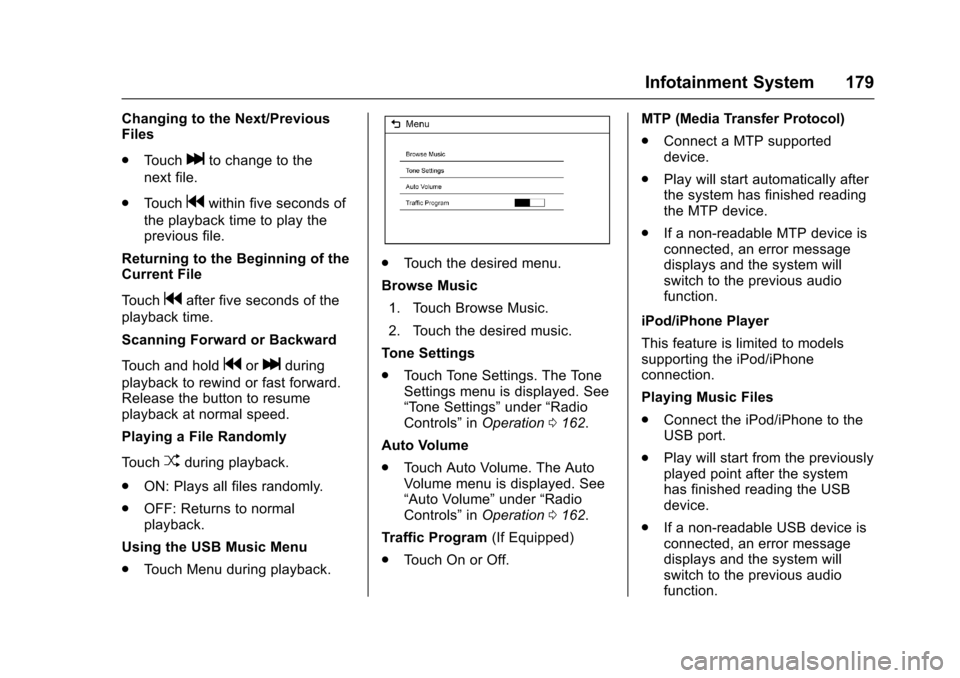
Using the USB Music Menu
. Touch Menu during playback.
.Touch the desired menu.
Browse Music 1. Touch Browse Music.
2. Touch the desired music.
Tone Settings
. Touch Tone Settings. The Tone
Settings menu is displayed. See
“Tone Settings” under“Radio
Controls” inOperation 0162.
Auto Volume
. Touch Auto Volume. The Auto
Volume menu is displayed. See
“Auto Volume” under“Radio
Controls” inOperation 0162.
Traffic Program (If Equipped)
. Touch On or Off. MTP (Media Transfer Protocol)
.
Connect a MTP supported
device.
. Play will start automatically after
the system has finished reading
the MTP device.
. If a non-readable MTP device is
connected, an error message
displays and the system will
switch to the previous audio
function.
iPod/iPhone Player
This feature is limited to models
supporting the iPod/iPhone
connection.
Playing Music Files
. Connect the iPod/iPhone to the
USB port.
. Play will start from the previously
played point after the system
has finished reading the USB
device.
. If a non-readable USB device is
connected, an error message
displays and the system will
switch to the previous audio
function.
Page 181 of 377
Chevrolet Cruze Owner Manual (GMNA-Localizing-U.S./Canada/Mexico-
9234744) - 2016 - CRC - 3/9/16
180 Infotainment System
If the iPod/iPhone is already
connected:1. Press
{.
2. Touch AUDIO.
3. Touch Source.
4. Touch iPod.
To stop the device and select
another media source, touch
Source, then select the other
source.
To remove the device, select
another function, then remove the
device.
Pause
. Touch
jto pause.
. Touch
rto resume.
Changing to the Next/
Previous Song
. Touch
lto change to the
next song.
. Touch
gwithin two seconds of
the playback time to play the
previous file. Returning to the Beginning of the
Current File
Touch
gafter two seconds of the
playback time.
Scanning Forward or Backward
Touch and hold
gorlduring
playback to rewind or fast forward.
Release the button to resume
playback at normal speed.
Playing a File Randomly
Touch
Zduring playback.
. ON: Plays all files randomly.
. OFF: Returns to normal
playback.
Using the iPod Menu
. Touch Menu during playback.
. Touch the appropriate
play mode.
Browse Music 1. Touch Browse Music.
2. Touch the desired music. Tone Settings
.
Touch Tone Settings. The Tone
Settings menu is displayed. See
“Tone Settings” under“Radio
Controls” inOperation 0162.
Auto Volume
. Touch Auto Volume. The Auto
Volume menu is displayed. See
“Auto Volume” under“Radio
Controls” inOperation 0162.Pictures and Movies
(Picture System)
The infotainment system can view
picture files stored on a USB
storage device and devices that
support Media Transfer
Protocol (MTP).
Picture System Information
.
Supported file extensions: .jpg,
.bmp, .png, .gif.
. Animated GIF files are not
supported.
. Some files may not operate due
to a different recording format or
the condition of the file.
Page 189 of 377
Chevrolet Cruze Owner Manual (GMNA-Localizing-U.S./Canada/Mexico-
9234744) - 2016 - CRC - 3/9/16
188 Climate Controls
If equipped with heated outside
rearview mirrors, they turn on when
the rear window defogger button is
on and help to clear fog or frost from
the surface of the mirrors. See
Heated Mirrors050.
Caution
Do not use a razor blade or sharp
object to clear the inside rear
window. Do not adhere anything
to the defogger grid lines in the
rear glass. These actions may
damage the rear defogger.
Repairs would not be covered by
the vehicle warranty.
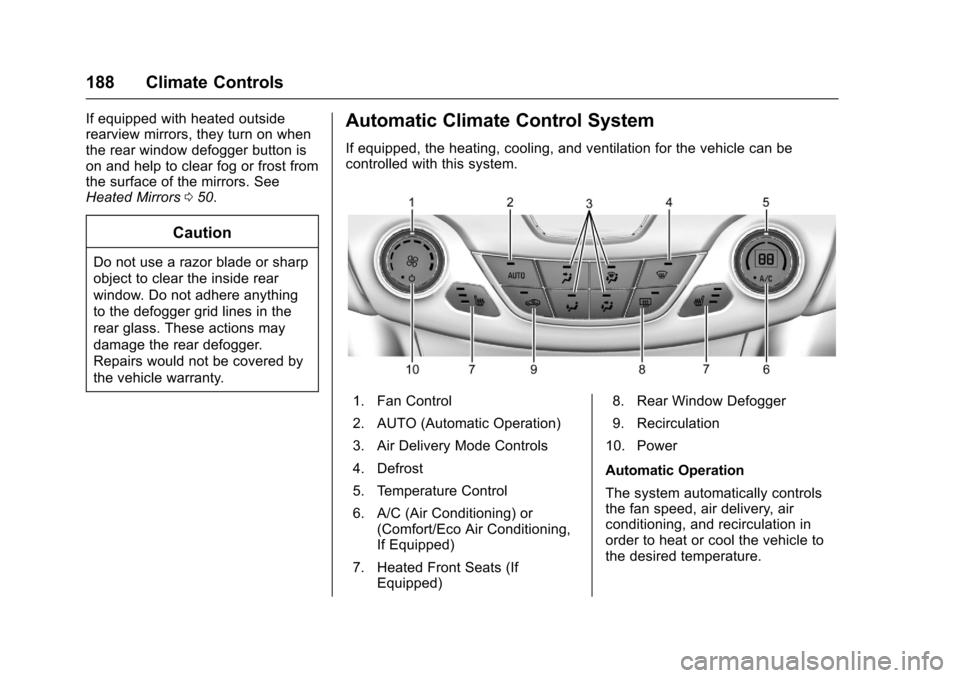
Automatic Climate Control System
If equipped, the heating, cooling, and ventilation for the vehicle can be
controlled with this system.
1. Fan Control
2. AUTO (Automatic Operation)
3. Air Delivery Mode Controls
4. Defrost
5. Temperature Control
6. A/C (Air Conditioning) or
(Comfort/Eco Air Conditioning,
If Equipped)
7. Heated Front Seats (If Equipped) 8. Rear Window Defogger
9. Recirculation
10. Power
Automatic Operation
The system automatically controls
the fan speed, air delivery, air
conditioning, and recirculation in
order to heat or cool the vehicle to
the desired temperature.
Page 190 of 377
Chevrolet Cruze Owner Manual (GMNA-Localizing-U.S./Canada/Mexico-
9234744) - 2016 - CRC - 3/9/16
Climate Controls 189
When AUTO is lit, all four functions
operate automatically. Each function
can also be manually set and the
setting is displayed. Functions not
manually set will continue to be
automatically controlled, even if the
AUTO indicator is not lit.
For automatic operation:1. Press AUTO.
2. Set the temperature. Allow the system time to stabilize. Then
adjust the temperature as
needed for best comfort.
To improve fuel efficiency and to
cool the vehicle faster, recirculation
may be automatically selected in
warm weather. The recirculation
light will not come on. Press
hto
select recirculation; press it again to
select outside air.
To change English units to metric
units, see “Cluster Menu” then
“Units” underInstrument Cluster
(Base Level) 0112 orInstrument
Cluster (Uplevel) 0114. Manual Operation
O:
Press to turn the climate control
system on or off.
Fan Control : Turn the knob
clockwise or counterclockwise to
increase or decrease the fan speed.
The selected fan speed is indicated
by a number on the display screen.
Press AUTO to return to automatic
operation.
Air Delivery Mode Controls :
Press to change the direction of the
airflow. The indicator light in the
button will turn on. The current
mode appears in the display screen.
Automatic operation is canceled and
manual mode is initiated. Press
AUTO to return to automatic
operation.
To change the current mode, select
one of the following:
Y: Air is directed to the instrument
panel outlets.
\: Air is divided between the
instrument panel outlets and the
floor outlets.
[: Air is directed to the floor
outlets.
-: Clears the windows of fog or
moisture. Air is directed to the
windshield and floor outlets.
0: Clears the windshield of fog or
frost more quickly. Air is directed to
the windshield.
For best results, clear all snow and
ice from the windshield before
defrosting.
Do not drive the vehicle until all
windows are clear.
A/C (Air Conditioning) : Press to
turn the air conditioning on or off.
If the fan is turned off or the outside
temperature falls below freezing, the
air conditioning will not work.
A/C (Comfort/Eco Air
Conditioning) (For Start/Stop
Vehicles) : Press to cycle between
the comfort, eco, and off air
conditioning modes. The indicator
will be lit in comfort and eco modes,
and turns off in the off air
conditioning mode. If the fan is
turned off, the air conditioner will not
run and the indicator light will
turn off.
Page 191 of 377
Chevrolet Cruze Owner Manual (GMNA-Localizing-U.S./Canada/Mexico-
9234744) - 2016 - CRC - 3/9/16
190 Climate Controls
Press AUTO to return to automatic
operation and the air conditioner
runs automatically as needed. With
Stop/Start vehicles, the A/C will
return to the last selected a/c mode.
For comfort a/c, press A/C. The
indicator will turn amber. This
setting limits Auto Stops to ensure
cabin comfort is maintained and
reduces the likelihood of window
fogging.
For eco a/c, press A/C again. The
indicator will turn green. This setting
balances fuel economy and air
conditioning comfort. In warm
weather conditions, Auto Stops may
occur more frequently and the
vehicle interior may be warmer as
compared to the comfort air
conditioning setting. This setting
allows higher humidity inside the
vehicle and window fogging before
the engine restarts. Pressing
0
during an Auto Stop will restart the
engine to prevent window fogging.
L:Press to turn on
recirculation. An indicator light
comes on. Air is recirculated to quickly cool the inside of the vehicle
and reduce the entry of outside air
and odors.
Automatic Air Recirculation :
When the AUTO indicator light is
on, the air is automatically
recirculated as needed to help
quickly cool the inside of the
vehicle.
Auto Defog :
The climate control
system may have a sensor to
automatically detect high humidity
inside the vehicle. When high
humidity is detected, the climate
control system may adjust to
outside air supply and turn on the
air conditioner. If the climate control
system does not detect possible
window fogging, it returns to normal
operation. To turn Auto Defog off or
on, see “Climate and Air Quality”
under Vehicle
Personalization 0143.
Rear Window Defogger
=:Press to turn the rear window
defogger on or off. An indicator light
on the button comes on to show that
the rear window defogger is on. The defogger only works when the
ignition is in ON/RUN. The defogger
turns off if the ignition is in the ACC/
ACCESSORY or LOCK/OFF
position.
The rear window defogger can be
set to automatic operation. See
“Climate and Air Quality”
under
Vehicle Personalization 0143.
When Auto Rear Defog is selected,
the rear window defogger turns on
automatically when the interior
temperature is cold and the outside
temperature is about 5 °C (40 °F)
and below. The auto rear defogger
turns off automatically. At higher
speeds, the rear window defogger
may stay on continuously.
If equipped with heated outside
mirrors, they turn on when the rear
window defogger button is on and
help to clear fog or frost from the
surface of the mirrors. See Heated
Mirrors 050.
Page 194 of 377
Chevrolet Cruze Owner Manual (GMNA-Localizing-U.S./Canada/Mexico-
9234744) - 2016 - CRC - 3/9/16
Driving and Operating 193
Driving and
Operating
Driving Information
Distracted Driving . . . . . . . . . . . . 194
Defensive Driving . . . . . . . . . . . . . 194
Drunk Driving . . . . . . . . . . . . . . . . . 194
Control of a Vehicle . . . . . . . . . . . 195
Braking . . . . . . . . . . . . . . . . . . . . . . . 195
Steering . . . . . . . . . . . . . . . . . . . . . . 195
Off-Road Recovery . . . . . . . . . . . 196
Loss of Control . . . . . . . . . . . . . . . 196
Driving on Wet Roads . . . . . . . . 197
Hill and Mountain Roads . . . . . 198
Winter Driving . . . . . . . . . . . . . . . . 198
If the Vehicle Is Stuck . . . . . . . . 199
Vehicle Load Limits . . . . . . . . . . . 200
Starting and Operating
New Vehicle Break-In . . . . . . . . . 204
Ignition Positions (KeyAccess) . . . . . . . . . . . . . . . . . . . . . 204
Ignition Positions (Keyless Access) . . . . . . . . . . . . . . . . . . . . . 206
Starting the Engine . . . . . . . . . . . 207
Engine Heater . . . . . . . . . . . . . . . . 210
Retained Accessory Power (RAP) . . . . . . . . . . . . . . . . 211
Shifting Into Park . . . . . . . . . . . . . 211 Shifting out of Park . . . . . . . . . . . 212
Parking . . . . . . . . . . . . . . . . . . . . . . . 213
Parking over Things
That Burn . . . . . . . . . . . . . . . . . . . 213
Engine Exhaust
Engine Exhaust . . . . . . . . . . . . . . 213
Running the Vehicle WhileParked . . . . . . . . . . . . . . . . . . . . . . 214
Automatic Transmission
Automatic Transmission . . . . . . 214
Manual Mode . . . . . . . . . . . . . . . . . 216
Manual Transmission
Manual Transmission . . . . . . . . . 217
Brakes
Antilock BrakeSystem (ABS) . . . . . . . . . . . . . . . 219
Parking Brake . . . . . . . . . . . . . . . . 220
Brake Assist . . . . . . . . . . . . . . . . . . 221
Ride Control Systems
Traction Control/Electronic Stability Control . . . . . . . . . . . . . 221
Cruise Control
Cruise Control . . . . . . . . . . . . . . . . 223
Driver Assistance Systems
Driver Assistance Systems . . . 225 Assistance Systems for
Parking or Backing . . . . . . . . . . 226
Assistance Systems for Driving . . . . . . . . . . . . . . . . . . . . . . 228
Forward Collision Alert (FCA)
System . . . . . . . . . . . . . . . . . . . . . . 229
Side Blind Zone Alert (SBZA) . . . . . . . . . . . . . . . . 231
Lane Change Alert (LCA) . . . . . 231
Lane Departure Warning (LDW) . . . . . . . . . . . . . 233
Lane Keep Assist (LKA) . . . . . . 233
Fuel
Fuel . . . . . . . . . . . . . . . . . . . . . . . . . . 235
California Fuel Requirements . . . . . . . . . . . . . . . 236
Fuels in Foreign Countries . . . 236
Fuel Additives . . . . . . . . . . . . . . . . 236
Filling the Tank . . . . . . . . . . . . . . . 236
Filling a Portable Fuel Container . . . . . . . . . . . . . . . . . . . 238
Trailer Towing
General TowingInformation . . . . . . . . . . . . . . . . . . 238
Conversions and Add-Ons
Add-On ElectricalEquipment . . . . . . . . . . . . . . . . . . 239