2016 CHEVROLET CRUZE LIMITED fuel consumption
[x] Cancel search: fuel consumptionPage 113 of 357
Chevrolet Cruze Limited Owner Manual (GMNA-Localizing-U.S./Canada-
9282844) - 2016 - crc - 9/3/15
112 Instruments and Controls
Information Displays
Driver Information
Center (DIC)
The DIC displays information about
your vehicle. It also displays
warning messages if a system
problem is detected. SeeVehicle
Messages 0115
ii. All messages
appear in the DIC display in the
center of the instrument cluster.
DIC Operation and Displays
The DIC has different displays
which can be accessed by using the
DIC buttons on the turn signal lever.
The DIC displays trip, fuel, and
warning messages if a system
problem is detected.
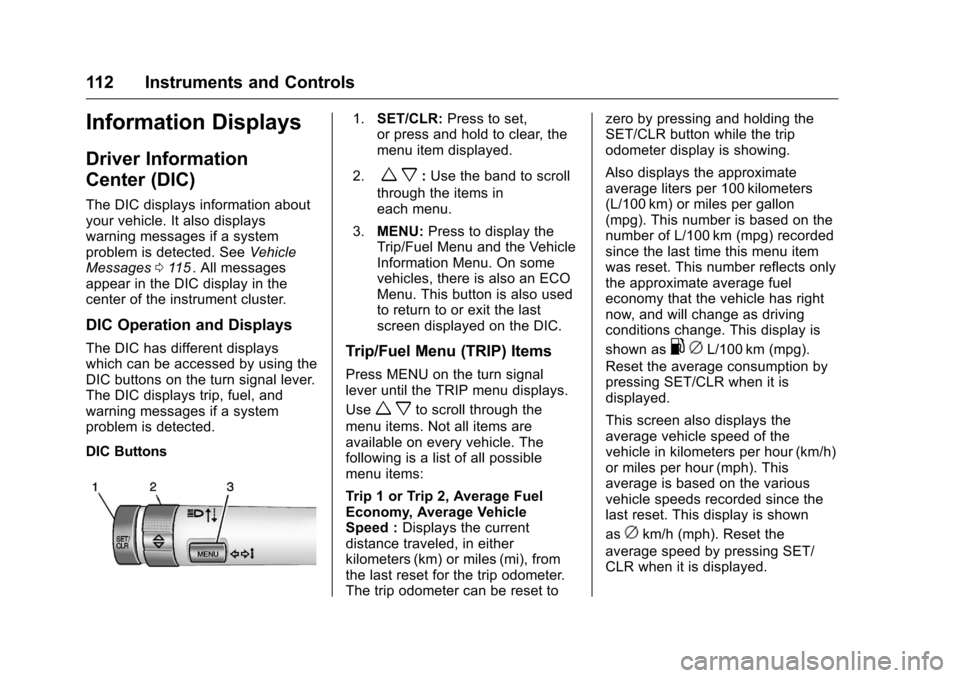
DIC Buttons
1. SET/CLR: Press to set,
or press and hold to clear, the
menu item displayed.
2.
w x: Use the band to scroll
through the items in
each menu.
3. MENU: Press to display the
Trip/Fuel Menu and the Vehicle
Information Menu. On some
vehicles, there is also an ECO
Menu. This button is also used
to return to or exit the last
screen displayed on the DIC.
Trip/Fuel Menu (TRIP) Items
Press MENU on the turn signal
lever until the TRIP menu displays.
Use
w xto scroll through the
menu items. Not all items are
available on every vehicle. The
following is a list of all possible
menu items:
Trip 1 or Trip 2, Average Fuel
Economy, Average Vehicle
Speed : Displays the current
distance traveled, in either
kilometers (km) or miles (mi), from
the last reset for the trip odometer.
The trip odometer can be reset to zero by pressing and holding the
SET/CLR button while the trip
odometer display is showing.
Also displays the approximate
average liters per 100 kilometers
(L/100 km) or miles per gallon
(mpg). This number is based on the
number of L/100 km (mpg) recorded
since the last time this menu item
was reset. This number reflects only
the approximate average fuel
economy that the vehicle has right
now, and will change as driving
conditions change. This display is
shown as
.
cL/100 km (mpg).
Reset the average consumption by
pressing SET/CLR when it is
displayed.
This screen also displays the
average vehicle speed of the
vehicle in kilometers per hour (km/h)
or miles per hour (mph). This
average is based on the various
vehicle speeds recorded since the
last reset. This display is shown
as
ckm/h (mph). Reset the
average speed by pressing SET/
CLR when it is displayed.
Page 116 of 357
Chevrolet Cruze Limited Owner Manual (GMNA-Localizing-U.S./Canada-
9282844) - 2016 - crc - 9/3/15
Instruments and Controls 115
average in the left display and how
well recent driving compares to the
best that has been achieved.
ECO Index :The bar graph on the
left hand side provides feedback on
the efficiency of current driving
behavior. The graph shows
a percentage value that is based on
current fuel consumption compared
to what is expected from the vehicle
with good and bad driving habits.
Each box represents 10%, with all
boxes filled being 100%. More
economical driving will result in
being in the ECO box.
Instantaneous Fuel Economy is also
shown on right hand side. This
display cannot be reset.
Economy Trend : Displays history
of the Average Fuel Economy from
the last 50 km (30 miles). Each bar
represents about 5 km (3 miles) of
driving. The fuel economy will range
from 0 –15 L/100 km (0 –50 mpg).
During driving the bars will shift to
always reflect the most recent
distance on the right side. This
display cannot be reset.Vehicle Messages
Messages displayed on the DIC
indicate the status of the vehicle or
some action that may be needed to
correct a condition. Multiple
messages may display one after the
other.
The messages that do not require
immediate action can be
acknowledged and cleared by
pressing SET/CLR. The messages
that require immediate action cannot
be cleared until that action is
performed. All messages should be
taken seriously and clearing the
messages does not correct the
problem.
The following are some of the
vehicle messages that may be
displayed depending on your
vehicle content.
Battery Voltage and
Charging Messages
BATTERY SAVER ACTIVE
This message displays when the
vehicle has detected that the battery
voltage is dropping beyond a
reasonable point. The battery saver
system starts reducing features of
the vehicle that may be noticed. At
the point that features are disabled,
this message displays. Turn off
unnecessary accessories to allow
the battery to recharge.
LOW BATTERY
This message is displayed when the
battery voltage is low. See Battery -
North America 0241
ii.
SERVICE BATTERY
CHARGING SYSTEM
This message is displayed when
there is a fault in the battery
charging system. Take the vehicle to
your dealer for service.
Page 335 of 357
Chevrolet Cruze Limited Owner Manual (GMNA-Localizing-U.S./Canada-
9282844) - 2016 - crc - 9/3/15
334 Customer Information
To contact NHTSA, you may call
the Vehicle Safety Hotline
toll-free at 1-888-327-4236 (TTY:
1-800-424-9153); go tohttp://
www.safercar.gov; or write to:
Administrator, NHTSA
1200 New Jersey Avenue, S.E.
Washington, D.C. 20590
You can also obtain other
information about motor vehicle
safety from http://
www.safercar.gov
.
Reporting Safety Defects
to the Canadian
Government
If you live in Canada, and you
believe that the vehicle has a safety
defect, notify Transport Canada
immediately, and notify General
Motors of Canada Limited. Call
Transport Canada at
1-800-333-0510 or write to:
Transport Canada
Road Safety Branch
80 rue Noel
Gatineau, QC J8Z 0A1
Reporting Safety Defects
to General Motors
In addition to notifying NHTSA (or
Transport Canada) in a situation like
this, notify General Motors.
Call 1-800-222-1020, or write:
Chevrolet Motor Division
Chevrolet Customer Assistance
Center
P.O. Box 33170
Detroit, MI 48232-5170
In Canada, call 1-800-263-3777
(English) or 1-800-263-7854
(French), or write:
General Motors of Canada Limited
Customer Care Centre, Mail Code:
CA1-163-005
1908 Colonel Sam Drive
Oshawa, Ontario L1H 8P7
Vehicle Data
Recording and
Privacy
The vehicle has a number of
computers that record information
about the vehicle’s performance and
how it is driven. For example, the
vehicle uses computer modules to
monitor and control engine and
transmission performance, to
monitor the conditions for airbag
deployment and deploy them in a
crash, and, if equipped, to provide
antilock braking to help the driver
control the vehicle. These modules
may store data to help the dealer
technician service the vehicle.
Some modules may also store data
about how the vehicle is operated,
such as rate of fuel consumption or
average speed. These modules may
retain personal preferences, such as
radio presets, seat positions, and
temperature settings.
Page 340 of 357
Chevrolet Cruze Limited Owner Manual (GMNA-Localizing-U.S./Canada-
9282844) - 2016 - crc - 9/3/15
OnStar 339
(no Internet connection, 3G,
4G, 4G LTE), and signal quality
(poor, good, excellent).
3. To change the SSID or password, press
Qor call
1-888-4ONSTAR to connect
with an Advisor.
OnStar RemoteLink
®Mobile App
(If Equipped)
Download the OnStar RemoteLink
mobile app to select Apple
®iOS,
Android™, BlackBerry®,
or Windows®mobile devices.
OnStar Subscribers can access the
following services from a mobile
device:
. Remotely start/stop the vehicle,
if factory-equipped.
. Lock/unlock doors, if equipped
with automatic locks.
. Activate the horn and lamps.
. Check the vehicle’s fuel level, oil
life, or tire pressure,
if factory-equipped with the Tire
Pressure Monitor System.
. Send directions to the vehicle. .
Locate the vehicle on a map
(U.S. market only).
. Turn the vehicle's Wi-Fi hotspot
on/off, manage settings, and
monitor data consumption,
if equipped.
For OnStar RemoteLink information
and compatibility, see
www.onstar.com (U.S.) or
www.onstar.ca (Canada).
Remote Services
Contact an OnStar Advisor to
unlock the doors or sound the horn
and flash the lamps.
OnStar AtYourService
OnStar Advisors can provide special
offers from restaurants and retailers
on your route, help locate hotels,
or book a room.
OnStar Hands-Free Calling
Make and receive calls with the
built-in wireless calling service,
which requires available minutes. Make a Call
1. Press
=. System responds:
“OnStar ready.”
2. Say “Call.”System responds:
“Call. Please say the name or
number to call.”
3. Say the entire number without pausing, including a “1”and the
area code. System responds:
“OK, calling.”
Calling 911 Emergency
1. Press=. System responds:
“OnStar ready.”
2. Say “Call.”System responds:
“Call. Please say the name or
number to call.”
3. Say “911”without pausing.
System responds: “911.”
4. Say “Call.”System responds:
“OK, dialing 911.”
Retrieve My Number
1. Press=. System responds:
“OnStar ready.”