2016 CHEVROLET CORVETTE infotainment
[x] Cancel search: infotainmentPage 149 of 351
Chevrolet Corvette Owner Manual (GMNA-Localizing-U.S./Canada/Mexico-
9085364) - 2016 - crc - 9/15/15
148 Infotainment System
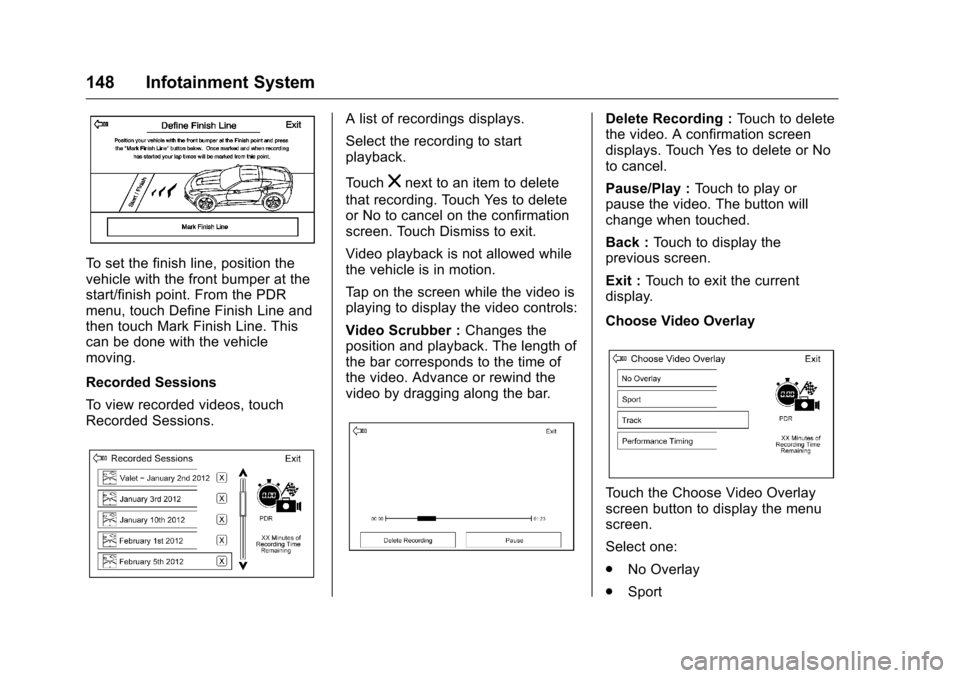
To set the finish line, position the
vehicle with the front bumper at the
start/finish point. From the PDR
menu, touch Define Finish Line and
then touch Mark Finish Line. This
can be done with the vehicle
moving.
Recorded Sessions
To view recorded videos, touch
Recorded Sessions.
A list of recordings displays.
Select the recording to start
playback.
Touch
znext to an item to delete
that recording. Touch Yes to delete
or No to cancel on the confirmation
screen. Touch Dismiss to exit.
Video playback is not allowed while
the vehicle is in motion.
Tap on the screen while the video is
playing to display the video controls:
Video Scrubber : Changes the
position and playback. The length of
the bar corresponds to the time of
the video. Advance or rewind the
video by dragging along the bar.
Delete Recording : Touch to delete
the video. A confirmation screen
displays. Touch Yes to delete or No
to cancel.
Pause/Play : Touch to play or
pause the video. The button will
change when touched.
Back : Touch to display the
previous screen.
Exit : Touch to exit the current
display.
Choose Video Overlay
Touch the Choose Video Overlay
screen button to display the menu
screen.
Select one:
. No Overlay
. Sport
Page 150 of 351
Chevrolet Corvette Owner Manual (GMNA-Localizing-U.S./Canada/Mexico-
9085364) - 2016 - crc - 9/15/15
Infotainment System 149
.Track
. Performance Timing
No Overlay:
No vehicle data displays on top of
the recorded video. Vehicle data is
still available with the video when
accessed in the toolbox software.
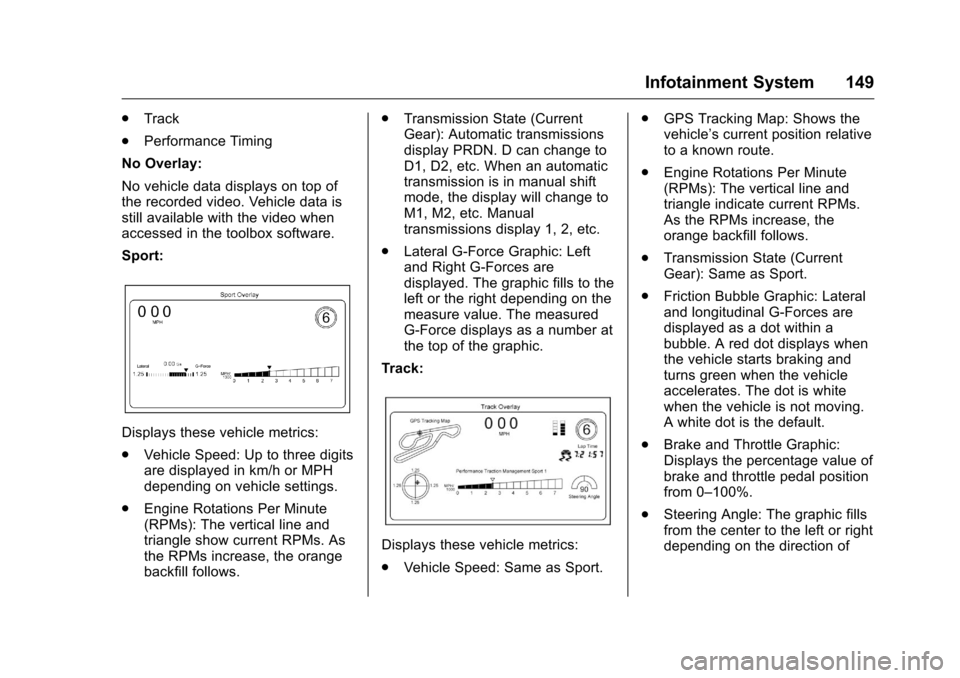
Sport:
Displays these vehicle metrics:
. Vehicle Speed: Up to three digits
are displayed in km/h or MPH
depending on vehicle settings.
. Engine Rotations Per Minute
(RPMs): The vertical line and
triangle show current RPMs. As
the RPMs increase, the orange
backfill follows. .
Transmission State (Current
Gear): Automatic transmissions
display PRDN. D can change to
D1, D2, etc. When an automatic
transmission is in manual shift
mode, the display will change to
M1, M2, etc. Manual
transmissions display 1, 2, etc.
. Lateral G-Force Graphic: Left
and Right G-Forces are
displayed. The graphic fills to the
left or the right depending on the
measure value. The measured
G-Force displays as a number at
the top of the graphic.
Track:
Displays these vehicle metrics:
. Vehicle Speed: Same as Sport. .
GPS Tracking Map: Shows the
vehicle’s current position relative
to a known route.
. Engine Rotations Per Minute
(RPMs): The vertical line and
triangle indicate current RPMs.
As the RPMs increase, the
orange backfill follows.
. Transmission State (Current
Gear): Same as Sport.
. Friction Bubble Graphic: Lateral
and longitudinal G-Forces are
displayed as a dot within a
bubble. A red dot displays when
the vehicle starts braking and
turns green when the vehicle
accelerates. The dot is white
when the vehicle is not moving.
A white dot is the default.
. Brake and Throttle Graphic:
Displays the percentage value of
brake and throttle pedal position
from 0–100%.
. Steering Angle: The graphic fills
from the center to the left or right
depending on the direction of
Page 151 of 351
Chevrolet Corvette Owner Manual (GMNA-Localizing-U.S./Canada/Mexico-
9085364) - 2016 - crc - 9/15/15
150 Infotainment System
steering. The numerical steering
angle displays below the
graphic.
. Active Handling Active Indicator:
The graphic only displays if the
active handling systems are
activated.
. Performance Traction
Management (PTM) Mode:
Displays the current PTM mode.
The options are Wet, Dry, Sport
1, Sport 2, or Race.
. Current Lap Time: Displays the
elapsed lap time if the finish line
is defined and the vehicle has
crossed the defined finish line at
least once.
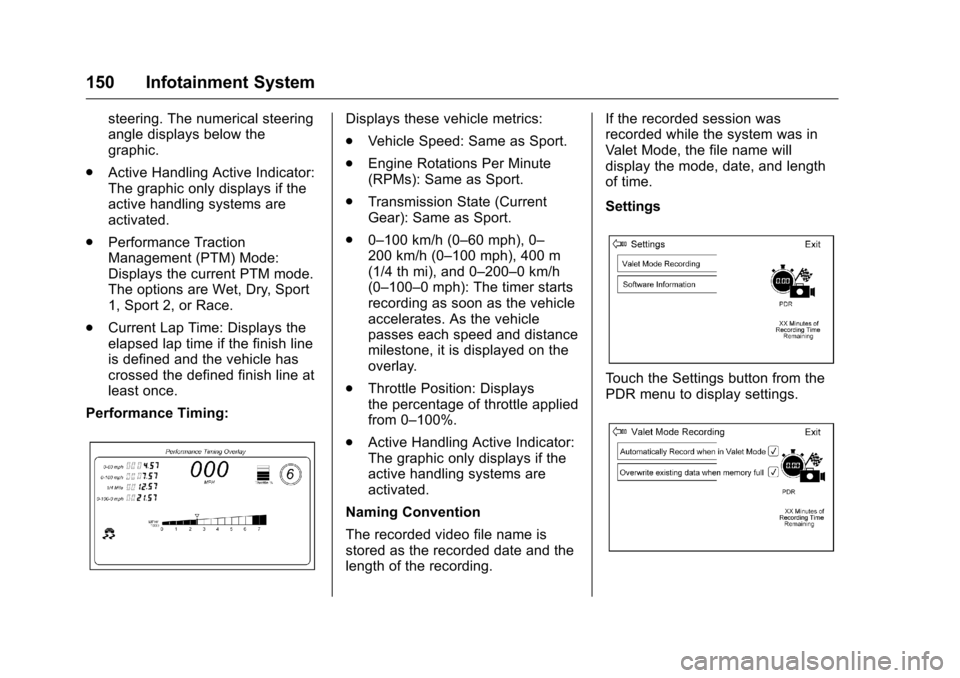
Performance Timing:Displays these vehicle metrics:
. Vehicle Speed: Same as Sport.
. Engine Rotations Per Minute
(RPMs): Same as Sport.
. Transmission State (Current
Gear): Same as Sport.
. 0–100 km/h (0–60 mph), 0–
200 km/h (0–100 mph), 400 m
(1/4 th mi), and 0–200–0 km/h
(0–100–0 mph): The timer starts
recording as soon as the vehicle
accelerates. As the vehicle
passes each speed and distance
milestone, it is displayed on the
overlay.
. Throttle Position: Displays
the percentage of throttle applied
from 0–100%.
. Active Handling Active Indicator:
The graphic only displays if the
active handling systems are
activated.
Naming Convention
The recorded video file name is
stored as the recorded date and the
length of the recording. If the recorded session was
recorded while the system was in
Valet Mode, the file name will
display the mode, date, and length
of time.
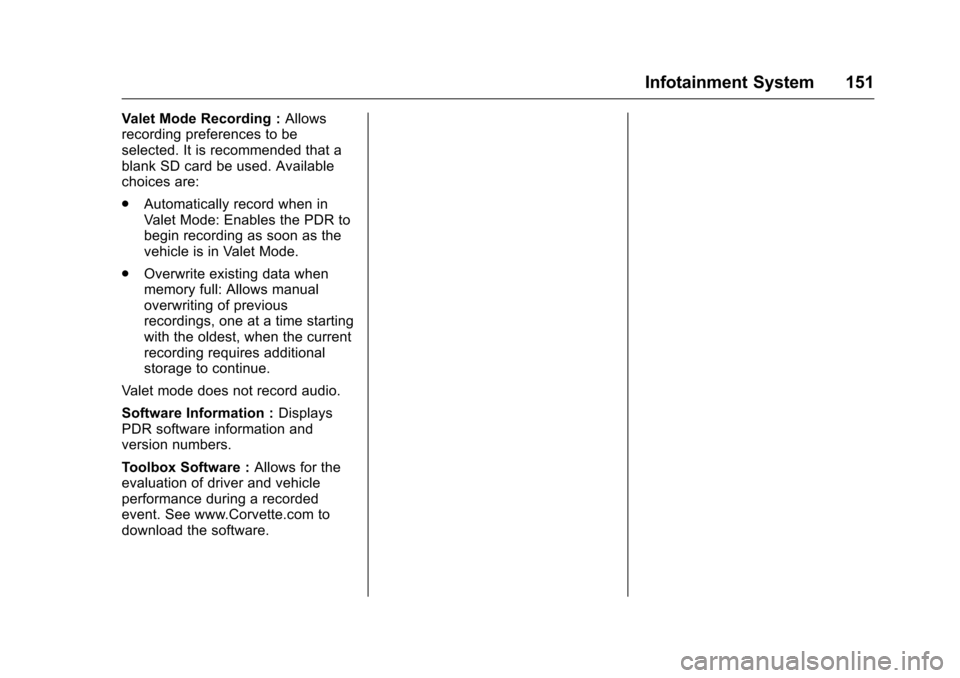
Settings
Touch the Settings button from the
PDR menu to display settings.
Page 152 of 351
Chevrolet Corvette Owner Manual (GMNA-Localizing-U.S./Canada/Mexico-
9085364) - 2016 - crc - 9/15/15
Infotainment System 151
Valet Mode Recording :Allows
recording preferences to be
selected. It is recommended that a
blank SD card be used. Available
choices are:
. Automatically record when in
Valet Mode: Enables the PDR to
begin recording as soon as the
vehicle is in Valet Mode.
. Overwrite existing data when
memory full: Allows manual
overwriting of previous
recordings, one at a time starting
with the oldest, when the current
recording requires additional
storage to continue.
Valet mode does not record audio.
Software Information : Displays
PDR software information and
version numbers.
Toolbox Software : Allows for the
evaluation of driver and vehicle
performance during a recorded
event. See www.Corvette.com to
download the software.
Page 160 of 351
Chevrolet Corvette Owner Manual (GMNA-Localizing-U.S./Canada/Mexico-
9085364) - 2016 - crc - 9/15/15
Driving and Operating 159
Driving Information
Distracted Driving
Distraction comes in many forms
and can take your focus from the
task of driving. Exercise good
judgment and do not let other
activities divert your attention away
from the road. Many local
governments have enacted laws
regarding driver distraction. Become
familiar with the local laws in
your area.
To avoid distracted driving, always
keep your eyes on the road, hands
on the wheel, and mind on the drive.
.Do not use a phone in
demanding driving situations.
Use a hands-free method to
place or receive necessary
phone calls.
. Watch the road. Do not read,
take notes, or look up
information on phones or other
electronic devices.
. Designate a front seat
passenger to handle potential
distractions. .
Become familiar with vehicle
features before driving, such as
programming favorite radio
stations and adjusting climate
control and seat settings.
Program all trip information into
any navigation device prior to
driving.
. Wait until the vehicle is parked
to retrieve items that have fallen
to the floor.
. Stop or park the vehicle to tend
to children.
. Keep pets in an appropriate
carrier or restraint.
. Avoid stressful conversations
while driving, whether with a
passenger or on a cell phone.
{Warning
Taking your eyes off the road too
long or too often could cause a
crash resulting in injury or death.
Focus your attention on driving. Refer to the infotainment manual for
more information on using that
system and the navigation system,
if equipped, including pairing and
using a cell phone.
Defensive Driving
Defensive driving means
“always
expect the unexpected.” The first
step in driving defensively is to wear
the safety belt. See Safety
Belts 061.
. Assume that other road users
(pedestrians, bicyclists, and
other drivers) are going to be
careless and make mistakes.
Anticipate what they might do
and be ready.
. Allow enough following distance
between you and the driver in
front of you.
. Focus on the task of driving.
Drunk Driving
Death and injury associated with
drinking and driving is a global
tragedy.
Page 206 of 351
Chevrolet Corvette Owner Manual (GMNA-Localizing-U.S./Canada/Mexico-
9085364) - 2016 - crc - 9/15/15
Driving and Operating 205
Driver Assistance
Systems
Assistance Systems for
Parking or Backing
If equipped, the Rear Vision Camera
(RVC) and Curb View Camera may
help the driver park or avoid objects.
Always check around the vehicle
when parking or backing.
Rear Vision Camera (RVC)
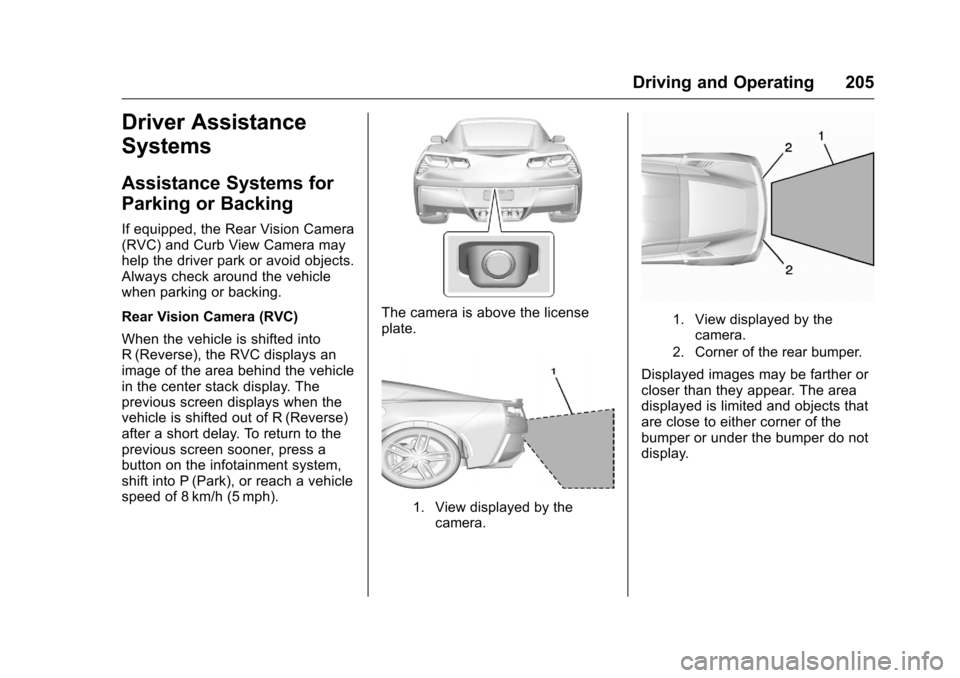
When the vehicle is shifted into
R (Reverse), the RVC displays an
image of the area behind the vehicle
in the center stack display. The
previous screen displays when the
vehicle is shifted out of R (Reverse)
after a short delay. To return to the
previous screen sooner, press a
button on the infotainment system,
shift into P (Park), or reach a vehicle
speed of 8 km/h (5 mph).
The camera is above the license
plate.
1. View displayed by thecamera.
1. View displayed by thecamera.
2. Corner of the rear bumper.
Displayed images may be farther or
closer than they appear. The area
displayed is limited and objects that
are close to either corner of the
bumper or under the bumper do not
display.
Page 207 of 351
Chevrolet Corvette Owner Manual (GMNA-Localizing-U.S./Canada/Mexico-
9085364) - 2016 - crc - 9/15/15
206 Driving and Operating
Curb View Camera
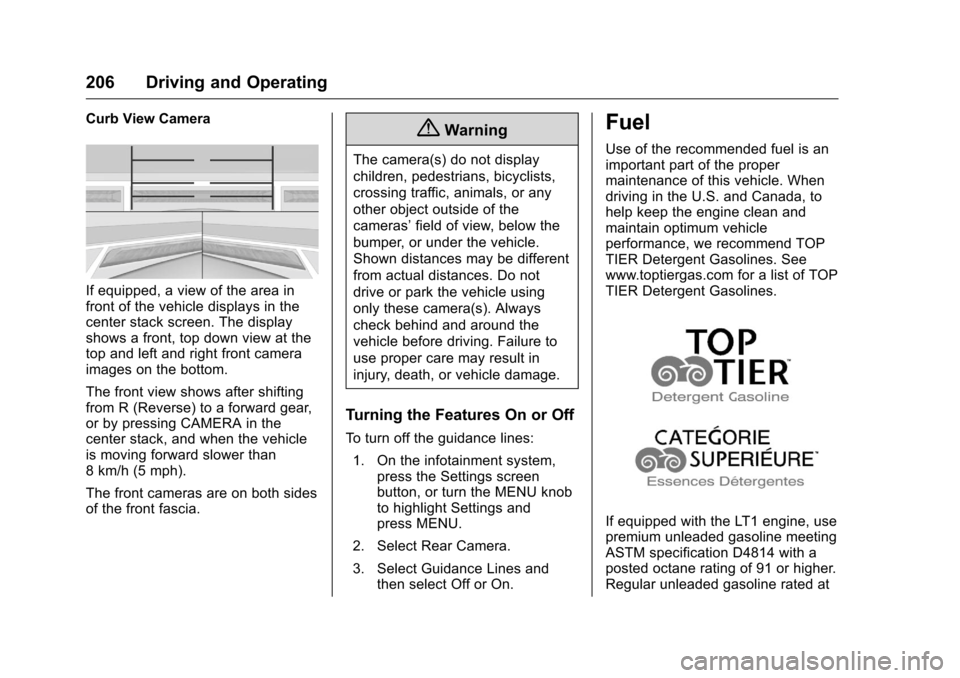
If equipped, a view of the area in
front of the vehicle displays in the
center stack screen. The display
shows a front, top down view at the
top and left and right front camera
images on the bottom.
The front view shows after shifting
from R (Reverse) to a forward gear,
or by pressing CAMERA in the
center stack, and when the vehicle
is moving forward slower than
8 km/h (5 mph).
The front cameras are on both sides
of the front fascia.
{Warning
The camera(s) do not display
children, pedestrians, bicyclists,
crossing traffic, animals, or any
other object outside of the
cameras’field of view, below the
bumper, or under the vehicle.
Shown distances may be different
from actual distances. Do not
drive or park the vehicle using
only these camera(s). Always
check behind and around the
vehicle before driving. Failure to
use proper care may result in
injury, death, or vehicle damage.
Turning the Features On or Off
To turn off the guidance lines:
1. On the infotainment system, press the Settings screen
button, or turn the MENU knob
to highlight Settings and
press MENU.
2. Select Rear Camera.
3. Select Guidance Lines and then select Off or On.
Fuel
Use of the recommended fuel is an
important part of the proper
maintenance of this vehicle. When
driving in the U.S. and Canada, to
help keep the engine clean and
maintain optimum vehicle
performance, we recommend TOP
TIER Detergent Gasolines. See
www.toptiergas.com for a list of TOP
TIER Detergent Gasolines.
If equipped with the LT1 engine, use
premium unleaded gasoline meeting
ASTM specification D4814 with a
posted octane rating of 91 or higher.
Regular unleaded gasoline rated at
Page 316 of 351
Chevrolet Corvette Owner Manual (GMNA-Localizing-U.S./Canada/Mexico-
9085364) - 2016 - crc - 9/15/15
Customer Information 315
Customer
Information
Customer Information
Customer SatisfactionProcedure . . . . . . . . . . . . . . . . . . . 315
Customer Assistance Offices . . . . . . . . . . . . . . . . . . . . . . 317
Customer Assistance for Text Telephone (TTY) Users . . . . . 318
Online Owner Center . . . . . . . . . 318
GM Mobility Reimbursement Program . . . . . . . . . . . . . . . . . . . . 318
Roadside Assistance Program . . . . . . . . . . . . . . . . . . . . 319
Scheduling Service Appointments . . . . . . . . . . . . . . . 321
Courtesy Transportation Program . . . . . . . . . . . . . . . . . . . . 321
Collision Damage Repair . . . . . 322
Service Publications Ordering Information . . . . . . . . . . . . . . . . . . 324
Radio Frequency Statement . . . . . . . . . . . . . . . . . . . 325
Reporting Safety Defects
Reporting Safety Defects tothe United States
Government . . . . . . . . . . . . . . . . . 325 Reporting Safety Defects to
the Canadian
Government . . . . . . . . . . . . . . . . . 326
Reporting Safety Defects to General Motors . . . . . . . . . . . . . 326
Vehicle Data Recording and
Privacy
Vehicle Data Recording and
Privacy . . . . . . . . . . . . . . . . . . . . . . 326
Event Data Recorders . . . . . . . . 327
OnStar
®. . . . . . . . . . . . . . . . . . . . . . 327
Infotainment System . . . . . . . . . . 328
Customer Information
Customer Satisfaction
Procedure
Your satisfaction and goodwill are
important to your dealer and to
Chevrolet. Normally, any concerns
with the sales transaction or the
operation of the vehicle will be
resolved by your dealer's sales or
service departments. Sometimes,
however, despite the best intentions
of all concerned, misunderstandings
can occur. If your concern has not
been resolved to your satisfaction,
the following steps should be taken:
STEP ONE : Discuss your concern
with a member of dealership
management. Normally, concerns
can be quickly resolved at that level.
If the matter has already been
reviewed with the sales, service,
or parts manager, contact the owner
of your dealership or the general
manager.
STEP TWO : If after contacting a
member of dealership management,
it appears your concern cannot be