Page 9 of 247
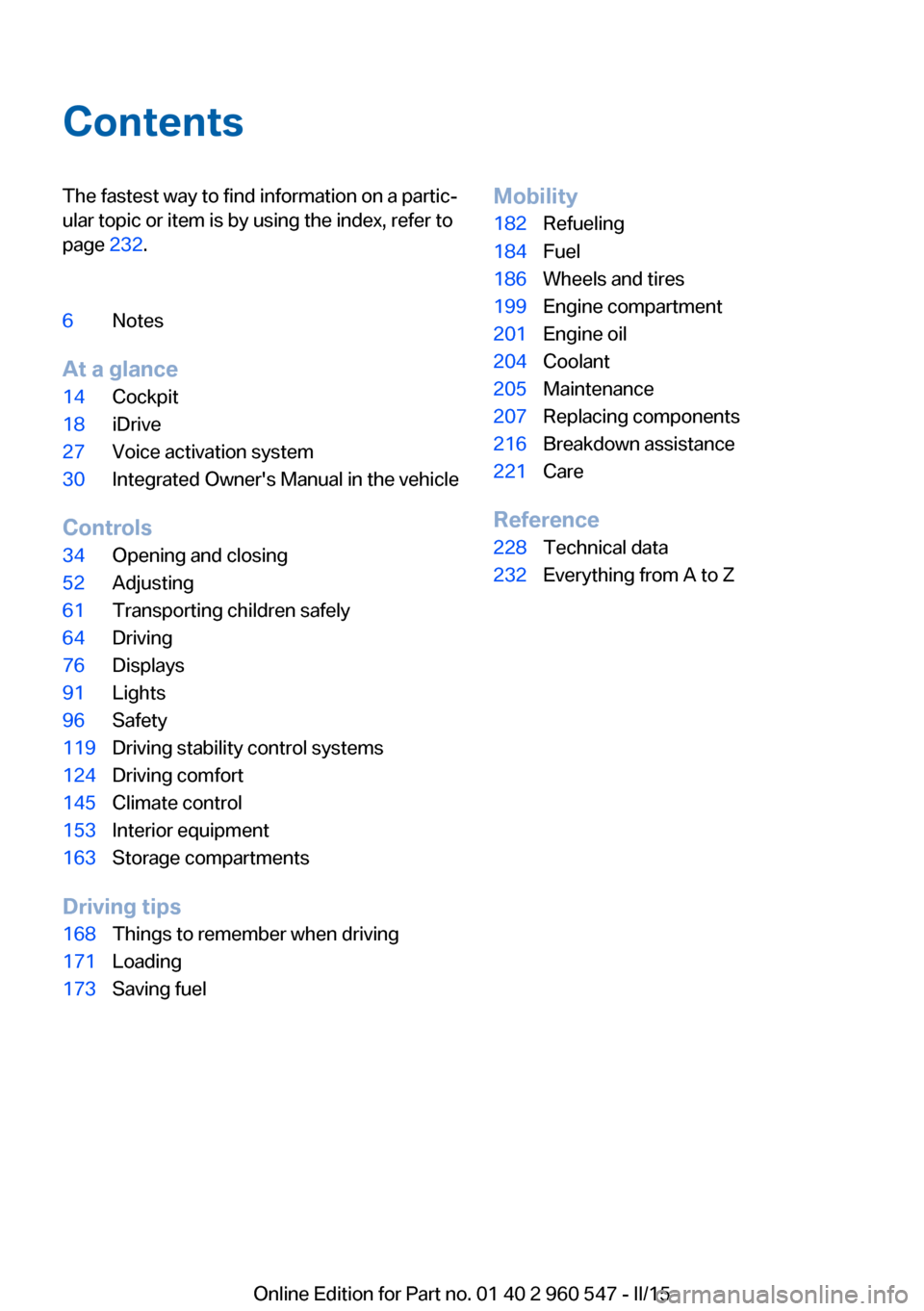
ContentsThe fastest way to find information on a partic‐
ular topic or item is by using the index, refer to
page 232.6Notes
At a glance
14Cockpit18iDrive27Voice activation system30Integrated Owner's Manual in the vehicle
Controls
34Opening and closing52Adjusting61Transporting children safely64Driving76Displays91Lights96Safety119Driving stability control systems124Driving comfort145Climate control153Interior equipment163Storage compartments
Driving tips
168Things to remember when driving171Loading173Saving fuelMobility182Refueling184Fuel186Wheels and tires199Engine compartment201Engine oil204Coolant205Maintenance207Replacing components216Breakdown assistance221Care
Reference
228Technical data232Everything from A to Z
Online Edition for Part no. 01 40 2 960 547 - II/15
Page 10 of 247
NotesUsing this Owner's Manual
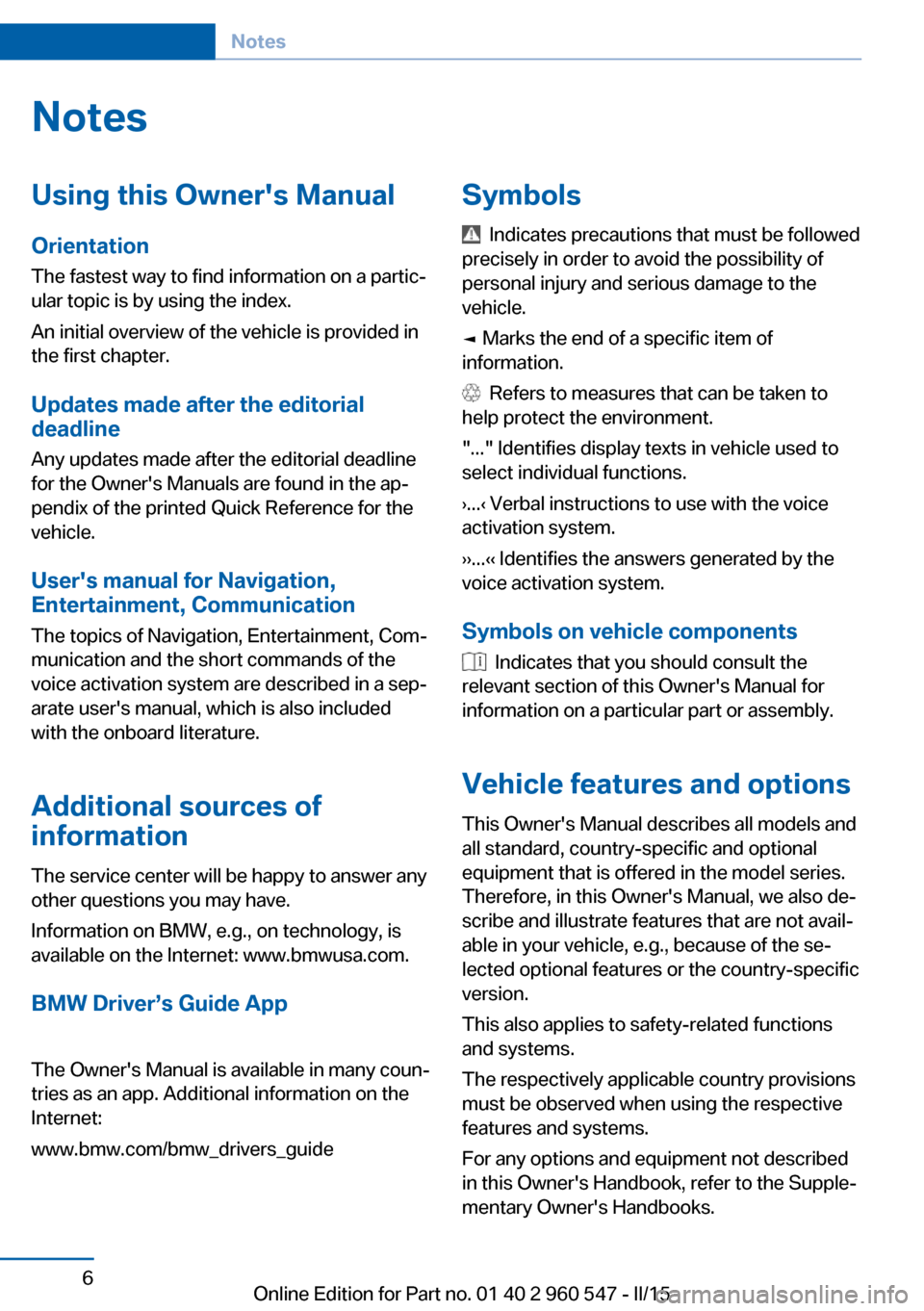
Orientation
The fastest way to find information on a partic‐
ular topic is by using the index.
An initial overview of the vehicle is provided in
the first chapter.
Updates made after the editorial
deadline
Any updates made after the editorial deadline
for the Owner's Manuals are found in the ap‐
pendix of the printed Quick Reference for the
vehicle.
User's manual for Navigation,
Entertainment, Communication
The topics of Navigation, Entertainment, Com‐
munication and the short commands of the
voice activation system are described in a sep‐
arate user's manual, which is also included
with the onboard literature.
Additional sources of
information
The service center will be happy to answer any
other questions you may have.
Information on BMW, e.g., on technology, is
available on the Internet: www.bmwusa.com.
BMW Driver’s Guide App
The Owner's Manual is available in many coun‐
tries as an app. Additional information on the
Internet:
www.bmw.com/bmw_drivers_guide
Symbols
Indicates precautions that must be followed
precisely in order to avoid the possibility of
personal injury and serious damage to the
vehicle.
◄ Marks the end of a specific item of
information.
Refers to measures that can be taken to
help protect the environment.
"..." Identifies display texts in vehicle used to
select individual functions.
›...‹ Verbal instructions to use with the voice
activation system.
››...‹‹ Identifies the answers generated by the
voice activation system.
Symbols on vehicle components
Indicates that you should consult the
relevant section of this Owner's Manual for
information on a particular part or assembly.
Vehicle features and options
This Owner's Manual describes all models and
all standard, country-specific and optional
equipment that is offered in the model series.
Therefore, in this Owner's Manual, we also de‐
scribe and illustrate features that are not avail‐
able in your vehicle, e.g., because of the se‐
lected optional features or the country-specific
version.
This also applies to safety-related functions
and systems.
The respectively applicable country provisions
must be observed when using the respective
features and systems.
For any options and equipment not described
in this Owner's Handbook, refer to the Supple‐
mentary Owner's Handbooks.
Seite 6Notes6
Online Edition for Part no. 01 40 2 960 547 - II/15
Page 19 of 247

Front fog lights 94Parking lights 91Low beams 91Automatic headlight con‐
trol 92
Daytime running lights 92
Adaptive Light Control 92
High-beam Assistant 93Instrument lighting 946Steering column stalk, leftTurn signal 68High beams, head‐
light flasher 68High-beam Assistant 93Roadside parking lights 92On-board computer 857Steering wheel buttons, leftStore speed 130, 124Resume speed 130, 124Cruise control on/off, inter‐
rupt 130Active Cruise Control on/off, in‐
terrupting 124Reduce distance 124Increase distance 124Cruise control rocker switch 130, 1248Instrument cluster 769Steering wheel buttons, rightEntertainment sourceVolumeVoice activation 27Telephone, see user's manual for
Navigation, Entertainment and
CommunicationThumbwheel for selection lists 8510Steering column stalk, rightWiper 69Rain sensor 70Clean the windshields and head‐
lights 7011Start/stop the engine and switch
the ignition on/off 65Auto Start/Stop function 6612Horn, total area13Steering wheel heating 6014Adjust steering wheel 6015Unlock hood 200Seite 15CockpitAt a glance15
Online Edition for Part no. 01 40 2 960 547 - II/15
Page 20 of 247
All around the center console1Control Display 182Ventilation 1513Hazard warning system 216Central locking system 404Glove compartment 1635Radio/CD/Multimedia, see user's manual
for Navigation, Entertainment and Commu‐
nication6Climate control 1457Controller with buttons 188Neck warmer 549Hardtop 4610Parking brake 6711PDC Park Distance Control 132
Rearview camera 135
Parking assistant 140
Surround View 135Side View 13712Driving Dynamics Control 121DSC Dynamic Stability Con‐
trol 11913Steptronic transmission selector
lever 71Seite 16At a glanceCockpit16
Online Edition for Part no. 01 40 2 960 547 - II/15
Page 24 of 247

Buttons on controllerPress buttonFunctionMENUOpen the main menu.AudioOpen audio menu last listened
to, switch between audio me‐
nus.TELOpens the phone menu.BACKOpen previous panel.OPTIONOpens the Options menu.
Operating concept
Opening the main menu Press button.
The main menu is displayed.
All iDrive functions can be called up via the
main menu.
Selecting menu items
Highlighted menu items can be selected.1.Turn the controller until the desired menu
item is highlighted.2.Press the controller.
Menu items in the Owner's Manual
In the Owner's Manual, menu items that can be
selected are set in quotation marks, e.g.,
"Settings".
Changing between panels
After a menu item is selected, e.g., "Radio", a
new panel is displayed. Panels can overlap.
▷Move the controller to the left.
Closes current display and shows previous
display.
Reopens previous display by pressing
BACK button. In this case, the current
panel is not closed.▷Move the controller to the right.
Opens new display on top of previous
screen.Seite 20At a glanceiDrive20
Online Edition for Part no. 01 40 2 960 547 - II/15
Page 27 of 247

6.Turn the controller to set the hours and
press the controller.7.Turn the controller to set the minutes and
press the controller.
Status information
Status field The following information is displayed in the
status field at the top right:
▷Time.▷Current entertainment source.▷Sound output, on/off.▷Wireless network reception strength.▷Phone status.▷Traffic bulletin reception.
Status field symbols
The symbols are grouped as follows.
Radio symbols
SymbolMeaning HD Radio station is being received. Satellite radio is switched on.
Telephone symbols
SymbolMeaning Incoming or outgoing call. Missed call. Wireless network reception
strength.
Symbol flashes: network search. Wireless network is not available. Bluetooth is switched on. Roaming is active.SymbolMeaning Text message was received. Check the SIM card. SIM card is blocked. SIM card is missing. Enter PIN.
Entertainment symbols
SymbolMeaning CD/DVD player. Music collection. Gracenote® database. AUX-IN port. USB audio interface. Mobile phone audio interface.
Additional symbols
SymbolMeaning Spoken instructions are turned off.
Split screen
General information Additional information can be displayed on the
right side of the split screen, e.g., information
from the on-board comupter.
In the divided screen view, the so-called split
screen, this information remains visible even when you change to another menu.
Seite 23iDriveAt a glance23
Online Edition for Part no. 01 40 2 960 547 - II/15
Page 28 of 247

Switching the split screen on and offOn the Control Display:1. Press button.2."Split screen"
Selecting the display
On the Control Display:
1. Press button.2."Split screen"3.Move the controller until the split screen is
selected.4.Press the controller or select "Split screen
content".5.Select the desired menu item.
Programmable memory
buttons
General information
The iDrive functions can be stored on the pro‐
grammable memory buttons and called up di‐
rectly, e.g., radio stations, navigation destina‐
tions, phone numbers and menu entries.
Settings are stored for the profile currently in
use.
Without navigation system and
telephone
Only radio stations can be stored on the but‐
tons, refer to user's manual for Navigation, En‐
tertainment, Communication.
Saving a function1.Highlight the function via the iDrive.2. Press and hold the desired button,
until a signal sounds.
Running a function
Press button.
The function will work immediately.
This means, e.g., that the number is dialed
when a phone number is selected.
Displaying the button assignment Touch buttons with bare fingers. Do not wear
gloves or use objects.
The key assignment is displayed at top edge of
screen.
Deleting the button assignments
1.Press buttons 1 and 8 simultaneously for
approx. five seconds.2."OK"Seite 24At a glanceiDrive24
Online Edition for Part no. 01 40 2 960 547 - II/15
Page 33 of 247
This can unnecessarily delay the establish‐
ment of a phone connection.
Instead, use the SOS button, refer to
page 216, close to the interior mirror.
Environmental conditions▷Say the commands, numbers, and letters
smoothly and with normal volume, empha‐
sis, and speed.▷Always say commands in the language of
the voice activation system.▷Keep the doors, windows, and lowerable
hardtop closed to prevent noise interfer‐
ence.▷Avoid making other noise in the vehicle
while speaking.Seite 29Voice activation systemAt a glance29
Online Edition for Part no. 01 40 2 960 547 - II/15