2016 BMW 4 SERIES CONVERTIBLE roll
[x] Cancel search: rollPage 28 of 247

Switching the split screen on and offOn the Control Display:1. Press button.2."Split screen"
Selecting the display
On the Control Display:
1. Press button.2."Split screen"3.Move the controller until the split screen is
selected.4.Press the controller or select "Split screen
content".5.Select the desired menu item.
Programmable memory
buttons
General information
The iDrive functions can be stored on the pro‐
grammable memory buttons and called up di‐
rectly, e.g., radio stations, navigation destina‐
tions, phone numbers and menu entries.
Settings are stored for the profile currently in
use.
Without navigation system and
telephone
Only radio stations can be stored on the but‐
tons, refer to user's manual for Navigation, En‐
tertainment, Communication.
Saving a function1.Highlight the function via the iDrive.2. Press and hold the desired button,
until a signal sounds.
Running a function
Press button.
The function will work immediately.
This means, e.g., that the number is dialed
when a phone number is selected.
Displaying the button assignment Touch buttons with bare fingers. Do not wear
gloves or use objects.
The key assignment is displayed at top edge of
screen.
Deleting the button assignments
1.Press buttons 1 and 8 simultaneously for
approx. five seconds.2."OK"Seite 24At a glanceiDrive24
Online Edition for Part no. 01 40 2 960 547 - II/15
Page 29 of 247

Deleting personal in the
vehicle
The concept
Depending on the usage, the vehicle saves
personal data, such as stored radio stations.
These personal data can be permanently de‐
leted through iDrive.
General information
Depending on the equipment package, the fol‐
lowing data can be deleted:▷Personal Profile settings.▷Stored radio stations.▷Stored Favorites buttons.▷Travel and computer information.▷Music collection.▷Navigation, e.g. stored destinations.▷Phone book.▷Online data, e.g. Favorites, cookies.▷Voice notes.▷Login accounts.▷RemoteApp smartphone tethering.
Altogether, the deletion of the data can take up
to 30 minutes.
Functional requirement Data can only be deleted while stationary.
Deleting data Heed and follow the instructions on the Con‐
trol Display.
1.Switch on the ignition.2."Settings"3.Open "Options".4."Delete personal data"5."Continue"6."OK"Entering letters and numbers
General information
On the Control Display:1.Turn the controller: select letters or num‐
bers.2.Select additional letters or numbers if
needed.3."OK": confirm the entry.SymbolFunction Press the controller: delete the let‐
ter or number. Press the controller for an extended
period: delete all letters or numbers.
Switching between cases, letters and
numbers
Depending on the menu, you can reel between
entering upper and lower case, letters and
numbers:
SymbolFunction Enter the letters. Enter the numbers. or Tip controller up.
Without navigation system
Select the symbol.
Entry comparison Entering names and addresses: choice is nar‐
rowed down with every letter entered and let‐
ters may be added automatically.
Entries are continuously compared with data
stored in the vehicle.
▷Only those letters are offered during input
for which data is available.Seite 25iDriveAt a glance25
Online Edition for Part no. 01 40 2 960 547 - II/15
Page 32 of 247

Executing functions using short
commands
Execute functions on the main menu via short
commands. It almost doesn't matter which
menu item is selected, e.g., ›Vehicle status‹.
List of short commands for the voice activation
system, see Navigation, Entertainment, Com‐
munication Owner's Manual.
Help dialog for the voice activation
system
Calling up help dialog: ›Help‹
Additional commands for the help dialog:▷›Help with examples‹: announces informa‐
tion about the current operating options
and the most important commands for
them.▷›Help with voice activation‹: information
about the principle of operation for the
voice activation system is announced.
One example: open the tone
settings
Via the main menu The commands of the menu items are spoken
just as they are selected via the controller.
1.Turn on the Entertainment sound output if
needed.2. Press button on the steering
wheel.3.›Radio‹4.›Tone‹
Via short command
The desired tone settings can also be started
via a short command.
1.Turn on the Entertainment sound output if
needed.2. Press button on the steering
wheel.3.›Tone‹
Setting the voice dialog
Set system to standard dialog or use a short
version.
The short version of the voice dialog plays
back short messages in abbreviated form.
1."Settings"2."Language/Units"3."Speech type:"4.Select setting.
Adjusting the volume
Turn the volume button while giving an in‐
struction until the desired volume is set.
▷The volume remains constant even if the
volume of other audio sources is changed.▷The volume is stored for the profile cur‐
rently in use.
Hints on Emergency
Requests
Do not use the voice activation system to ini‐
tiate an Emergency Request. In stressful situa‐
tions, the voice and vocal pitch can change.
Seite 28At a glanceVoice activation system28
Online Edition for Part no. 01 40 2 960 547 - II/15
Page 34 of 247

Integrated Owner's Manual in the vehicleVehicle features and optionsThis chapter describes all standard, country-
specific and optional features offered with the
series. It also describes features that are not
necessarily available in your car, e. g., due to
the selected options or country versions. This
also applies to safety-related functions and
systems. The respectively applicable country
provisions must be observed when using the
respective features and systems.
Integrated Owner's Manual
in the vehicle
The Integrated Owner's Manual can be dis‐
played on the Control Display. It specifically
describes features and functions found in the
vehicle.
Components of the Integrated
Owner's Manual
The Integrated Owner's Manual consists of
three parts, which offer various levels of infor‐
mation or possible access.
Quick Reference Guide The Quick Reference Guide provides informa‐
tion how to operate the car, how to use basic
vehicle functions or what to do in case of a
breakdown. This information can also be dis‐
played while driving.
Search by images
Image search provides information and de‐
scriptions. This is helpful when the terminol‐
ogy for a feature is not at hand.
Owner's Manual Search for information and descriptions by en‐
tering terms selected from the index.Select components1. Press button.2.Turn the controller: open "Vehicle info".3.Press the controller.4.Selecting desired range:▷"Quick reference"▷"Search by pictures"▷"Owner's Manual"
Leafing through the Owner's Manual
Page by page with link access
Turn the controller until the next or previous
page is displayed.
Page by page without link access
Scroll through the pages directly while skip‐
ping the links.
Highlight the symbol once. Now simply press
the controller to browse from page to page.
Scroll back.
Scroll forward.
Seite 30At a glanceIntegrated Owner's Manual in the vehicle30
Online Edition for Part no. 01 40 2 960 547 - II/15
Page 35 of 247

Context help - Owner's Manual to the
temporarily selected function
You may open the relevant information di‐
rectly.
Opening via the iDrive
To move directly from the application on the
Control Display to the Options menu:1. Press button or move the controller
to the right repeatedly until the "Options"
menu is displayed.2."Display Owner's Manual"
Opening when a Check Control
message is displayed
Directly from the Check Control message on
the Control Display:
"Display Owner's Manual"
Changing between a function and the
Owner's Manual
To reel from a function, e. g., radio, to the
Owner's Manual on the Control Display and to
alternate between the two displays:
1. Press button or move the controller
to the right repeatedly until the "Options"
menu is displayed.2."Display Owner's Manual"3.Select the desired page in the Owner's
Manual.4. Press button again to return to last
displayed function.5. Press button to return to the page of
the Owner's Manual displayed last.
To alternate permanently between the last dis‐
played function and the Owner's Manual re‐
peat steps 4 & 5. Opens a new display every
time.
Programmable memory buttons
General information
The Owner's Manual can be stored on the pro‐
grammable memory buttons and called up di‐
rectly.
Storing1."Owner's Manual" Select via the iDrive.2. Press selected button for more
than 2 seconds.
Executing
Press button.
The Owner's Manual is displayed im‐
mediately.
Seite 31Integrated Owner's Manual in the vehicleAt a glance31
Online Edition for Part no. 01 40 2 960 547 - II/15
Page 51 of 247
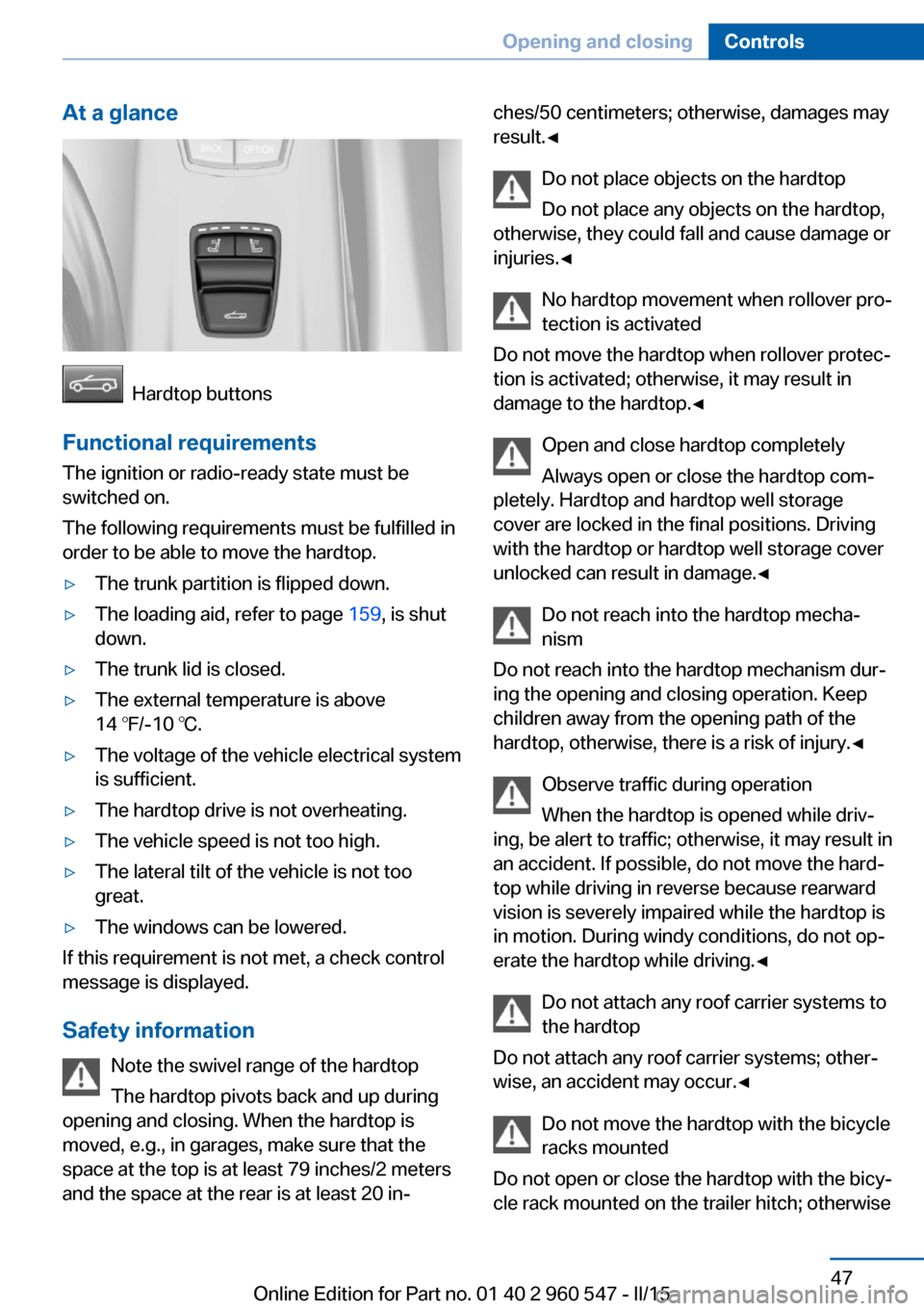
At a glance
Hardtop buttons
Functional requirements
The ignition or radio-ready state must be
switched on.
The following requirements must be fulfilled in
order to be able to move the hardtop.
▷The trunk partition is flipped down.▷The loading aid, refer to page 159, is shut
down.▷The trunk lid is closed.▷The external temperature is above
14 ℉/-10 ℃.▷The voltage of the vehicle electrical system
is sufficient.▷The hardtop drive is not overheating.▷The vehicle speed is not too high.▷The lateral tilt of the vehicle is not too
great.▷The windows can be lowered.
If this requirement is not met, a check control
message is displayed.
Safety information Note the swivel range of the hardtop
The hardtop pivots back and up during
opening and closing. When the hardtop is
moved, e.g., in garages, make sure that the
space at the top is at least 79 inches/2 meters
and the space at the rear is at least 20 in‐
ches/50 centimeters; otherwise, damages may
result.◀
Do not place objects on the hardtop
Do not place any objects on the hardtop,
otherwise, they could fall and cause damage or
injuries.◀
No hardtop movement when rollover pro‐
tection is activated
Do not move the hardtop when rollover protec‐
tion is activated; otherwise, it may result in
damage to the hardtop.◀
Open and close hardtop completely
Always open or close the hardtop com‐
pletely. Hardtop and hardtop well storage
cover are locked in the final positions. Driving
with the hardtop or hardtop well storage cover
unlocked can result in damage.◀
Do not reach into the hardtop mecha‐
nism
Do not reach into the hardtop mechanism dur‐
ing the opening and closing operation. Keep
children away from the opening path of the
hardtop, otherwise, there is a risk of injury.◀
Observe traffic during operation
When the hardtop is opened while driv‐
ing, be alert to traffic; otherwise, it may result in
an accident. If possible, do not move the hard‐
top while driving in reverse because rearward
vision is severely impaired while the hardtop is
in motion. During windy conditions, do not op‐
erate the hardtop while driving.◀
Do not attach any roof carrier systems to
the hardtop
Do not attach any roof carrier systems; other‐
wise, an accident may occur.◀
Do not move the hardtop with the bicycle
racks mounted
Do not open or close the hardtop with the bicy‐
cle rack mounted on the trailer hitch; otherwiseSeite 47Opening and closingControls47
Online Edition for Part no. 01 40 2 960 547 - II/15
Page 52 of 247

damage to trunk lid and bicycle rack may oc‐
cur.◀
Do not operate hardtop on uneven sec‐
tions or road
Do not open or close hardtop on uneven sec‐
tions of road. Otherwise, the vibrations can re‐
sult in damage to the hardtop.◀
Using the trunk
When hardtop is open
Luggage can only be stored under the trunk
partition; note the respective label.
When hardtop is closed
Luggage can be stowed under the trunk parti‐
tion and to the left and right of the lifting mech‐
anism; note the respective label.
Remove articles of luggage from the side
areas
Before opening the hardtop, remove all pieces
of luggage from the side areas. Otherwise, lug‐
gage and hardtop can be damaged.◀
Before opening and closing▷Follow the safety instructions for the hard‐
top.▷Make sure that the trunk partition in the
trunk is folded down.▷Make sure that the cargo does not push
against the trunk partition from below.▷Make sure that the trunk lid is closed.
Opening and closing from the inside
In order to protect the battery, move the hard‐
top only when the engine is running if possible.
Before closing the hardtop, remove any foreign
objects from the windshield frame; otherwise,
closing may be prevented.
▷Press and hold the reel. The win‐
dows are rolled down, and the
hardtop opens as long as the reel is
pressed.▷Pull the reel and hold it. The win‐
dows are lowered, the hardtop
closes and the windows are raised again as
long as the reel is pulled.
Push or pull reel until the hardtop is completely
open or closed and the end of the procedure is
indicated by a corresponding Check Control
message. Always make sure that the hardtop
well storage cover is completely closed. If the
hardtop is completely open or closed, hardtop
and hardtop well storage cover are latched.
Interruption Open and close hardtop completely
Always open or close the hardtop com‐
pletely. Hardtop and hardtop well storage
cover are locked in the final positions. Driving
with the hardtop or hardtop well storage cover
unlocked can result in damage.◀
The hardtop movement is interrupted if the
reel is released. The sequence can be contin‐
ued in the desired direction using the reel.
Seite 48ControlsOpening and closing48
Online Edition for Part no. 01 40 2 960 547 - II/15
Page 60 of 247

What reduces the restraining effect
Avoid wearing bulky clothing, and pull
the shoulder belt periodically to readjust the
tension. Make sure that the belt is not jammed;
otherwise, the belt can be damaged and the
restraining effect is reduced.◀
Buckling the belt
Make sure you hear the latch plate engage in
the belt buckle.
Unbuckling the belt
1.Hold the belt firmly.2.Press the red button in the belt buckle.3.Guide the belt back into its roll-up mecha‐
nism.
Safety belt reminder for driver's and
passenger's seat
The indicator lamp lights up and a sig‐
nal sounds. Make sure that the safety
belts are positioned correctly. The
safety belt reminder is active at speeds above
approx. 6 mph/10 km/h. It can also be activated
if objects are placed on the front passenger
seat.
Damage to safety belts Wear and tear after accidents or when dam‐
aged otherwise:
Have the safety belts, including the safety belt
tensioners, replaced and have the belt anchors
checked.
Check and replace safety belts
This should only be done by your service
center; otherwise, this safety feature might not
work properly.◀
Front headrests Correctly adjusted head restraint
A correctly adjusted head restraint reduces the
risk of injury to cervical vertebrae in the event
of an accident.
Adjusting the head restraint
Adjust the head restraints of all occupied
seats properly; otherwise, there is an increased
risk of injury in an accident.◀
Height
Adjust the head restraint so that its center is
approximately at ear level.
Distance
Adjust the distance so that the head restraint is as close as possible to the back of the head.
If necessary, adjust the distance by adjusting
the tilt of the backrest.
Adjusting the height▷To raise: push.▷To lower: press button, arrow 1, and push
headrest down.Seite 56ControlsAdjusting56
Online Edition for Part no. 01 40 2 960 547 - II/15