2016 AUDI TT ROADSTER bluetooth
[x] Cancel search: bluetoothPage 163 of 306

Downloaded from www.Manualslib.com manuals search engine Connecting
a mobile phone
� Select: IM
EN
u I button > Telephone > Connect
mobile phone> Continue. The available Blue
tooth devices will be shown on the infotain
ment display. Or: Search for the MMI system
via the Bluetooth device search function on
your mobile phone.
� Select and confirm the desired mobile phone
from the List of Bluetooth devices shown.
� Enter the PIN to establish a connection on your
mobile phone. Or: If the PIN is already being
displayed on your mobile phone, confirm it on
the phone and on the MMI. You have about 30
seconds to enter the PIN.
If you wish to connect your mobile phone via the
remote SIM Access Profile, please also enter your
SIM card's PIN in the MMI1
).
Please note any additional system queries on
your mobile phone, e.g. whether the phone
should connect automatically in the future. On
some mobile phones, you may also need to
download the directory separately.
� Confirm the system query of whether an Inter
net connection should be established with Ac
cept.
After connecting successfully
The Bluetooth symbol@, signal strength symbol
@ and type of connection@ � page 130 will ap
pear on the infotainment display when the mo
bile phone has been connected successfully.
You can now use Audi connect.
- Bluetooth devices only have to be bonded
once. Depending on the mobile phone you
are using, any devices that have already
been bonded to the MMI system are connec
ted automatically when they are within
range and the ignition is on.
o l)
Not available in all markets. Applies to mobile phones
� with Bluetooth remote SIM Access Profile on vehicles with
� Audi
connect* and Audi phone box*.
8 2
> The number of possible attempts depends on the SIM
"
� card. Audi
connect
- You receive the SIM PIN and the PUK from
your mobile network service provider to
gether with the SIM card. If you enter the
SIM PIN code incorrectly three times2
)
in a
row, the SIM card will be be blocked. A PUK
(personal unblocking key) must be entered
in order to reactivate the SIM card.
- The Bluetooth connection between the sys
tem and the mobile phone is automatically
terminated when you Leave the car.
- For further information regarding your mo
bile phone, contact your mobile network
service provider or refer to the operating in
structions for your mobile phone. For infor
mation on using a phone in your car, please
go online (e.g. www.audi .com/blue tooth)
or ask an Audi dealer.
Using a personal Wi-Fi hotspot
Applies to: vehicles with Audi connect and personal Wi-Fi hot
spot
Impor tant
The vehicle must be stationary, and the ignition
must be switched on.
Your mobile device and mobile network provider
must support the mobile Wi-Fi hotspot function.
The personal Wi-Fi hotspot on your mobile device
must be activated.
Other devices must be permitted to access the
mobile hotspot.
Connecting the MMI to a personal hotspot
� Select: I M EN
U I button >Telephone > right con
trol button > Wi-Fi settings > Wi-Fi > on.
� Then select and confirm Network search. The
devices found will be shown on the infotain
ment display.
� Select and confirm your personal Wi-Fi hotspot
from the List.
� You may need to enter the password specified
by your mobile device.
Ill-
161
Page 196 of 306

Downloaded from www.Manualslib.com manuals search engine Media
Important: Copying must be in progress in the
background.
- To display the copy procedure: Select: right
control button > Active copy procedure.
During the copying procedure, the audio files are
automatically sorted according to the categories
in the media centre based on the metadata stor
ed for the files ¢ page 201. The video files cop
ied can be found in the Videos category of the
media centre.
Playing from the jukebox
Important: The jukebox must contain audio/vid
eo files ¢ page 193, Filling the Jukebox.
The jukebox is called up and operated via the
MMI (D¢page200, Fig.174.
Di splaying the jukebox memory capacity
Select: right control button> Jukebox memory
capacity. Information on the jukebox memory ca
pacity and the number of stored tracks will be
displayed.
Deleting tracks from the jukebox 1
)
Important: The jukebox must contain audio/vid
eo files.
- Delete entry: Select an entry from the juke
box's media centre. Select: right control button
> Delete from jukebox > This entry or Entire
list.
- The status of the deletion process will be
shown on the MMI. During the deletion process
the playback of the jukebox is interrupted; it is
started again automatically once the deletion
process has been completed.
CD CAUTION
Only copy audio/video files while the engine is
running; otherwise the vehicle battery will be
discharged.
Note
- For legal reasons it is not possible to copy
tracks from audio CDs onto the jukebox.
l l
Not in the Playback view.
194 -
Files that have already been copied are de
tected automatically and cannot be copied
to the jukebox again.
- It is not possible to play audio/video files*
in the CD/DVD* drive while they are being
copied.
- For legal reasons there is no export function
for the jukebox.
- Files or tracks that do not include stored
metadata are listed as Unknown. Audi rec
ommends that you mark the audio files with
the corresponding metadata (e.g. ID3 tags).
- When handing over your vehicle e.g. to a
new buyer, reset the jukebox to the factory
settings ¢ page 213.
Bluetooth audio player
Applies to: vehicles with Bluetooth
You can use the Bluetooth audio player to play
music from your Bluetooth-enabled device (e.g.
smartphone) wirelessly via the MMI.
Important: To connect a Bluetooth device, the
vehicle must be stationary and the Bluetooth
function of your Bluetooth device and the Blue
tooth audio player ¢ page 215 function of the
MMI system must be switched on.
- To connect a Bluetooth device: Press the
I MEDIA!
button. Press the left control button
repeatedly until the source overview is dis
played. Select and confirm Bluetooth audio
player @¢page200, Fig. 175.
- You may need to select and confirm Not con
nected > Connect Bluetooth audio player. The
system will start searching for Bluetooth devi
ces. Follow the instructions given by the MMI.
- Select and confirm the desired Bluetooth de
vice from the list. The MMI will generate a PIN
to establish the connection.
- Select and confirm Yes.
- Enter the PIN on your Bluetooth device to es-
tablish a connection. Or: If the PIN is already
being displayed on your Bluetooth device,
please confirm it on the device. You have about
30 seconds to enter the PIN.
�
Page 197 of 306

Downloaded from www.Manualslib.com manuals search engine 0
N
,.....
N
......
0
,.....
Vl
CX) Depending
on the device you are using, the me
dia are started and operated using the mobile de
vice or the MMI.
Note
- Pay attention to any connection queries on
your Bluetooth device.
- You can bond several Bluetooth audio play
ers to the MMI system; however only one
connection can be active at a time.
- The system supports the Bluetooth proto
cols AVRCP (1.0/1.3/1.4) and A2DP.
- Please consider the volume control on your
Bluetooth device. Audi recommends setting
the volume of mobile devices to maximum
when they are being used as Bluetooth au
dio players.
- Which media functions (e.g. random play
back) are supported depends on the Blue
tooth device you are using.
- For more information on which devices are
supported, please go online (e.g.
www.audi.com/bluetooth) or contact an
Audi dealer.
Wi-Fi audio players
Applies to: vehicles with Wi-Fi
The MMI's Wi-Fi audio player media source al
lows you to connect and operate your Wi-Fi me
dia player (e.g. smartphone) to play music wire
Lessly from your player's media centre. The me
dia player is connected via the vehicle's Wi-Fi
hotspot. A UPnP server opp or an integrated
UPnPIDLNA server on the media player is re
quired to access the media centre of your media
player.
Important: The Wi-Fi
function of
the media play
er must be switched on. The Audi MMI connect
app or a UPnP server app must be installed on
your media player. Or: You must be using a
UPnP/DLNA server integrated in the media play
er.
- To connect a media player: Select the I MEDIAi
button. Press the left control button repeatedly
until the source overview ¢page 200 is dis- Media
played. Select and confirm Wi-Fi audio player
0 ¢ page 200, Fig. 175.
- You may need to select and confirm Wi-Fi off>
Activate Wi-Fi to switch Wi-Fi on in the MMI.
Select Wi-Fi settings if necessary. Use the set
tings of the Wi-Fi hotspot for the media player
you are using.
- To start the Wi-Fi audio player: Start the Audi
MMI connect app or a UPnP server app, or ena
ble media sharing on your media player.
To use the media player: The media player is op
erated using the MMI.
- Press the left control button repeatedly until
the menu item Folders appears. Select and con
firm Folders.
- To play music from a media player: Select and
confirm Media centre.
Internet radio: See ¢page 196.
& WARNING
-
- Do not allow the features of the Wi-Fi hot
spot to distract you from watching the traf
fic -taking your eyes off the road can cause
an accident.
- Mobile devices, tablet and laptop computers
and devices of a similar weight can only be
operated safely when the vehicle is station
ary. Like any loose object, they can be cata
pulted through the vehicle in an accident
and cause serious injuries. Always make sure
that such devices are securely stowed while
you are driving.
- No Wi-Fi devices may be used in the areas
around the airbags while the vehicle is being
driven. Please also observe the safety warn
ings in the chapter on¢ page 235.
CD CAUTION
Please always observe the information ¢0 in
Wi-Fi hotspot on page 166.
@ Note
- Inserting or removing the mini SIM card
from the SIM card reader* causes the Wi-Fi
connection to be reconfigured. This may
cause a short interruption in the audio play-
back of some media players.
_____ _ ...,.
195
Page 203 of 306

Downloaded from www.Manualslib.com manuals search engine 0
N
,.....
N e.g.
iPod, USB stick
® External audio player
e.g. an MP3 player connected to
the AUX input
® Bluetooth audio player*
0
® Wi-Fi
audio player* .......... .
Online media* and Internet radio* 199
194
195
196
-To play audio/video files: Select a source in the
Media menu> category (e.g. artist > album >
track/title).
- To access the next level up in the structure of
folders: Press the I
B A
CK !
button. Or: Select and
confirm Go up.
- To select the previous/next track/title/chap
ter 1
)
: Briefly press the ON/OFF button on the
MMI control console to the Left/right (l
-To rewind/fast forward audio/video files:
Move and hold the ON/OFF button to the Left/
rig ht (l
- To pause/resume playback: Briefly press the
ON/OFF button on the MMI control console.
@ Note
- You can scroll rapidly through Long Lists by
turning the rotary pushbutton quickly. The
scrolling speed depends on the number of
entries in the List.
- If the Traffic announcements ¢ page 186
or DAB announcements* function is switch
ed on, playback is interrupted for announce
ments. You can cancel an announcement
while it is being played by briefly pressing
the ON/OFF button on the MMI control con
sole.
- For safety reasons, the video picture is not
available while the vehicle is moving. While
you are driving, only the sound is played.
8 l}May not be possible during playback (depends on the
,.....
� DVD). Media
Media centre
Several categories for selecting audio/video*
files are available in the media centre.
Fig. 176 Example: Categories for a USB stick
Fig. 177 Example: Categories for a USB stick
"" Press the I MEDI
A! button. Press the Left control
button repeatedly until the source overview is
displayed. Select and confirm the desired
source.
CD Active source
The active source is highlighted. The symbol for
the active source (!) may change depending on
the device connected or the online media* or In
ternet radio* service in use. The device name may
be displayed (e.g. MyPhone). A USB stick connec
ted via the Audi music interface* is shown as an
example¢ Fig. 176.
Depending on the active source, you can select
audio/video* files from the following categories
and copy them into the playlist:
@Favourites The category Favourites appears if at Least one
item has been stored as a favourite. Refer to
¢page 203, Favourites.
l)IJ,,
201
Page 205 of 306

Downloaded from www.Manualslib.com manuals search engine -
If the search function is called up in the
Folders category (J) ¢ page 201, Fig. 177,
the system will only search for files in the
current folder. This is also the case in the
Composers, Podcasts und Audiobooks cate
gories.
Playlist
Fig. 179 Example: Playlist
The track, artist, album and, if available, the al
bum cover are displayed in the playlist.
Options Refer to¢ page 203, Other settings.
Fav ourites
You can store up to 50 items per source in the fa
vourites list.
Important: The playlist or the media centre must
be open.
- Select the desired item from the playlist or the
media centre.
- Select: rig ht control button > Store as favour
ite. Or: Press and hold the rotary pushbutton
for several seconds.
When a track is stored as a favourite, the corre
sponding album is shown as a favourite in the fa
vourites list.
Important: At least one item must be stored in
the favourites list.
To display the favourites list: Select the I MEDIA!
button. Press the left control button repeatedly
until the source overview ¢ page 200 is dis-
� played.
Select a source which supports Catego-
� ries ¢ page 201 (e.g. an SD card). Select the Fa-
8 vourites category.
"
Vl Media
Important: The favourites list must be displayed.
- To listen to a favourite: Select and confirm an
item in the favourites list.
- To move a favourite: Select the desired item
from the favourites list. Select: right control
button > Move favourite. Select and confirm
the desired memory position.
- To delete a favourite: Select the desired item
from the favourites list. Select: right control
button > Delete favourite > Delete this favour
ite or Delete all favourites.
Other settings
Options menu
Different context-specific functions and settings
are available depending on which source is selec
ted.
... Press the right control button.
Sound settings
Refer to¢ page 217.
Input level
Important: A mobile device must be connected
via an AUX adapter cable or a USB adapter
¢page 197, Multimedia connections.
The volume of the mobile device will be adapted
to the MMI system. We recommend setting the
volume of the mobile device to about 70 percent
of the maximum volume.
Bluetooth settings
Refer to¢ page 215.
Wi-Fi settings
Refer to ¢ page 165, Wi-Fi hotspot.
Connection manager
Refer to¢ page 213.
Detailed track info
When this function is switched on� and the
playlist is open, information on the selected track
(e.g. the artist, album, album cover*) as well as
the total and remaining playing time will be dis-
played. ..,.
203
Page 209 of 306

Downloaded from www.Manualslib.com manuals search engine 0
N
,.....
N
......
0
,.....
Vl
CX) Media
be ensured that these characters are always
dis played correctly. -
Some functions of MTP players such as vid
eo playback and the rating of tracks are not
supported.
- The manufacturer will provide you with in
formation on the "USB Device Subclass" of a
USB memory device.
CD drive
Applies to: vehicles with CD drive
The CD drive supports the following audio fi
le specifications:
Audio files
Supported Audio
CDs (up to 80 minutes) with CD text (artist, album, track)*, CD-ROMs with a
media capacity
of up to 700 MB
File system CD
file systems: 1509660, Joliet, UDF
Metadata Album
covers: GIF, JPG, PNG up to 800x800 px.; depending on availability, the al-
bum cover will be displayed using the corresponding medium.
Format MPEG-1/-2
Windows Media Au-MPEG-2/-4
FLAC
Layer 3
dio 9 and 10
File extension .mp3
.wma
.m4a;
.flac
.m4b;
.aac
Playlists .M3U;
.PLS; .WPL; .M3U8; .ASX
Specifications Up
to max. 320 kbit/sec and 48 kHz sampling frequency 48 kHz sampling
frequency
Number max.
1000 files per medium
of files
@ Note
- We recommend a compression rate of at
least 160 kbit/sec for MP3 files. In the case
of audio files with variable bit rate, the dis
play of the remaining playing time may dif
fer from the actual figure. -
The display of country-specific characters
(e.g. for ID3 tag information) depends on
the language set on the system; it cannot
be ensured that these characters are always
dis played correctly.
Troubleshooting Subject Advice
Audi music interface* /Bluetooth au-Please
observe the notes in the chapter ¢ page 197, Multime-
dio player*: The mobile device is not dia connections/¢ page 194, Bluetooth audio play
er. For in-
supported. formation on which mobile devices are supported, please see
the Audi mobile device database at www.audi.com/blue-
tooth.
Audi music interface*/AUX input: Set
the volume of the mobile device to about 70% of maxi-
When playback is started via the AUX
mum ¢ page 203, Input level.
input, the volume is too high/low.
207
Page 210 of 306
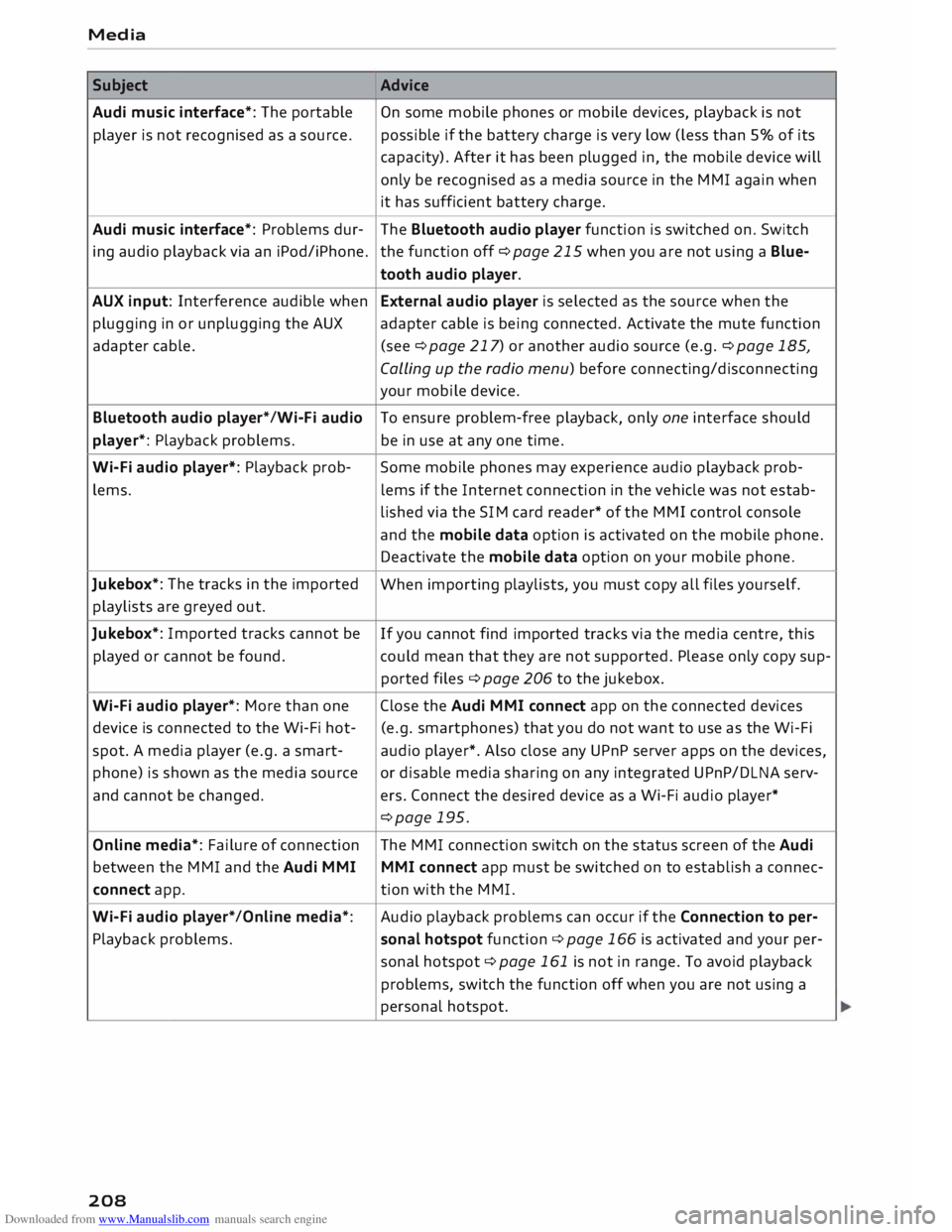
Downloaded from www.Manualslib.com manuals search engine Media
Subject Advice
Audi music interface*: The portable
On some mobile phones or mobile devices, playback is not
player is not recognised as a source. possible
if the battery charge is very low (less than 5% of its
capacity). After it has been plugged in, the mobile device will
only be recognised as a media source in the MMI again when
it has sufficient battery charge.
Audi music interface*: Problems dur-
The Bluetooth audio player function is switched on. Switch
ing audio playback via an iPod/iPhone. the function off ¢page 215 when you are not using a Blue-
tooth audio player.
AUX input: Interference audible when External audio player is selected as the source when the
plugging in or unplugging the AUX adapter cable is being connected. Activate the mute function
adapter cable. (see ¢page 217) or another audio source (e.g. ¢page 185,
Calling up the radio menu) before connecting/disconnecting
your mobile device.
Bluetooth audio player*/Wi-Fi audio
To ensure problem-free playback, only one interface should
player*: Playback problems. be in use at any one time.
Wi-Fi audio player*: Playback prob-
Some mobile phones may experience audio playback prob-
lems. lems
if the Internet connection in the vehicle was not estab-
lished via the SIM card reader* of the MMI control console
and the mobile data option is activated on the mobile phone.
Deactivate the mobile data option on your mobile phone.
Jukebox*: The tracks in the imported
When importing playlists, you must copy all files yourself.
playlists are greyed out.
Jukebox*: Imported tracks cannot be
If you cannot find imported tracks via the media centre, this
played or cannot be found. could mean that they are not supported. Please only copy sup-
ported files¢ page 206 to the jukebox.
Wi-Fi audio player*: More than one Close the Audi MMI connect app on the connected devices
device is connected to the Wi-Fi hot- (e.g.
smartphones) that you do not want to use as the Wi-Fi
spot. A media player (e.g. a smart-
audio player*. Also close any UPnP server apps on the devices,
phone) is shown as the media source
or disable media sharing on any integrated UPnP/DLNA serv-
and cannot be changed. ers. Connect the desired device as a Wi-Fi audio player*
¢page 195.
Online media*: Failure of connection The MMI connection switch on the status screen of the Audi
between the MMI and the Audi MMI
MMI connect app must be switched on to establish a connec-
connect app. tion
with the MMI.
Wi-Fi audio player* /Online media*: Audio
playback problems can occur if the Connection to per-
Playback problems. sonal
hotspot function¢ page 166 is activated and your per-
sonal hotspot ¢ page 161 is not in range. To avoid playback
problems, switch the function off when you are not using a
personal hotspot.
208
Page 211 of 306

Downloaded from www.Manualslib.com manuals search engine 0
N
,.....
N
....
0
,.....
Vl
CX) Subject
Bluetooth audio player*: Problems
with track display and playback.
Wi-Fi hotspot*: Wi-Fi hotspot connec-
tion to your Wi-Fi device interrupted. Media
Advice Problems can occur if a third party music playback app is open
when you are playing audio via the Bluetooth audio player.
Audi recommends that you use the integrated media player
on your Bluetooth device (e.g. smartphone).
Make sure that the network optimisation function is switched
off in the Wi-Fi settings or network settings of your Wi-Fi de-
vice. Please refer to the operating manual of your Wi-Fi device
for further details.
209