2016 AUDI TT ROADSTER battery
[x] Cancel search: batteryPage 148 of 306

Downloaded from www.Manualslib.com manuals search engine Telephone
Using the Audi phone
box
Applies to: vehicles with Audi phone box
You can use the Audi phone box to charge your
mobile phone's battery. You can use the vehicle's
external aerial* to make calls, which reduces ra
diation in the vehicle and also ensures better re
ception quality.
Fig. 142 Audi phone box with connections
The Audi phone box is located in the centre con
sole's storage compartment @¢ page 8, Fig. 2.
Important: A mobile phone must be connected
via Bluetooth ¢page 142.
- To establish a connection with the external car
aeriaL 1
>: Place your mobile phone onto the mid
dle of the telephone symbol in the Audi phone
box with the phone's display facing upwards.
When doing so, make sure that there are no ob
jects between the Audi phone box and the mo
bile phone¢ Fig. 142.
- To charge a mobile phone wirelessly: Place
your Qi compatible 2
>
mobile phone onto the
middle of the symbol in the Audi phone box
¢ Fig. 142 with the phone's display facing up
wards. The mobile phone will be charged.
- To charge a mobile phone via a USB adapter:
Connect your mobile phone to the Audi music
interface (D ¢ Fig. 142 using a USB adapter ca
ble.
You can charge your mobile phone using special
USB adapters ¢page 197, Fig. 171.
l) Additional car telephone function only with Audi connect*.
2 > The Qi standard enables you to charge your mobile phone
wirelessly.
146 A
WARNING
- Loose objects can be flung around in the
passenger compartment in the event of sud
den driving or braking manoeuvres. This
could result in serious injuries and also
cause you to lose control of the vehicle. Al
ways keep the centre armrest closed when
driving.
- The mobile phone may become hot while
charging wirelessly. Consider the tempera
ture of your mobile phone when removing
it. Take the mobile phone out of the Audi
phone box carefully.
countries. Your Audi dealer will be able to
provide you with more detailed information.
- If the mobile phone is placed in the Audi
phone box in a bag or a protective case, this
may interfere with the connection to the ex
ternal aerial.
- There must not be any metallic objects in
the Audi phone box if you wish to use its
charging function or the external aerial*.
- The charging time and the temperature vary
depending on the mobile phone being used.
- Your mobile phone can be charged in the
Audi phone box when the ignition is on.
- To avoid malfunctions, ensure that the mo
bile phone is correctly placed inside the
Audi phone box.
- The maximum charging capacity is 5 W.
-An enhanced transmission quality cannot be
guaranteed if more than one mobile phone
is placed inside.
-Audi recommends the use of Audi Genuine
Accessories. Audi has tested these products
for suitability, reliability and safety.
- USB adapters are available from Audi deal
ers or specialist retailers.
Page 196 of 306

Downloaded from www.Manualslib.com manuals search engine Media
Important: Copying must be in progress in the
background.
- To display the copy procedure: Select: right
control button > Active copy procedure.
During the copying procedure, the audio files are
automatically sorted according to the categories
in the media centre based on the metadata stor
ed for the files ¢ page 201. The video files cop
ied can be found in the Videos category of the
media centre.
Playing from the jukebox
Important: The jukebox must contain audio/vid
eo files ¢ page 193, Filling the Jukebox.
The jukebox is called up and operated via the
MMI (D¢page200, Fig.174.
Di splaying the jukebox memory capacity
Select: right control button> Jukebox memory
capacity. Information on the jukebox memory ca
pacity and the number of stored tracks will be
displayed.
Deleting tracks from the jukebox 1
)
Important: The jukebox must contain audio/vid
eo files.
- Delete entry: Select an entry from the juke
box's media centre. Select: right control button
> Delete from jukebox > This entry or Entire
list.
- The status of the deletion process will be
shown on the MMI. During the deletion process
the playback of the jukebox is interrupted; it is
started again automatically once the deletion
process has been completed.
CD CAUTION
Only copy audio/video files while the engine is
running; otherwise the vehicle battery will be
discharged.
Note
- For legal reasons it is not possible to copy
tracks from audio CDs onto the jukebox.
l l
Not in the Playback view.
194 -
Files that have already been copied are de
tected automatically and cannot be copied
to the jukebox again.
- It is not possible to play audio/video files*
in the CD/DVD* drive while they are being
copied.
- For legal reasons there is no export function
for the jukebox.
- Files or tracks that do not include stored
metadata are listed as Unknown. Audi rec
ommends that you mark the audio files with
the corresponding metadata (e.g. ID3 tags).
- When handing over your vehicle e.g. to a
new buyer, reset the jukebox to the factory
settings ¢ page 213.
Bluetooth audio player
Applies to: vehicles with Bluetooth
You can use the Bluetooth audio player to play
music from your Bluetooth-enabled device (e.g.
smartphone) wirelessly via the MMI.
Important: To connect a Bluetooth device, the
vehicle must be stationary and the Bluetooth
function of your Bluetooth device and the Blue
tooth audio player ¢ page 215 function of the
MMI system must be switched on.
- To connect a Bluetooth device: Press the
I MEDIA!
button. Press the left control button
repeatedly until the source overview is dis
played. Select and confirm Bluetooth audio
player @¢page200, Fig. 175.
- You may need to select and confirm Not con
nected > Connect Bluetooth audio player. The
system will start searching for Bluetooth devi
ces. Follow the instructions given by the MMI.
- Select and confirm the desired Bluetooth de
vice from the list. The MMI will generate a PIN
to establish the connection.
- Select and confirm Yes.
- Enter the PIN on your Bluetooth device to es-
tablish a connection. Or: If the PIN is already
being displayed on your Bluetooth device,
please confirm it on the device. You have about
30 seconds to enter the PIN.
�
Page 200 of 306

Downloaded from www.Manualslib.com manuals search engine Media
Audi music interface
Applies to: vehicles with Audi music interface
You can connect your mobile devices via the Audi
music interface in order to charge the battery
and operate the devices via the MMI.
Fig. 172 Connecting mobile devices
The Audi music interface is Located in the storage
compartment in the centre console @c:> page 8,
Fig. 2.
- To connect a mobile device using a USB adapt
er: Connect the corresponding USB adapter @
c> Fig. 172 to the Audi music interface connec
tion @ and then connect it to the mobile device
(D (e.g. iPod).
- To charge a mobile device using a USB adapt
er: When you connect a mobile device to the
Audi music interface @ using an appropriate
USB adapter @ c:> Fig. 172 the device's battery
is charged automatically.
- To disconnect a mobile device from the Audi
music interface: Detach the USB adapter @
c> Fig. 172 from the Audi music interface @
c> Fig. 172.
- To disconnect mobile devices with Apple dock
connector: With the release tabs@
c> page 197, Fig. 171 pressed, detach the Apple
dock connector from the Apple device.
Depending on the device you are using, the me
dia are started and operated using the mobile de
vice or the MM I c:> page 200.
To connect two mobile devices: If two mobile
devices (e.g. an iPod and a smartphone) are con
nected at the same time, both devices can be
used as a playback source.
198 You
can connect mobile devices via the analogue
AUX interface:
- To connect a mobile device to the AUX input:
Connect the cable ® c:> Fig. 172 to the AUX in
put @ on the Audi music interface before con
necting the mobile device@ (e.g. MP3 player,
smartphone).
- To disconnect the mobile device from the AUX
input: Detach the cable ® c:> Fig. 172 from the
Audi music interface.
- Operation: Select and confirm the source Ex
ternal audio player @ c:> page 200, Fig. 174.
Media are started and operated using the mo
bile device @ c:> Fig. 172.
A WARNING
Today's driving conditions require your full at
tention. As the driver, you have full responsi
bility for the safety of the vehicle and other
road users. Never operate mobile devices
while the vehicle is moving -risk of accident!
CD CAUTION
- To avoid damaging the connection, please
take care when detaching the connector
from the Audi music interface.
- Use a USB extension cable to connect devi
ces with an integrated USB connector (e.g.
USB sticks). This will help to avoid damage
to your USB device and the Audi music inter
face.
- Very high or very Low temperatures (a com
mon occurrence in a car's interior) can cause
damage to mobile devices and/or impair
their performance. Please do not Leave your
mobile devices in the vehicle when the tem
perature is very high or very Low.
@ Note
-When you switch off the ignition, the USB
ports will continue to be supplied with pow-
er as long as the energy management sys-
tem does not intervene.
- Do not use any additional USB extension ca
bles or adapters when connecting mobile
devices which have an integrated cable or
�
Page 201 of 306
Downloaded from www.Manualslib.com manuals search engine 0
N
,.....
N
....
0
,.....
Vl
CX) which
must be connected via a USB adapter
(¢ page 197) to the Audi music interface;
this could cause performance issues.
- The AUX adapter cable is available from
Audi dealers or specialist retailers.
- It cannot be guaranteed that mobile devices
which do not meet the specification USB 2.0
will function properly.
- USB hubs are not supported.
- Some iPod versions (e.g. iPod shuffle) can-
not be connected with the USB adapter for
devices with Apple dock connector. You can
connect these devices using the AUX adapt
er cable.
- Video playback via the Audi music interface
is only supported if the system detects that
the device connected is a USB storage device
(e.g. a USB stick). Apple or MTP devices (e.g.
smartphones) are not recognised as USB
storage devices.
- iPod/iPhone malfunctions also affect opera
tion of the device via the MMI. In this case,
please reset your iPod/iPhone.
- Please refer to the iPod/iPhone operating
instructions for important information on
how to use your iPod/iPhone. We recom
mend that you use the most up-to-date
iPod/iPhone software possible.
- For more information on the Audi music in
terface and on which devices are supported,
please see the Audi mobile device database
at www.audi.com/mp3 or contact an Audi
dealer. Media
AUX input/USB charging socket
Applies to: vehicles with AUX input/USB charging socket
You can charge the batteries of your mobile devi
ces using the USB charging socket. You can con
nect mobile devices using the analogue AUX in
terface.
Fig. 173 USB charging socket and AUX input
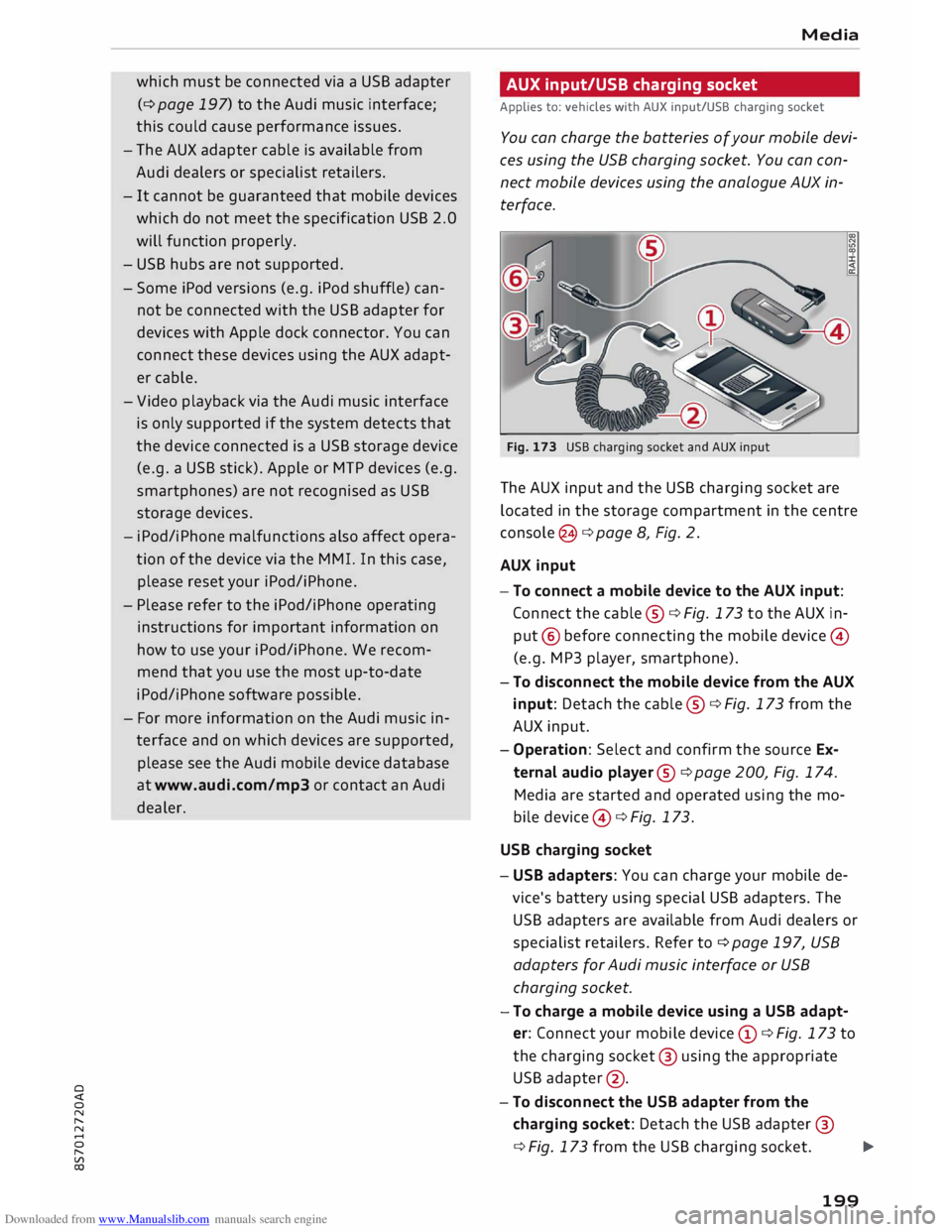
The AUX input and the USB charging socket are
located in the storage compartment in the centre
console @¢ page 8, Fig. 2.
AUX input
-To connect a mobile device to the AUX input:
Connect the cable ®¢ Fig. 173 to the AUX in
put @ before connecting the mobile device©
(e.g. MP3 player, smartphone).
- To disconnect the mobile device from the AUX
input: Detach the cable ®¢ Fig. 173 from the
AUX input.
- Operation: Select and confirm the source Ex
ternal audio player@¢ page 200, Fig. 174.
Media are started and operated using the mo
bile device @¢ Fig. 173.
USB charging socket
- USB adapters: You can charge your mobile de
vice's battery using special USB adapters. The
USB adapters are available from Audi dealers or
specialist retailers. Refer to¢ page 197, USB
adapters for Audi music interface or USB
charging socket.
-To charge a mobile device using a USB adapt
er: Connect your mobile device (D ¢ Fig. 173 to
the charging socket@ using the appropriate
USB adapter @.
- To disconnect the USB adapter from the
charging socket: Detach the USB adapter @
¢ Fig. 173 from the USB charging socket.
...,.
199
Page 202 of 306

Downloaded from www.Manualslib.com manuals search engine Media
- To disconnect mobile devices with Apple dock
connector: With the release tabs®
¢ page 197, Fig. 171 pressed, detach the Apple
dock connector from the Apple device.
A WARNING
Today's driving conditions require your full at
tention. As the driver, you have full responsi
bility for the safety of the vehicle and other
road users. Never use mobile devices while
the vehicle is moving -risk of accident!
CD CAUTION
- To avoid damaging the connection on the
Audi music interface, please take care when
unplugging the connector from the AUX in
put or the USB charging socket.
- Very
high or very low temperatures (a com
mon occurrence in a car's interior) can cause
damage to mobile devices and/or impair
their performance. Please do not leave your
mobile devices in the vehicle when the tem
perature is very high or very low.
({D Note
-When you switch off the ignition, the USB
ports will continue to be supplied with pow
er as long as the energy management sys
tem does not intervene.
- USB charging sockets marked
I CHARGE
ONL vi
cannot transfer data and
are intended for charging only.
- Do not use any additional USB extension ca
bles or adapters when connecting mobile
devices which must be connected to the USB
charging socket®¢ Fig. 173 via a USB
adapter (¢ page 197); this could cause per
formance issues.
- The AUX adapter cable is available from
Audi dealers or specialist retailers.
- USB hubs are not supported.
- Please refer to the operating instructions of
your mobile device for important informa
tion on its operation.
- It
cannot be guaranteed that all mobile de
vices will function without any problems.
200 -
Using a mobile device with the engine
switched off will drain the vehicle's battery.
-Audi recommends setting the volume of a
mobile device connected to the AUX input to
about 70 % of maximum.
Playing media
Calling up media
You can start and operate various types of media
via the MMI control console.
Fig. 174 Illustration: Possible sources in the media menu
Fig. 175 Illustration: Possible sources in the media menu
Important: A media source must contain audio/
video* files ¢page 192.
... Press
the I
ME
DIA !
button. Press the left control
button repeatedly until the source overview is
displayed.
... Select
and confirm the desired source. Or:
Press the I
MEDI Ai
button repeatedly until the
desired source is selected.
You can select the following sources in the Media
menu, depending on the vehicle equipment:
Switch to radio: The radio menu will be opened
¢page 185.
(D Jukebox* ................... .
@ DVD/CD drive* .............. .
®
@ SD
card reader
Audi music interface* ......... . 193
192,193 192
198 �
Page 210 of 306
Downloaded from www.Manualslib.com manuals search engine Media
Subject Advice
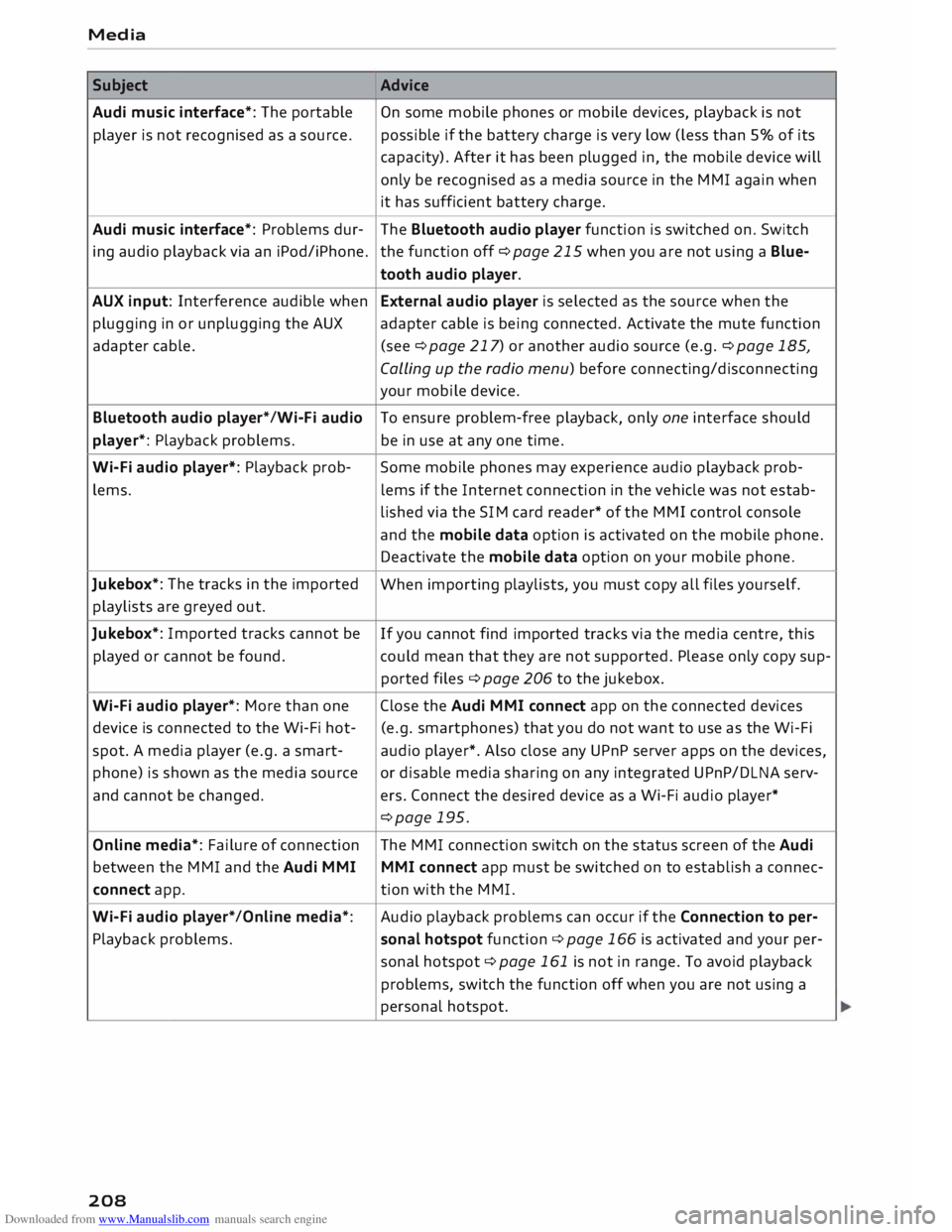
Audi music interface*: The portable
On some mobile phones or mobile devices, playback is not
player is not recognised as a source. possible
if the battery charge is very low (less than 5% of its
capacity). After it has been plugged in, the mobile device will
only be recognised as a media source in the MMI again when
it has sufficient battery charge.
Audi music interface*: Problems dur-
The Bluetooth audio player function is switched on. Switch
ing audio playback via an iPod/iPhone. the function off ¢page 215 when you are not using a Blue-
tooth audio player.
AUX input: Interference audible when External audio player is selected as the source when the
plugging in or unplugging the AUX adapter cable is being connected. Activate the mute function
adapter cable. (see ¢page 217) or another audio source (e.g. ¢page 185,
Calling up the radio menu) before connecting/disconnecting
your mobile device.
Bluetooth audio player*/Wi-Fi audio
To ensure problem-free playback, only one interface should
player*: Playback problems. be in use at any one time.
Wi-Fi audio player*: Playback prob-
Some mobile phones may experience audio playback prob-
lems. lems
if the Internet connection in the vehicle was not estab-
lished via the SIM card reader* of the MMI control console
and the mobile data option is activated on the mobile phone.
Deactivate the mobile data option on your mobile phone.
Jukebox*: The tracks in the imported
When importing playlists, you must copy all files yourself.
playlists are greyed out.
Jukebox*: Imported tracks cannot be
If you cannot find imported tracks via the media centre, this
played or cannot be found. could mean that they are not supported. Please only copy sup-
ported files¢ page 206 to the jukebox.
Wi-Fi audio player*: More than one Close the Audi MMI connect app on the connected devices
device is connected to the Wi-Fi hot- (e.g.
smartphones) that you do not want to use as the Wi-Fi
spot. A media player (e.g. a smart-
audio player*. Also close any UPnP server apps on the devices,
phone) is shown as the media source
or disable media sharing on any integrated UPnP/DLNA serv-
and cannot be changed. ers. Connect the desired device as a Wi-Fi audio player*
¢page 195.
Online media*: Failure of connection The MMI connection switch on the status screen of the Audi
between the MMI and the Audi MMI
MMI connect app must be switched on to establish a connec-
connect app. tion
with the MMI.
Wi-Fi audio player* /Online media*: Audio
playback problems can occur if the Connection to per-
Playback problems. sonal
hotspot function¢ page 166 is activated and your per-
sonal hotspot ¢ page 161 is not in range. To avoid playback
problems, switch the function off when you are not using a
personal hotspot.
208
Page 213 of 306

Downloaded from www.Manualslib.com manuals search engine 0
N
,.....
N
......
0
,.....
Vl
CX) Audi
smartphone interface
- Tag this song for iTunes* 1
>2
> is not available
while an Apple CarPlay connection is active
¢page 185. Android Auto:
To open the menu bar of Android
Auto, push the rotary pushbutton downwards.
Calling up a menu item
How to use
Applies to: vehicles with Audi smartphone interface Use
the MMI control console to select an item
from the menu and confirm it.
Calling up the menu
Apple CarPlay: To return to the main menu of
Apple CarPlay from any other menu, press and
hold the I
BACK!
button.
Troubleshooting
Applies to: vehicles with Audi smartphone interface
Subject Advice
Audi smartphone interface can-Check
the battery charge level on your smartphone.
not be called up. Check
the USB cable and try using another one.
Check whether Android Auto or Apple CarPlay is available in your
country. Check that the Android Auto app is installed on your smartphone.
Connecting the smartphone to Check that you are using
the correct USB adapter and that the USB
the MMI fails. adapter
is correctly connected to your smartphone and to the Audi
music interface ¢ page 197.
Check that Apple CarPlay is activated on your smartphone.
Check in the Android Auto app whether Android Auto allows new
cars.
Smartphone is not detected auto-Check that you are using the correct USB adapter and that the USB
matically. adapter
is correctly connected to your smartphone and to the Audi
music interface ¢ page 197.
Check that the requirements for connecting a smartphone have
been met.
l) Still under development at the time of print .
2 > This function is only available in the Mexican market.
211
Page 247 of 306

Downloaded from www.Manualslib.com manuals search engine 0
N
,.....
N
......
0
,.....
Vl
CX) -
Never spill fluids on a hot engine. These flu
ids can cause a fire (e.g. radiator anti
freeze).
- Take care not to cause short circuits in the
electrical system, especially when working
on the battery.
- When working in the engine compartment
be aware that the radiator fan may start
running suddenly, even if the ignition is
switched off -risk of injury!
- Do not unscrew the cap on the expansion
tank when the engine is hot. The cooling
system is under pressure.
- Protect face, hands and arms by covering
the cap with a large, thick rag to protect
against escaping coolant and steam.
- Never remove the engine cover panel -risk
of burns!
- If any tests have to be performed with the
engine running, there is an extra safety risk
from the rotating parts, such as the drive
belts, alternator and radiator fan, etc., and
from the high-voltage ignition system.
- Vehicles with automatic gearbox: Never
open the throttle inadvertently (for instance
by hand from the engine compartment) if a
gear is engaged while the vehicle is station
ary with the engine running. The vehicle will
otherwise start moving immediately and
could cause an accident.
- Observe the following additional warnings if
work on the fuel system or the electrical
system is necessary:
- Do not smoke.
- Never work near naked flames.
- Always keep an approved fire extinguisher
immediately available.
- Any work on the batteries and electrical sys
tem in your vehicle entails a risk of injury
and chemical burns in addition to danger of
accident or fire. For this reason, you must
have the work carried out by a qualified
workshop.
CD CAUTION
When topping up fluids make sure the correct
fluid is put into the correct filler opening. This Checking
and topping up fluids
can otherwise cause serious malfunctions or
engine damage.
@ For the sake of the environment
Inspect the ground underneath your vehicle
regularly so that any leaks are detected at an
early stage. If you find spots of oil or other
fluids, have your vehicle inspected in the
workshop.
i Note
On right-hand drive vehicles* some of the
containers/ reservoirs mentioned below are
located on the other side of the engine com
partment.
Opening/closing bonnet
The bonnet is released from inside the vehicle.
Fig. 212 Detail of footwell on driver's side: Release lever
Fig. 213 Unlocked bonnet: Lever
The wiper arms should be resting on the wind
screen: make sure they are not in a raised posi-
tion. Otherwise the paint may get damaged.
..,..
245