2015 VOLVO V60 change time
[x] Cancel search: change timePage 181 of 414
04 Driver support
Pedestrian and Cyclist Detection with Full Auto Brake*
04
}}
* Option/accessory, for more information, see Introduction.179
Introduction
Pedestrian and Cyclist Detection with Full Auto Brake is designed to assist the driver ifthere is a risk of a collision with a pedestrian,a cyclist, a vehicle ahead that is at a standstillor one that is moving in the same direction asyour vehicle. This system consists of the following three functions: • Collision Warning
warns the driver of a
potential collision situation.
• Brake Support
helps the driver brake
efficiently in a critical situation.
• Auto-brake
brakes the vehicle automati-
cally if a collision with a pedestrian, a cyclist or another vehicle cannot be avoi-ded and the driver does not apply thebrakes in time or steer around the per-son/vehicle. Auto-brake can help preventa collision or reduce the speed at which acollision occurs.
Since Pedestrian and Cyclist Detection with Full Auto Brake is activated in circumstanceswhere the driver should have begun brakingmuch sooner, the system will not be able toassist the driver in all situations. This system is designed to activate as late as possible to help avoid unnecessary interven-tion. The system should not be used in such a waythat the driver changes his/her way of operat-ing the vehicle. If the driver relies entirely onthe system, the chances of an accident even-tually occurring increase considerably. The Pedestrian and Cyclist Detection with Full Auto Brake and City Safety™ systems sup-plement each other. See page 173 fordetailed information about City Safety™.
WARNING
No automatic system can be guaranteed to function 100% correctly in all situations.For that reason, never test the Auto-brakesystem by driving toward a person orobject. This could result in serious injury ordeath.
WARNING
•
Pedestrian and Cyclist Detection with Full Auto Brake does not work in alldriving, traffic, weather and road con-ditions. It does not react to vehiclesnot traveling in the same direction asyour vehicle.
• Pedestrian and Cyclist Detection withFull Auto Brake does not react to ani-mals.
• Warnings are only provided when therisk of collision is high. The "Function"section provides information aboutlimitations that the driver must beaware of before using Collision Warn-ing.
• Pedestrian and Cyclist Detection withFull Auto Brake will not provide awarning or brake the vehicle forpedestrians or cyclists at speedsabove 50 mph (80 km/h).
Page 195 of 414

04 Driver support
Driver Alert System*
04
}}
* Option/accessory, for more information, see Introduction.193
Car
. Go to
SettingsCar settings
Driver support systemsLane Departure
Warning.
There are two alternatives:
On at start-up: This selection switches LDW
on each time the engine is started. Otherwise, the system will be in the mode that it was in when the engine was switched off.
Increased sensitivity: This selection increa-
ses the function’s sensitivity. Warnings will be given at an earlier stage and fewer limitationsapply. When this setting is being used, thesystem only needs to monitor lane marker lines on one side of the vehicle to change sta- tus to
Lane Depart Warn Available.
Symbols and messages
SymbolMessageDescription
Lane departure warning ON/Lane departure warning OFFThe function is switched on or off. The text disappears after 5 seconds.
-Lane Depart Warn AvailableThe function is monitoring the road’s marker lines.
-Lane Depart. Warning Unavail-
able at this speedThe function has gone into standby mode because the vehicle's speed is below 40 mph (65 km/h).
-Lane Depart Warn UnavailableThe road lacks clear marker lines or the camera is not functioning properly. See page 183 for information on the camera’s limitations.
Windscreen Sensors blockedThe camera is temporarily not functioning, due to snow, ice, or dirt on the windshield. Clean the area of the windshield in front of the camera. See page 183 for information on the camera’s limi-tations.
Driver Alert Sys Service requiredThe system is not functioning. Contact a trained and qualified Volvo service technician if the message remains in the display.
Page 212 of 414
04 Driver support
Blind Spot Information System (BLIS)*
04
210* Option/accessory, for more information, see Introduction.
Introduction
BLIS is an information system that indicates the presence of another vehicle moving in thesame direction as your vehicle on roads withseveral lanes. The system helps provide infor-mation about:
• Other vehicles in your door mirrors' "blind area"
• Vehicles that are about to pass your vehi-cle in the left and/or right lanes
• Cross Traffic Alert (CTA) is a supple- mentary BLIS function
intended to
detect vehicles crossing behind your vehicle while you are backing up.WARNING
• BLIS and CTA are information sys- tems, NOT warning or safety systemsand do not function in all situations.
• BLIS and CTA do not eliminate theneed for you to visually confirm theconditions around you, and the needfor you to turn your head and should-ers to make sure that you can safelychange lanes or back up.
• As the driver, you have full responsibil-ity for changing lanes/backing up in asafe manner.
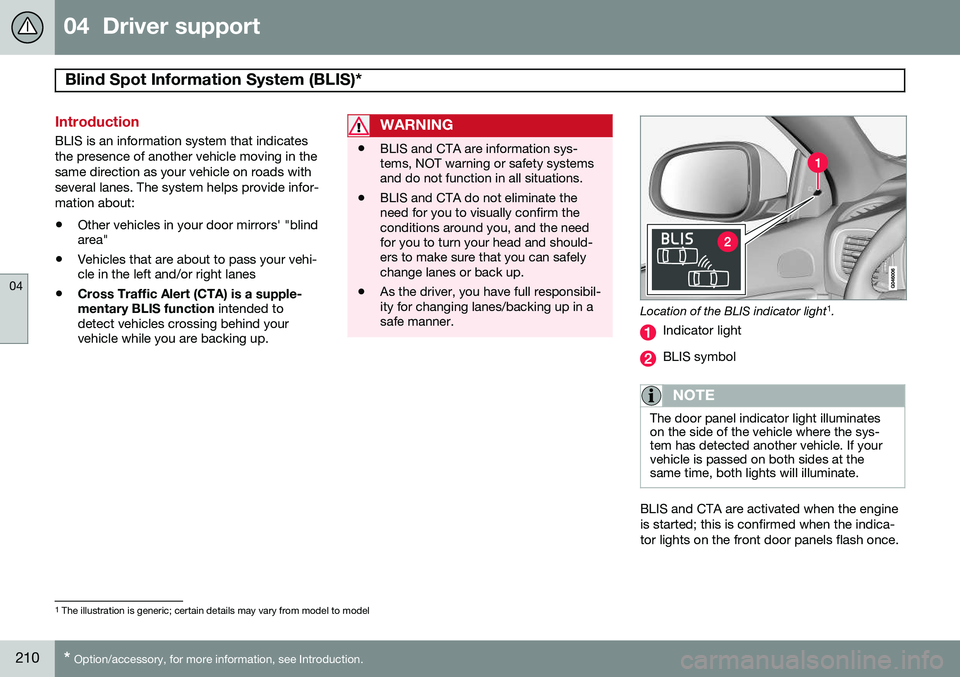
Location of the BLIS indicator light 1
.
Indicator light
BLIS symbol
NOTE
The door panel indicator light illuminates on the side of the vehicle where the sys-tem has detected another vehicle. If yourvehicle is passed on both sides at thesame time, both lights will illuminate.
BLIS and CTA are activated when the engine is started; this is confirmed when the indica-tor lights on the front door panels flash once.
1 The illustration is generic; certain details may vary from model to model
Page 224 of 414

05 Comfort and driving pleasure
The MY CAR menus
05
222
MY CARSettingsDriver support
systems
Collision Warning
Collision Warning Warning distanceLongNormalShort
Warning sound
See page 181 for more information. Lane Departure Warning
Lane Departure Warning Lane Keeping AidOn at start-upIncreased sensitivity
See page 191 for more information.
Road Sign Information OnOff
Speed alert On Off
DSTC See page 152 for more information. City Safety See page 173 for more information. BLIS See page 210 for more information. Distance Alert See page 170 for more information. Driver Alert See page 189 for more information.
MY CARSettingsSystem options
Set/change time See page 88 for more information. Time format
12 h 24 h
Screen saver The contents of the screen are replaced by another image if this selection is marked. Thecontents of the screen will be displayed again if one of the buttons (1-4) is pressed, seepage 219. Uncheck the selection to turn the screen saver off. Language Select the language for menu texts. Show help text This displays help texts for the current menu. Distance and fuel units
MPG (UK) MPG (US)km/ll/100km
See page 234 for more information about the trip computer. Temperature unit
Celsius Fahrenheit
Select the temperature scale to be displayed by the climate control unit. Volume levels
Voice output volume Front park assist volume
Page 228 of 414

05 Comfort and driving pleasure
Climate system
05
226
your Warranty and Service Records Informa- tion booklet, or consult a trained and qualifiedVolvo service technician for these intervals.The filter should be replaced more often whendriving under dirty and dusty conditions. Thefilter cannot be cleaned and therefore shouldalways be replaced with a new one.
NOTE
There are different types of cabin air filters. Ensure that the correct type is installed.
Interior Air Quality System (IAQS)A multifilter helps reduce gases and particles in the incoming air, thereby reducing the lev-els of odors and contaminants entering thevehicle. The air quality sensor detectsincreased levels of contaminants in the out-side air. When the air quality sensor detectscontaminated outside air, the air intake closesand the air inside the passenger compart-ment is recirculated, i.e., no outside air entersthe vehicle. The filter also cleans recirculatedpassenger compartment air.
NOTE
Contact your Volvo retailer for IAQS air fil- ter replacement intervals.
Materials used in the cabinThe materials used in the cabin have been developed to help minimize the amount ofdust and make the cabin easier to keepclean. All floor mats can be easily removedfor cleaning. Use car cleaning products rec-ommended by Volvo. See also the informa-tion beginning on page 381.
Menu settingsThe default settings for four of the climatesystem's functions can be changed in themenu system.• Blower speed in automatic mode.
• Recirculation timer for passenger com- partment air.
• Automatic rear window defrosting.
• The optional Interior Air Quality System(IAQS).
The functions can also be returned to factory settings in the menu system. See page 219 for a description of the menu system.
Air distribution
The incoming air is distributed from a number of different vents in the passenger compart-ment. Air distribution is fully automatic in AUTO
mode.If desired, air distribution can be controlled manually, see page 233.
Page 240 of 414

05 Comfort and driving pleasure
Trip computer
05
238* Option/accessory, for more information, see Introduction.
Heading combinationsDescription
Average fuel consumptionTrip odometer T1 + mileageAverage speed• Press and hold
RESET to reset trip odometer T1.
Current fuel consumptionTrip odometer T2 + mileageDistance to empty•Press and hold
RESET to reset trip odometer T2.
Current fuel consumptionMileagemph<>kmhChange between mph<>kmh – see "Digital speed display" on page 238.
-No trip computer informa-
tion displayed-No information will be displayed. This also indicates the begin- ning/end of the list of information headings.
Scroll among the trip computer information headings at any time by turning the thumb
wheel until the desired heading is displayed.
Supplementary information
Average fuel consumptionFuel consumption since the last time this function was reset.
Average speedThe vehicle's average speed since the lasttime this function was reset.
Current fuel consumptionCurrent fuel consumption is calculatedapproximately once a second. When the vehi-cle is moving at low speed, fuel consumptionis displayed per unit of time. At higherspeeds, it is displayed in terms of distance. Miles or kilometers can be displayed, see theheading "Changing units" on page 239
Distance to emptyThis function shows the approximate dis-tance that can be driven on the fuel remaining in the tank. When
Distance to empty shows
"----", there is very little useable fuel remain- ing in that tank; refuel as soon as possible.The calculation is based on average fuel con-sumption during the last 20 miles (30 km) ofdriving and the amount of fuel remaining inthe tank (the accuracy of this figure may varyif your driving style changes). An economicaldriving style will generally increase this dis-tance. See page 292 for information about driving economically.
Digital speed display*Speed is expressed in the unit not used bythe instrument panel's speedometer e.g., ifthe normal speedometer is in mph, the tripcomputer will display in the speed in km/hand vice versa.
Resetting an analog instrument panel
Trip odometer(s) and average speed1. Display trip odometer T1 or T1, or Aver- age speed.
2. Press and hold RESET until selected
function is reset.
Each trip computer heading must be reset individually.
Page 243 of 414

05 Comfort and driving pleasure
Active chassis system–Four C*
05
* Option/accessory, for more information, see Introduction.241
Active chassis (Four C)
Active chassis, Four-C (Continuously Con- trolled Chassis Concept), regulates the cha-racteristics of the shock absorbers so that thevehicle's driving characteristics can beadjusted. There are three settings: Comfort,Sport and Advanced.
ComfortComfort mode offers a somewhat softer rideand the transmission shifts gears at lowerrpm. This mode is particularly suitable forlong-distance highway driving. The indicatorlight in the button will be on when this modeis selected.
SportIn this mode, the vehicle's body sway isreduced during cornering and steeringresponse is more immediate. The transmis-sion shifts up at higher rpm for sportier driv-ing. The indicator light in the button will be onto indicate that Sport mode has beenselected.
AdvancedIn this mode, body sway in curves is minimaland steering response is very direct. Gearshifting is done at high rpm in each gear fordynamic and active driving.
Operation
Chassis settings
Use the buttons in the center console to change setting. The setting in use when theengine is switched off is activated the nexttime the engine is started.
Adjustable steering force*
Steering force increases with the speed of the vehicle to give the driver enhanced sensitivity.At low speed the vehicle is easy to steer inorder to facilitate parking, etc. Steering force can be changed under
MY
CAR
Car settingsSteering wheel
force
. Select Low, Medium or High. For a
description of the menu system, see page 219.
NOTE
This steering force level menu function cannot be accessed when the vehicle is inmotion.
NOTE
In certain situations, the power steering may become too warm and will have to betemporarily cooled down. While this ishappening, the power steering effect willbe reduced slightly and somewhat moreeffort may be required to turn the steeringwheel. If this occurs, a message will be displayed in the instrument panel.
Page 255 of 414
06 Infotainment
Introduction
06
}}
253
audio will be provided using 3 channel stereo.
•
Bass: Bass level.
•
Treble: Treble level.
•
Fader: Balance between the front and
rear speakers.
•
Balance: Balance between the right and
left speakers.
•
DPL II centre level/3 channel centre
level2 : Volume for the center speaker.
•
DPL II surround level2 /3
: Surround level.
Advanced sound settings
EqualizerSound levels for different frequencies can be adjusted separately using this feature. To do so:1. Press OK/MENU to access
Audio
settings and select Equalizer
2. Turn TUNE to select one of the frequen-
cies and press OK/MENU. 3. Turn
TUNE to adjust the sound setting
and confirm the change by pressing OK/
MENU . Do the same for the other fre-
quencies.
4. When you have finished making your set- tings, press EXIT to save and return to
normal view.
For general information regarding menu navi- gation, see page 251 and menu overview seepage 254.
Sound stage 4The sound experience can be optimized forthe driver's seat, both front seats or the rearseat. If the front and rear seats are occupied, the sound stage setting
Front seats is rec-
ommended. Select one of the options under
Audio settingsSound stage.
Audio volume and automatic volume
control
The infotainment system compensates for disrupting noises in the passenger compart-ment by increasing the volume according tothe speed of the vehicle. The level of soundcompensation can be set at low, medium,high or off. Select the level under
Audio
settings
Volume compensation.
External audio source volumeIf an external device such as an MP3 player or an iPod ®
is connected to the AUX socket,
the device's volume may be different than the volume of the internal sound sources such asthe disc player or the radio. If the externalsound source's volume is too high, the qualityof the sound may be impaired. To help pre-vent this, adjust the input volume of the exter-nal audio source:
NOTE
Sound quality may be affected if the MP3 player is being charged while the system isin AUX mode. To help prevent this, avoidcharging the MP3 player in a 12-voltsocket while it is being played.
1. Press MEDIA and turn TUNE to AUX.
Press OK/MENU or the thumb wheel on
the steering wheel keypad.
2. Press OK/MENU and turn TUNE to
AUX
input volume. Confirm by pressing OK/
MENU .
3. Turn TUNE to adjust the volume.
2
Premium Sound Multimedia only
3 Only when Surround is on.
4
Premium Sound Multimedia only