2015 VAUXHALL ASTRA J Mp3
[x] Cancel search: Mp3Page 109 of 179

CD Player109
Changing the folder levelPress button g or e to change to a
higher or lower folder level.
Skipping to the next track orprevious track Briefly press button s or u .
Fast forward or rewind
Press and hold button s or u to
fast forward or fast rewind the current track.Selecting tracks using the audio
CD or MP3 menu
During audio CD playback
Press the multifunction knob to open
the audio CD related menu.
To play all tracks in random order: set
Shuffle songs to On.
To select a track on the audio CD:
select Tracks list and then select the
desired track.
During MP3 playback
Press the multifunction knob to open
the MP3 related menu.
To play all tracks in random order: set
Shuffle songs to On.
To select a track from a folder or playlist: select Playlists/Folders .
Select a folder or playlist and then
select the desired track.
Notice
If a CD contains both audio and MP3
data, the audio data can be selected from Playlists/Folders .
Page 110 of 179

110CD Player
To open a menu with additionaloptions for track search and
selection: select Search. The options
available depend on the data saved
on the MP3 CD.
The search process on the MP3 CD
may take several minutes. During this
time the station last played will be
received.
Removing a CD
Press the d button.
The CD is pushed out of the CD slot. If the CD is not removed after
ejection, it will be drawn back in again automatically after a few seconds.
Page 113 of 179

USB port113
Press the AUX button once or several
times to activate the USB mode.
Playback of the audio data stored on
the USB device is started.
The operation of data sources
connected via USB is generally the
same as for an audio MP3 CD 3 108.
On the following pages only the
aspects of operation that are
different/additional are described.
Operation and the screen displays
are described for USB drives only. Operation of other devices, e.g. iPod
or Zune is generally the same.Selecting tracks using the USB
menu
Press the multifunction knob to open
the USB related menu.
To play all tracks in succession:
select Play all .
To display a menu with various
additional options for track search and selection: select Search.
The search process on the USB
device may take several minutes.
During this time the station last played will be received.
To play all tracks in random order: set
Shuffle songs (random) to On.
To repeat the currently played track:
set Repeat to On.
Page 134 of 179
134IntroductionIntroductionGeneral information...................134
Theft-deterrent feature ...............135
Control elements overview ........136
Usage ........................................ 139
Basic operation .......................... 140
Tone settings ............................. 143
Volume settings .........................143General information
The Infotainment system provides
you with state-of-the-art in-car
infotainment.
Using the FM, AM or DAB radio
functions, you may register up to
36 stations on six favourites pages.
The integrated audio player will
entertain you with audio CDs and
MP3/WMA CDs.
You can connect external data
storage devices, e.g. iPod, MP3
player, USB stick, or a portable CD
player to the Infotainment system as
further audio sources; either via cable or via Bluetooth.
In addition, the Infotainment system is equipped with a Phone portal that
allows for comfortable and safe use of
your mobile phone in the vehicle.
Optionally, the Infotainment system
can be operated using controls on the steering wheel.
The well-thought-out design of the
control elements and the clear
displays enable you to control the
system easily and intuitively.Notice
This manual describes all options
and features available for the
various Infotainment systems.
Certain descriptions, including those for display and menu functions, may
not apply to your vehicle due to
model variant, country
specifications, special equipment or
accessories.
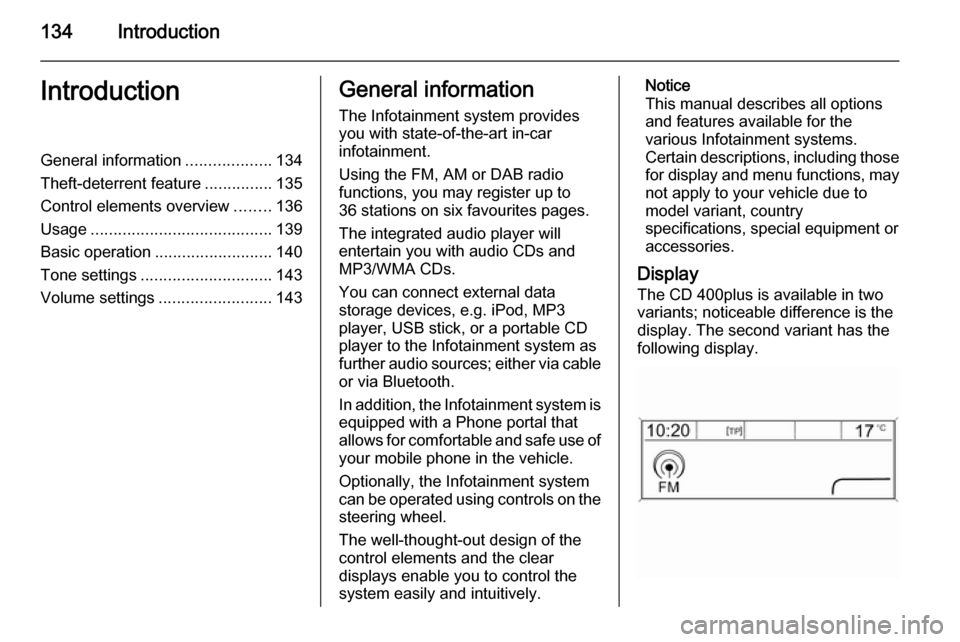
Display The CD 400plus is available in two
variants; noticeable difference is the
display. The second variant has the
following display.
Page 137 of 179

Introduction137
1 RADIO................................. 145
Activate radio or change
waveband ........................... 145
2 CD ....................................... 157
Start CD/MP3/WMA
playback .............................. 157
3 Search backwards ..............145
Radio: search backwards ...145
CD/MP3/WMA: skip track
backwards ........................... 155
4 Radio station buttons 1...6 ..146
Long press: save station .....146
Short press: select station ..146
5 m knob ................................ 139
Press: switch on/off ............139
Infotainment system ...........139
Turn: adjust volume ............139
6 Search forwards ..................145
Radio: search forwards .......145
CD/MP3/WMA: skip track
forwards .............................. 1557 AS 1/2................................. 146
Automatic memory levels
(preset radio stations) .........146
Short press: select
autostore list ........................ 146
Long press: save stations
automatically ....................... 146
8 FAV 1/2/3 ............................ 146
Lists of favourites (preset
radio stations) .....................146
9 TP ....................................... 150
Activate or deactivate
radio traffic service ..............150
If Infotainment system is
switched off: display time
and date .............................. 150
10 CD ejection ......................... 155
11 CONFIG .............................. 143
Open settings menu ............14312 INFO ................................... 136
Radio: information on the
currently played station .......145
CD/MP3/WMA:
information on the
currently inserted CD ..........155
13 Multifunction knob ...............140
Turn: mark menu options
or set numeric values .........140
Press: select/activate the
marked option; confirm set
value; switch function on/off 140
14 CD slot ................................ 155
15 BACK .................................. 140
Menu: one level back ..........140
Input: delete last character or entire entry ...................... 140
16 TONE .................................. 143
Tone settings ...................... 143
17 PHONE ............................... 163
Open telephone main menu 166
Activate mute ...................... 139
Page 138 of 179

138Introduction
18 AUX..................................... 157
Change audio source ..........157Steering wheel audio controls
1Short press: take phone call 163
or dial number in call list .....166
Long press: show call list ....166
2 SRC (Source) ...................... 139
Press: select audio source ..139
With radio active: turn
upwards/downwards to
select next/previous
preset radio station .............145
With CD player active: turn
upwards/downwards to
select next/previous CD/
MP3/WMA track ..................155
With Phone portal active:
turn upwards/downwards
to select next/previous
entry in call list ....................166
With Phone portal active
and calls waiting: turn
upwards/downwards to
switch between calls ...........166
3 Increase volume .................. 139
4 Reduce volume ...................139
5 Short press: end/decline
call ....................................... 166
or close call list .................... 166
or activate/deactivate mute . 139
Page 151 of 179

Radio151
Radio text
If the RDS function is activated and a RDS station is currently received,
information about the current
programme and the music track
currently playing are displayed below
the programme name.
To show or hide the information, set
Radio text to On or Off.
TA volume
The volume of traffic announcements
(TA) can be preset. For a detailed
description 3 143.
Radio traffic service
(TP = Traffic Programme)
Radio traffic service stations are RDS stations that broadcast traffic news.
Switching the radio traffic service on
and off
To switch the traffic announcement
standby facility of the Infotainment
system on and off:
Press the TP button.■ If the radio traffic service is
switched on, [ ] is displayed in the
radio main menu.
■ Only radio traffic service stations are received.
■ If the current station is not a radio traffic service station, a search is
started automatically for the next
radio traffic service station.
■ If a radio traffic service station has been found, [TP] is displayed in the
radio main menu.
■ Traffic announcements are played at the preset TA volume 3 143.
■ If the radio traffic service is switched on, CD/MP3 playback is
interrupted for the duration of the
traffic announcement.
Listening to traffic announcements only
Switch on the radio traffic service and
completely turn down the volume of
the Infotainment system.
Blocking out traffic announcements
To block out a traffic announcement,
e.g. during CD/MP3 playback:Press the TP button or the
multifunction knob to confirm the
cancelling message on the display.
The traffic announcement is
cancelled, but the radio traffic service
remains switched on.
Digital audio broadcastingDigital audio broadcasting (DAB) is
an innovative and universal
broadcast system.
DAB stations are indicated by the
programme name instead of the
broadcasting frequency.
Page 154 of 179
154CD PlayerCD PlayerGeneral information...................154
Usage ........................................ 155General information
The Infotainment system's CD player
can play audio CDs and MP3/WMA
CDs.
Important informationCaution
Under no circumstances place
single-CDs with a diameter of 8 cm
or shaped CDs in the audio player.
You must not put any stickers on
CDs. These discs can get jammed
in the CD drive and ruin the player.
Replacement of the device will
then be necessary.
■ The following CD formats can be used:
CD-ROM Mode 1 and Mode 2.
CD-ROM XA Mode 2, Form 1 and
Form 2.
■ The following file formats can be used:
ISO 9660 Level 1, Level 2 (Romeo,
Joliet).
MP3 and WMA files written in any format other than listed above may
not play correctly and their file
names and folder names may not
be displayed correctly.
■ Audio CDs with copy protection, which are not in compliance with
the audio CD standard, may not
play correctly or not at all.
■ Self-recorded CD-Rs and CD-RWs
are more vulnerable to mishandling
than prerecorded CDs. Correct
handling, especially in the case of
self-recorded CD-Rs and CD-RWs, must be ensured (see below).
■ Self-recorded CD-Rs and CD-RWs
may not play correctly or not at all.
In such cases it is not the
equipment that is at fault.
■ On mixed mode CDs (audio tracks and compressed files, e.g. MP3,
are stored), the audio tracks part
and the compressed files part can
be played separately.
■ Avoid leaving fingerprints when you
change CDs.