2015 TOYOTA TUNDRA phone
[x] Cancel search: phonePage 257 of 280

257
Entune App Suite
9
2. Entune App Suite OPERATION
1. Entune App Suite
1Press the “APPS” button.
2Select the desired Entune App Suite
application.USING AN Entune App Suite
Entune App Suite is a service that en-
ables the usable contents of a cellular
phone to be displayed on and operated
from the multimedia screen. Before
Entune App Suite can be used, a few
actions need to be performed first.
(P.255)
For details about the function and ser-
vice of each application, refer to http://
www.toyota.com/entune/.
No.FunctionPage
Select to activate an appli-
cation.
Select to update the appli-
cation.258
Select to reorder the appli-
cations.35
Page 260 of 280

260
2. Entune App Suite OPERATION
IF A MESSAGE APPEARS ON THE SCREEN
When problems occur starting up the application player, a message will appear on
the screen. Referring to the table below to identify the problem, take the suggested
corrective action.
MessageDisplay conditionsCorrective action
“This feature is unavailable
during an emergency call.”Safety Connect is being im-
plemented.After Safety Connect is fin-
ished, perform the operation
again.
“This feature is unavailable
while transferring contacts.”Contacts are being trans-
ferred manually from the
phone.When the transfer of contacts
is complete, perform the op-
eration.
“Unable to connect to a
Bluetooth* phone. For trou-
bleshooting assistance,
please visit toyota.com.”The cellular phone cannot be
connected.Refer to http://www.toyota.com/entune/ to
confirm if the phone is com-
patible or not.
“This feature is unavailable
during a handsfree call.”A hands-free call is in
progress.After the hands-free call is fin-
ished, perform the operation.
“To use these services, an
active application needs to be
running on your phone. For
more information, please visit
toyota.com.”
The Entune App Suite appli-
cation cannot be connected
to Bluetooth SPP.
Refer to http://
www.toyota.com/entune/ to
confirm if the phone is
Bluetooth* SPP compatible or
not, and then activate the En-
tune App Suite application on
your phone.
“Entune connection has been
lost. Please confirm your con-
nection.”Communication was discon-
nected.
After a few moments, retry
the operation.
Note: This may be caused by
poor connectivity with the cel-
lular network or the content
provider.
*: Bluetooth is a registered trade mark of Bluetooth SIG, Inc.
Page 262 of 280

262
2. Entune App Suite OPERATION
1Display the “Web Search” screen.
(P.261)
2Select the desired application button to
search.
3Enter a search term, and select “GO” .
4Select “Call”.
5Select “Yes”.
“Cancel” : Select
to cancel making a
phone call.
6Check that the “Call” screen is dis -
played.
1Display the “Apps” screen. ( P.257)
2Select the desired Entune App Suite
application.
3Select the character input space.
MAKING A PHONE CALL
USING Entune App Suite
Phone calls can be made to locations
which were searched using Entune
App Suite.
For phone operation and the function of
each screen button: P.156
INFORMATION
●Actual sequence may vary based on the
application.
Entune App Suite KEYWORD
OPERATION
Information can be entered to an
Entune App Suite application by the
software keyboard or voice recognition
function. For details about the function
and service of each application, refer
to http://www.toyota.com/entune/
.
The keyboard layout can be changed.
( P.55)
USING THE SOFTWARE
KEYBOARD
Page 264 of 280

264
3. SETUP
1. Entune App Suite SETTINGS
1Press the “APPS” button.
2Select “Setup” .
3Select “Entune” .
1Display the “Entune Settings” screen.
( P.264 )
2Select “Phone Data Plan Pop-Up” .
3Check the desired function to be oper -
ated.
4Select “OK”.
Settings are available for Entune App
Suite.
SCREEN FOR Entune App
Suite SETTINGS
No.Function
Select to set the voice guidance vol-
ume.
Select to set the pop up reminder for
cellular phone data usage.
Select to reset all setup items.
PHONE DATA PLAN POP-UP
SETTINGS
The phone data plan pop-up can be set
once an Entune App Suite application
is downloaded.
Page 266 of 280

266
ALPHABETICAL INDEX
A
AAC.......................................................... 91
AM............................................................ 75
APPS button ............................................ 12
“Apps” screen........................................... 14
AUDIO button........................................... 12
Audio settings ........................................ 109
AUX........................................................ 106
B
Bluetooth®................................................ 41
Profiles ................................................. 43
Registering a Bluetooth
® audio
player ................................................ 42
Registering a Bluetooth
® phone ........... 41
Bluetooth® audio .................................... 102
Connecting a Bluetooth® device ........ 105
Listening to Bluetooth® audio ............. 105
Bluetooth® phone................................... 146
Bluetooth® phone message function ..... 159
C
Calling on the Bluetooth® phone............ 150
Casual speech recognization ................. 127
CD ............................................................ 91
Playing an audio CD............................. 93
Playing an MP3/WMA/AAC disc........... 93
Command list ......................................... 128
Contacts ................................................. 152
D
Data services settings ............................ 134
Destination search screen...................... 200
Driver settings .......................................... 62
E
Editing route ........................................... 223
Adding destinations ............................ 224
Deleting destinations .......................... 224
Detour setting ..................................... 225
Reordering destinations...................... 224
Selecting route type ............................ 225
Setting route preferences ................... 224
Emergency ............................................. 210
Entering letters and numbers/
list screen operation ............................. 36
Entune App Suite ................................... 257
Entune App Suite keyword
operation ......................................... 262
Linking Entune App Suite and
navigation function .......................... 261
Using Entune App Suite application ....257
Page 267 of 280
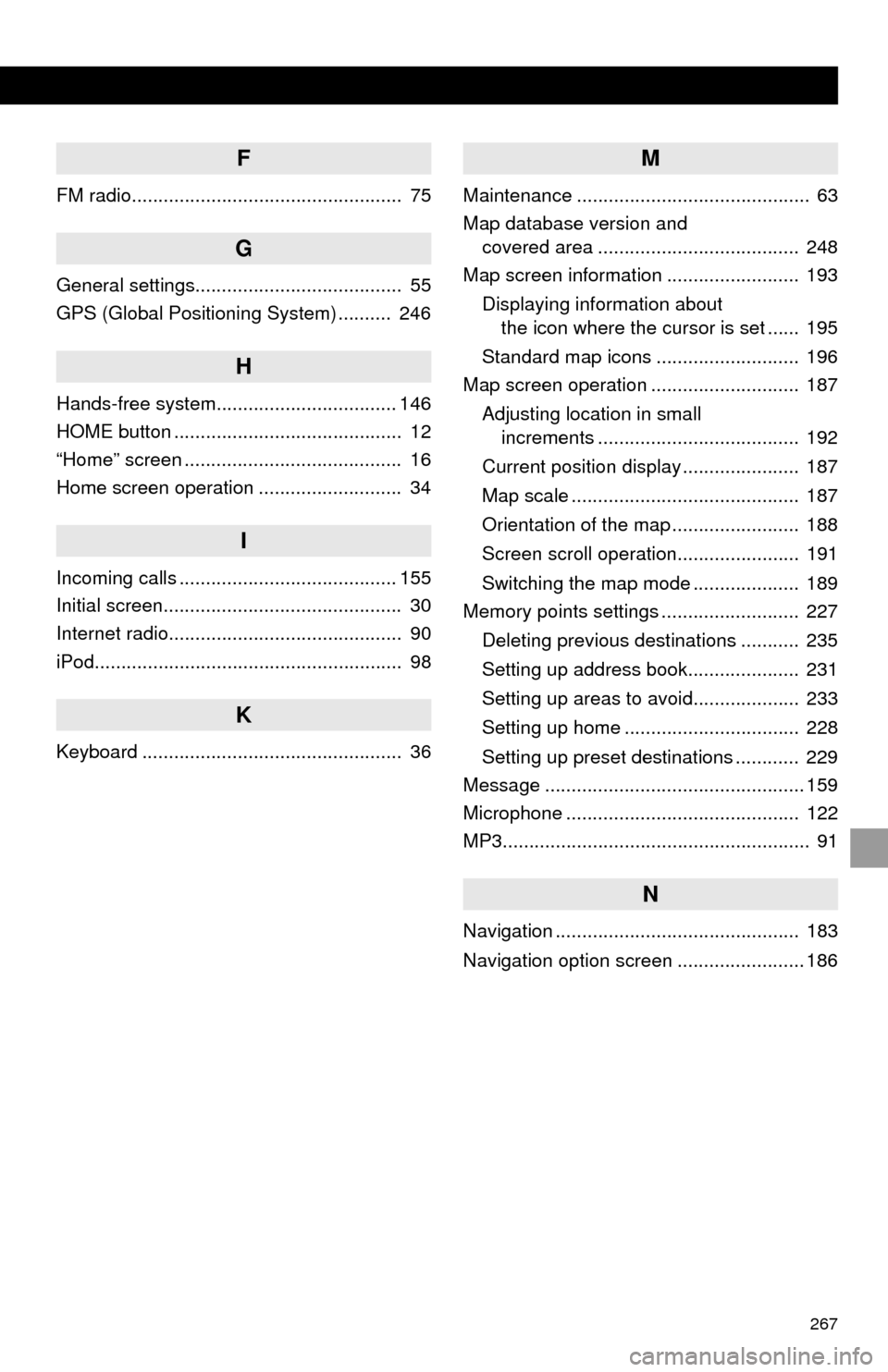
267
F
FM radio................................................... 75
G
General settings....................................... 55
GPS (Global Positioning System) .......... 246
H
Hands-free system.................................. 146
HOME button ........................................... 12
“Home” screen ......................................... 16
Home screen operation ........................... 34
I
Incoming calls ......................................... 155
Initial screen............................................. 30
Internet radio............................................ 90
iPod.......................................................... 98
K
Keyboard ................................................. 36
M
Maintenance ............................................ 63
Map database version and
covered area ...................................... 248
Map screen information ......................... 193
Displaying information about
the icon where the cursor is set ...... 195
Standard map icons ........................... 196
Map screen operation ............................ 187
Adjusting location in small
increments ...................................... 192
Current position display ...................... 187
Map scale ........................................... 187
Orientation of the map ........................ 188
Screen scroll operation....................... 191
Switching the map mode .................... 189
Memory points settings .......................... 227
Deleting previous destinations ........... 235
Setting up address book..................... 231
Setting up areas to avoid.................... 233
Setting up home ................................. 228
Setting up preset destinations ............ 229
Message ................................................. 159
Microphone ............................................ 122
MP3.......................................................... 91
N
Navigation .............................................. 183
Navigation option screen ........................ 186
Page 268 of 280

268
ALPHABETICAL INDEX
O
Overview buttons ..................................... 12
P
Phone/message settings........................ 164“Contact/Call History Settings”
screen ............................................. 166
“Messaging Settings” screen .............. 174
“Phone Display Settings” screen ........ 175
“Sound Settings” screen ..................... 165
PWR·VOL button ..................................... 12
R
Radio .............................................75, 84, 90
Rear view monitor system ...................... 136
Registering home ..................................... 22
Registering preset destinations ................ 24
Registering/connecting Bluetooth
®
device ................................................... 41
Certification........................................... 44
Profiles.................................................. 43
Registering a Bluetooth
® audio player
for the first time ................................. 42
Registering a Bluetooth
® phone
for the first time ................................. 41
Route guidance screen .......................... 217
During freeway driving ........................ 219
Route overview ................................... 218
Screen for route guidance .................. 217
Turn list screen ................................... 221
Turn-by-turn arrow screen .................. 221
When approaching intersection .......... 220
Route trace............................................. 195
Page 269 of 280

269
S
Satellite Radio.......................................... 84
Screen adjustment ................................... 39
SD card ................................................... 249
Search operation ................................... 202Searching by address ........................ 204
Searching by address book................ 209
Searching by coordinates................... 212
Searching by emergency ................... 210
Searching by intersection and
freeway ........................................... 210
Searching by map .............................. 212
Searching by point of interest............. 205
Searching from previous
destinations .................................... 209
Selecting search area ........................ 203
Setting home as destination ............... 203
Setting preset destinations
as destination ................................. 203
Setting Bluetooth
® details ........................ 48
“Bluetooth Setup” screen ..................... 48
Connecting a Bluetooth
® device .......... 50
Deleting a Bluetooth® device ............... 50
Editing the Bluetooth® device
information ........................................ 52
Registering a Bluetooth
® device .......... 49
“System Settings” screen ..................... 53
Setting home as the destination .............. 26
“Setup” screen ......................................... 20
Sound setting ............................................ 55
Starting route guidance.......................... 213
Steering switches................................... 108
T
Talking on the Bluetooth® phone ........... 156
Touch screen gestures ............................ 32
Touch screen operation ........................... 33
Traffic information .................................. 197
Traffic map information ........................... 133
Traffic settings........................................ 240
Auto avoid traffic................................. 241
My traffic routes .................................. 242
Screen for traffic settings.................... 240
Troubleshooting ..................................... 176
TUNE·SCROLL button............................. 12
Typical voice guidance prompts............. 222
U
USB/AUX port .......................................... 72
USB memory............................................ 94
V
Vehicle settings ........................................ 61
Voice command system ......................... 122
Voice settings........................................... 60
W
Weather information................................ 132
WMA ........................................................ 91
X
XM Satellite Radio ................................... 84