Page 70 of 356
70
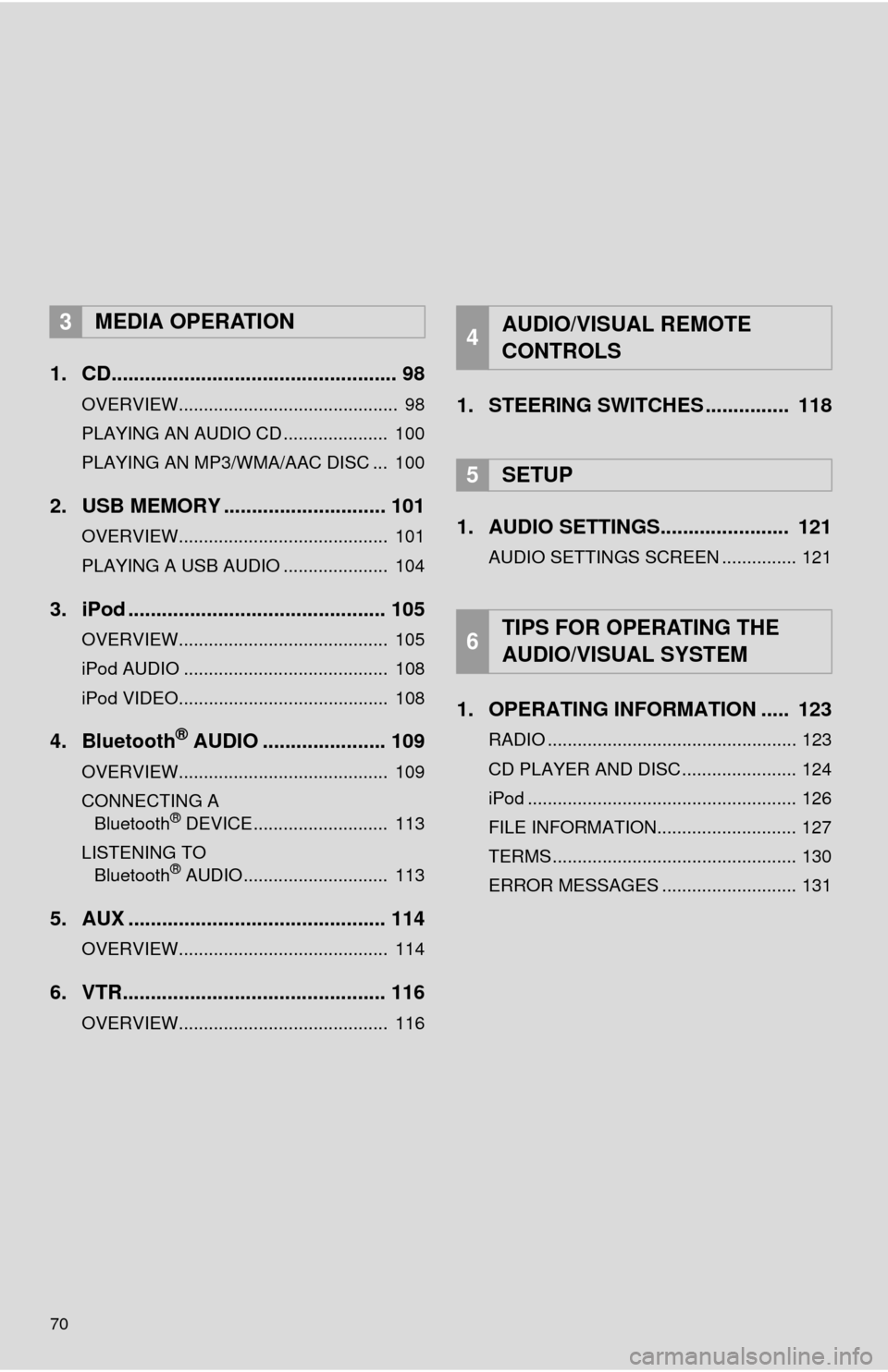
1. CD................................................... 98
OVERVIEW............................................ 98
PLAYING AN AUDIO CD ..................... 100
PLAYING AN MP3/WMA/AAC DISC ... 100
2. USB MEMORY ............................. 101
OVERVIEW.......................................... 101
PLAYING A USB AUDIO ..................... 104
3. iPod .............................................. 105
OVERVIEW.......................................... 105
iPod AUDIO ......................................... 108
iPod VIDEO.......................................... 108
4. Bluetooth® AUDIO ...................... 109
OVERVIEW.......................................... 109
CONNECTING A
Bluetooth
® DEVICE........................... 113
LISTENING TO Bluetooth
® AUDIO............................. 113
5. AUX .............................................. 114
OVERVIEW.......................................... 114
6. VTR............................................... 116
OVERVIEW.......................................... 116
1. STEERING SWITCHES ............... 118
1. AUDIO SETTINGS....... ................ 121
AUDIO SETTINGS SCREEN ............... 121
1. OPERATING INFORMATION ..... 123
RADIO .................................................. 123
CD PLAYER AND DISC ....................... 124
iPod ...................................................... 126
FILE INFORMATION............................ 127
TERMS ................................................. 130
ERROR MESSAGES ........................... 131
3MEDIA OPERATION4AUDIO/VISUAL REMOTE
CONTROLS
5SETUP
6TIPS FOR OPERATING THE
AUDIO/VISUAL SYSTEM
Page 73 of 356
73
1. BASIC OPERATION
3
AUDIO/VISUAL SYSTEM
FunctionPage
Using the radio81, 91, 97
Playing an audio CD or MP3/WMA/AAC disc98
Playing a USB memory101
Playing an iPod®105
Playing a Bluetooth® device109
Using the AUX port11 4
Playing the VTR11 6
Using the steering wheel audio switches11 8
Audio system settings121
Rear seat entertainment system132
INFORMATION
●The display and button positions will differ depending on the type of the system.
Page 86 of 356

86
2. RADIO OPERATION
1Select “Station List” .
2FM radio only: Select a desired genre
of station and select a desired station.
The genre list is in the following order:
• Classical
• Country
• EasyLis (Easy Listening)
• Inform (Information)
•Jazz
•News
•Oldies
• Other
• Pop Music
• Religion
•Rock
• R&B (Rhythm and Blues)
• Sports
•Talk
• Traffic (Not available when “HD Radio™”
indicator is off.)
• Alert (Emergency Alert)
AUTOMATIC PLAYBACK OF
THE CACHE
If the radio broadcast is interrupted by
another audio output, such as an
incoming phone call, the system will
automatically cache the interrupted
portion and perform time-shift
playback when the interruption ends.
To manually operate the cache
operation: ( P.85)
INFORMATION
●The system can store up to 20 minutes.
Cached data will be erased when the
radio mode or station is changed or
when the audio system is turned off.
● If noise or silence occurs during the
caching process, cache writing will con-
tinue, with the noise or silence recorded
as is. In this case, the cached broadcast
will contain the noise or silence when
played back.
RADIO BROADCAST DATA
SYSTEM
This audio system is equipped with Ra-
dio Broadcast Data Systems (RBDS).
RBDS mode allows text messages to
be received from radio stations that uti-
lize RBDS transmitters.
When RBDS is on, the radio can
— only select stations of a particular
program type,
— display messages from radio sta-
tions.
RBDS features are available only
when listening to an FM station that
broadcasts RBDS information and the
“FM Info” indicator is on.
SELECTING A DESIRED
GENRE
Page 97 of 356
97
2. RADIO OPERATION
3
AUDIO/VISUAL SYSTEM
3. INTERNET RADIO*
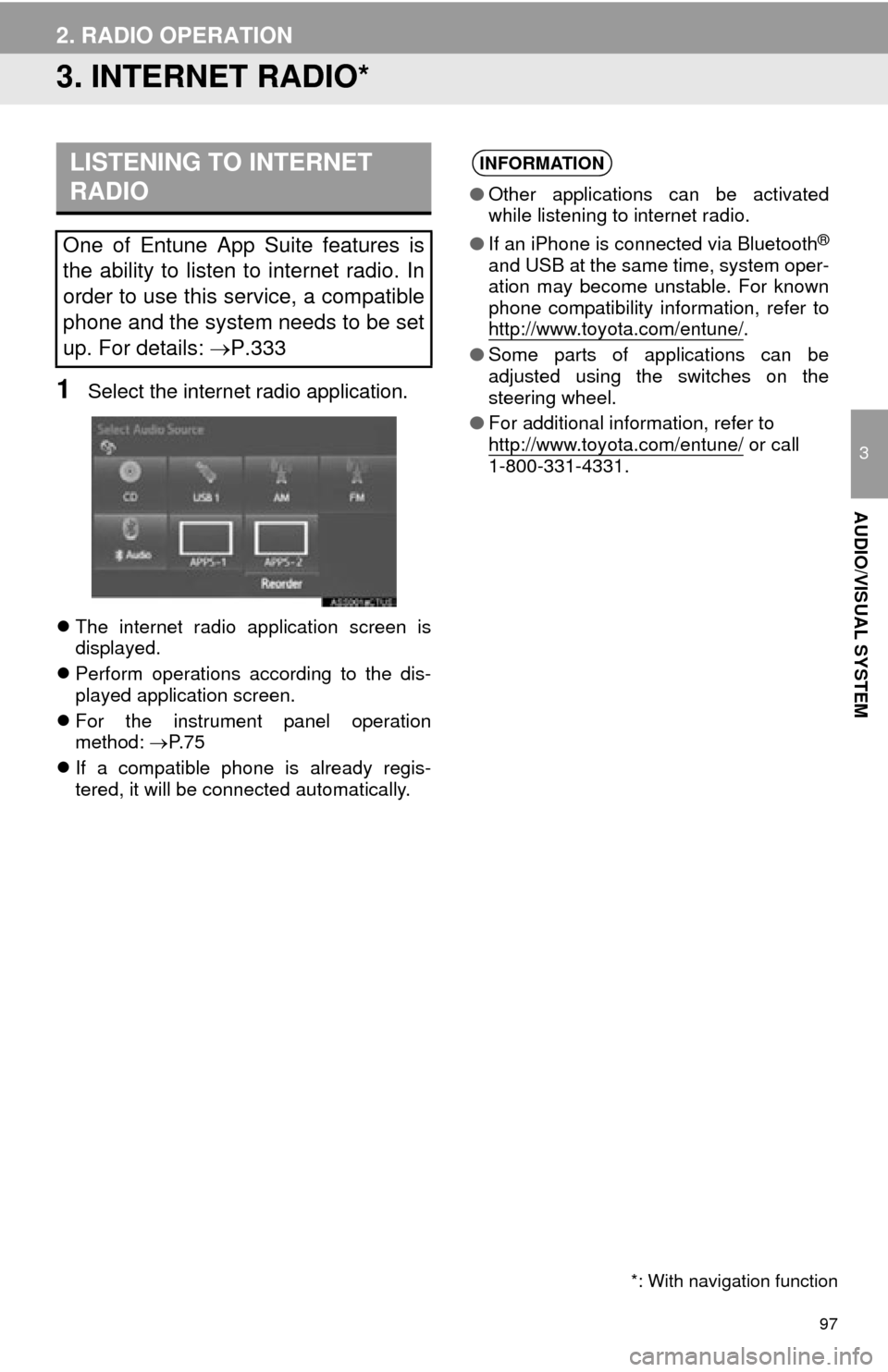
1Select the internet radio application.
The internet radio application screen is
displayed.
Perform operations according to the dis-
played application screen.
For the instrument panel operation
method: P. 7 5
If a compatible phone is already regis-
tered, it will be connected automatically.
LISTENING TO INTERNET
RADIO
One of Entune App Suite features is
the ability to listen to internet radio. In
order to use this service, a compatible
phone and the system needs to be set
up. For details: P.333
*: With navigation function
INFORMATION
●Other applications can be activated
while listening to internet radio.
● If an iPhone is connected via Bluetooth
®
and USB at the same time, system oper-
ation may become unstable. For known
phone compatibility information, refer to
http://www.toyota.com/entune/
.
● Some parts of applications can be
adjusted using the switches on the
steering wheel.
● For additional information, refer to
http://www.toyota.com/entune/
or call
1-800-331-4331.
Page 107 of 356
107
3. MEDIA OPERATION
3
AUDIO/VISUAL SYSTEM
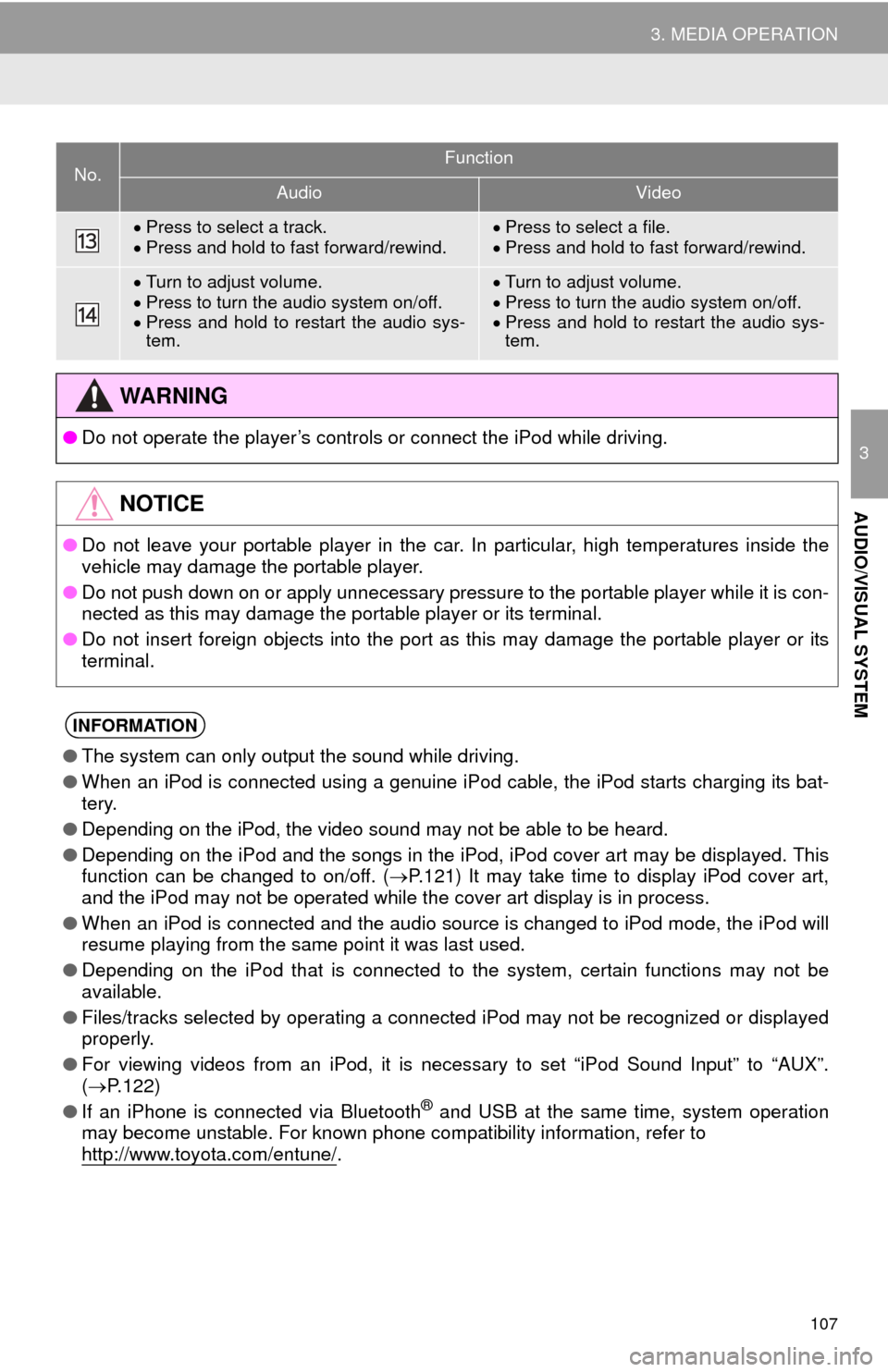
Press to select a track.
Press and hold to fast forward/rewind.Press to select a file.
Press and hold to fast forward/rewind.
Turn to adjust volume.
Press to turn the audio system on/off.
Press and hold to restart the audio sys-
tem.Turn to adjust volume.
Press to turn the audio system on/off.
Press and hold to restart the audio sys-
tem.
WA R N I N G
● Do not operate the player’s controls or connect the iPod while driving.
NOTICE
●Do not leave your portable player in the car. In particular, high temperatures inside the
vehicle may damage the portable player.
● Do not push down on or apply unnecessary pressure to the portable player while it is con-
nected as this may damage the portable player or its terminal.
● Do not insert foreign objects into the port as this may damage the portable player or its
terminal.
INFORMATION
●The system can only output the sound while driving.
● When an iPod is connected using a genuine iPod cable, the iPod starts charging its bat-
tery.
● Depending on the iPod, the video sound may not be able to be heard.
● Depending on the iPod and the songs in the iPod, iPod cover art may be displayed. This
function can be changed to on/off. ( P.121) It may take time to display iPod cover art,
and the iPod may not be operated while the cover art display is in process.
● When an iPod is connected and the audio source is changed to iPod mode, the iPod will
resume playing from the same point it was last used.
● Depending on the iPod that is connected to the system, certain functions may not be
available.
● Files/tracks selected by operating a connected iPod may not be recognized or displayed
properly.
● For viewing videos from an iPod, it is necessary to set “iPod Sound Input” to “AUX”.
( P.122)
● If an iPhone is connected via Bluetooth
® and USB at the same time, system operation
may become unstable. For known phone compatibility information, refer to
http://www.toyota.com/entune/
.
No.Function
AudioVideo
Page 109 of 356
109
3. MEDIA OPERATION
3
AUDIO/VISUAL SYSTEM
4. Bluetooth® AUDIO
■CONTROL SCREEN
The Bluetooth
® audio system enables users to enjoy listening to music that is
played on a portable player on the vehicle speakers via wireless communi\
cation.
This audio system supports Bluetooth
®, a wireless data system capable of playing
portable audio music without cables. If your device does not support Bluetooth
®,
the Bluetooth
® audio system will not function.
OVERVIEW
Select “ Audio” on the “Select Audio Source” screen. (P.75)
Depending on the type of portable player connected, some functions may not be
available and/or the screen may look differently than shown in this manual.
Page 110 of 356
110
3. MEDIA OPERATION
■CONTROL PANEL
No.Function
Select to display the audio source selection screen.
Displays Bluetooth® device condition.
Select to display the sound settings screen.
Select to play/pause.
Shows progress
Select to set repeat playback.
Select to set random playback.
Select to display the track list screen.
Select to display the portable device connection screen.
Displays cover art
Select to display a track list.
Press to play/pause.
Turn to select a track.
Turn to move up/down the list. Also, the knob can be used to enter selections on the
list screens by pressing it.
Press to select a track.
Press and hold to fast forward/rewind.
Page 111 of 356
111
3. MEDIA OPERATION
3
AUDIO/VISUAL SYSTEM
Turn to adjust volume.
Press to turn the audio system on/off.
Press and hold to restart the audio system.
WA R N I N G
● Do not operate the player’s controls or connect to the Bluetooth® audio system while driv-
ing.
● Your audio unit is fitted with Bluetooth
® antennas. People with implantable cardiac pace-
makers, cardiac resynchronization therapy-pacemakers or implantable cardioverter
defibrillators should maintain a reasonable distance between themselves and the
Bluetooth
® antennas. The radio waves may affect the operation of such devices.
● Before using Bluetooth
® devices, users of any electrical medical device other than
implantable cardiac pacemakers, cardiac resynchronization therapy-pacemakers or
implantable cardioverter defibrillators should consult the manufacturer of the device for
information about its operation under the influence of radio waves. Radio waves could
have unexpected effects on the operation of such medical devices.
NOTICE
● Do not leave your portable player in the vehicle. In particular, high temperatures inside
the vehicle may damage the portable player.
No.Function


