Page 343 of 612
3435-19. Bluetooth® phone (Multimedia system)
5
Audio system
COROLLA_TMMMS_TMMC_U (OM12F00U)
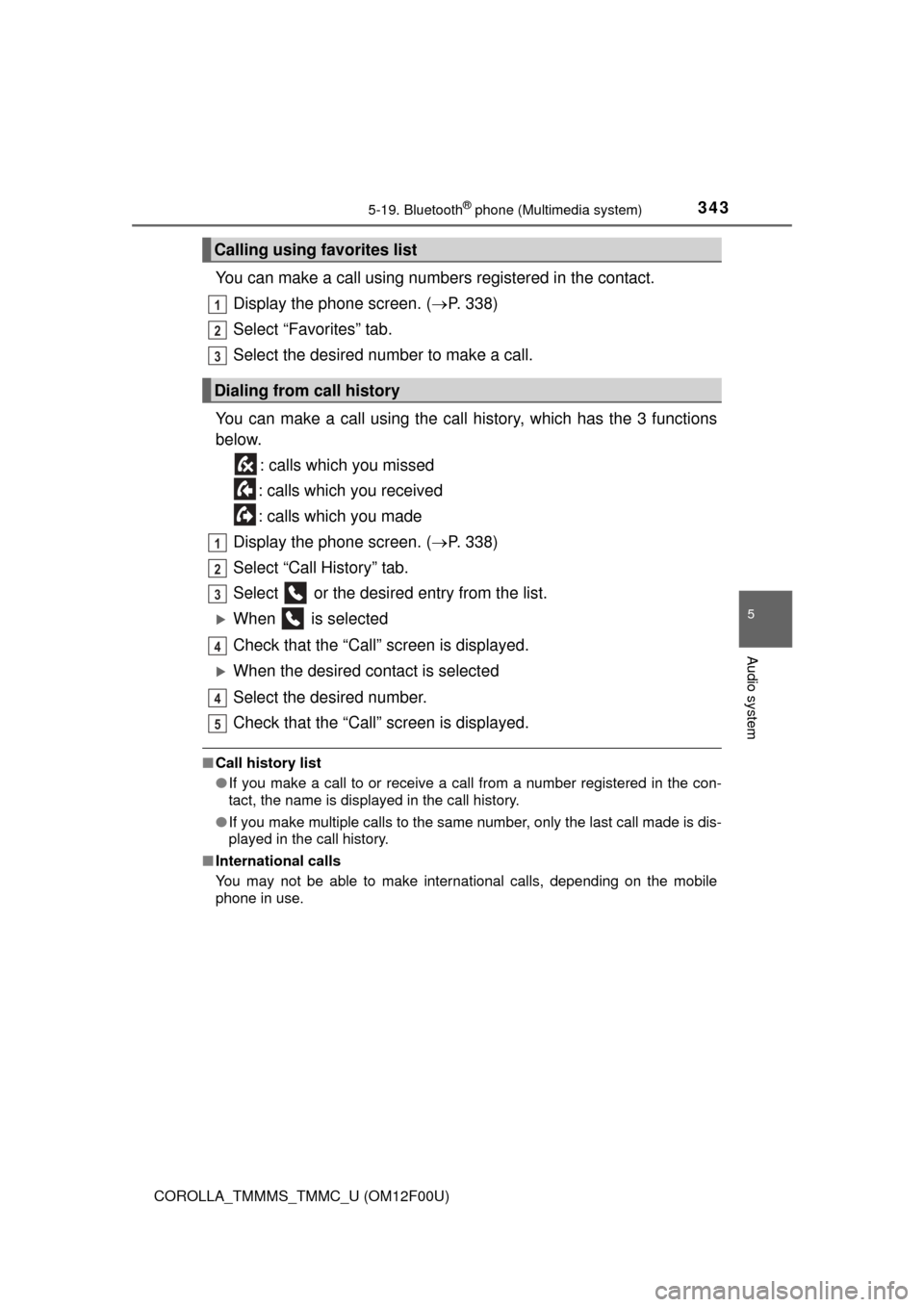
You can make a call using numbers registered in the contact.Display the phone screen. ( P. 338)
Select “Favorites” tab.
Select the desired number to make a call.
You can make a call using the call history, which has the 3 functions
below. : calls which you missed
: calls which you received
: calls which you made
Display the phone screen. ( P. 338)
Select “Call History” tab.
Select or the desired entry from the list.
When is selected
Check that the “Call” screen is displayed.
When the desired contact is selected
Select the desired number.
Check that the “Call” screen is displayed.
■Call history list
●If you make a call to or receive a call from a number registered in the con-
tact, the name is displayed in the call history.
● If you make multiple calls to the same number, only the last call made is dis-
played in the call history.
■ International calls
You may not be able to make international calls, depending on the mobile
phone in use.
Calling using favorites list
Dialing from call history
1
2
3
1
2
3
4
4
5
Page 345 of 612
3455-19. Bluetooth® phone (Multimedia system)
5
Audio system
COROLLA_TMMMS_TMMC_U (OM12F00U)
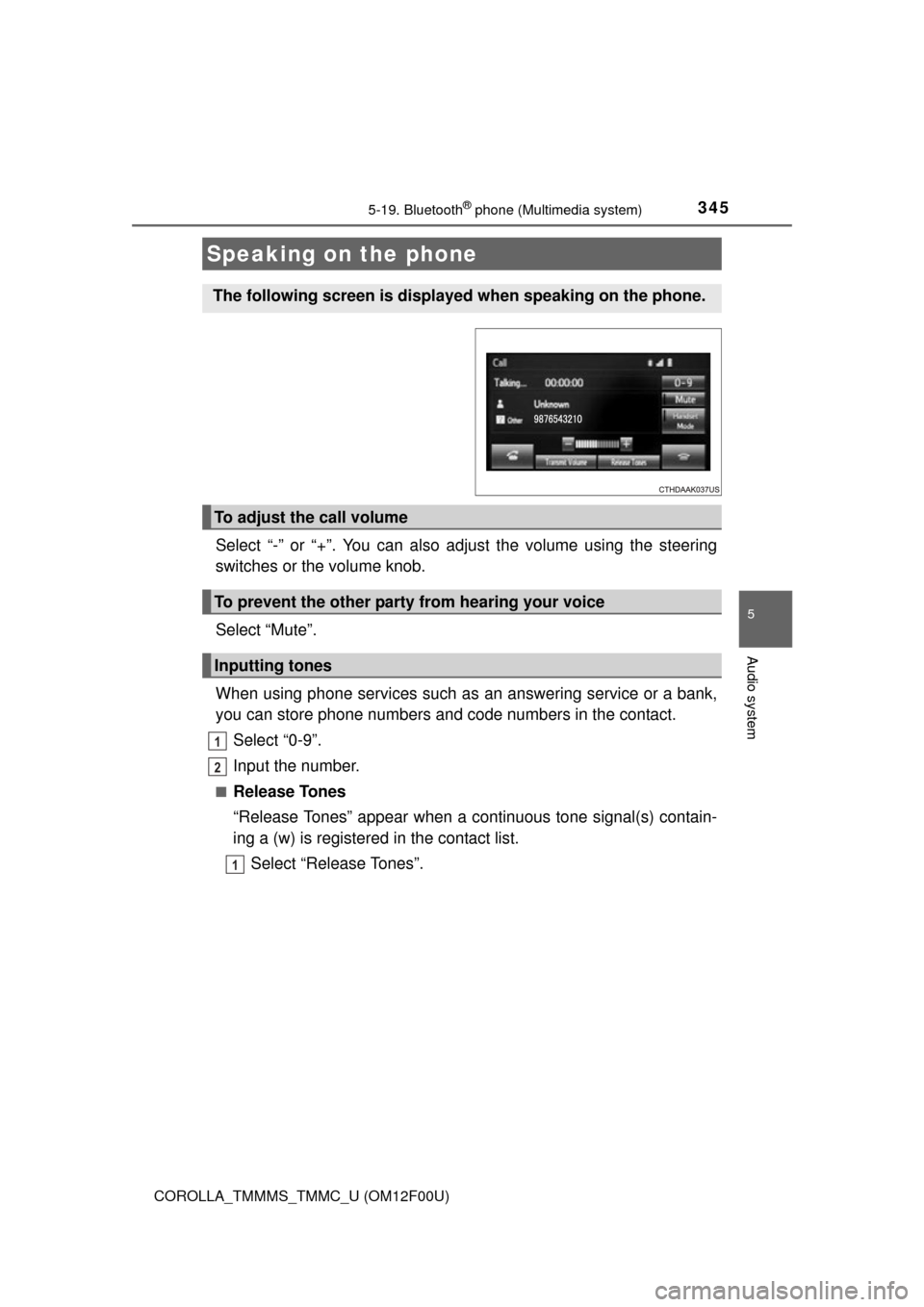
Select “-” or “+”. You can also adjust the volume using the steering
switches or the volume knob.
Select “Mute”.
When using phone services such as an answering service or a bank,
you can store phone numbers and code numbers in the contact.
Select “0-9”.
Input the number.
■Release Tones
“Release Tones” appear when a c ontinuous tone signal(s) contain-
ing a (w) is registered in the contact list.
Select “Release Tones”.
Speaking on the phone
The following screen is displayed when speaking on the phone.
To adjust the call volume
To prevent the other party from hearing your voice
Inputting tones
1
2
1
Page 347 of 612
3475-19. Bluetooth® phone (Multimedia system)
5
Audio system
COROLLA_TMMMS_TMMC_U (OM12F00U)
Select “Handset Mode” to on from a hands-free call to a cellular
phone call.
Select “Handset Mode” to off from a cellular phone call to a hands-free
call.Select “Transmit Volume”.
Select the desired level for the transmit volume.
Select “OK”.
Press the switch on the steering wheel or select .
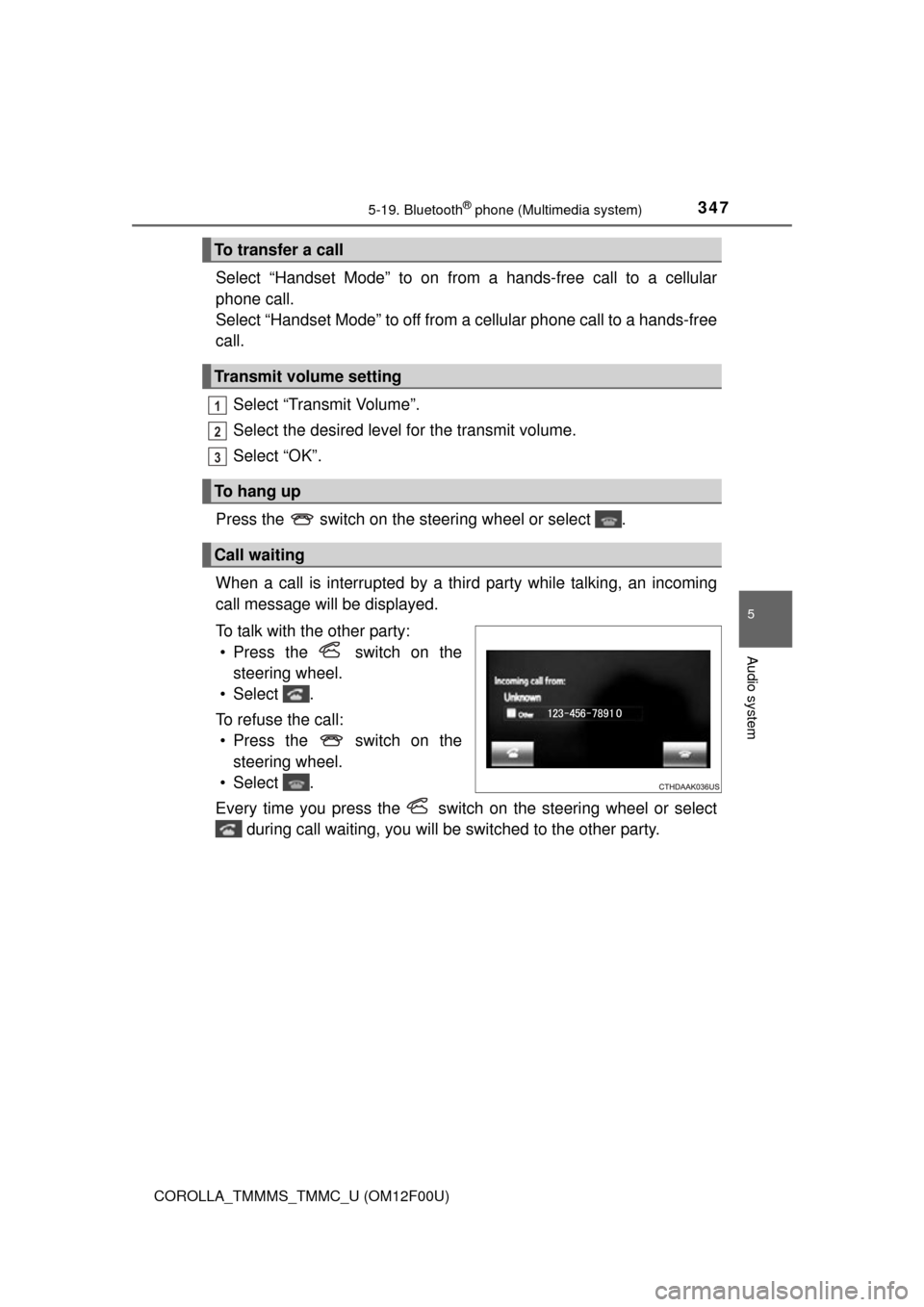
When a call is interrupted by a third party while talking, an incoming
call message will be displayed.
To talk with the other party: • Press the switch on the steering wheel.
• Select .
To refuse the call: • Press the switch on the steering wheel.
• Select .
Every time you press the switch on the steering wheel or select during call waiting, you will be switched to the other party.
To transfer a call
Transmit volume setting
To hang up
Call waiting
1
2
3
Page 349 of 612
3495-19. Bluetooth® phone (Multimedia system)
5
Audio system
COROLLA_TMMMS_TMMC_U (OM12F00U)
Press the “ ” button.
Select .
When an e-mail/SMS/MMS is received, the incoming message screen
pops up with sound and is ready to be operated on the screen. Select to check the message.
Select to refuse the message.
Select to call the message
sender.
Bluetooth® phone message function
Received messages can be forwarded from the connected
Bluetooth® phone, enabling checking and replying using the
multimedia system.
Depending on the type of Bluetooth
® phone connected, received
messages may not be transf erred to the message inbox.
If the phone does not support the message function, this func-
tion cannot be used.
Displaying message inbox screen
Receiving a message
1
2
1
2
3
Page 351 of 612
3515-19. Bluetooth® phone (Multimedia system)
5
Audio system
COROLLA_TMMMS_TMMC_U (OM12F00U)
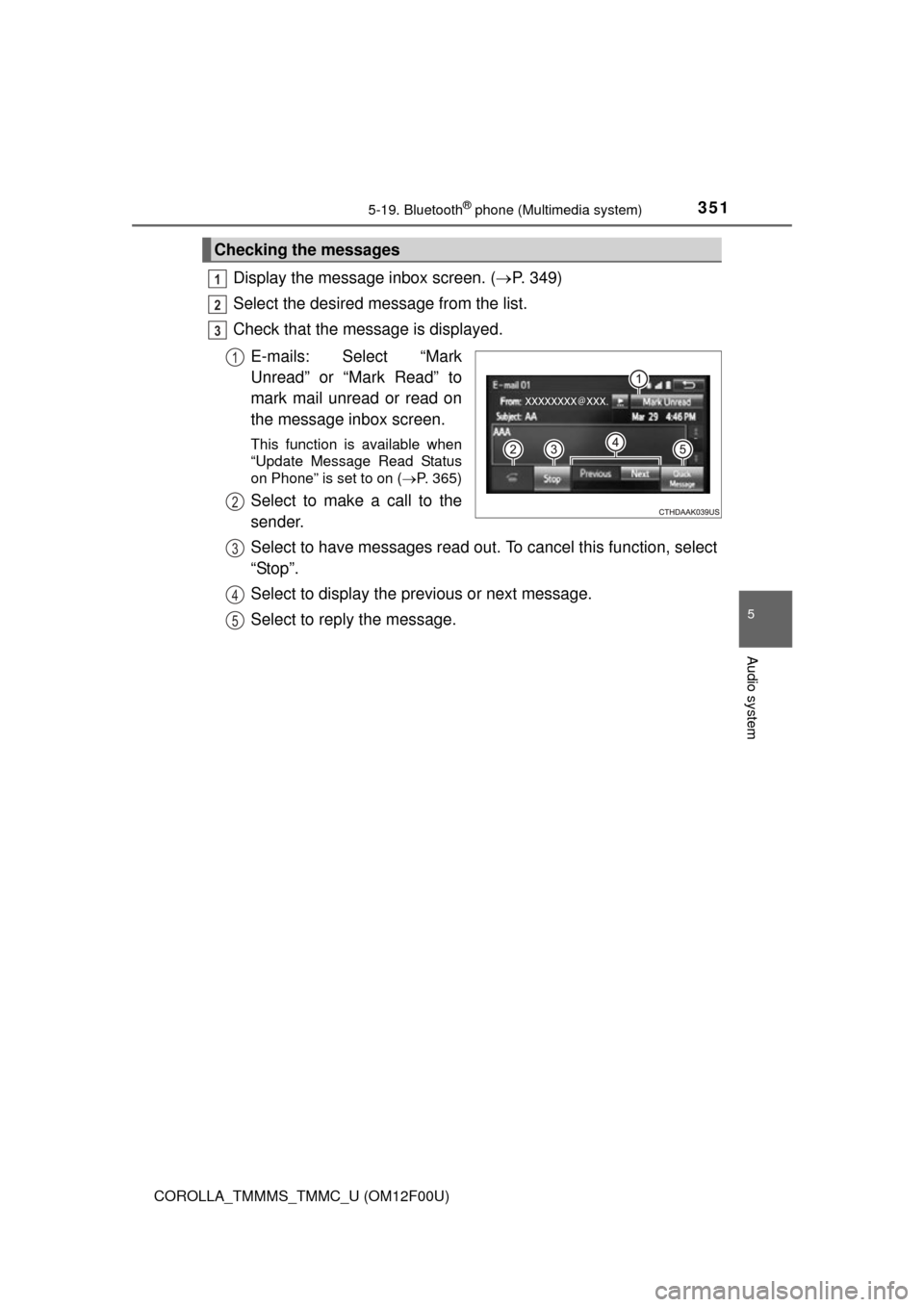
Display the message inbox screen. (P. 349)
Select the desired message from the list.
Check that the message is displayed.
E-mails: Select “Mark
Unread” or “Mark Read” to
mark mail unread or read on
the message inbox screen.
This function is available when
“Update Message Read Status
on Phone” is set to on ( P. 365)
Select to make a call to the
sender.
Select to have messages read out. To cancel this function, select
“Stop”.
Select to display the previous or next message.
Select to reply the message.
Checking the messages
1
2
3
1
2
3
4
5
Page 353 of 612
3535-19. Bluetooth® phone (Multimedia system)
5
Audio system
COROLLA_TMMMS_TMMC_U (OM12F00U)
Calls can be made to an e-mail/SMS/MMS message sender's phone
number.Display the message inbox screen. ( P. 349)
Select the desired message.
Select .
Check that the “Call” screen is displayed.
■Calling from a number within a message
Calls can be made to a number identified in a message's text area.
Display the message inbox screen. ( P. 349)
Select the desired message.
Select the text area.
Select corresponding to the desired number.
Check that the “Call” screen is displayed.
■Calling from the incoming message screen P. 347
Calling the message sender
1
2
3
4
1
2
3
4
5
Page 355 of 612
3555-19. Bluetooth® phone (Multimedia system)
5
Audio system
COROLLA_TMMMS_TMMC_U (OM12F00U)
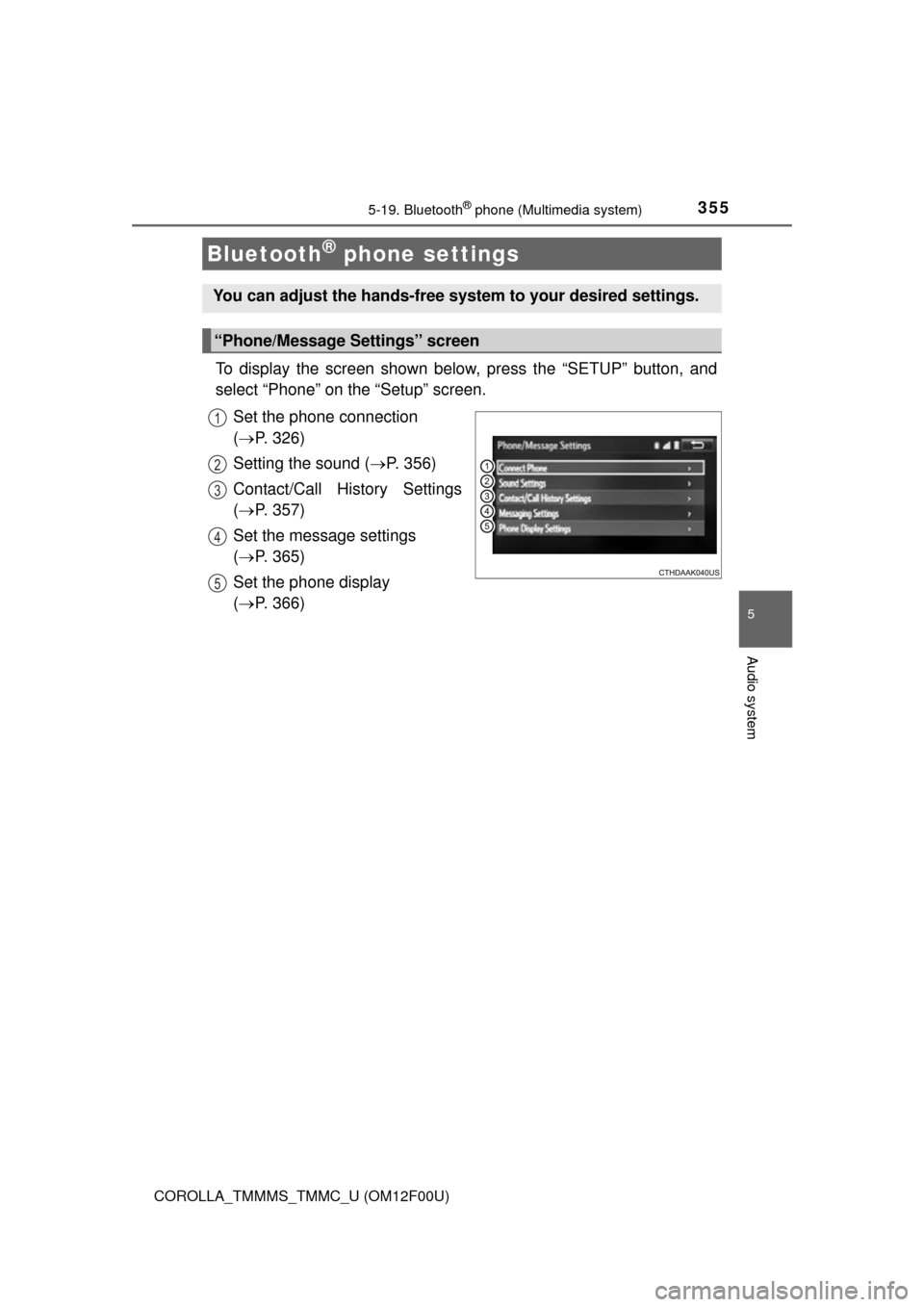
To display the screen shown below, press the “SETUP” button, and
select “Phone” on the “Setup” screen.Set the phone connection
( P. 326)
Setting the sound ( P. 356)
Contact/Call History Settings
( P. 357)
Set the message settings
( P. 365)
Set the phone display
( P. 366)
Bluetooth® phone settings
You can adjust the hands-free system to your desired settings.
“Phone/Message Settings” screen
1
2
13
14
5
Page 357 of 612
3575-19. Bluetooth® phone (Multimedia system)
5
Audio system
COROLLA_TMMMS_TMMC_U (OM12F00U)
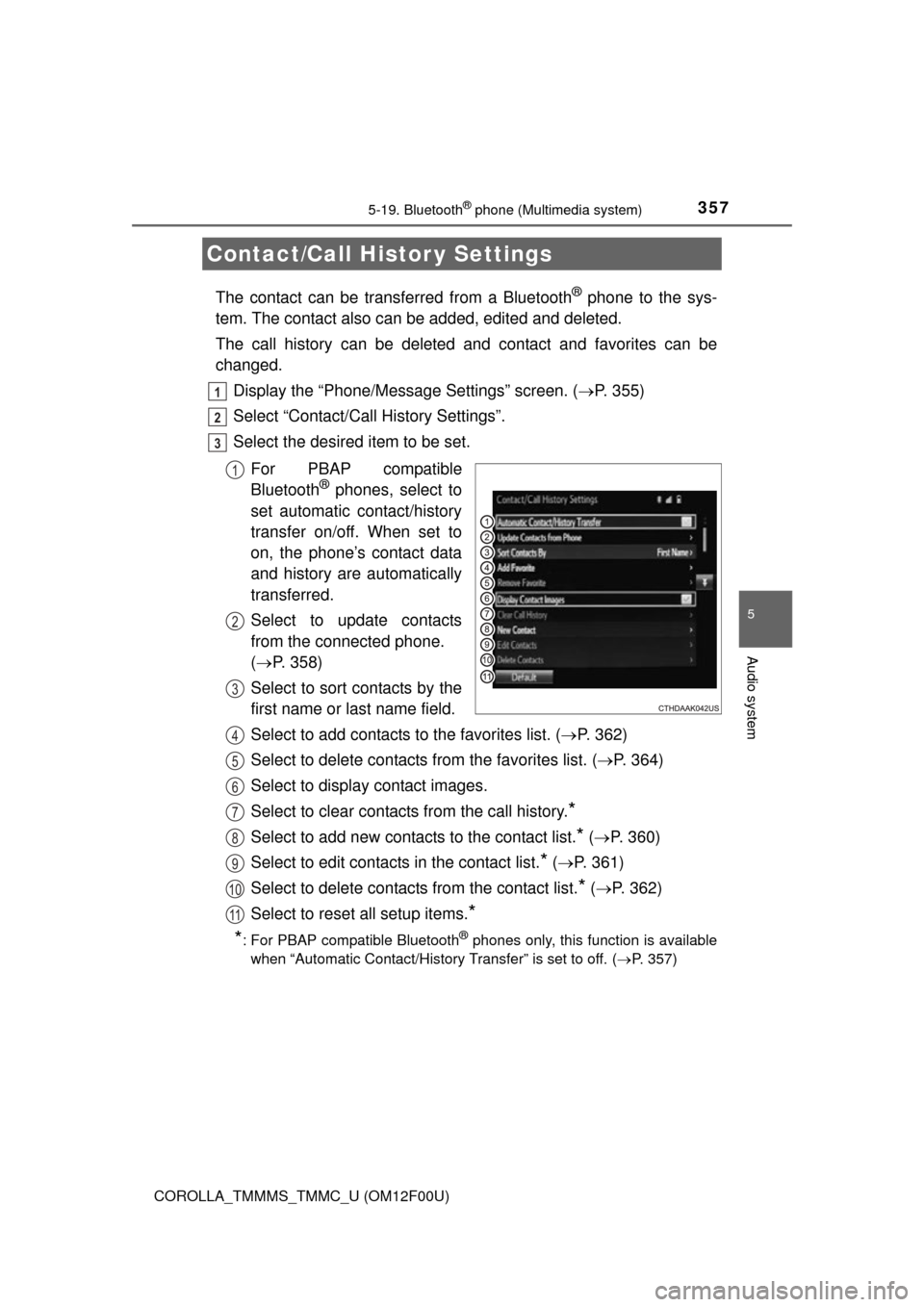
The contact can be transferred from a Bluetooth® phone to the sys-
tem. The contact also c an be added, edited and deleted.
The call history can be deleted and contact and favorites can be
changed. Display the “Phone/Message Settings” screen. ( P. 355)
Select “Contact/Call History Settings”.
Select the desired item to be set.
For PBAP compatible
Bluetooth
® phones, select to
set automatic contact/history
transfer on/off. When set to
on, the phone’s contact data
and history are automatically
transferred.
Select to update contacts
from the connected phone.
( P. 358)
Select to sort contacts by the
first name or last name field.
Select to add contacts to the favorites list. ( P. 362)
Select to delete contacts from the favorites list. ( P. 364)
Select to display contact images.
Select to clear contacts from the call history.
*
Select to add new contacts to the contact list.* ( P. 360)
Select to edit contacts in the contact list.
* ( P. 361)
Select to delete contacts from the contact list.
* ( P. 362)
Select to reset all setup items.
*
*
: For PBAP compatible Bluetooth® phones only, this function is available
when “Automatic Contact/History Transfer” is set to off.
( P. 357)
Contact/Call Histor y Settings
1
2
3
1
2
3
4
5
6
7
8
9
10
11