2015 TESLA MODEL S port
[x] Cancel search: portPage 42 of 164

Shifting GearsWhen Model S is in Park, you must press the
brake to shift to another gear.
Move the lever up or down to change gears.
If you try to shift into a gear that the current
driving speed prohibits, you will hear a chime
and the gear does not change.
Reverse
Push the lever all the way up and release. You can only shift into Reverse when Model S is
stopped or moving less than 5 mph (8 km/h). If moving less than 1 mph (1.6 km/h), you must
press the brake.
Neutral
Push the lever up or down to the first position
and release to shift into Neutral. Neutral
allows Model S to roll freely.
If Model S is in Park and you use the
touchscreen to release the parking brake ( Controls > E-Brake & Power Off ), Model S
shifts into Neutral (see Parking Brake on page
53).
Model S automatically shifts into Park when you exit. To leave Model S in Neutral, use the
touchscreen to engage Tow mode (see Leaving Model S in Neutral - Tow Mode on
page 42).
Drive
Push the lever all the way down and release. You can shift into Drive when Model S isstopped or moving less than 5 mph (8 km/h)
in Reverse. If Model S is moving less than
1 mph (1.6 km/h), you must press the brake to shift into Drive.
Park
With Model S stopped, press the end of the gear selector. Whenever Model S is in Park,
the parking brake is applied.
Model S automatically shifts into Park
whenever you:
• Leave the vehicle.
• Connect a charge cable.
Leaving Model S in Neutral - Tow
Mode
Model S automatically shifts into Parkwhenever you finish driving and leaveModel S. To keep Model S in Neutral when youexit, allowing it to roll freely (for example,pulling onto a transporter, etc.), activate Tow
mode:
1. Shift into Park.
2. Press the brake pedal.
3. Touch Controls > Settings > Service &
Reset > Tow Mode .
Model S beeps, and shifts into Neutral (which
releases the parking brake).
When Tow mode is active, Model S
displays this indicator light on the
instrument panel, along with a
message telling you that Model S will
remain free rolling.
Note: In Tow mode, Model S does not shift
into a driving gear. To cancel Tow mode, shift into Park or touch Tow mode again. Towmode also cancels if you use the touchscreen
to apply the parking brake ( Controls > E-
Brake & Power Off > Parking Brake ).
Gears
42Model S Owner's Manual
Page 43 of 164

Instrument Panel OverviewNote: The following illustration is provided for demonstration purposes only. Depending on
vehicle options, software version, and market region, the information displayed may be slightly different.
1. The center display changes depending on whether Model S is off or ready to drive. If Model S
is off, the center displays shows remaining estimated range and status of doors. Pressing thebrake powers Model S on—the indicator lights flash on for a second and the center display
shows speed, power, charge level, estimated range (see item 9), and active gear. When
Model S is plugged in, the instrument panel displays charging status (see Charging Status on
page 107).
2. Use the left steering wheel buttons to operate the audio system. You can also press and roll
the scroll wheel to change what displays on the left side of the instrument panel (see Steering
Wheel on page 37).
3. Pay attention to important status messages that display here.
4. All indicator lights flash on briefly when you press the brake to prepare to drive. They should
then turn off, unless the light applies to a current situation (see Indicator Lights on page
44).
5. Use the right steering wheel buttons for voice commands, to handle telephone calls, and to
control some features of Model S. You can customize what features the scroll wheel can control (see Using Right Steering Wheel Buttons on page 38).
6. Door lock status
7. Odometer
8. Outside temperature
9. Total estimated driving distance (or energy) available. Instead of driving distance as shown
here, you can display the percentage of battery energy remaining. To do so, touch Controls >
Settings > Units & Format > Energy & Charging (see Settings on page 77).
Note: When anticipating when you need to charge, use range estimates as a general guideline
only.
Note: In cold weather, some of the stored energy in the Battery may not be available on your
drive because the Battery is too cold. When this happens, a portion of the Battery meter is
blue and the driving distance value has a snowflake image next to it. If Model S is plugged in,
you can heat your Battery using wall power by turning on climate control using the mobile
app. When the Battery warms up, the blue portion on the meter and the snowflake image are
no longer displayed.
Instrument Panel
Driving43
Page 44 of 164

10.Pay attention to alert messages that appear at the bottom center of the instrument panel. If
any alerts are in effect, you can view information about them by touching the alert icon
(exclamation mark) on the touchscreen’s status bar (the topmost area of the touchscreen).
11. Currently selected gear: Park, Reverse, Neutral, or Drive.
12. Dashed lines appear on the power meter if Model S is limiting power. The dashed lines appear
on the top portion when power available for acceleration is being limited, and on the bottom
portion when power that can be gained by regenerative braking is limited. Model S limits
power for many reasons. Here are just a few examples:
• Acceleration may be limited when the Battery is reaching a low state of charge or if the powertrain is hot.
• Both acceleration and regenerative braking may be limited when the ambient temperature is either very high or very low.
• Regenerative braking may be limited when the Battery is fully charged.
13. Date and time
Indicator Lights Indicator lights flash on briefly when you press the brake pedal to prepare for driving. Unless anindicator light applies to a current situation, they should turn off. If an indicator light fails to turnon or off, contact Tesla.
In addition to indicator lights, alerts display on the top or bottom center of the instrument panel.
If alerts are in effect, an alert icon (exclamation mark) displays on the top of the touchscreen.
Touch this icon to display a description of the alert.IndicatorDescriptionAirbag safety. If this indicator does not flash on briefly when Model S
prepares to drive, or if it remains on, contact Tesla immediately. See Airbag
Warning Indicator on page 35.A seat belt for an occupied seat is not fastened. Note: Depending on the
date of manufacture, rear seating positions may not be equipped with a seat
belt reminder. See Seat Belts on page 20.Front fog lights (optional). See Lights on page 47.Parking lights (side marker lights, tail lights, and license plate lights) are on.
See Lights on page 47.Headlight low beams are on.High beams are turned on, and either the vehicle is not equipped with Auto
High Beam, or Auto High-Beam is turned off. See Headlight High Beams on
page 49.
Instrument Panel
44Model S Owner's Manual
Page 45 of 164
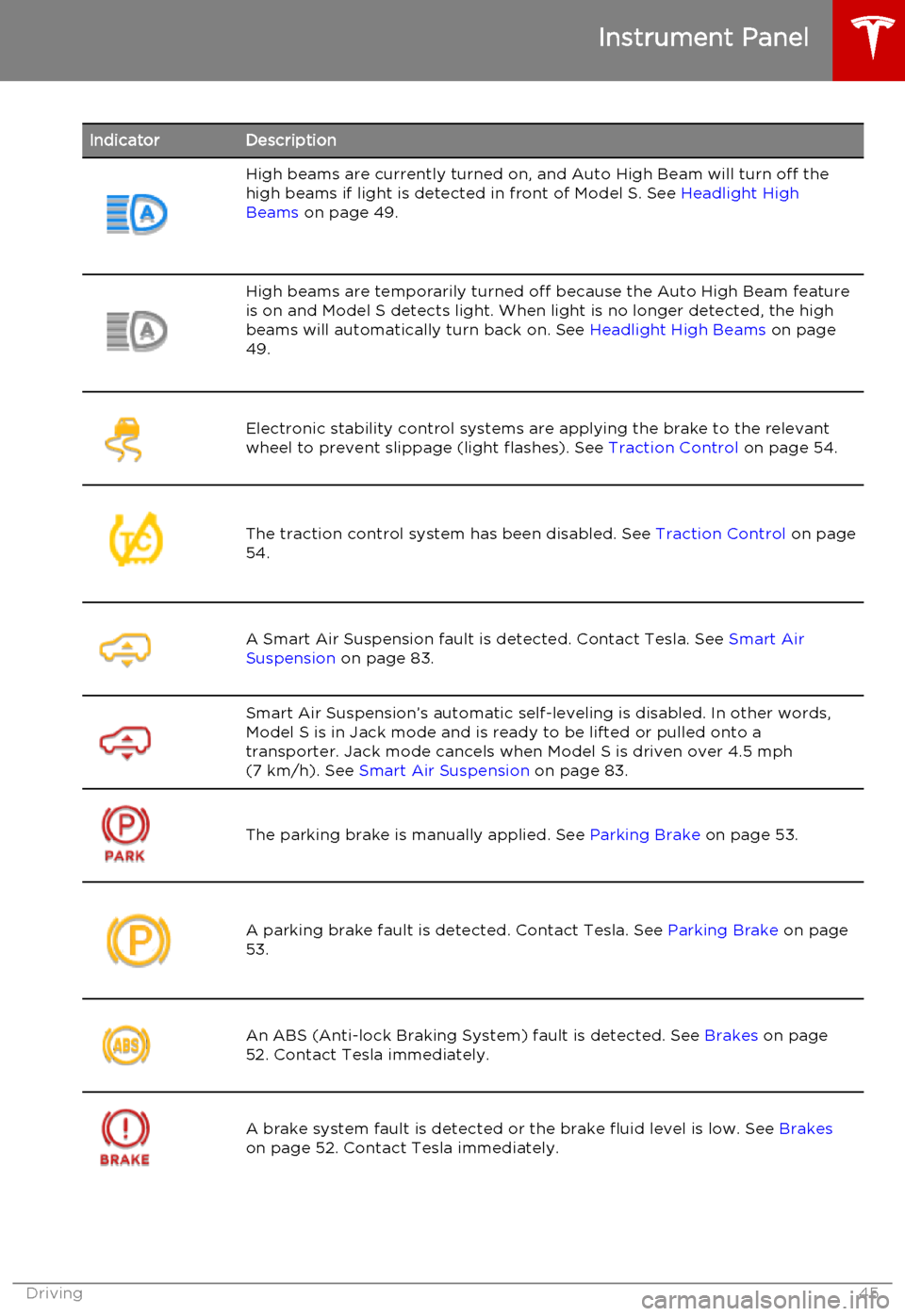
IndicatorDescriptionHigh beams are currently turned on, and Auto High Beam will turn off the
high beams if light is detected in front of Model S. See Headlight High
Beams on page 49.High beams are temporarily turned off because the Auto High Beam feature
is on and Model S detects light. When light is no longer detected, the high beams will automatically turn back on. See Headlight High Beams on page
49.Electronic stability control systems are applying the brake to the relevant
wheel to prevent slippage (light flashes). See Traction Control on page 54.The traction control system has been disabled. See Traction Control on page
54.A Smart Air Suspension fault is detected. Contact Tesla. See Smart Air
Suspension on page 83.Smart Air Suspension’s automatic self-leveling is disabled. In other words,
Model S is in Jack mode and is ready to be lifted or pulled onto a transporter. Jack mode cancels when Model S is driven over 4.5 mph(7 km/h). See Smart Air Suspension on page 83.
The parking brake is manually applied. See Parking Brake on page 53.A parking brake fault is detected. Contact Tesla. See Parking Brake on page
53.An ABS (Anti-lock Braking System) fault is detected. See Brakes on page
52. Contact Tesla immediately.A brake system fault is detected or the brake fluid level is low. See Brakes
on page 52. Contact Tesla immediately.
Instrument Panel
Driving45
Page 46 of 164

IndicatorDescriptionTire pressure warning. The pressure of a tire is out of range. If a fault with
the Tire Pressure Monitoring System (TPMS) is detected, the indicator
flashes. For a TPMS fault, contact Tesla. See Tire Care and Maintenance on
page 109.
A door or trunk is open. See Using Exterior Door Handles on page 6.Flashes green when the left turn signal is operating. Both turn signal
indicators flash green when the hazard warning flashers are operating.Flashes green when the right turn signal is operating. Both turn signal
indicators flash green when the hazard warning flashers are operating.Traffic-Aware Cruise Control is operating and is maintaining the set speed
because it is not actively tracking a vehicle in front. See Traffic-Aware Cruise
Control on page 60.Traffic-Aware Cruise Control is actively tracking a vehicle and will
decelerate/accelerate as needed to maintain your chosen following
distance. See Traffic-Aware Cruise Control on page 60.Traffic-Aware Cruise Control is in a Hold state because Model S came to a
standstill behind a vehicle in front. You will need to resume cruise. See
Traffic-Aware Cruise Control on page 60.Traffic-Aware Cruise Control is in a Hold state because Model came to a
standstill but a vehicle is not detected in front. You will need to resume
cruise. See Traffic-Aware Cruise Control on page 60.Model S is in Tow mode and can roll freely. It does not automatically shift
into Park when you exit. See Instructions for Transporters on page 150.Instrument Panel
46Model S Owner's Manual
Page 70 of 164

Driving Tips to Maximize RangeYou can maximize your driving range usingthe same driving habits that you use to
conserve fuel in a gasoline-powered vehicle. In
addition to driving habits, energy
consumption depends on environmental conditions (such as cold weather and hillyroads). To get the maximum mileage from a
charge:
• Avoid frequent and rapid acceleration. • Instead of using the brake to slow down, move your foot off the accelerator.
Whenever Model S is moving and your
foot is off the accelerator, regenerative
braking slows down Model S and feeds
surplus energy back to the Battery (see
Regenerative Braking on page 53).
• Keep tires at the recommended inflation pressures (see Tire Care and Maintenance
on page 109).
• Lighten your load by removing any unnecessary cargo.
• Limit the use of resources such as heating and air conditioning. Using seat heaters to
keep warm is more efficient than heating the cabin. To automatically limit the
amount of power that the climate control system uses to maintain the temperatureof the Battery and the cabin area, touch
Controls > Driving > Range Mode > ON .
Note: On Dual Motor vehicles, you can turn on
Range Mode only when acceleration is set to Sport (if you change Acceleration to Insane,Range Mode automatically turns off).
The power meter on the instrument panel and
the Energy app (described next) provide
feedback on energy usage. With this
feedback, you will soon become familiar with how driving habits and environmental
conditions impact how much energy Model S
is using.
Energy App Use the energy app to view real-time and
projected energy usage. Choose from two
types of charts:
• Consumption Chart: - display how much energy Model S has consumed over thepast 5, 15 or 30 miles (10, 25 or 50 kms).
• Trip Chart - If your Model S is equipped with the navigation option, you can trackthe amount of energy being consumed
while navigating to a destination. The gray
line represents predicted usage and the
green line represents actual usage. Touchthe zoom icon in the top right corner to change the zoom level.
Note: The Trip Chart displays energy usage
only if you are currently navigating to a destination.
Note: In some situations, values and distances
on the Trip chart may be inaccurate. For example, when charging Model S during anactive navigation route. To resolve
inaccuracies, cancel and reinitiate navigation to the destination.
Saving Energy Model S has an energy-saving feature that
reduces the amount of energy being
consumed when Model S is not in use. Touch Controls > Displays > Energy Saving and
choose from the following options:
• OFF . All display systems remain powered
when Model S is not in use, providing the most responsive experience. More energy
is consumed.
• NIGHTLY . Model S shifts to the energy-
saving mode at night (10 pm to 5 am).
• ON. Significantly less energy is consumed
whenever Model S is not in use. The start-
up time of the instrument panel and
Bluetooth could be slower.
• Always Connected . Preserves cell
connectivity when energy saving is active.
This allows the mobile app to connect to
Model S more quickly, and provides
immediate 3G internet access when entering the car. Slightly more energy isconsumed.
Getting Maximum Range
70Model S Owner's Manual
Page 75 of 164

1.Close
Touch the circled X in the top left corner
of a window to close it (or you can touch anywhere outside the window).
2. Sunroof
If Model S is equipped with a sunroof,
touch to adjust its position (see Sunroof
on page 15).
3. Suspension
If Model S is equipped with Smart Air
Suspension, touch to manually raise or lower Model S, or to remove a previously
saved auto-raising location (see Smart Air
Suspension on page 83). Model S must
be powered on and you must press the
brake pedal before you can change
suspension settings. Smart Air Suspension
causes Model S to self-level, even when
powered off. Therefore, when towing or
lifting, you must disable self-leveling (see
Instructions for Transporters on page 150
and Jacking and Lifting on page 132).
4. Driving
• Steering mode Adjust the amount of effort requiredto turn the steering wheel. Sport feels
more responsive whereas Comfort
feels easier to drive and park (see
Steering Wheel on page 37).
• Acceleration (Dual Motor vehicles only)
Choose an acceleration level. Sport is the standard level of acceleration and allows you to maximize driving range(see the Range Mode setting below).
Choose Insane if you want to increase
peak torque by approximately 50 per cent. If you choose Insane, the Range
mode setting, if on, automatically turns off.
• Creep
When on, Model S slowly movesforward when in Drive and backward
in Reverse when you release the brake
(similar to a conventional vehicle with an automatic transmission). You can
adjust this setting only when Model S
is in Park.
• Traction ControlTo allow the wheels to spin on a
standard single motor Model S, you can turn off traction control. On a dualmotor Model S, you can enable Slip
Start. If you turn off Traction Control
(or enable Slip Start), a warning
message displays on the instrument
panel. Traction control turns off for
the current drive only. On dual motor
vehicles, traction control is
automatically turned on again when the speed exceeds 40 mph
(64 km/h). See Traction Control on
page 54.
• Regenerative braking
When you release the accelerator
when driving, regenerative braking
slows Model S and feeds any surplus
energy back to the Battery. If set to
Low, Model S does not slow down as
quickly, but you may experience less range (see Regenerative Braking on
page 53).
Note: Regardless of the setting, the
energy gained by regenerative
braking is reduced if the Battery is
full, or if it is extremely cold or hot
(the surplus energy is used to heat or
cool the Battery).
• Range Mode
If on, Model S conserves energy by
limiting the power of the climate
control system. Cabin heating and
cooling may be less effective, but seat
heaters turn on to compensate. In
Dual Motor vehicles, Range Mode can
be turned on only when acceleration
is set to Sport (see above).
5. Cold Weather
If Model S is equipped with the cold
weather option, you can control all seat heaters as well as the heated wipers andsteering wheel. Heaters that are turned on
are displayed in red. To turn off all seat
heaters, touch All Off. Note that you can
also control the front driver and
passenger seats using the main climate
control panel located on the bottom of
the touchscreen (see Climate Controls on
page 80).
6. Trips
View and reset the trip meters that
summarize how far you have driven (see
Trip Information on page 69).
7. Displays
Controls
Using the Touchscreen75
Page 79 of 164

Manually control the touchscreen’s
brightness and control its day (light
background) or night (dark background)
setting. When set to Auto, the
touchscreen automatically changes between Day and Night brightness
depending on the ambient lighting
conditions. To disable the touchscreen
momentarily for cleaning purposes, touch
Clean Mode . You can also put Model S
into an energy saving mode so it consumes less energy when not in use
(see Getting Maximum Range on page
70). Note that the Displays settings can
also be accessed from the Controls
window.
7. HomeLink
If the HomeLink feature is available in your region, use it to control RF-enabled
garage doors, lights, or security systems
(see HomeLink ®
Universal Transceiver on
page 96).
8. Driver Assistance
If your vehicle is equipped with Driver Assistance features, you can control
features that can provide a safer driving experience
• Lane Departure Warning: If on, the steering wheel vibrates if a front
wheel passes over a lane marking and
the associated turn signal is off (see
Lane Departure Warning on page 57).
• Overtake Acceleration: If on when Traffic-Aware Cruise Control is
operating, Model S accelerates when you engage the turn signal to indicate
a move into the passing lane (see Traffic-Aware Cruise Control on page
60).
• Speed Assist: Control how speed limits are determined and how
warnings are issued when you exceed the speed limit (see Speed Assist on
page 55).
• Forward Collision Warning: Control when warnings display on the
instrument panel if Model S detects a
vehicle, bike, or pedestrian ahead and
a collision is considered likely unless
you take immediate corrective action
(see Forward Collision Warning on
page 58).
9. Service & Reset
Turn various service-related features on
and off:• Service Mode: If on, moves wiper blades to the service position to make
them easier to access when replacing
them. Model S must be in Park. See
Wiper Blades and Washer Jets on
page 121.
• Tire Pressure Monitor: Touch Reset
Sensors to reset the TPMS sensors
after replacing a wheel (see Resetting
the TPMS Sensors on page 113).
• Tow Mode: Activate Tow Mode to keep Model S in Neutral (see Leaving
Model S in Neutral - Tow Mode on
page 42).
• Factory Reset: Touch Erase & Reset to
erase all personal data (saved addresses, music favorites, etc.) and
restore all customized settings to
their factory defaults.
10. Manual
Display this owners manual.Warning: Do not read the touchscreen
while driving. Doing so increases the
likelihood of a collision.
Naming Model S
To further personalize your Model S, you can
name it. The name you give your Model S will appear in the mobile app. To name your
Model S, touch the Tesla “T” at the top center
of the touchscreen, then touch Name Your
Vehicle .
When you save, Name Your Vehicle is
replaced by the name you provided. You can
touch the name at any time to rename your
Model S.
Erasing Personal Data
You can erase all personal data (saved
addresses, music favorites, imported contacts,
HomeLink programming, etc.) and restore all
customized settings to their factory defaults.
This is useful when transferring ownership of
Model S. Touch Settings > Service & Reset >
Factory Reset > Erase & Reset . Before erasing,
Model S verifies your credentials by
prompting you to enter the user name and
password associated with your MY TESLA
account.
Settings
Using the Touchscreen79