Page 339 of 871
•Traction Control Off
•Washer Fluid Low
•Oil Pressure Low
•Oil Change Due
•Fuel Low
•Service Antilock Brake System
•Service Electronic Throttle Control
•Service Power Steering
•Cruise Off
•Cruise Ready
•Cruise Set To XXX MPH
•Tire Pressure Screen With Low Tire(s) “Inflate Tire to
XX”
•Tire Pressure Information System (TPIS)
•Service Tire Pressure System
•Parking Brake Engaged
•Brake Fluid Low
•Service Electronic Braking System
•Engine Temperature Hot
•Battery Voltage Low
•Service Electronic Throttle Control
•Lights On
•Right Turn Signal Light Out
•Left Turn Signal Light Out
•Turn Signal On
4
UNDERSTANDING YOUR INSTRUMENT PANEL 337
Page 345 of 871

•Engine Temperature Warning Light
This light warns of an overheated engine condi-
tion. As temperatures rise and the gauge ap-
proachesH,this indicator will illuminate and a single
chime will sound after reaching a set threshold. Further
overheating will cause the temperature gauge to passH,
a continuous chime will occur until the engine is allowed
to cool.
If the light turns on while driving, safely pull over and
stop the vehicle. If the A/C system is on, turn it off. Also,
shift the transmission into NEUTRAL and idle the ve-
hicle. If the temperature reading does not return to
normal, turn the engine off immediately and call for
service. Refer to “If Your Engine Overheats” in “What To
Do In Emergencies” for more information.
•Electric Power Steering Malfunction Warning Light
This telltale is on when the Electric Power
Steering is not operating and needs service.
•Trailer Brake Disconnected Warning Light
This telltale is on when the Trailer Brake has
been disconnected.
DID Yellow Telltales
This area will show reconfigurable yellow caution tell-
tales. These telltales include:
•Low Fuel Telltale
When the fuel level reaches approximately 3.0 gal
(11.0 L) this light will turn on, and remain on until
fuel is added.
4
UNDERSTANDING YOUR INSTRUMENT PANEL 343
Page 351 of 871
Stop/Start – If Equipped
Push and release theUPorDOWNarrow
button until the Stop/Start icon is highlighted
in the DID. Push and release theRIGHTarrow
button to display the Stop/Start status.
Trailer Tow
Push and release theUPorDOWNarrow
button until the Trailer Tow icon is highlighted.
Push and release theRIGHTarrow button and
the next screen will display the following
trailer trip information:
•Trailer Trip
•Trailer Brake
Audio
Push and release theUPorDOWNarrow
button until the Audio display icon is high-
lighted in the DID. Push and release the
RIGHTarrow button to display the active
source.
Stored Messages
Push and release theUParrow button until the
Messages display icon is highlighted in the
DID. This feature shows the number of stored
warning messages. Pushing theRIGHTarrow
button will allow you to see what the stored messages
are.
4
UNDERSTANDING YOUR INSTRUMENT PANEL 349
Page 355 of 871
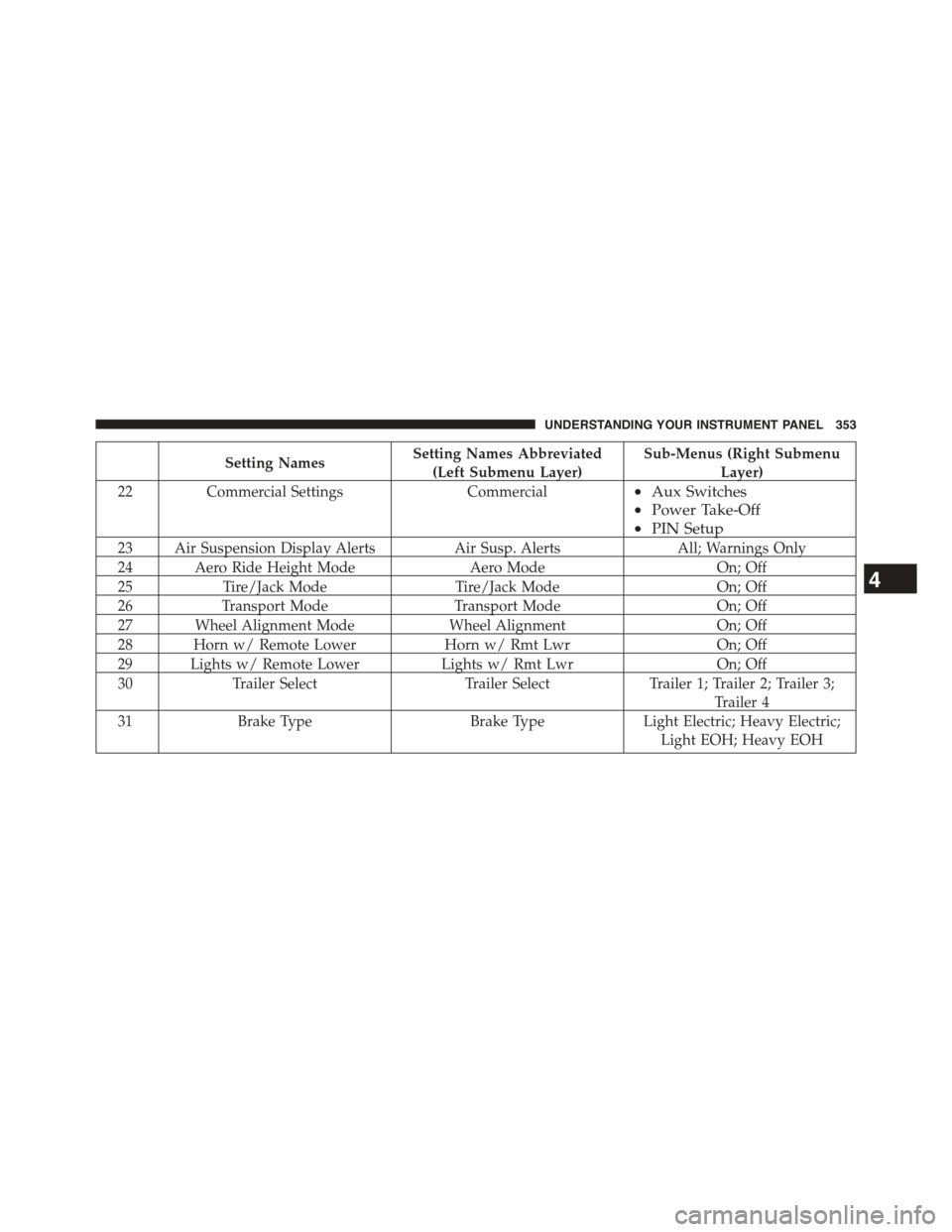
Setting NamesSetting Names Abbreviated
(Left Submenu Layer)
Sub-Menus (Right Submenu
Layer)
22Commercial SettingsCommercial•Aux Switches
•Power Take-Off
•PIN Setup
23 Air Suspension Display AlertsAir Susp. AlertsAll; Warnings Only
24 Aero Ride Height ModeAero ModeOn; Off
25Tire/Jack ModeTire/Jack ModeOn; Off
26Transport ModeTransport ModeOn; Off
27 Wheel Alignment ModeWheel AlignmentOn; Off
28 Horn w/ Remote LowerHorn w/ Rmt LwrOn; Off
29 Lights w/ Remote LowerLights w/ Rmt LwrOn; Off
30Trailer SelectTrailer SelectTrailer 1; Trailer 2; Trailer 3;
Trailer 4
31Brake TypeBrake TypeLight Electric; Heavy Electric;
Light EOH; Heavy EOH
4
UNDERSTANDING YOUR INSTRUMENT PANEL 353
Page 360 of 871

Buttons On The Touchscreen
Buttons on the touchscreen are accessible on the
Uconnect® display.
Customer Programmable Features — Uconnect®
5.0 Personal Settings
Push the Settings button on the faceplate to display the
settings menu screen. In this mode the Uconnect® system
allows you to access programmable features that may be
equipped such as Display, Voice, Clock, Safety & Assis-
tance, Lights, Doors & Locks, Auto-On Comfort (if
equipped), Engine Off Options, Suspension, Trailer
Brake, Audio, Compass Settings, Phone/Bluetooth®,
SiriusXM Setup (if equipped), Restore Settings, Clear
Personal Data and System Information.
NOTE:Only one category may be selected at a time.
When making a selection, press the button on the touch-
screen to enter the desired mode. Once in the desired
mode, press and release the preferred setting until the
button is highlighted. Once the setting is complete, either
press the back arrow or Done button on the touchscreen
or the Back button on the faceplate to return to the
previous menu. Pressing the Up or Down Arrow buttons
on the touchscreen on the right side of the screen will
allow you to toggle up or down through the list of
available settings.
NOTE:All settings should be changed with the ignition
in the “Run” position.
358 UNDERSTANDING YOUR INSTRUMENT PANEL
Page 372 of 871

Trailer Brake
After pressing the “Trailer Brake” button on the touch-
screen the following settings will be available:
•Trailer Select
When this feature is selected, the Trailer Type can be
selected between “Trailer 1,” “Trailer 2,” “Trailer 3” and
“Trailer 4.”
•Trailer Brake Type
When this feature is selected, the Trailer Brake Type can
be changed between “Light Electric,” “Heavy Electric,”
“Light EOH” and “Heavy EOH.” Refer to “Integrated
Trailer Brake Module” in “Starting And Operating.”
•Trailer Name — If Equipped
When this feature is selected, the Trailer name can be
selected from 16 names.
Audio
After pressing the “Audio” button on the touchscreen the
following settings will be available:
•Balance/Fade
This feature allows you to adjust the Balance and Fade
settings. Press and drag the speaker icon or use the
arrows to adjust, tap the “C” icon to readjust to the center.
Press the back arrow/Done button on the touchscreen to
return to the previous menu.
•Equalizer
When in this display you may adjust the Bass, Mid and
Treble settings. Adjust the settings with the “+” and “–”
buttons on the touchscreen or by selecting any point on
the scale between the “+” and “–” buttons on the
touchscreen. Press the back arrow/Done button on the
touchscreen to return to the previous menu.
370 UNDERSTANDING YOUR INSTRUMENT PANEL
Page 377 of 871

System Information
After pressing the “System Information” button on the
touchscreen the following information will be available:
•System Information
When System Information is selected, a System Informa-
tion screen will appear displaying the system software
version.
Customer Programmable Features — Uconnect®
8.4A/8.4AN Personal Settings
Press the “Settings” button on the touchscreen (if
equipped) or press the “Apps” button on the touchscreen
then press the “Settings” button on the touchscreen to
display the settings menu screen. In this mode the
Uconnect® system allows you to access programmable
features that may be equipped such as Display, Voice,
Clock, Safety & Driving Assistance, Lights, Doors &
Locks, Auto-On Comfort (if equipped), Engine Off Op-
tions, Suspension, Trailer Brake, Audio, Phone/
Bluetooth®, SiriusXM Setup (if equipped), Restore Set-
tings, Clear Personal Data and System Information.
NOTE:Only one category may be selected at a time.
When making a selection, press the button on the touch-
screen to enter the desired mode. Once in the desired
mode, press and release the preferred setting until a
check-mark appears next to the setting, showing that
setting has been selected. Once the setting is complete,
either press the back arrow button on the touchscreen or
the Back button on the faceplate to return to the previous
menu or press the “X” button on the touchscreen to close
out of the settings screen. Pressing the Up or Down
Arrow buttons on the touchscreen on the right side of the
screen will allow you to toggle up or down through the
list of available settings.
4
UNDERSTANDING YOUR INSTRUMENT PANEL 375
Page 385 of 871

•Hill Start Assist — If Equipped
When this feature is selected, the Hill Start Assist (HSA)
system is active. Refer to “Electronic Brake Control
System” in “Starting And Operating” for system function
and operating information. To make your selection, press
the “Hill Start Assist” button on the touchscreen to select
from on or off. Press the back arrow button on the
touchscreen to return to the previous menu.
•Four Corner Air Suspension Modes — If Equipped
There are four air suspension modes designed to protect
the system in unique situations. Tire Jack Mode is selected
to assist in changing a spare tire. Transport Mode is
selected to assist when the vehicle is being flat bed towed.
Wheel Alignment Mode is selected before performing a
wheel alignment, refer to your authorized dealer for infor-
mation. Protection Mode will automatically be selected to
“protect” the air suspension system when the payload has
been exceeded or load leveling cannot be achieved.
Lights
After pressing the “Lights” button on the touchscreen the
following settings will be available.
•Headlight Off Delay
When this feature is selected, the driver can choose to
have the headlights remain on for 0, 30, 60, or 90 seconds
when exiting the vehicle. To make your selection, press
the “+” or “–” buttons on the touchscreen to adjust the
seconds up or down. Press the back arrow button on the
touchscreen to return to the previous menu.
•Headlight Illumination On Approach
When this feature is selected, the headlights will activate
and remain on for 0, 30, 60, or 90 seconds when the doors
are unlocked with the Remote Keyless Entry (RKE) trans-
mitter. To make your selection, To make your selection,
press the “+” or “–” buttons on the touchscreen to adjust
the seconds up or down. Press the back arrow button on
the touchscreen to return to the previous menu.
4
UNDERSTANDING YOUR INSTRUMENT PANEL 383