2015 Peugeot 308 CD player
[x] Cancel search: CD playerPage 325 of 416
04
323
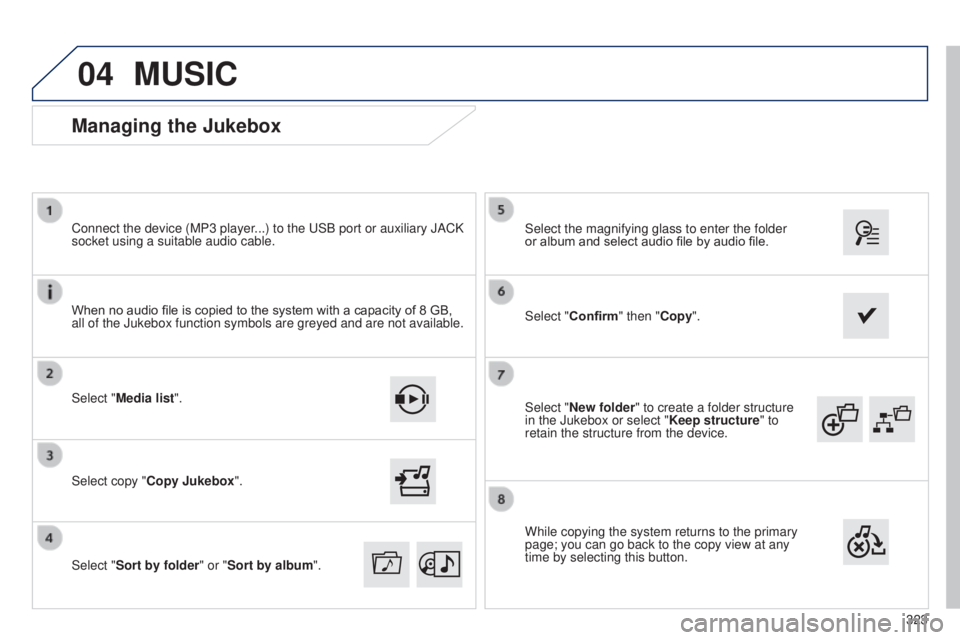
Select "New folder" to create a folder structure
in the Jukebox or select "
Keep structure" to
retain the structure from the device. Select the magnifying glass to enter the folder
or album and select audio file by audio file.
Managing the Jukebox
Select "Media list". Connect the device (MP3 player...) to the u SB port or auxiliary JACK
socket using a suitable audio cable.
Select copy "Copy Jukebox".
MUSIC
When no audio file is copied to the system with a capacity of 8 GB,
all of the Jukebox function symbols are greyed and are not available.
Select "
Sort by folder" or "Sort by album ". Select "Confirm" then "Copy".
While copying the system returns to the primary
page; you can go back to the copy view at any
time by selecting this button.
Page 352 of 416
06CONFIGURATION
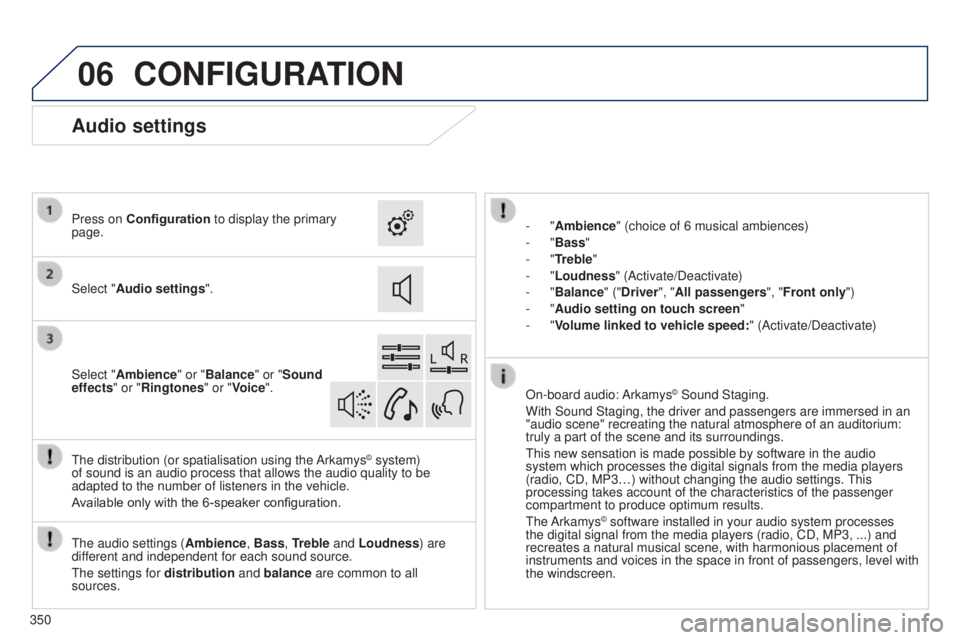
- "Ambience" (choice of 6 musical ambiences)
- "Bass "
-
"Treble"
-
"Loudness" (Activate/Deactivate)
-
"Balance" ("Driver ", "All passengers", "Front only ")
-
"Audio setting on touch screen "
-
"Volume linked to vehicle speed: " (Activate/Deactivate)
t
he audio settings ( Ambience, Bass, Treble and Loudness) are
different and independent for each sound source.
t
he settings for distribution and balance are common to all
sources.
t
he distribution (or spatialisation using the Arkamys
© system)
of sound is an audio process that allows the audio quality to be
adapted to the number of listeners in the vehicle.
Available only with the 6-speaker configuration. On-board audio: Arkamys
© Sound Staging.
With Sound Staging, the driver and passengers are immersed in an
"audio scene" recreating the natural atmosphere of an auditorium:
truly a part of the scene and its surroundings.
t
his new sensation is made possible by software in the audio
system which processes the digital signals from the media players
(radio, CD, MP3…) without changing the audio settings.
t
his
processing takes account of the characteristics of the passenger
compartment to produce optimum results.
t
he Arkamys
© software installed in your audio system processes
the digital signal from the media players (radio, CD, MP3, ...) and
recreates a natural musical scene, with harmonious placement of
instruments and voices in the space in front of passengers, level with
the windscreen.
Audio settings
Select "Audio settings ".
Press on Configuration
to display the primary
page.
Select "Ambience" or "Balance" or "Sound
effects " or "Ringtones" or "Voice".
350
Page 370 of 416
FREqUENTLY ASKED q UESTIONS
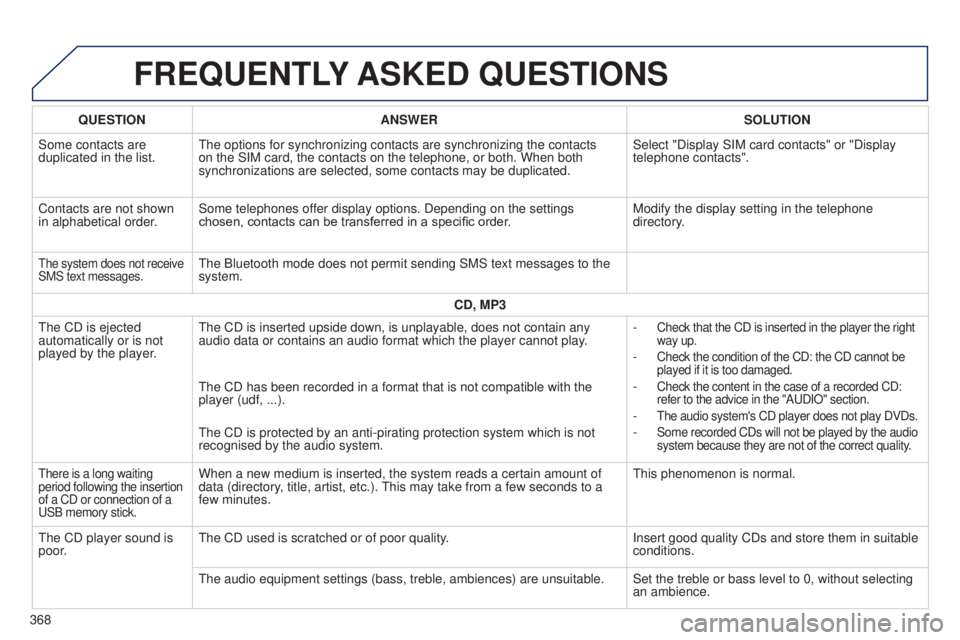
qUESTION ANSWER SOLUTION
Some contacts are
duplicated in the list.
t
he options for synchronizing contacts are synchronizing the contacts
on the SIM card, the contacts on the telephone, or both. When both
synchronizations are selected, some contacts may be duplicated. Select "Display SIM card contacts" or "Display
telephone contacts".
Contacts are not shown
in alphabetical order. Some telephones offer display options. Depending on the settings
chosen, contacts can be transferred in a specific order. Modify the display setting in the telephone
directory.
the system does not receive
SMS text messages.the Bluetooth mode does not permit sending SMS text messages to the
system.
CD, MP3
t
he CD is ejected
automatically or is not
played by the player.
t
he CD is inserted upside down, is unplayable, does not contain any
audio data or contains an audio format which the player cannot play. -
Check that the CD is inserted in the player the right
way up.
- Check the condition of the CD: the CD cannot be
played if it is too damaged.
- Check the content in the case of a recorded CD:
refer to the advice in the "A u DIO" section.
- the audio system's CD player does not play DVDs.
- Some recorded CDs will not be played by the audio
system because they are not of the correct quality.
the CD has been recorded in a format that is not compatible with the
player (udf, ...).
t
he CD is protected by an anti-pirating protection system which is not
recognised by the audio system.
there is a long waiting
period following the insertion
of a CD or connection of a
u
SB memory stick.When a new medium is inserted, the system reads a certain amount of
data (directory, title, artist, etc.). t his may take from a few seconds to a
few minutes.t his phenomenon is normal.
t
he CD player sound is
poor.
t
he CD used is scratched or of poor quality. Insert good quality CDs and store them in suitable
conditions.
t
he audio equipment settings (bass, treble, ambiences) are unsuitable. Set the treble or bass level to 0, without selecting an ambience.
368
Page 373 of 416
FREqUENTLY ASKED q UESTIONS
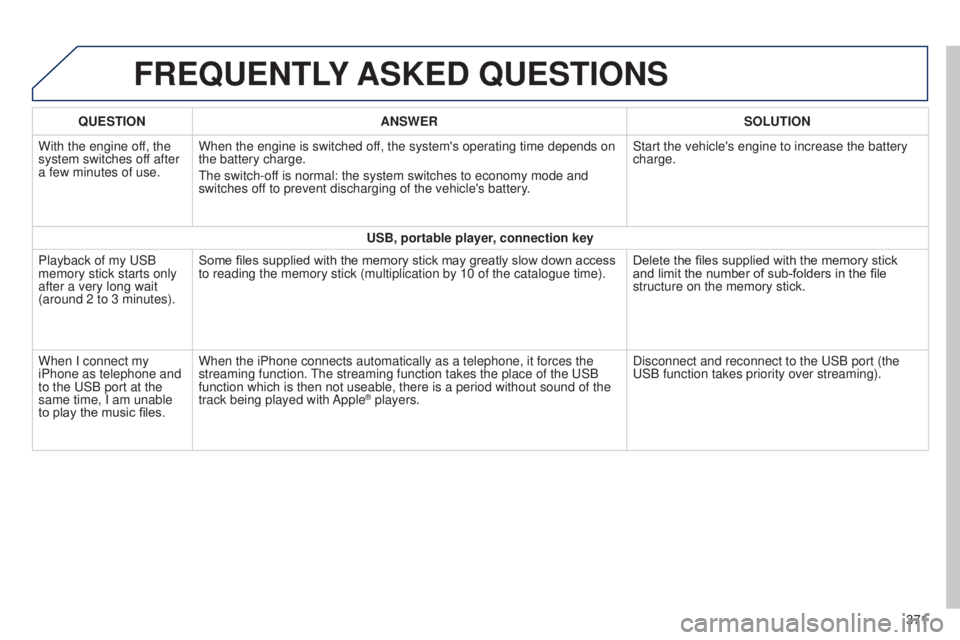
qUESTION ANSWER SOLUTION
With the engine of f, the
system switches off after
a few minutes of use. When the engine is switched off, the system's operating time depends on
the battery charge.
t
he switch-off is normal: the system switches to economy mode and
switches off to prevent discharging of the vehicle's battery. Start the vehicle's engine to increase the battery
charge.
USB, portable player, connection key
Playback of my
u SB
memory stick starts only
after a very long wait
(around 2 to 3 minutes). Some files supplied with the memory stick may greatly slow down access
to reading the memory stick (multiplication by 10 of the catalogue time\
).
Delete the files supplied with the memory stick
and limit the number of sub-folders in the file
structure on the memory stick.
When I connect my
iPhone as telephone and
to the
u SB port at the
same time, I am unable
to play the music files. When the iPhone connects automatically as a telephone, it forces the
streaming function.
t
he streaming function takes the place of the u SB
function which is then not useable, there is a period without sound of t\
he
track being played with Apple
® players. Disconnect and reconnect to the u SB port (the
u
SB function takes priority over streaming).
371
Page 380 of 416
04
TASRC
378
AUDIO
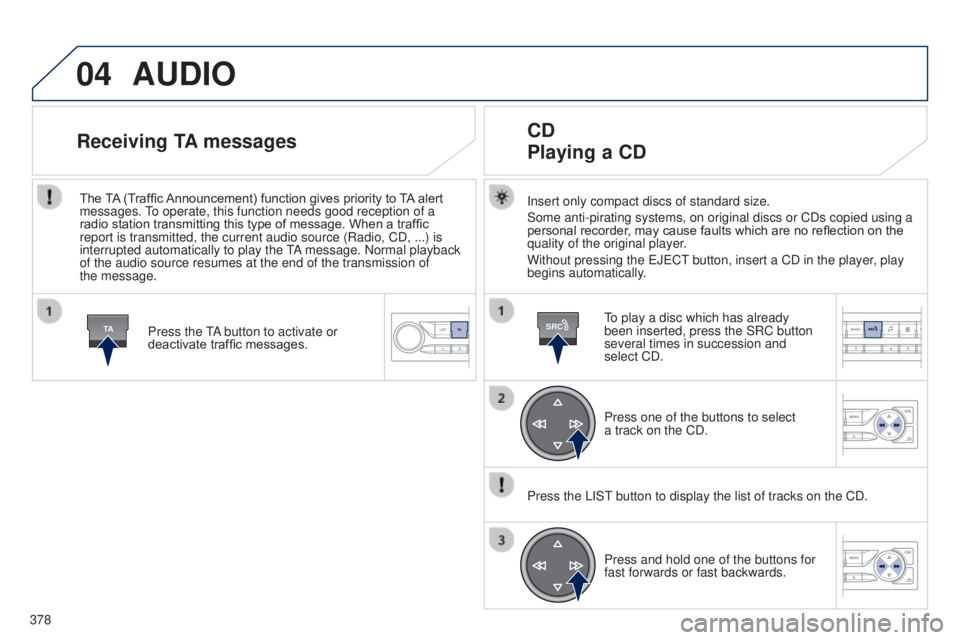
Insert only compact discs of standard size.
Some anti-pirating systems, on original discs or CDs copied using a
personal recorder, may cause faults which are no reflection on the
quality of the original player.
Without pressing the e J e C t
button, insert a CD in the player
, play
begins automatically.
CD
Playing a CD
to play a disc which has already
been inserted, press the SRC button
several times in succession and
select CD.
Press one of the buttons to select
a
track on the CD.
Press the LIS
t
button to display the list of tracks on the CD.
Press and hold one of the buttons for
fast forwards or fast backwards.
Receiving TA messages
Press the tA button to activate or
deactivate traffic messages.
The TA (Traffic Announcement) function gives priority to TA alert
messages.
to operate, this function needs good reception of a
radio station transmitting this type of message. When a traffic
report is transmitted, the current audio source (Radio, CD, ...) is
interrupted automatically to play the
tA
message. Normal playback
of the audio source resumes at the end of the transmission of
the
message.
Page 381 of 416
04
SRC
379
t
he MP3 format, an abbreviation of MP
eg
1.2 & 2.5 Audio Layer
3,
is an audio compression standard which permits the recording of
several tens of music files on a single disc.
In order to be able to play a recorded CDR or CDRW, when
recording, the ISO 9660 level 1.2 or Joliet file format is
recommended.
If the disc is recorded in another format, it may not be played
correctly.
It is recommended that the same recording format is always
used for an individual disc, with as low a speed as possible
(4x
maximum) for optimum sound quality.
In the particular case of a multi-session CD, the Joliet format is
recommended.
The audio system will only play files with the extension ".mp3" with
a sampling rate of 22.05 KHz or 44.1 KHz. No other type of file
(.wma, .mp4, .m3u...) can be played.
It is advisable to restrict file names to 20 characters without using
special characters (e.g. " ?
; ù) to avoid any playing or displaying
problems.
MP3 CD
Information and advice
AUDIO
empty CDs are not recognised and may damage the system.
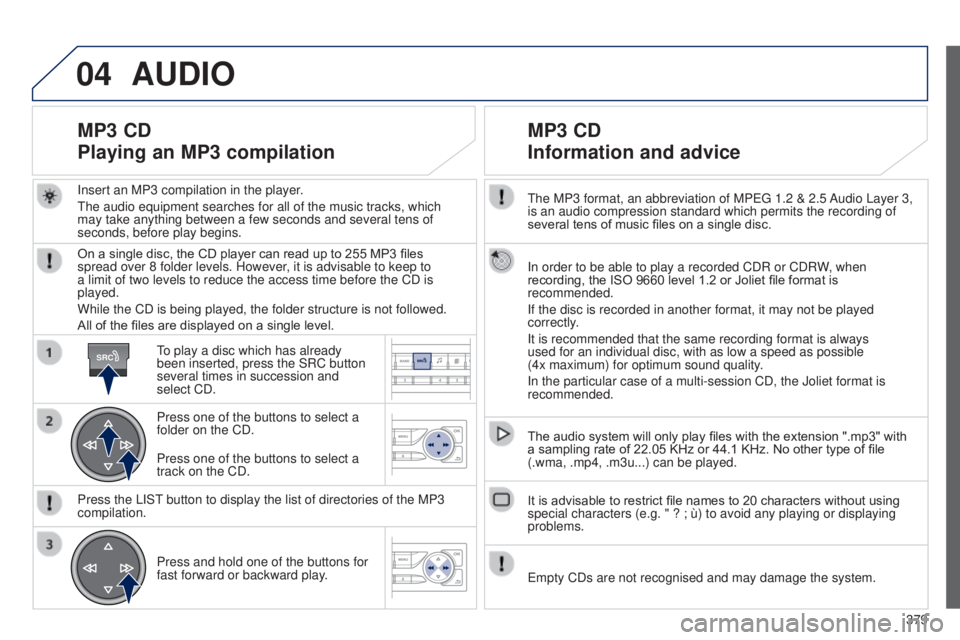
Insert an MP3 compilation in the player
.
t
he audio equipment searches for all of the music tracks, which
may take anything between a few seconds and several tens of
seconds, before play begins.
MP3 CD
Playing an MP3 compilation
On a single disc, the CD player can read up to 255 MP3 files
spread over 8 folder levels. However, it is advisable to keep to
a limit of two levels to reduce the access time before the CD is
played.
While the CD is being played, the folder structure is not followed.
All of the files are displayed on a single level.
to play a disc which has already
been inserted, press the SRC button
several times in succession and
select CD.
Press one of the buttons to select a
folder on the CD.
Press the LIS
t
button to display the list of directories of the MP3
compilation.
Press and hold one of the buttons for
fast forward or backward play
.
Press one of the buttons to select a
track on the CD.
Page 384 of 416

05
382
PEUGEOT CONNECT USB
the system puts together playlists (temporary memory) created
over a period which depends on the capacity of the u SB device.
t
he other sources are available during this time.
t
he playlists are updated each time the ignition is switched off or
each time a
u SB memory stick is connected.
When connecting for the first time, the classification suggested
is by folder. When you reconnect, the classification selected
previously is retained. Connect the memory stick to the port, directly or
using a lead. If the audio equipment is switched
on, the
u SB source is detected as soon as it
is connected. Play begins automatically after a
delay which depends on the capacity of the u SB
memory stick.
The file formats supported are .mp3 (mpeg1
layer 3 only) and .wma (standard 9 only,
128 kbits/sec compression).
Certain playlist formats are supported (.m3u, ...)
On reconnection of the previous memory stick
used, play is resumed automatically with the last
track played.
t
his unit consists of a
u
SB
port and an auxiliary Jack
socket*. The audio files are
transmitted from a portable
device - digital player or a
u
SB memory stick - to your
P
euge
O
t
Connect Sound
(RD5) and heard via the
vehicle's speakers.
u
SB memory stick or Apple
® player of generation 5 or later:
-
u
se only
u
SB memory sticks formatted FA
t
32 (File
Allocation
table),
-
the Apple® player lead is essential,
-
navigation through the file database is also possible by
means of the steering mounted controls.
Using the PEUGEOT CONNECT USB
Connecting a USB memory stick
Other Apple
® players of earlier generations and players using the
M
t
P protocol*:
-
play via Jack-Jack lead only (not supplied),
-
navigation through the file database is from the portable
device. * Depending on vehicle.
Page 385 of 416
05
LIST
LIST
383
Using the PEUGEOT CONNECT USB
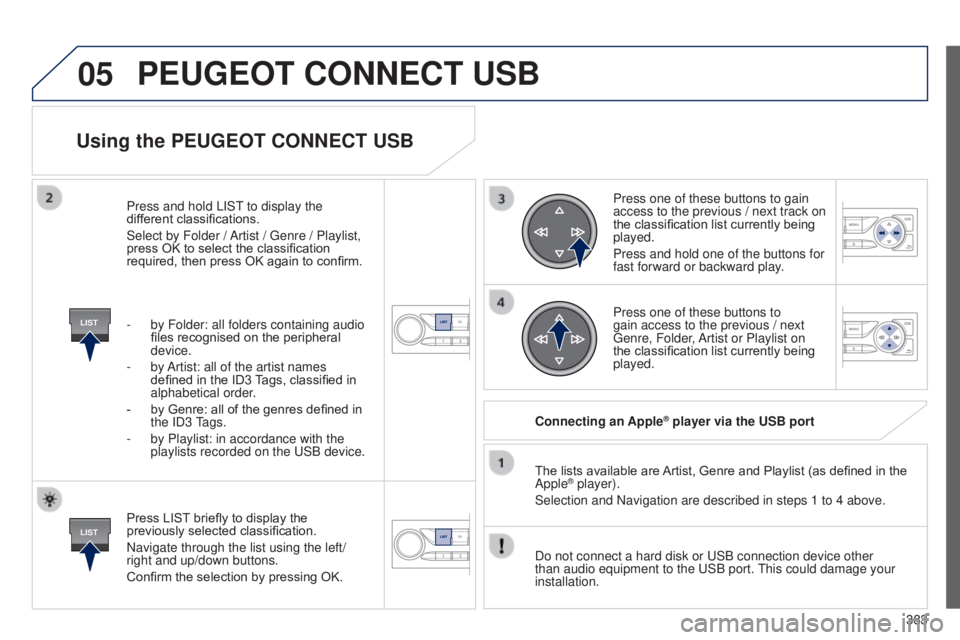
Press LIST briefly to display the
previously selected classification.
Navigate through the list using the left/
right and up/down buttons.
Confirm the selection by pressing OK.The lists available are Artist, Genre and Playlist (as defined in the
Apple
® player).
Selection and Navigation are described in steps 1 to 4 above.
Do not connect a hard disk or
u SB connection device other
than audio equipment to the
u SB port.
t
his could damage your
installation. Connecting an Apple
® player via the USB port
Press one of these buttons to gain
access to the previous / next track on
the classification list currently being
played.
Press and hold one of the buttons for
fast forward or backward play.
Press one of these buttons to
gain access to the previous / next
g
enre, Folder, Artist or Playlist on
the classification list currently being
played.
Press and hold LIS
t
to display the
dif
ferent classifications.
Select by Folder / Artist /
g
enre / Playlist,
press OK to select the classification
required, then press OK again to confirm.
-
by Folder: all folders containing audio
files recognised on the peripheral
device.
-
by
Artist: all of the artist names
defined in the ID3 Tags, classified in
alphabetical order.
-
by Genre: all of the genres defined in
the
ID3
tags.
-
by Playlist: in accordance with the
playlists recorded on the
u
SB device.
PEUGEOT CONNECT USB